
How to Print Progress Reports in PowerSchool
This guide shows you how to print progress reports in PowerSchool using the Individual Student Report in PowerTeacher Pro. You can create a concise report across several classes or a detailed report for a single course. You can then save the report as a PDF and print it with settings that save paper.
Video: PowerTeacher Pro Tutorials: Printing Progress Reports by Professordustin (2021). All credit for the demonstration goes to the creator; watch the original on YouTube. The written guide below was generated from this video by Docsie. Creator? Request a change or removal.
This guide shows you how to print progress reports in PowerSchool using the Individual Student Report in PowerTeacher Pro. You can create a concise report across several classes or a detailed report for a single course. You can then save the report as a PDF and print it with settings that save paper.
Prerequisites
Before you begin, make sure you have the following:
- Your teacher credentials and the address of your district's PowerSchool SIS portal.
- Confirmation from your principal that the office is not handling report printing. Some schools have specific procedures or require reports to be printed centrally.
- Adobe Acrobat Reader or another PDF application that supports advanced print options.
- Access to a printer.
Plan your report
Step 1. Decide how you want to print reports
You can print reports for individual classes. You can also generate a comprehensive report that shows each student's performance in all classes. Your choice determines which options you select in the steps below.
Create a concise progress report
Step 2. Log in and open PowerTeacher Pro
Open your web browser and go to your district's PowerSchool SIS portal. Log in with your teacher credentials.
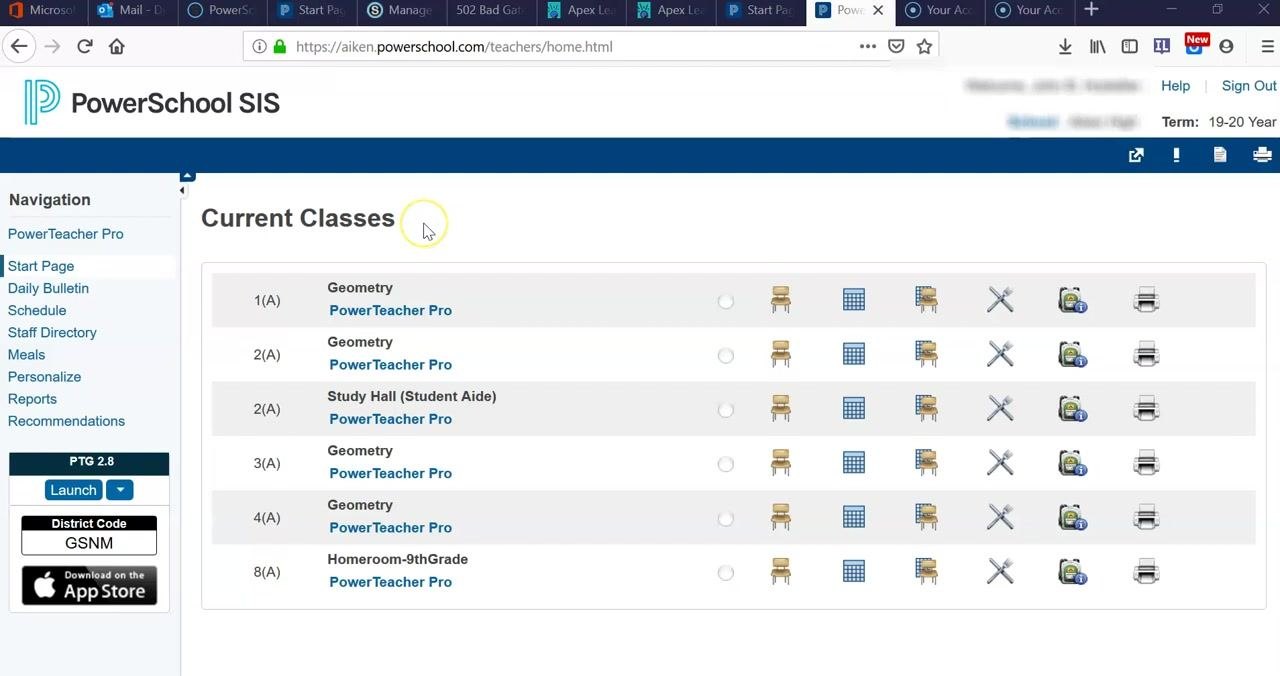
On the main dashboard, review your list of current classes. Each class appears with its name, period, and a link to PowerTeacher Pro. Click the PowerTeacher Pro link next to the class you want to work with.
Step 3. Open the Individual Student Report
In PowerTeacher Pro, find the left sidebar (the charms menu). Click Reports, and then select Individual Student Report from the available report options.
Step 4. Choose the report title, description, and classes
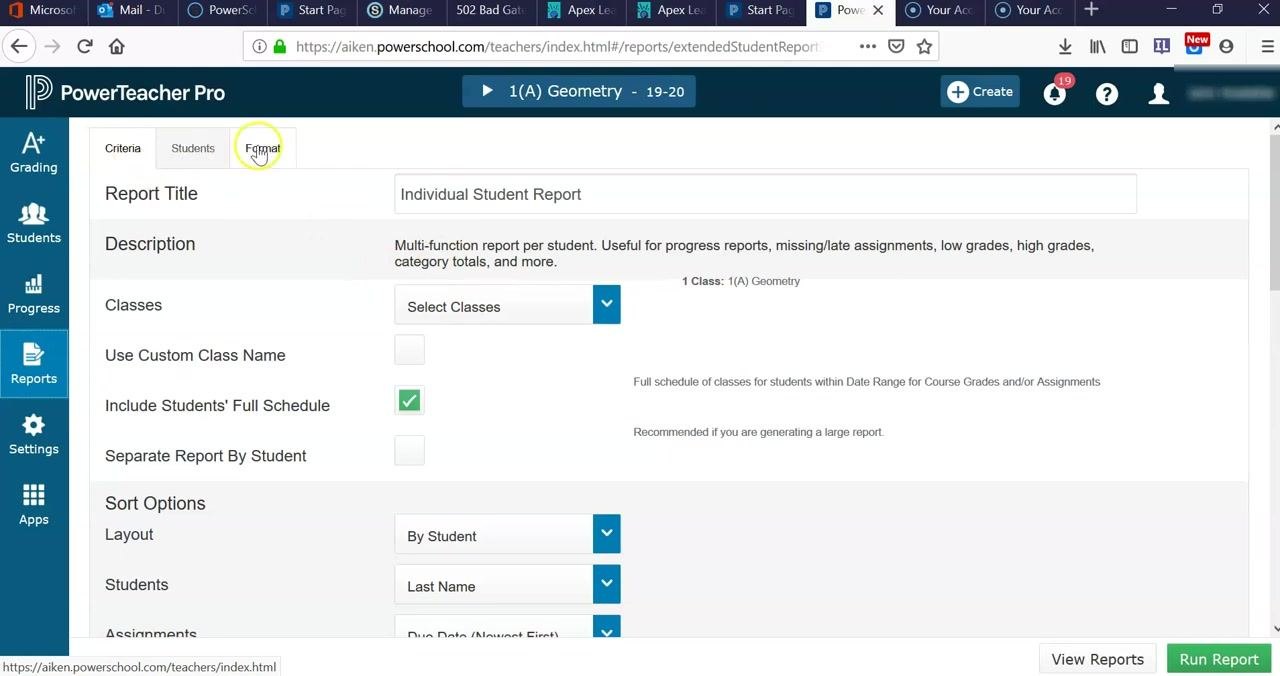
On the Individual Student Report screen, review the following settings:
- Report Title: This defaults to "Individual Student Report".
- Description: Read it to confirm the report meets your needs, such as progress, missing or late assignments, or grades.
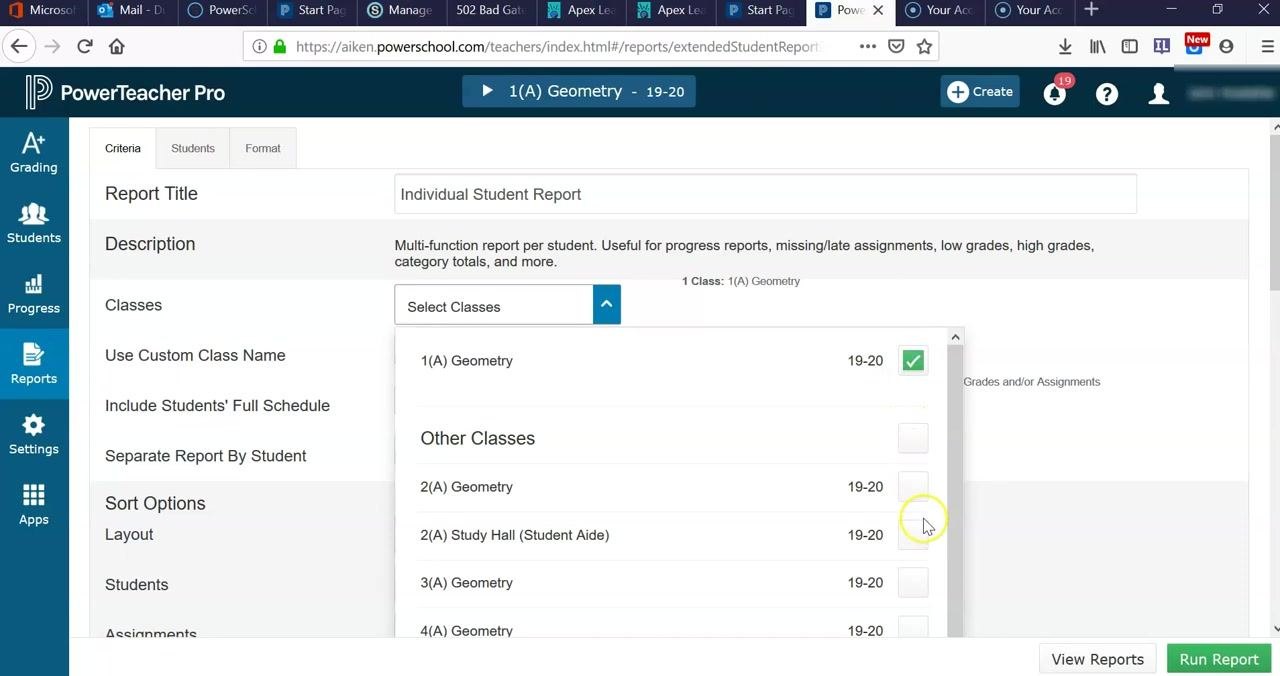
- Classes: Click Select Classes to choose which classes to include.
- Include Students' Full Schedule: Check this box if you want the report to show each student's full schedule.
- Separate Report By Student: Leave this box unchecked unless you want a separate report for each student.
You can select one class or several. For example, select "1(A) Geometry" for a single class and add more as needed. If you select all classes, the report may be too large to print, so adjust your selection accordingly.
Step 5. Configure the sort options
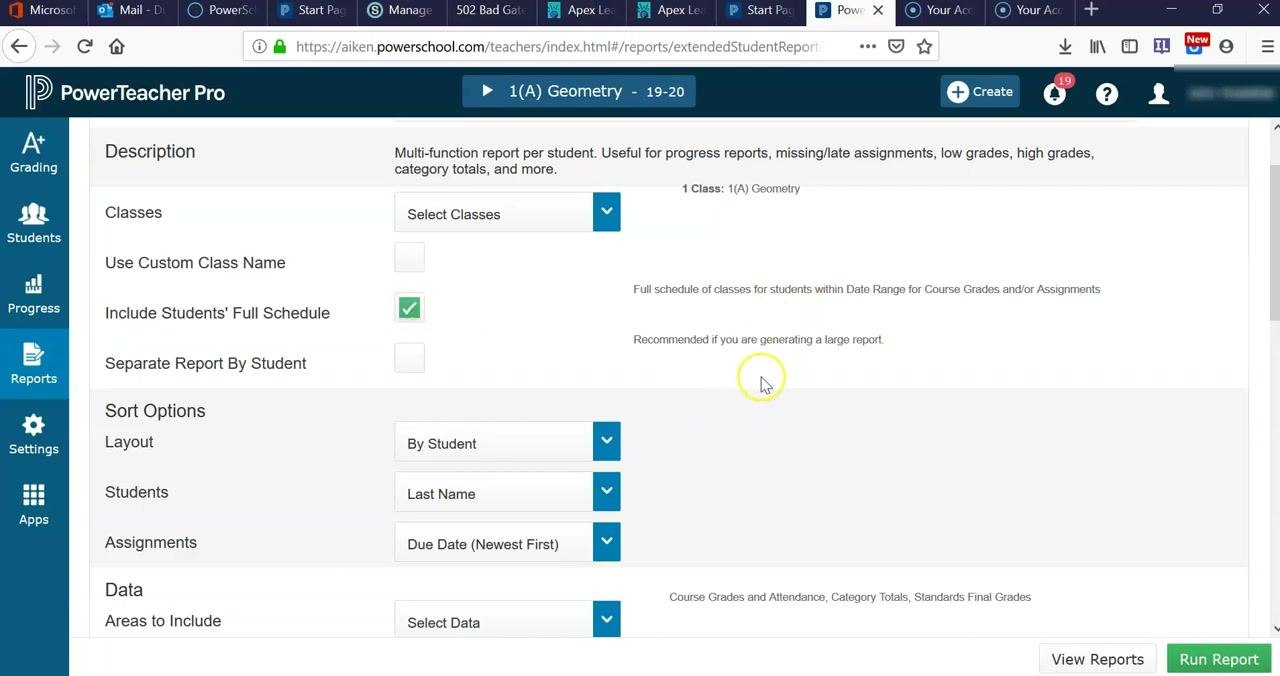
Under Sort Options, set your preferences:
- Layout: Choose "By Student".
- Students: Sort by "Last Name".
- Assignments: Sort by "Due Date (Newest First)".
Step 6. Set the reporting date range
In the Date Range section, select the reporting term for your report. By default, the system selects the current quarter, such as Q1.
If you are generating reports for a different term or later in the year, click the dropdown and select the term you need, such as Q2, S1, Y1, or E1. You can also choose which category totals to display by adjusting the Category Totals reporting term.
Step 7. Exclude assignments to keep the report short
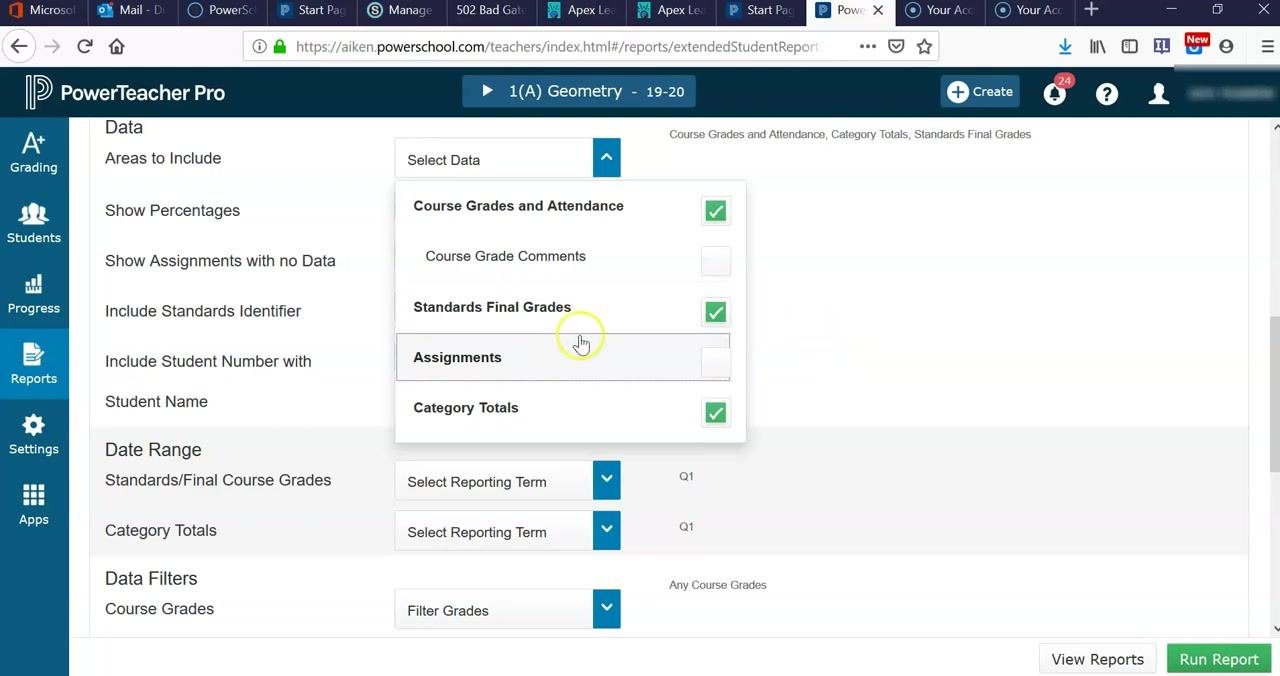
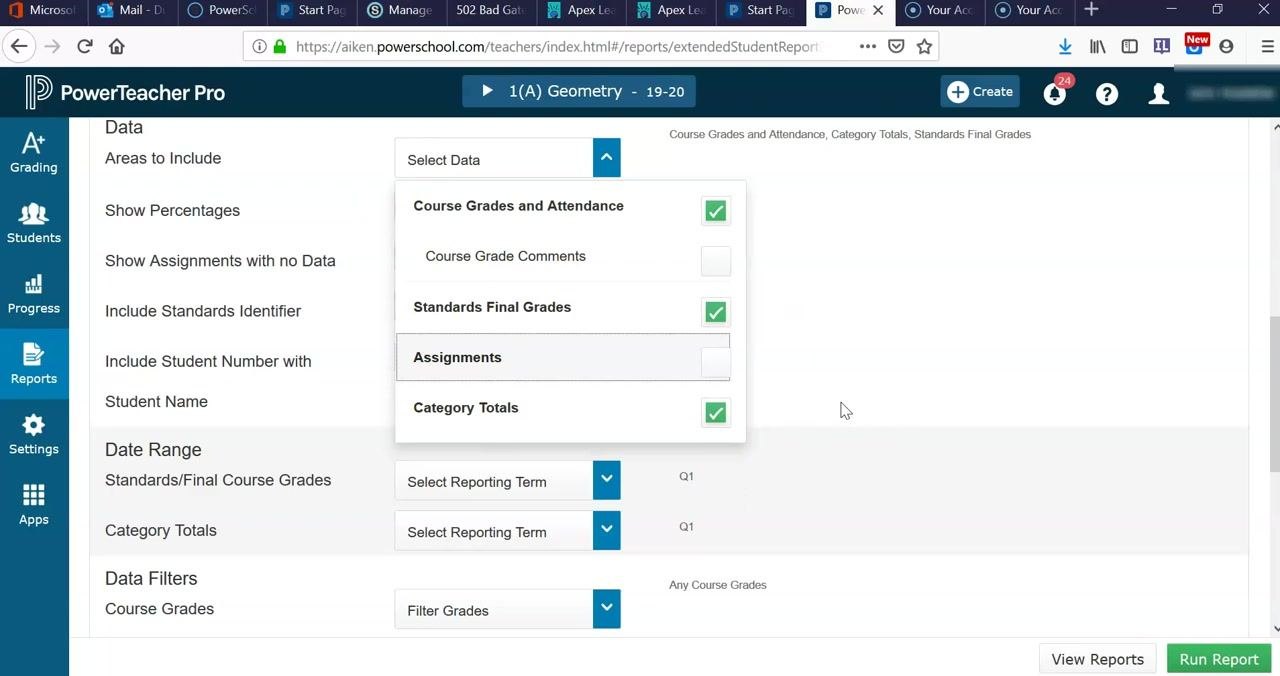
In the Select Data dropdown, find the Assignments option and uncheck it. This prevents the report from listing every assignment for each student.
If you leave Assignments checked, the report runs 7–8 pages per student. That is overwhelming and impractical to print. Excluding assignments is especially important for reports that show student performance across all courses.
Step 8. Run the report
Review your selections to confirm that only the data you need is included and the date range is correct. Then click the green Run Report button in the bottom right.
Comprehensive reports can take a significant amount of time, especially when many students or classes are included. Run large reports at the beginning of the day or several days before you need to print them.
Step 9. Open the Report Queue
When the report is ready, click the Report Queue icon in the top right. It is a bell icon with a number badge. The Report Queue lists all generated reports with their status and timestamps.
Step 10. Review the concise report
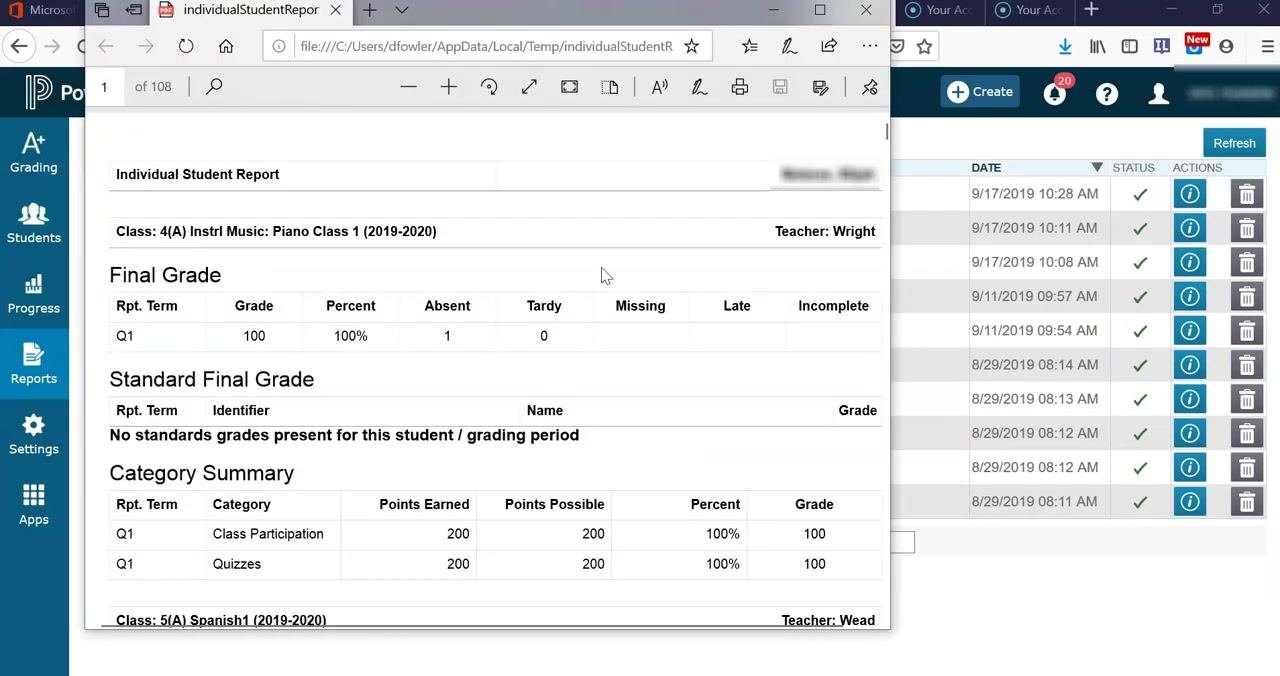
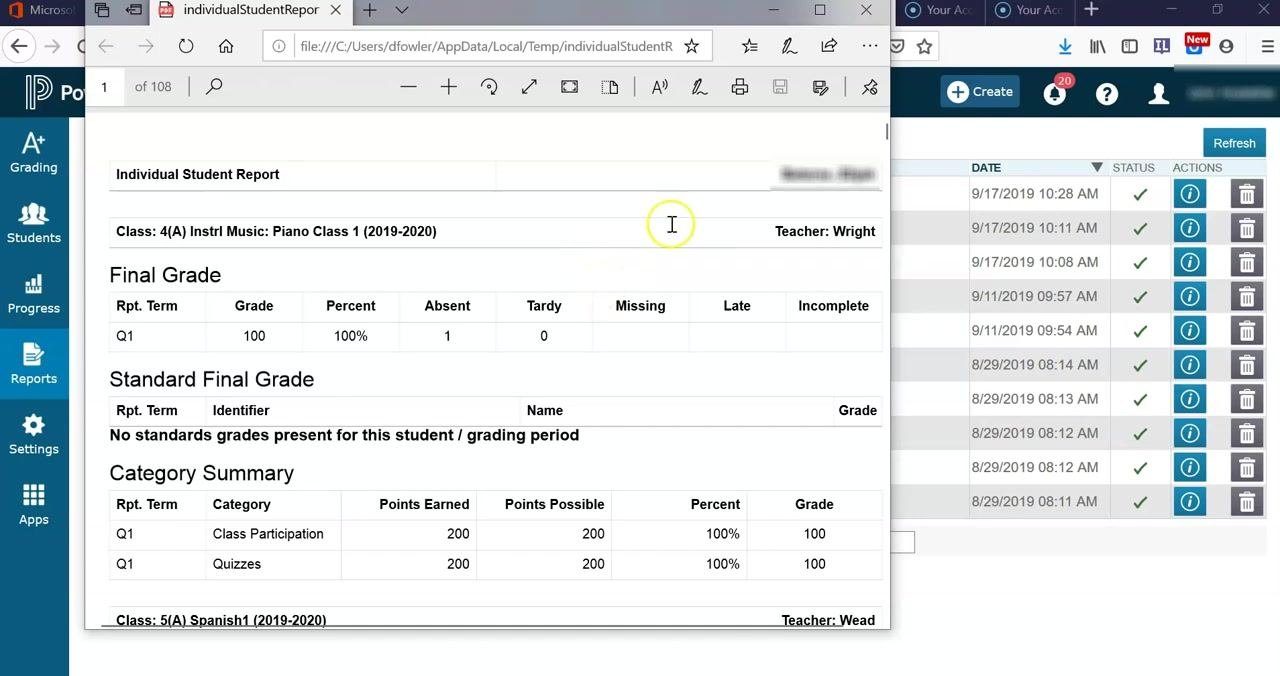
Open the generated report from the Report Queue. For each student, the report shows:
- The student's name at the top of the report.
- Class information, such as "4(A) Instrl Music: Piano Class 1 (2019-2020)".
- The teacher's name.
- The final grade for the selected term, such as Q1: Grade 100, Percent 100%.
- Attendance details: Absent, Tardy, Missing, Late, and Incomplete.
- The Standards Final Grade, if applicable.
- A Category Summary, such as Class Participation and Quizzes, with points earned, points possible, percent, and grade.
Even with assignments excluded, the report may still run several pages per student if you include multiple classes.
Create a detailed progress report for a single course
Step 11. Limit the report to your own course
To print a progress report for only your course, and not the student's full schedule, open the Individual Student Report setup screen in PowerTeacher Pro. Uncheck the Include Students' Full Schedule box. The report then shows data only for your selected class.
Step 12. Choose the areas to include
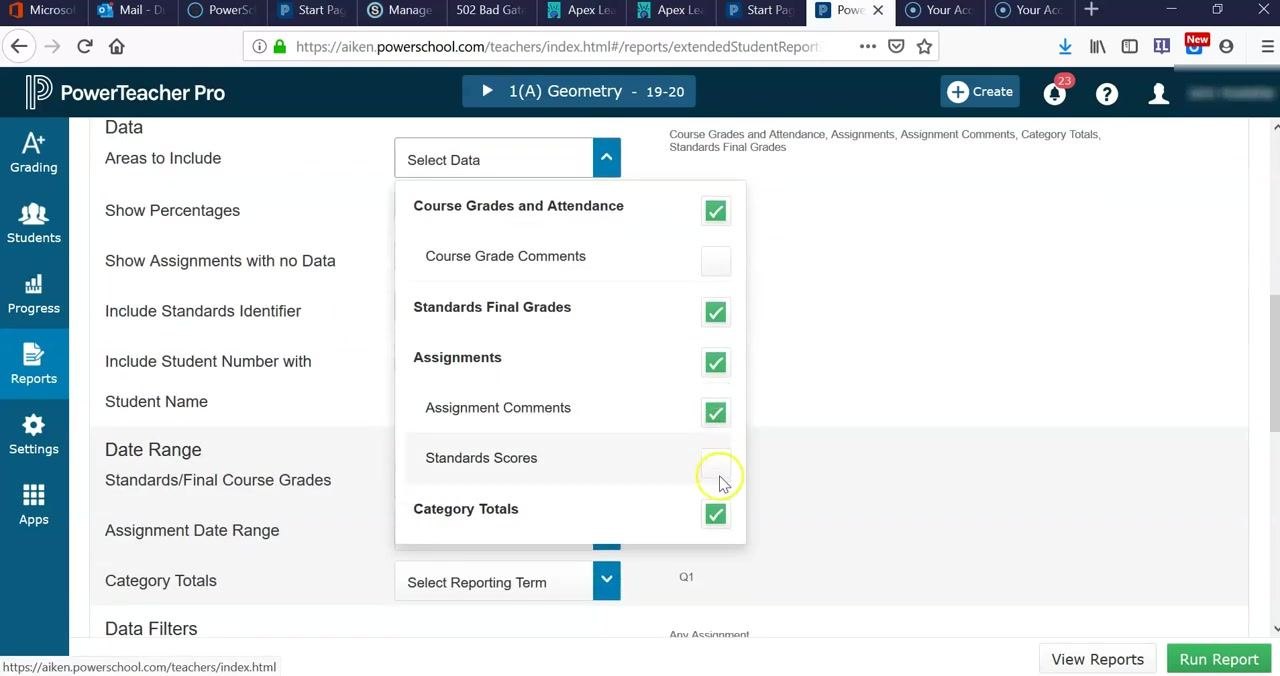
Scroll down to the Areas to Include section. Select Assignments and any other data categories you want, so the report contains detailed assignment information for your course.
You can check or uncheck these options according to your reporting needs:
- Course Grades and Attendance
- Standards Final Grades
- Assignments
- Assignment Comments
- Standards Scores
- Category Totals
Check all of them if you want a comprehensive report.
Step 13. Leave Separate Report By Student unchecked
Scroll down to the Criteria section and make sure the Separate Report By Student box is not checked. If you check it, the system saves the reports as a ZIP folder containing a separate file for each student.
Leave this box unchecked for easier access and printing. Check it only if you specifically need individual files for each student.
Step 14. Run the detailed report
Review the remaining report criteria and options to confirm they match your needs. Scroll down and click the Run Report button in the lower right corner.
Step 15. Open and review the detailed report
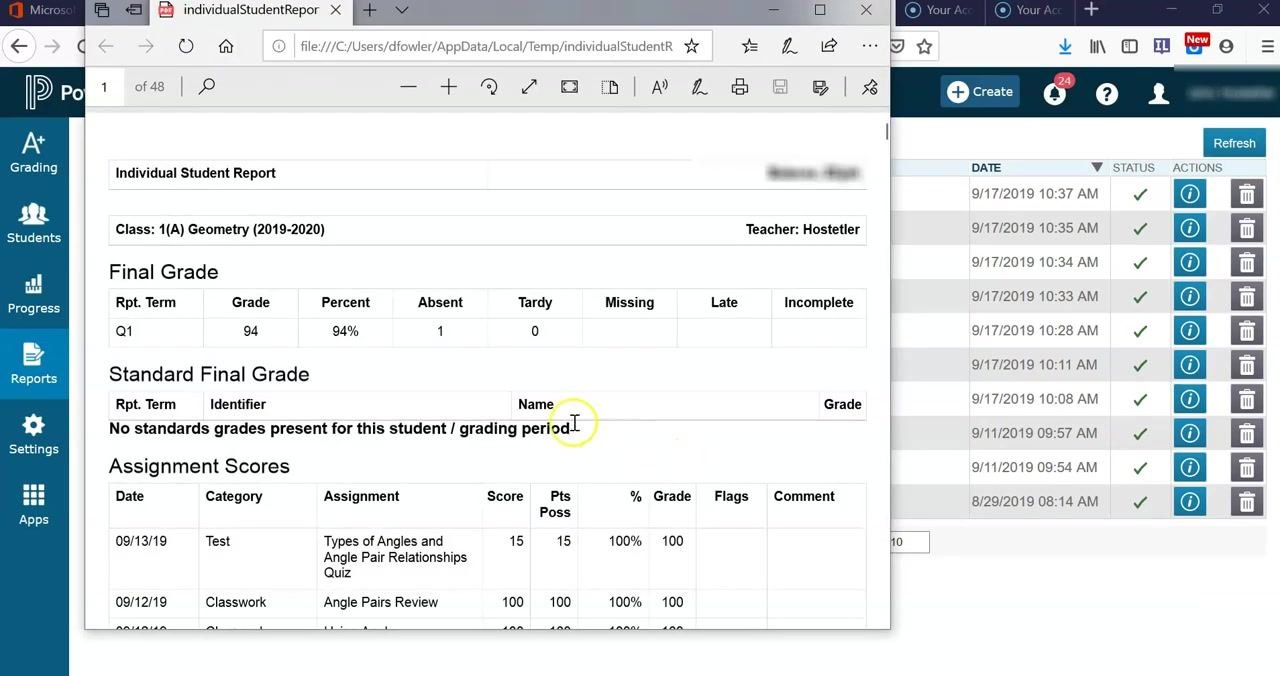
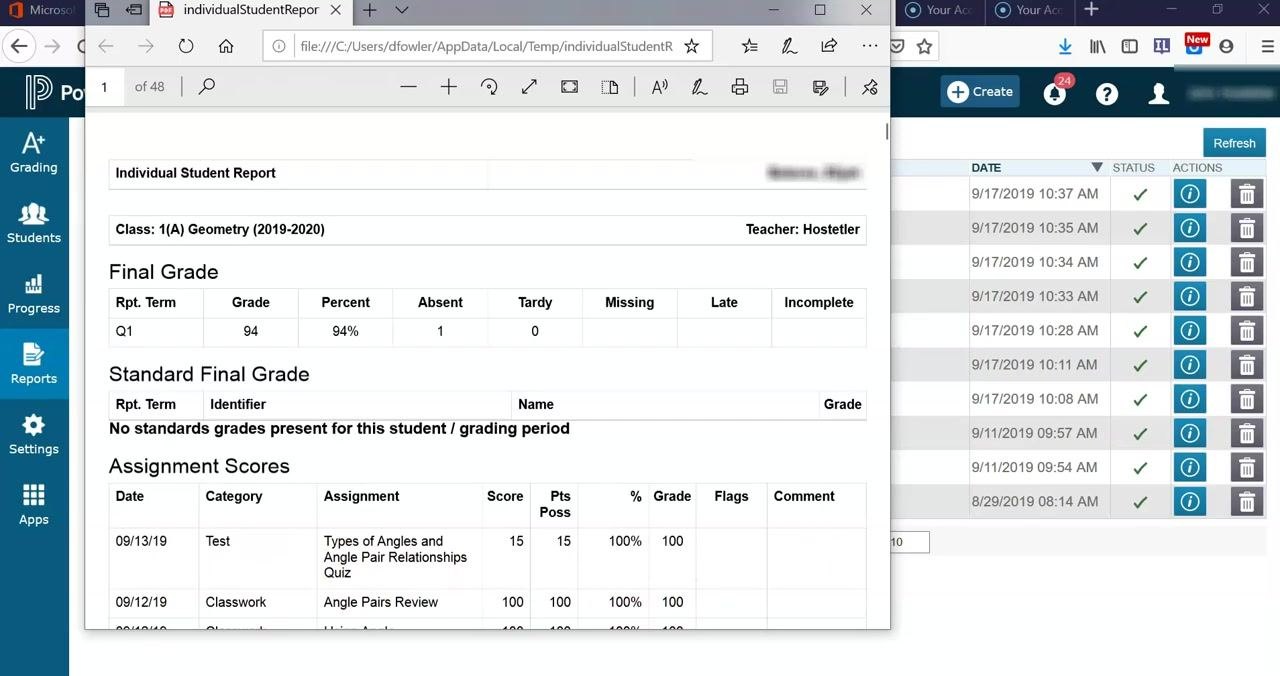
Open the Report Queue, find your report in the list, and open it. The report gives an overall view of student performance, including final grades, attendance, and assignment details. It also shows individual assignment scores, categories, comments, and other relevant data for each student.
Confirm that the report includes all the data you selected and is formatted as you expect.
Save and print the report
Step 16. Save the report to your computer
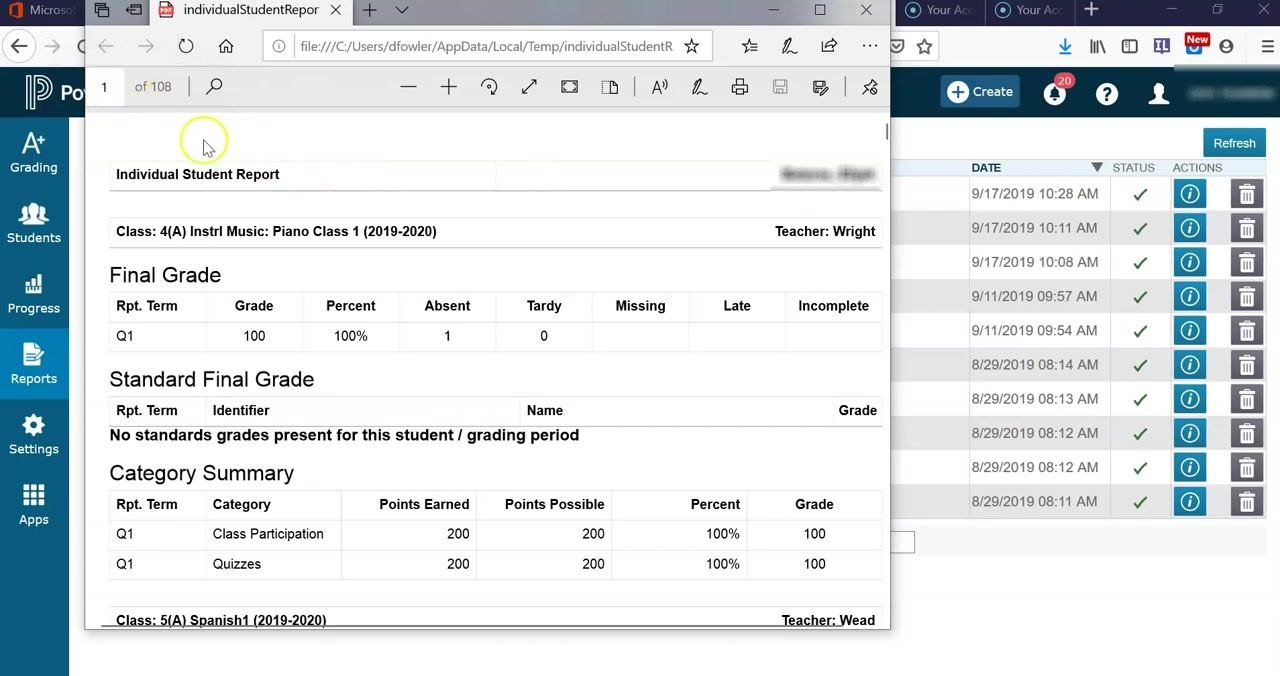
Review the generated report to find the total number of pages per student. This is especially useful at the elementary level, where report length may vary. For high school schedules, expect multiple pages if all classes are included.
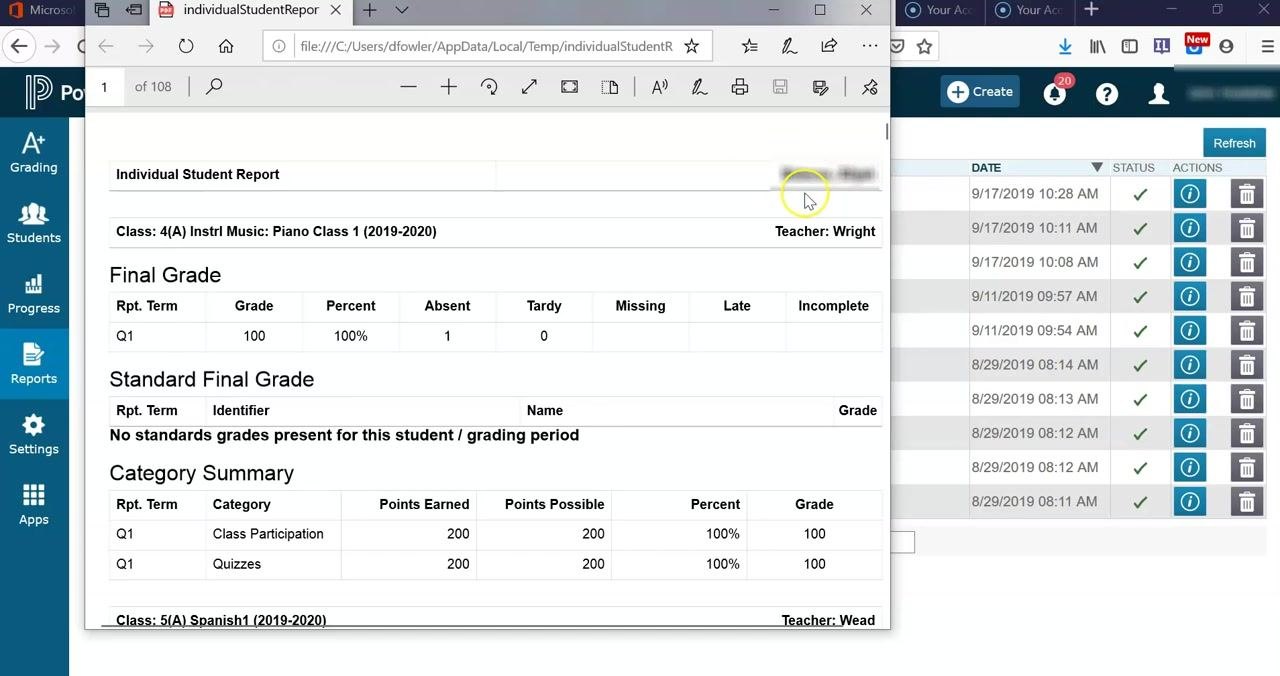
Click the Save icon in your PDF viewer. Choose a location such as your Desktop or another folder, and confirm that the file saved successfully.
Step 17. Print multiple pages per sheet
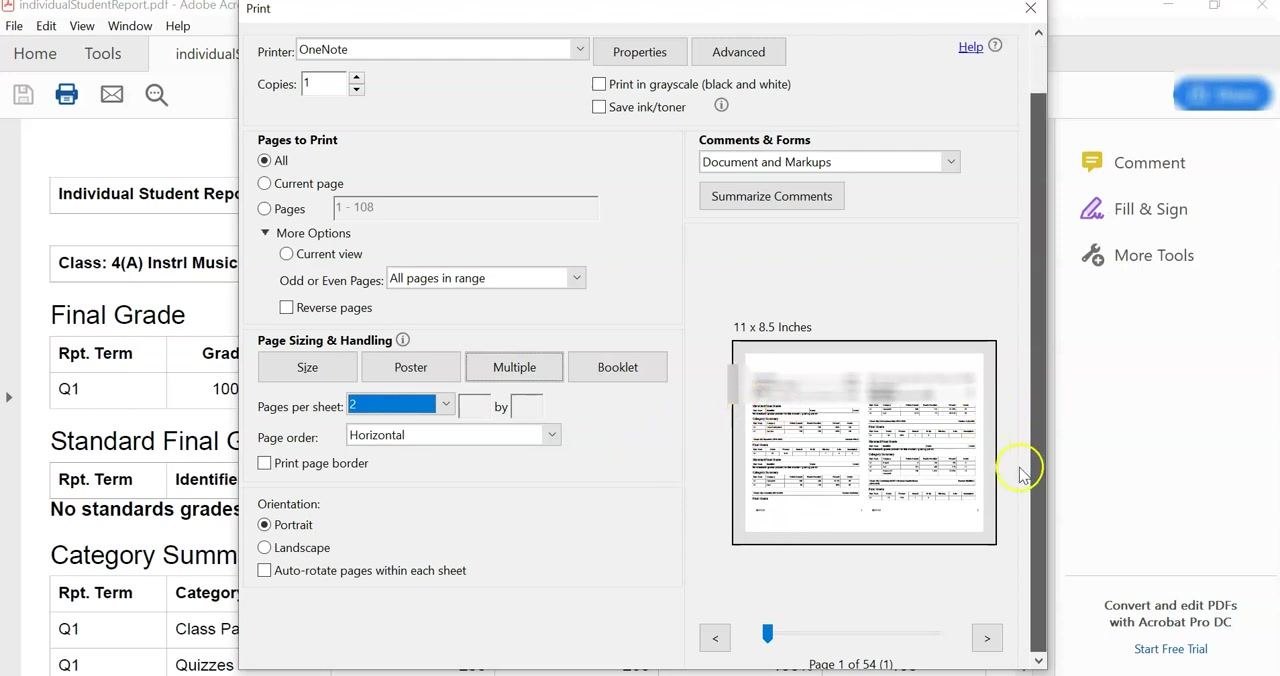
Open the saved report in Adobe Acrobat Reader, or in another PDF application that supports advanced print options. Click the Print icon to open the print dialog and select your printer from the Printer dropdown menu.
Under Page Sizing & Handling, click the Multiple button, and then set Pages per sheet. For maximum paper savings, select 4 (a 2 by 2 grid), which prints four report pages on each sheet. The text becomes quite small and may be difficult to read.
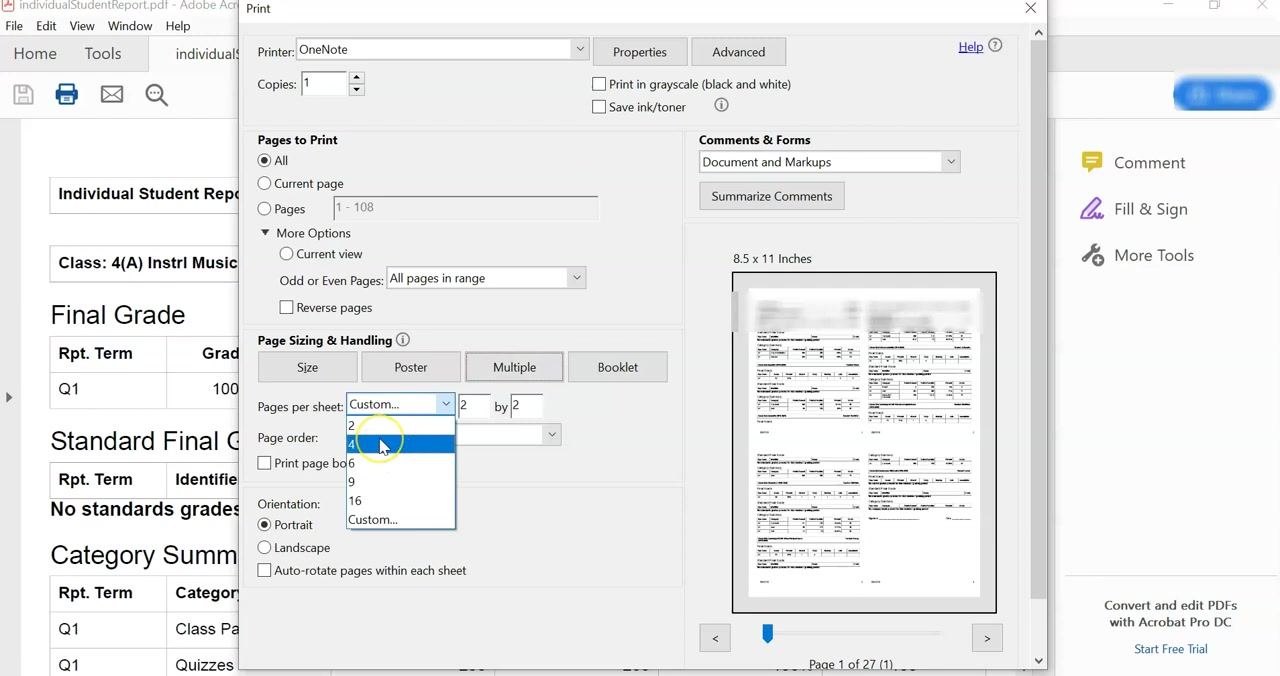
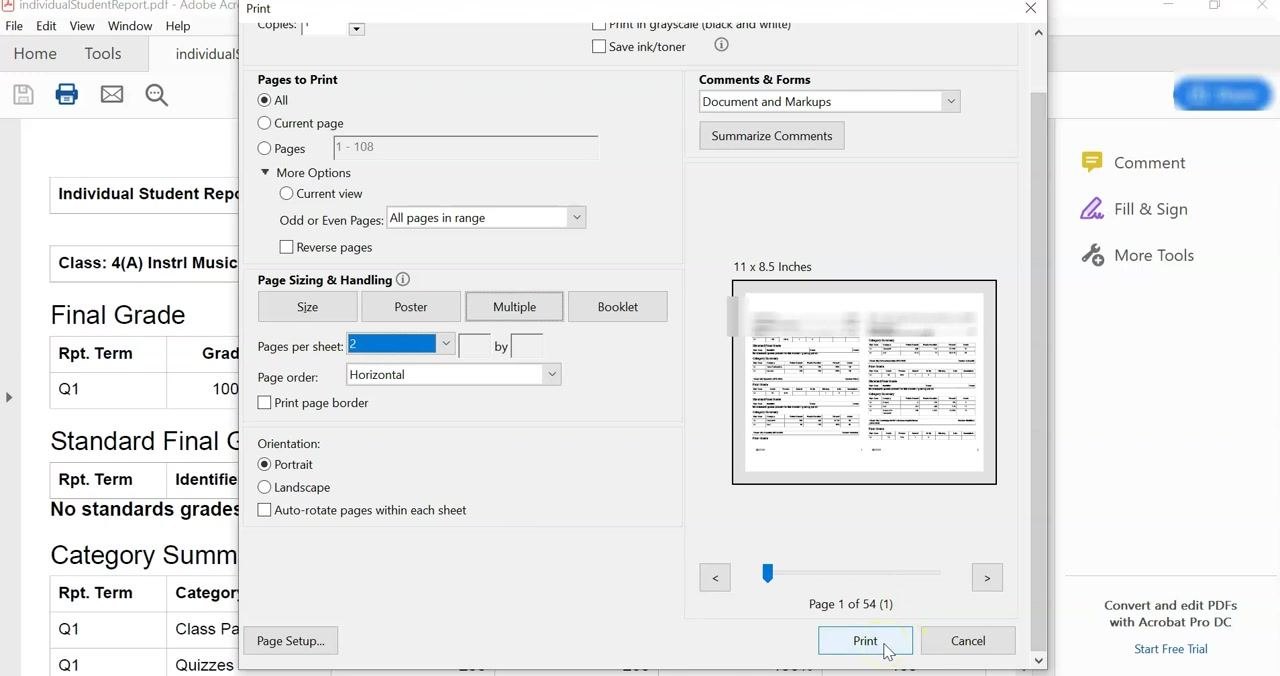
For better readability, select 2 pages per sheet (horizontal layout). This balances paper savings with legibility. If your printer supports duplex (front and back) printing, enable it to reduce paper use further. Alternatively, print single-sided and staple two sheets together for each student.
Click the Print button to begin printing. After printing, separate the reports for each student and staple them as needed.
Summary
You now know how to print progress reports in PowerSchool using PowerTeacher Pro. You can generate a concise report across classes or a detailed report for a single course. You can then save the PDF and print it with paper-saving settings. Adjust the data selections, date range, and print settings to fit your reporting period and your school's requirements.
Generation details: cost, quality tiers
Docsie billed 3,000 credits ($2.10) to analyze this 6-minute video at standard quality. The rewrite, template fill and Word/PDF exports were included. The same video at each quality tier:
| Quality | Frames sampled | Credits | Approx. cost |
|---|---|---|---|
| Draft | every 16-30 s | 1,500 | $1.05 |
| Standard (this guide) | every 8-15 s | 3,000 | $2.10 |
| Detailed | every 4-7 s | 6,000 | $4.20 |
| Ultra | every 1-3 s | 12,000 | $8.40 |
Credits priced at $0.70 per 1,000; plans include a monthly allowance. Enterprise customers on on-premise or bring-your-own-model deployments run this on their own inference and pay no per-video credits.
Generated by Docsie Video-to-Docs on 2026-11-01 from a 5-minute video. Screenshots are frames from the source video and belong to their creator, Professordustin, whose original is embedded above. If you own this video and want the guide removed or credited differently, contact us and we will act within one business day.