
How to Set Up a Gradebook in PowerSchool
This guide shows you how to set up a gradebook in PowerSchool PowerTeacher Pro. You create grading categories, configure how marking period grades are calculated, copy those calculations to other classes and terms, and assign the correct category when you create assignments. Following these steps helps your grading structure match your department and supervisor requirements.
Video: PowerSchool Gradebook Setup by Dare to Awesome (2021). All credit for the demonstration goes to the creator; watch the original on YouTube. The written guide below was generated from this video by Docsie. Creator? Request a change or removal.
This guide shows you how to set up a gradebook in PowerSchool PowerTeacher Pro. You create grading categories, configure how marking period grades are calculated, copy those calculations to other classes and terms, and assign the correct category when you create assignments. Following these steps helps your grading structure match your department and supervisor requirements.
Prerequisites
Before you begin, make sure you:
- Are logged into PowerTeacher Pro.
- Know which class you want to set up (for example, "1(A) 9th Grade Seminar - S1").
Set up grading categories
Open your class
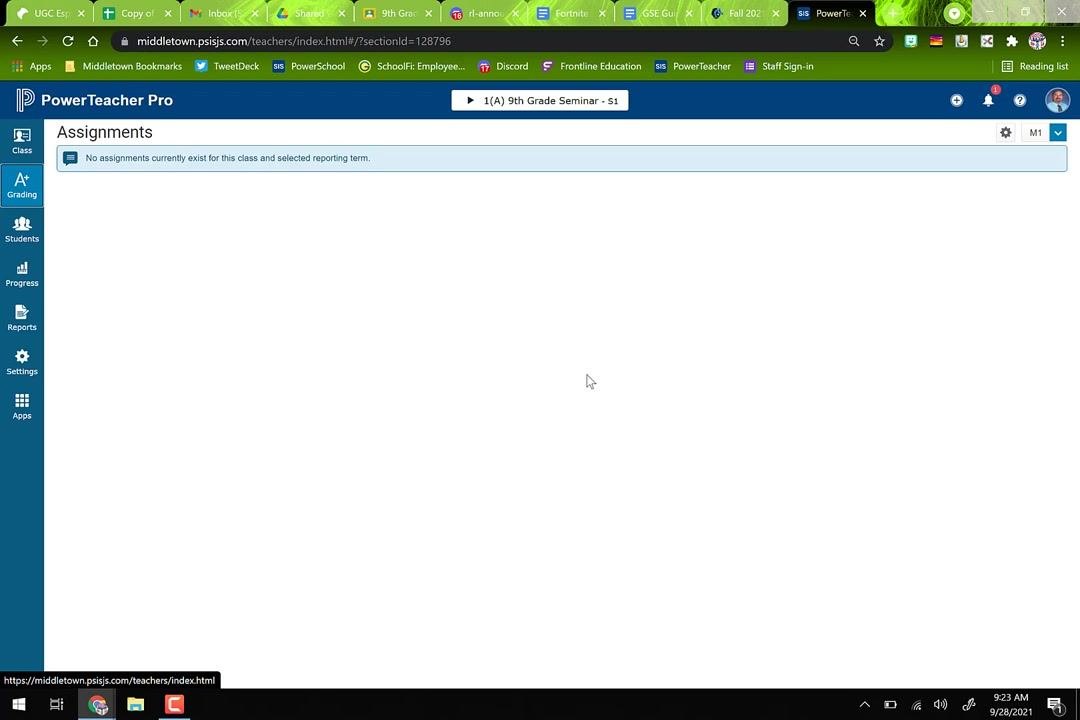
Select the class you want to set up. Confirm that you are on the Assignments page. If the class has no assignments for the current reporting term, the page displays a message saying so.
Open the Categories page
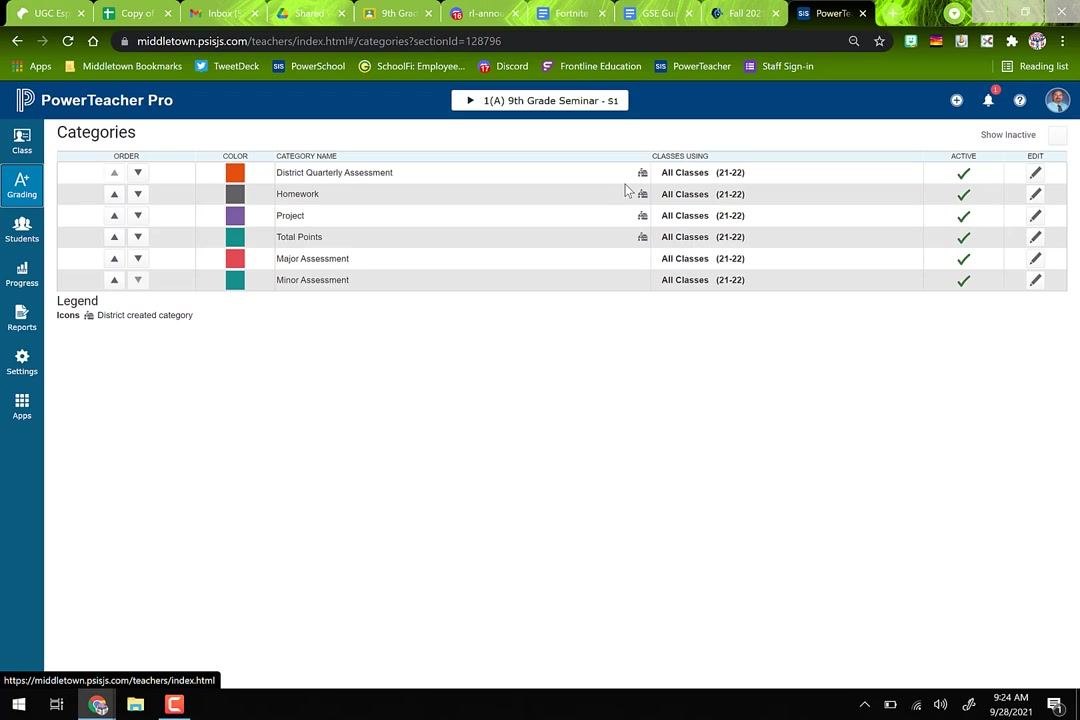
On the left sidebar, click the A+ Grading icon to expand the grading options. Then click Categories to view the existing grading categories.
Review existing categories
Examine the list of categories. A small schoolhouse icon marks categories created by your district. Typical categories include:
- District Quarterly Assessment
- Homework
- Project
- Total Points
- Major Assessment
- Minor Assessment
Note which categories are active and which classes use them.
Start a new category
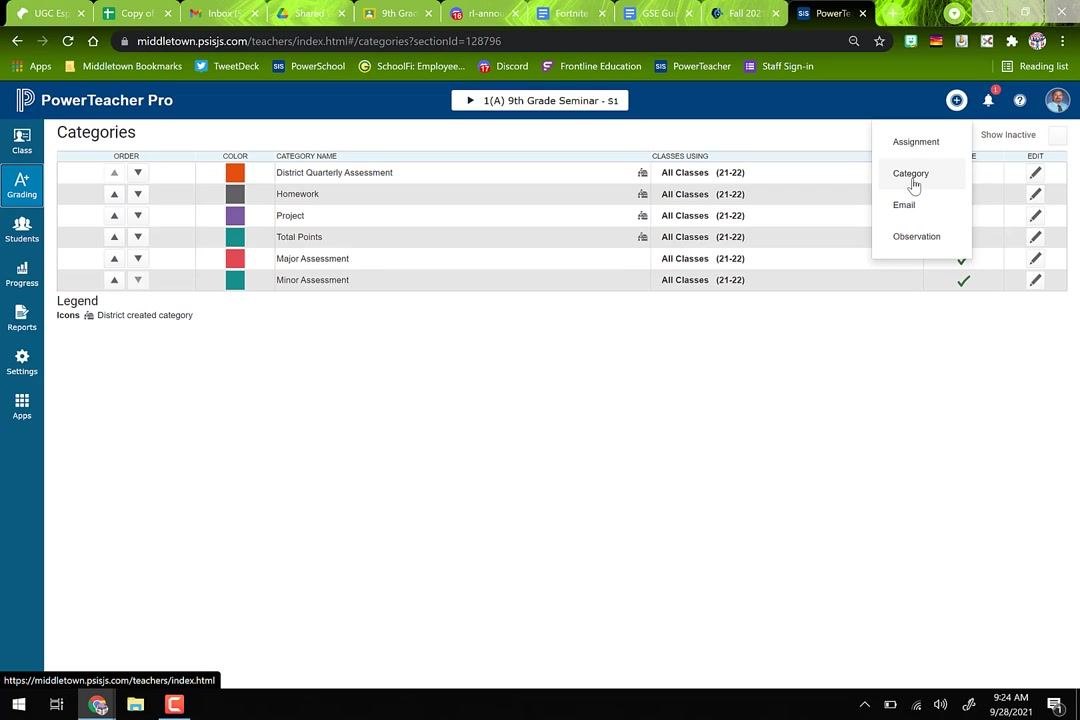
If you need a new category, such as one for major or minor assessments or a custom category, click the plus sign (+) in the upper right corner of the Categories page. Then select Category from the dropdown menu.
Configure the new category
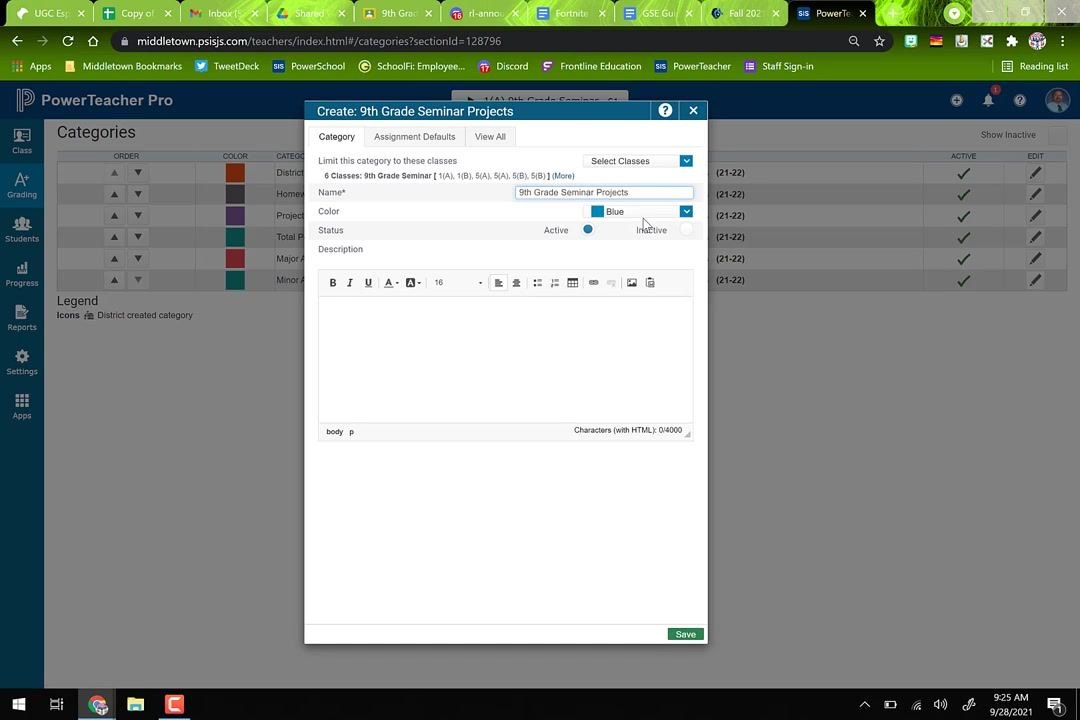
In the Create Category dialog, complete the following:
- Select the classes the category applies to. For example, check only your 9th Grade Seminar classes and leave Innovation and Design classes unchecked.
- Enter a category name, such as "9th Grade Seminar Projects."
- Choose a color, such as Blue.
- Make sure the status is set to Active.
- Optionally, add a description.
Save the category
Click Save at the bottom right of the dialog to create the category.
Set up traditional grade calculations
Understand how assignments and categories relate
Assignments are linked to categories, but not every category is necessarily used in your marking period grade calculations. Assignments can pull from any category. However, only categories included in your grade calculation setup affect marking period grades.
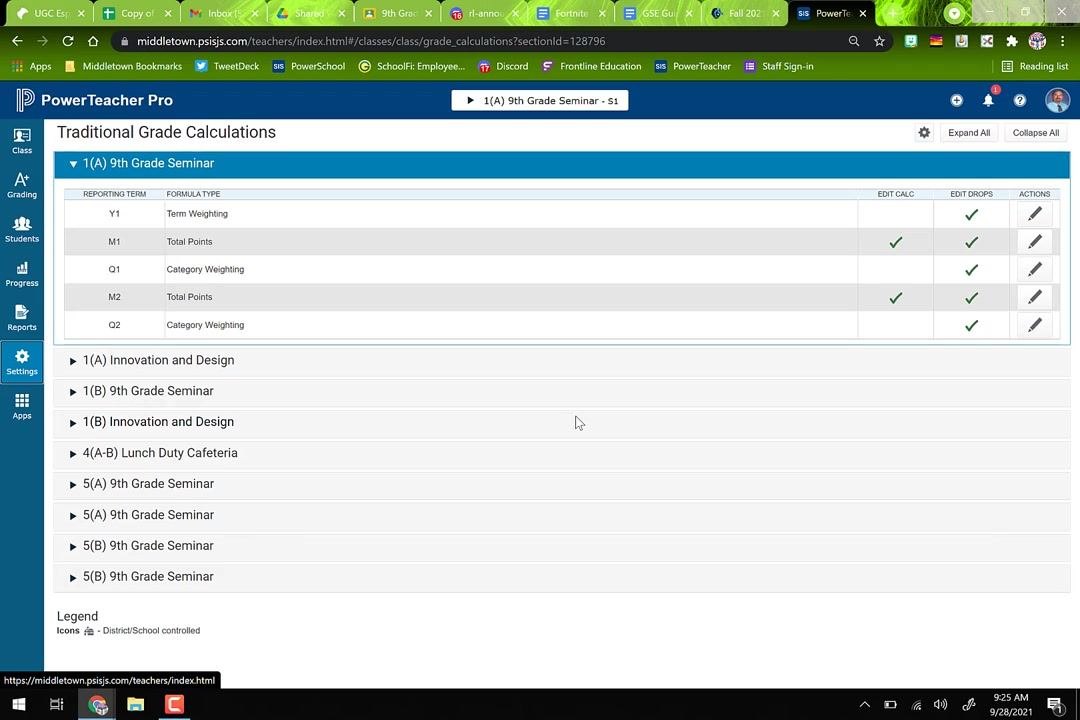
Open Traditional Grade Calculations
On the left sidebar, click the Settings icon (gear symbol). Then select Traditional Grade Calculations from the settings menu.
Review reporting terms and calculation types
On the Traditional Grade Calculations screen, locate your class (for example, "1(A) 9th Grade Seminar"). Review the reporting terms (such as Y1, M1, Q1, M2, and Q2) and their formula types (such as Term Weighting, Total Points, and Category Weighting).
"Q" terms are quarterly grades. The district typically sets "Y1," so you may not be able to edit it.
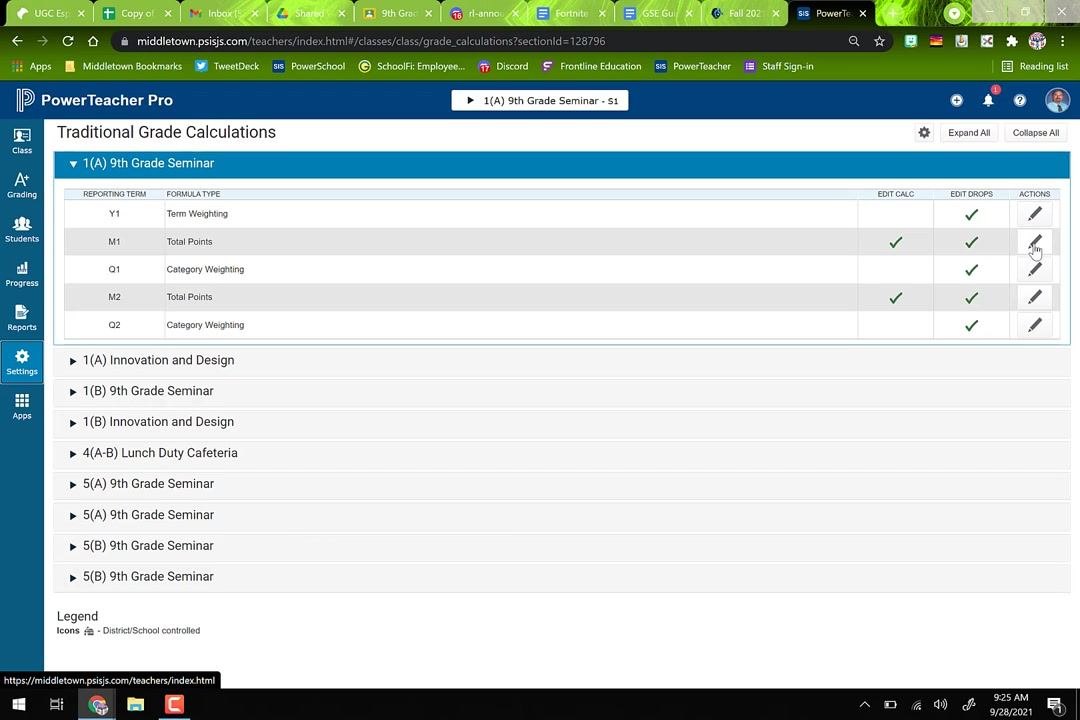
Edit a marking period calculation
Identify the marking period you want to edit, such as Q1 or Q2 for quarterly grades. Click the pencil icon in the Actions column for that term.
Choose a calculation method
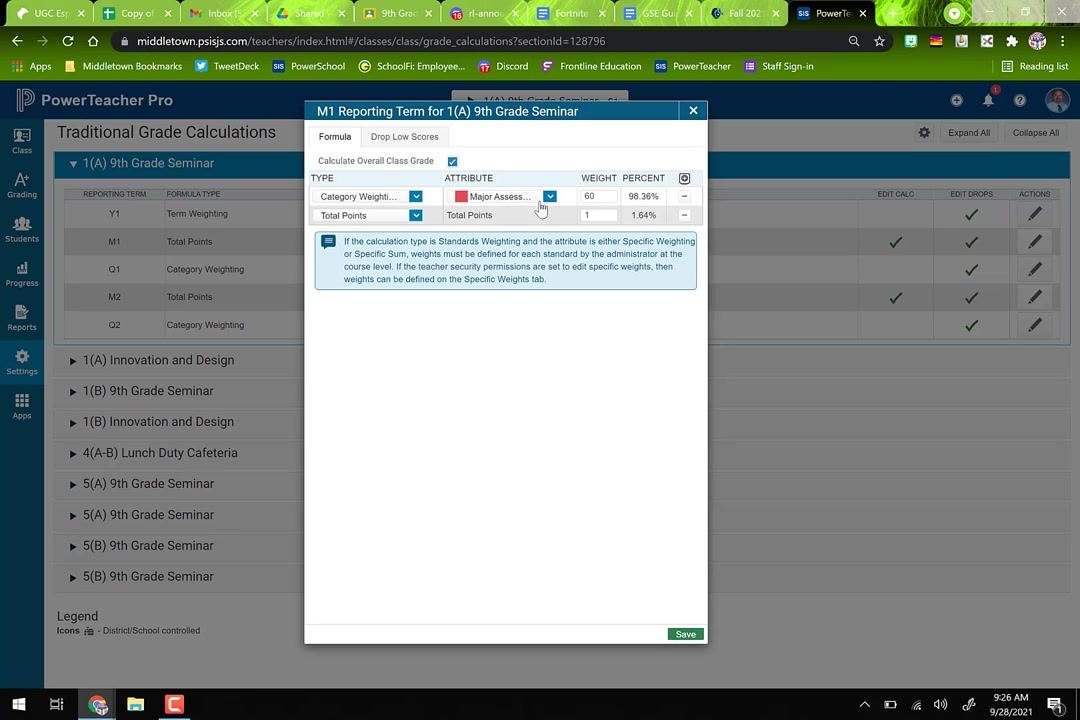
In the pop-up dialog, review the current calculation method. You can use either of these methods:
- Total Points: All assignments are summed, and categories are optional for organization.
- Category Weighting: You assign specific percentages to categories (for example, Homework = 10% and Major Assessments = 60%).
If you use Total Points, make sure the type is set accordingly and the weight is 100%.
Set up category weighting
To use category weighting, change the calculation type to Category Weighting. Then add each category:
- Click the plus sign (+) to add a category.
- Select the category from the dropdown (for example, Major Assessment).
- Enter its weight (for example, Major Assessment = 60%).
- Repeat for additional categories, such as Homework = 10% and Minor Assessment = 30%.
Adjust weights to total 100%
Make sure the weights of all categories add up to 100%. Adjust them as necessary.
Save the calculation settings
When all categories and weights are set, click Save at the bottom right of the dialog to apply your grading calculation setup.
Copy grade calculations to other terms and classes
Copying saves you from repeating the setup for each class or term.
Open the copy tool
Click the gear icon at the top right of the Traditional Grade Calculations screen. Select Copy Traditional Grade Calculations from the dropdown menu.
Copy calculations within a class
In the Copy Traditional Grade Calculations dialog, make sure the Within A Class tab is selected. Then make these selections:
- Under From Class, select the class you just configured (for example, 1(A) 9th Grade Seminar S1).
- Under Reporting Term, select the term you want to copy from (for example, M1 (Category Weighting)).
- Under To Class, select the same class.
- Under Reporting Term, select the term or terms you want to copy to (for example, M2 (Total Points)).
Click Validate to check the setup.
Confirm the copy
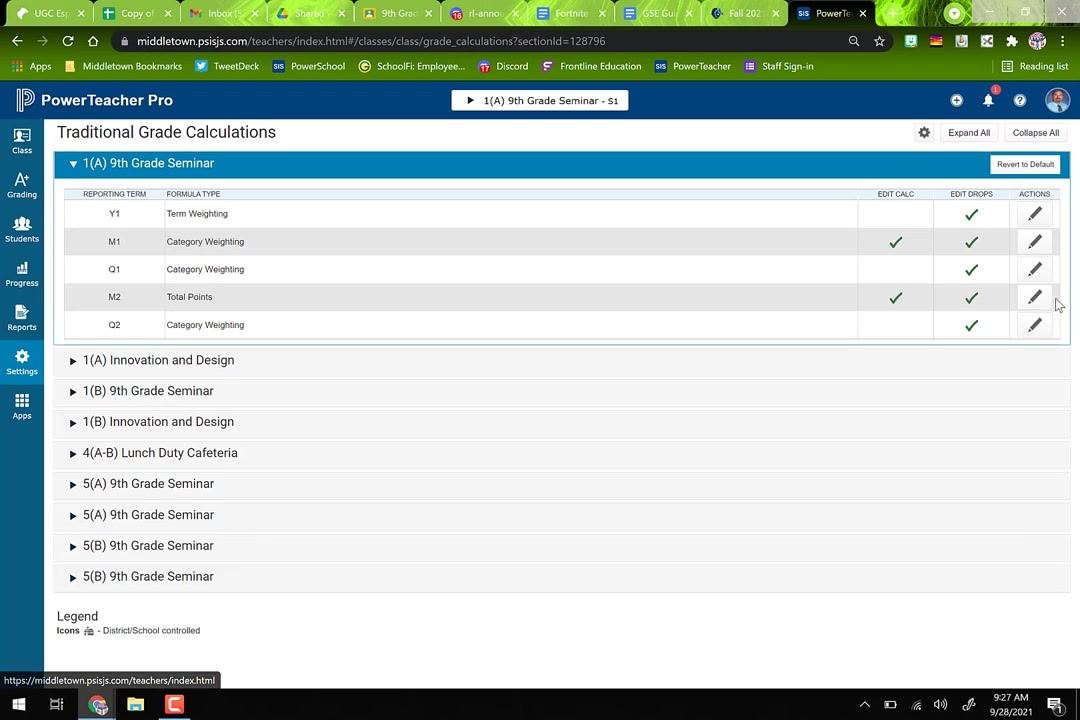
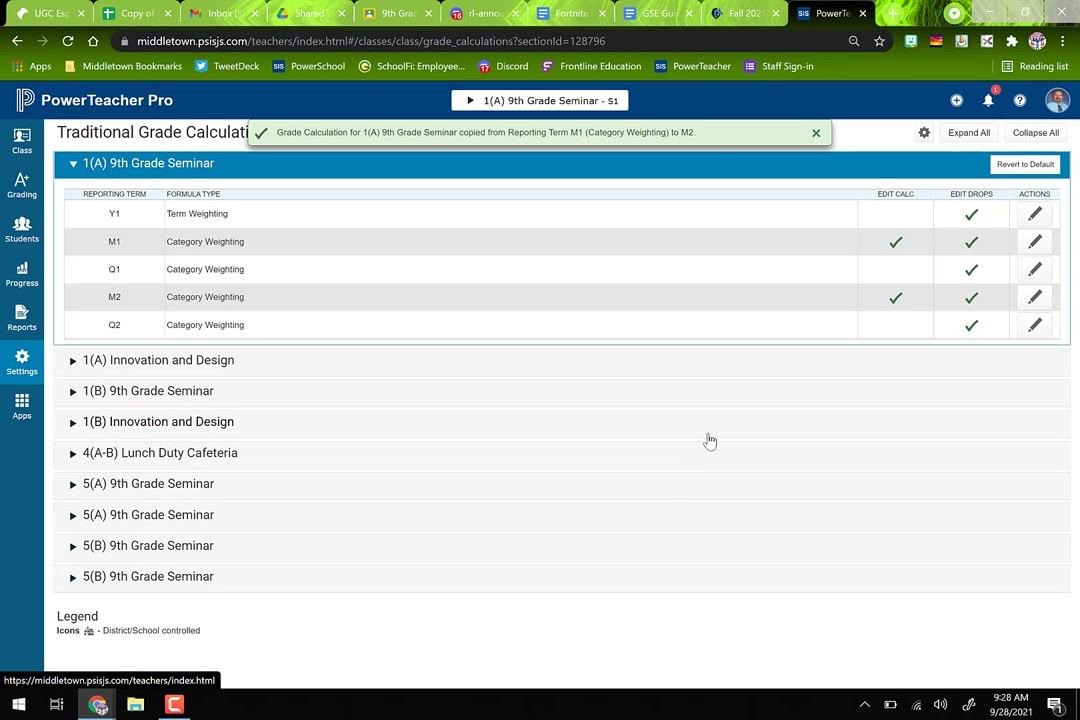
After the copy, a confirmation banner appears indicating the grade calculation was copied to the selected term. Verify that the calculation type and weights now appear in the destination term (for example, M2).
Select classes to copy to
You can also copy grade calculation settings from one class to multiple others. In the Copy Traditional Grade Calculations dialog, the From Class section is set to "2021-2022 (1(A) 9th Grade Seminar S1)."
In the To Class section, check the classes you want to apply the settings to. For example, select "1(B) 9th Grade Seminar S1," "5(A) 9th Grade Seminar S1," "5(A) 9th Grade Seminar S2," and "5(B) 9th Grade Seminar S2." Then click Validate.
Review the validation summary
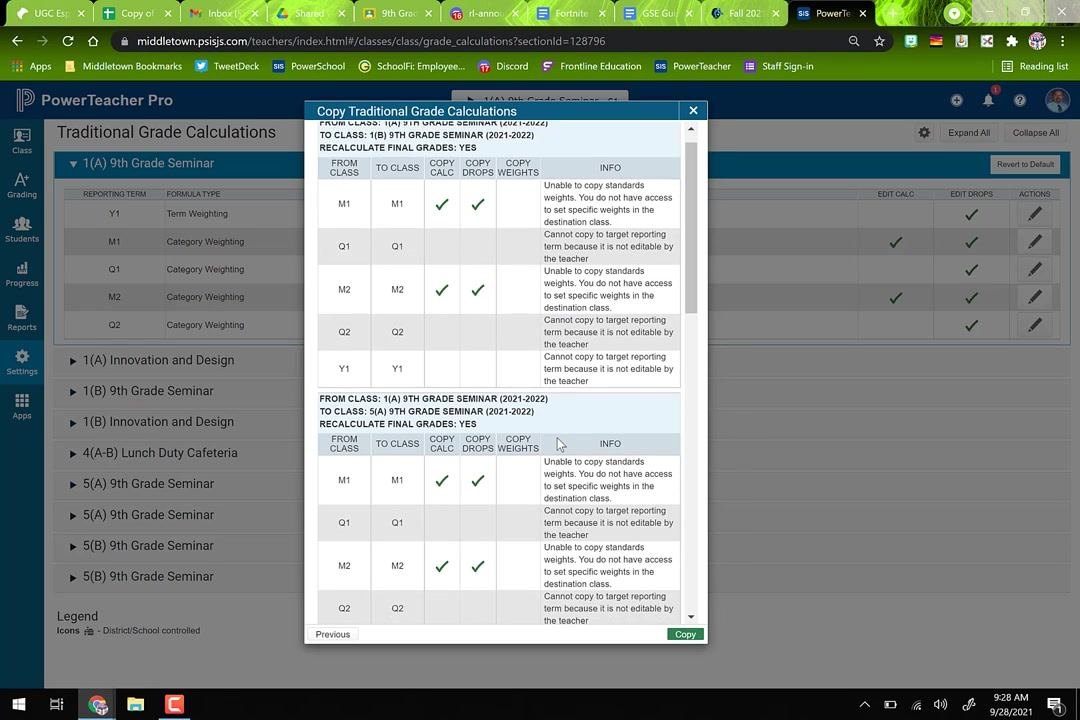
The summary table lists each class and term and shows which settings (calculation, drops, and weights) will be copied. Review it as follows:
- Green check marks (✓) indicate settings that will copy successfully.
- Blanks indicate settings that cannot be copied.
- The INFO column explains restrictions, such as "Unable to copy standards weights" or "Cannot copy to target reporting term because it is not editable by the teacher."
- Make sure there are no X's or error indicators.
Complete the copy
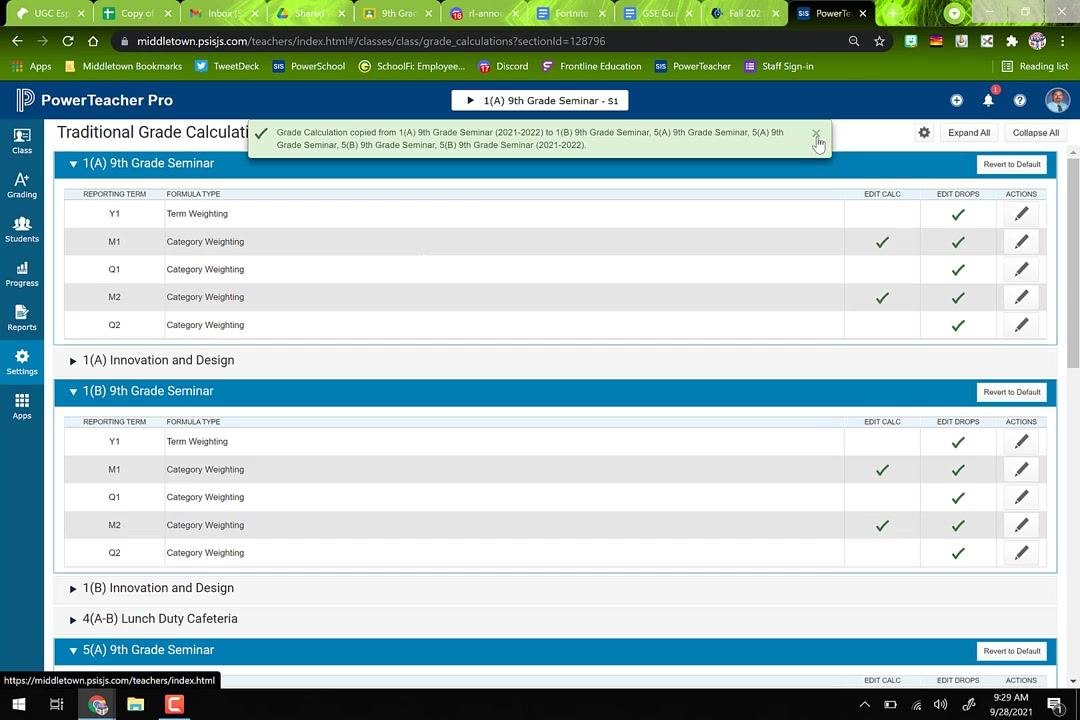
Click Copy at the bottom of the validation summary dialog. Wait for the confirmation message indicating the grade calculations were copied successfully. The banner lists every class the settings were applied to.
Verify the settings in each class
Check each class (for example, 1(A), 1(B), 5(A), and 5(B) 9th Grade Seminar). Each one should display the correct formula types and check marks under EDIT CALC and EDIT DROPS.
Create assignments with the correct category
Select Major Assessment or Minor Assessment
When you create a new assignment, choose the correct category. In the Create Assignment dialog, enter the assignment name. Then click the Category dropdown and select either Major Assessment or Minor Assessment.
Only assignments in these categories are included in the marking period grade calculation.
Avoid other categories for graded work
Don't select any other category for assignments that should count toward the marking period grade. An assignment in a category other than Major Assessment or Minor Assessment is not included in the calculation. This can cause grades to be calculated incorrectly.
Summary
You now know how to set up a gradebook in PowerSchool PowerTeacher Pro. You created and customized categories, configured marking period grade calculations with total points or weighted categories, and copied those settings across terms and classes. You also learned to choose the right category for each assignment. Together, these steps align your gradebook with your grading policy and school requirements.
Generation details: cost, quality tiers
Docsie billed 3,500 credits ($2.45) to analyze this 7-minute video at standard quality. The rewrite, template fill and Word/PDF exports were included. The same video at each quality tier:
| Quality | Frames sampled | Credits | Approx. cost |
|---|---|---|---|
| Draft | every 16-30 s | 1,750 | $1.22 |
| Standard (this guide) | every 8-15 s | 3,500 | $2.45 |
| Detailed | every 4-7 s | 7,000 | $4.90 |
| Ultra | every 1-3 s | 14,000 | $9.80 |
Credits priced at $0.70 per 1,000; plans include a monthly allowance. Enterprise customers on on-premise or bring-your-own-model deployments run this on their own inference and pay no per-video credits.
Generated by Docsie Video-to-Docs on 2026-11-01 from a 6-minute video. Screenshots are frames from the source video and belong to their creator, Dare to Awesome, whose original is embedded above. If you own this video and want the guide removed or credited differently, contact us and we will act within one business day.