
How to Set Code Status in PointClickCare
This guide shows you how to set code status in PointClickCare for a resident. You will find the resident's current code status, add a DNR order through the Orders module, and verify the update. You will also learn how to edit or discontinue a code status order and confirm that it has been removed.
Video: How to Change a Residents Code Status in PointClickCare 2026 by Charting Made Easy (2026). All credit for the demonstration goes to the creator; watch the original on YouTube. The written guide below was generated from this video by Docsie. Creator? Request a change or removal.
This guide shows you how to set code status in PointClickCare for a resident. You will find the resident's current code status, add a DNR order through the Orders module, and verify the update. You will also learn how to edit or discontinue a code status order and confirm that it has been removed.
Prerequisites
Before you begin, make sure you have:
- Access to PointClickCare and the ability to log in.
- The name of the resident whose code status you are documenting.
- The name of the physician who gave the order and how it was communicated (for example, Phone or Verbal).
Find a resident's current code status
Log in to PointClickCare
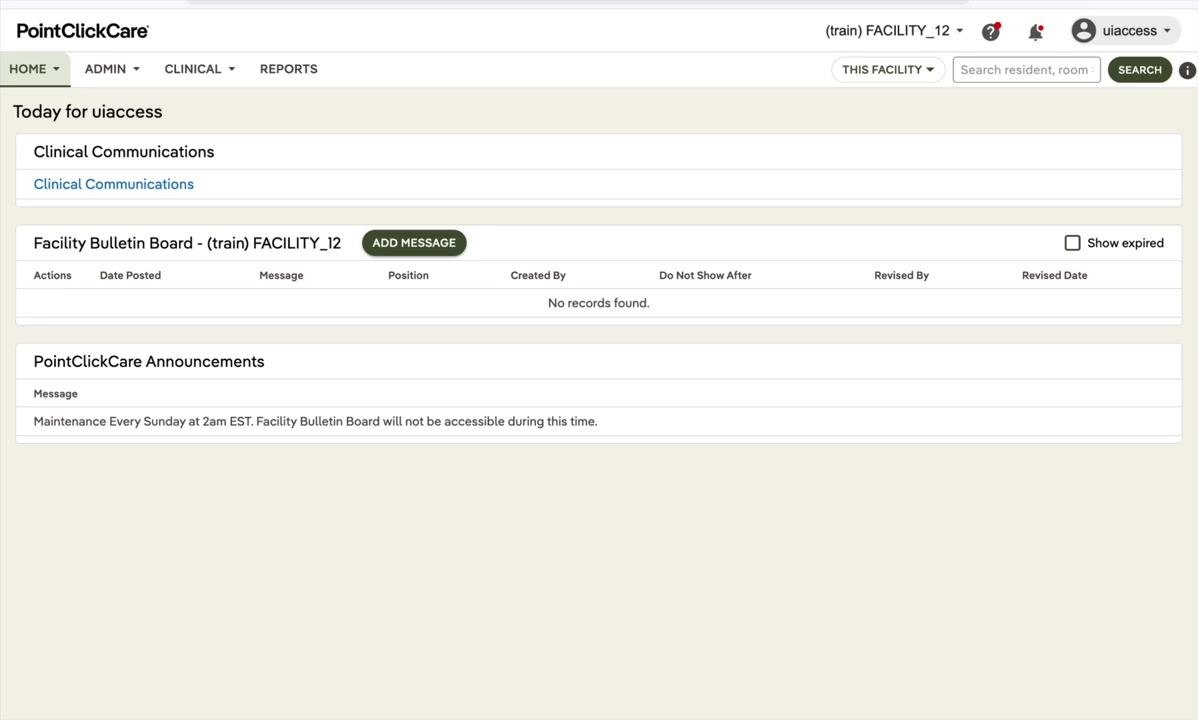
Log in to open the home dashboard. It includes sections such as "Clinical Communications," "Facility Bulletin Board," and "PointClickCare Announcements." An announcement might read, "Maintenance Every Sunday at 2am EST. Facility Bulletin Board will not be accessible during this time."
Open the Clinical menu
Hover over or click the CLINICAL tab in the top navigation bar. A dropdown menu appears with options such as Residents, Dashboard, Orders, and Lab/Rx Results.
Select Residents and find the resident
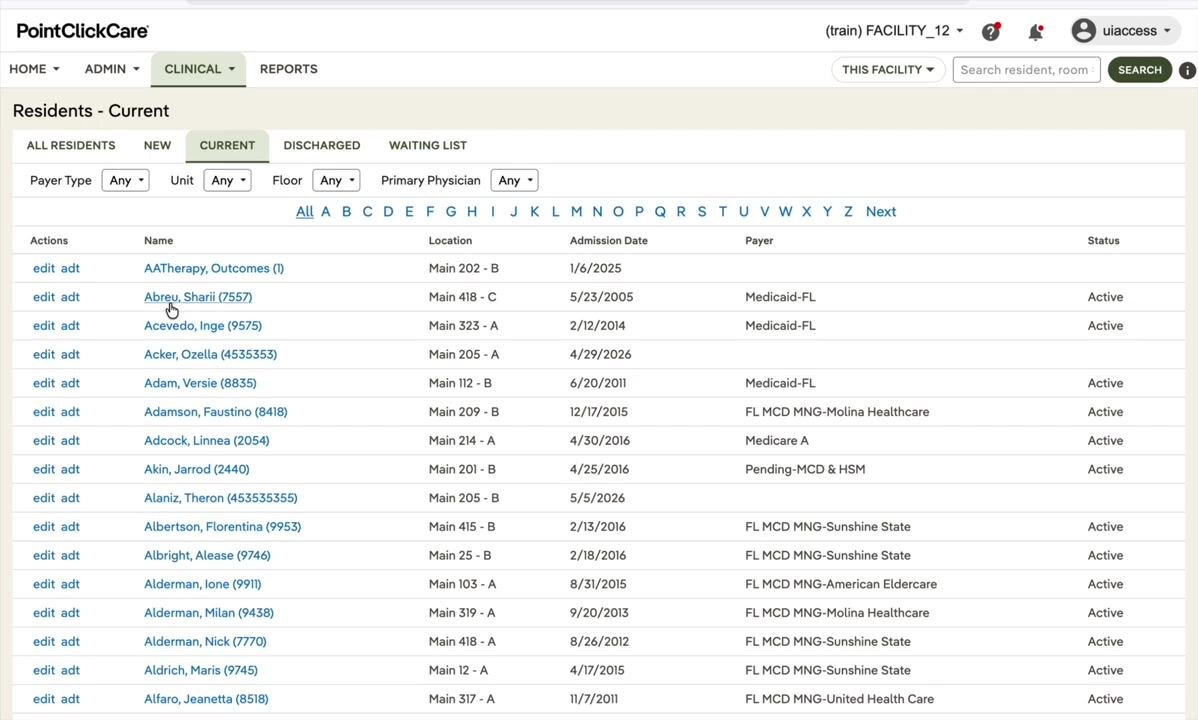
Click Residents under the "People" section. The "Residents - Current" page lists all current residents. Columns include Actions, Name, Location, Admission Date, Payer, and Status.
You can use the filters at the top to narrow the list by Payer Type, Unit, Floor, or Primary Physician. Then locate the resident by name, for example "Abreu, Sharii (7557)."
Open the resident's chart
Click the resident's name, or click the edit adt link next to the name, to open the chart.
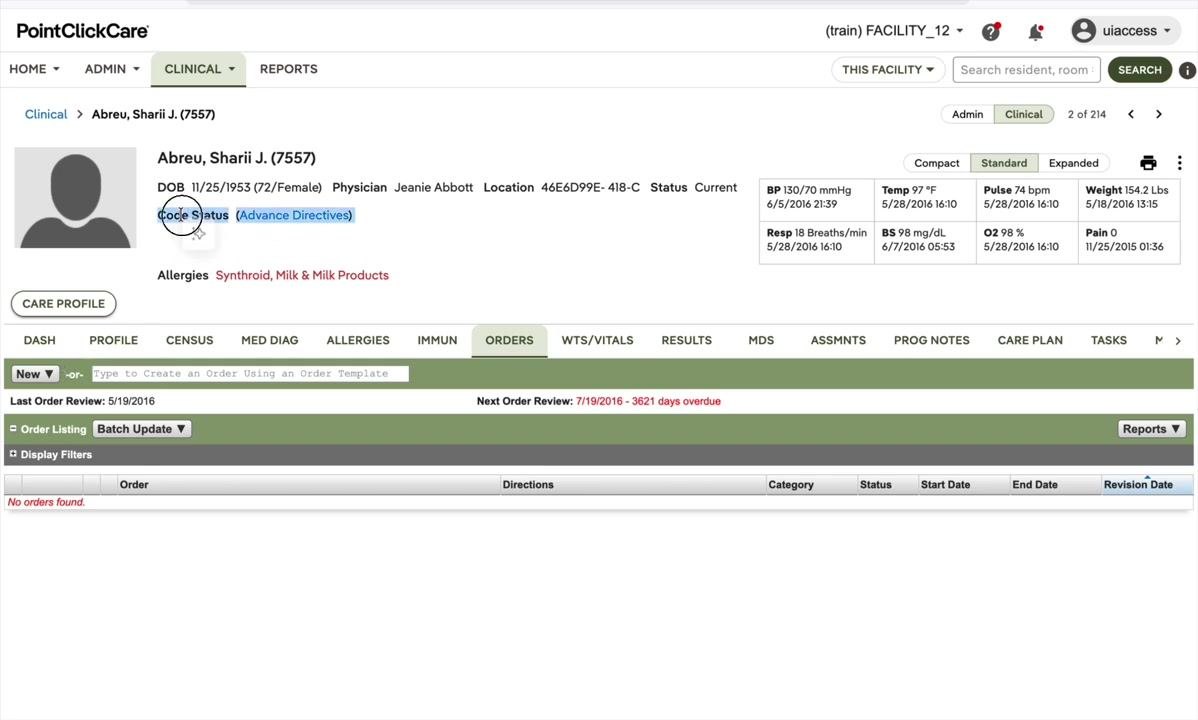
Locate the Code Status field
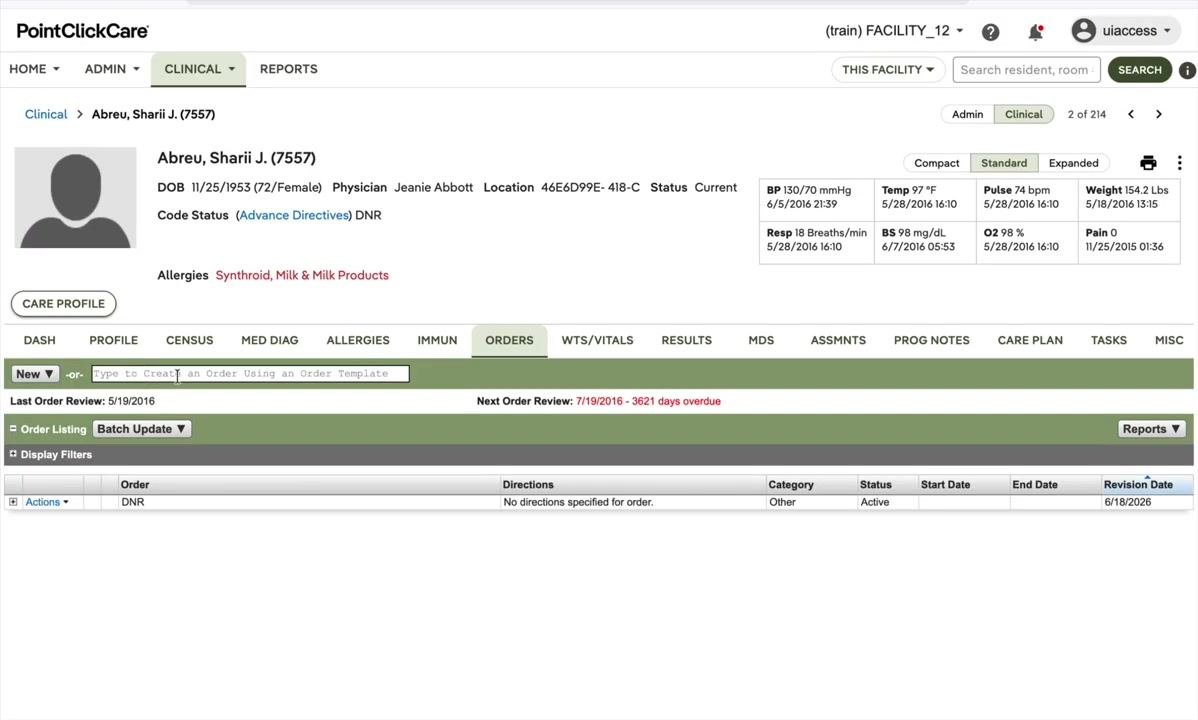
In the resident's chart, find the Code Status field. It usually appears near the top of the profile section. It may appear alongside an Advance Directives link. You may also see other information, such as allergies, physician, location, and vital signs.
The code status field is not directly clickable for editing in this view.
Keep these points in mind:
- Verify the code status before you proceed with any emergency or care decision.
- If no code status is documented, default to applying all emergency measures.
Set or change a resident's code status
You add or change a code status by entering an order. The example below adds a DNR order.
Open the resident's Orders tab
In the resident's chart, click the ORDERS tab to view all current orders. Confirm that the resident's name and current code status (for example, DNR) are displayed.
Start a new order
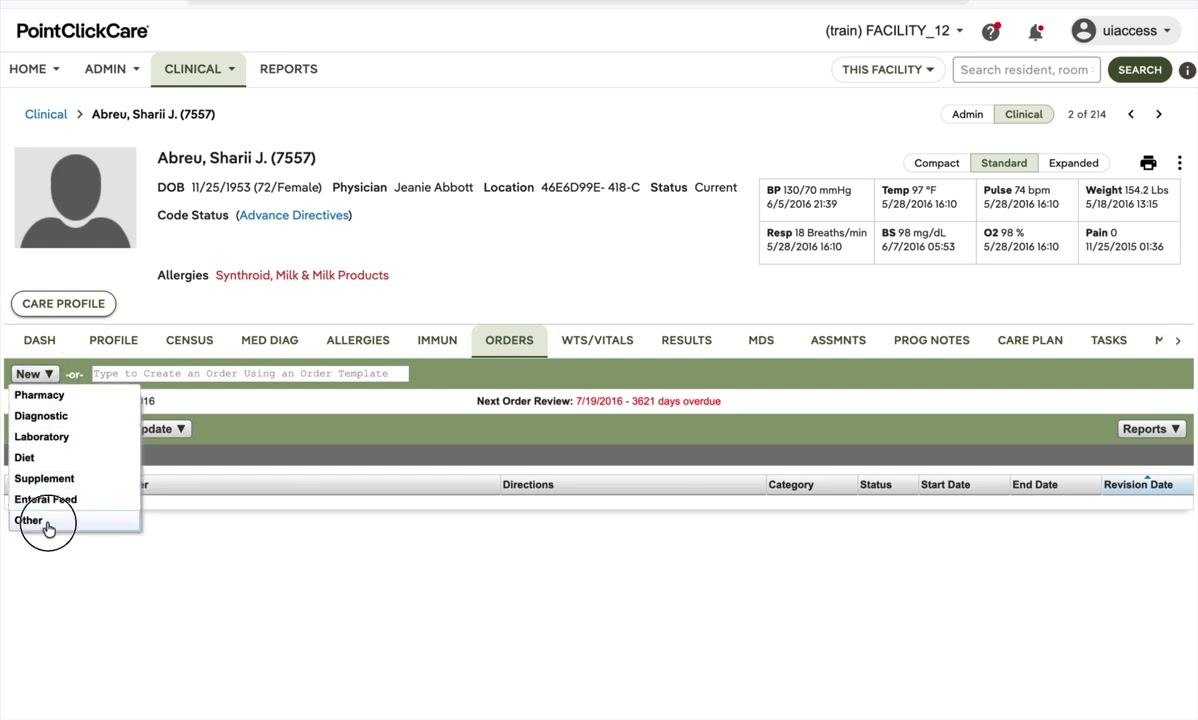
Click New. In the dropdown menu, select Other to indicate that this is not a pharmacy, diagnostic, or dietary order.
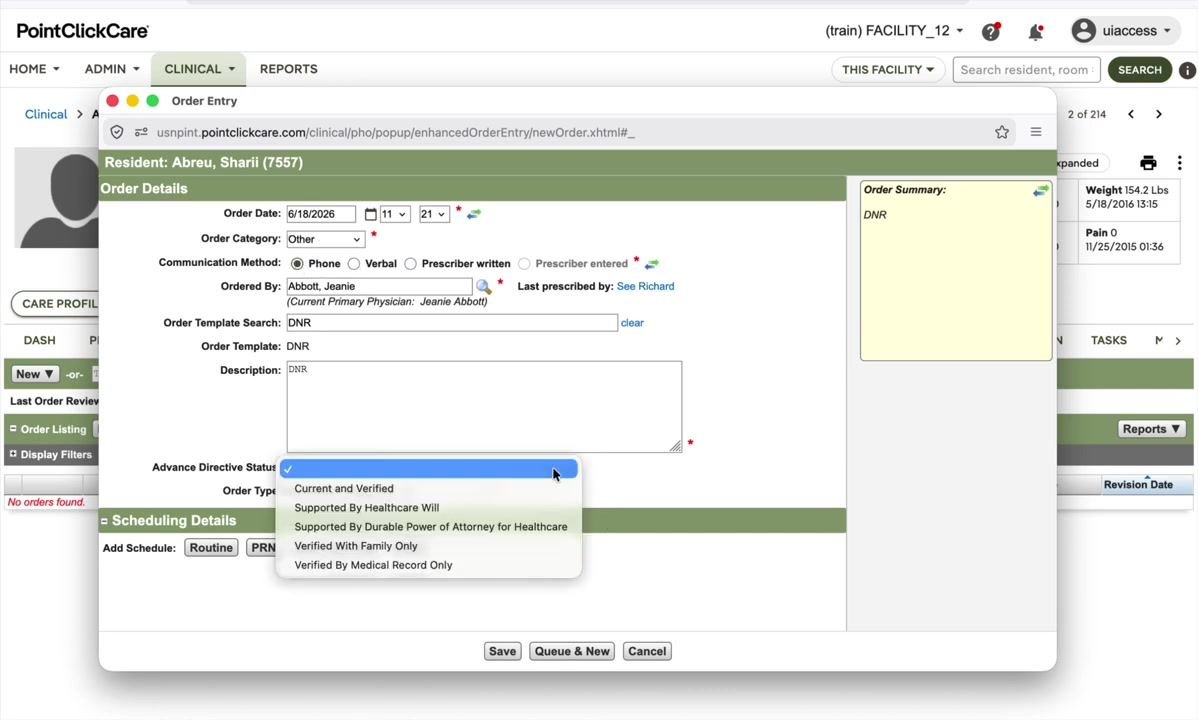
Complete the Order Entry form
In the Order Entry popup, complete these fields:
- Order Date: Enter the current date (for example, 6/18/2026).
- Order Category: Make sure "Other" is selected.
- Communication Method: Select how the order was communicated (for example, Phone, Verbal, Prescriber written, or Prescriber entered). This example uses Phone.
- Ordered By: Choose the responsible physician (for example, Jeanie Abbott). Use the provider search if needed.
- Order Template Search: Type and select DNR.
- Order Template: Confirm that it populates as DNR.
- Description: Enter DNR.
- Advance Directive Status: Leave this blank unless additional information is required. You set it in the next step.
- Order Type: Select ADVANCE DIRECTIVE - [].
Specify how the code status is supported
In the Advance Directive Status dropdown, select the option that applies:
- Current and Verified
- Supported By Healthcare Will
- Supported By Durable Power of Attorney for Healthcare
- Verified With Family Only
- Verified By Medical Record Only
This example uses Current and Verified.
Save the order
Click Save to submit the order. Review the order for accuracy and click Acknowledge if prompted.
A confirmation screen displays the order details. In this example, they include:
- Order Date: 06/18/2026 11:21
- Communication Method: Phone
- Order ID: 12155715
- Order Summary: DNR
- Confirmed By: uiaccess
Verify the updated code status
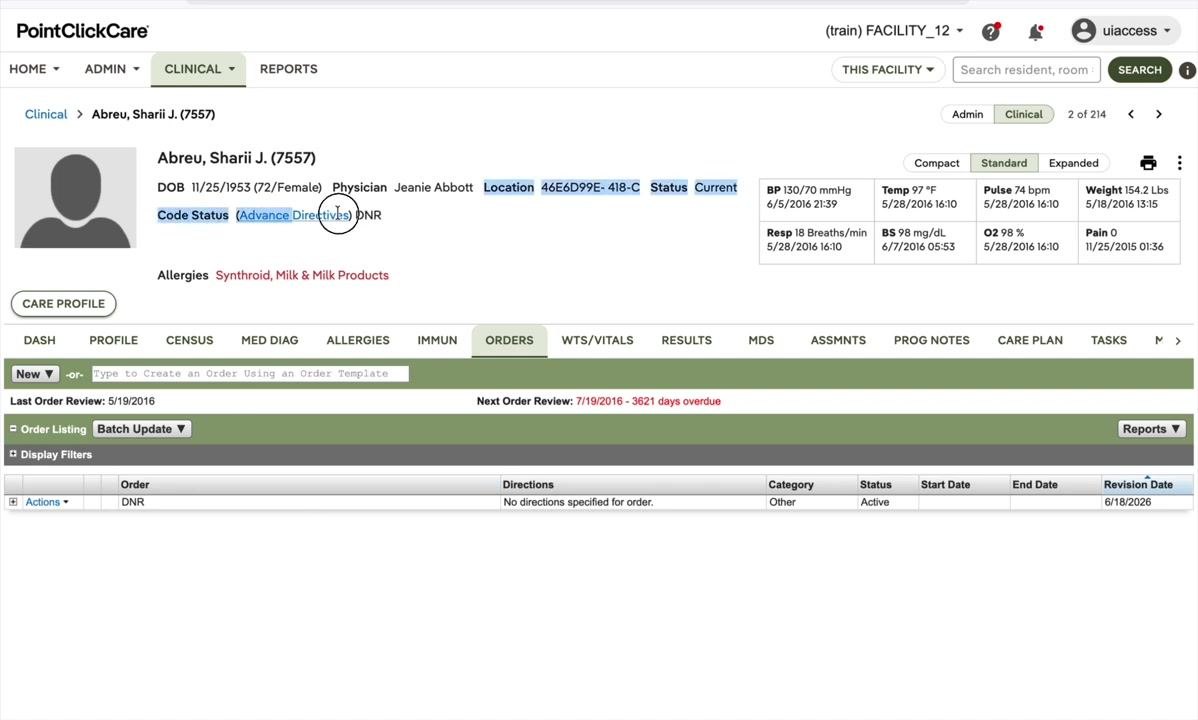
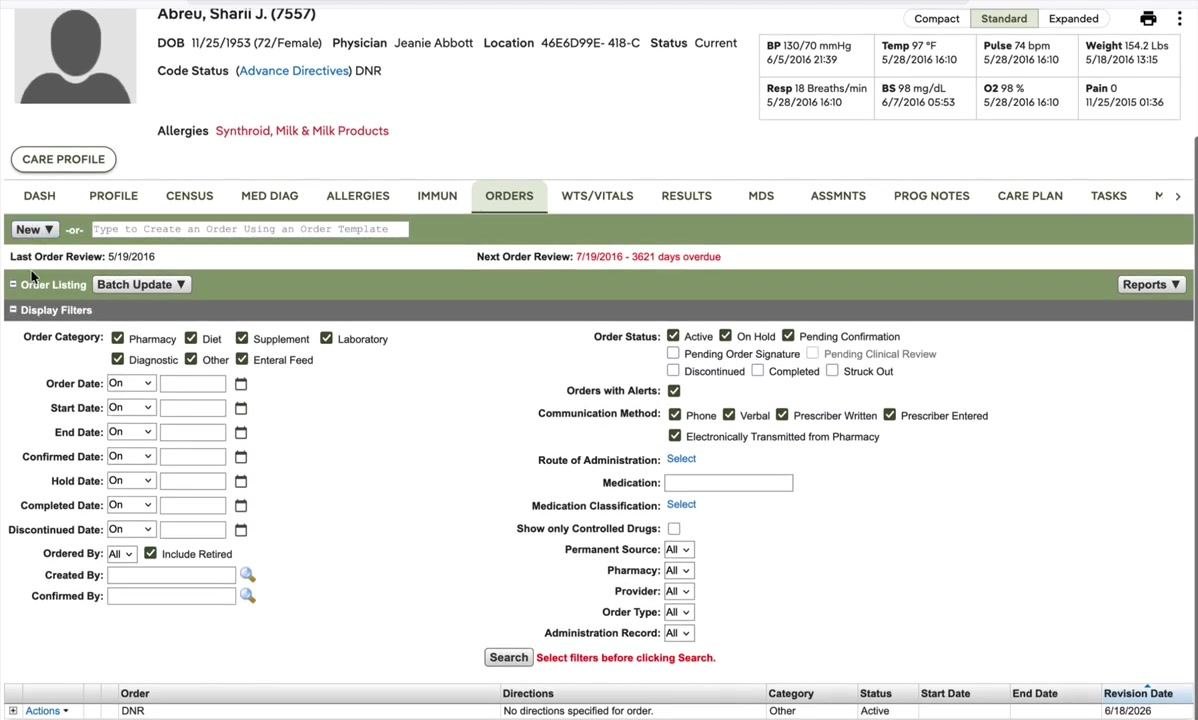
Return to the resident's chart and confirm that Code Status now displays DNR. The new order should appear in the orders list with a status of Active and the correct revision date.
Keep these points in mind:
- Always use the Orders module to add or update code status. You cannot edit it directly from the profile.
- Complete all fields accurately, especially the communication method and verification source.
- Check both the resident's profile and the orders list to confirm the update.
Edit or remove a resident's code status
Locate the DNR order
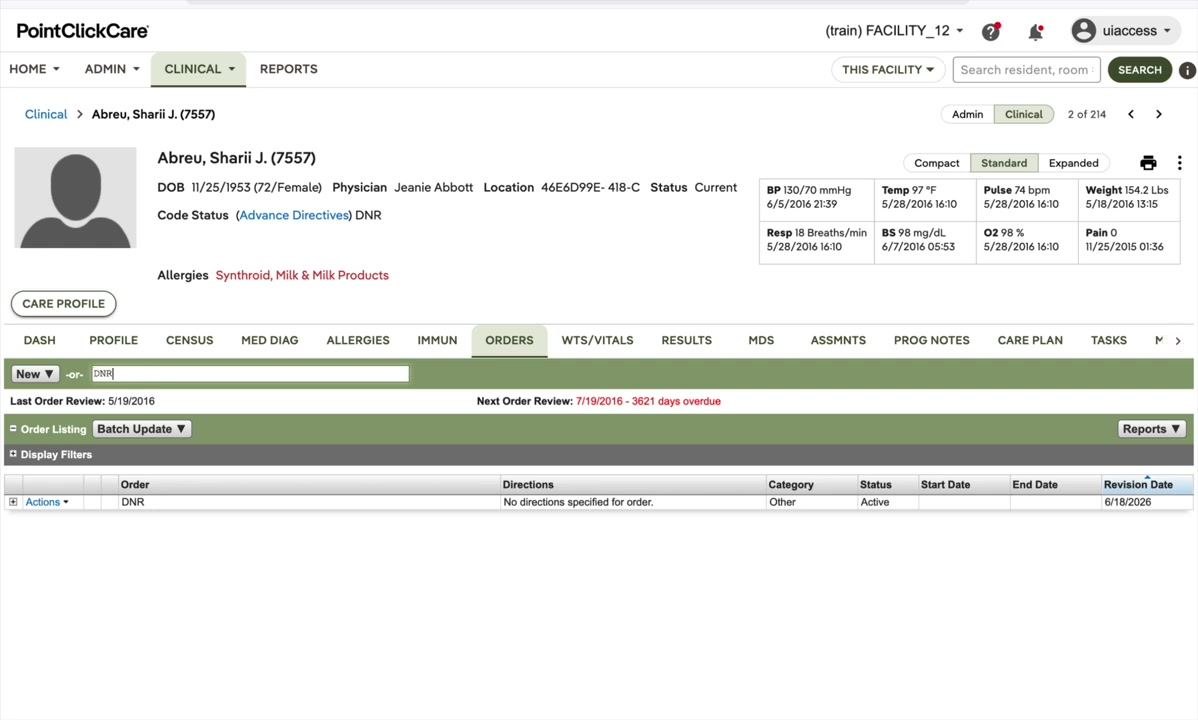
In the order listing, find the DNR order. If the list is long, use the Display Filters option to search or filter for it.
Edit the DNR order if needed
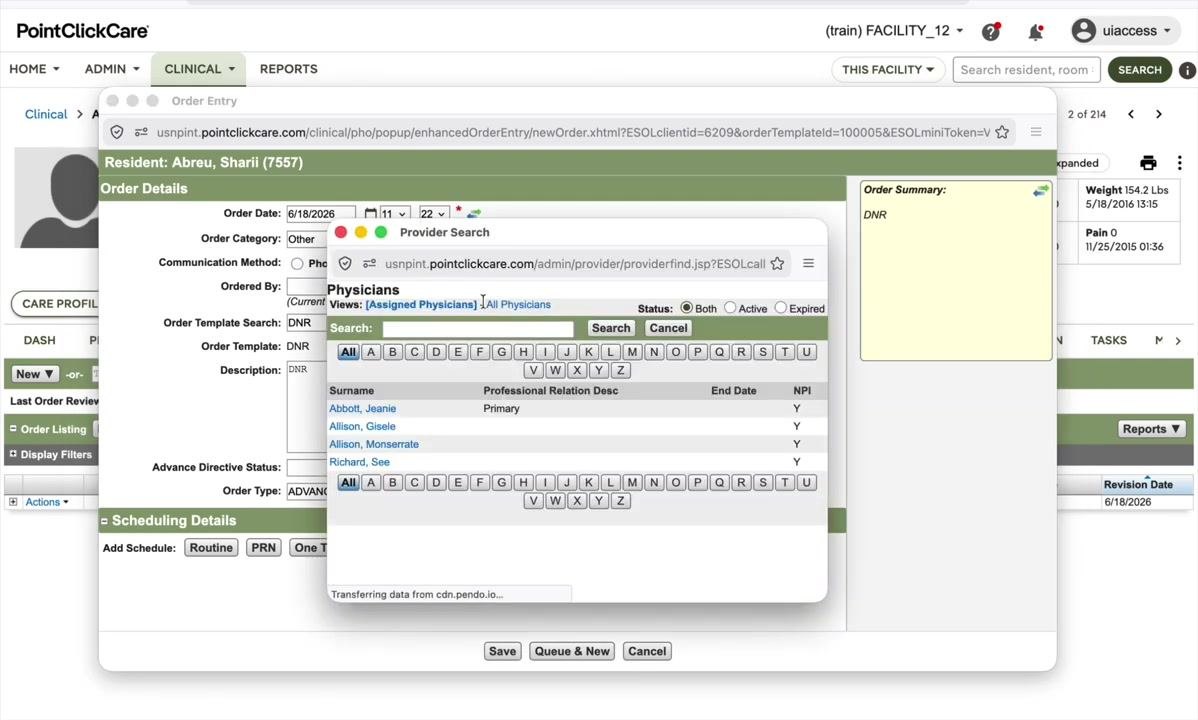
To update details such as the communication method or physician, click Actions next to the DNR order and select Update. In the order entry popup, update the fields you need:
- Communication Method: Select the appropriate method (for example, Phone, Verbal, Prescriber Written, or Prescriber Entered).
- Ordered By: Choose the correct physician from the Provider Search window.
- Advance Directive Status: Update as needed (for example, Current and Verified).
Click Save to apply your changes.
Start discontinuing the DNR order
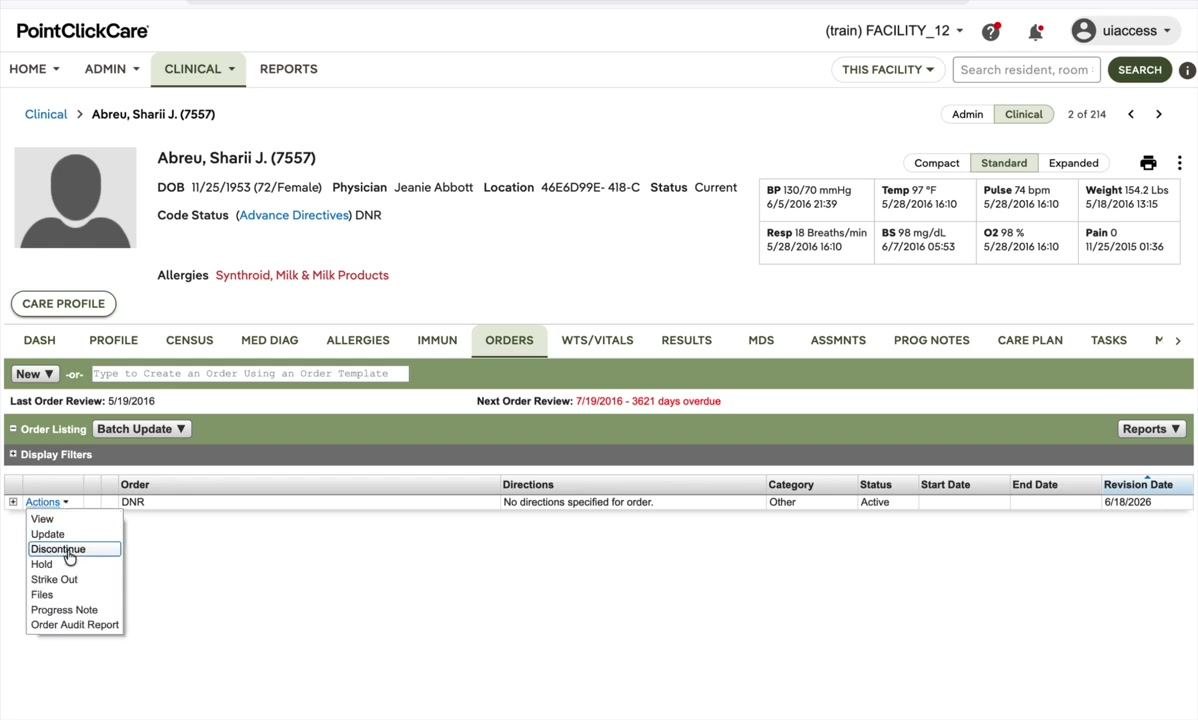
If the resident's code status needs to be removed, for example because the situation has changed, discontinue the DNR order. Click Actions next to the DNR order, then select Discontinue from the dropdown menu.
Complete the Discontinue Order form
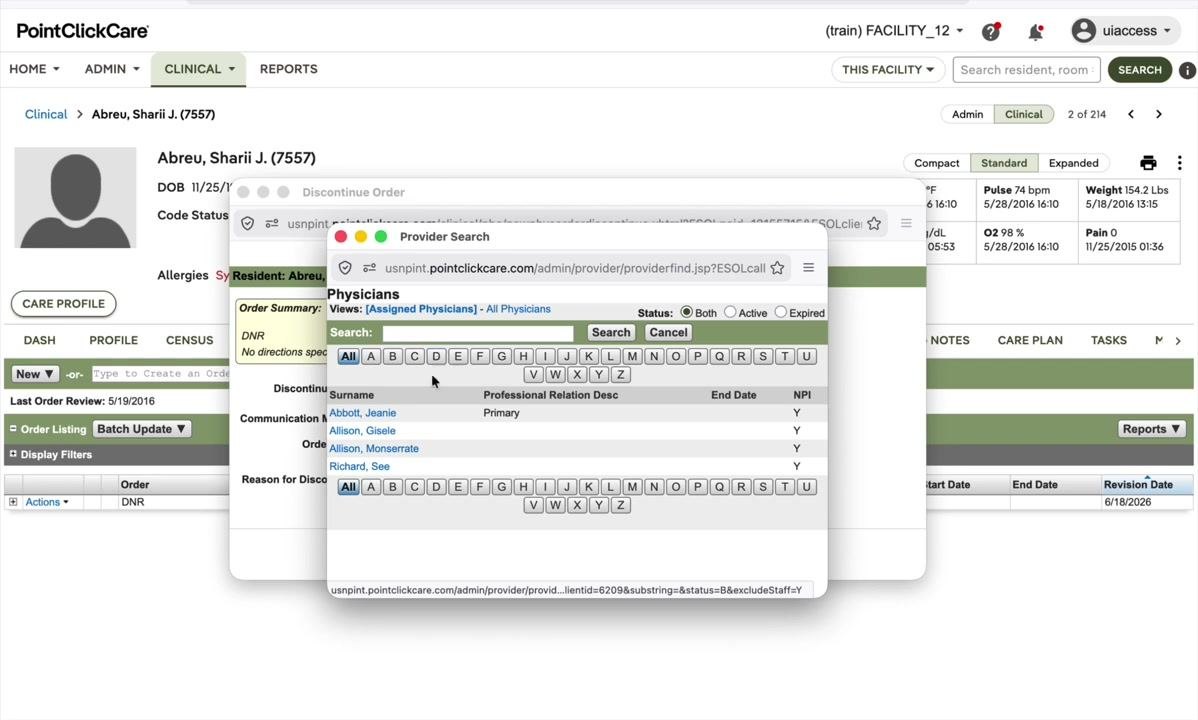
In the Discontinue Order popup, fill out these fields:
- Discontinue Date: Enter the current date (for example, 6/18/2026).
- Communication Method: Select how the discontinuation was communicated (for example, Verbal).
- Ordered By: Use Provider Search to select the physician who authorized the discontinuation (for example, Jeanie Abbott).
- Reason for Discontinue: Enter the reason (for example, "Physician instructed to remove DNR").
Click Discontinue Order to confirm.
Acknowledge the confirmation popup
Review the confirmation popup for accuracy. If prompted, click Discontinue Order again to confirm.
Verify the code status removal
Return to the Orders tab
Navigate back to the resident's chart in PointClickCare. Click the ORDERS tab to review the resident's current orders.
Check the Code Status field
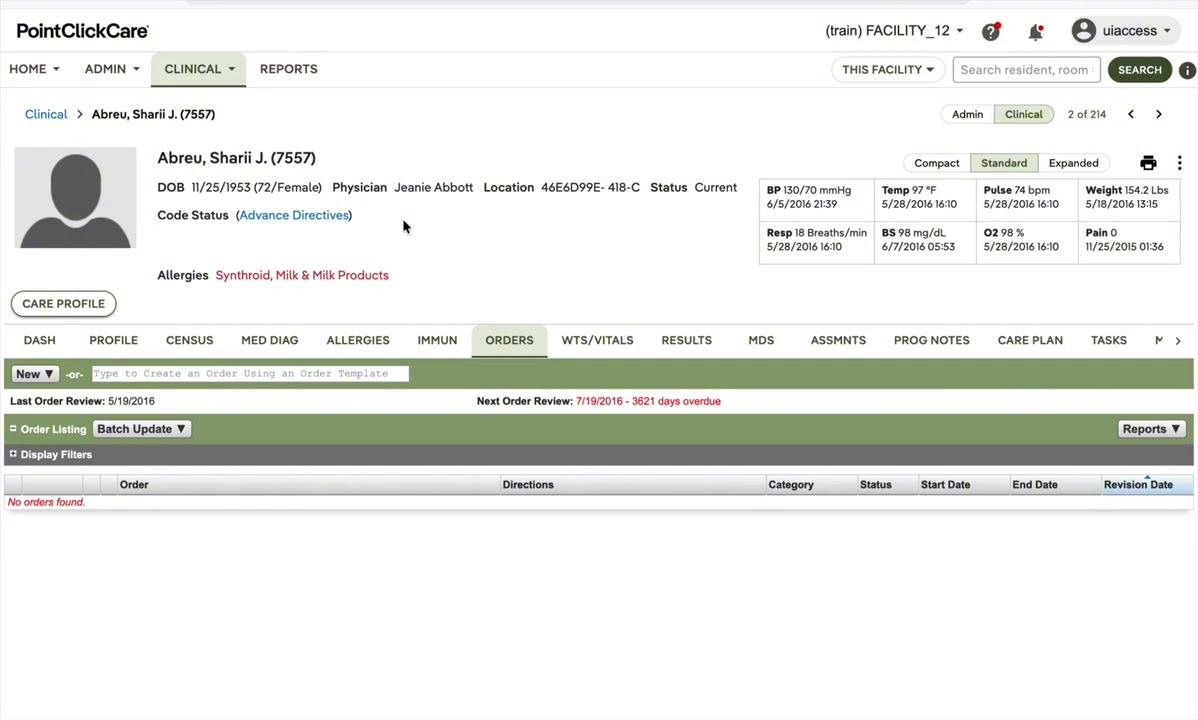
Locate the Code Status section under the resident's demographic information. Confirm that no code status, such as DNR, is displayed. The field should be empty or list no active code status.
The Advance Directives link may still be present for reference, but no code status should appear.
Review the order listing
In the Order Listing section, verify that No orders found appears for code status orders such as DNR. The list should be empty if all code status orders have been discontinued. If it is not empty, make sure that no code status orders remain.
Summary
You now know how to set code status in PointClickCare. You find a resident's chart, add a code status through the ORDERS tab, and verify the result in both the profile and the orders list. You can also update or discontinue a code status order and confirm that it has been removed. Because the Code Status field is not editable in the chart, always make changes through the Orders module so that the documentation is accurate.
Generation details: cost, quality tiers
Docsie billed 3,000 credits ($2.10) to analyze this 6-minute video at standard quality. The rewrite, template fill and Word/PDF exports were included. The same video at each quality tier:
| Quality | Frames sampled | Credits | Approx. cost |
|---|---|---|---|
| Draft | every 16-30 s | 1,500 | $1.05 |
| Standard (this guide) | every 8-15 s | 3,000 | $2.10 |
| Detailed | every 4-7 s | 6,000 | $4.20 |
| Ultra | every 1-3 s | 12,000 | $8.40 |
Credits priced at $0.70 per 1,000; plans include a monthly allowance. Enterprise customers on on-premise or bring-your-own-model deployments run this on their own inference and pay no per-video credits.
Generated by Docsie Video-to-Docs on 2026-11-01 from a 5-minute video. Screenshots are frames from the source video and belong to their creator, Charting Made Easy, whose original is embedded above. If you own this video and want the guide removed or credited differently, contact us and we will act within one business day.