
How to Print a Facesheet in PointClickCare
This guide explains how to print a facesheet in PointClickCare. In PointClickCare, the facesheet is the Admission Record, a printable report that summarizes a resident's key information. You open the report from the resident's profile, check its timestamp, and print it from your browser.
Video: How to Print a Face Sheet in PointClickCare 2026 by Charting Made Easy (2026). All credit for the demonstration goes to the creator; watch the original on YouTube. The written guide below was generated from this video by Docsie. Creator? Request a change or removal.
This guide explains how to print a facesheet in PointClickCare. In PointClickCare, the facesheet is the Admission Record, a printable report that summarizes a resident's key information. You open the report from the resident's profile, check its timestamp, and print it from your browser.
Prerequisites
- You are logged in to PointClickCare with appropriate access rights.
- You have a printer available to select in the print dialog.
Steps
Go to the Clinical section
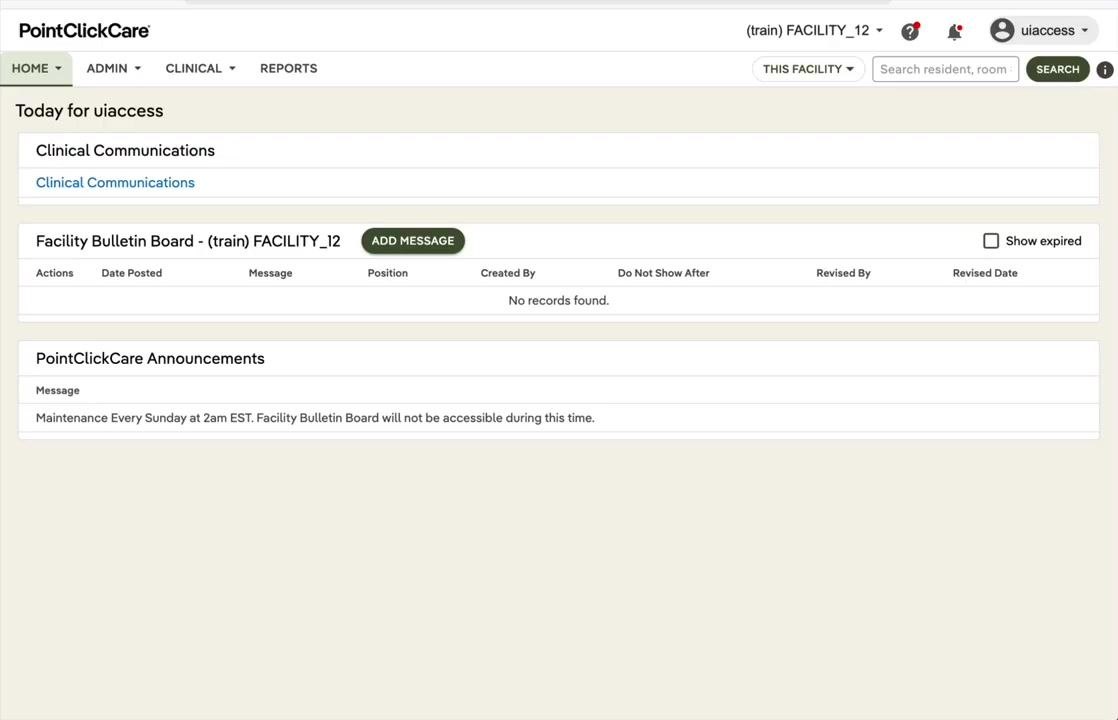
After you log in, the home screen shows the main dashboard with sections such as "Clinical Communications," "Facility Bulletin Board," and "PointClickCare Announcements." The top navigation bar includes HOME, ADMIN, CLINICAL, and REPORTS. Your facility and user information appear in the upper right.
Click the CLINICAL tab in the top navigation bar.
Select Residents
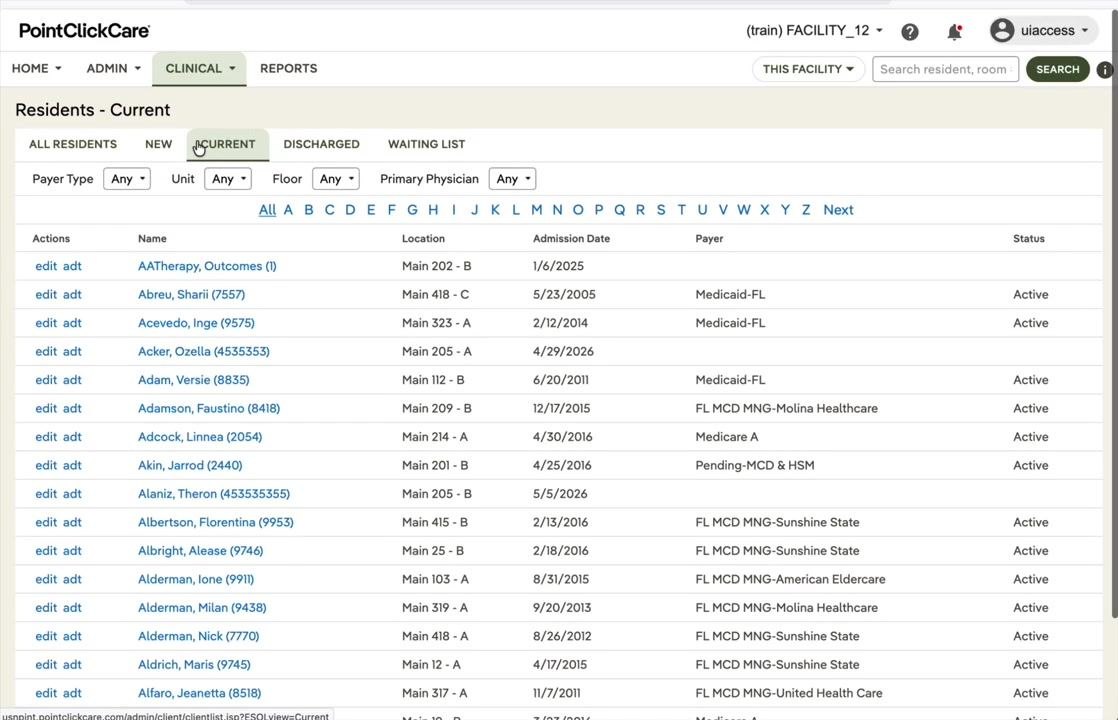
Under the CLINICAL menu, select Residents. The "Residents - Current" list appears and shows all current residents with columns for Name, Location, Admission Date, Payer, and Status.
If needed, use the filters at the top of the list: Payer Type, Unit, Floor, and Primary Physician.
Choose the resident and open the profile
Find and select the resident whose facesheet you want to print. For example, select "Albertson, Florentina (9953)" from the list.
The resident's profile page opens. It shows tabs such as DASH, PROFILE, CENSUS, MED DIAG, ALLERGIES, IMMUN, ORDERS, WTS/VITALS, RESULTS, MDS, ASMNMTS, PROG NOTES, and CARE PLAN. The PROFILE tab should be selected, displaying resident details, contacts, and medical professionals.
Open the Admission Record
On the PROFILE tab, find the ADMISSION RECORD button. This is the facesheet. Hover over or click the button to see the "Admission Record Report" tooltip.
Click ADMISSION RECORD. The Admission Record opens in a new window or tab as a printable report.
Review the report and verify the timestamp
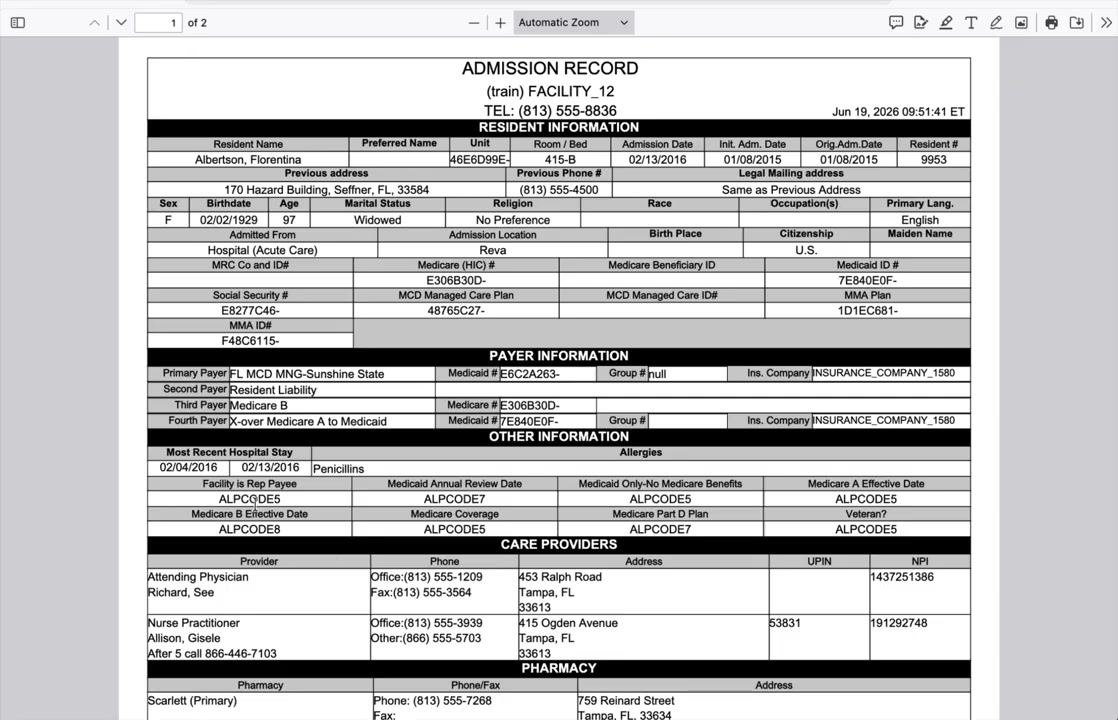
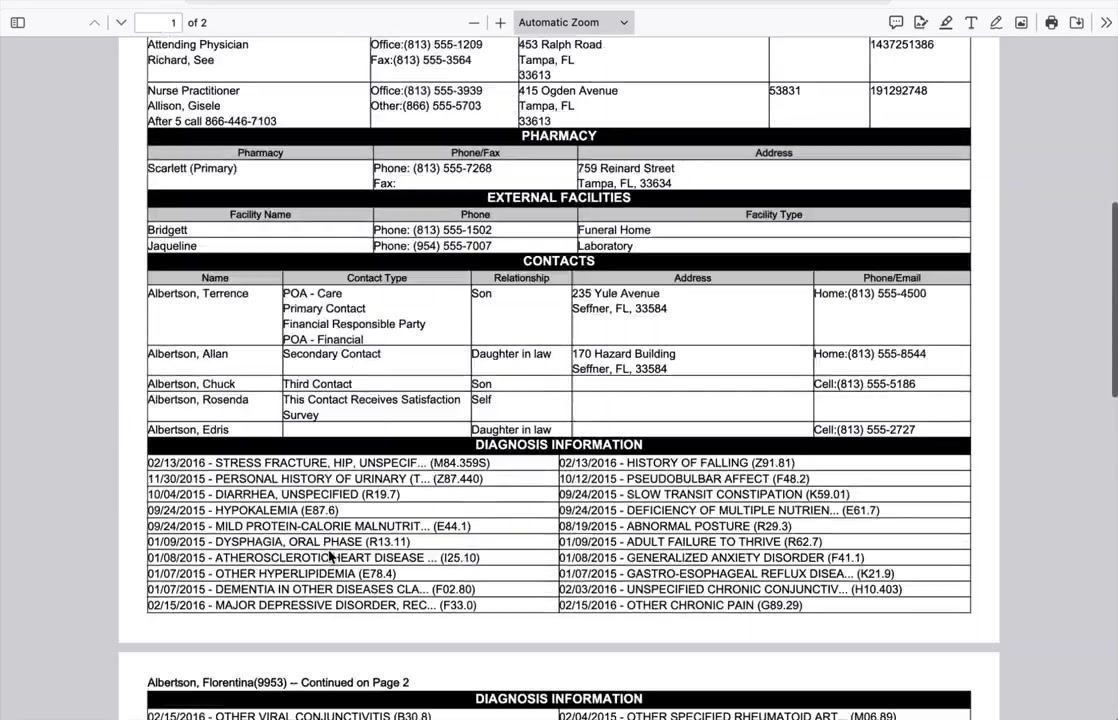
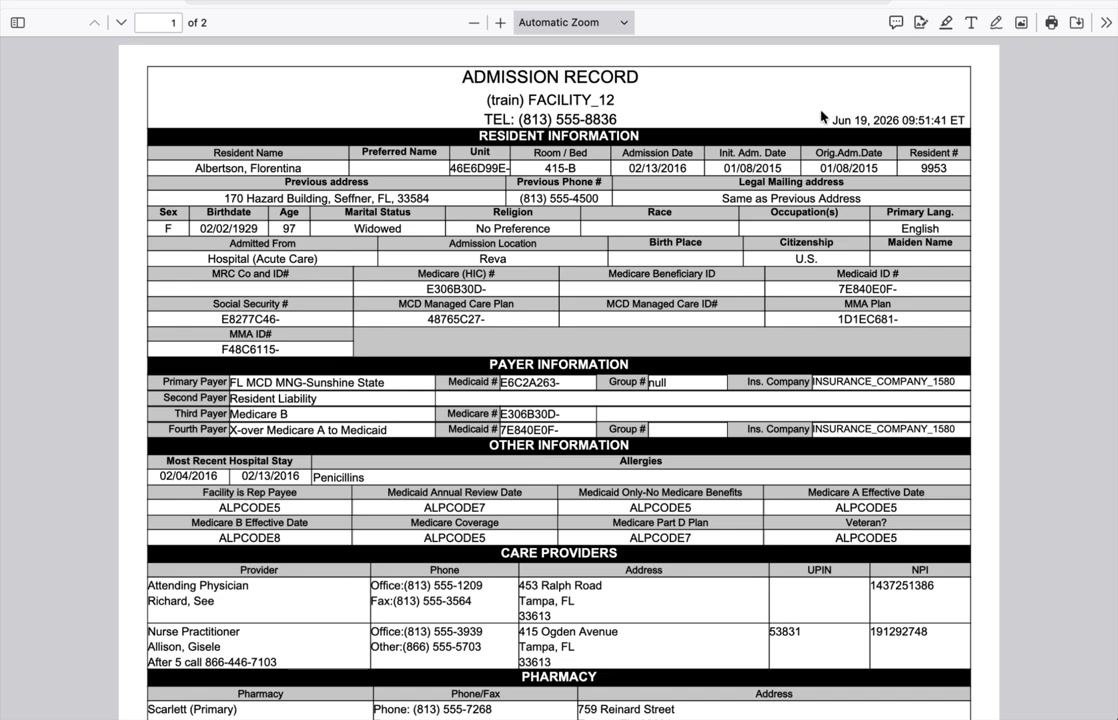
Review the report to make sure all necessary information is present. The report includes:
- Resident information (name, DOB, address, admission details)
- Payer information
- Other information (allergies, hospital stays)
- Care providers and pharmacy details
- Contacts and diagnosis information
Check the top right corner of the Admission Record for the timestamp, for example "Jun 19, 2026 09:51:41 ET". The timestamp shows when the record was generated, so you can tell whether the information is current or whether anything has changed since the last printout.
Open the print dialog
With the Admission Record open, start the print command:
- On Windows, press Ctrl + P.
- On Mac, press Command (⌘) + P.
The print dialog opens, where you can select your printer and adjust print settings.
Select your printer and print
In the print dialog, choose the printer you want from the list of available devices. Review the print settings, such as the number of copies and the page range. Then click Print to print the Admission Record (facesheet).
Confirm the printout
Retrieve the printed facesheet from your selected printer. Review the document to make sure all information is clear and complete.
Troubleshooting
- If the Admission Record does not print, check your printer connection and make sure the printer is powered on and has paper.
- If the information on the facesheet looks outdated, refresh the Admission Record in PointClickCare and verify the timestamp before you print again.
- Your facility may call the Admission Record the "facesheet." The process is the same.
Summary
- The Admission Record (facesheet) in PointClickCare includes a timestamp so you can verify the data.
- Print the record with Ctrl + P (Windows) or Command + P (Mac).
- Select your printer and confirm the printout to make sure the resident information is accurate.
By following these steps, you can reliably print a resident's facesheet in PointClickCare and keep the most up-to-date information on hand.
Generation details: cost, quality tiers
Docsie billed 1,500 credits ($1.05) to analyze this 3-minute video at standard quality. The rewrite, template fill and Word/PDF exports were included. The same video at each quality tier:
| Quality | Frames sampled | Credits | Approx. cost |
|---|---|---|---|
| Draft | every 16-30 s | 750 | $0.52 |
| Standard (this guide) | every 8-15 s | 1,500 | $1.05 |
| Detailed | every 4-7 s | 3,000 | $2.10 |
| Ultra | every 1-3 s | 6,000 | $4.20 |
Credits priced at $0.70 per 1,000; plans include a monthly allowance. Enterprise customers on on-premise or bring-your-own-model deployments run this on their own inference and pay no per-video credits.
Generated by Docsie Video-to-Docs on 2026-11-01 from a 2-minute video. Screenshots are frames from the source video and belong to their creator, Charting Made Easy, whose original is embedded above. If you own this video and want the guide removed or credited differently, contact us and we will act within one business day.