
How to Convert a Classic Page to a Fluid Page in PeopleSoft
If you need to know how to convert a classic page to a fluid page in PeopleSoft, the process for a plain Classic page is short. You mark the component as Fluid Mode, mark the page as a Fluid Page, and wrap the page content in an outer group box with a style class. This guide uses a "My Uniforms" Classic component as the example. You start by locating the legacy component, then convert it in PeopleSoft Application Designer, and finally adjust the layout to three columns.
Video: PeopleTools Sound Bytes Episode 19: Quick Classic to Fluid Conversion by JSMpros (2020). All credit for the demonstration goes to the creator; watch the original on YouTube. The written guide below was generated from this video by Docsie. Creator? Request a change or removal.
If you need to know how to convert a classic page to a fluid page in PeopleSoft, the process for a plain Classic page is short. You mark the component as Fluid Mode, mark the page as a Fluid Page, and wrap the page content in an outer group box with a style class. This guide uses a "My Uniforms" Classic component as the example. You start by locating the legacy component, then convert it in PeopleSoft Application Designer, and finally adjust the layout to three columns.
Before you begin
Consider why you are converting. Fluid is Oracle's strategic direction for PeopleSoft, and new content and business process wrappers are likely to be Fluid-based. Fluid also provides responsive and adaptive design, which suits mobile usage. If you don't need mobile access, consider whether Classic Plus is a better fit.
The best conversion approach depends on your use case. This guide covers converting a plain Classic page to a plain Fluid page. Embedding content in a two-panel layout requires a different approach.
You need the following:
- Access to your PeopleSoft application, with Fluid navigation in use.
- PeopleSoft Application Designer installed on your workstation.
- The name of the Classic page and its component. In this example, the page is
JSM_UNIFORMSand the component isJSM_MY_UNIFORMS. - A plain Classic page that is not embedded in a two-panel layout.
Open the Student Homepage
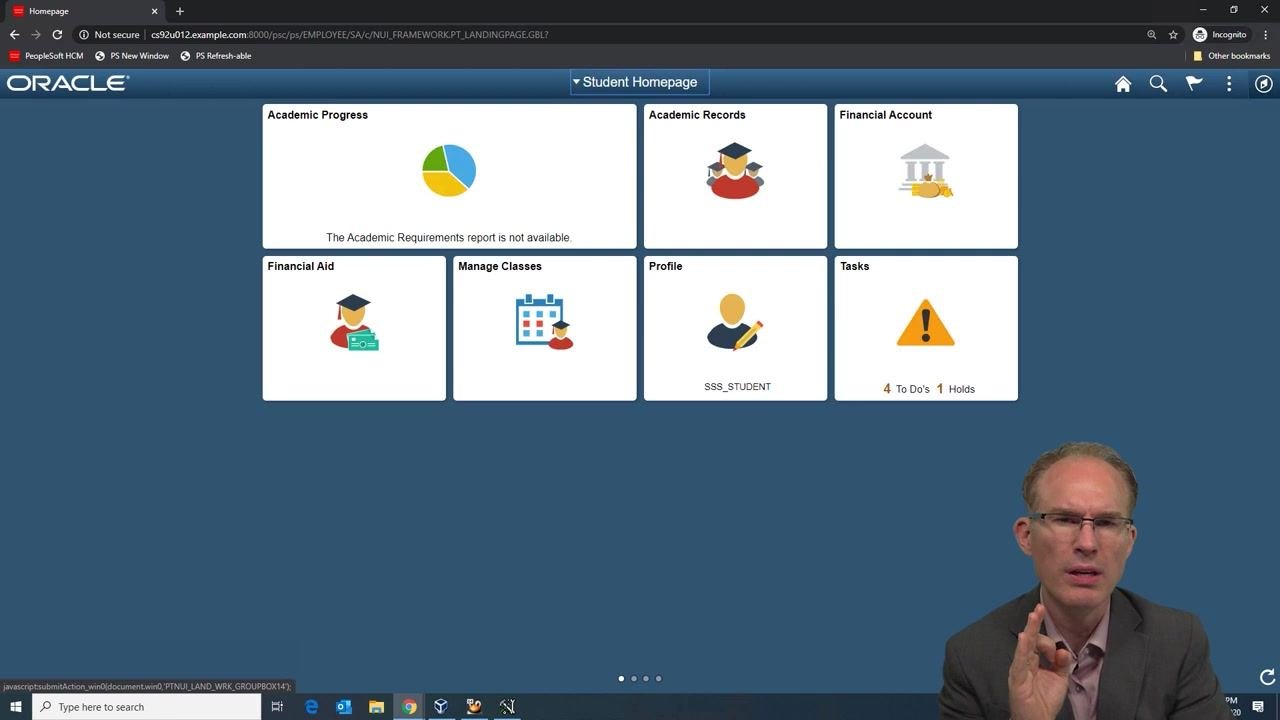
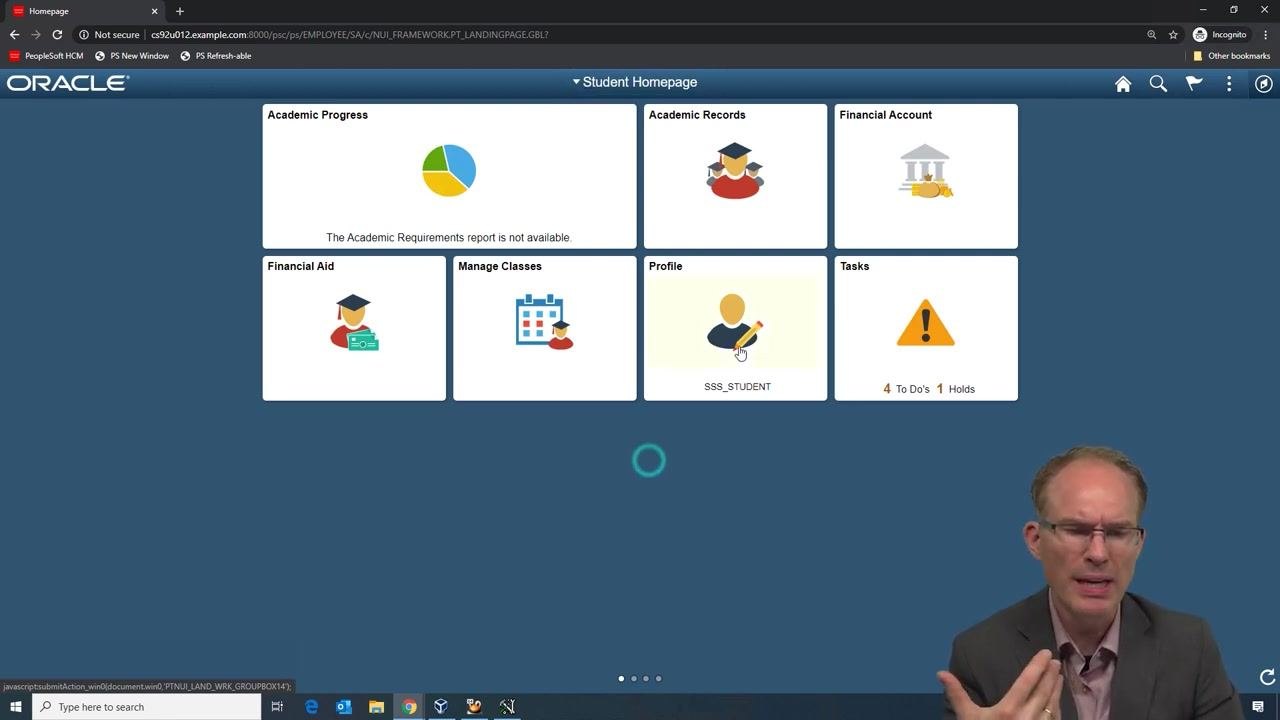
Open the PeopleSoft application and go to the Student Homepage. The homepage shows several Fluid tiles, including Academic Progress, Academic Records, Financial Account, Financial Aid, Manage Classes, Profile, and Tasks. These tiles confirm that the environment uses Fluid navigation.
Open the Profile component
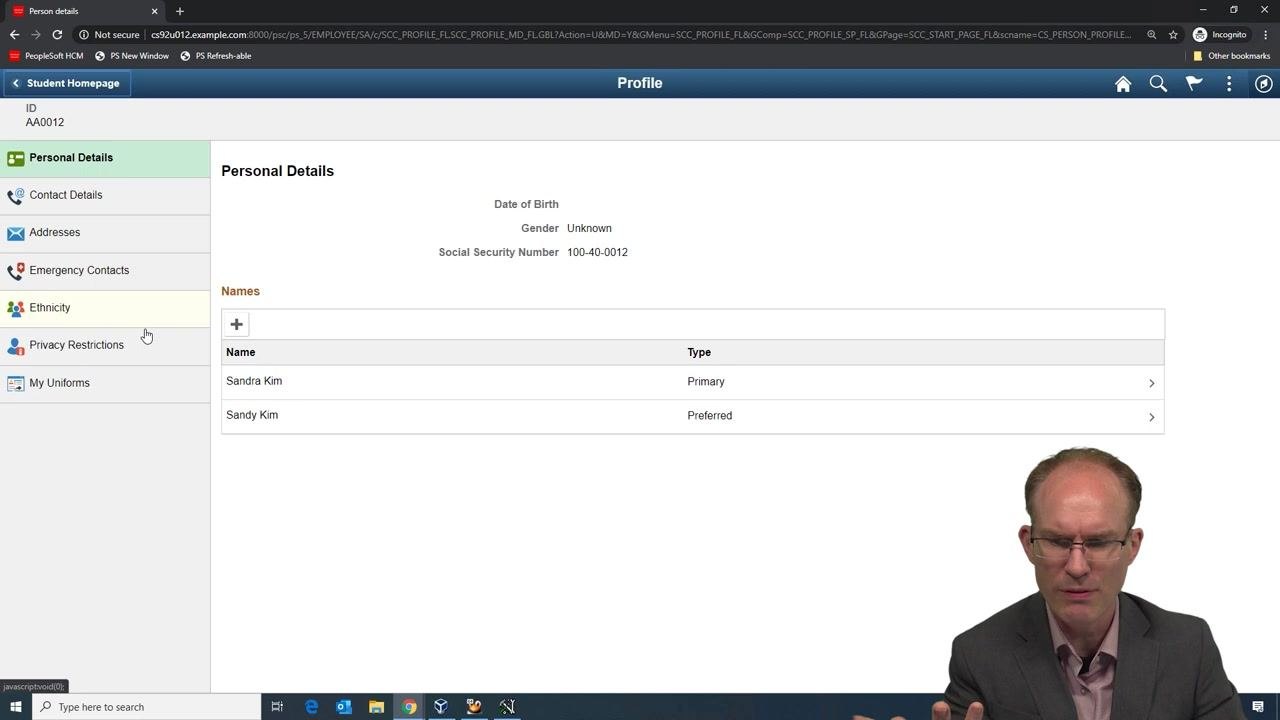
Select the Profile tile (SSS_STUDENT). The Profile component appears in a Fluid layout.
The left navigation lists Personal Details, Contact Details, Addresses, Emergency Contacts, Ethnicity, Privacy Restrictions, and My Uniforms. The main panel shows personal details such as Name, Date of Birth, Gender, Social Security Number, and a list of names.
Identify the legacy Classic component
Click My Uniforms in the left navigation menu. This page uses a Classic layout inside the Fluid navigation shell.
The page includes Personal Characteristics, Shirt, and Slacks sections and a table of items. It also has Save, Return to Search, Notify, and Add buttons. This is the component you convert.
Before you continue, confirm that conversion is a good fit:
- Self-service components are often accessed on mobile devices, so Fluid conversion is highly beneficial for responsive design.
- The target page is a plain Classic page, not embedded in a two-panel layout.
- The My Uniforms component is accessed through a navigation collection (or a master-detail structure in Campus Solutions). You convert only the main transaction area, which is the content panel, and not the navigation shell.
Open the Classic page in Application Designer
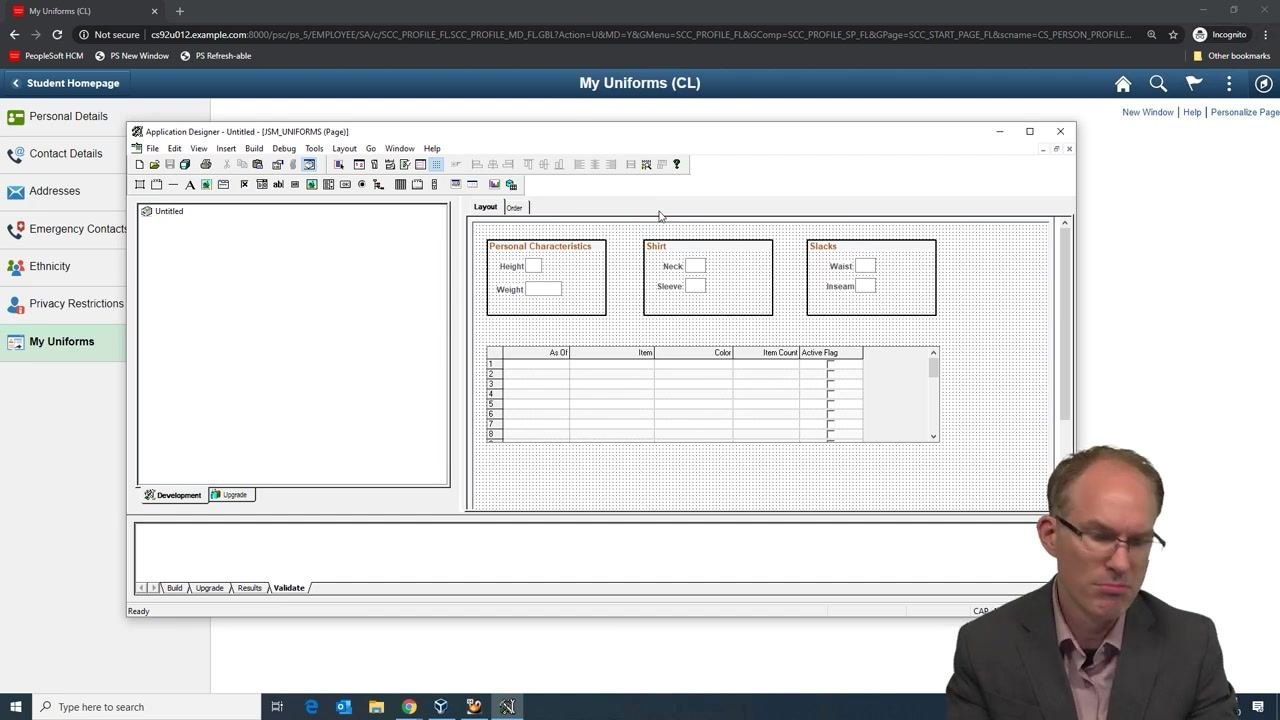
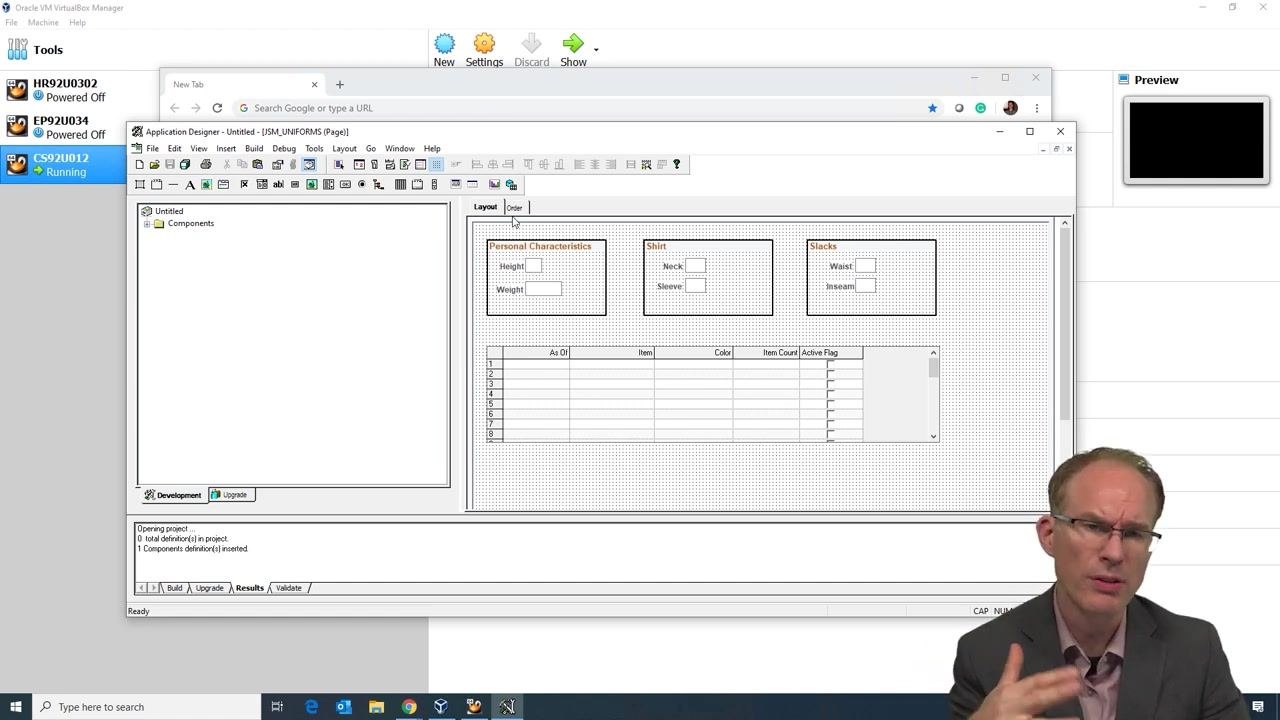
Launch PeopleSoft Application Designer and open the JSM_UNIFORMS page. This page could be used to manage uniforms in a private school, on a sports team, or in a workplace.
The page contains these elements:
- A "Personal Characteristics" section with Height and Weight fields.
- A "Shirt" section with Neck and Sleeve fields.
- A "Slacks" section with Waist and Inseam fields.
- A table with the columns As Of, Item, Color, Item Count, and Active Flag.
This is a typical Classic page layout.
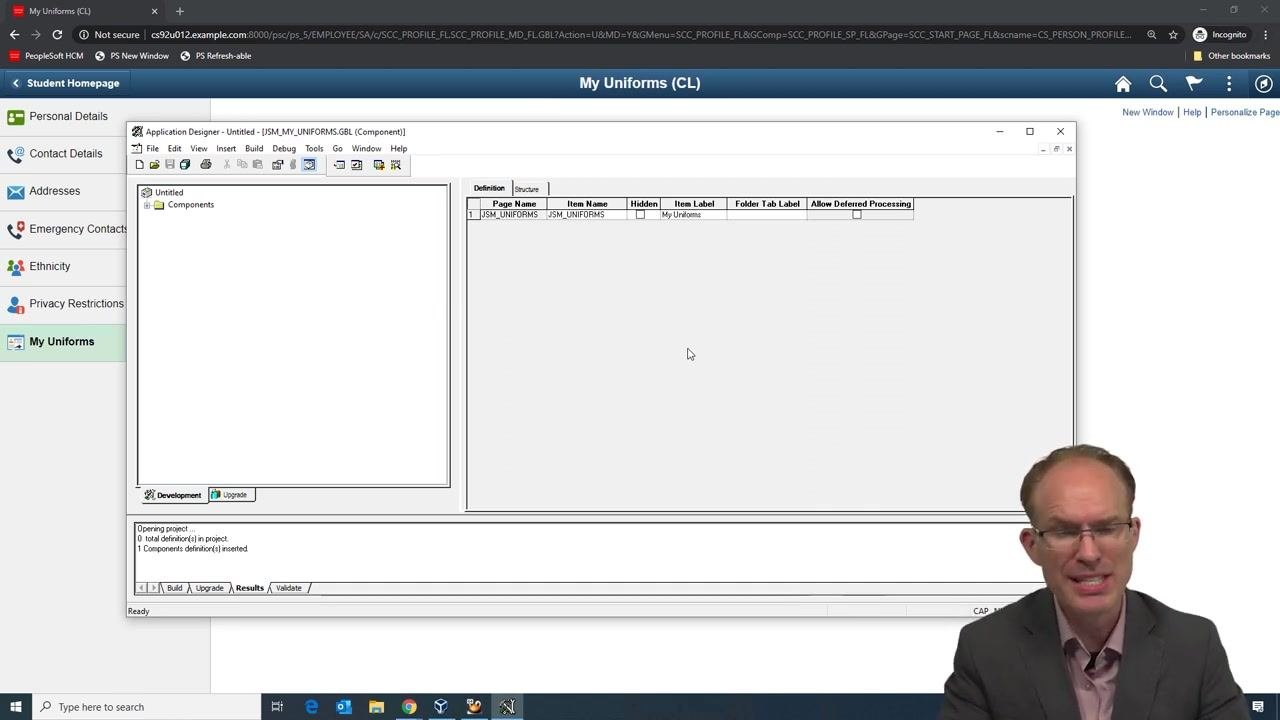
Open the component definition
Rendering mode is set at the component level, so open the component that uses this page. In Application Designer, open the Open Definition dialog and follow these steps:
- Select Component as the definition type.
- Enter
JSM_MY_UNIFORMSin the selection criteria. - Click Open.
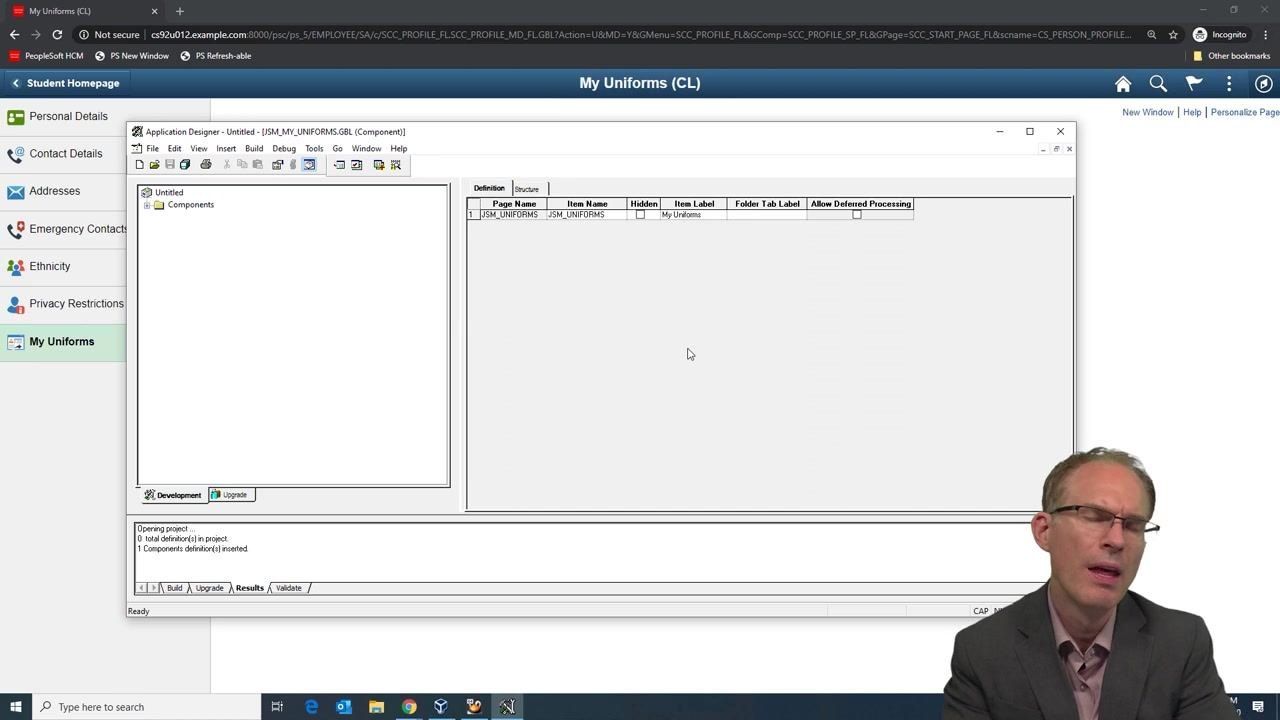
Mark the component as Fluid Mode
Open the Component Properties for JSM_MY_UNIFORMS. On the Use tab, find the Component Attributes section and select Fluid Mode. Click OK to save the change.
Reload the navigation collection and view the Fluid rendering
Refresh or reload the navigation collection in your PeopleSoft environment, then go to My Uniforms. The component now renders in Fluid mode, but the layout is not yet optimal.
All sections and fields (Height, Weight, Neck, Sleeve, Waist, and Inseam) appear stacked vertically instead of aligned horizontally. In Fluid, data entry fields are block elements, so each field takes the full width of its parent container.
Identify layout issues and compare with the Classic layout
The default Fluid rendering has these problems:
- All fields are stacked vertically, which uses space inefficiently.
- There is no padding along the sides of the content area.
- When you resize the window, scroll bars may be missing, which shows the page lacks a proper Fluid structure.
Refer to the Classic layout in Application Designer to see the original horizontal grouping of the fields. Use it as a reference for the Fluid layout you want to reach.
Mark the page as a Fluid Page
Open the Page Properties dialog for the JSM_UNIFORMS page from the Application Designer toolbar or menu. This step enables the Fluid attributes the page needs for proper layout and responsive behavior.
In the dialog, confirm these settings:
- Page Type: Standard Page
- Page Size: Custom size (Width: 863, Height: 600)
- Style: Use Default Style Sheet and Page Background
- Fluid Page: selected
Click OK to apply the settings.
The "Fluid" safety switch is an option intended for Classic pages. Enabling it does no harm. If the safety switch is not selected, the Fluid tab is disabled for all items on the page. Make sure the Fluid page checkbox is selected so the Fluid tab is available for page items.
Make room on the layout
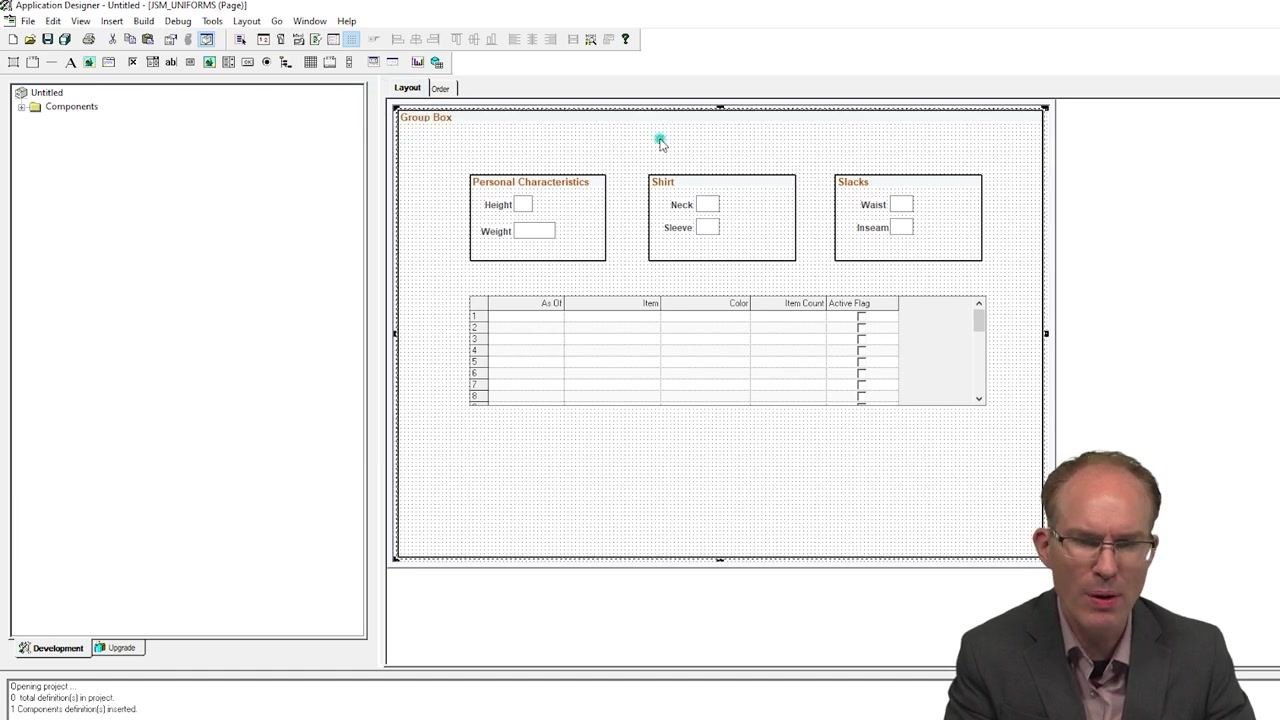
Rearrange the "Personal Characteristics," "Shirt," and "Slacks" group boxes and the grid. Leave enough space for additional group boxes. Group boxes are commonly used in Fluid layouts.
Add and configure the outer group box
Insert a new group box to act as the outer container for the Fluid layout. An outer group box is standard practice for Fluid pages. Configure it as follows:
- Clear the label field so the group box is invisible, because it is used only for layout.
- Set the group box type to Layout Only so it does not display visually.
- Assign the style class
PSAppsContent. Check the spelling of the style class carefully. - Save the group box configuration.
Save and preview the converted page
Save your changes in Application Designer. Then open the My Uniforms page in your browser. The Personal Characteristics, Shirt, and Slacks sections are visible with their input fields, and the item grid appears below them.
A scroll bar and padding now appear around the items, which shows the Fluid layout is taking effect. The page is nearly ready for production use. The conversion took only two checkboxes and a group box with a style class.
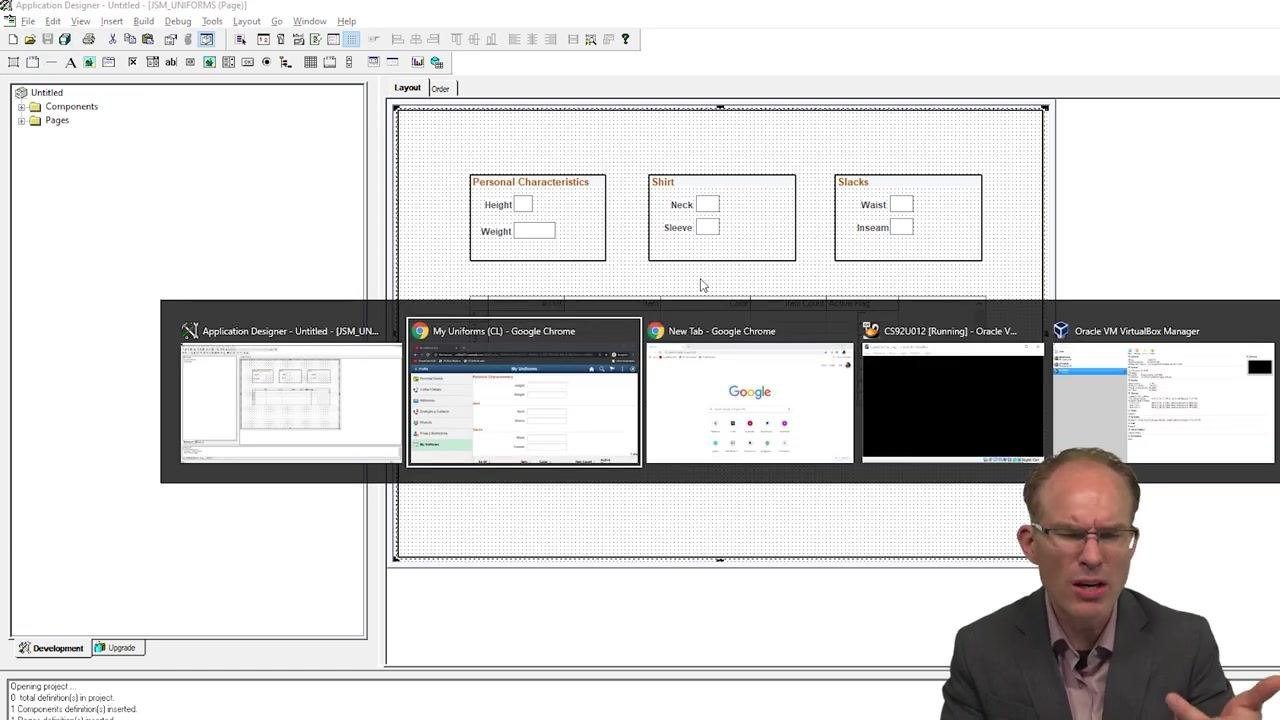
Review the layout before the three-column change
You can improve the layout further by placing all three sections side by side across the top of the page. In the browser, the sections are still stacked vertically, each with its input fields, and the grid appears below them.
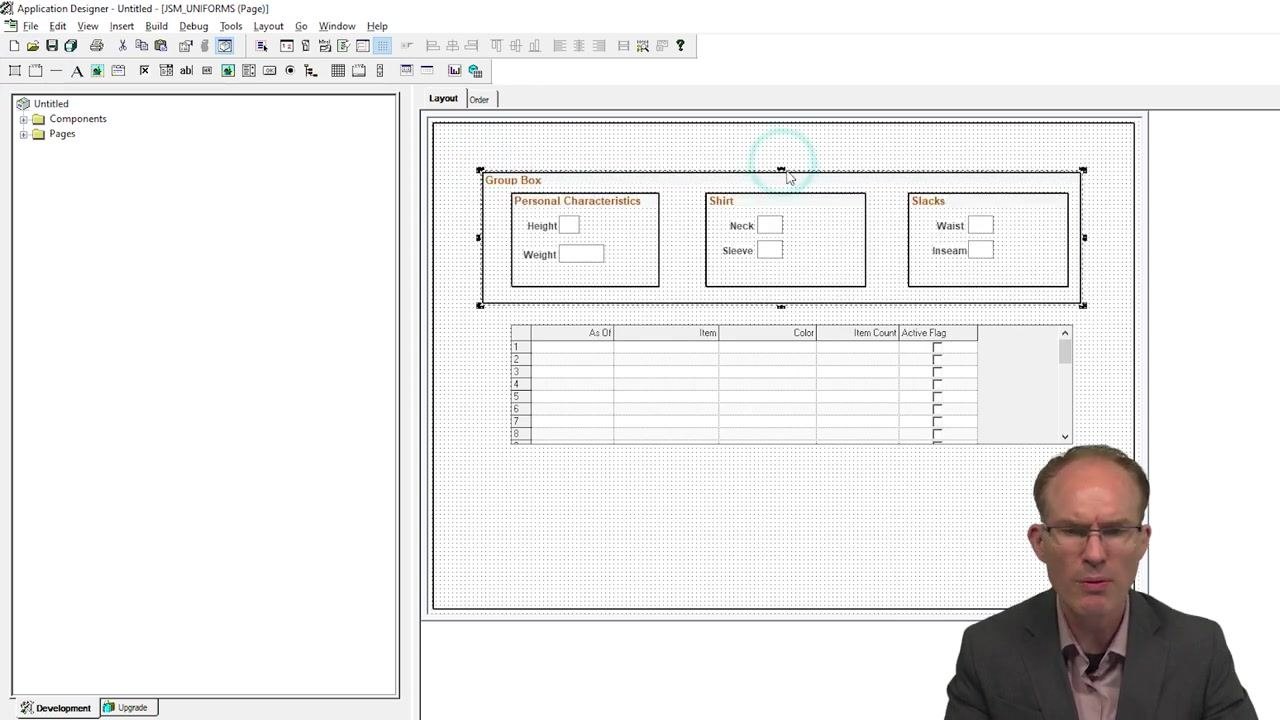
Select the outer group box in Application Designer
Switch to Application Designer with your project loaded. The layout shows the outer group box containing three inner group boxes: "Personal Characteristics," "Shirt," and "Slacks." The grid for item details is below them. Select the outer group box to prepare for the three-column layout.
Apply the three-column style class to the outer group box
With the outer group box selected, assign the style class psc_column-3 to enable a three-column layout.
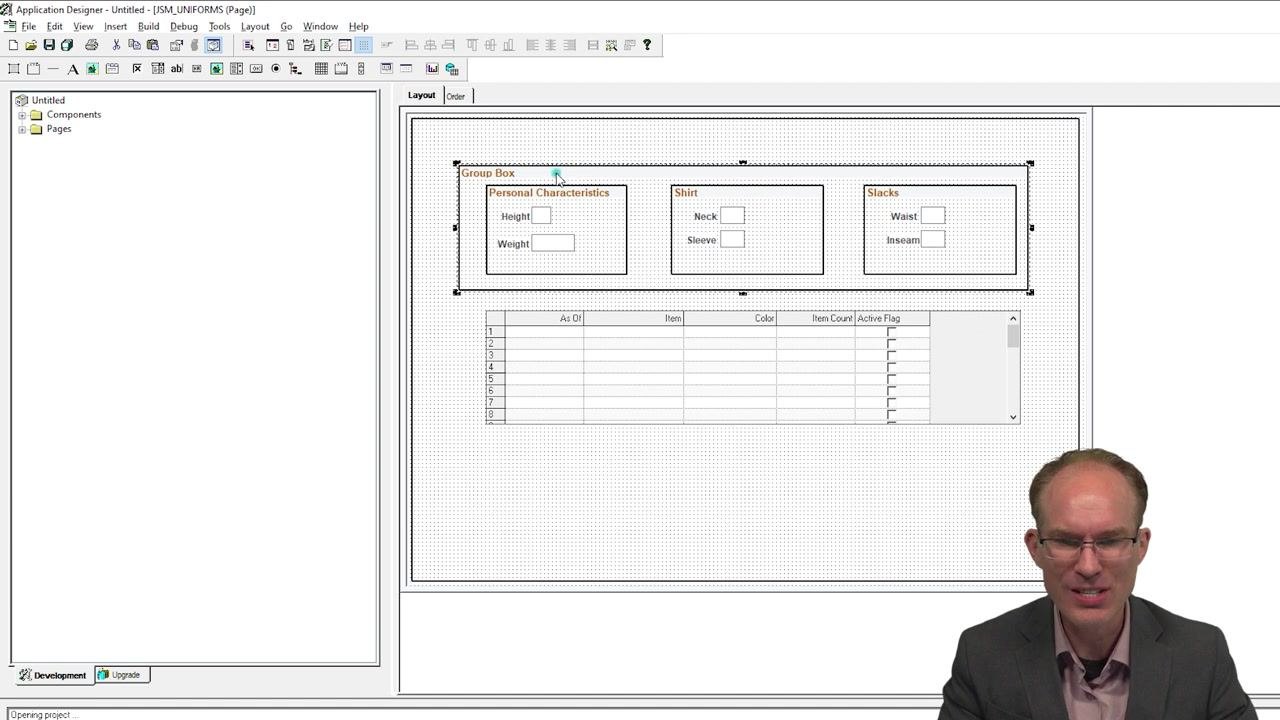
Apply a column item style class to each inner group box
Select each inner group box ("Personal Characteristics," "Shirt," and "Slacks") one at a time and open its Group Box Properties dialog. In the Style Classes field, enter psc_columnitem-1of3, or the equivalent class referenced in your documentation. Leave other properties, such as Group Box Type and HTML Tag Type, as you configured them earlier.
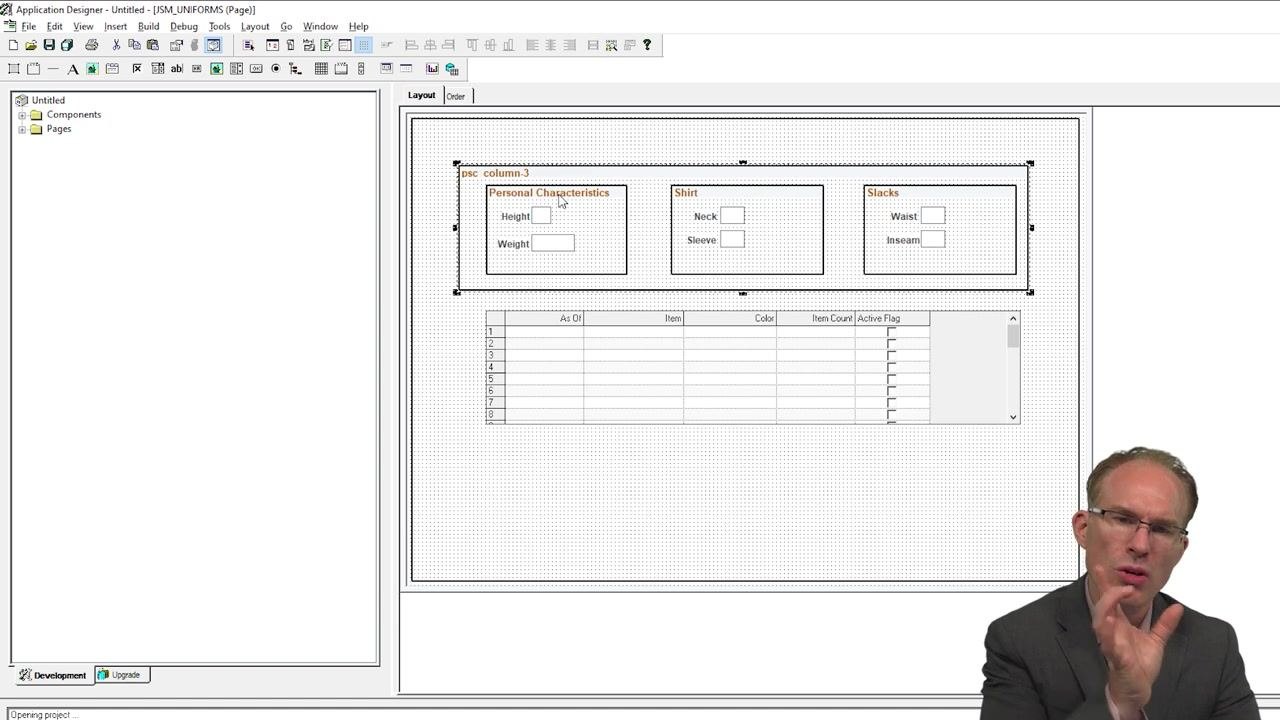
Save and preview the three-column layout
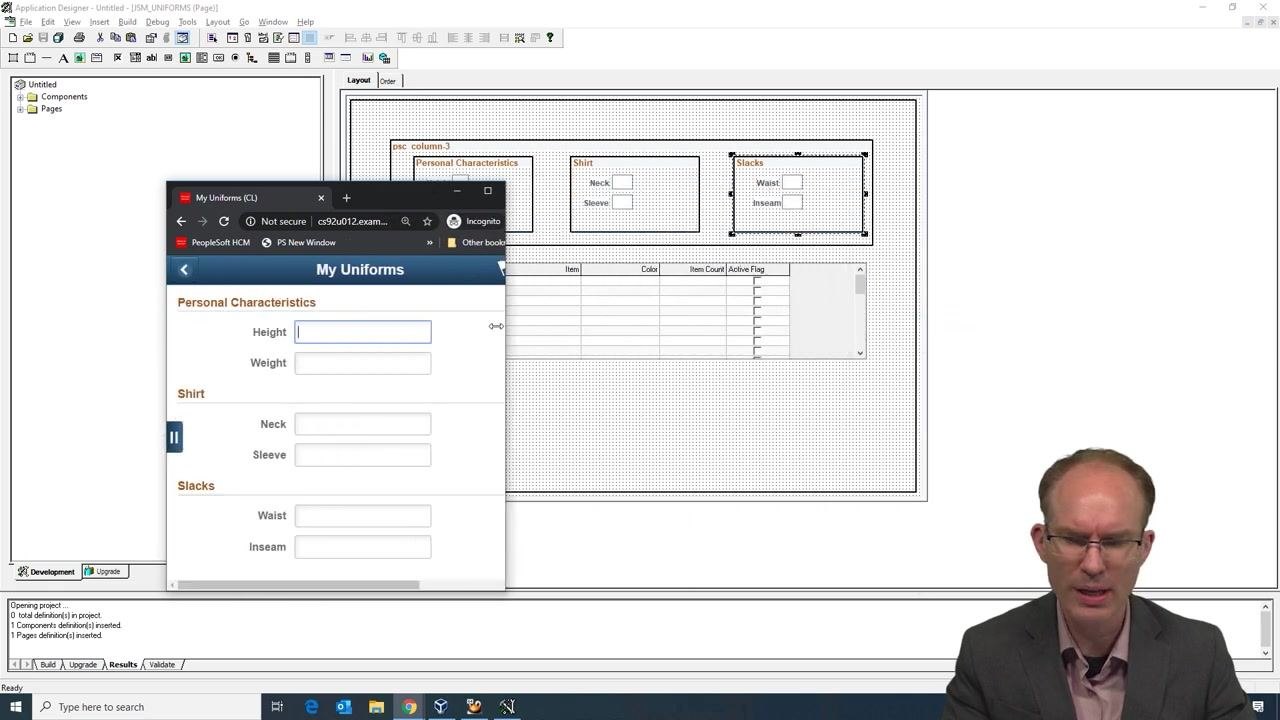
Save your changes in Application Designer, then open the My Uniforms page in your browser. The "Personal Characteristics," "Shirt," and "Slacks" sections now appear in three columns across the top, with the grid below. Confirm that the layout is visually consistent and matches your design.
Test responsive behavior
Place the browser window in front of Application Designer so you can compare the live page with the design layout. Resize the browser window gradually. At a certain width, the layout breaks over, and the columns stack vertically for smaller screen widths.
Summary
To convert a classic page to a fluid page in PeopleSoft, you completed these tasks:
- Identified the legacy Classic component within your Fluid navigation and confirmed that a plain Classic page is suitable for conversion.
- Opened the page (
JSM_UNIFORMS) and its component (JSM_MY_UNIFORMS) in Application Designer. - Selected Fluid Mode at the component level and Fluid Page in the Page Properties.
- Wrapped the page content in a Layout Only outer group box with the
PSAppsContentstyle class. - Applied
psc_column-3to the outer group box andpsc_columnitem-1of3to each inner group box to create a three-column layout. - Resized the browser to confirm that the columns stack on smaller screen widths.
Generation details: cost, quality tiers
Docsie billed 5,500 credits ($3.85) to analyze this 11-minute video at standard quality. The rewrite, template fill and Word/PDF exports were included. The same video at each quality tier:
| Quality | Frames sampled | Credits | Approx. cost |
|---|---|---|---|
| Draft | every 16-30 s | 2,750 | $1.92 |
| Standard (this guide) | every 8-15 s | 5,500 | $3.85 |
| Detailed | every 4-7 s | 11,000 | $7.70 |
| Ultra | every 1-3 s | 22,000 | $15.40 |
Credits priced at $0.70 per 1,000; plans include a monthly allowance. Enterprise customers on on-premise or bring-your-own-model deployments run this on their own inference and pay no per-video credits.
Generated by Docsie Video-to-Docs on 2026-11-01 from a 10-minute video. Screenshots are frames from the source video and belong to their creator, JSMpros, whose original is embedded above. If you own this video and want the guide removed or credited differently, contact us and we will act within one business day.