
How to Find Your W2 in Paylocity
If you need to locate your W-2 tax form, Paylocity makes it easy to view, download, and print the document directly from your employee account. This guide walks you through how to find your W-2 in Paylocity, from logging in to saving a secure copy for your records.
Video: Paylocity Training Video: Viewing and Printing Your W2 by The Independence Center (2022). All credit for the demonstration goes to the creator; watch the original on YouTube. The written guide below was generated from this video by Docsie. Creator? Request a change or removal.
If you need to locate your W-2 tax form, Paylocity makes it easy to view, download, and print the document directly from your employee account. This guide walks you through how to find your W-2 in Paylocity, from logging in to saving a secure copy for your records.
Prerequisites
- An active Paylocity employee account with your login credentials.
- Access to a web browser (the steps below use the Paylocity website).
- Adobe Acrobat Reader 5.0 or later if you choose to password protect your W-2 PDF.
- If you prefer to use the Paylocity mobile app instead, visit IndependenceCenter.org, click Employee Login at the top of the screen, and scroll down to the Payroll area for mobile-specific instructions.
Log in to Paylocity
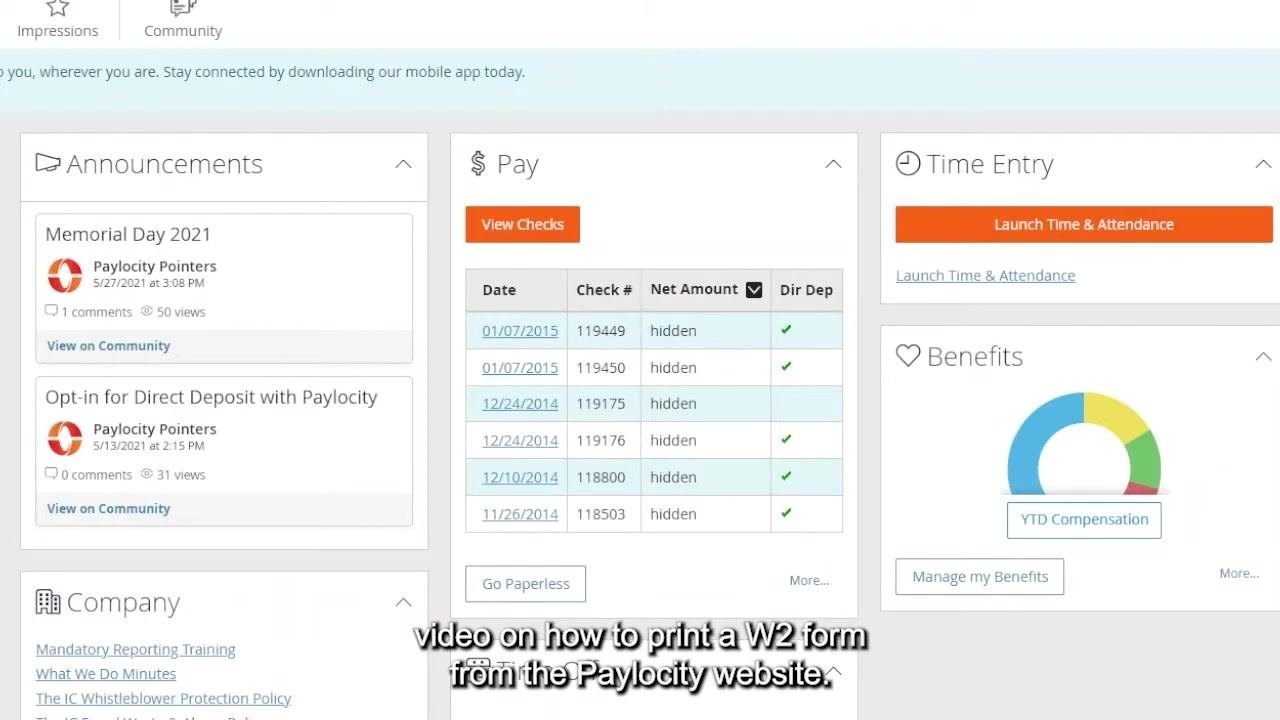
Log in to the Paylocity website using your credentials. After logging in, you should land on the main dashboard page.
If you do not see the dashboard right away, proceed to the next step to open the Self Service Portal manually.
Open the Self Service Portal
If you are not already on the dashboard:
- Go to the upper left-hand corner of the screen.
- Click the black box (menu icon).
- Select Self Service Portal from the menu.
- Wait for the screen to refresh and load the Self Service Portal.
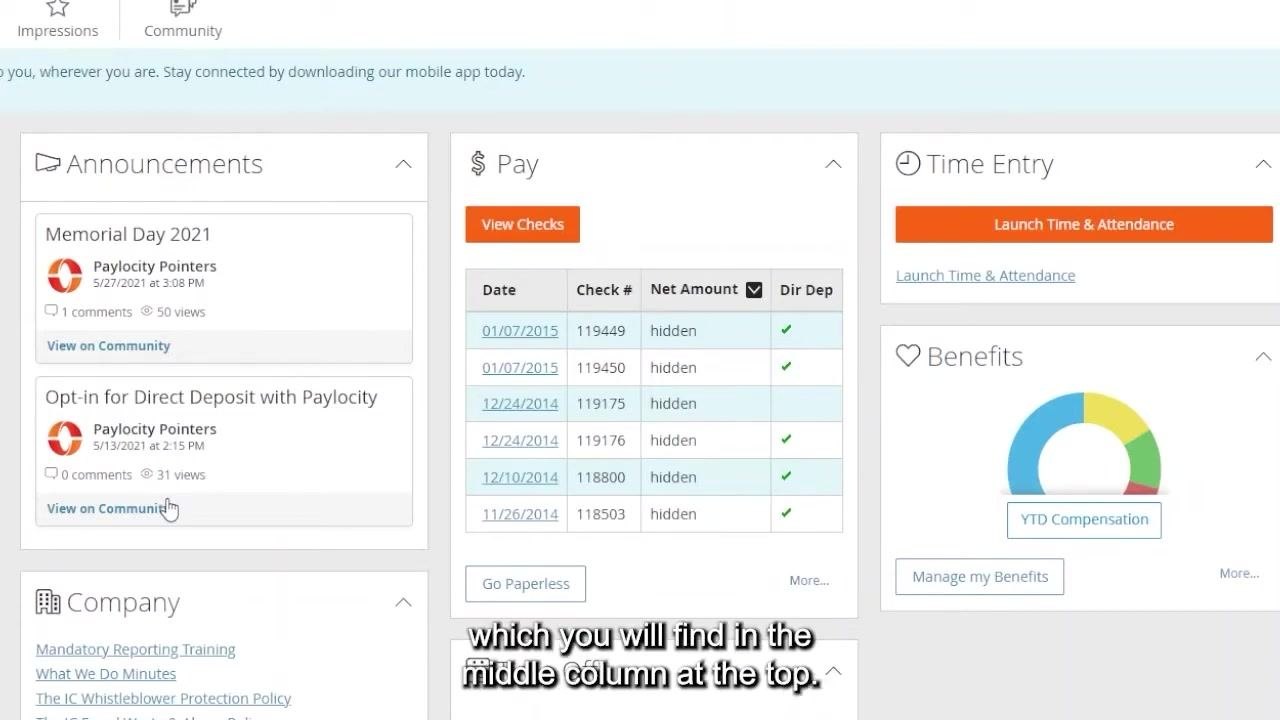
The Self Service Portal displays three columns, each containing boxes organized by category.
Locate the Pay box and view your checks
In the middle column at the top of the Self Service Portal, find the box labeled Pay. Directly under the word "Pay," click the View Checks button.
Switch to the Tax Forms tab
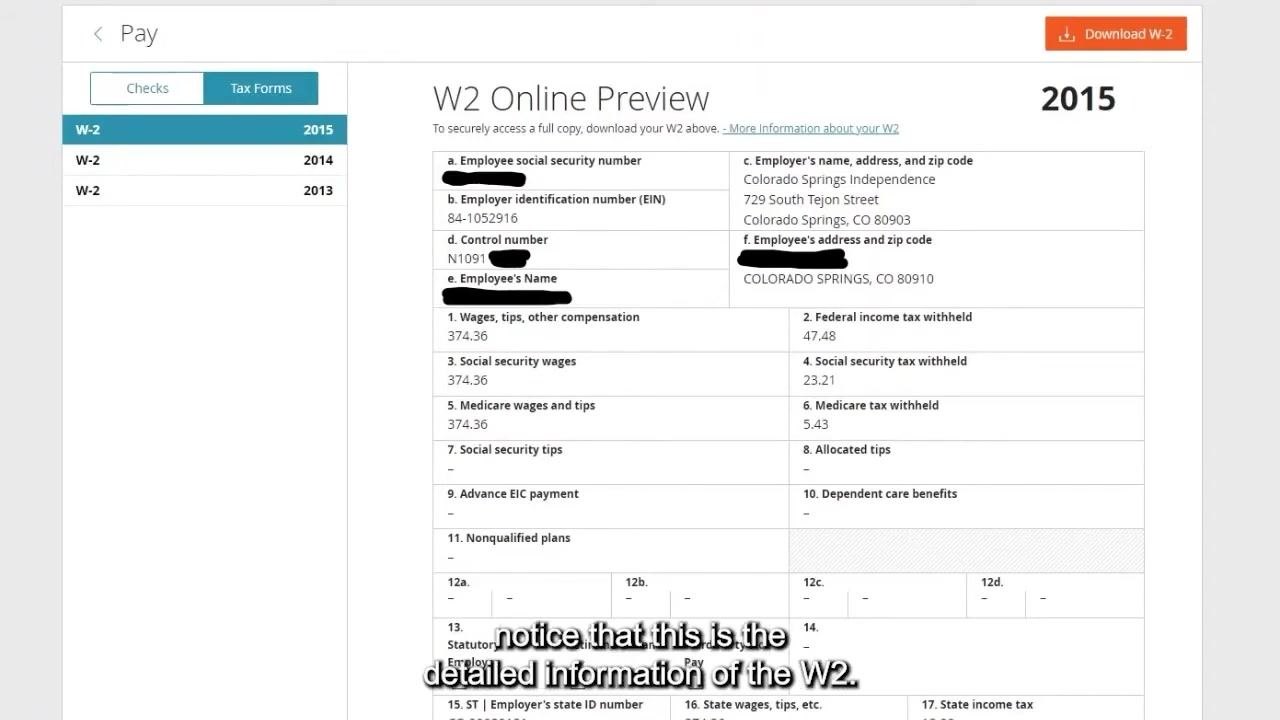
The View Checks area opens with your checks displayed by default. At the top of this page, you will see two tabs: Checks and Tax Forms. Click Tax Forms to switch to your tax documents.
Select the year for your W-2
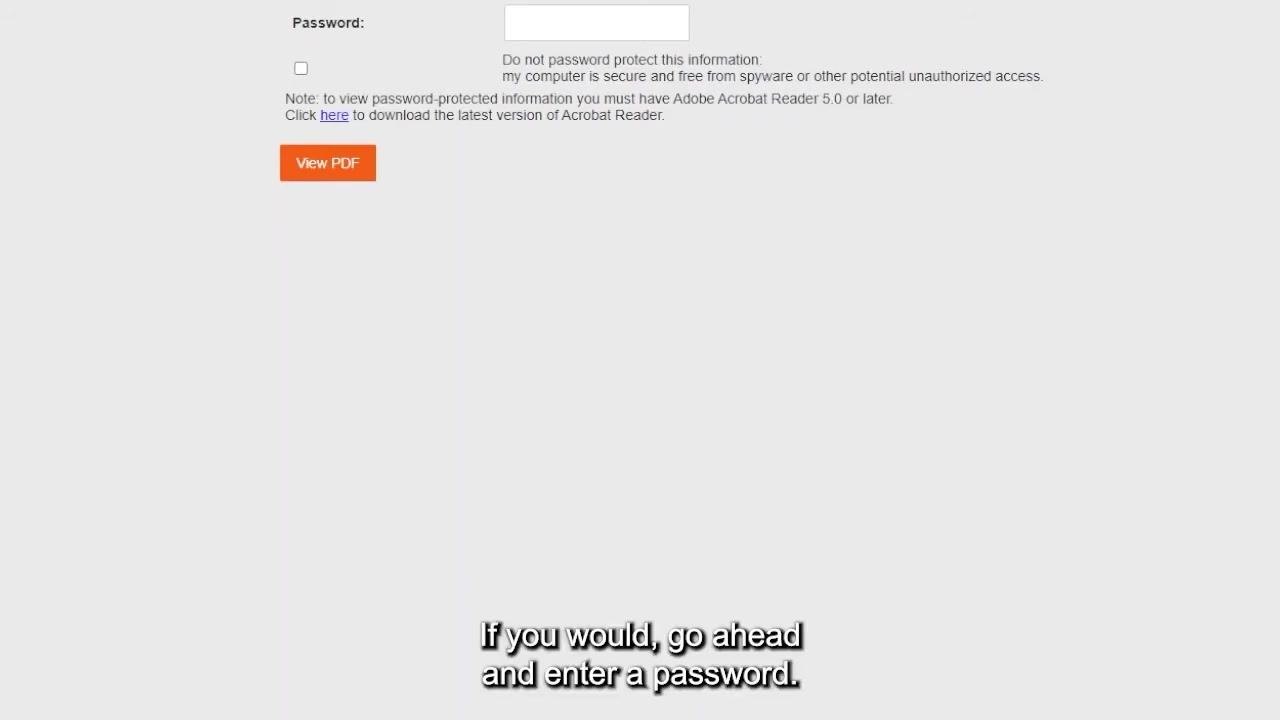
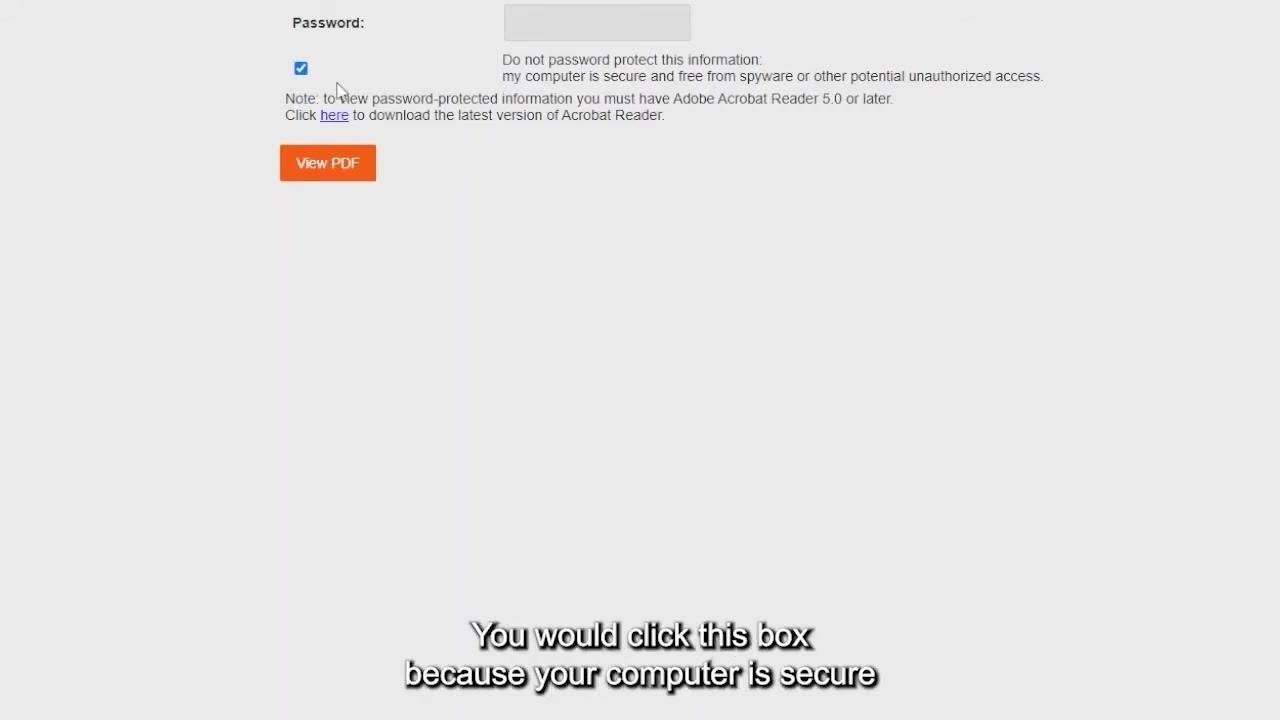
On the Tax Forms tab, you will see a list of all available W-2 forms on the left side of the screen, labeled by year (for example, 2015, 2014, 2013). There should be one W-2 for each year you have worked.
Click the year you want to view. The detailed W-2 information appears as a preview on the right side of the screen—review it to confirm you have selected the correct year.
Download your W-2 form
Once you have confirmed the correct year is selected, click the Download W-2 button in the top right corner of the screen.
Choose your password protection settings
After clicking Download W-2, click the highlighted Download W-2 button to proceed to the password protection screen.
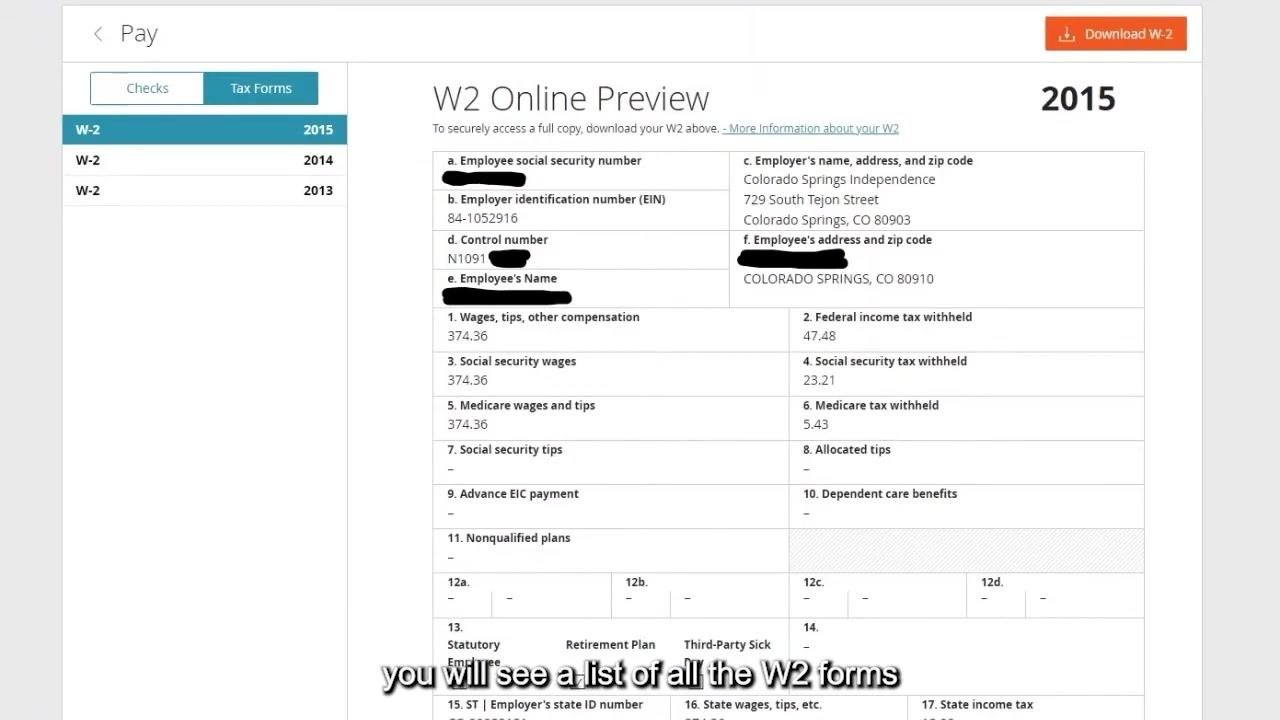
A new screen appears with the following options:
- A Password field at the top.
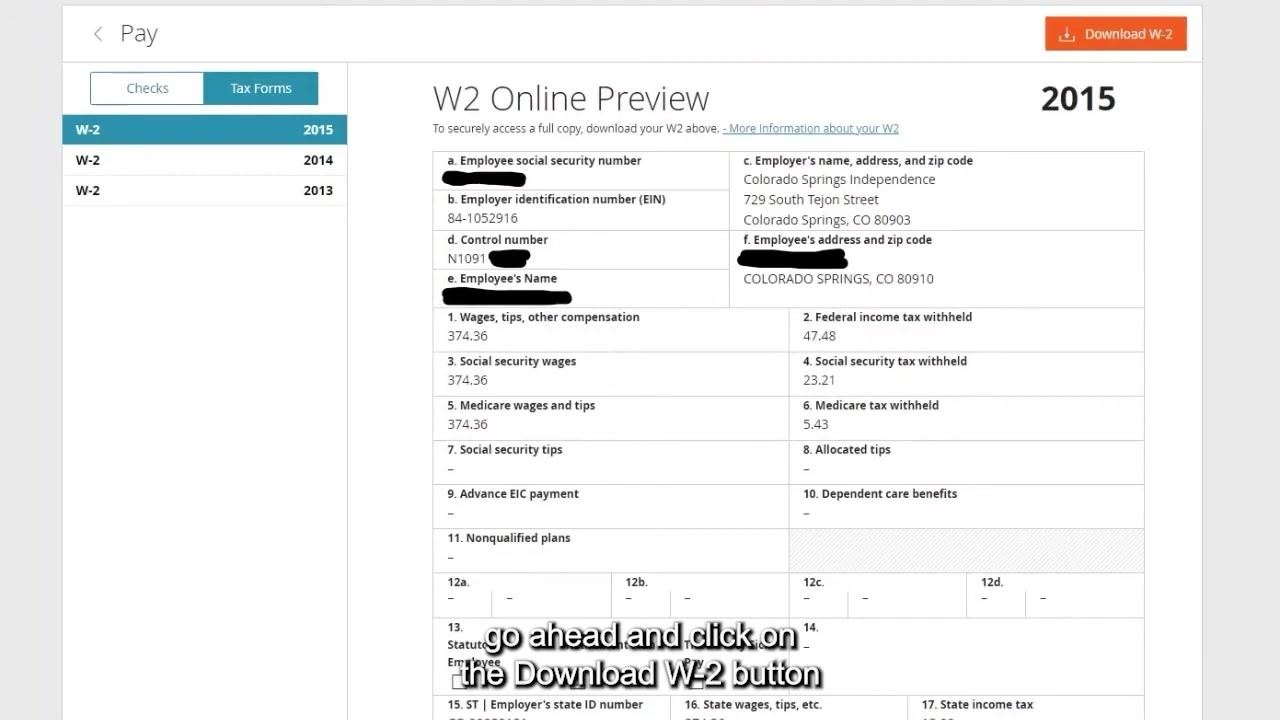
- A checkbox labeled Do not password protect this information: my computer is secure and free from spyware or other potential unauthorized access.
- A note stating that viewing password-protected information requires Adobe Acrobat Reader 5.0 or later.
- A View PDF button below these options.
Enter a password (optional)
If you want to password protect your W-2 PDF, enter a password of your choice in the Password field. Be sure to remember this password, as you will need it to open the PDF in a later step.
Skip password protection (optional)
If your computer is secure and free from spyware or unauthorized access, you can skip password protection instead. Click the checkbox labeled Do not password protect this information.
Generate and view your PDF
Once you have either entered a password or checked the box to skip password protection, click the orange View PDF button to generate your W-2 form.
- If you chose password protection, you will be prompted to enter your password again to open the PDF.
- If you chose not to password protect it, the PDF will open immediately.
Review your W-2 PDF
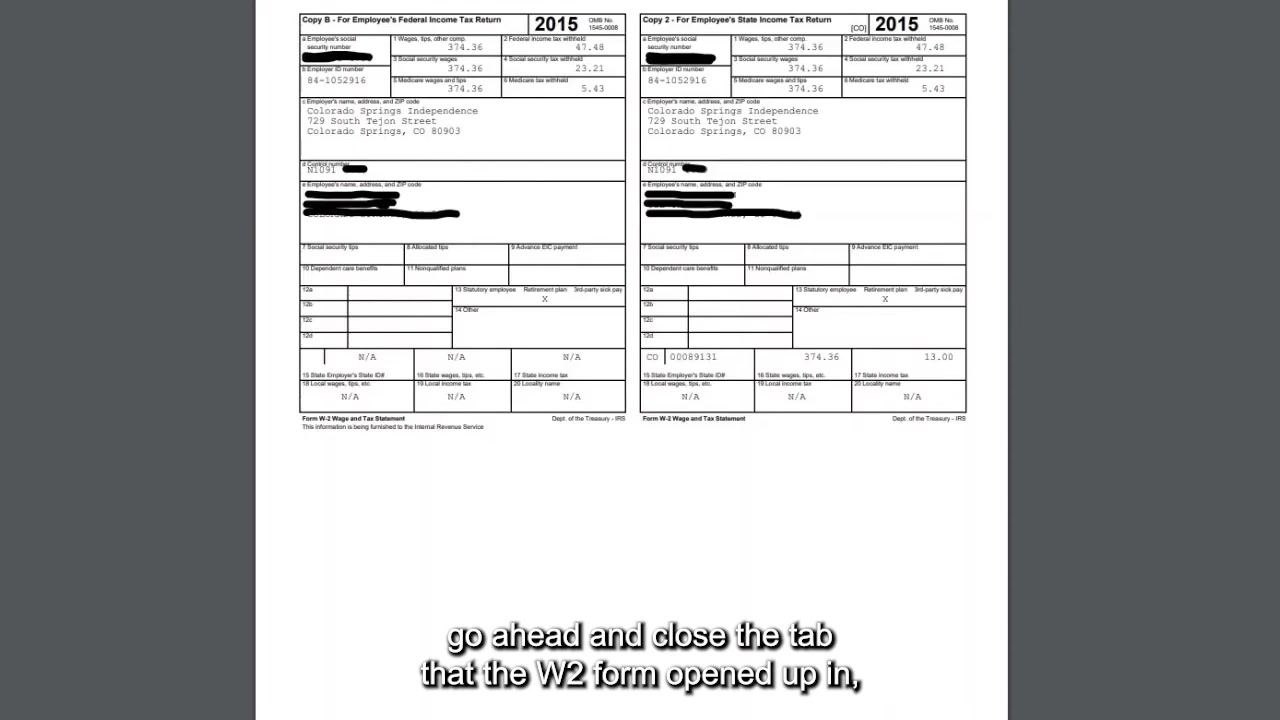
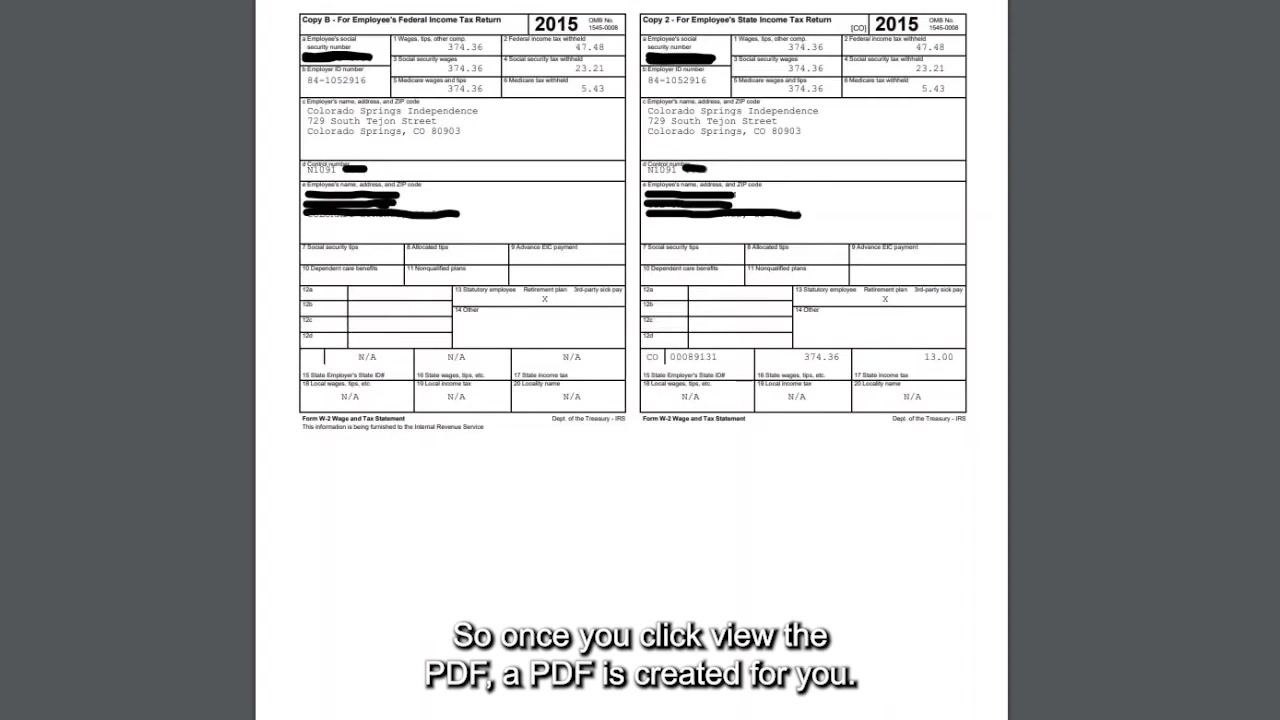
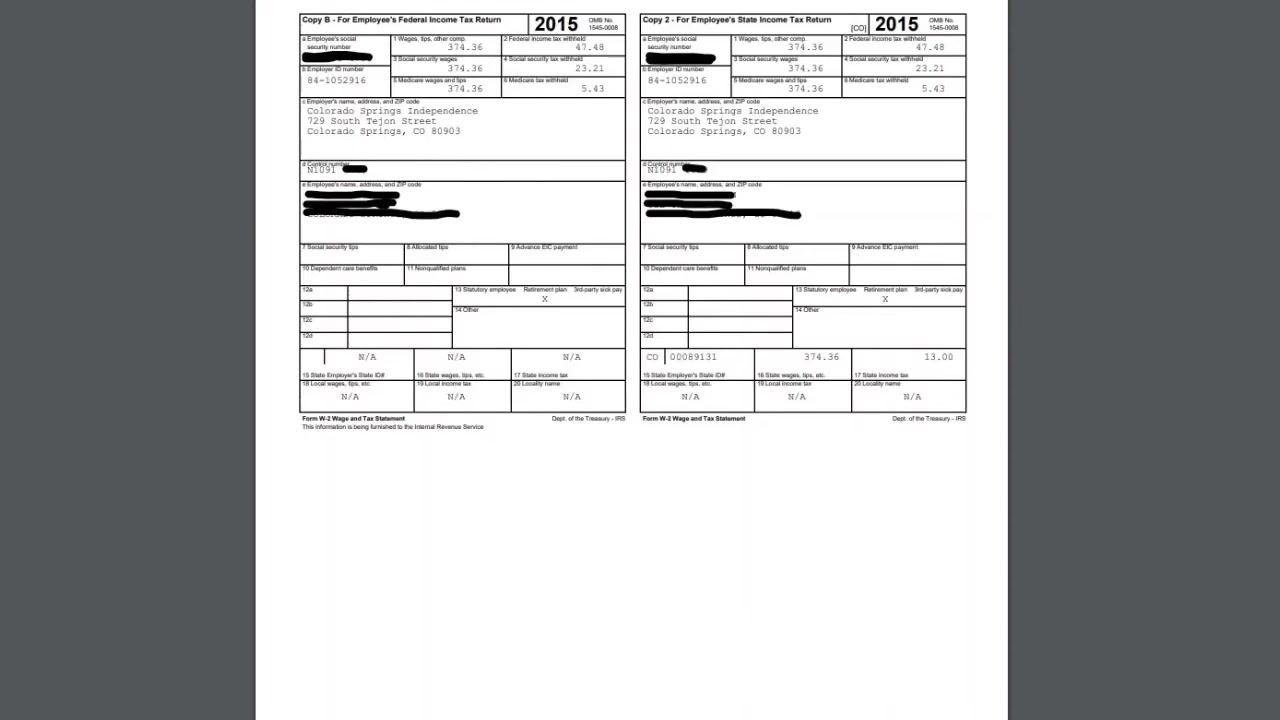
Review the W-2 PDF that opens for the selected year. The form includes all relevant tax information, such as wages, tax withholdings, and employer and employee details.
There may be a second page showing the same information in a larger font for easier reading—both pages contain identical information, just formatted differently.
Save or print your W-2
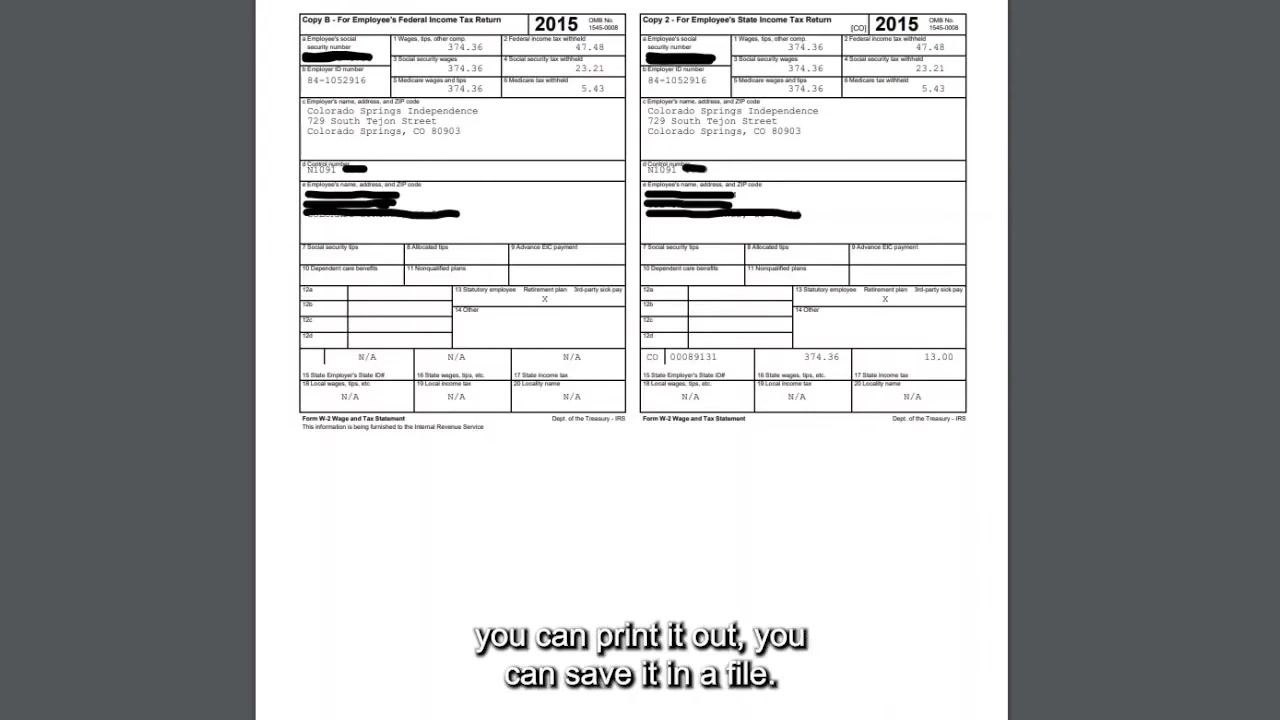
Use your PDF viewer's options to save the file to your computer for future reference, or print the W-2 directly from the PDF viewer. Once saved, you can email the file, keep it for your records, or print additional copies as needed.
Close the PDF and return to Paylocity
When you are finished with your W-2 PDF, close the browser tab or window where the PDF opened. This returns you to the W-2 Online Preview section of the Paylocity website.
To view or download another W-2 form, select a different year from the list on the left and repeat the download process.
Return to the Self Service Portal
When you are finished, click the Back button at the top left of the Paylocity W-2 Online Preview screen to return to the Self Service Portal.
You are now back at the Self Service Portal page, where you can continue with other tasks or log out as needed.
Return to the main dashboard
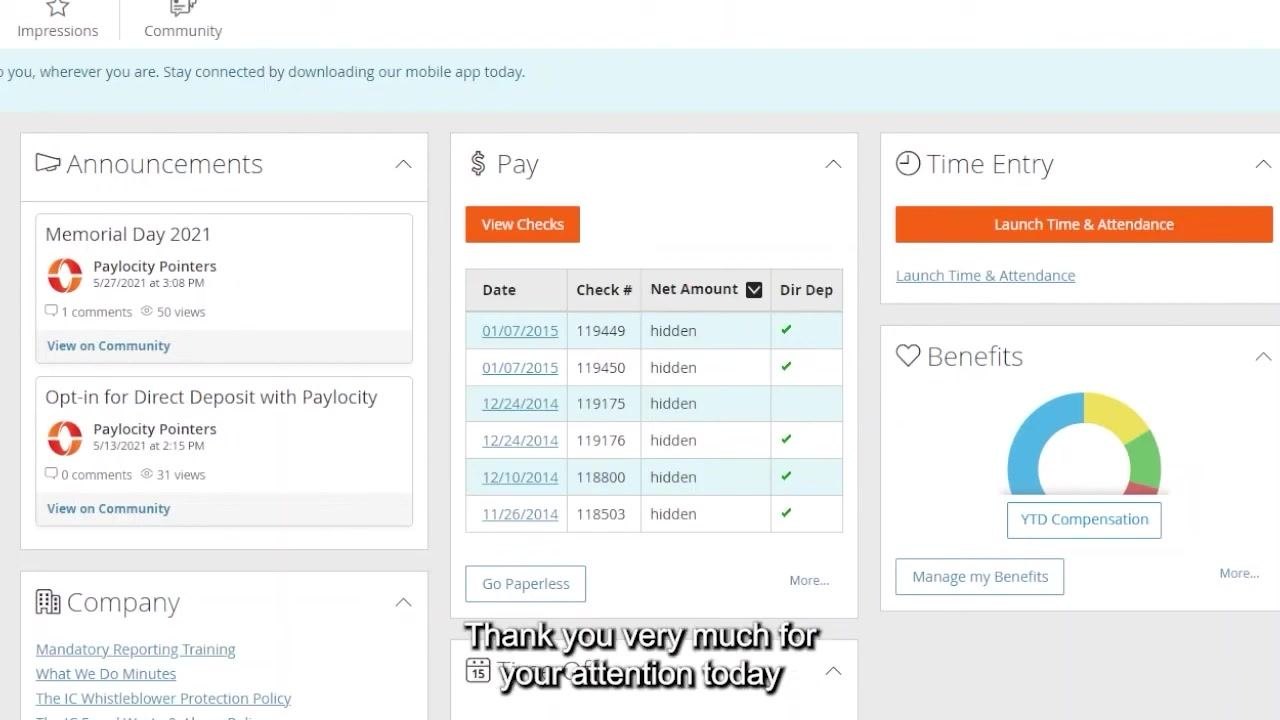
After completing your W-2 tasks, you will return to the main Self Service Portal dashboard, which includes:
- Announcements: Updates such as "Memorial Day 2021" and "Opt-in for Direct Deposit with Paylocity," with comment and view counts and links to community details.
- Pay: A summary of recent paychecks, including Date, Check #, Net Amount (hidden for privacy), and Direct Deposit status, along with the View Checks button and a "Go Paperless" option.
- Time Entry: A section to launch the Time & Attendance system via the orange Launch Time & Attendance button.
- Benefits: A graphical summary of Year-To-Date (YTD) Compensation and a Manage my Benefits button.
- Company: Links to resources such as "Mandatory Reporting Training," "What We Do Minutes," and "The IC Whistleblower Protection Policy."
What's next
Now that you know how to find your W-2 in Paylocity, you can revisit the Tax Forms tab at any time to download W-2s from previous years. Always store saved files securely, especially if you chose not to password protect your PDF. For further assistance, explore the other sections of the Self Service Portal dashboard.
Generation details: cost, quality tiers
Docsie billed 3,000 credits ($2.10) to analyze this 6-minute video at standard quality. The rewrite, template fill and Word/PDF exports were included. The same video at each quality tier:
| Quality | Frames sampled | Credits | Approx. cost |
|---|---|---|---|
| Draft | every 16-30 s | 1,500 | $1.05 |
| Standard (this guide) | every 8-15 s | 3,000 | $2.10 |
| Detailed | every 4-7 s | 6,000 | $4.20 |
| Ultra | every 1-3 s | 12,000 | $8.40 |
Credits priced at $0.70 per 1,000; plans include a monthly allowance. Enterprise customers on on-premise or bring-your-own-model deployments run this on their own inference and pay no per-video credits.
Generated by Docsie Video-to-Docs on 2026-10-02 from a 5-minute video. Screenshots are frames from the source video and belong to their creator, The Independence Center, whose original is embedded above. If you own this video and want the guide removed or credited differently, contact us and we will act within one business day.