
How to Change Your Tax Withholding in Paylocity
This guide walks you through how to change your tax withholding in Paylocity using the Employee Self Service Portal. You'll update your federal W-4 information, generate a pre-filled form, and submit it to Centralized Payroll for approval.
Video: How to change Tax Exceptions - Federal Income Tax Withholdings on Paylocity by Phil Long HR. All credit for the demonstration goes to the creator; watch the original on YouTube. The written guide below was generated from this video by Docsie. Creator? Request a change or removal.
This guide walks you through how to change your tax withholding in Paylocity using the Employee Self Service Portal. You'll update your federal W-4 information, generate a pre-filled form, and submit it to Centralized Payroll for approval.
Prerequisites
- Access to your Employee Self Service Portal login credentials.
- A printer or scanner (or a mobile scanning app) to complete the signed form submission.
- Knowledge of your updated filing status, dependents, and any additional withholding amounts you want to apply.
Log in to the Employee Self Service Portal
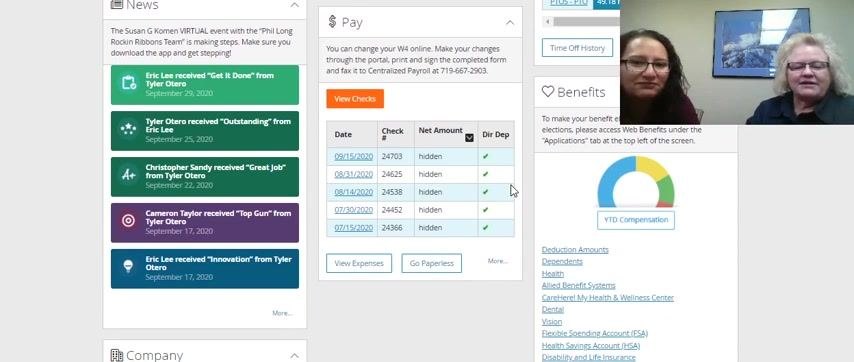
After logging in, you'll land on the main dashboard. It displays sections such as Tasks To Complete, Time Entry, Time Off, Pay, News, and Benefits.
Open the Pay section
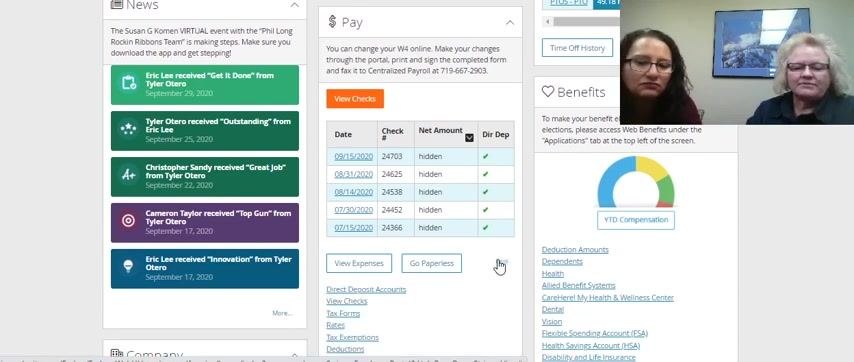
On the dashboard, locate the Pay section and click the down arrow next to it to expand the menu. This reveals options including View Checks, Go Paperless, and additional links at the bottom.
Click "More" in the Pay section
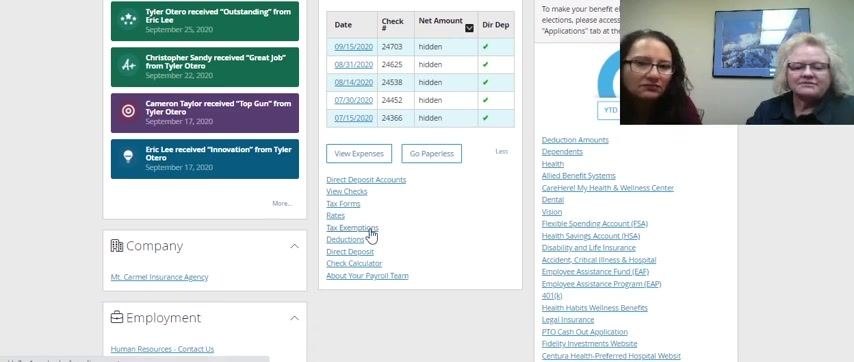
Scroll further down within the expanded Pay section and click More to reveal additional options, including tax-related links.
Select "Tax Exemptions"
In the expanded list of options, find and click Tax Exemptions to access your withholding settings.
Open your Federal Income Tax (FITW) details
Under Federal Income Tax, click the FITW link to open your federal tax withholding details.
Update your federal tax details
On the Federal Tax Details page, review and update the following fields on the right side of the screen:
- Filing Status – select your current status (for example, Married).
- Multiple Jobs or Spouse Works (Line 2c) – enter the appropriate value.
- Dependents (Line 3) – enter the dollar amount for dependents.
- Other Income (Line 4a) – enter any additional income.
- Deductions (Line 4b) – enter deduction amounts.
- Extra Withholding (Line 4c) – enter any extra withholding amount or percentage.
Save your changes
Once you've completed your updates, click Save & Return at the bottom left of the page to save your information.
Confirm your updated tax record
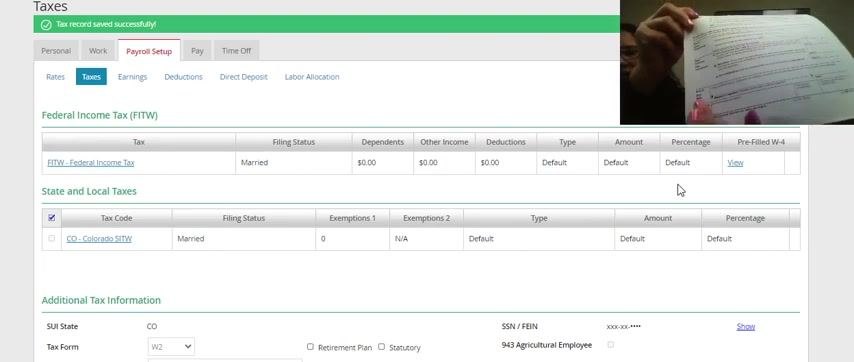
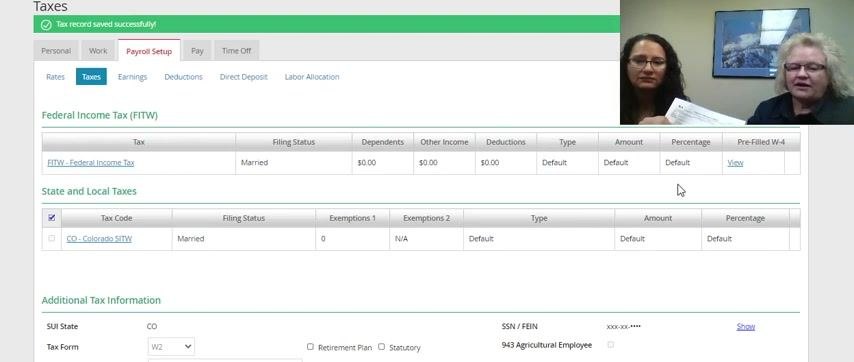
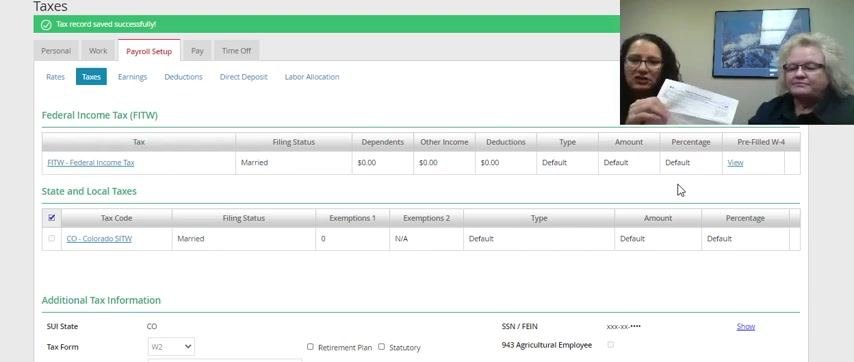
After saving, you'll return to the main Taxes summary screen. A green banner at the top confirms your tax record was saved successfully. Review your updated information under Federal Income Tax (FITW), then click View on the right side under Pre-Filled W-4 to see your form.
Note: Do not click View if personal information is visible on your screen to others nearby.
Print and sign the pre-filled W-4 form
Download and print the pre-filled W-4 form, which will already display the date and your updated information. Sign the form in the designated area.
Scan and email the signed form to payroll
Use a scanner or a mobile scanning app to create a clear digital copy of your signed W-4 form. Compose an email to payroll@phillong.com and attach the scanned copy.
You do not need to mail the original paper form—only the scanned, signed copy is required.
Understand how state withholding is affected
Once you update your federal income tax withholding, your state tax withholding updates automatically to match your federal changes.
If you want to update only your federal withholding and leave your state withholding unchanged, write "Federal Only" on the W-4 form before signing and sending it to payroll.
Send the form and await confirmation
Email the scanned, signed W-4 form to payroll@phillong.com. Centralized Payroll will review your submission and approve your changes once the signed form is received.
Shred unused documents
After submitting your scanned W-4 form, shred any paper copies or documents you no longer need to protect your personal information.
What's next
Your updated withholding information will be reviewed and approved by Centralized Payroll once they receive your signed form. If you have any questions or need assistance at any point in this process, contact Centralized Payroll for support.
Generation details: cost, quality tiers
Docsie billed 1,500 credits ($1.05) to analyze this 3-minute video at standard quality. The rewrite, template fill and Word/PDF exports were included. The same video at each quality tier:
| Quality | Frames sampled | Credits | Approx. cost |
|---|---|---|---|
| Draft | every 16-30 s | 750 | $0.52 |
| Standard (this guide) | every 8-15 s | 1,500 | $1.05 |
| Detailed | every 4-7 s | 3,000 | $2.10 |
| Ultra | every 1-3 s | 6,000 | $4.20 |
Credits priced at $0.70 per 1,000; plans include a monthly allowance. Enterprise customers on on-premise or bring-your-own-model deployments run this on their own inference and pay no per-video credits.
Generated by Docsie Video-to-Docs on 2026-10-06 from a 2-minute video. Screenshots are frames from the source video and belong to their creator, Phil Long HR, whose original is embedded above. If you own this video and want the guide removed or credited differently, contact us and we will act within one business day.