
How to Take Attendance in Infinite Campus
This guide explains how to take attendance in Infinite Campus from the Teaching Center. You will open the Attendance screen, choose the correct date, mark each student as present, absent, or tardy, and save your work. You will also learn how to update attendance later in the day.
Video: How to Take Attendance Using Infinite Campus by Michael Alfano (2022). All credit for the demonstration goes to the creator; watch the original on YouTube. The written guide below was generated from this video by Docsie. Creator? Request a change or removal.
This guide explains how to take attendance in Infinite Campus from the Teaching Center. You will open the Attendance screen, choose the correct date, mark each student as present, absent, or tardy, and save your work. You will also learn how to update attendance later in the day.
Prerequisites
Before you begin, make sure you have the following:
- A login for Infinite Campus
- At least one class assigned to you for the current school year and term
Open the Attendance screen
Log in to Infinite Campus
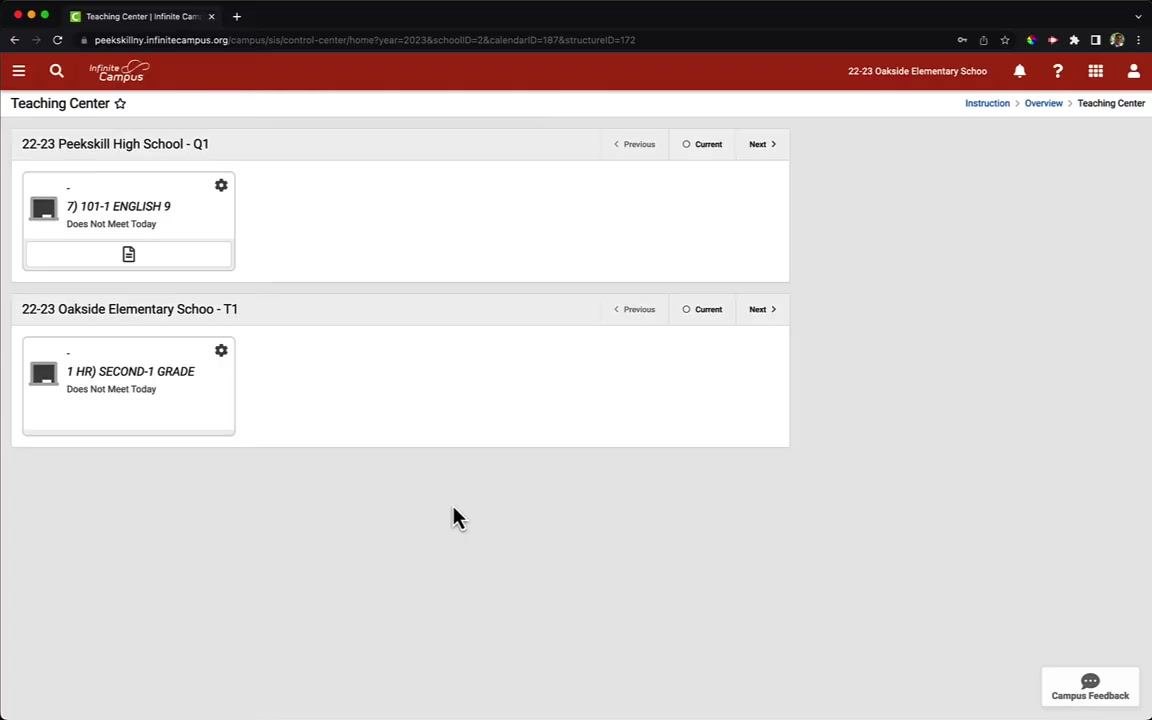
Log in and make sure you are on the Teaching Center screen. You will see a list of your classes for the current school year and term.
This example shows two sample classes: "101-1 ENGLISH 9" at Peekskill High School and "1 HR SECOND-1 GRADE" at Oakside Elementary.
Verify your class list
Confirm that all the classes you teach appear in the list. If you do not see the sidebar on the left, go to the next step to open it.
Open the main menu
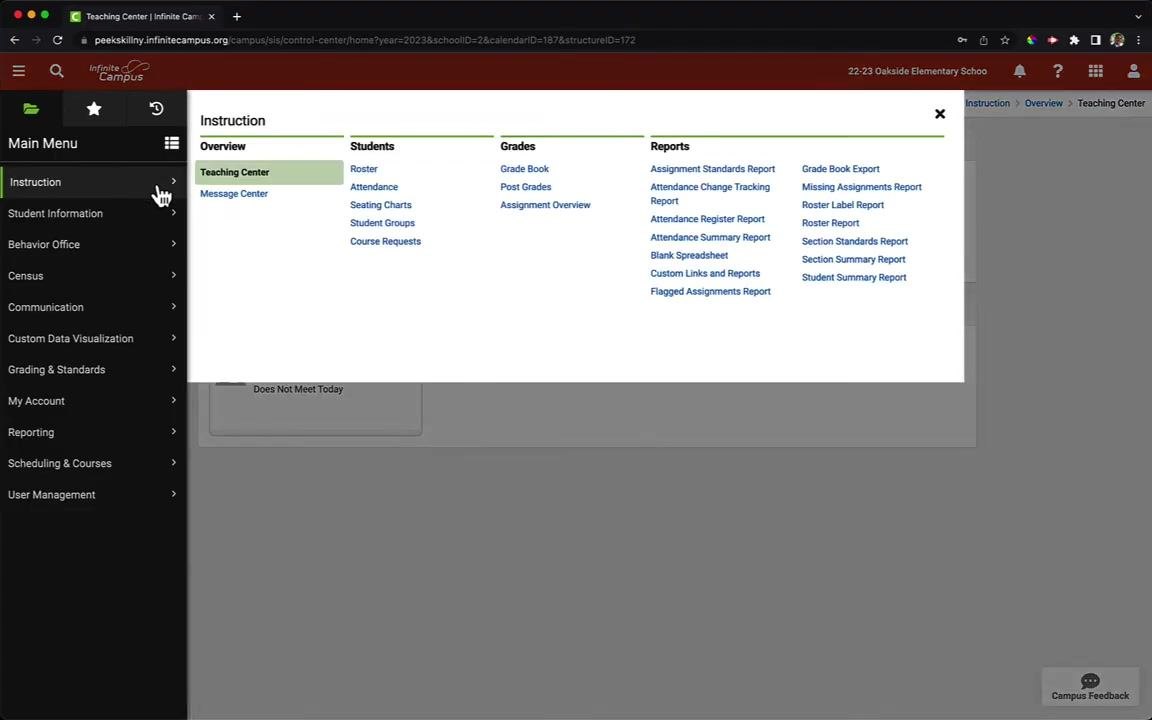
Click the menu icon (three horizontal lines) at the top left of the screen. The sidebar menu expands.
Go to Attendance
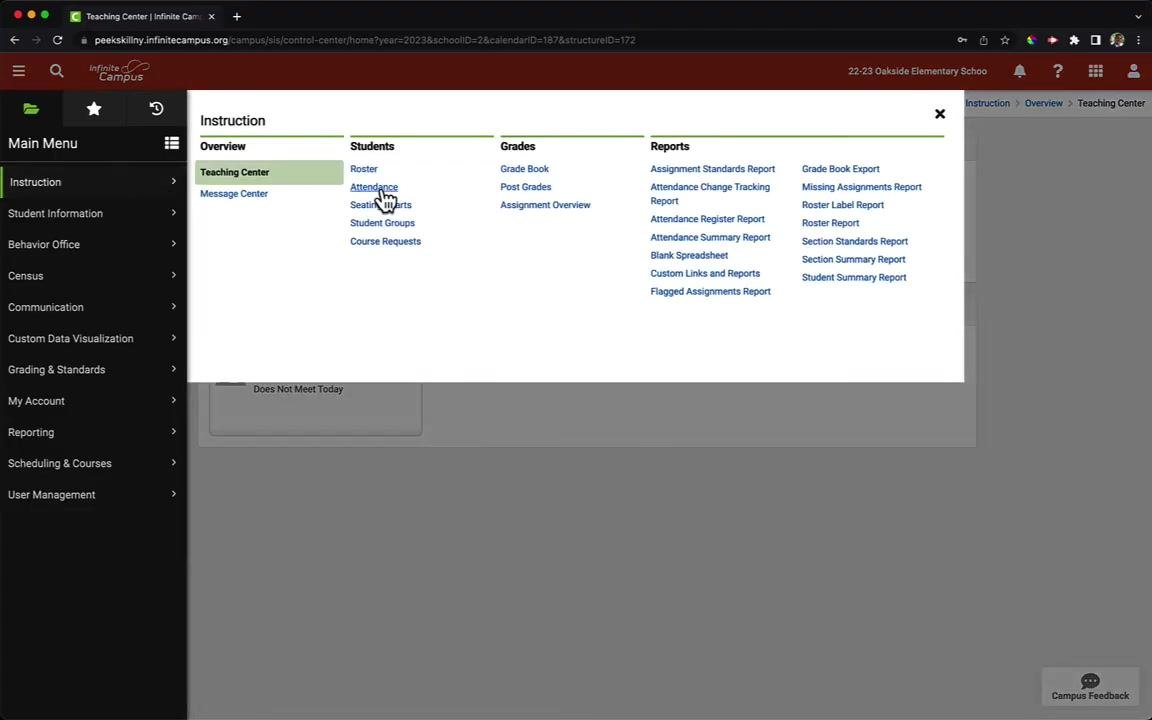
In the sidebar, click Instruction. In the expanded menu, click Attendance under the Students column.
Take attendance
Select the correct date
If you see a message such as "attendance is not taken today or section does not meet today," you may need to choose a different date.
Click the calendar icon next to the Date field, then choose the date you need. In this example, the date is 08/31/2022, the first day of school.
Review your class roster
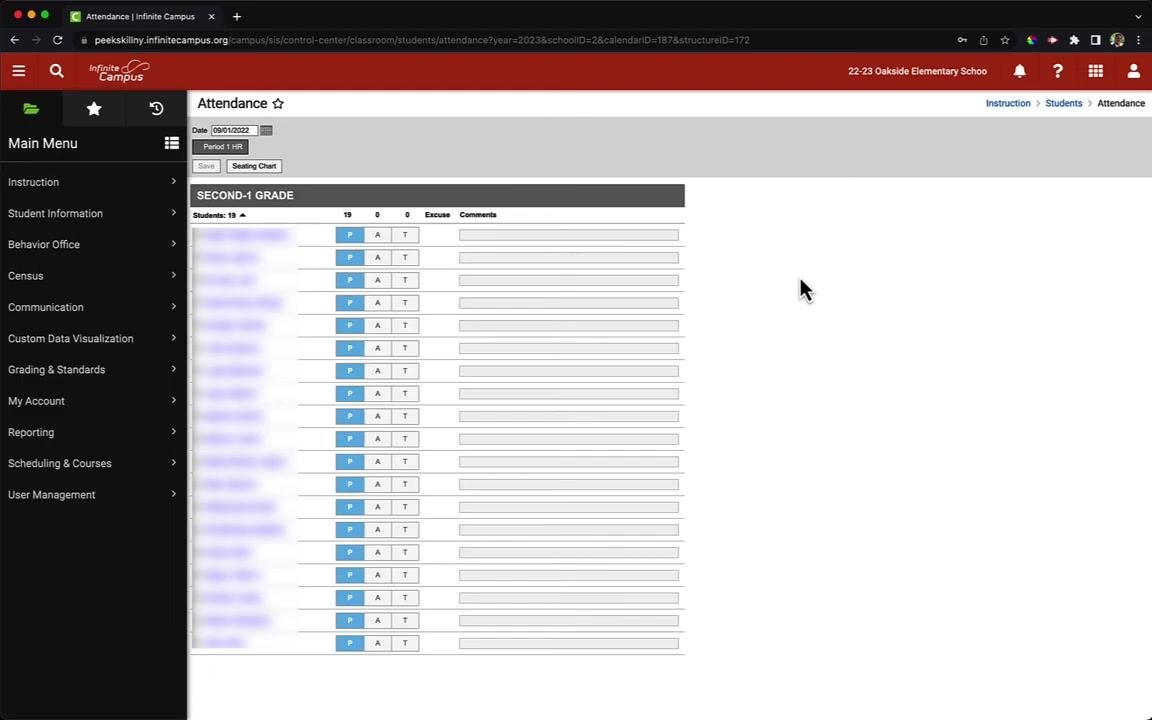
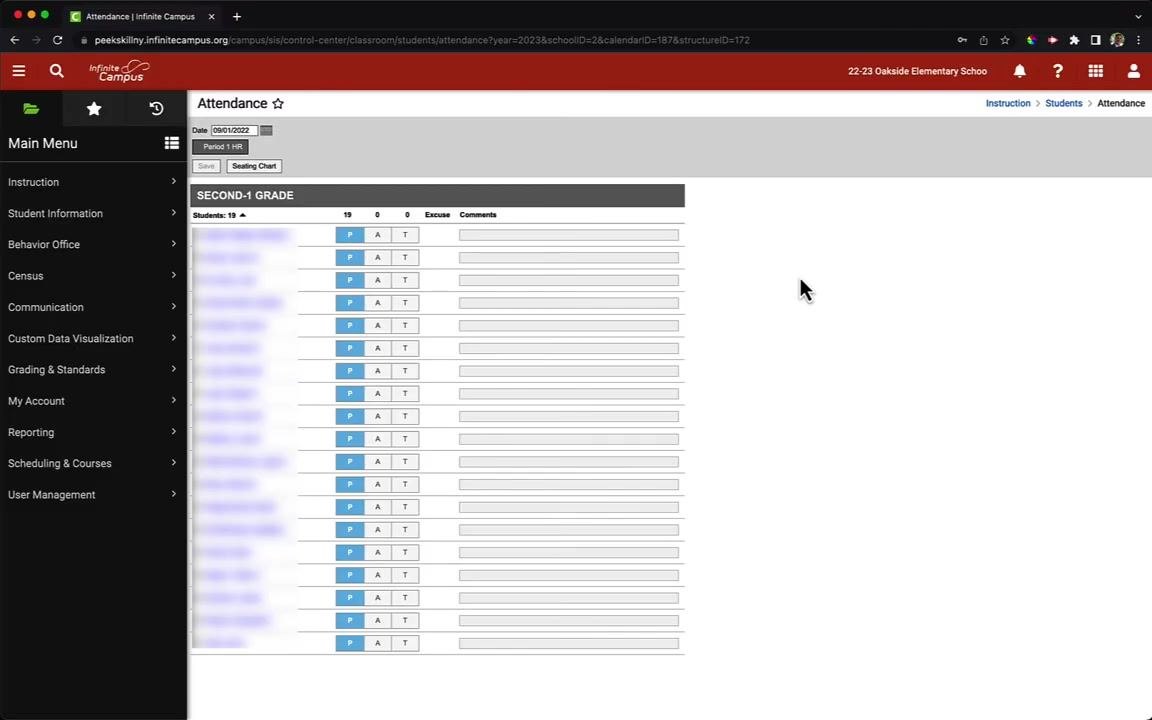
The roster for the selected class and date appears. All students are listed, and each is marked P (Present) by default.
The top of the roster shows the total number of students (for example, 19). Columns are available for Present (P), Absent (A), Tardy (T), and Comments.
Mark attendance for each student
Use the buttons next to each student's name:
- Click P to mark a student as Present.
- Click A to mark a student as Absent.
- Click T to mark a student as Tardy.
You can also enter a note for any student in the Comments field.
Save your attendance
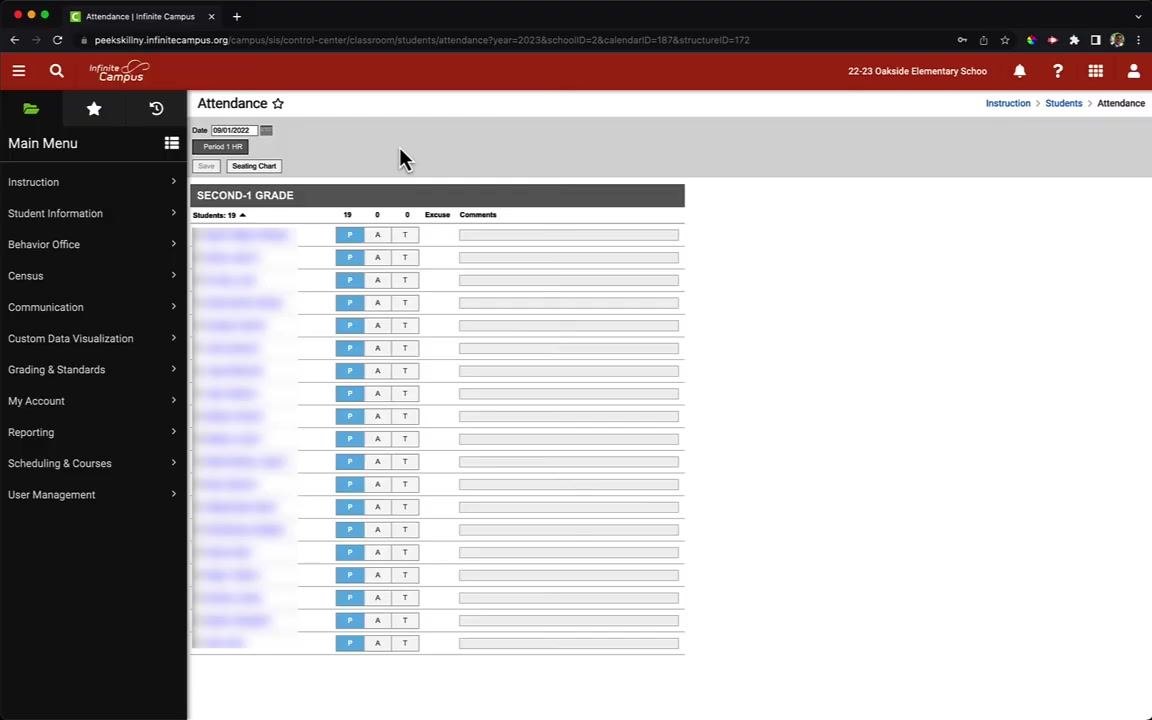
When you finish marking attendance and adding comments, click Save at the top of the screen.
Update attendance
Return to the Attendance screen
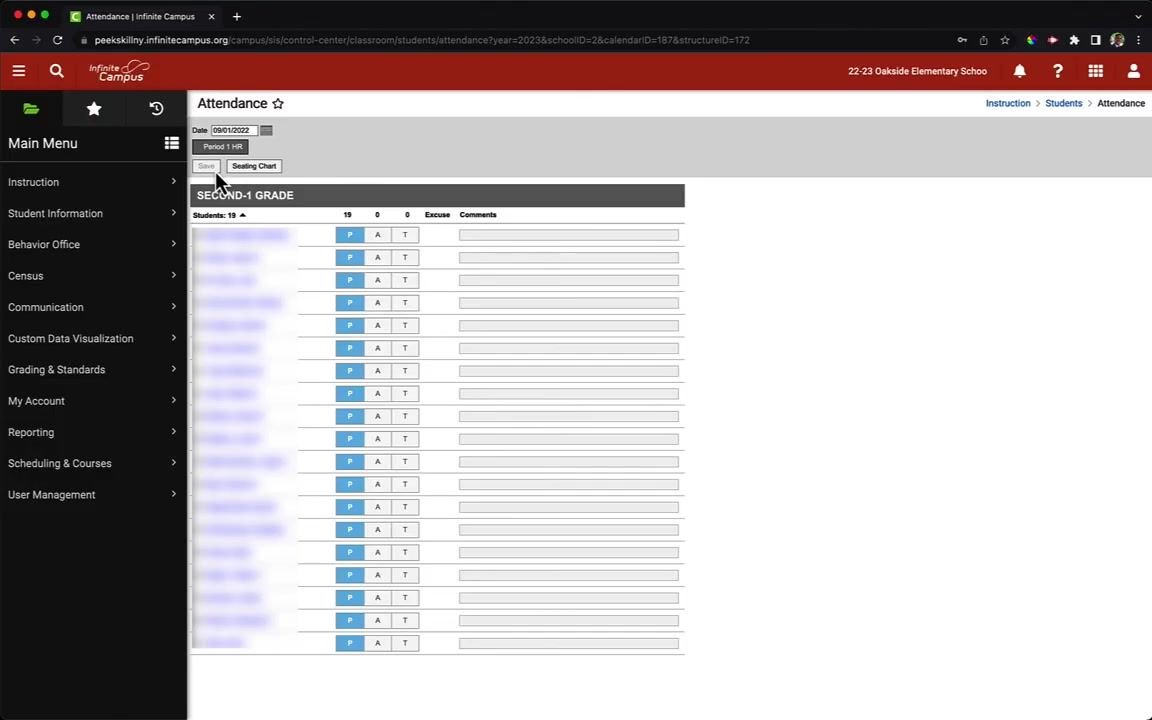
If a student arrives late or you made an error, go back to Attendance using the sidebar menu. The screen shows your class roster for the selected date and period.
Each student has options for Present (P), Absent (A), or Tardy (T), plus a Comments field. The top of the roster shows the total number of students (for example, 19), with columns for Present, Absent, Tardy, Excuse, and Comments.
Edit attendance as needed
Click P, A, or T next to a student's name to change their status. You can also enter or update comments in the Comments field.
Re-save your changes
Click Save at the top of the screen to record your updates. You can repeat this process as often as needed throughout the day if attendance statuses change.
Summary
To take attendance in Infinite Campus, open the sidebar menu, go to Instruction > Attendance, and select the correct date. Mark each student P, A, or T, add comments if needed, and click Save. To make changes later, return to the Attendance screen, update the roster, and save again.
Generation details: cost, quality tiers
Docsie billed 1,000 credits ($0.70) to analyze this 2-minute video at standard quality. The rewrite, template fill and Word/PDF exports were included. The same video at each quality tier:
| Quality | Frames sampled | Credits | Approx. cost |
|---|---|---|---|
| Draft | every 16-30 s | 500 | $0.35 |
| Standard (this guide) | every 8-15 s | 1,000 | $0.70 |
| Detailed | every 4-7 s | 2,000 | $1.40 |
| Ultra | every 1-3 s | 4,000 | $2.80 |
Credits priced at $0.70 per 1,000; plans include a monthly allowance. Enterprise customers on on-premise or bring-your-own-model deployments run this on their own inference and pay no per-video credits.
Generated by Docsie Video-to-Docs on 2026-11-01 from a 2-minute video. Screenshots are frames from the source video and belong to their creator, Michael Alfano, whose original is embedded above. If you own this video and want the guide removed or credited differently, contact us and we will act within one business day.