
How to Create Assignments in Infinite Campus
This guide shows you how to create assignments in Infinite Campus using the Gradebook in the Teaching Center. You open your class, add a new assignment, set its visibility, dates, students, and grading options, and then save and review it. The example creates a 100-point test called "Unit 1 Test 2."
Video: How to Create Assignments in Infinite Campus by Michael Alfano (2022). All credit for the demonstration goes to the creator; watch the original on YouTube. The written guide below was generated from this video by Docsie. Creator? Request a change or removal.
This guide shows you how to create assignments in Infinite Campus using the Gradebook in the Teaching Center. You open your class, add a new assignment, set its visibility, dates, students, and grading options, and then save and review it. The example creates a 100-point test called "Unit 1 Test 2."
Prerequisites
Before you begin, make sure you have the following:
- A login for Infinite Campus
- A class listed under Teaching Center on your main dashboard, such as "101-1 ENGLISH 9" or "1 HR SECOND-1 GRADE"
Open the Gradebook and add an assignment
Step 1. Access the Teaching Center
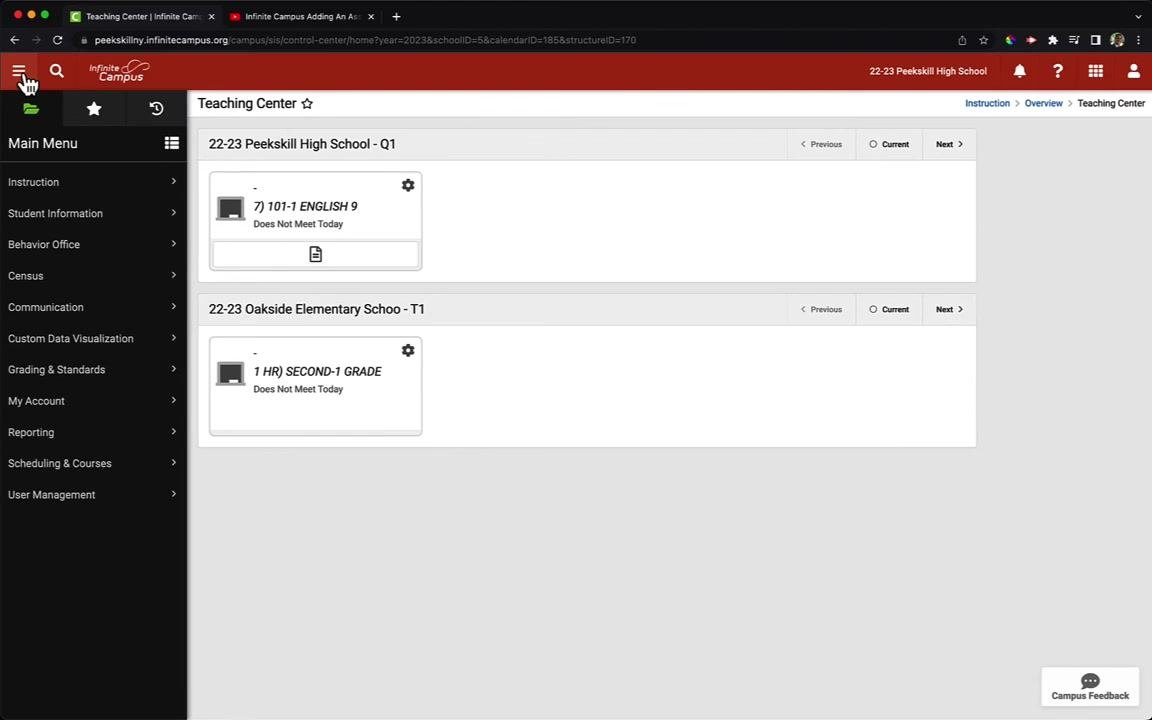
Open Infinite Campus and log in. On the main dashboard, find your available classes under Teaching Center, and identify the class you want to work with.
Step 2. Expand the main menu and open the Gradebook
If the left-side menu is not visible, click the three horizontal lines (menu icon) at the top left of the screen to expand the main menu.
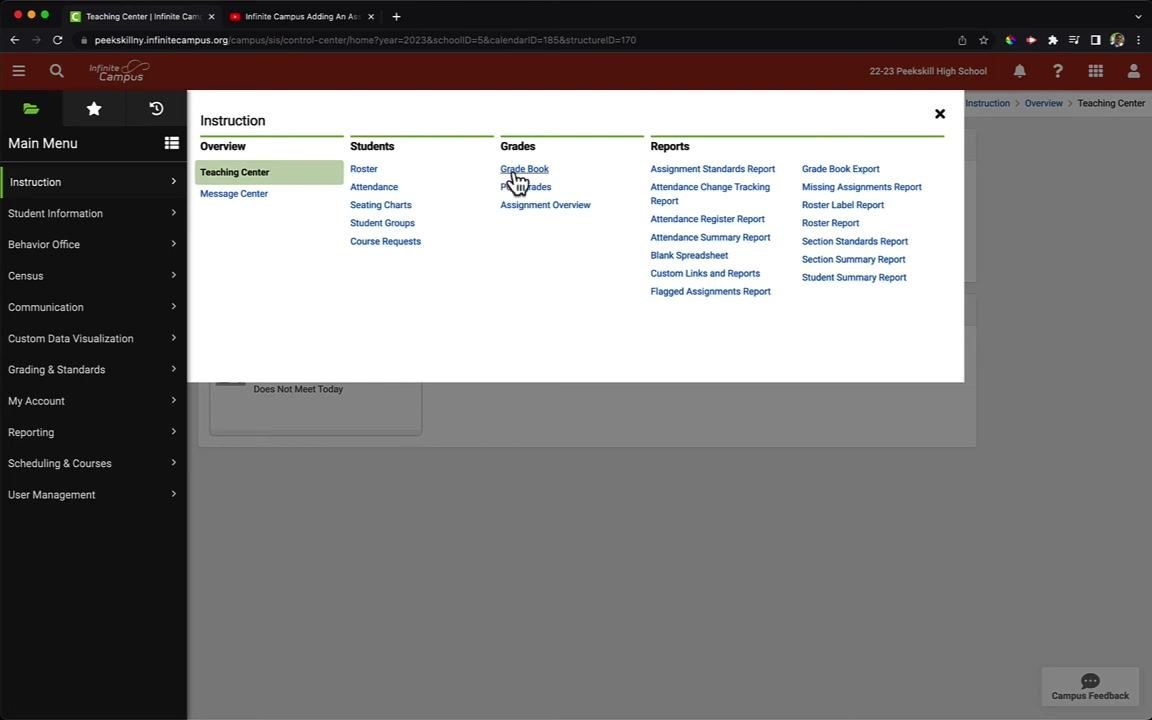
In the main menu, click Instruction. Then, under the Grades column, click Grade Book.
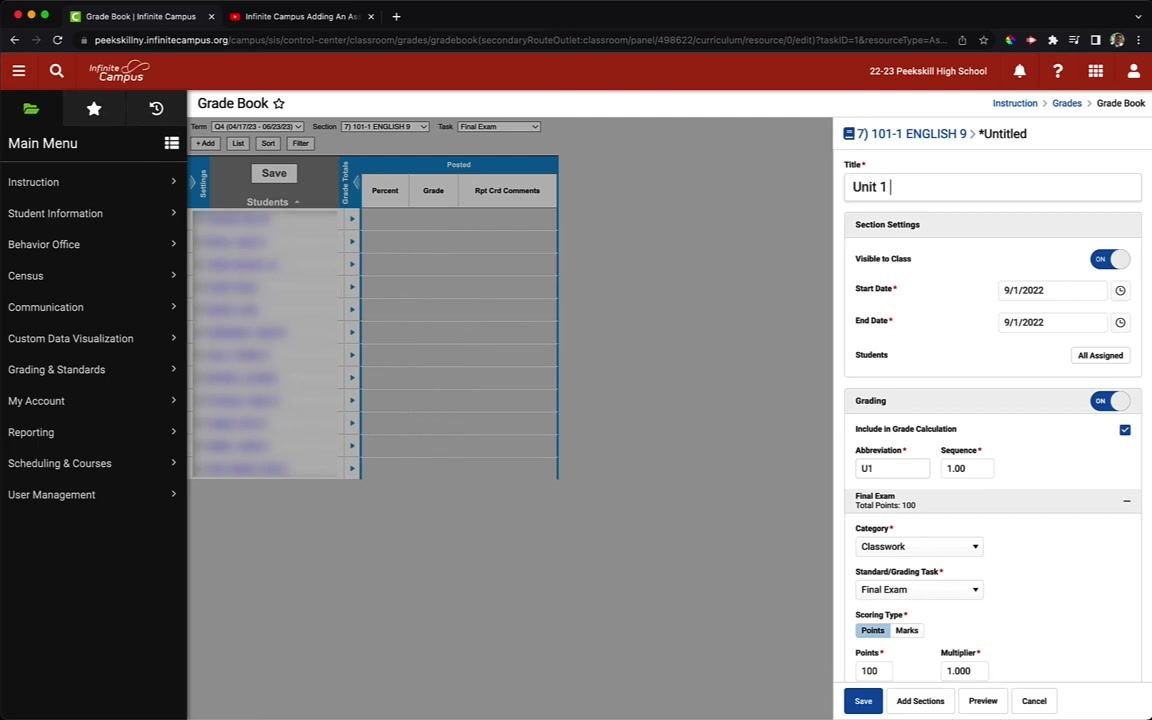
The Gradebook screen shows two areas:
- The student roster on the left, listing all students in alphabetical order by last name
- The main grade entry area on the right, where assignment titles and grades appear as you add assignments
Step 3. Add a new assignment
Click the Add button above the student roster on the Gradebook screen.
Step 4. Enter the assignment title
After you click Add, a menu for assignment details appears on the right side of the screen. Enter the assignment name in the Title field. In this example, type Unit 1 Test 2.
Configure assignment details
Step 5. Set assignment visibility
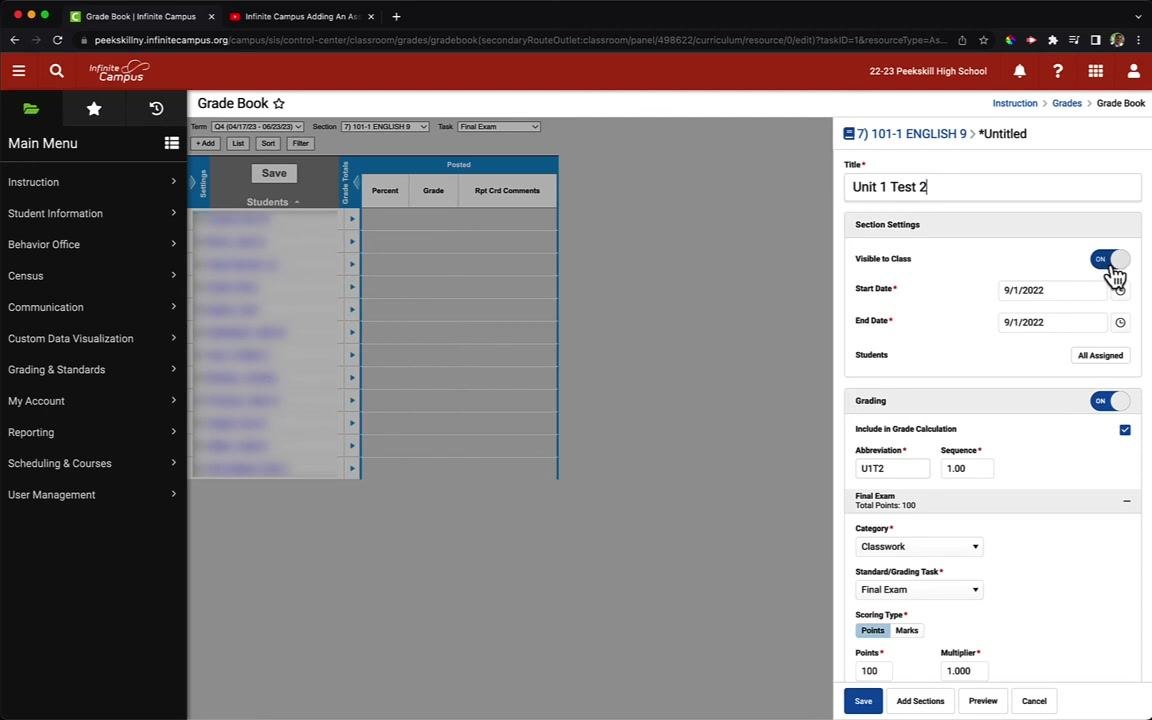
Make sure the Visible to Class toggle is set to ON so students can see the assignment.
Step 6. Set the assignment dates
Set the Start Date and End Date for the assignment. In this example, use 9/1/2022 for both dates.
Step 7. Assign to specific students (optional)
By default, the assignment is set to All Assigned in the Students section. To assign it to only some students, click the All Assigned button and deselect the students who should not receive it. In this example, leave it as All Assigned.
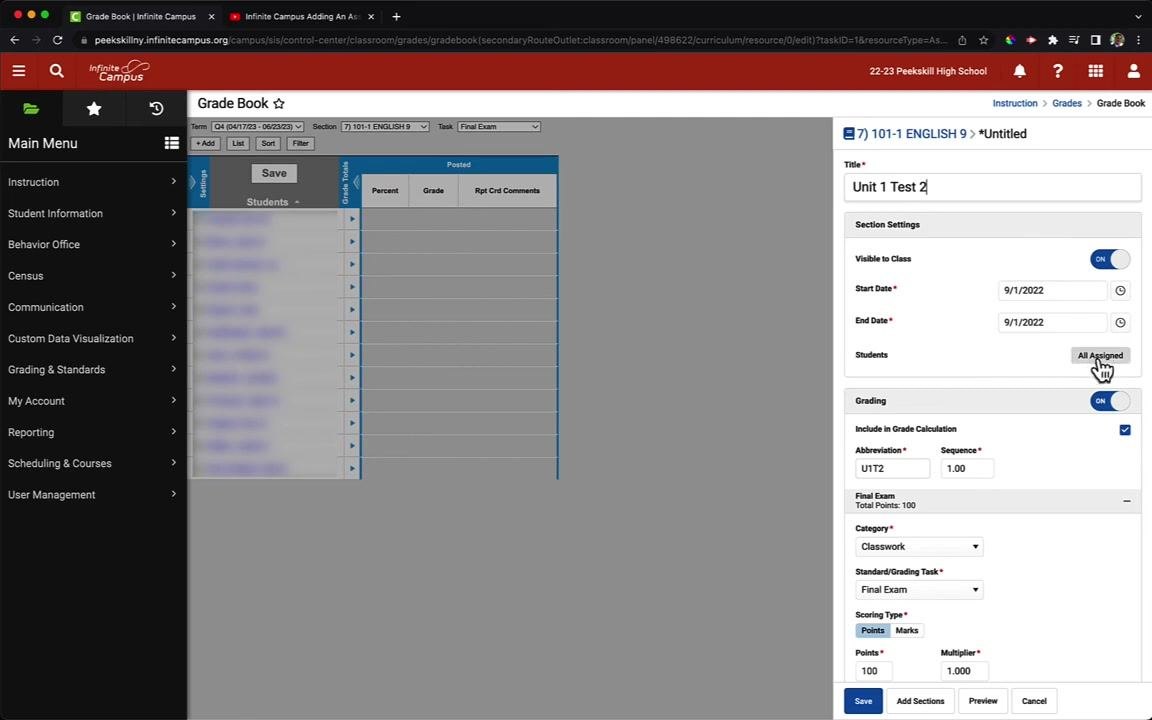
Step 8. Configure grading options
Find the Grading section. Keep the Grading toggle ON if you want the assignment to be graded.
If you turn the toggle OFF, all grading options collapse and the assignment is not included in grade calculations. In this example, keep Grading on and keep Include in Grade Calculation checked.
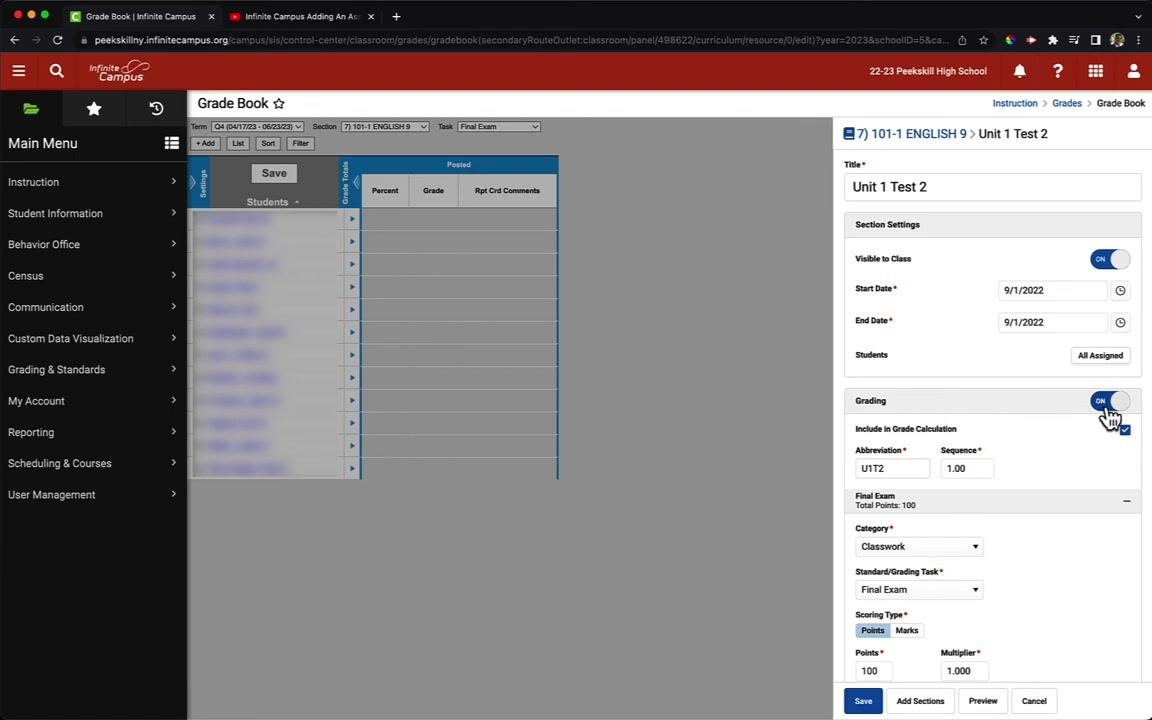
Step 9. Review the abbreviation and sequence
In the Abbreviation field, review the automatically generated abbreviation, such as U1T2. Edit it if needed for clarity, especially when you manage multiple assignments.
Leave the Sequence field at its default value, such as 1.00, unless you need to change the order.
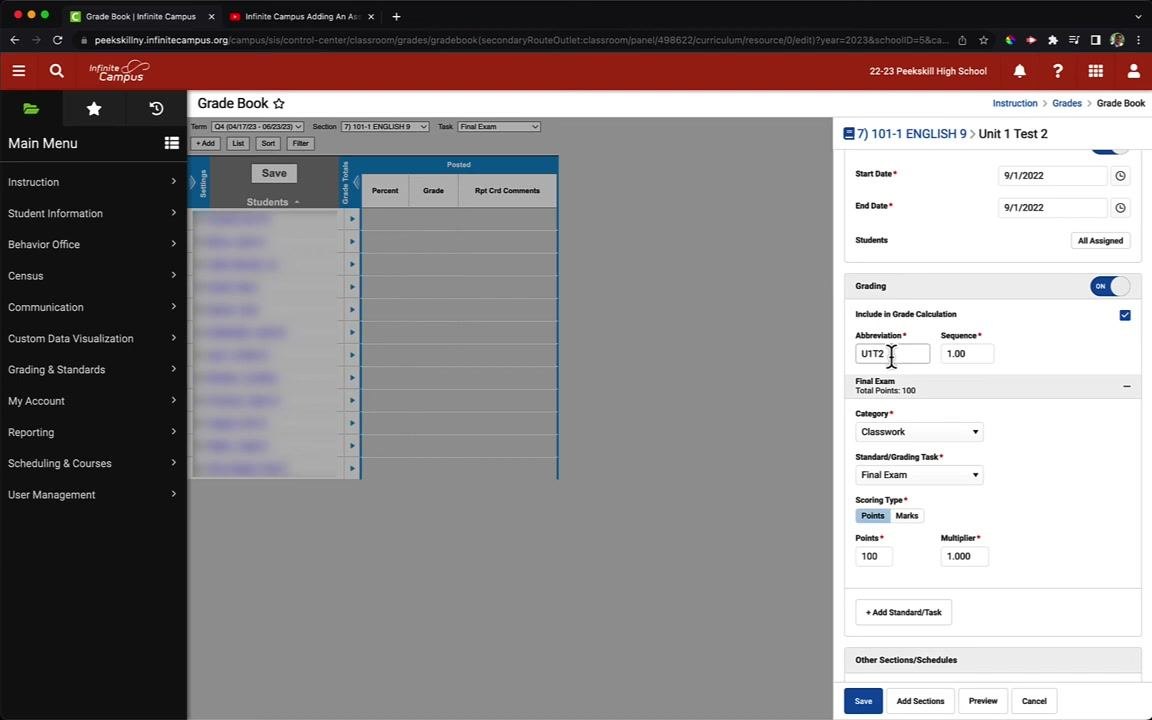
Step 10. Select the assignment category
Click the Category dropdown menu and choose the category for your assignment. Available options may include:
- Classwork
- Homework/Participation
- Tests/Quizzes/Projects
In this example, select Tests/Quizzes/Projects.
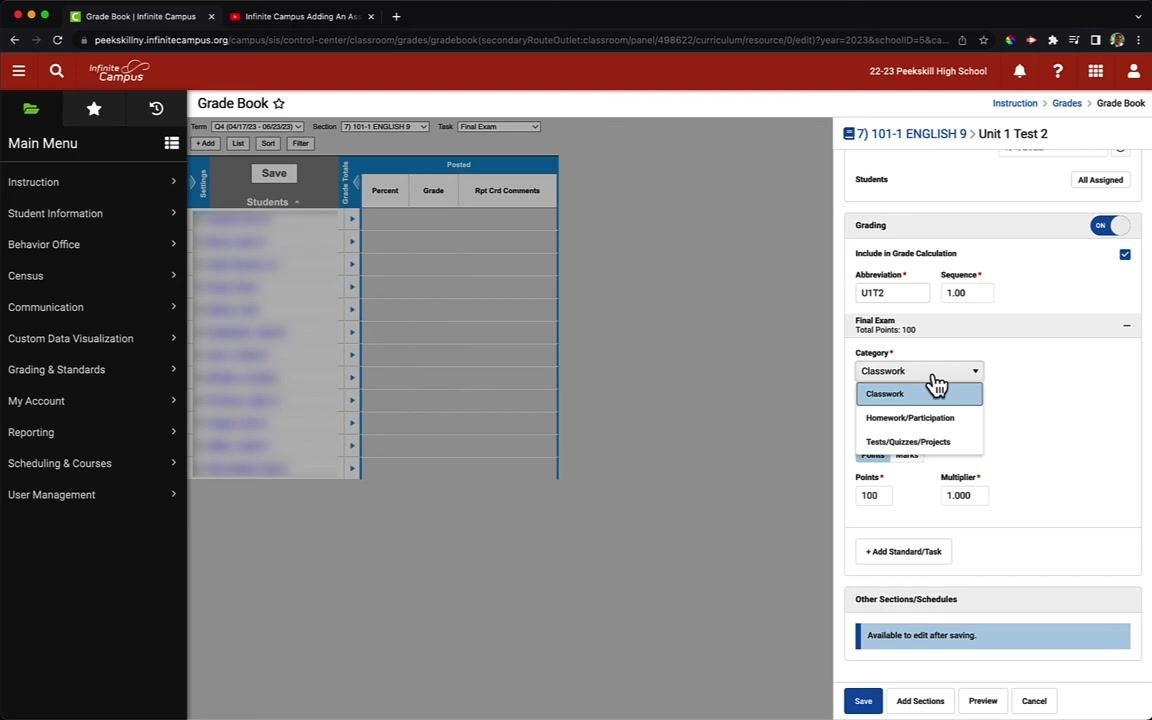
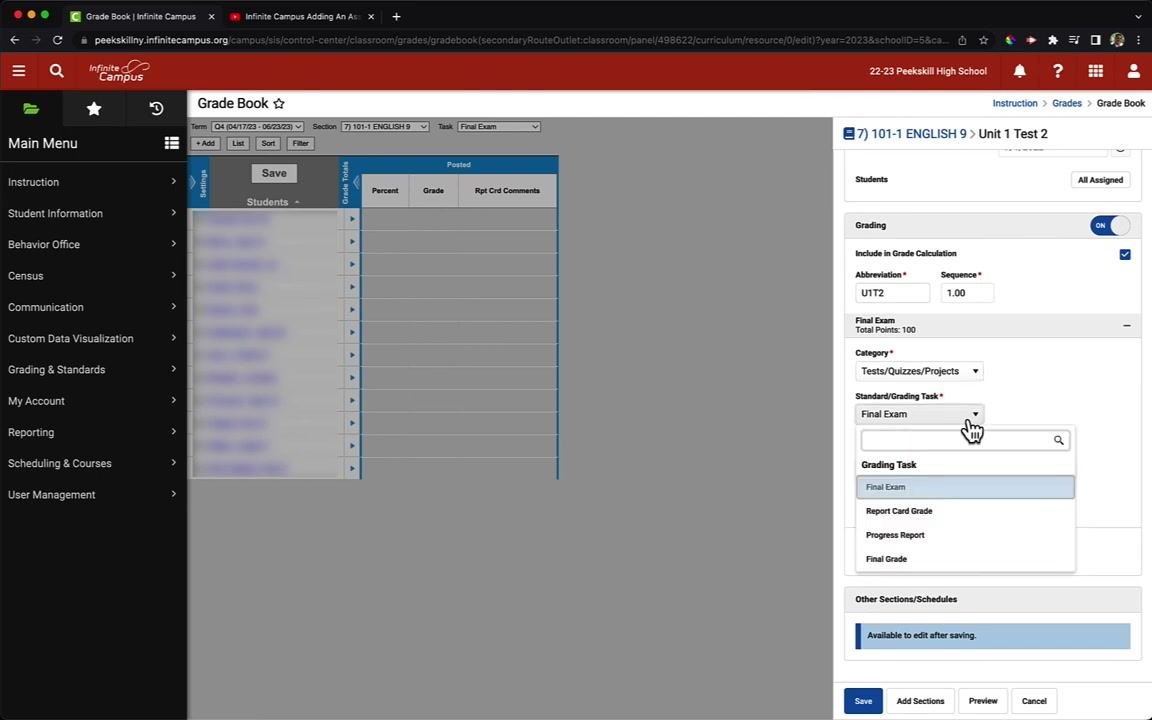
Step 11. Choose the standard or grading task
Click the Standard/Grading Task dropdown menu and select the grading task. Common options include:
- Final Exam
- Report Card Grade (the default for most systems)
- Progress Report
- Final Grade
In this example, select Report Card Grade.
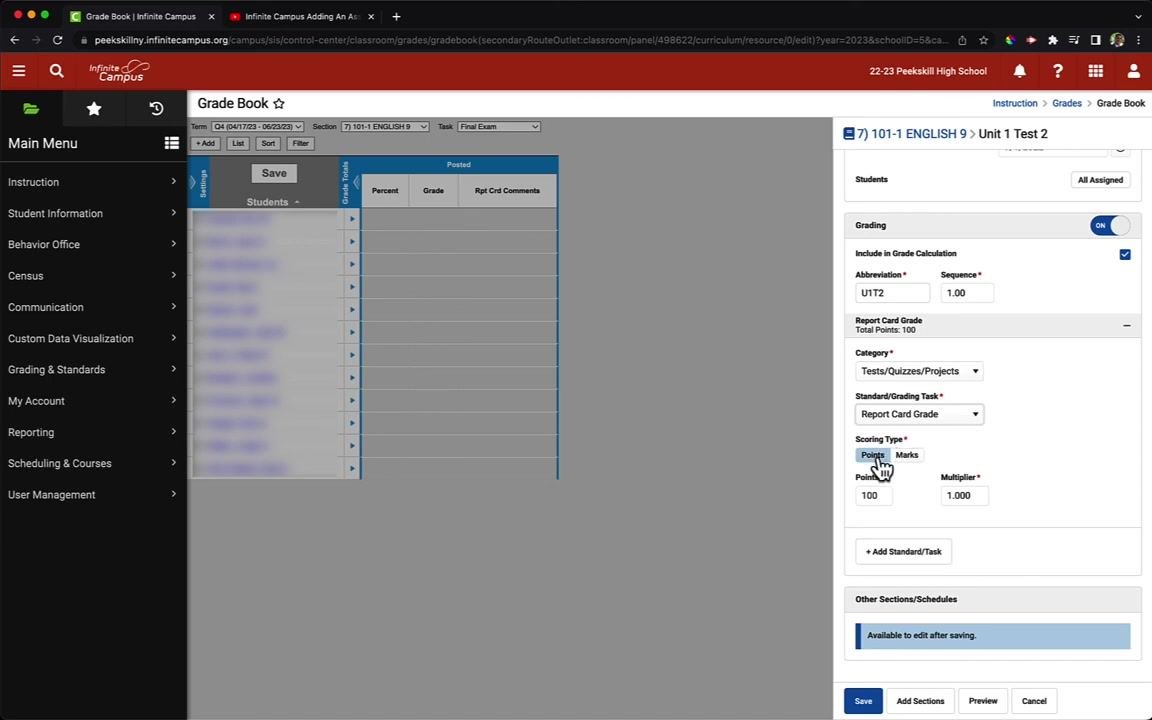
Step 12. Set the scoring type and points
In the Scoring Type section, select Points as the grading method. Enter 100 in the Points field to make this a 100-point assignment.
Make sure the Multiplier field is set to 1.000 to use the default weighting. Confirm that all grading settings are correct before you save.
Save and review the assignment
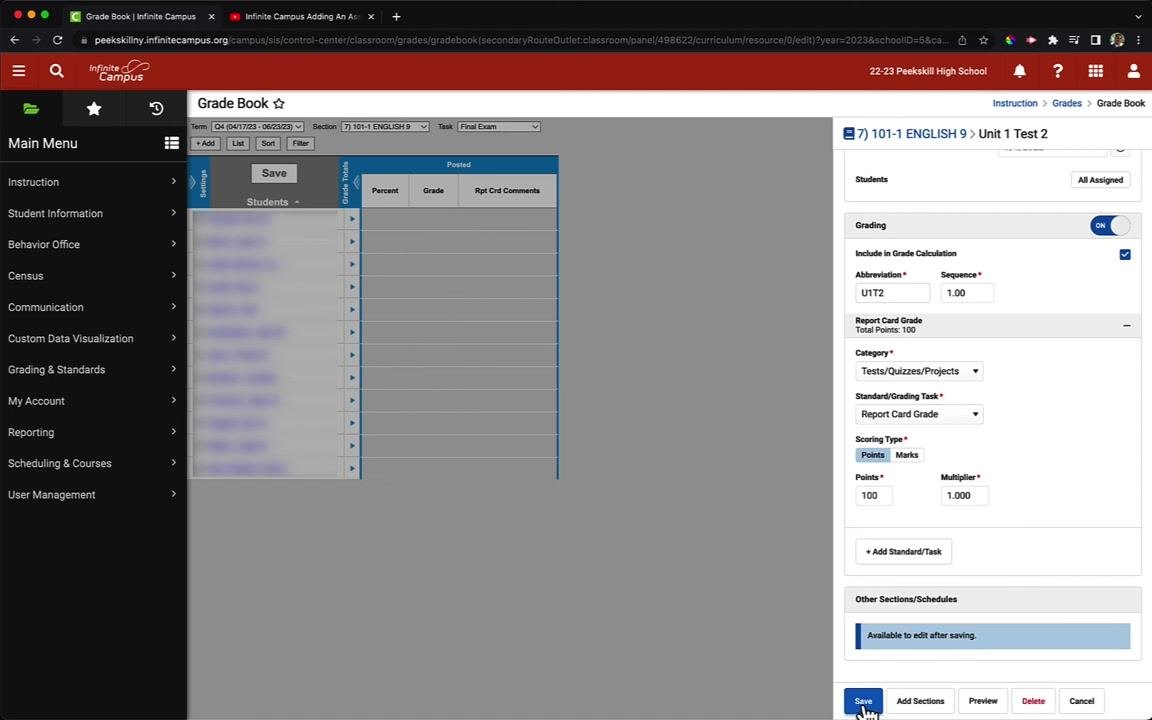
Step 13. Save the assignment
Click the blue Save button at the bottom of the assignment panel. Wait for the system to process and save your assignment.
Step 14. Review the saved assignment details
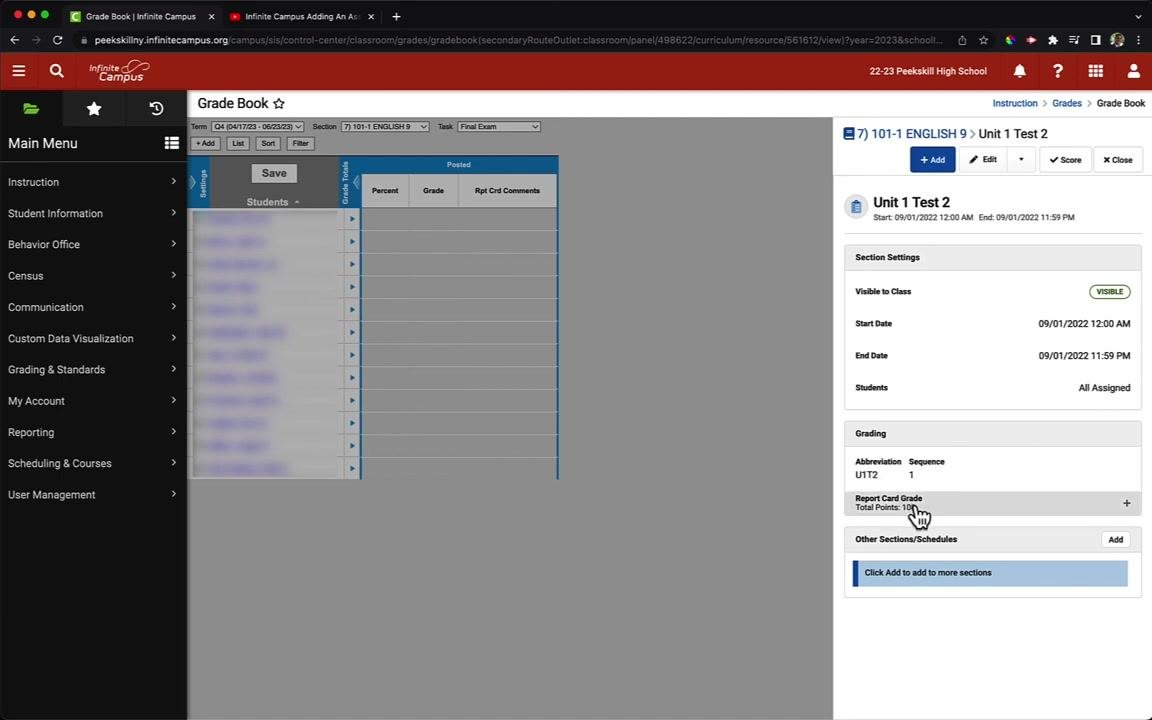
After you save, review the summary panel for your assignment. Confirm that the following details are correct:
- Assignment title, such as "Unit 1 Test 2"
- Start Date:
09/01/2022 12:00 AM - End Date:
09/01/2022 11:59 PM - Visibility: Visible to Class
- Students: All Assigned
- Abbreviation:
U1T2 - Sequence:
1 - Report Card Grade: Total Points: 100
If any information is incorrect, click the Edit button to make changes.
Summary
You now know how to create assignments in Infinite Campus. You opened the Gradebook from the Teaching Center and added an assignment. You then set its title, visibility, dates, student assignment, category, grading task, and point value. Finally, you saved the assignment and reviewed its summary. Repeat these steps for each new assignment you add to the Gradebook.
Generation details: cost, quality tiers
Docsie billed 2,500 credits ($1.75) to analyze this 5-minute video at standard quality. The rewrite, template fill and Word/PDF exports were included. The same video at each quality tier:
| Quality | Frames sampled | Credits | Approx. cost |
|---|---|---|---|
| Draft | every 16-30 s | 1,250 | $0.88 |
| Standard (this guide) | every 8-15 s | 2,500 | $1.75 |
| Detailed | every 4-7 s | 5,000 | $3.50 |
| Ultra | every 1-3 s | 10,000 | $7.00 |
Credits priced at $0.70 per 1,000; plans include a monthly allowance. Enterprise customers on on-premise or bring-your-own-model deployments run this on their own inference and pay no per-video credits.
Generated by Docsie Video-to-Docs on 2026-11-01 from a 4-minute video. Screenshots are frames from the source video and belong to their creator, Michael Alfano, whose original is embedded above. If you own this video and want the guide removed or credited differently, contact us and we will act within one business day.