
How to Send a Message in Infinite Campus
This guide shows you how to send a message in Infinite Campus using the Message Center. You can send a general message to students and parents, or send an automated Missing Assignment Message that lists each student's missing work. The steps below cover both.
Video: Send Messages through Infinite Campus by Curiously Creative (2025). All credit for the demonstration goes to the creator; watch the original on YouTube. The written guide below was generated from this video by Docsie. Creator? Request a change or removal.
This guide shows you how to send a message in Infinite Campus using the Message Center. You can send a general message to students and parents, or send an automated Missing Assignment Message that lists each student's missing work. The steps below cover both.
Prerequisites
- You have an Infinite Campus login.
- You can access the Message Center from the main menu.
Send a general message
Step 1: Open the Message Center
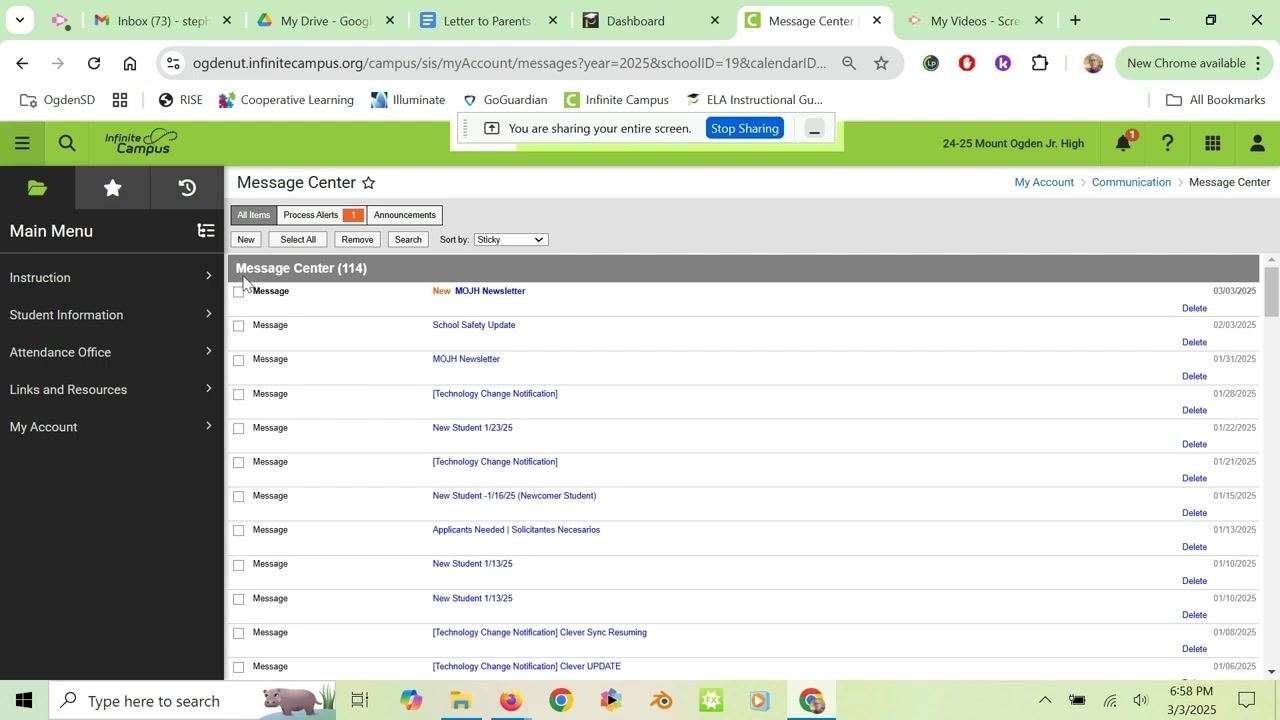
Log in to Infinite Campus. From the main menu, go to Message Center. The screen lists your previous messages and shows a New button at the top.
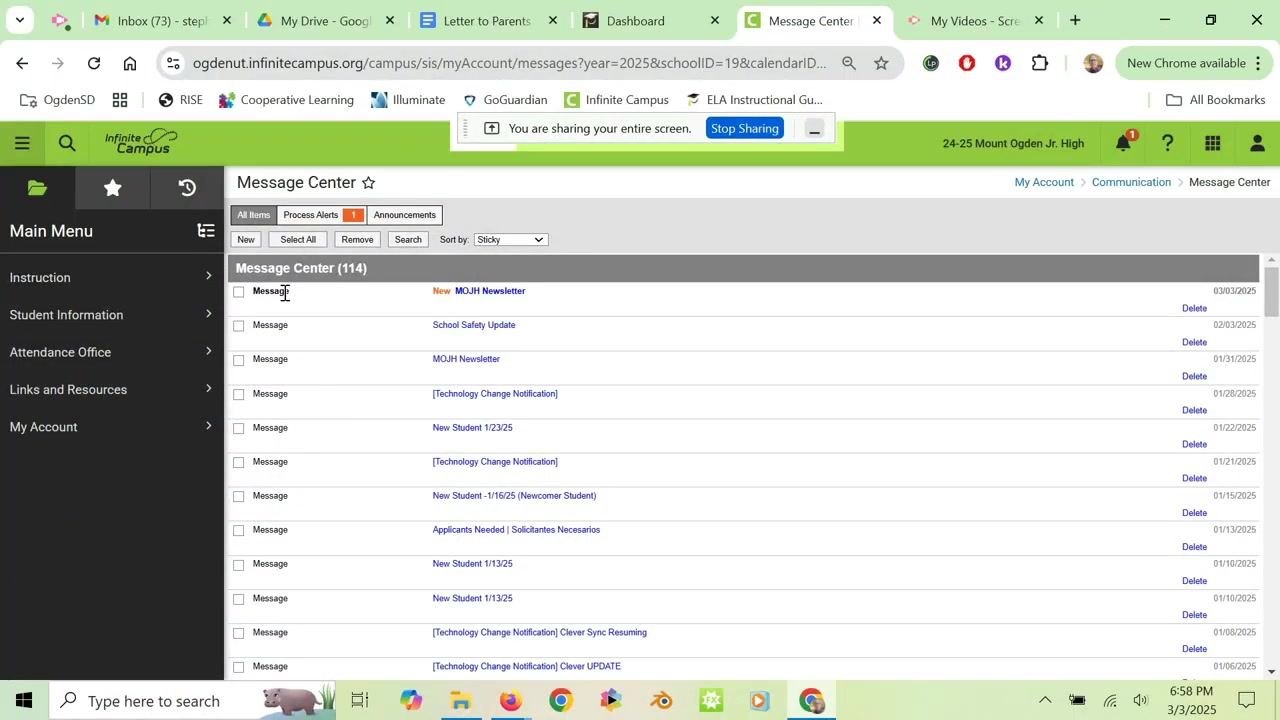
Step 2: Create a new message
Click New at the top of the Message Center to start a new message.
Step 3: Enter the message details
Fill in the Subject Line and Message fields. Then scroll down and click Next to continue to recipient selection.
Step 4: Select the term and classes
Choose the current term, for example Term Q3. Then select the classes you want to message. For example, select "ADVJ 06101-3 Advisory 07A (Fri-Min A)" to message your advisory class.
Step 5: Choose the recipients
Under "Recipients," select both Messenger Contacts and Students. This ensures the message reaches both students and parents. Click Next.
Step 6: Review and send the message
Review your message for accuracy. When it is correct, click Send to deliver it.
Send missing assignment notifications
You can also use the Message Center to notify students and parents about missing assignments.
Step 7: Select the message type
In the "Message Type" drop-down, choose Missing Assignment Message.
Step 8: Review the notification template
Infinite Campus automatically generates an email template that includes:
- The student's name.
- A list of the student's missing assignments.
- A link to the Campus Parent or Campus Student portal for more information.
You can review or edit the subject (for example, "Missing Assignment") and the message body.
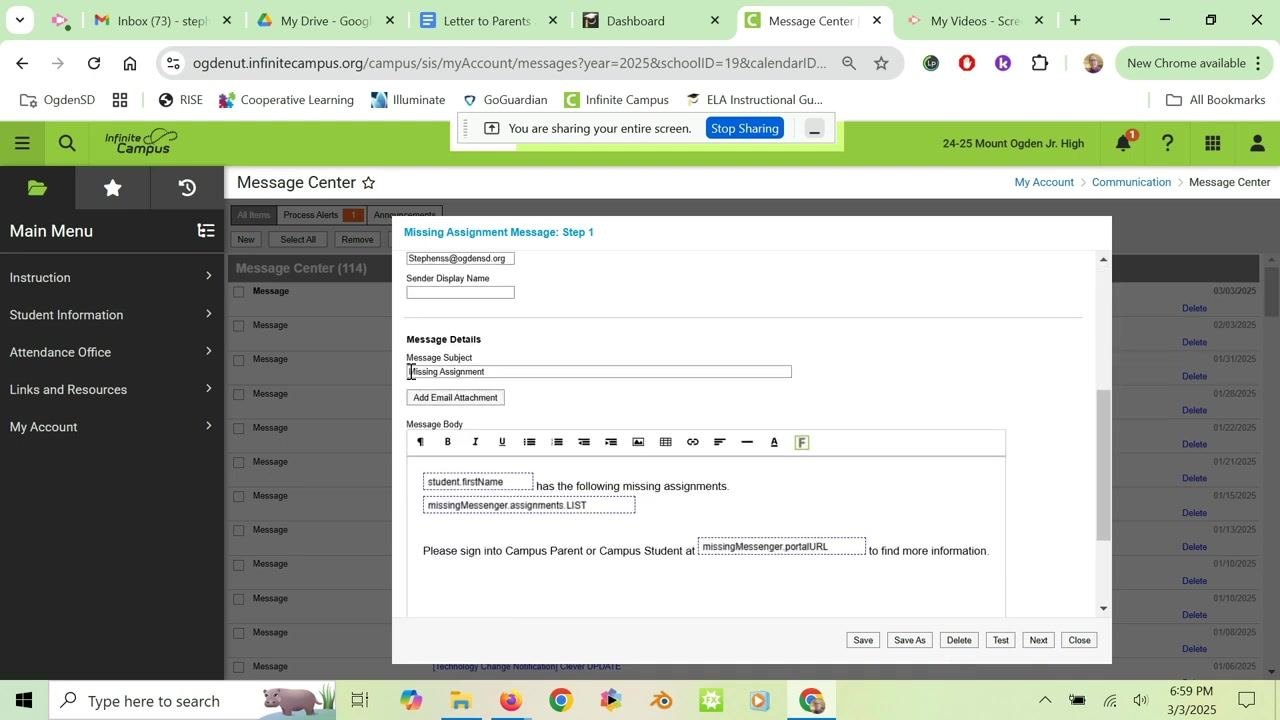
Step 9: Continue and select a class
Click Next to continue. Then choose the class you want to notify about missing assignments.
Step 10: Select the class section
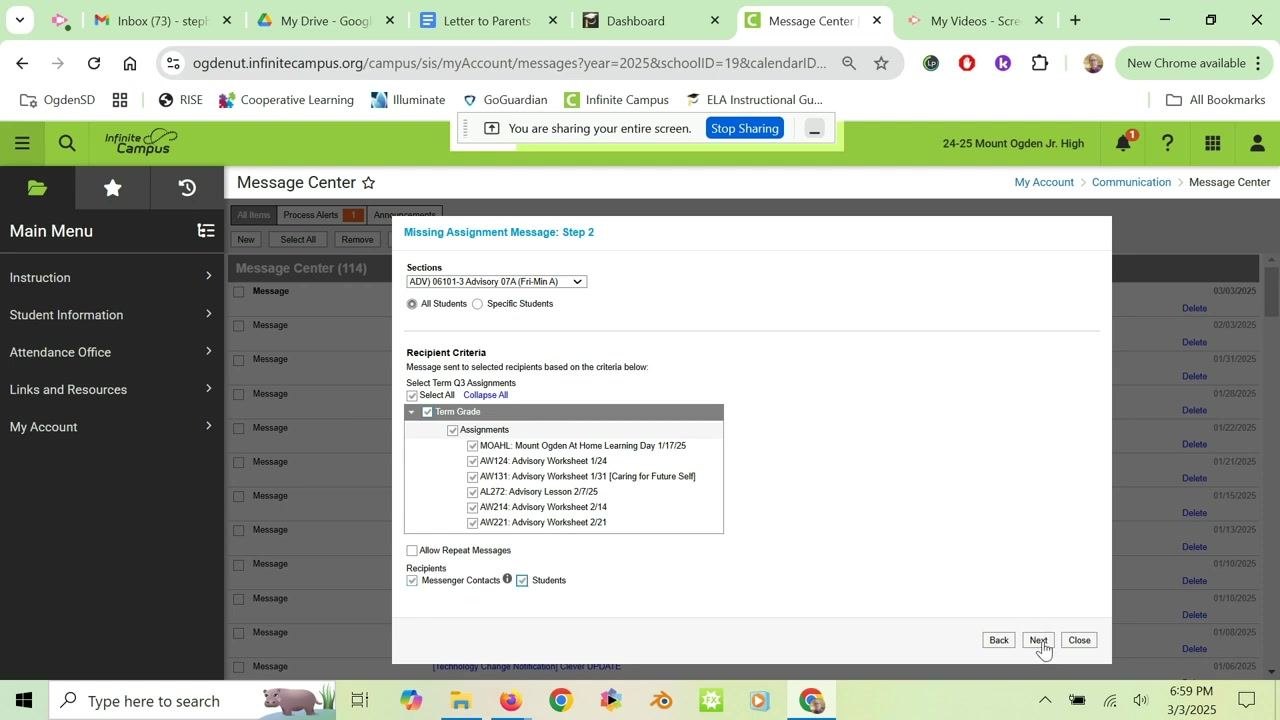
Send missing assignment notifications to each class separately, and repeat the process for every class. Select the class from the "Sections" drop-down, for example "ADVJ 06101-3 Advisory 07A (Fri-Min A)". Make sure you are on the "Missing Assignment Message: Step 2" screen.
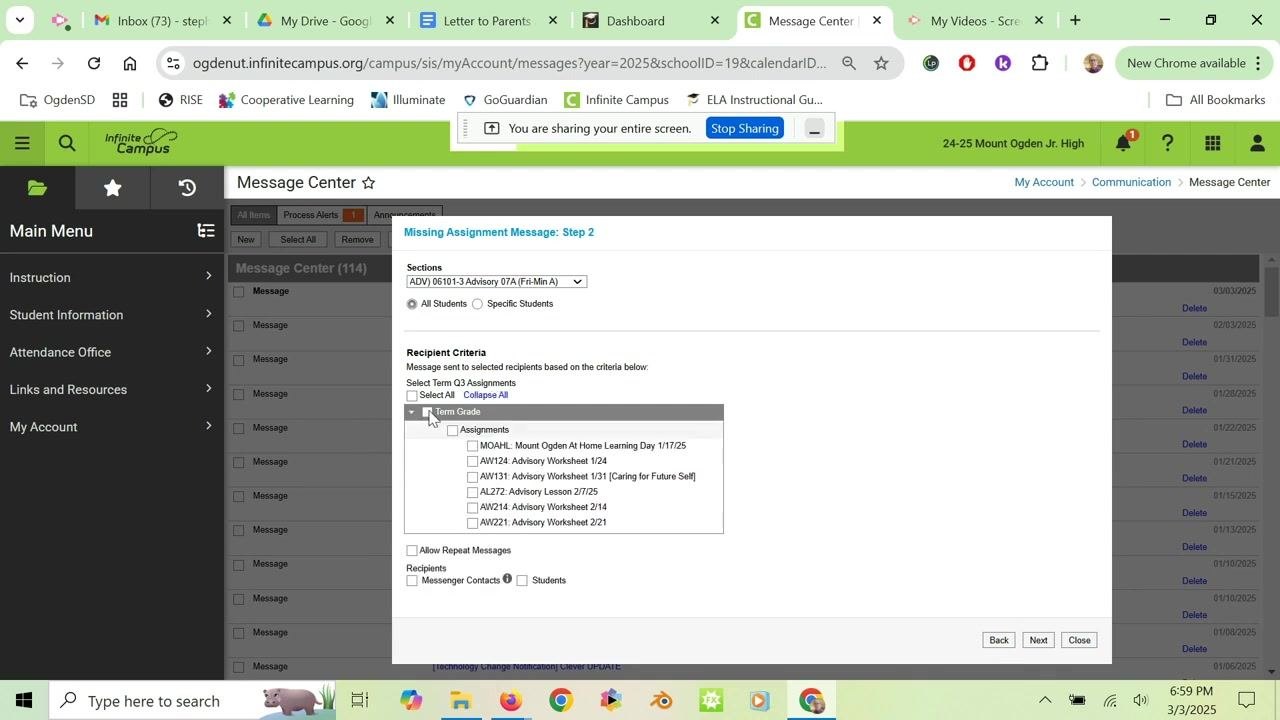
Step 11: Include all missing assignments with Term Grade
Under "Recipient Criteria," check the Term Grade box. This includes all missing assignments for the selected term.
Review the list under "Assignments" and make sure all relevant assignments are checked. If needed, use Select All to include every assignment for the term.
Step 12: Choose the recipients
Under "Recipients," select both Messenger Contacts and Students. This sends the notification to both parents and students. Confirm both boxes are checked before you continue.
Step 13: Continue to the review screen
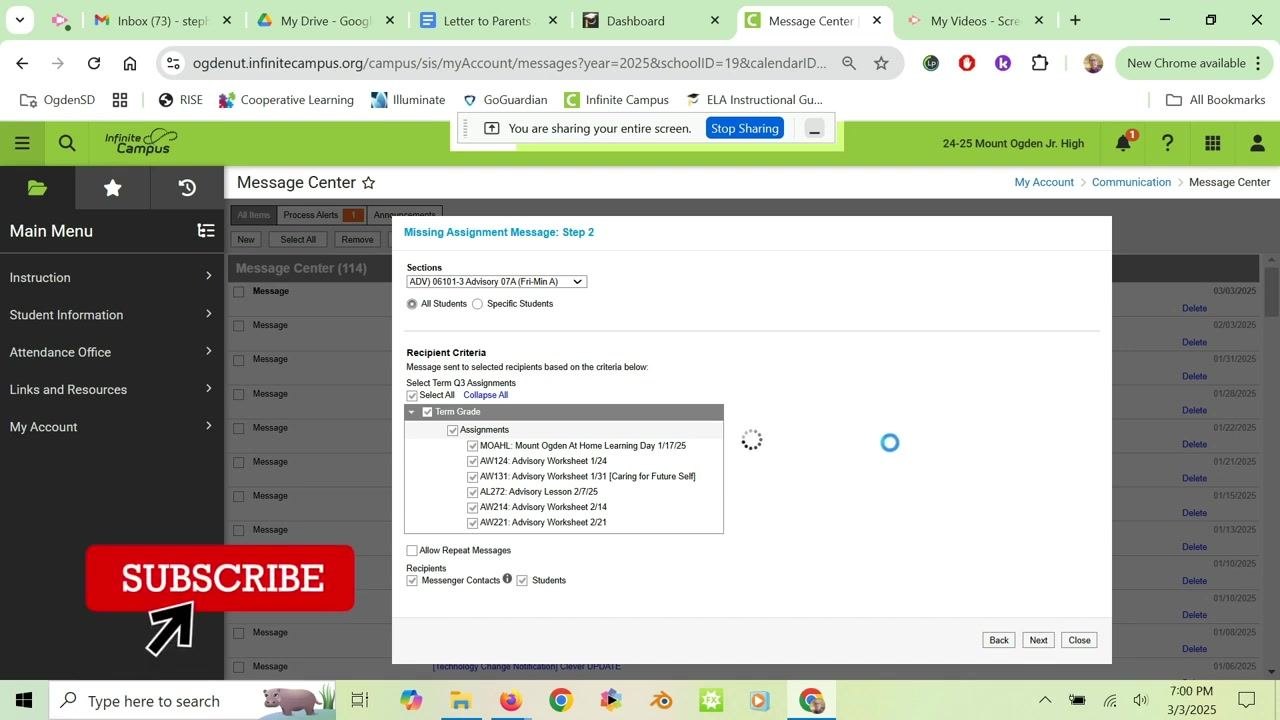
Click Next to go to the message review screen. Wait for the system to process your selections. A loading indicator may appear.
Step 14: Review the delivery summary and message preview
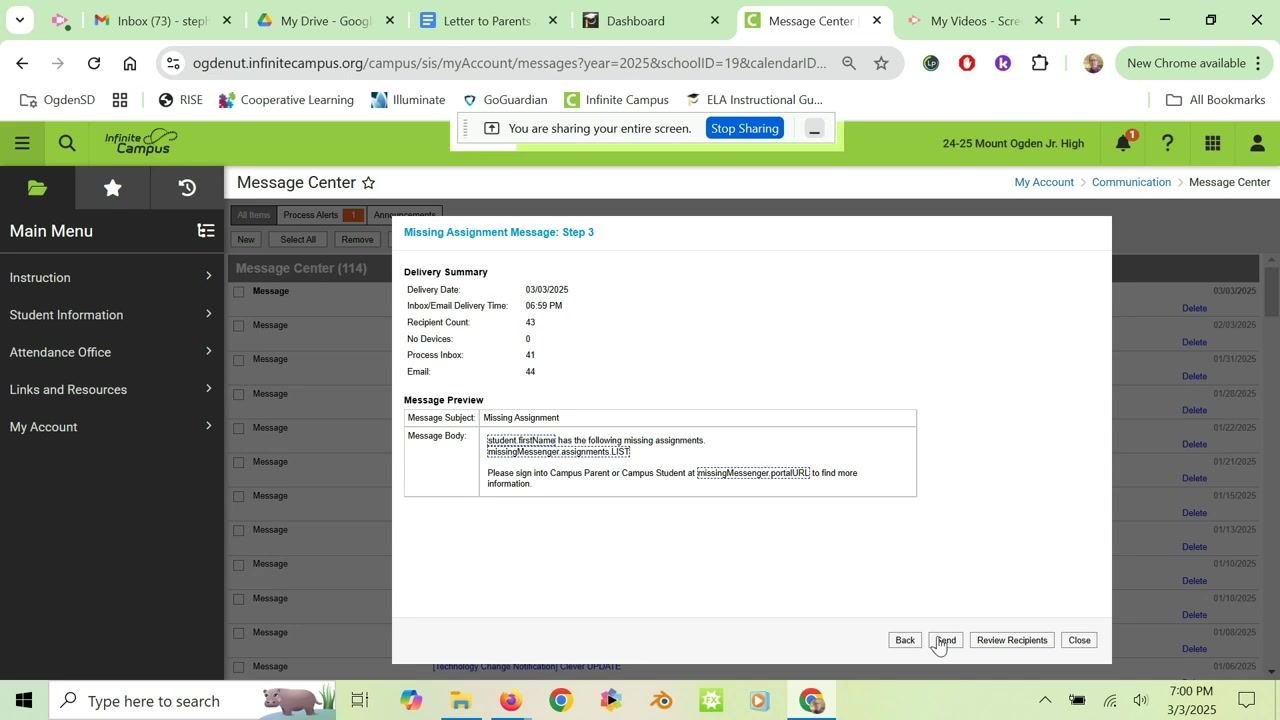
On the "Missing Assignment Message: Step 3" screen, review the Delivery Summary and Message Preview:
- Confirm the Delivery Date and Inbox/Email Delivery Time.
- Check the Recipient Count to make sure all intended recipients are included.
- Review the Message Subject, for example "Missing Assignment".
- Review the Message Body to confirm it includes the student's name, a list of missing assignments, and a link to the Campus Parent or Campus Student portal.
Step 15: Send the notification
If everything is correct, click Send to deliver the notification.
What's next
You have now sent both a general message and an automated missing assignment message through Infinite Campus. Repeat the missing assignment steps for each class as needed so all students and parents receive accurate notifications.
Generation details: cost, quality tiers
Docsie billed 1,500 credits ($1.05) to analyze this 3-minute video at standard quality. The rewrite, template fill and Word/PDF exports were included. The same video at each quality tier:
| Quality | Frames sampled | Credits | Approx. cost |
|---|---|---|---|
| Draft | every 16-30 s | 750 | $0.52 |
| Standard (this guide) | every 8-15 s | 1,500 | $1.05 |
| Detailed | every 4-7 s | 3,000 | $2.10 |
| Ultra | every 1-3 s | 6,000 | $4.20 |
Credits priced at $0.70 per 1,000; plans include a monthly allowance. Enterprise customers on on-premise or bring-your-own-model deployments run this on their own inference and pay no per-video credits.
Generated by Docsie Video-to-Docs on 2026-11-01 from a 2-minute video. Screenshots are frames from the source video and belong to their creator, Curiously Creative, whose original is embedded above. If you own this video and want the guide removed or credited differently, contact us and we will act within one business day.