
How to Print Gradebook in Infinite Campus
This guide shows you how to print a gradebook in Infinite Campus as a Student Summary report. You sign in, open the gradebook reports, choose the students and terms, and generate a report you can print or save for parent-teacher conferences.
Video: Printing a Gradebook Report in Infinite Campus by HAlmond1 (2018). All credit for the demonstration goes to the creator; watch the original on YouTube. The written guide below was generated from this video by Docsie. Creator? Request a change or removal.
This guide shows you how to print a gradebook in Infinite Campus as a Student Summary report. You sign in, open the gradebook reports, choose the students and terms, and generate a report you can print or save for parent-teacher conferences.
Prerequisites
- Your district's Infinite Campus login page
- Your Infinite Campus username and password
Steps
Sign in to Infinite Campus
- Go to your district's Infinite Campus login page.
- Enter your username and password in the fields provided.
- Click Sign In.
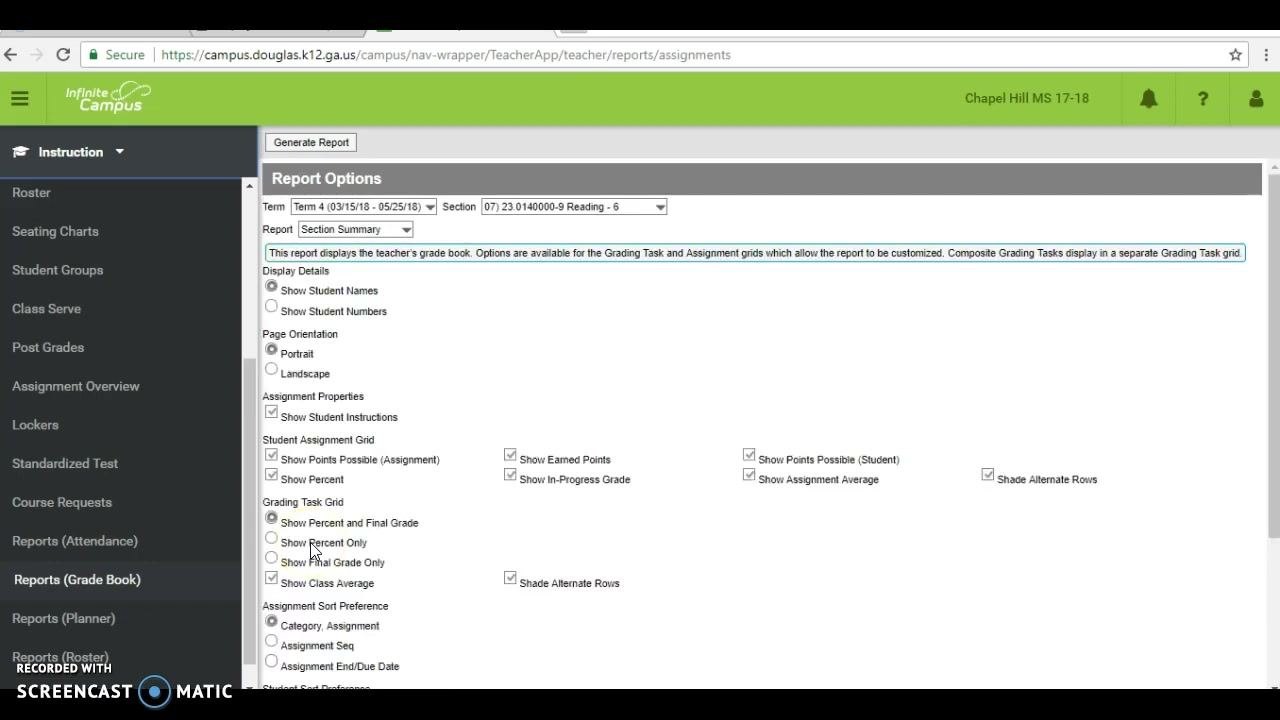
Open the Instruction module
- After you sign in, find the icons in the upper right-hand corner of the dashboard.
- Click the Instruction icon.
Go to the gradebook reports
- In the left-hand navigation menu, scroll down until you see Reports (Grade Book).
- Click Reports (Grade Book) to open the gradebook reporting options.
Select the report type
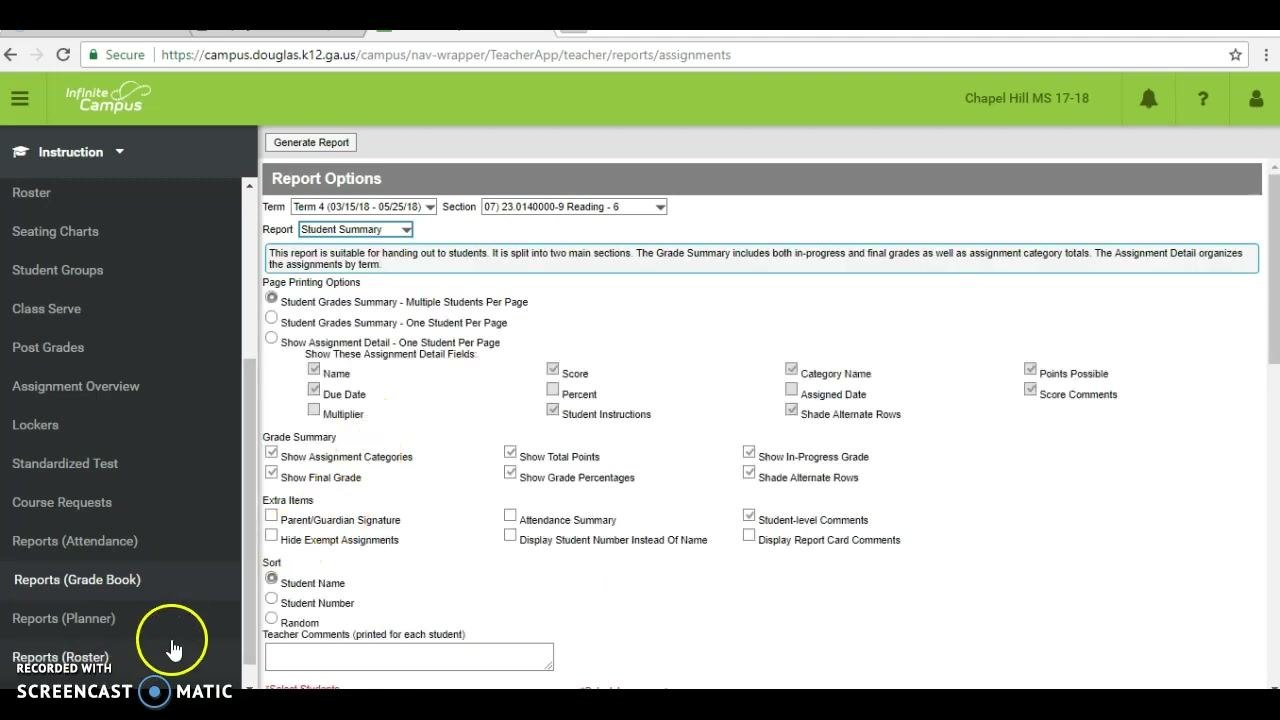
- On the Report Options screen, find the Report dropdown menu.
- Change the report type from Section Summary to Student Summary.
Choose Section Summary if you want a report for the whole class. For individual student reports, choose Student Summary.
Configure the Student Summary report
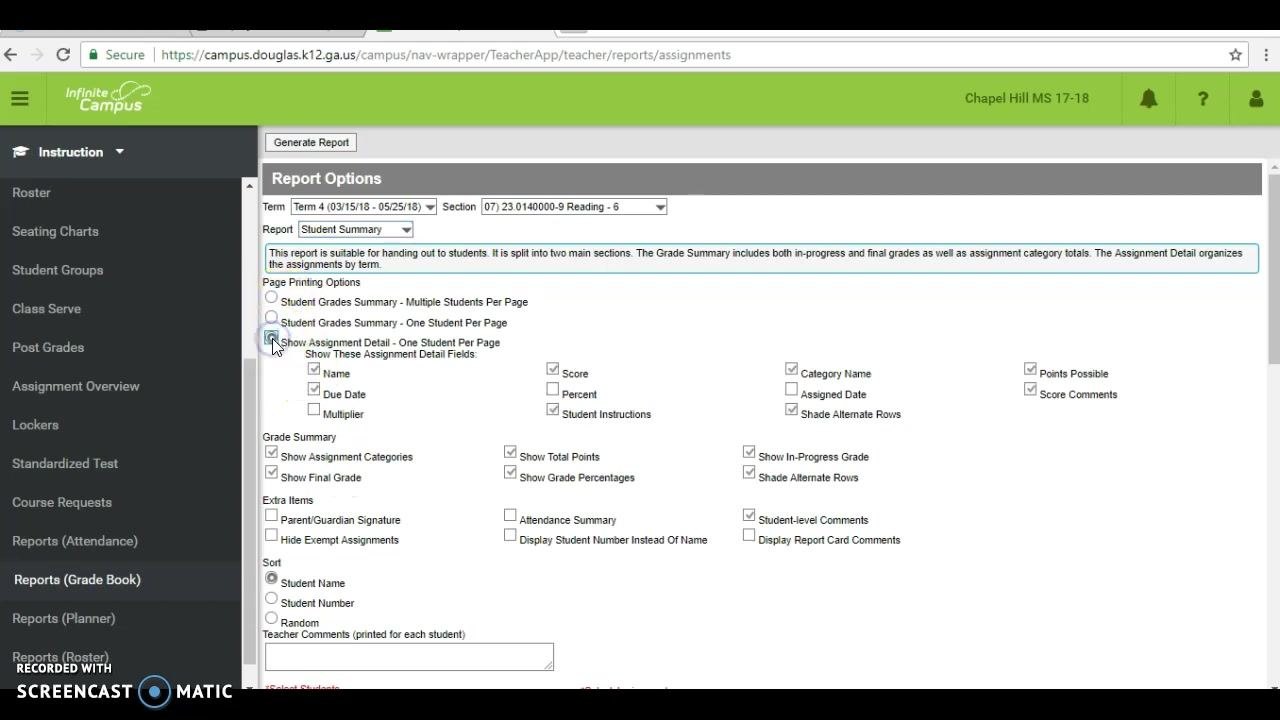
- Under Page Printing Options, select Student Grades Summary – One Student Per Page.
- Check Show Assignment Detail – One Student Per Page.
- Select the assignment detail fields you want to include. Options include Name, Score, Percent, Category Name, Points Possible, Assigned Date, Score Comments, Student Instructions, and Shade Alternate Rows.
- Under Grade Summary, check the options you need: Show Assignment Categories, Show Final Grade, Show Total Points, Show In-Progress Grade, Show Grade Percentages, and Shade Alternate Rows.
Select the students for the report
- Scroll down to the Select Students section.
- Deselect all students if you want to print for only one student.
- Check the box next to each student you want to include.
Choose the terms to print
- In the Select Assignments section, decide which terms you want in the report.
- Unselect any terms you do not want to print.
- Click to expand the terms you want, such as Term 1 and Term 2.
- For each term, select the grading periods or assignment groups to include.
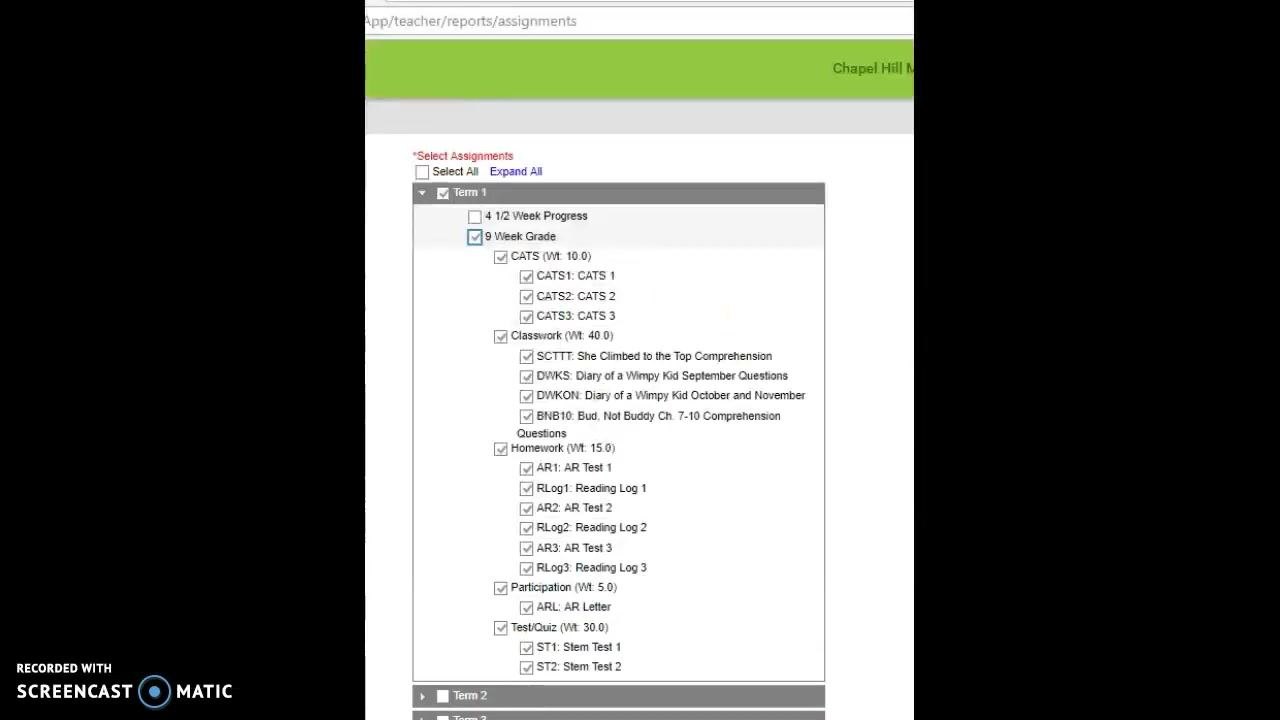
Select the 9 Week Grade
- For each term, check only the 9 Week Grade box. This is the recommended selection.
- Leave 4 1/2 Week Progress unchecked unless you specifically need it. The 9 Week Grade gives a more complete summary.
Generate the gradebook report
- Confirm your selections for students, terms, grading periods, and assignment details.
- Click Generate Report at the top of the assignment selection window.
- Wait while the report is generated. It opens in a new window or tab as a formatted document.
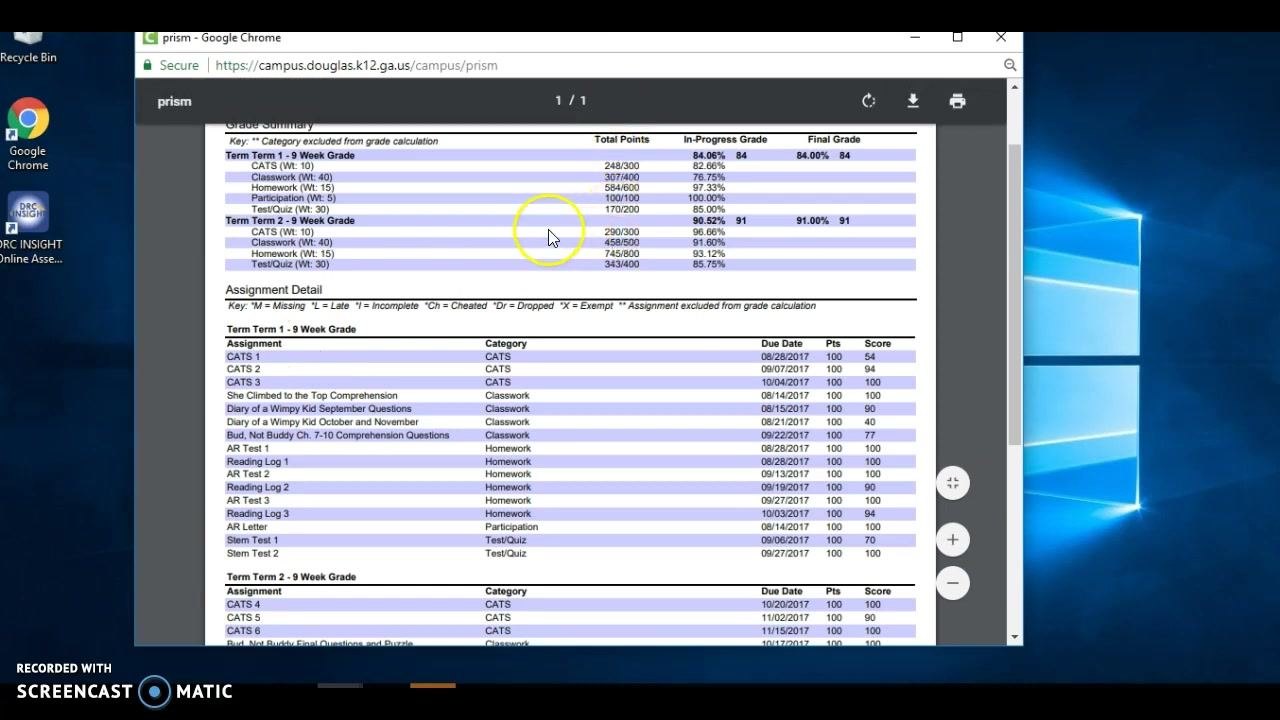
Review the report
Check that the report includes the following:
- The student's name at the top
- A separate section for each term you selected, such as Term 1 and Term 2
- A grade summary for each term, including Total Points, In-Progress Grade, and Final Grade
- A detailed assignment list for each term, showing assignment names, categories, due dates, points possible, and scores
Confirm that the report has everything you need for the parent-teacher conference.
Print or save the report
Use the print or download icons in the report viewer. You can print a hard copy or save a digital copy for your records or for distribution at the conference.
Close the report and log out
- Close the report window or tab when you finish reviewing, saving, or printing.
- Log out of Infinite Campus if you are done with your session.
Summary
You now know how to print a gradebook in Infinite Campus. Open Reports (Grade Book) from the Instruction module and choose Student Summary. Select your students and terms, generate the report, and print or save it. Each student's grades and assignment details are then ready for parent-teacher conferences.
Generation details: cost, quality tiers
Docsie billed 1,500 credits ($1.05) to analyze this 3-minute video at standard quality. The rewrite, template fill and Word/PDF exports were included. The same video at each quality tier:
| Quality | Frames sampled | Credits | Approx. cost |
|---|---|---|---|
| Draft | every 16-30 s | 750 | $0.52 |
| Standard (this guide) | every 8-15 s | 1,500 | $1.05 |
| Detailed | every 4-7 s | 3,000 | $2.10 |
| Ultra | every 1-3 s | 6,000 | $4.20 |
Credits priced at $0.70 per 1,000; plans include a monthly allowance. Enterprise customers on on-premise or bring-your-own-model deployments run this on their own inference and pay no per-video credits.
Generated by Docsie Video-to-Docs on 2026-11-01 from a 2-minute video. Screenshots are frames from the source video and belong to their creator, HAlmond1, whose original is embedded above. If you own this video and want the guide removed or credited differently, contact us and we will act within one business day.