
How to Delete a Page in Confluence
This guide walks you through how to delete a page in Confluence, from moving it to the trash to permanently purging it so it cannot be recovered. You'll also learn how to check for incoming links before deleting a page and how to restore a page if you delete it by mistake.
Video: Confluence Tutorial #6 - How to Delete Page in Confluence by RCV Academy (2020). All credit for the demonstration goes to the creator; watch the original on YouTube. The written guide below was generated from this video by Docsie. Creator? Request a change or removal.
This guide walks you through how to delete a page in Confluence, from moving it to the trash to permanently purging it so it cannot be recovered. You'll also learn how to check for incoming links before deleting a page and how to restore a page if you delete it by mistake.
Prerequisites
- You need space or page admin access to see and use the Delete option.
- If you signed up with your email and have admin access, you should be able to follow all the steps below.
- If you don't see the Delete option, check your permissions or contact your Confluence administrator.
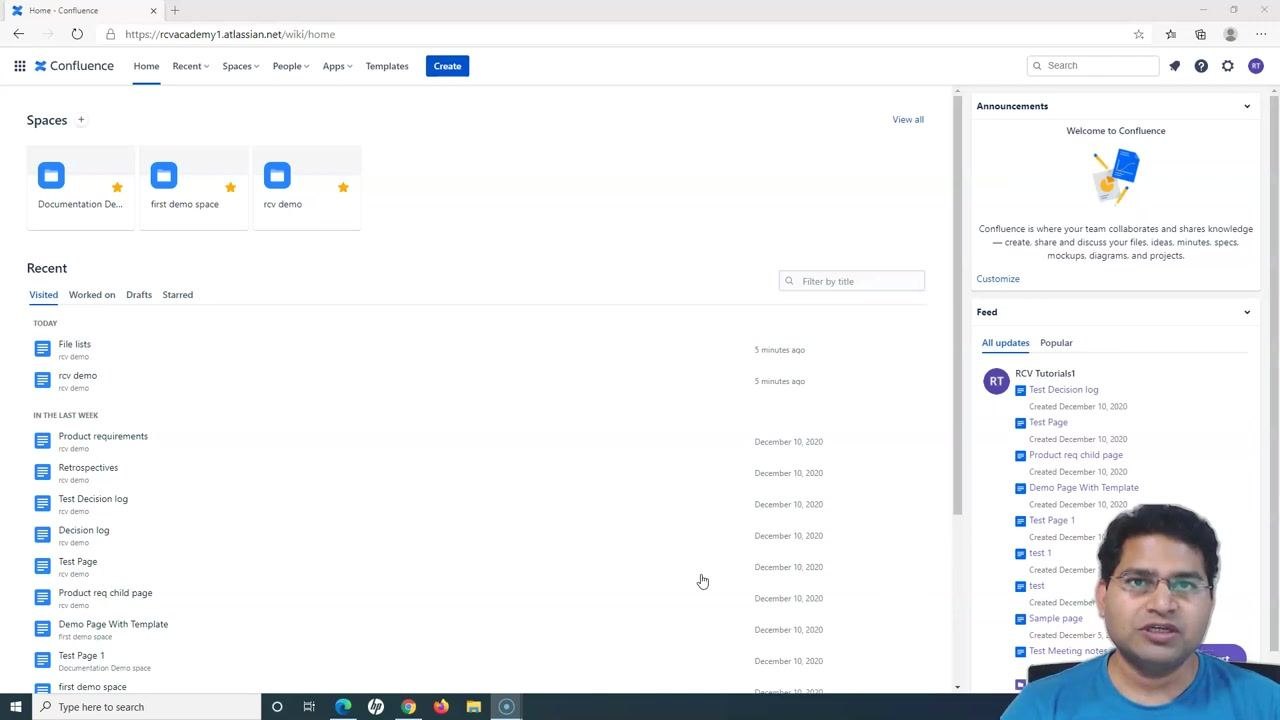
Navigate to the space containing the page
Go to the Confluence home page and locate the Spaces section at the top of the screen. Click on the space where the page you want to delete resides (for example, "rcv demo").
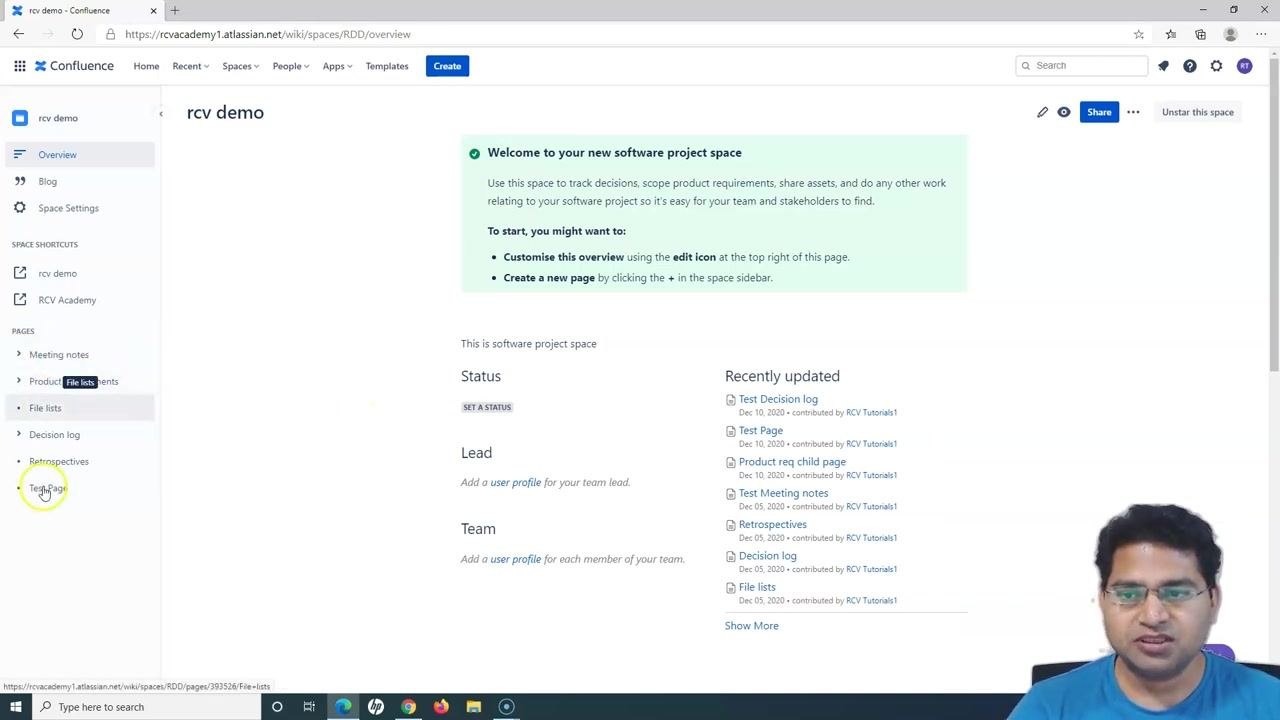
Open the page you want to delete
Once inside the selected space, view the list of pages in the left sidebar. Identify the page you want to delete (for example, "File lists") and click on its name to open it.
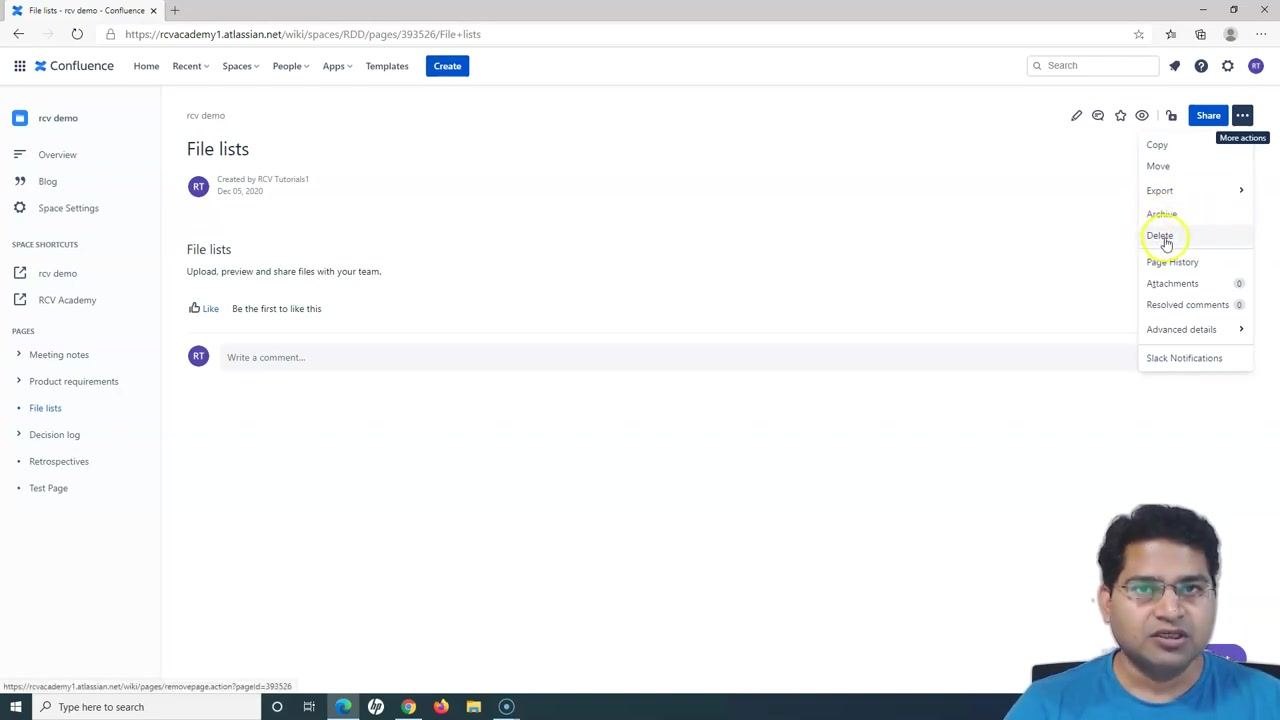
Open the "More actions" menu
With the page open, look to the top right corner for the three-dot More actions button. Click it to open the dropdown menu, which shows the Delete option along with an Archive option if you'd prefer to archive the page instead.
Click Delete
In the dropdown menu, click Delete to start the deletion process.
Review the delete confirmation dialog
A Delete Page confirmation dialog appears with several warnings you should read carefully:
- "Removing a page moves it into the trash can. You can speak to your space administrator to have it recovered."
- "There are 0 incoming link(s) to this page. These links will be broken when this page is deleted."
- "This page is a child page of page rcv demo/rcv demo."
This dialog tells you whether other pages link to the one you're deleting. If the incoming link count is greater than zero, deleting the page will break those links, so double-check this before proceeding.
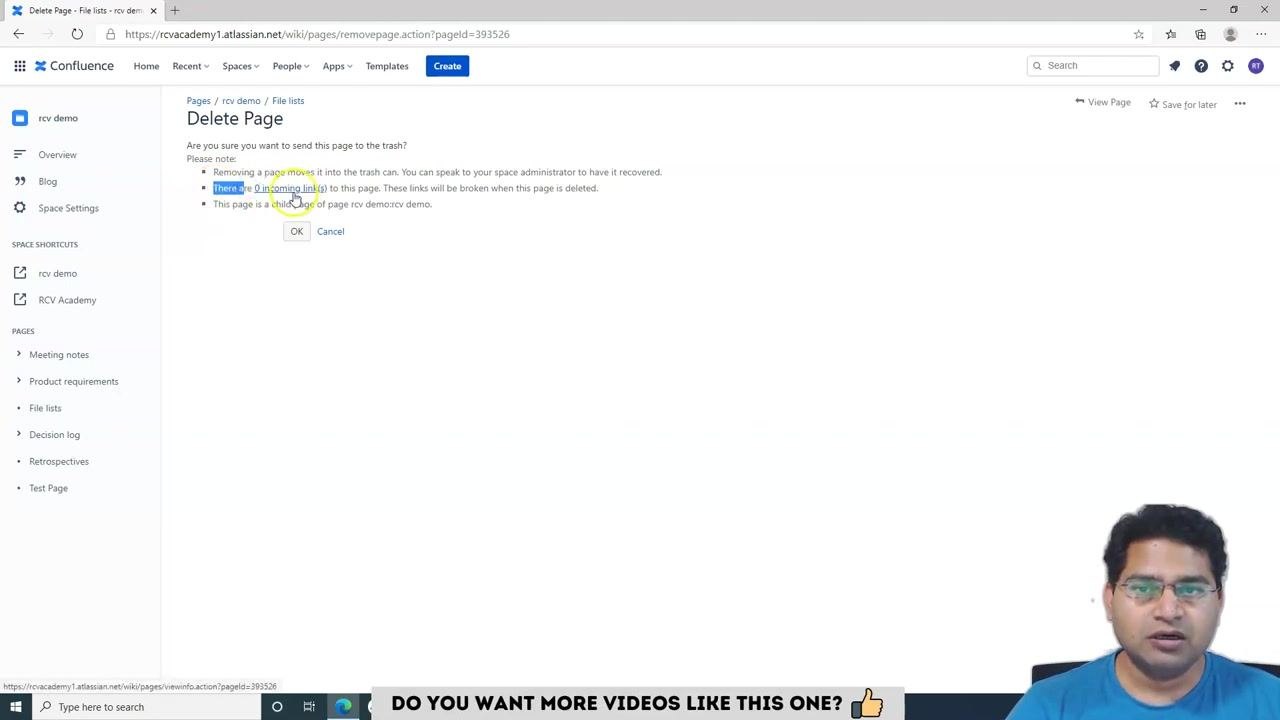
Confirm the deletion
Click OK in the confirmation dialog to move the page to the trash. The page is removed from the space but is not yet permanently deleted—it sits in the trash until it's restored or purged.
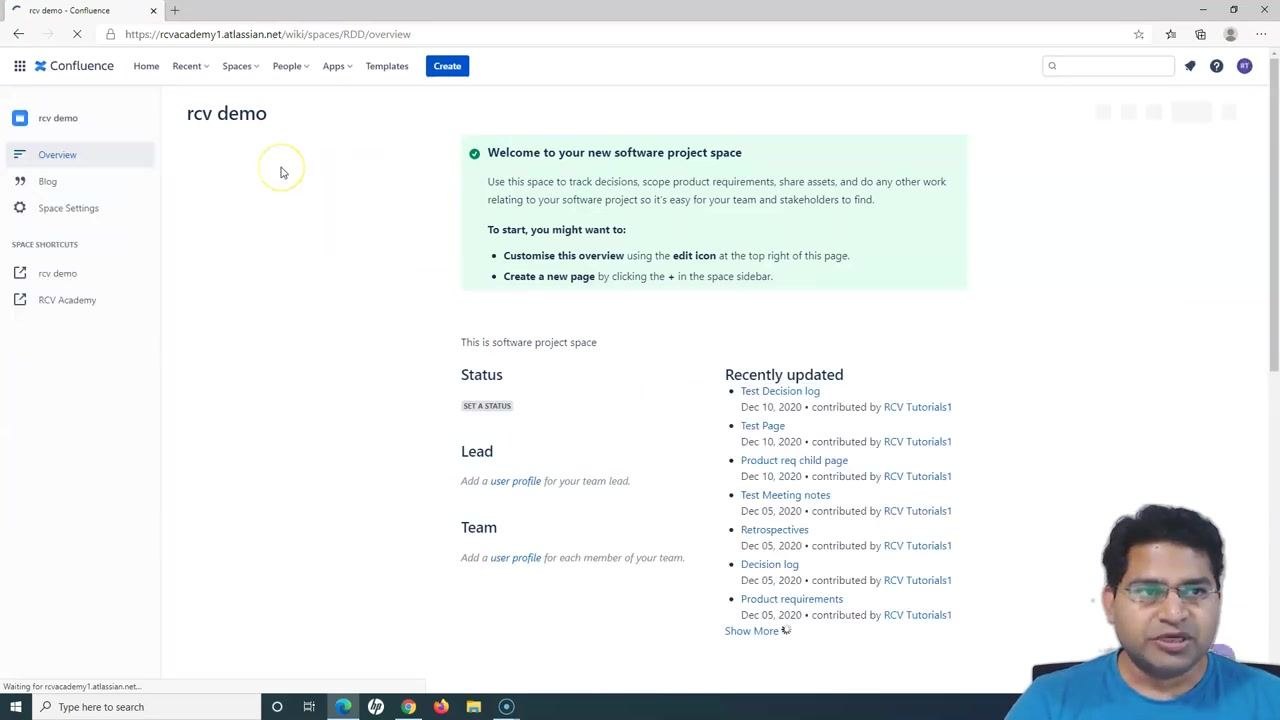
Verify the page is removed from the sidebar
After deletion, check the left sidebar in your Confluence space. The deleted page (for example, "File lists") should no longer appear in the page list.
At this point, the page is in the trash and can still be restored by a space administrator. To remove it for good, you need to empty the trash from the space settings, as described below.
Open Space Settings
In your Confluence space, locate the left sidebar and click Space Settings.
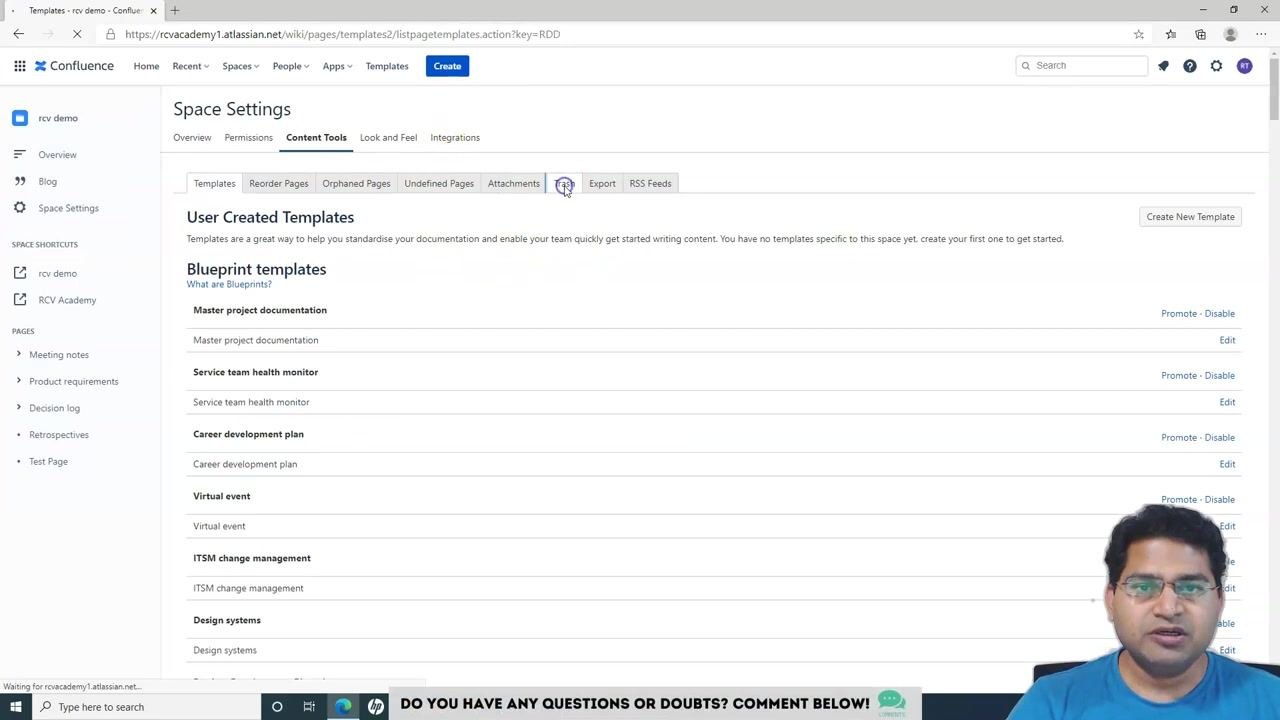
Open Content Tools and the Trash tab
In the Space Settings menu, select the Content Tools tab at the top, then click the Trash tab. This tab lists all deleted pages, blog posts, and attachments currently in the trash.
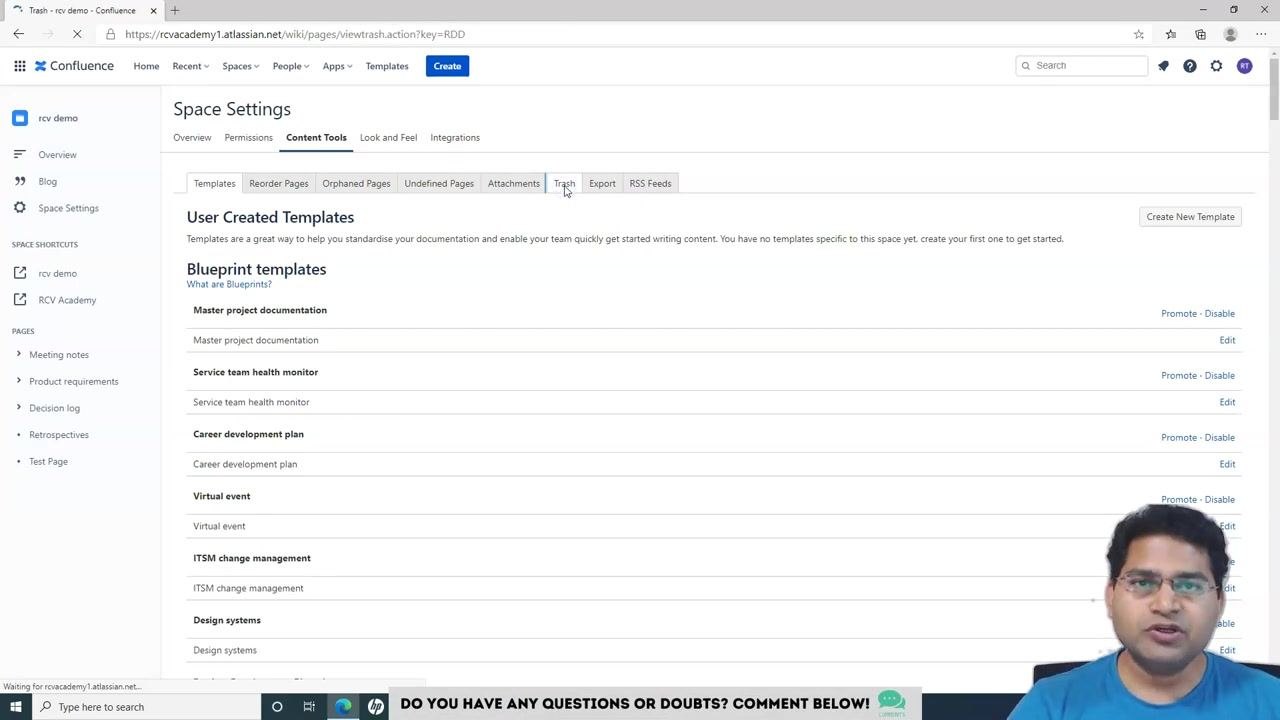
Locate the deleted page in the trash
Find the page you want to permanently delete (for example, "File lists"). In the "Operations" column, you'll see options to Restore or Purge the page.
Restore a page if deleted by mistake (optional)
If you deleted the page by mistake, click Restore next to the page name. The page returns to its original location in the page hierarchy. Use this option whenever you need to recover an accidentally deleted page.
Permanently delete (purge) the page
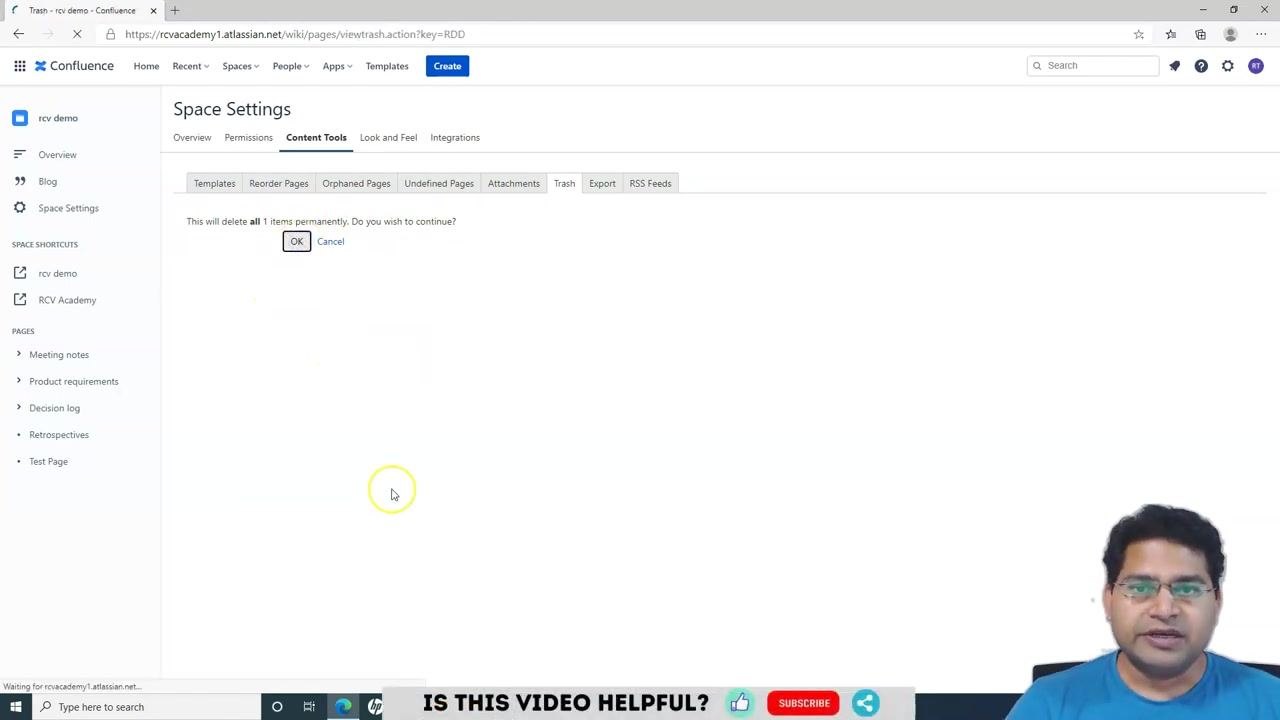
To permanently delete the page, click Purge next to its name. If you want to remove everything in the trash at once, click Purge All at the top instead.
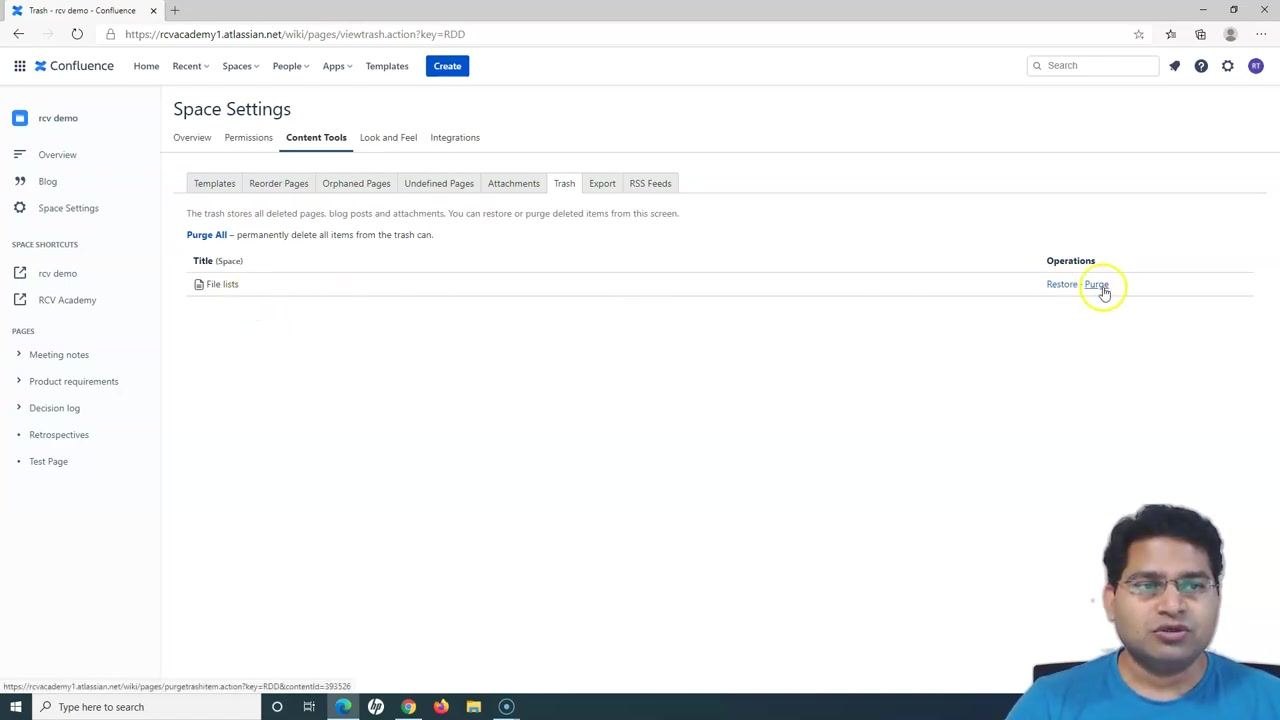
Confirm the permanent deletion
A confirmation dialog appears: "This will delete all 1 items permanently. Do you wish to continue?" Click OK to confirm. Once purged, the page cannot be restored.
Verify the trash is empty
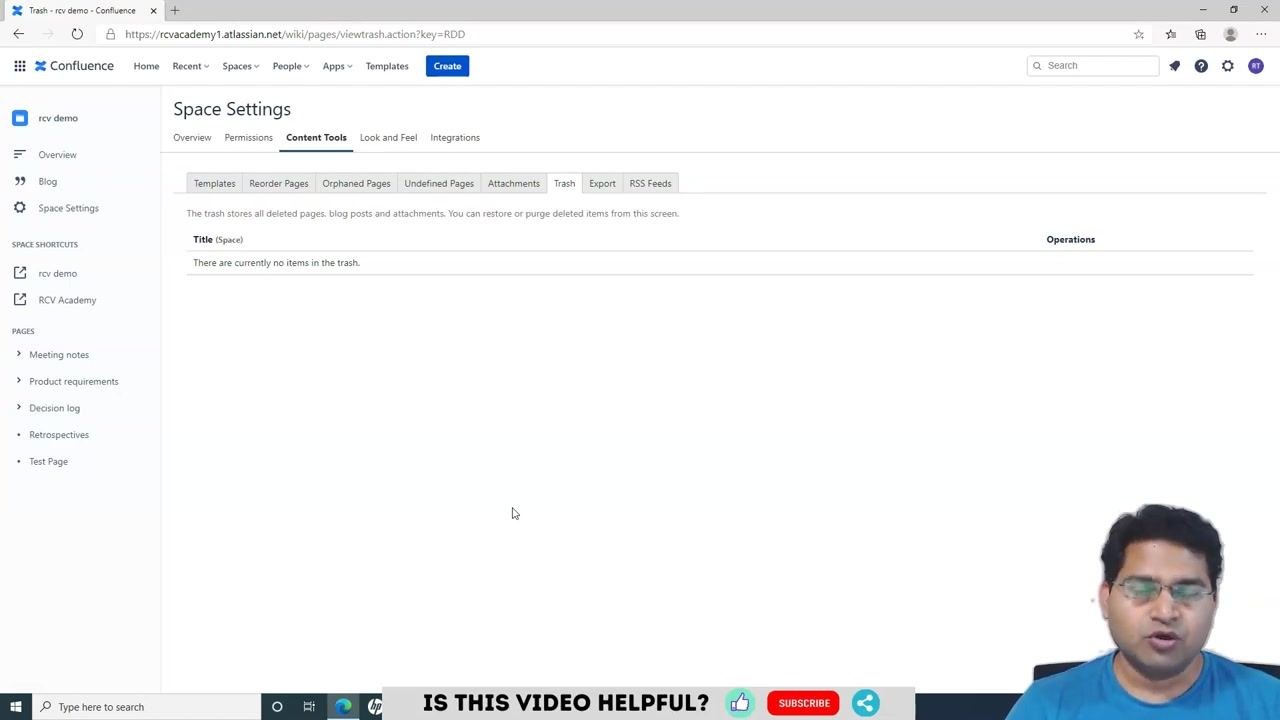
Navigate back to Space Settings > Content Tools > Trash tab. Confirm that the message "There are currently no items in the trash." appears under the Title (Space) column. This confirms that all deleted pages, blog posts, and attachments have been either restored or permanently purged.
Summary
- Deleting a page in Confluence moves it to the trash; it isn't permanently erased until an administrator purges it.
- Always review the incoming links warning before confirming deletion to avoid breaking important references.
- Pages in the trash can be restored until they are purged—purging is irreversible.
- Only space administrators can empty the trash or purge pages.
What's next
If you need to delete or restore more pages in the future, repeat the steps in this guide. Always check the Trash tab periodically to make sure no unwanted content remains in your space.
Generation details: cost, quality tiers
Docsie billed 3,000 credits ($2.10) to analyze this 6-minute video at standard quality. The rewrite, template fill and Word/PDF exports were included. The same video at each quality tier:
| Quality | Frames sampled | Credits | Approx. cost |
|---|---|---|---|
| Draft | every 16-30 s | 1,500 | $1.05 |
| Standard (this guide) | every 8-15 s | 3,000 | $2.10 |
| Detailed | every 4-7 s | 6,000 | $4.20 |
| Ultra | every 1-3 s | 12,000 | $8.40 |
Credits priced at $0.70 per 1,000; plans include a monthly allowance. Enterprise customers on on-premise or bring-your-own-model deployments run this on their own inference and pay no per-video credits.
Generated by Docsie Video-to-Docs on 2026-09-20 from a 5-minute video. Screenshots are frames from the source video and belong to their creator, RCV Academy, whose original is embedded above. If you own this video and want the guide removed or credited differently, contact us and we will act within one business day.