
How to View Your Pay Stubs in ADP
If you're a former employee and need to access your pay records, this guide walks you through how to view your pay stubs in ADP, as well as how to download them individually or all at once. The process involves signing in, verifying your identity, and navigating to the Download Statements page.
Video: How to View and Download Your Pay Stub on ADP by Northville Tech (2025). All credit for the demonstration goes to the creator; watch the original on YouTube. The written guide below was generated from this video by Docsie. Creator? Request a change or removal.
If you're a former employee and need to access your pay records, this guide walks you through how to view your pay stubs in ADP, as well as how to download them individually or all at once. The process involves signing in, verifying your identity, and navigating to the Download Statements page.
Prerequisites
Before you begin, make sure you have the following information ready, as it was previously shared with your employer:
- Your first name and last name
- Your date of birth
- Your Social Security Number
- Your personal mobile phone number (the one associated with your ADP account)
Go to the ADP website
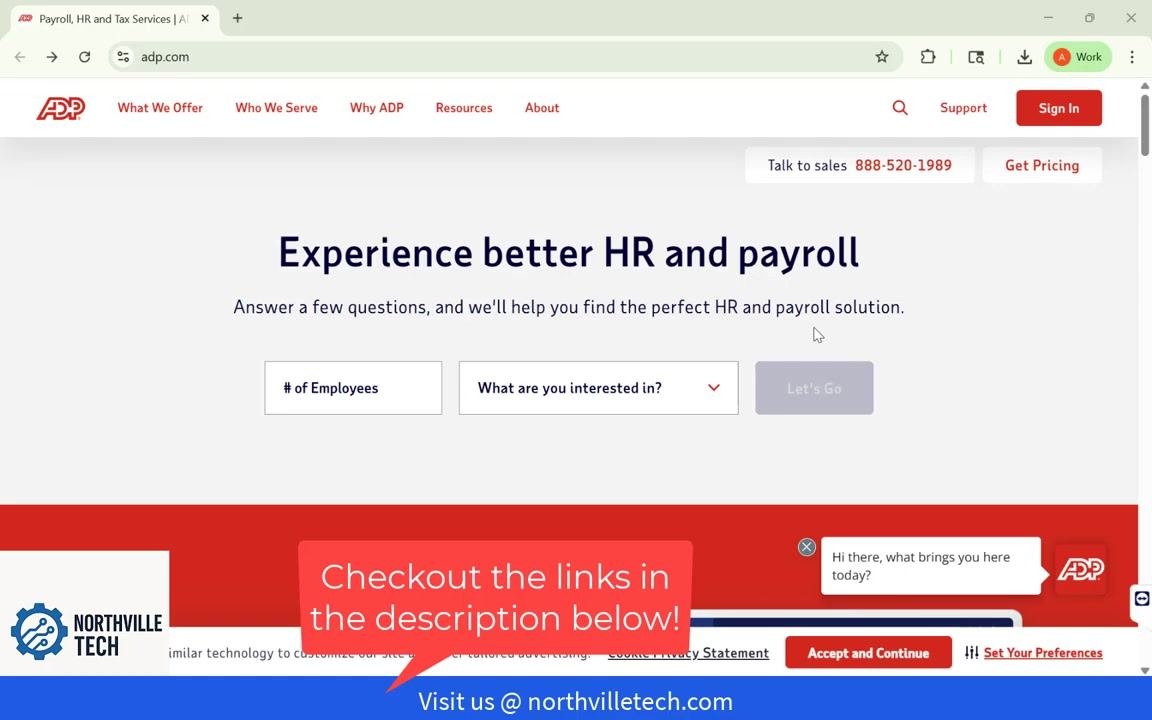
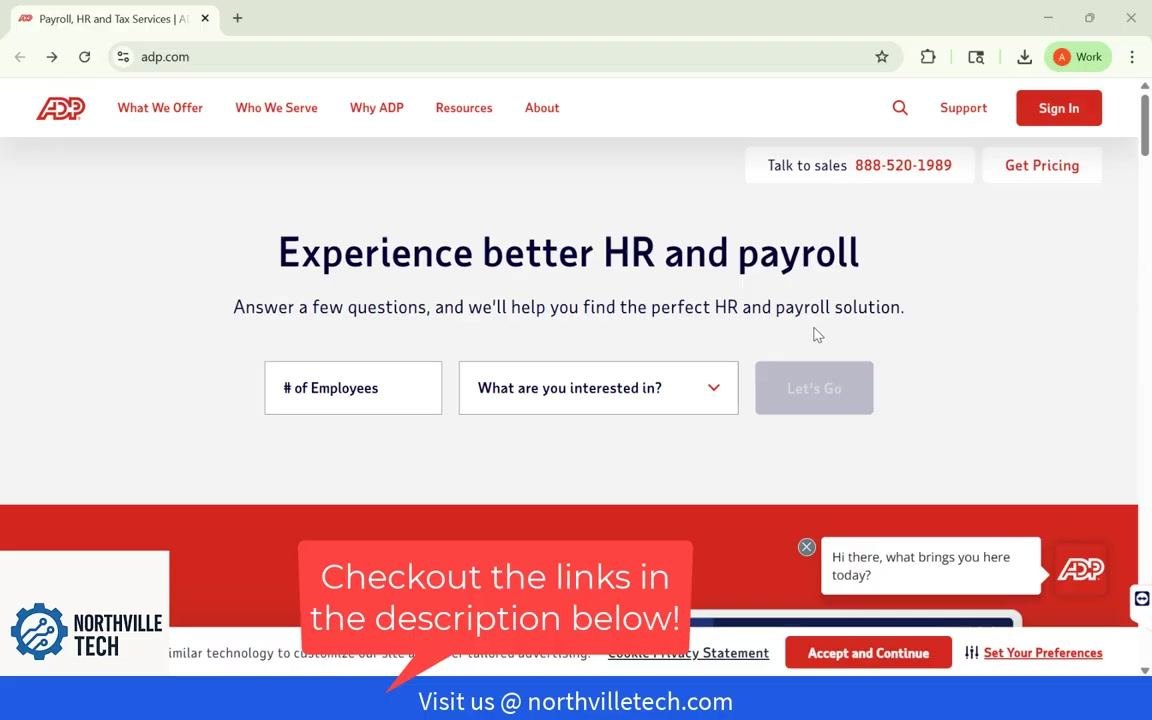
Open your web browser and navigate to adp.com. You'll see the ADP homepage, which includes navigation options such as What We Offer, Who We Serve, Why ADP, Resources, and About. A red Sign In button appears in the upper right corner.
Sign in to your account
Click the Sign In button in the upper right corner of the screen to begin the sign-in process.
Select your employment status
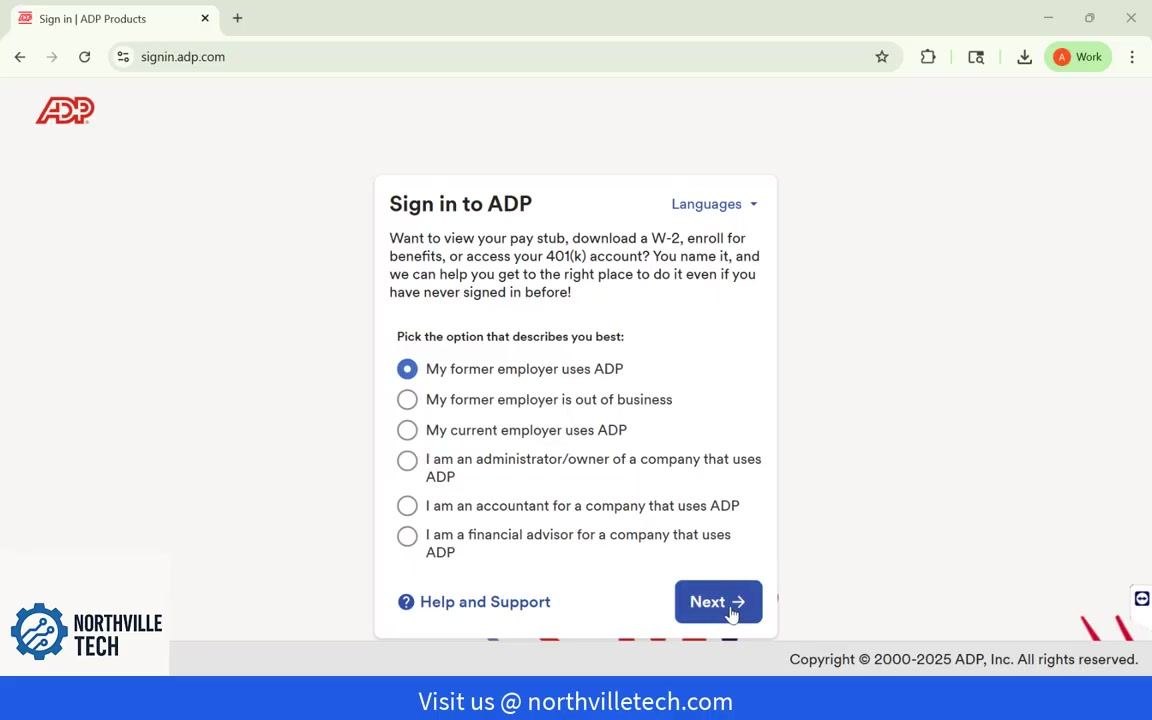
On the Sign in to ADP page, select the description that applies to you. If you're a former employee, choose My former employer uses ADP.
Other available options include:
- My former employer is out of business
- My current employer uses ADP
- I am an administrator/owner of a company that uses ADP
- I am an accountant for a company that uses ADP
- I am a financial advisor for a company that uses ADP
After selecting your option, click Next to continue.
Enter your personal information
Fill in the required fields to verify your identity:
- First Name
- Last Name
- Date of Birth (select Month, Day, Year)
- Social Security Number
Once all fields are complete, click Continue.
Enter your mobile phone number
Enter your personal mobile phone number in the field provided. Use the number that is associated with your ADP account to ensure successful verification.
Verify your phone number
Click Verify Phone Number to receive a verification code via text message.
Enter the verification code
Enter the verification code sent to your phone in the field provided, then click Continue to proceed.
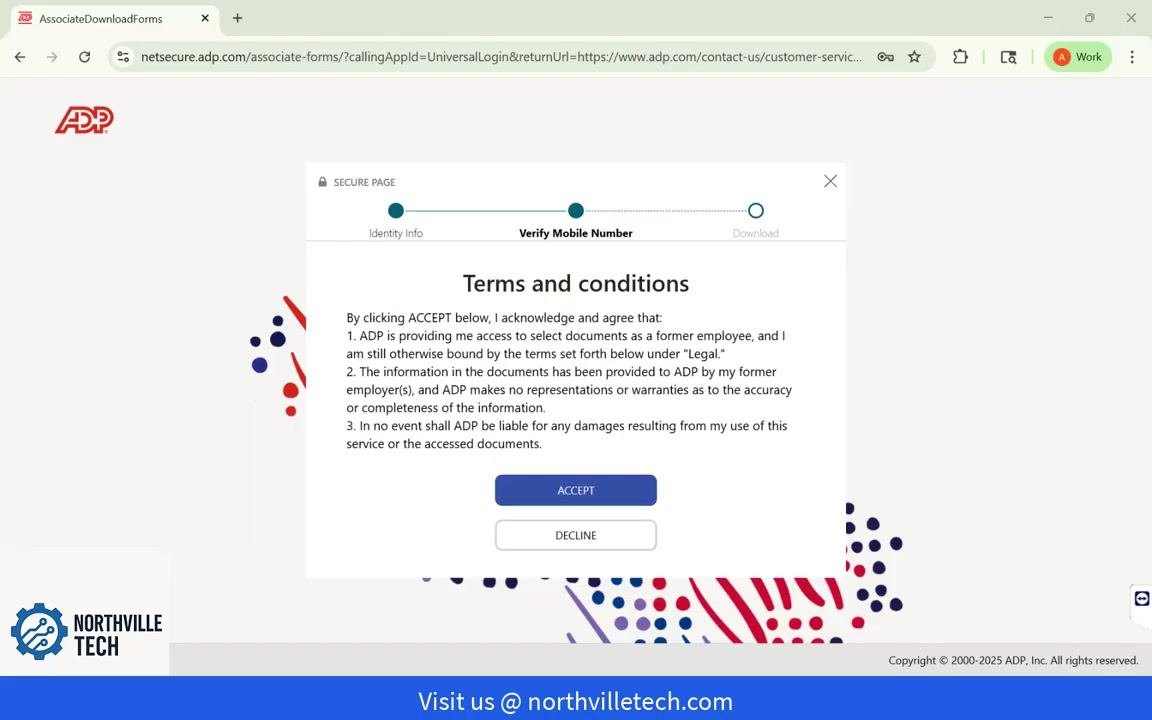
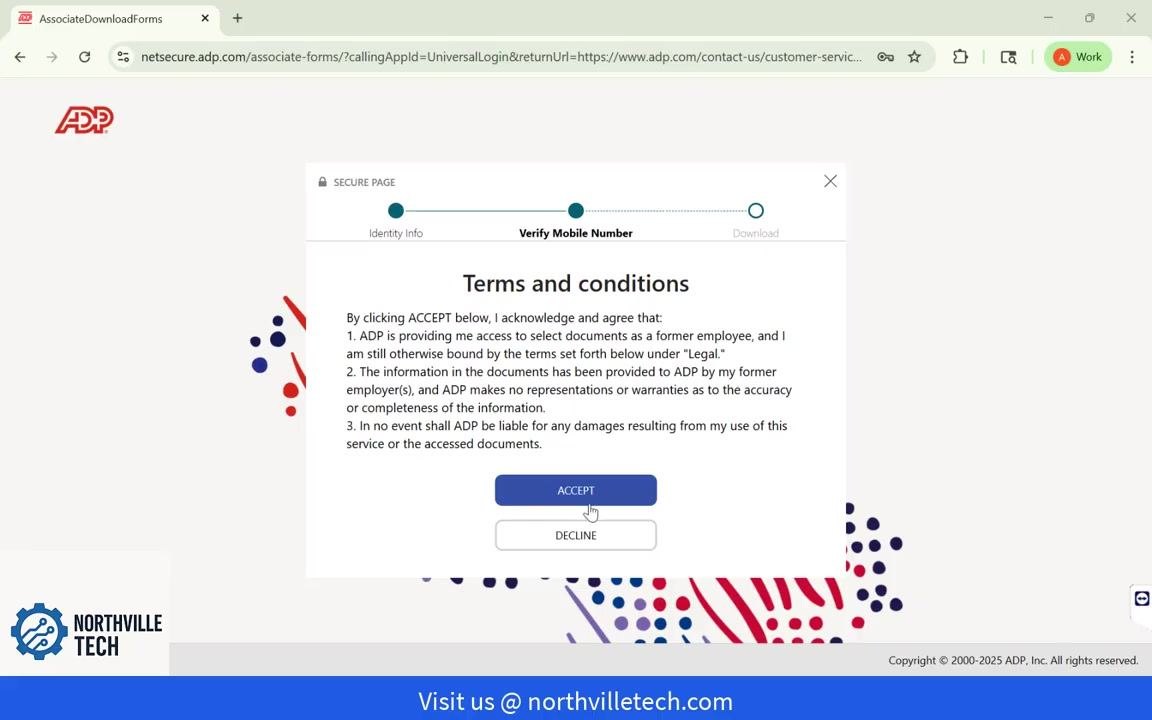
Review the terms and conditions
Read through the Terms and Conditions presented on the next screen. Review the information carefully before continuing.
Accept the terms
If you agree to the terms, click Accept to proceed.
Open the Download Statements page
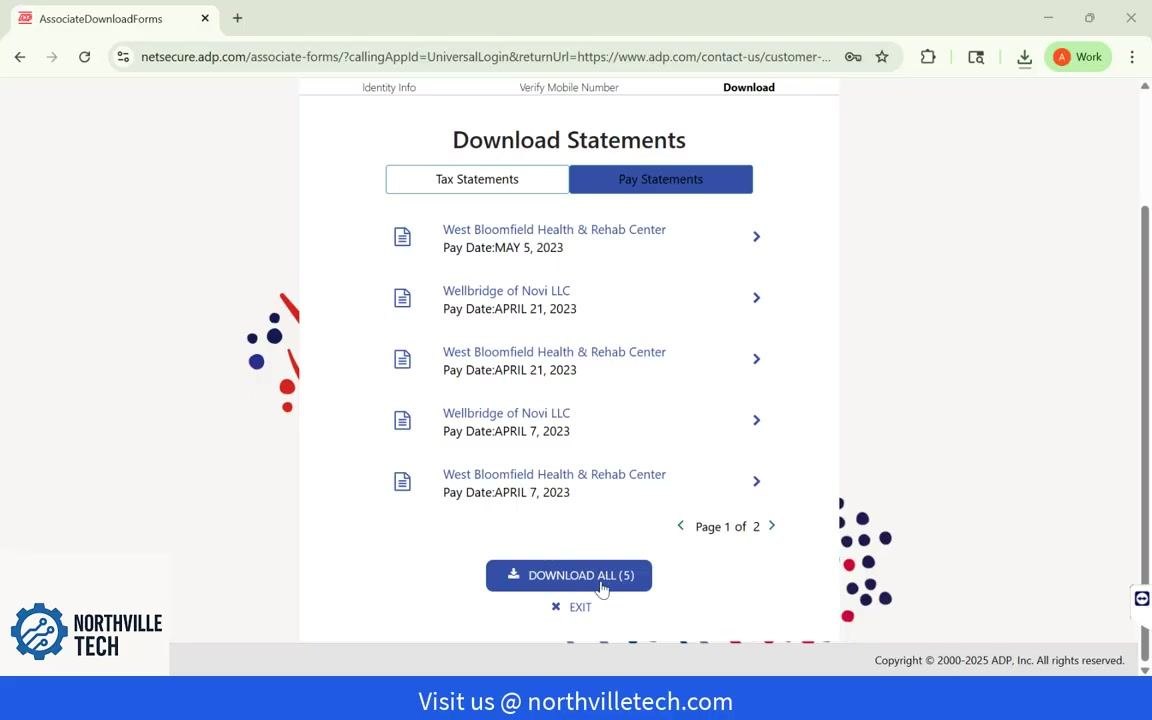
You'll now see the Download Statements page. Click the Pay Statements tab to view your pay statements. A list of all your available pay statements will appear, including employer names and pay dates.
Open a specific pay statement
To view a specific pay statement, click the arrow (>) next to the statement you want to open.
Download a single pay statement
To download an individual pay statement, click the Download button at the bottom of the screen.
Download all pay statements at once
If you want to download all of your pay statements at once, scroll down on the Download Statements page. Click the Download All (5) button located at the bottom of the pay statements list.
This action downloads all available pay statements at once. The button label displays the total number of statements available for download, for example "Download All (5)".
View and download individual statements
After downloading, you can still view individual statements by clicking the arrow (>) next to any pay statement entry. On the document view screen, click Download to save that single statement.
The document view screen displays the selected pay statement along with Close and Download buttons at the bottom.
Exit the Download Statements page
When you're finished, click Exit on the Download Statements page to log out or return to the previous menu.
Summary
By following these steps, you now know how to view your pay stubs in ADP and securely download them, either one at a time or all together, as a former employee.
Generation details: cost, quality tiers
Docsie billed 1,500 credits ($1.05) to analyze this 3-minute video at standard quality. The rewrite, template fill and Word/PDF exports were included. The same video at each quality tier:
| Quality | Frames sampled | Credits | Approx. cost |
|---|---|---|---|
| Draft | every 16-30 s | 750 | $0.52 |
| Standard (this guide) | every 8-15 s | 1,500 | $1.05 |
| Detailed | every 4-7 s | 3,000 | $2.10 |
| Ultra | every 1-3 s | 6,000 | $4.20 |
Credits priced at $0.70 per 1,000; plans include a monthly allowance. Enterprise customers on on-premise or bring-your-own-model deployments run this on their own inference and pay no per-video credits.
Generated by Docsie Video-to-Docs on 2026-10-02 from a 2-minute video. Screenshots are frames from the source video and belong to their creator, Northville Tech, whose original is embedded above. If you own this video and want the guide removed or credited differently, contact us and we will act within one business day.