
How to Approve Time Off in ADP
Managers and supervisors can approve or deny employee time off requests directly in ADP Workforce Now. This guide walks you through how to approve time off in ADP using the homepage notifications, as well as an alternative method through the "My Team" section, so you can process requests efficiently and keep your team's schedule accurate.
Video: ADP Approving Time Off Requests Managers Supervisors by HR MSK MSO (2022). All credit for the demonstration goes to the creator; watch the original on YouTube. The written guide below was generated from this video by Docsie. Creator? Request a change or removal.
Managers and supervisors can approve or deny employee time off requests directly in ADP Workforce Now. This guide walks you through how to approve time off in ADP using the homepage notifications, as well as an alternative method through the "My Team" section, so you can process requests efficiently and keep your team's schedule accurate.
Prerequisites
- An ADP Workforce Now manager or supervisor account with approval permissions.
- Access to the email address associated with your ADP account to receive notifications.
Receive the time off request notification
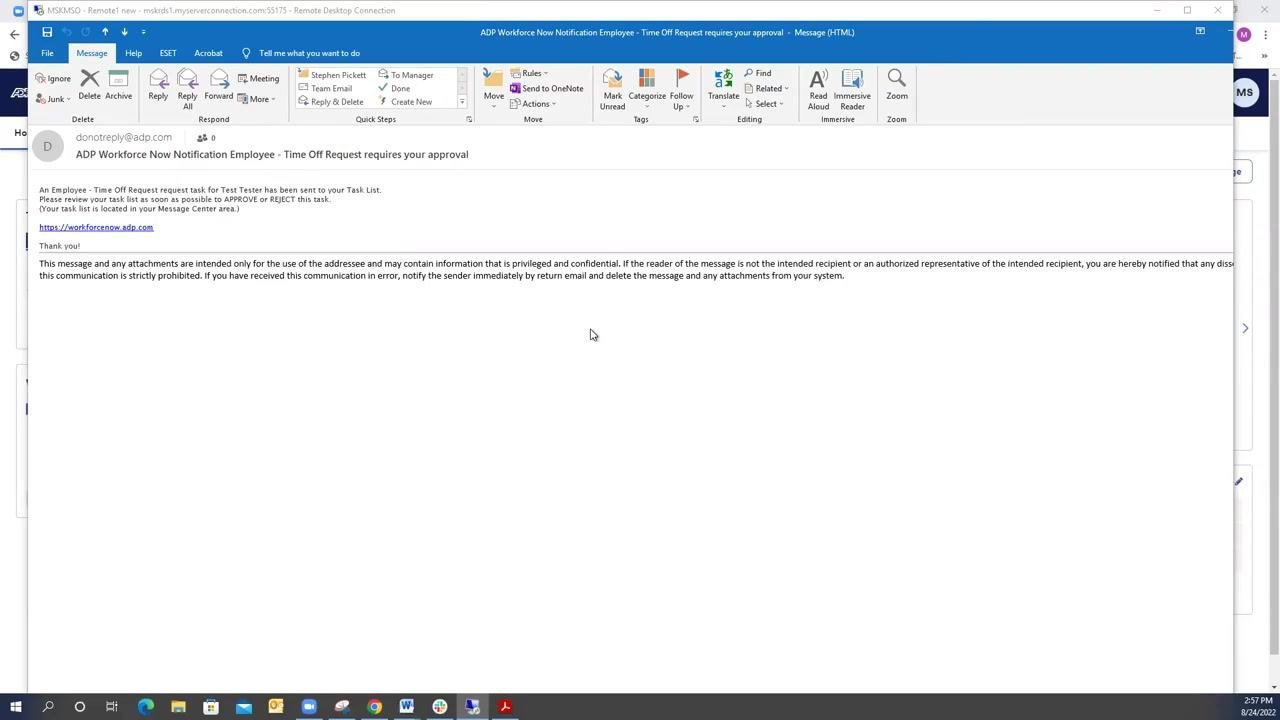
When an employee submits a time off request, you receive an email from ADP (donotreply@adp.com) with the subject line "ADP Workforce Now Notification Employee - Time Off Request requires your approval." This email includes a link to the ADP Workforce Now portal along with a prompt to approve or reject the request.
Click the link in the email, or open your browser and navigate to the ADP Workforce Now login page. Enter your credentials to access your account.
Locate pending time off requests
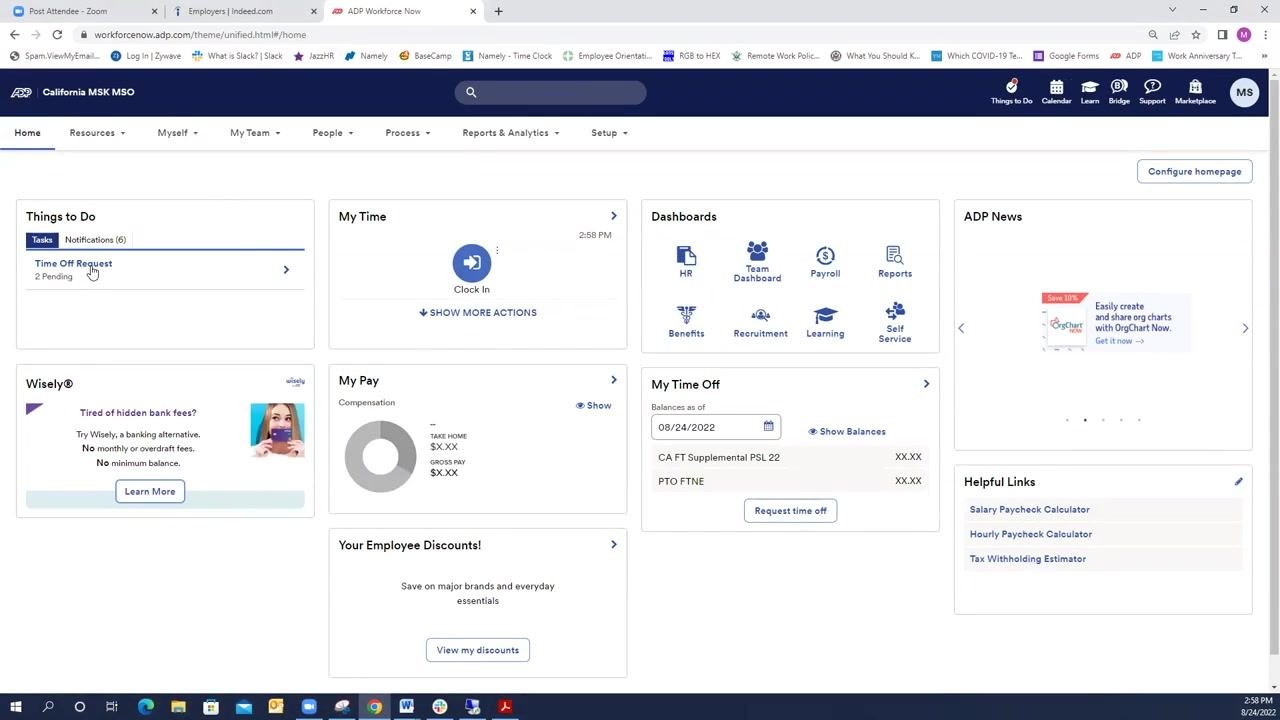
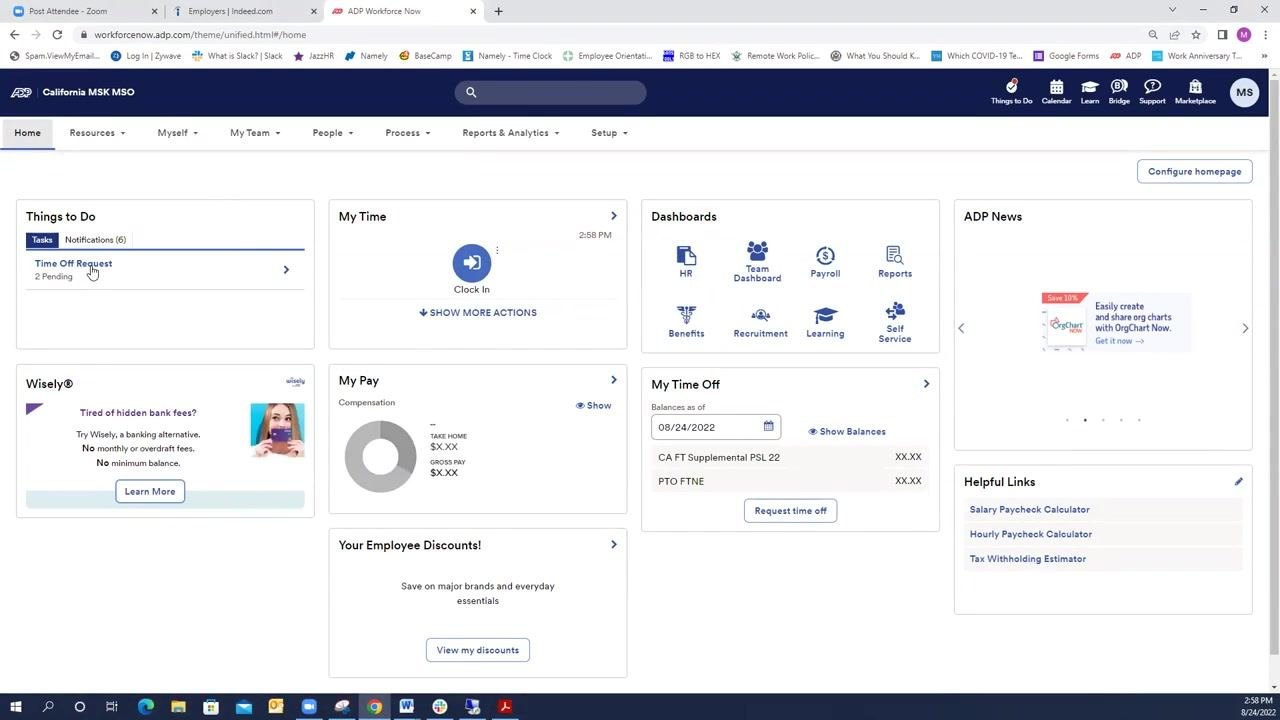
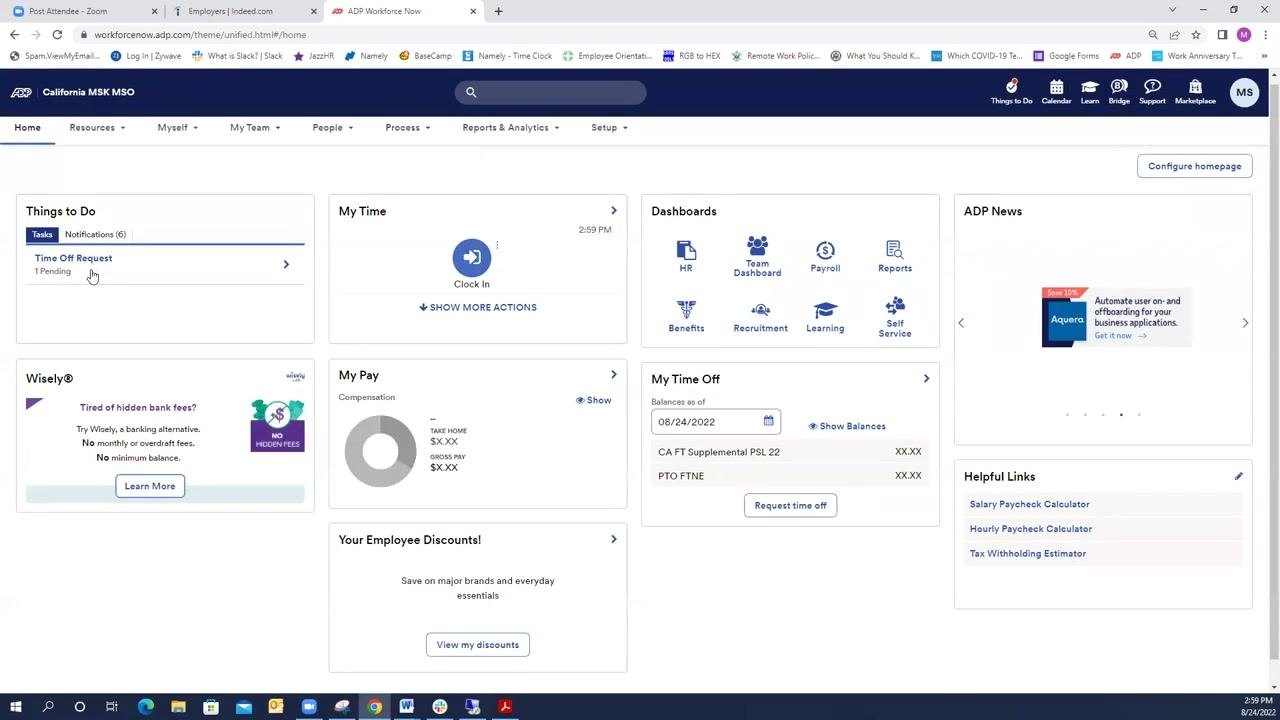
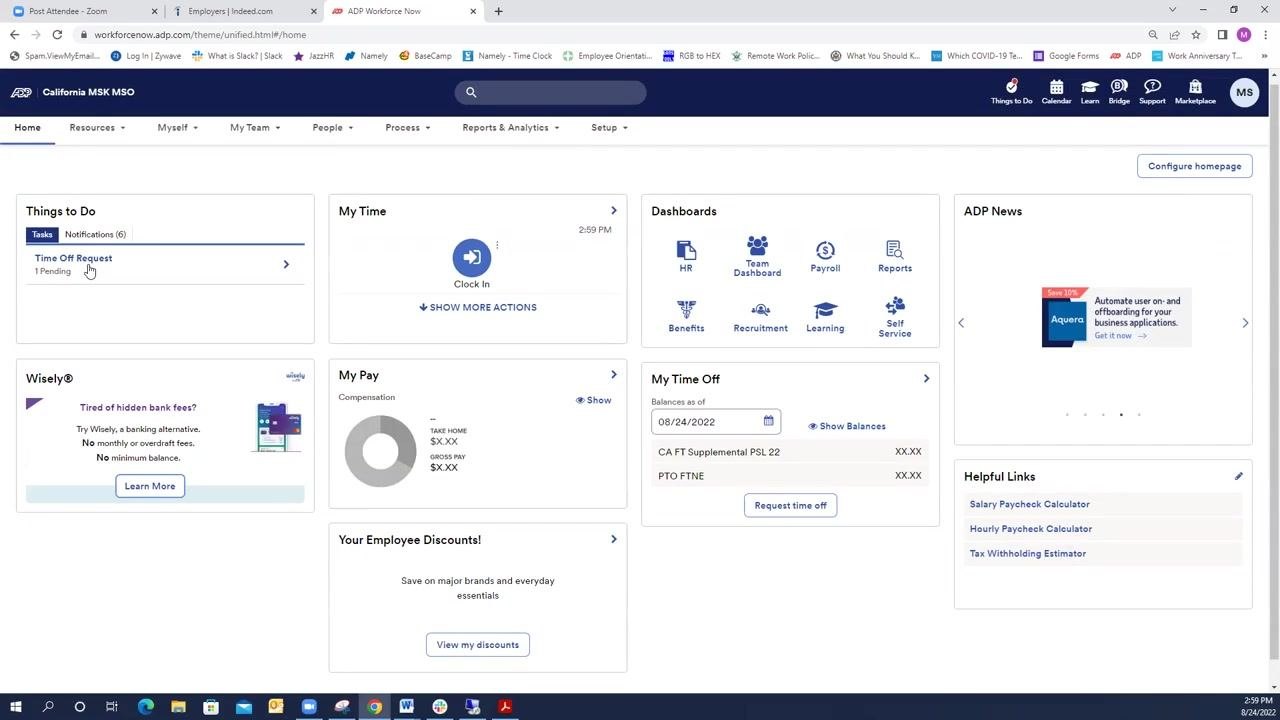
On your ADP homepage, find the Things to Do tile. Under Tasks, look for Time Off Request, which displays the number of pending requests (for example, "2 Pending"). Click Time Off Request to view the full list.
Review the employee's time off request
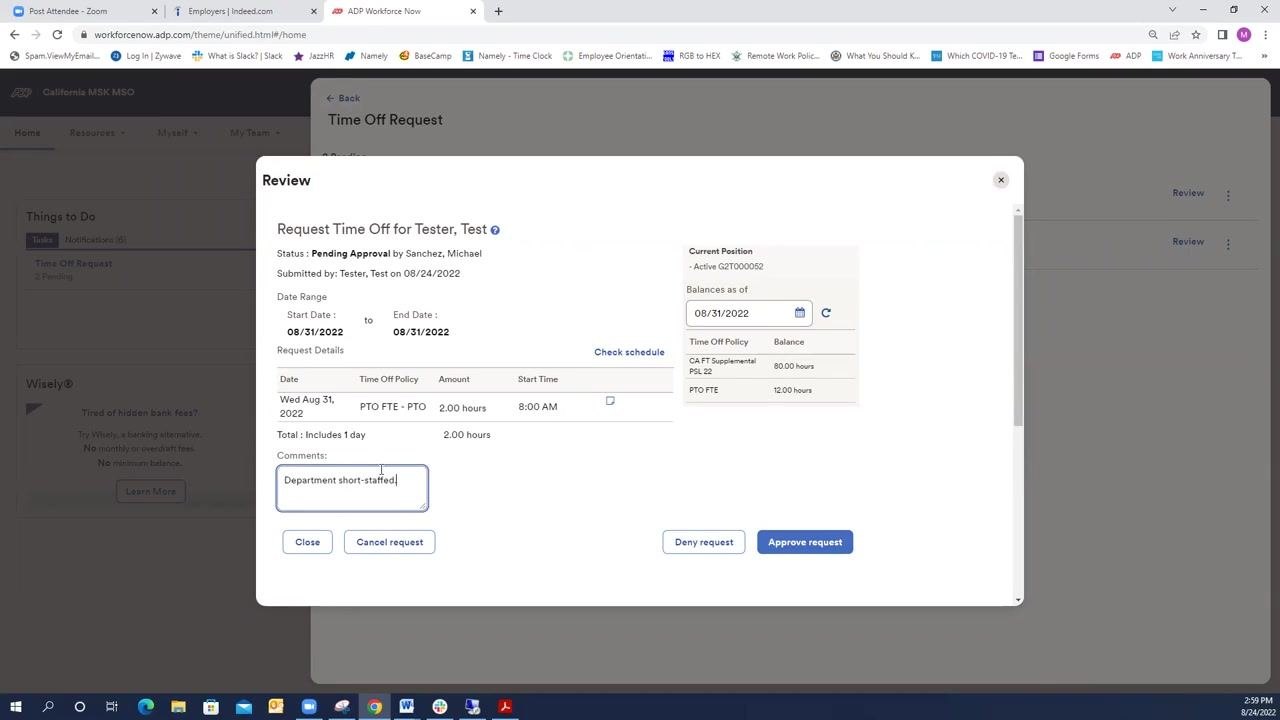
From the list of pending requests, click Review next to the request you want to process. A review window opens showing the following details:
- Employee name (e.g., Tester, Test)
- Status: Pending Approval
- Submitted by: the manager's name, with the submission date
- Date range: start date to end date (e.g., 08/31/2022 to 08/31/2022)
- Request details: date, time off policy (e.g., PTO FTE - PTO), amount (e.g., 2.00 hours), and start time (e.g., 8:00 AM)
- Total requested time (e.g., 2.00 hours)
- A comments box for your input
- Current position and time off policy balances (e.g., CA FT Supplemental PSL 22: 80.00 hours, PTO FTE: 12.00 hours)
Add a comment and choose an action
In the review window, you have three options:
- Deny request – reject the employee's time off request.
- Approve request – approve the employee's time off request.
- Cancel request – do not use this option for approvals or denials, as it permanently deletes the request from the system.
Enter a comment in the Comments box to explain your decision (for example, "Department short-staffed").
Submit your decision
Click Deny request or Approve request, as appropriate. The employee is notified of your decision along with any comments you provided.
Note: Only use Deny request or Approve request to process time off requests. Always include clear, professional comments to explain your decision, especially when denying a request.
This completes the primary process for reviewing and acting on employee time off requests in ADP Workforce Now. The following steps describe an alternative method for processing requests.
Access requests through "My Team" (alternative method)
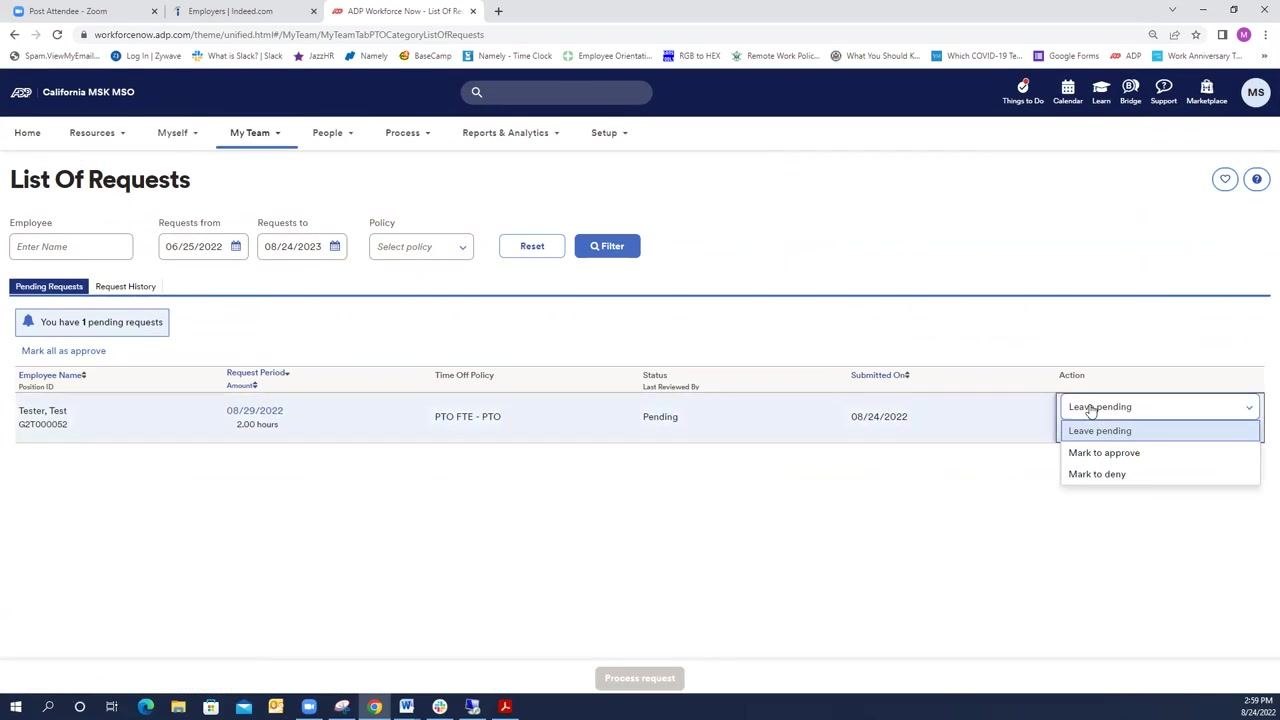
If the Things to Do tile does not display pending requests, navigate to the top menu and click My Team. Select List Request from the dropdown or relevant section to display all pending requests for your team in a different view.
Review pending requests in the list view
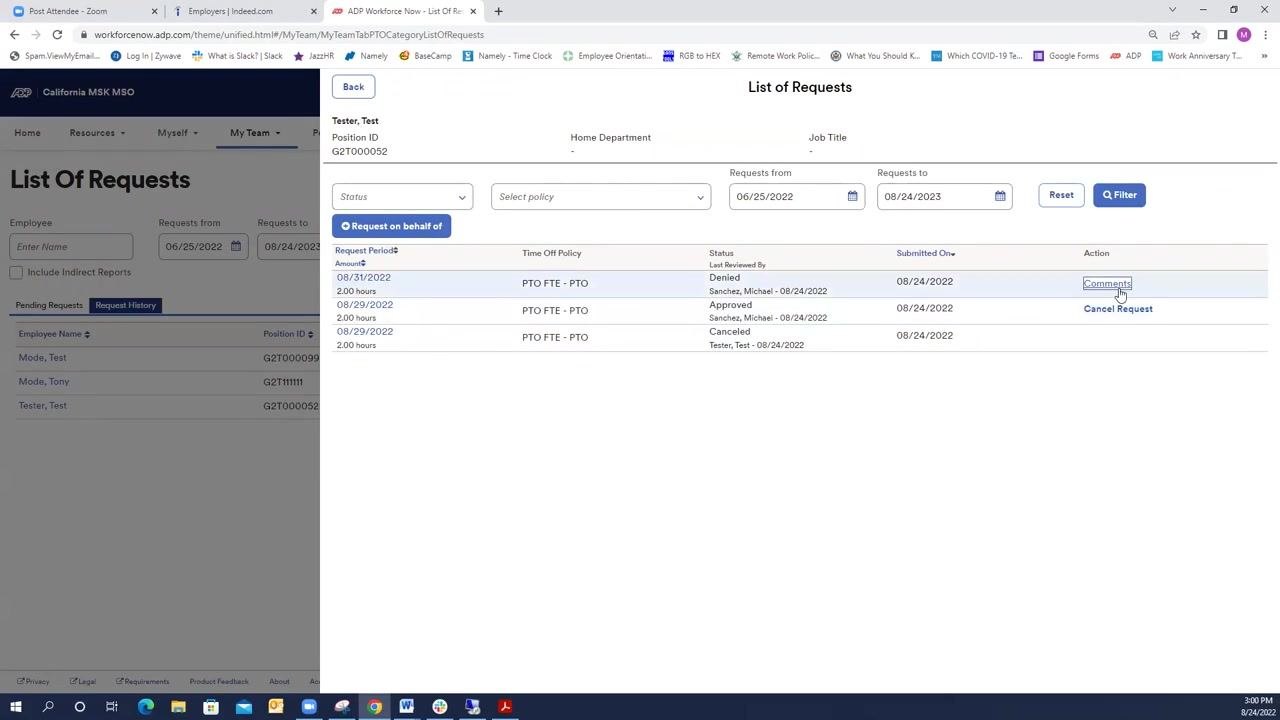
On the List Of Requests screen, a table displays the following columns:
- Employee name (e.g., Tester, Test)
- Request period (e.g., 08/29/2022, 2.00 hours)
- Time off policy (e.g., PTO FTE - PTO)
- Status (e.g., Pending)
- Submitted on (e.g., 08/24/2022)
- Action (dropdown menu)
Click the Action dropdown next to the relevant request, then select Mark to approve or Mark to deny, as appropriate.
Process the selected request
After marking the request to approve or deny, click Process request at the bottom of the screen. The system processes your action. If the page does not update or appears stuck, refresh your web page.
Verify the request status
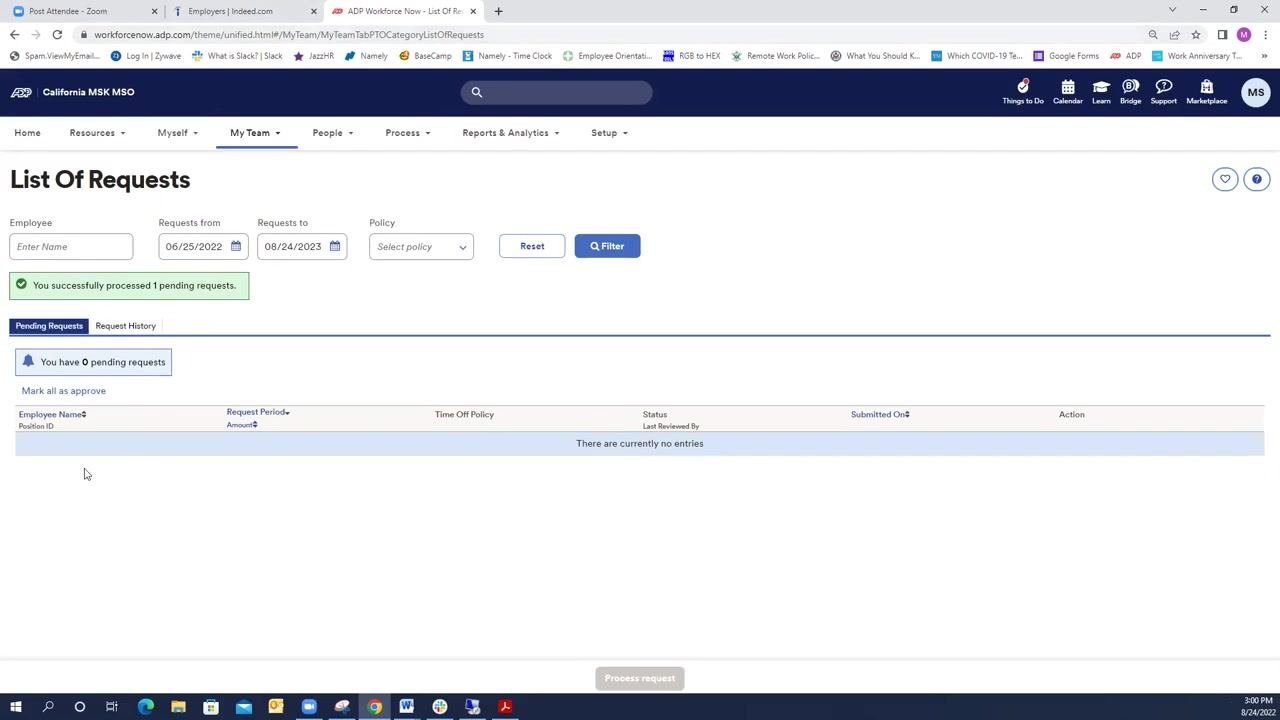
Once processed, a confirmation message appears (for example, "You successfully processed 1 pending request"). The Pending Requests tab shows zero pending requests once all have been addressed. Switch to the Request History tab to view all requests you have approved or denied for each employee.
Add comments or cancel requests
Click an employee's name to view their detailed request history. For each request, you can:
- Click Comments to add or review comments for a specific request.
- Click Cancel Request to cancel a request, even if it was previously approved.
Confirm processing on the homepage
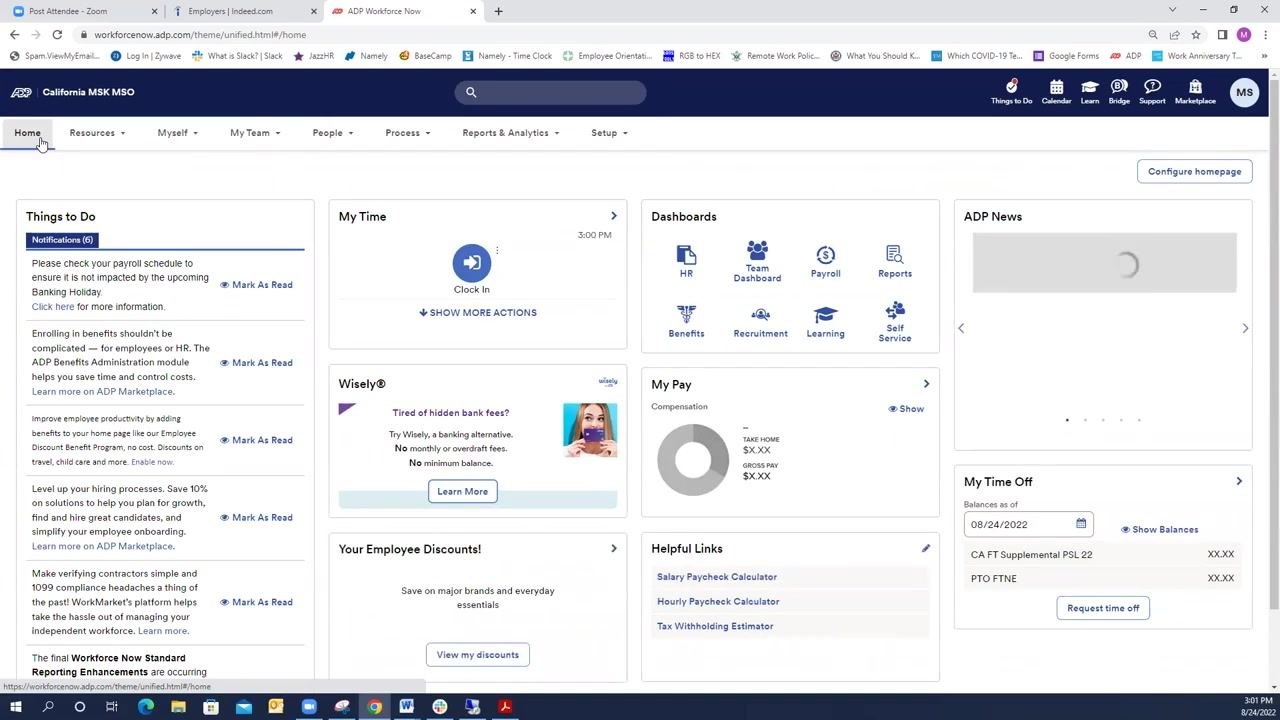
Click the Home button in the top navigation bar to return to the main dashboard, which displays tiles such as Things to Do, My Time, Dashboards, ADP News, and My Time Off.
Locate the Things to Do tile on the left side of the homepage and confirm that Time Off Request no longer appears under Tasks once all pending requests have been processed. Only general notifications, such as payroll schedule reminders, benefits enrollment, and hiring process tips, should remain. This confirms that your approval or denial has been successfully completed.
Tips
- Always include clear comments when approving or denying requests for transparency.
- If you encounter issues processing requests, refresh your browser page.
- You can revisit and manage requests at any time through My Team > List Request.
What's next
By following these steps, you can efficiently manage employee time off requests using either the homepage Things to Do tile or the My Team section in ADP Workforce Now. Continue to monitor the Things to Do tile and the Request History tab to stay on top of new submissions and past decisions.
Generation details: cost, quality tiers
Docsie billed 2,000 credits ($1.40) to analyze this 4-minute video at standard quality. The rewrite, template fill and Word/PDF exports were included. The same video at each quality tier:
| Quality | Frames sampled | Credits | Approx. cost |
|---|---|---|---|
| Draft | every 16-30 s | 1,000 | $0.70 |
| Standard (this guide) | every 8-15 s | 2,000 | $1.40 |
| Detailed | every 4-7 s | 4,000 | $2.80 |
| Ultra | every 1-3 s | 8,000 | $5.60 |
Credits priced at $0.70 per 1,000; plans include a monthly allowance. Enterprise customers on on-premise or bring-your-own-model deployments run this on their own inference and pay no per-video credits.
Generated by Docsie Video-to-Docs on 2026-10-19 from a 3-minute video. Screenshots are frames from the source video and belong to their creator, HR MSK MSO, whose original is embedded above. If you own this video and want the guide removed or credited differently, contact us and we will act within one business day.