
How to Process Payroll in ADP
This guide walks you through how to process payroll in ADP using RUN Powered by ADP, from your first login through entering pay details, previewing payroll, and confirming submission. Follow each step below to complete a full payroll cycle with confidence.
Video: RUN Payroll Demo by Andy at ADP (2022). All credit for the demonstration goes to the creator; watch the original on YouTube. The written guide below was generated from this video by Docsie. Creator? Request a change or removal.
This guide walks you through how to process payroll in ADP using RUN Powered by ADP, from your first login through entering pay details, previewing payroll, and confirming submission. Follow each step below to complete a full payroll cycle with confidence.
Prerequisites
- Valid login credentials for RUN Powered by ADP.
- Access to employee and contractor pay information for the current pay period (hours, rates, bonuses, reimbursements).
- A funded bank account to cover the total cash required for the payroll run.
Log in and view the home dashboard
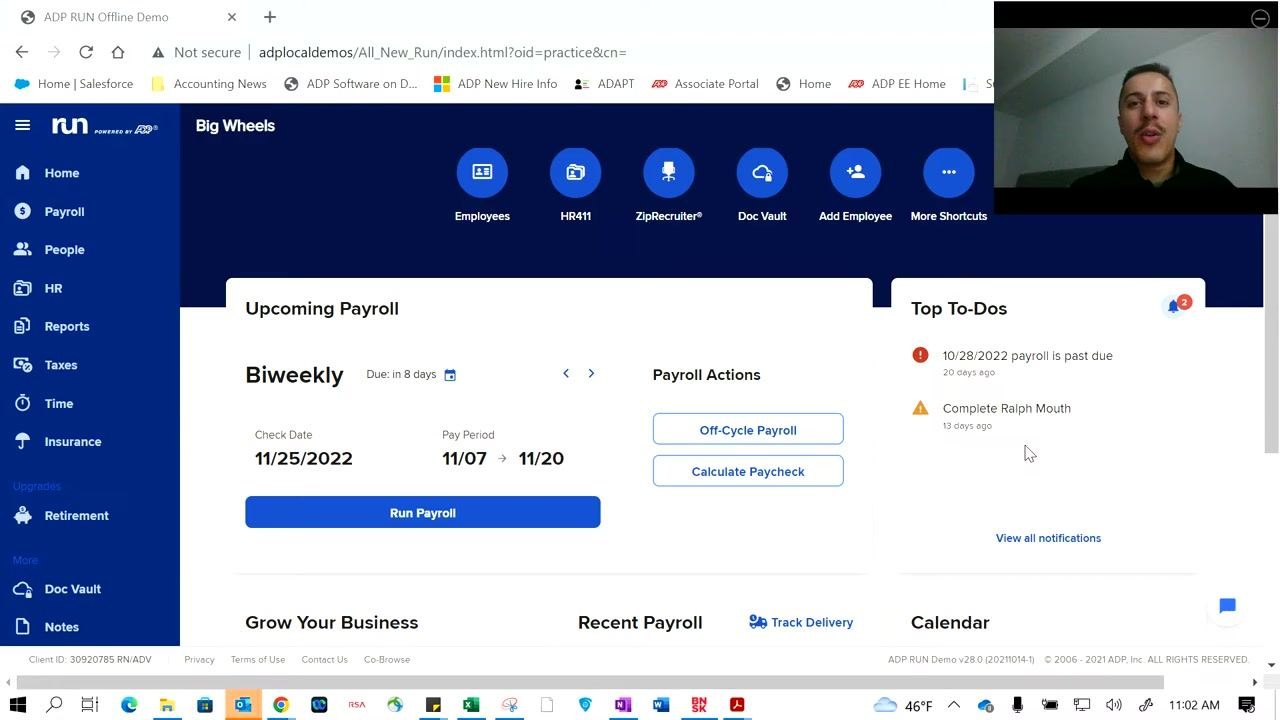
Log in to RUN Powered by ADP using your credentials. Once you're signed in, you land on the home dashboard, which greets you with a personalized message (for example, "Good Morning, Jim").
From here you can use the search bar at the top to quickly find features or employees, and access quick shortcuts for Employees, HR411, ZipRecruiter, Doc Vault, Add Employee, and More Shortcuts. The left sidebar gives you navigation to Home, Payroll, People, HR, Reports, Taxes, Time, Insurance, Retirement, Doc Vault, and Notes.
The dashboard acts as a personal assistant, summarizing your upcoming payroll and top to-dos at a glance.
Review upcoming payroll and top to-dos
Scroll down slightly to view the "Upcoming Payroll" section. It displays the payroll frequency (for example, Biweekly), the due date (in 8 days), the check date (11/25/2022), and the pay period (11/07 to 11/20).
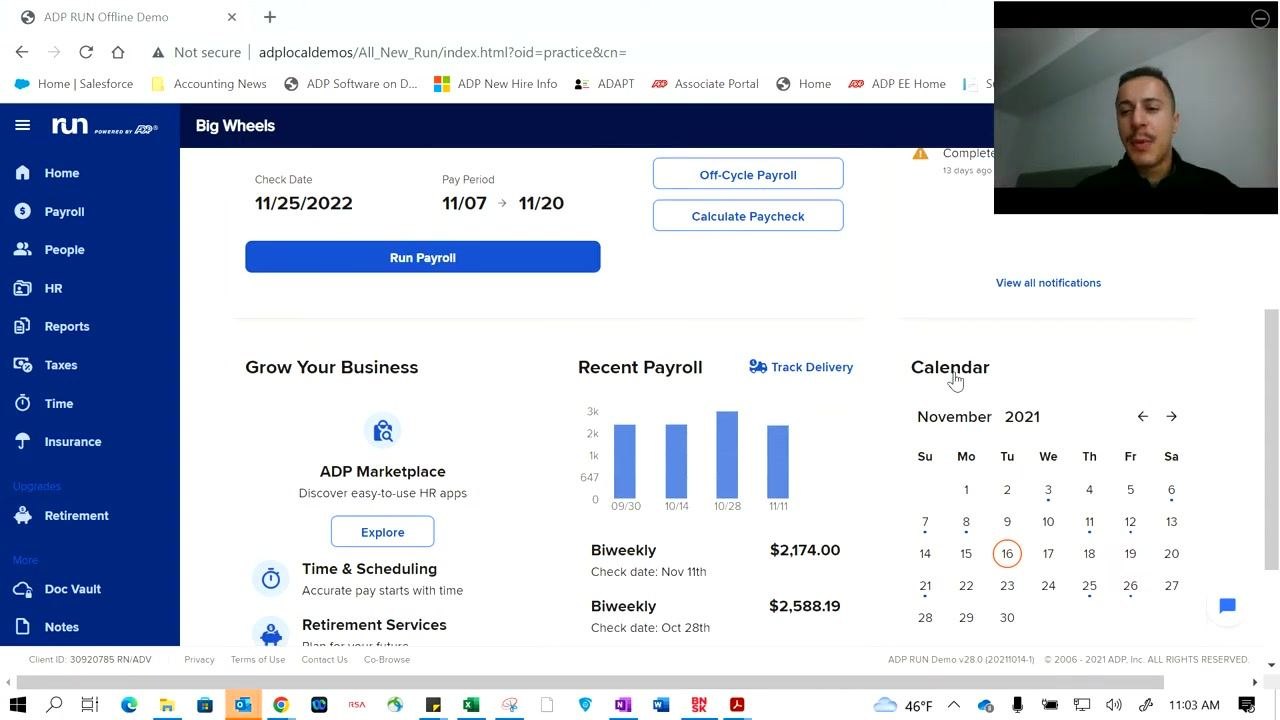
Use the Run Payroll button to start processing payroll, or access Payroll Actions for off-cycle payroll and calculate paycheck options.
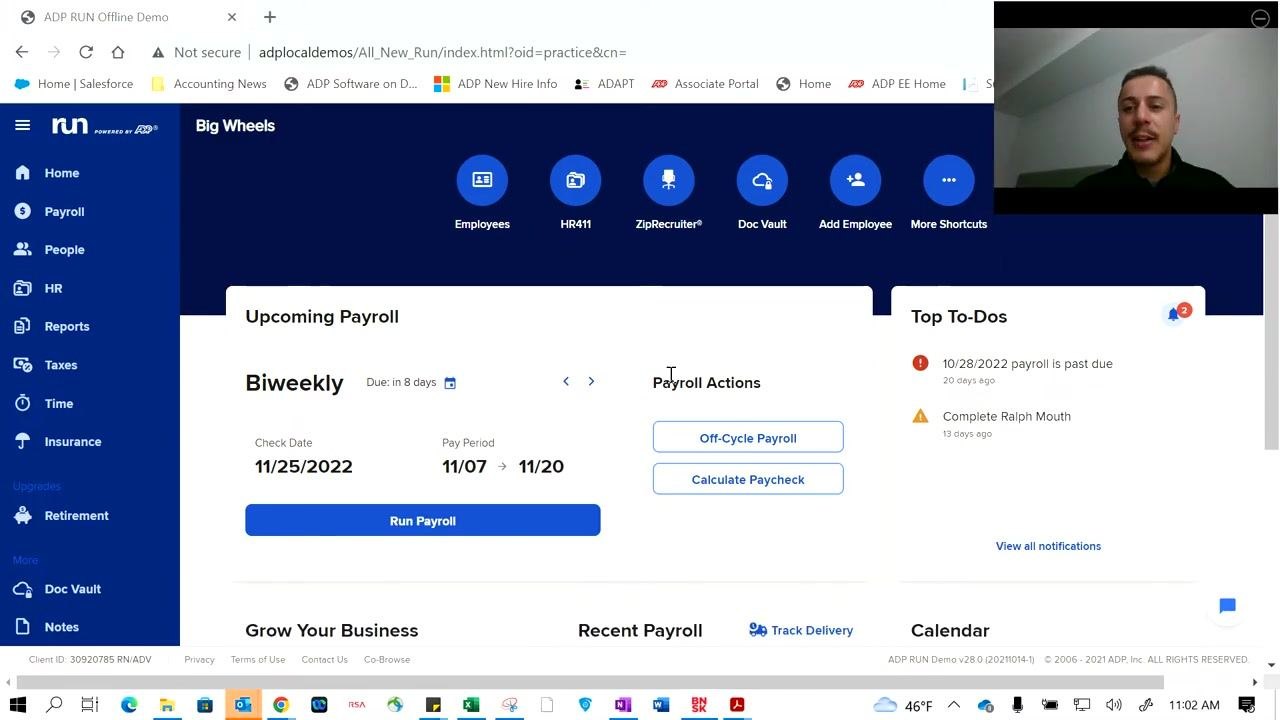
The "Top To-Dos" panel highlights urgent tasks, such as a payroll that is 20 days past due or an incomplete employee record. Click View all notifications to see the full list of outstanding tasks.
Stay informed with automated notifications
RUN automatically keeps you updated on upcoming payroll and outstanding tasks. Notifications cover overdue payrolls and employee information updates, such as a payroll that is past due or an employee profile that needs completion.
These reminders help ensure you stay on track with your payroll and HR responsibilities.
Explore additional dashboard insights
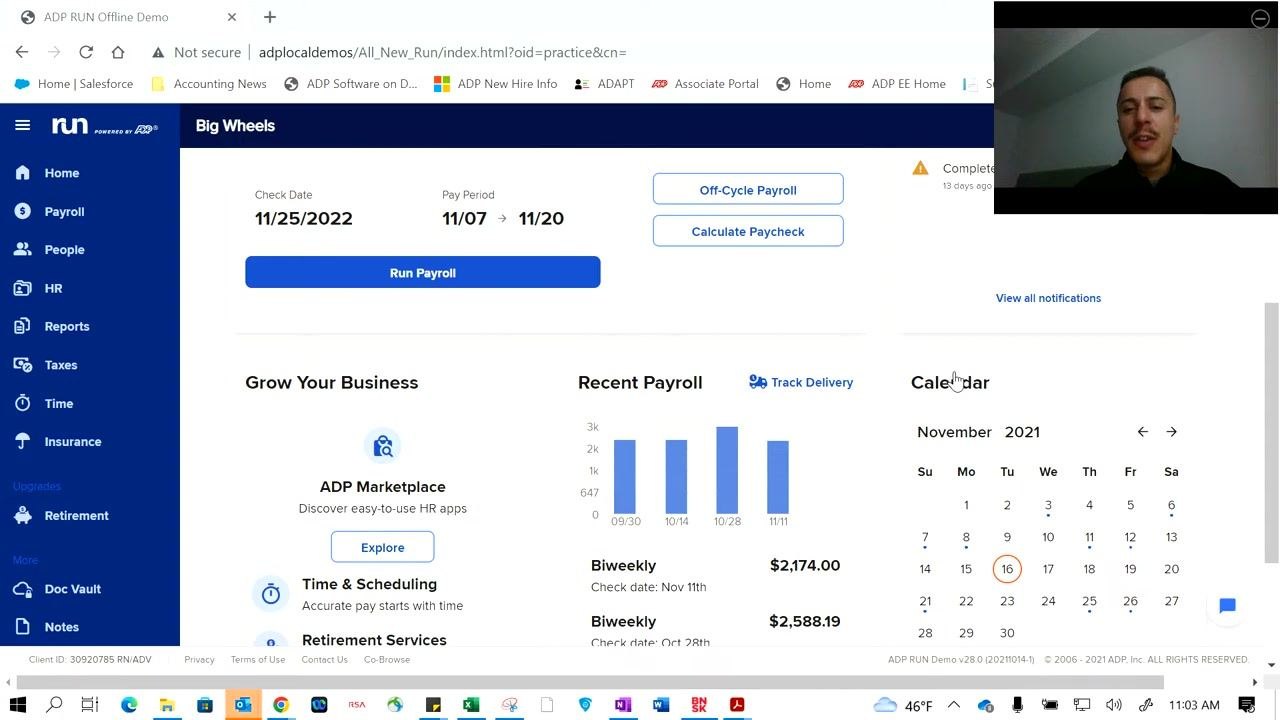
Scroll further down the dashboard to find more tools:
- A "Grow Your Business" section with links to ADP Marketplace, Time & Scheduling, and Retirement Services.
- A "Recent Payroll" section with a bar graph of recent payrolls and check amounts (for example, $2,174.00 for 11/11 and $2,588.19 for 10/28).
- A "Calendar" widget showing the current month and important payroll dates.
Use the Track Delivery link to monitor the status of your payroll delivery.
Access the payroll feature
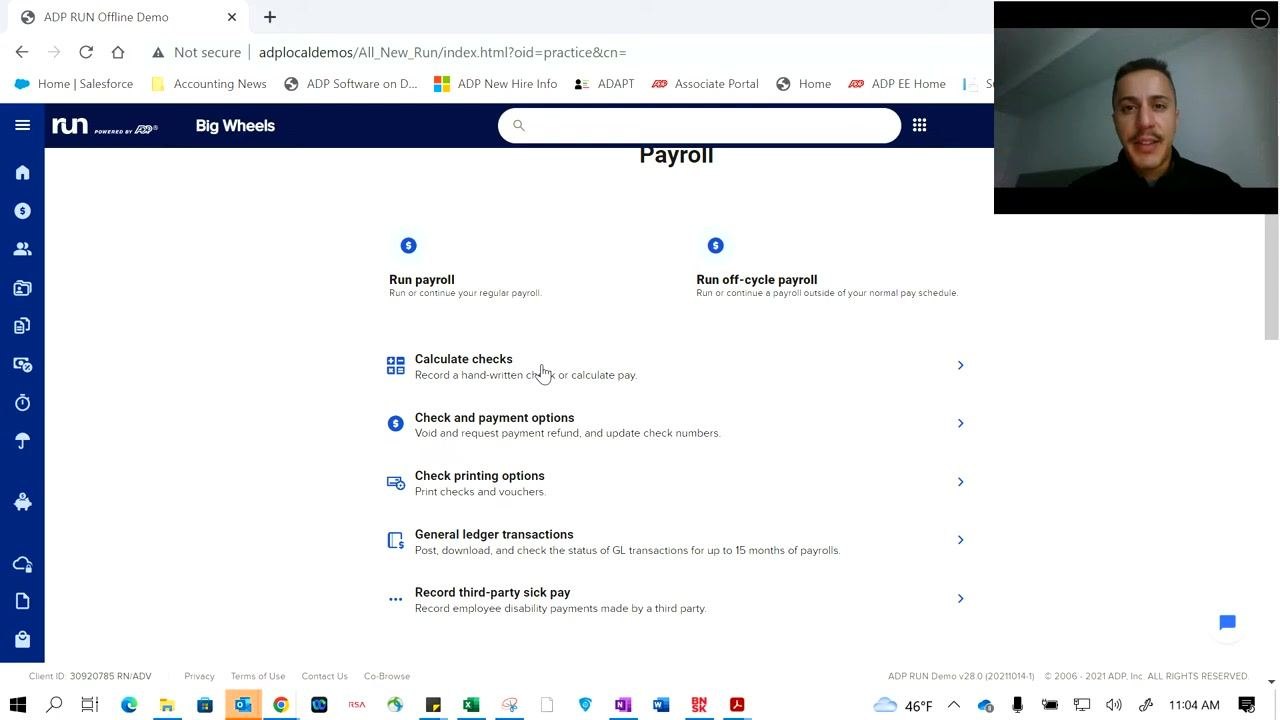
Click the Payroll tab in the left sidebar to open the Payroll options screen. From here you can choose from several available actions:
- Run payroll (regular cycle)
- Run off-cycle payroll (outside the normal schedule)
- Calculate checks (record hand-written checks or calculate pay)
- Check and payment options (void, refund, update check numbers)
- Check printing options (print checks and vouchers)
- General ledger transactions (post, download, and check GL transactions for up to 15 months)
- Record third-party sick pay (disability payments made by a third party)
Use off-cycle payroll and calculate checks features
Select Run off-cycle payroll to process bonuses, extra commissions, or any payroll that falls outside your typical pay cycle.
Select Calculate checks to determine an employee's net pay or to calculate the gross pay required for a specific take-home amount. For example, if you want an employee to take home exactly $1,000 after taxes, this feature lets RUN calculate the gross pay and taxes needed to reach that net amount. The calculated check is then included in your next payroll run.
Process payroll in ADP by entering employee pay details
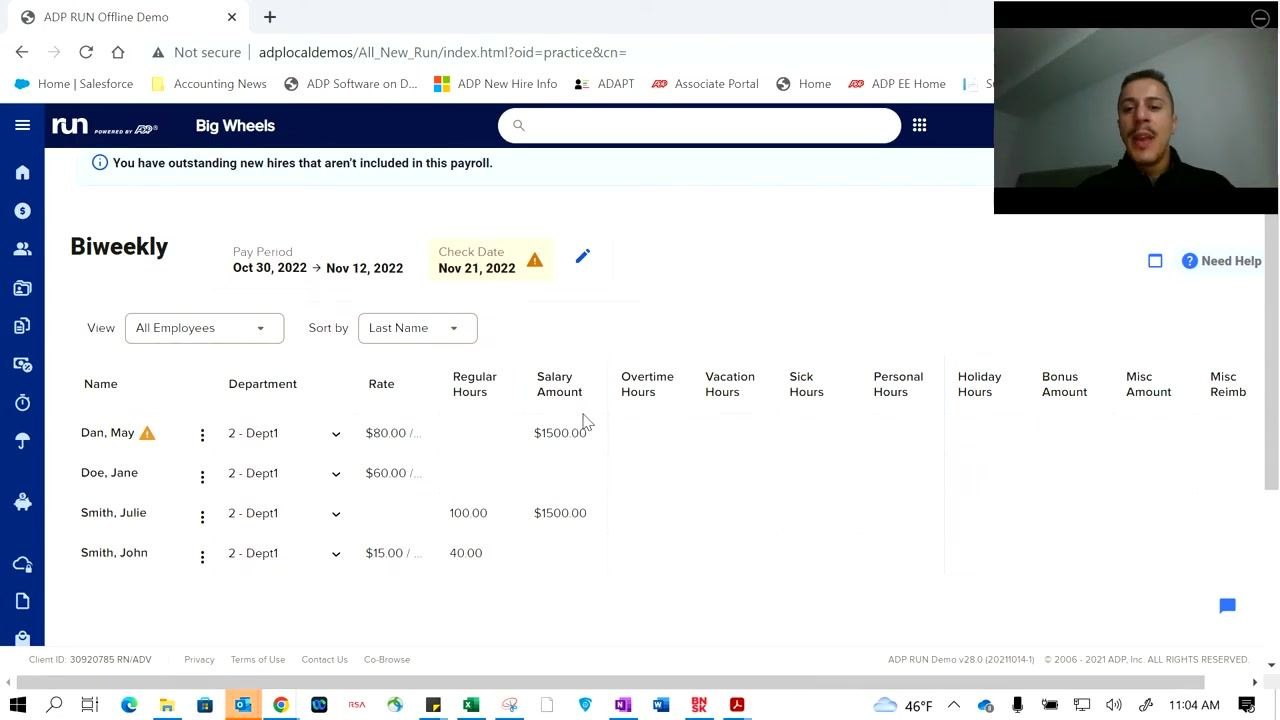
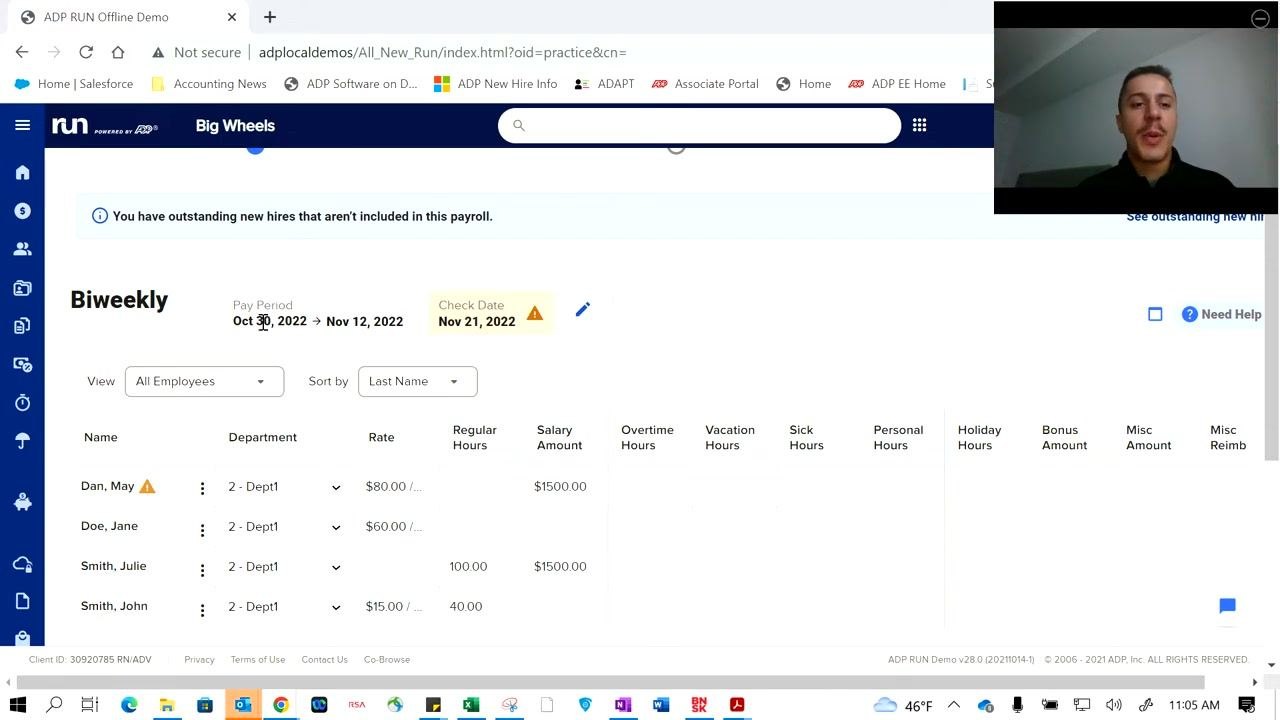
Click Run payroll to begin processing payroll for your regular cycle. The payroll entry page displays a spreadsheet-like interface listing all employees and their pay details.
Review the following columns for each employee: Name and Department (e.g., Dan, May in Dept1), Rate (e.g., $80.00/hour), Regular Hours (e.g., 100.00), Salary Amount (e.g., $1,500.00), Overtime Hours, Vacation Hours, Sick Hours, Personal Hours, Holiday Hours, Bonus Amount, Misc Amount, and Misc Reimb.
The pay period and check date appear at the top of the screen (for example, Pay Period: Oct 30, 2022 – Nov 12, 2022; Check Date: Nov 21, 2022). Outstanding new hires not included in this payroll are flagged with a notification, and you can sort or filter employees by last name.
Customize payroll entries
Enter or adjust pay details for each employee as needed. You can add or edit regular, overtime, vacation, sick, personal, or holiday hours, and enter bonus amounts, miscellaneous earnings, or reimbursements.
If your business includes tipped wages (cash or electronic), add those amounts in the appropriate columns. Confirm all pay details are accurate before moving to the next step.
Review the pay period and flagged new hires
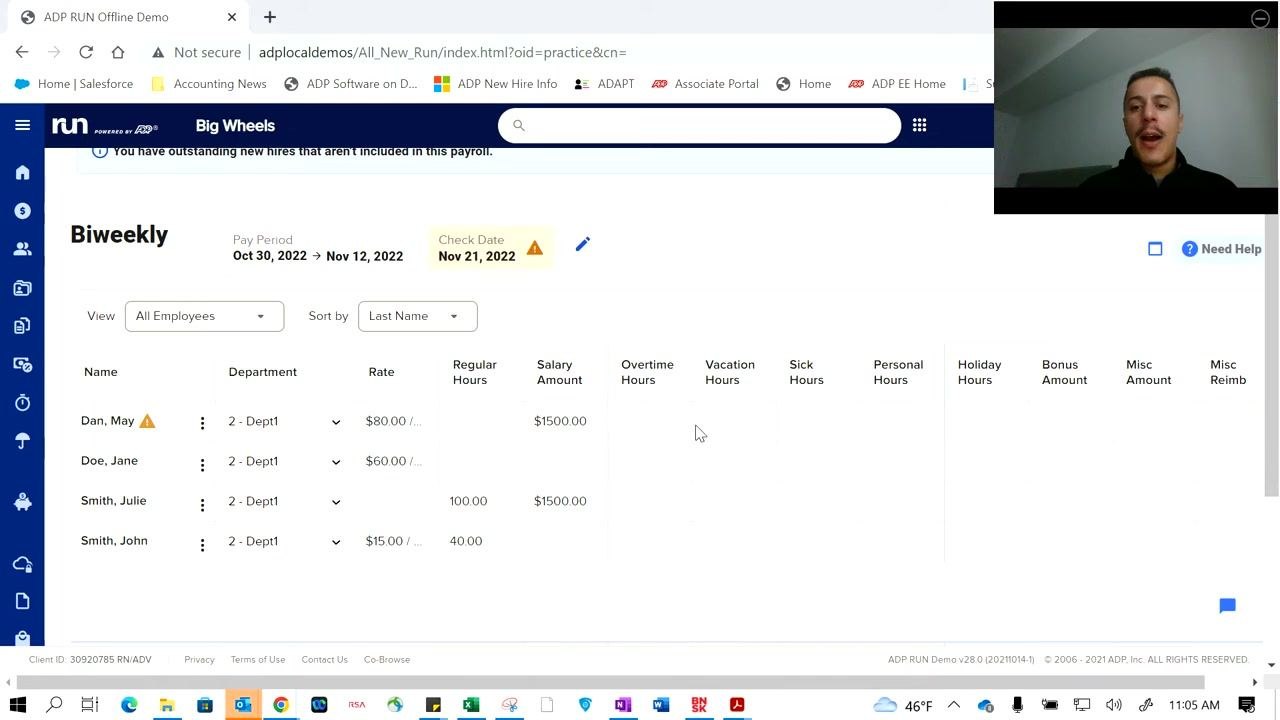
The payroll entry screens and workflows can be customized to match your specific business requirements; the example shown here is just one configuration.
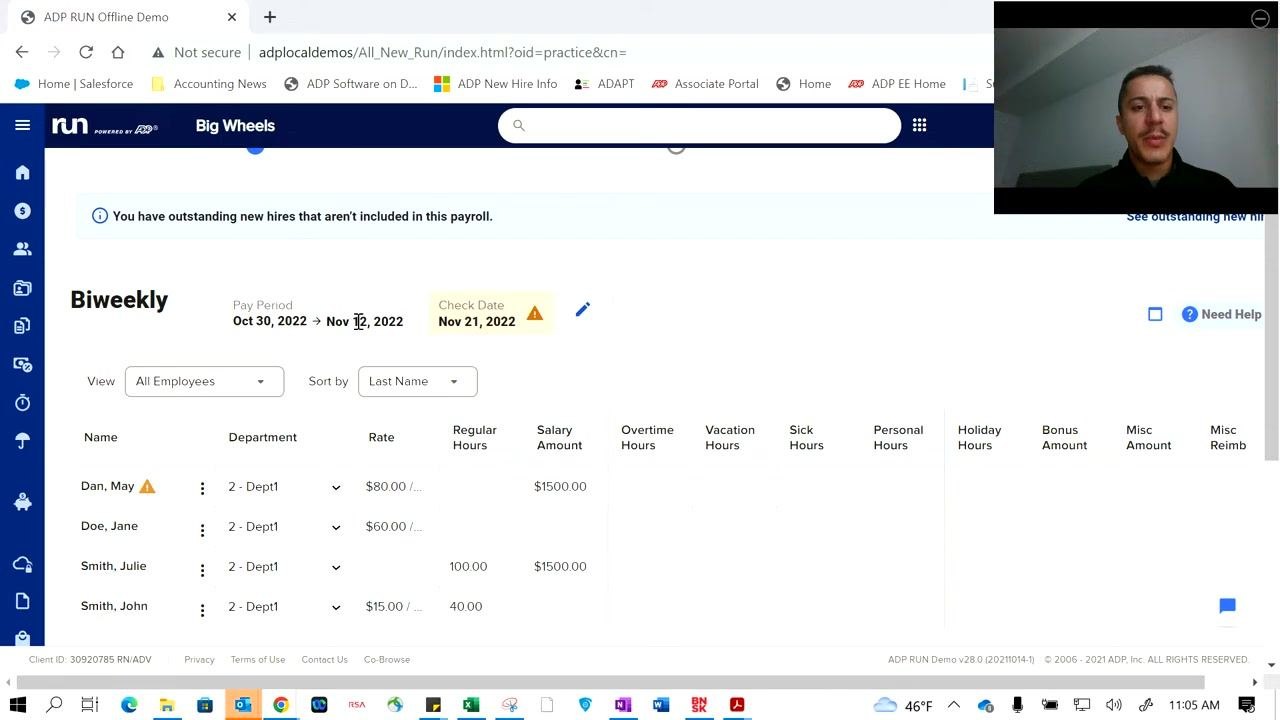
Review the pay period and check date at the top of the screen (for example, Pay Period = Oct 30, 2022 – Nov 12, 2022; Check Date = Nov 21, 2022). Outstanding new hires not included in the payroll are flagged with a notification.
Enter regular hours for each employee
Examine the employee pay details table, which includes columns for Name, Department, Rate, Regular Hours, Salary Amount, Overtime Hours, Vacation Hours, Sick Hours, Personal Hours, Holiday Hours, Bonus Amount, Misc Amount, and Misc Reimb.
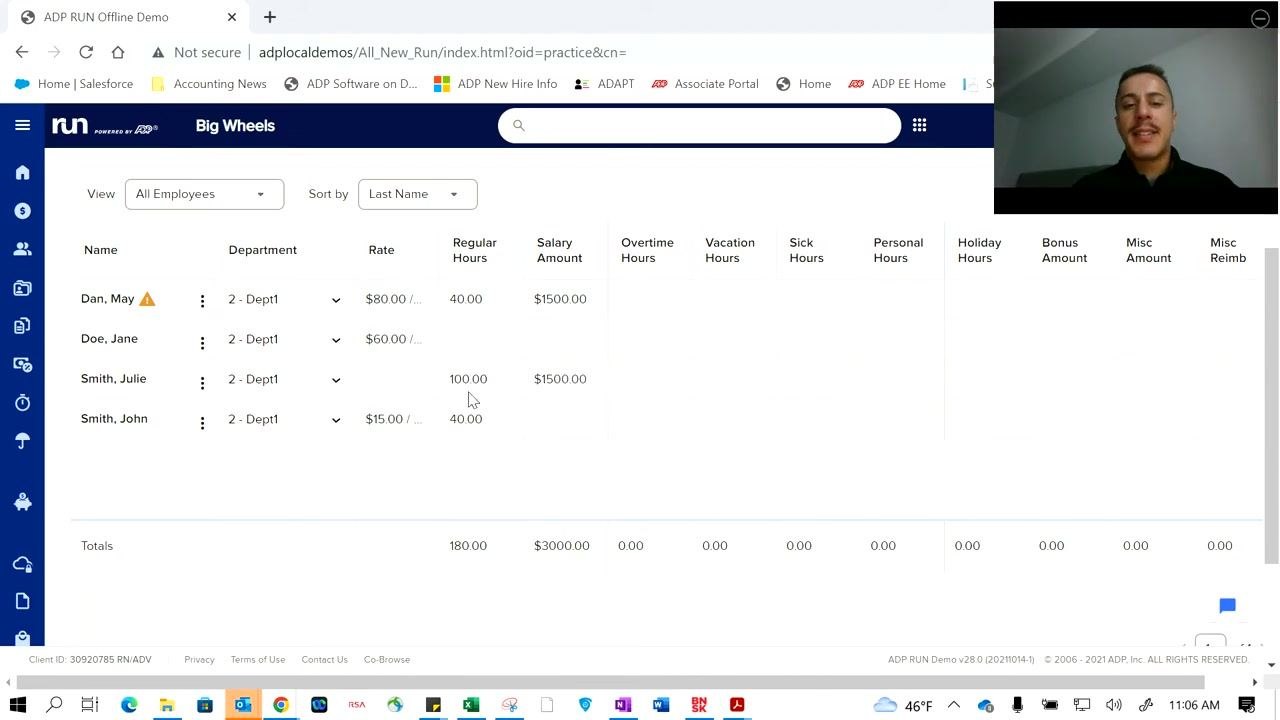
Example employees shown include Dan May ($80.00/hr, 40.00 regular hours, $1,500.00 salary), Jane Doe ($60.00/hr), Julie Smith (100.00 regular hours, $1,500.00 salary), and John Smith ($15.00/hr, 40.00 regular hours).
If employees have consistent wages, set default hours to auto-populate each pay period. For variable hours, manually enter the correct value in the Regular Hours field — for example, enter 40 for May's regular hours or 100 for Julie's regular hours if that's what they worked this period.
Review updated totals
Totals for hours and salary amounts are automatically calculated at the bottom of the table once you finish entering pay details. You can make adjustments each payroll cycle to reflect changes in hours or pay structure, giving you flexibility as your business needs change.
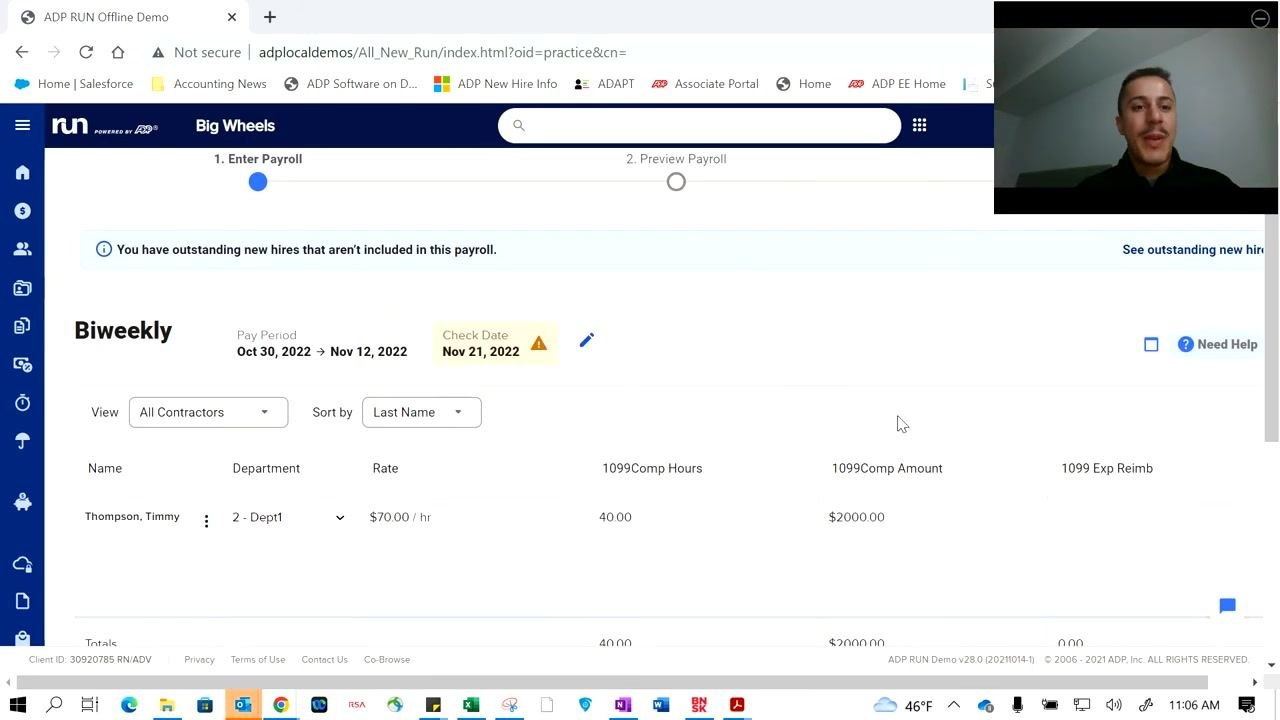
Enter 1099 contractor payroll details
Switch the view to All Contractors to enter pay for 1099 contractors. The contractor pay table includes Name, Department, Rate, 1099Comp Hours, 1099Comp Amount, and 1099 Exp Reimb columns.
For example, for contractor Timmy Thompson ($70.00/hr, Department 2 - Dept1), enter 40.00 in 1099Comp Hours and 2000 in 1099Comp Amount. Totals for contractor hours and compensation are automatically calculated at the bottom of the table.
Preview payroll
Once all employee and contractor details are entered and verified, click Preview Payroll to move to the next step. The system takes you to the payroll preview screen, where you can review all entries before finalizing payroll.
Review payroll warnings and address issues
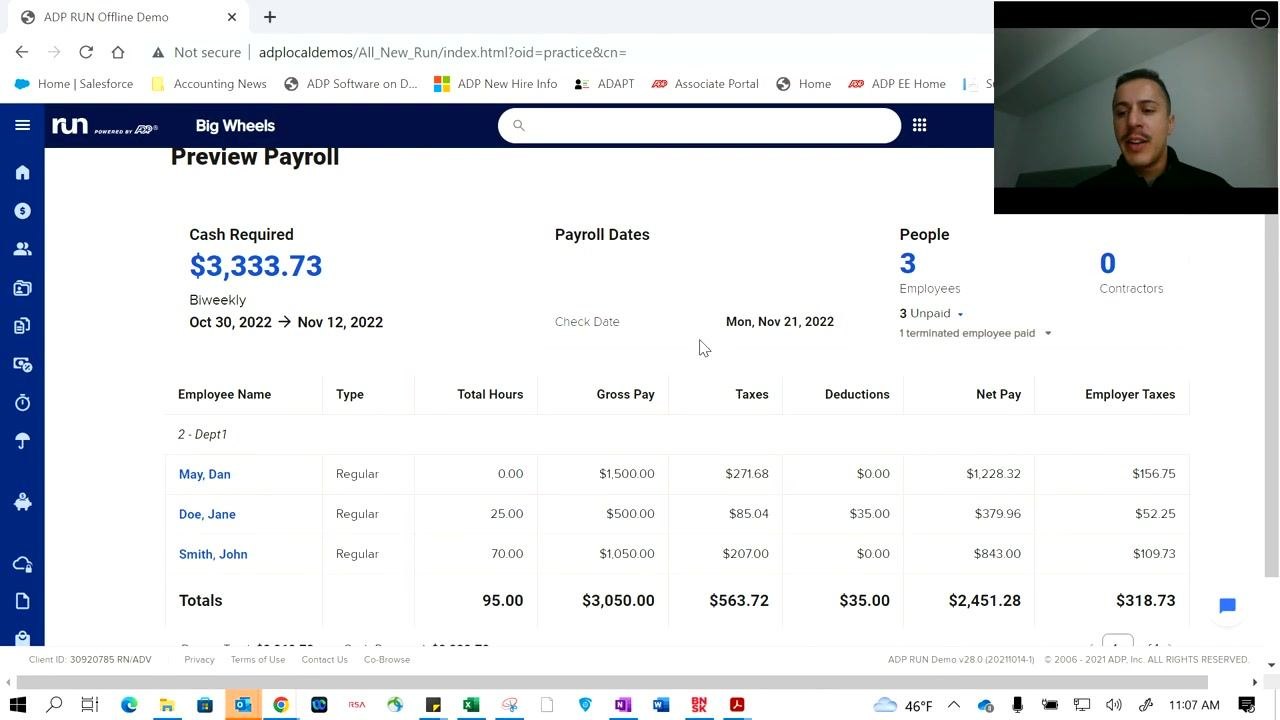
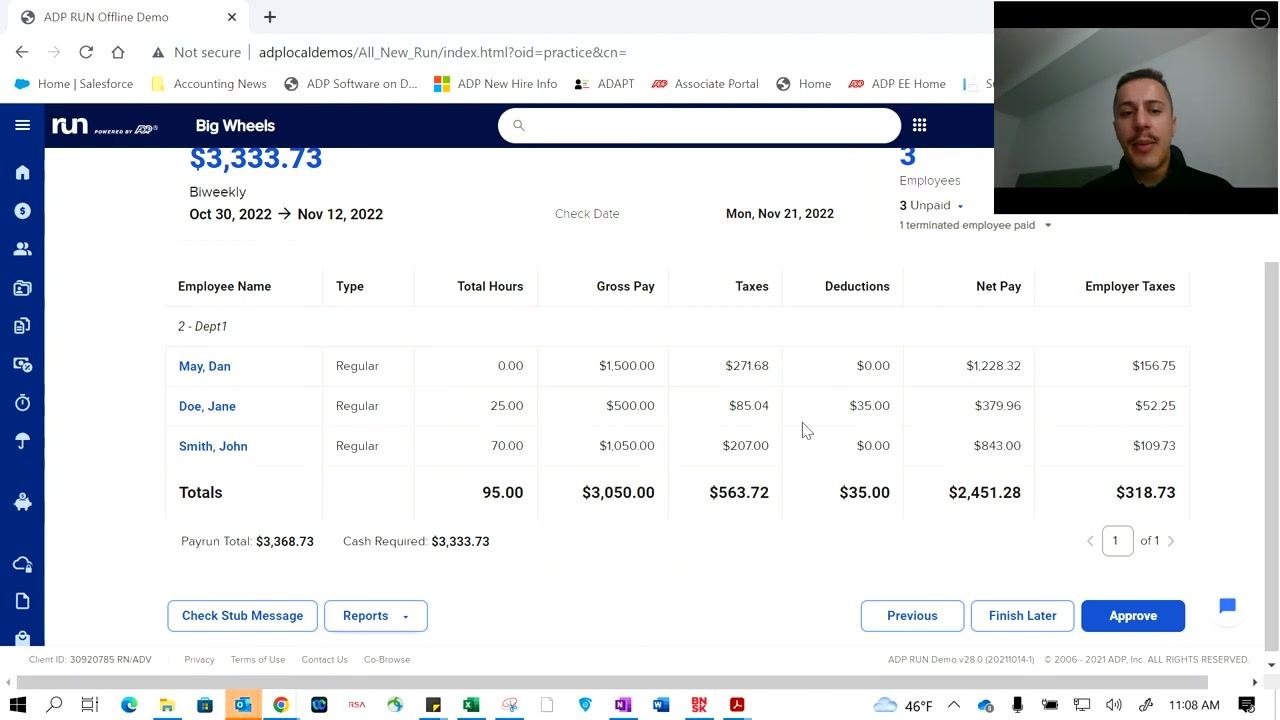
After clicking Preview Payroll, review the payroll summary screen, which shows "Cash Required," pay period dates, check date, and a breakdown of employee pay information. For example, Cash Required might show $3,333.73 for the biweekly period Oct 30, 2022 – Nov 12, 2022, with a check date of Mon, Nov 21, 2022.
If the system detects an issue, a warning dialog appears asking, "Does this look right? We found 1 possible issue with your payroll." For example, it may flag that an employee was terminated mid-pay period but is being paid for the full period.
Choose Ignore Issues to proceed without changes, or Go Back And Fix to return to the entry screen and correct the issue (such as adjusting pay to reflect only hours worked before termination). Review the summary table to confirm employee names, pay types, total hours, gross pay, taxes, deductions, net pay, and employer taxes, and check the "People" summary on the right for the number of employees and contractors included in the run.
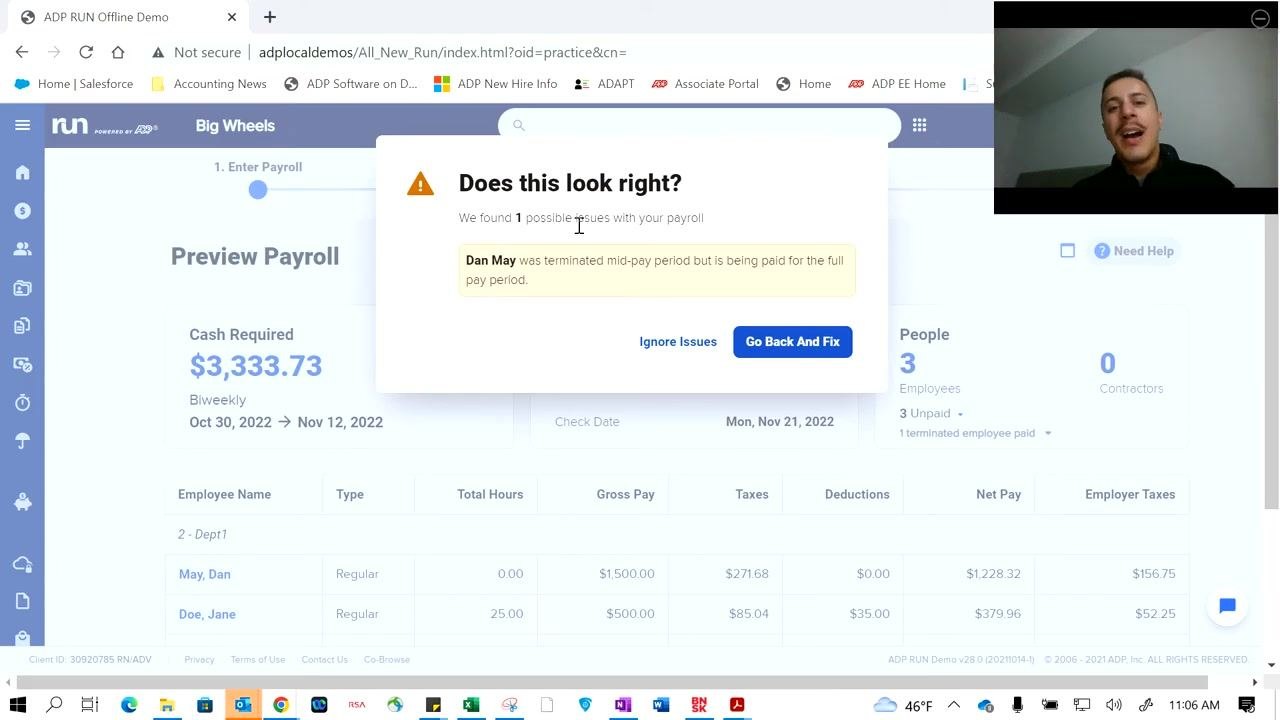
Confirm the payroll warning decision
When processing payroll, the system automatically checks for potential issues. If an employee was terminated during the pay period but is being paid for the full period, you'll see this same warning again before you proceed, with the options Ignore Issues or Go Back And Fix.
Carefully review the warning and decide whether to adjust the payroll entry or continue as is.
Confirm the payroll period and cash required
After addressing any warnings, review the payroll summary to confirm the total cash required is correct — for example, "Cash Required: $3,333.73" for the biweekly period from Oct 30, 2022, to Nov 12, 2022.
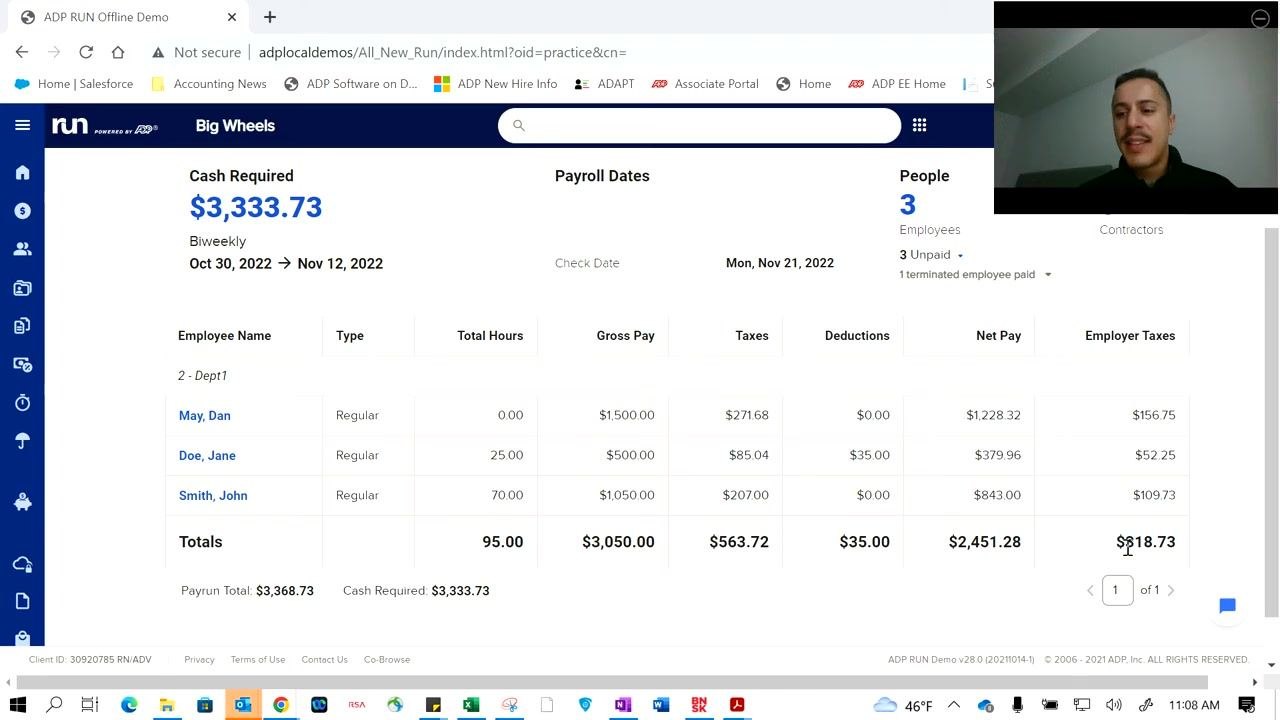
Verify the check date (e.g., Mon, Nov 21, 2022) and confirm the number of employees and contractors is accurate (e.g., 3 employees, 0 contractors). Review each employee's Name, Type, Total Hours, Gross Pay, Taxes, Deductions, Net Pay, and Employer Taxes.
Verify bank account readiness and review payroll totals
Ensure the bank account used for payroll has sufficient funds to cover total wages and taxes. The system highlights the total cash required (for example, $3,333.73), so double-check the account is ready to avoid an overdraft.
Review the breakdown of payroll totals at the bottom of the summary, including Payrun Total (e.g., $3,368.73) and Cash Required (e.g., $3,333.73). Confirm that gross pay, taxes, deductions, net pay, and employer taxes match your expectations.
Run and download payroll reports
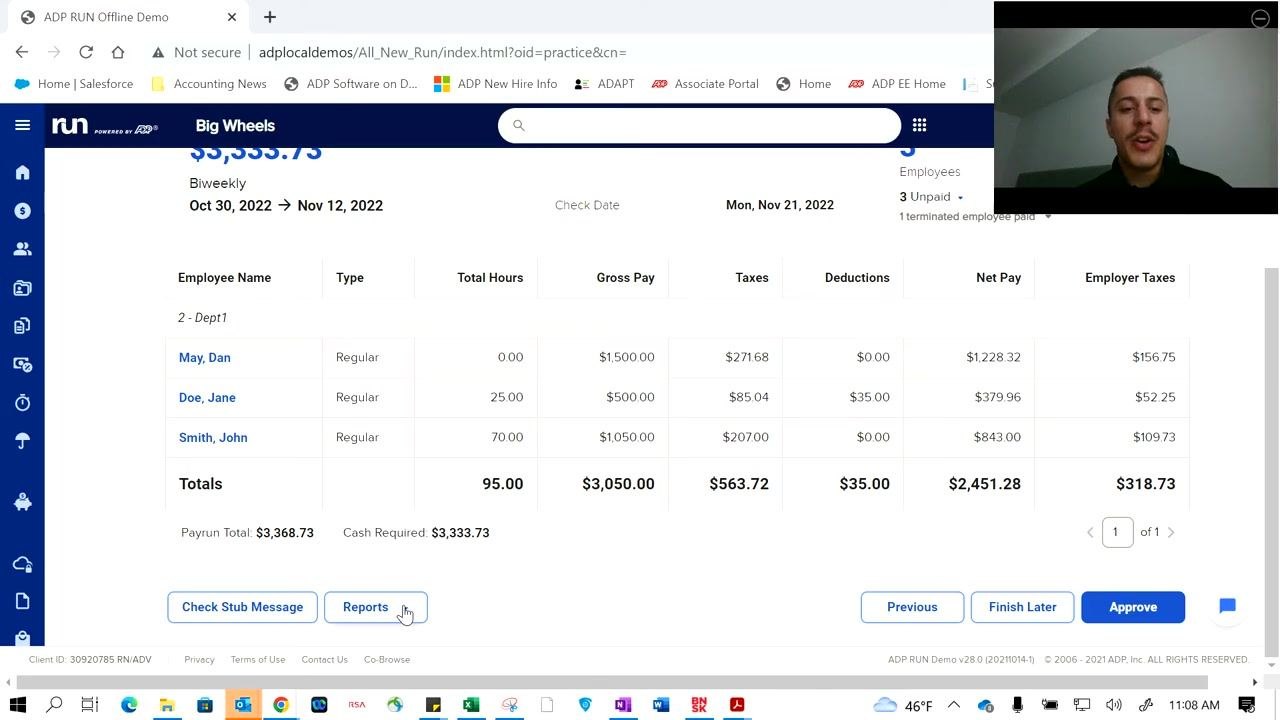
On the payroll summary page, you can generate and download various reports for your records. Click the Reports button at the bottom of the page to access available payroll reports.
You can also preview payroll reports for a cleaner, more detailed view outside of the main summary page.
Review the final payroll summary before approval
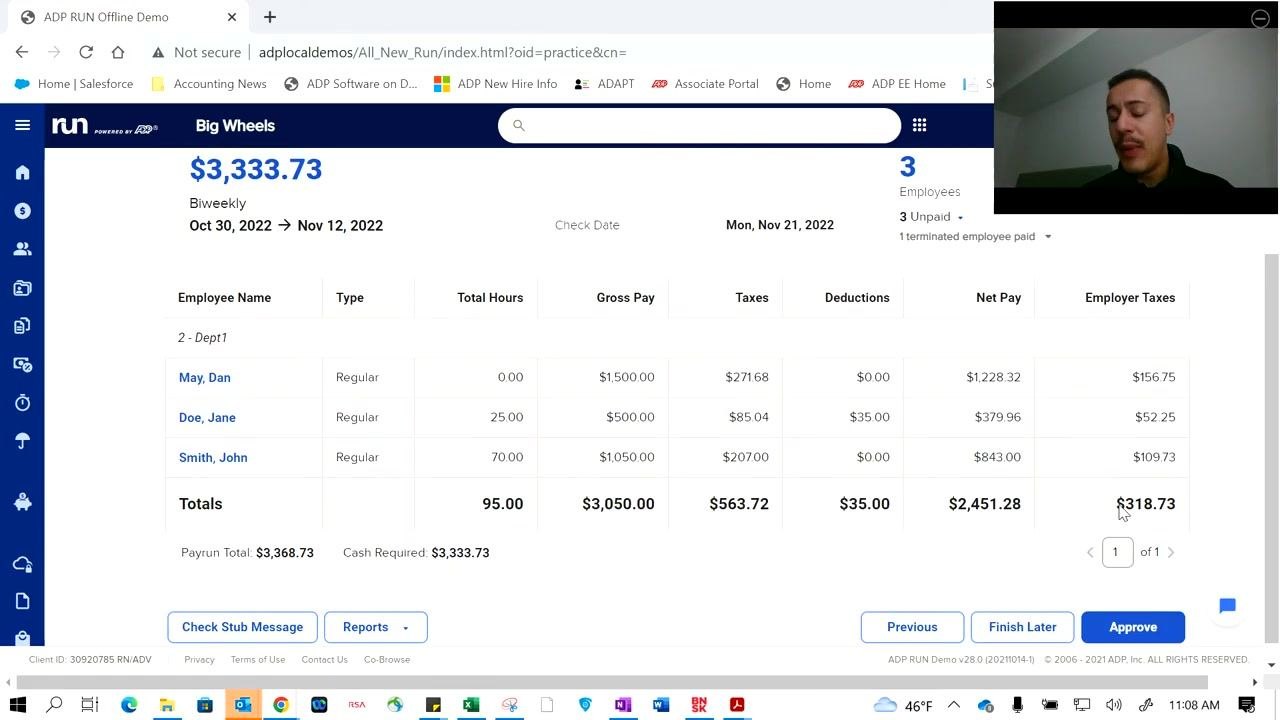
Before submitting, verify all payroll details one more time: the cash required ($3,333.73), the pay period (Oct 30, 2022 → Nov 12, 2022), and the check date (Mon, Nov 21, 2022).
Review each employee's details — for example, May, Dan (0.00 hours, $1,500.00 gross pay, $271.68 taxes, $0.00 deductions, $1,228.32 net pay, $156.75 employer taxes); Doe, Jane (25.00 hours, $500.00 gross pay, $85.04 taxes, $35.00 deductions, $379.96 net pay, $52.25 employer taxes); and Smith, John (70.00 hours, $1,050.00 gross pay, $207.00 taxes, $0.00 deductions, $843.00 net pay, $109.73 employer taxes).
Confirm the totals: 95.00 hours, $3,050.00 gross pay, $563.72 taxes, $35.00 deductions, $2,451.28 net pay, $318.73 employer taxes, with a Payrun Total of $3,368.73 and Cash Required of $3,333.73.
Use the navigation buttons at the bottom of the page: Previous to go back, Finish Later to save progress and return later, or Approve to finalize and submit payroll for processing.
Submit payroll and view the confirmation
Click Approve to submit the payroll, then wait for the confirmation screen to appear.
After submission, a confirmation screen displays a green "Success!" message indicating payroll has been submitted, along with confirmation that details have been sent to your email. The summary includes the cash required ($3,333.73), check date (Mon, Nov 21, 2022), pay period (Oct 30, 2022 → Nov 12, 2022), and delivery address (Legal Address One, Legal City, PA 15601).
You can also add a payroll reminder to your calendar, click View Or Manage Reports, or mark the process as Done.
Return to the dashboard
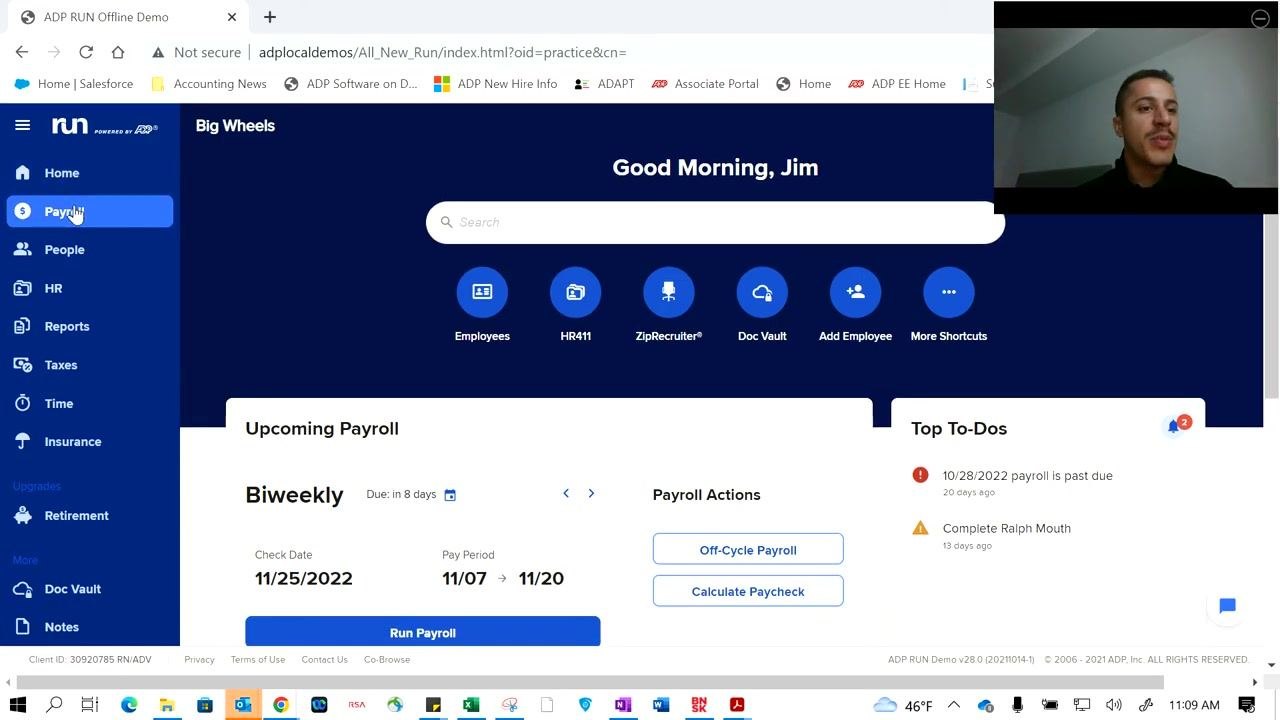
After confirming payroll submission, return to the main dashboard. It displays your greeting (e.g., "Good Morning, Jim"), quick access icons for Employees, HR411, ZipRecruiter, Doc Vault, Add Employee, and More Shortcuts.
The Upcoming Payroll section now shows the next cycle's frequency (Biweekly), next check date (11/25/2022), and pay period (11/07 → 11/20), along with a Run Payroll button. Payroll Actions (Off-Cycle Payroll, Calculate Paycheck) and Top To-Dos (e.g., overdue payroll, incomplete employee record) remain available for quick access.
Navigate to payroll features for the next cycle
To run payroll again, click the Payroll tab in the left sidebar, then click the Run Payroll button in the Upcoming Payroll section to start a new payroll cycle.
Use the Off-Cycle Payroll and Calculate Paycheck options for special payroll runs or calculations outside your regular schedule.
What's Next
With payroll submitted and confirmed, you're ready for the next pay cycle directly from the dashboard. Use the Upcoming Payroll section to track your next due date, and rely on the Top To-Dos panel to catch any outstanding tasks before they become overdue.
If you need assistance with any step in how to process payroll in ADP, contact support by call, text, or email using the contact information provided in your account.
Generation details: cost, quality tiers
Docsie billed 4,500 credits ($3.15) to analyze this 9-minute video at standard quality. The rewrite, template fill and Word/PDF exports were included. The same video at each quality tier:
| Quality | Frames sampled | Credits | Approx. cost |
|---|---|---|---|
| Draft | every 16-30 s | 2,250 | $1.57 |
| Standard (this guide) | every 8-15 s | 4,500 | $3.15 |
| Detailed | every 4-7 s | 9,000 | $6.30 |
| Ultra | every 1-3 s | 18,000 | $12.60 |
Credits priced at $0.70 per 1,000; plans include a monthly allowance. Enterprise customers on on-premise or bring-your-own-model deployments run this on their own inference and pay no per-video credits.
Generated by Docsie Video-to-Docs on 2026-10-02 from a 8-minute video. Screenshots are frames from the source video and belong to their creator, Andy at ADP, whose original is embedded above. If you own this video and want the guide removed or credited differently, contact us and we will act within one business day.