
How to Clock-in and Clock-out in ADP
This guide walks you through how to clock-in and clock-out in ADP using the ADP Mobile app on your smartphone. You'll learn how to log in, record your work time, take meal breaks, and verify your punches so your time card is accurate for every pay period.
Video: Clock-in/Out in ADP Mobile App by Krystle Foster (2022). All credit for the demonstration goes to the creator; watch the original on YouTube. The written guide below was generated from this video by Docsie. Creator? Request a change or removal.
This guide walks you through how to clock-in and clock-out in ADP using the ADP Mobile app on your smartphone. You'll learn how to log in, record your work time, take meal breaks, and verify your punches so your time card is accurate for every pay period.
Prerequisites
- A smartphone with internet access.
- Your ADP User ID and Password.
- Location services enabled on your phone (required for on-site time tracking at supported locations).
Download and open the ADP Mobile app
Download the ADP Mobile app using one of the following methods:
- Scan the QR code from the ADP quick guide on iConnect.
- Scan the QR code provided in your training slides.
- Search for "ADP Mobile" in the App Store.
Once installed, locate the ADP Mobile app icon on your home screen and tap it to open the app.
Log in to your account
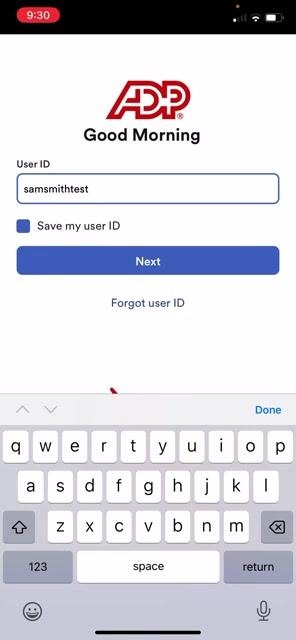
Enter your User ID in the provided field. If you'd like the app to remember it, check the Save my user ID box, then tap Next.
On the next screen, enter your Password. You can enable Face ID if prompted and desired, then tap Sign in.
Access the clock in/out feature
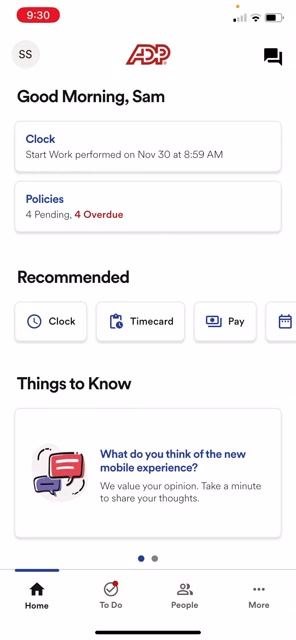
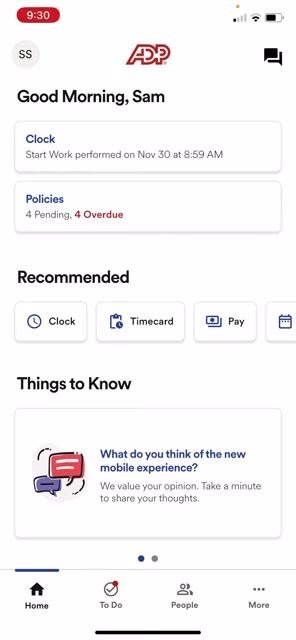
After signing in, you'll see a greeting message (for example, "Good Morning, Sam"). Tap the Clock hyperlink under the greeting to open the time clock functions.
Clock in at the start of your workday
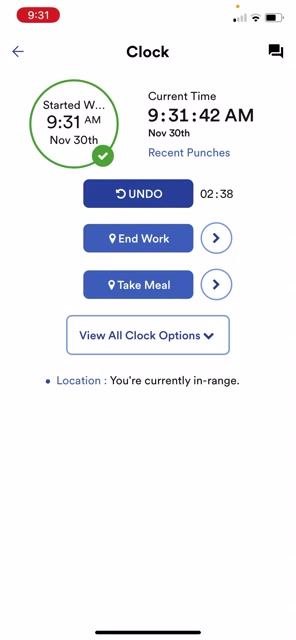
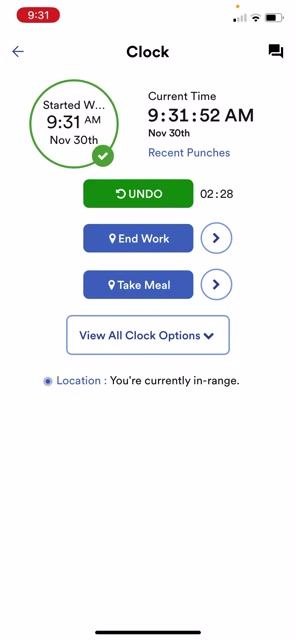
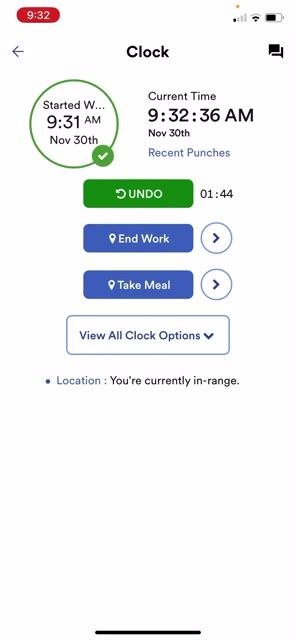
On the Clock screen, tap Start Work to clock in at the beginning of your day. An UNDO button with a three-minute countdown timer will appear immediately after. If you clocked in by mistake, tap UNDO within the countdown period to remove the punch as if it never happened.
Clock out or take a meal break
To end your workday, tap End Work. To record a meal break instead, tap Take Meal. If you select either option by accident, tap UNDO within the countdown period to remove the punch.
Verify your recent punches
If you're unsure whether you've clocked in or out, look for the Recent Punches hyperlink under the current time on the Clock screen. Tap it to review your recent time card punches.
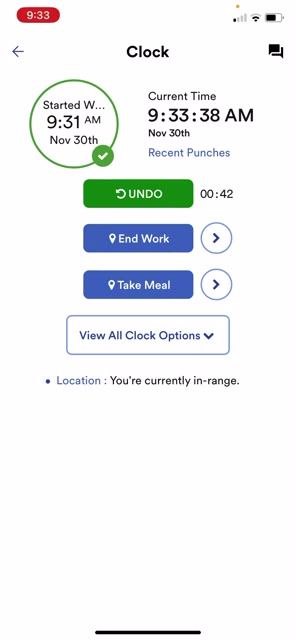
Note: The UNDO feature is available for three minutes after any punch — whether a clock in, clock out, or meal break. Your location status (for example, "You're currently in-range") appears at the bottom of the Clock screen.
Take a meal break
When you're ready for your lunch break, tap Take Meal on the Clock screen. Your time stops recording for the duration of the break. The screen displays your current punch details, the UNDO button with its countdown timer, and options to End Work or Start Work when you return.
Return from your meal break
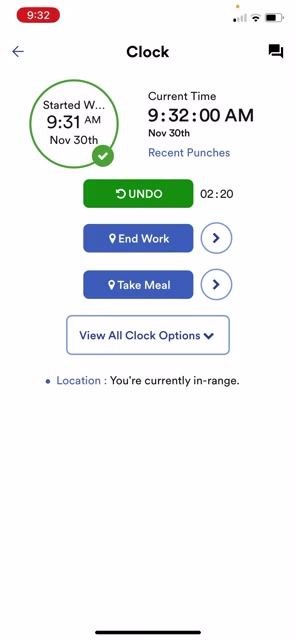
After your lunch break ends, the Start Work button becomes available again. Tap it to resume recording your work time — the app updates your punch details and continues tracking your hours.
Clock out at the end of the day
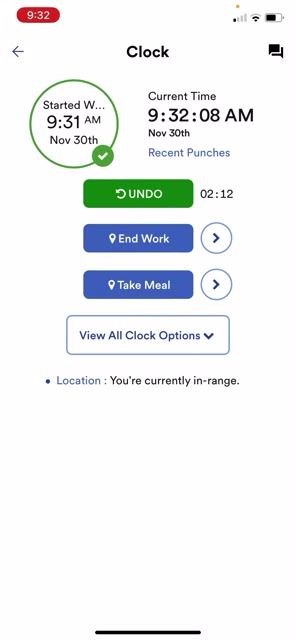
When your workday is finished, tap End Work to stop recording your time. All your punches are automatically added to your time card, where your supervisor reviews and approves them at the end of the pay period.
View all clock options
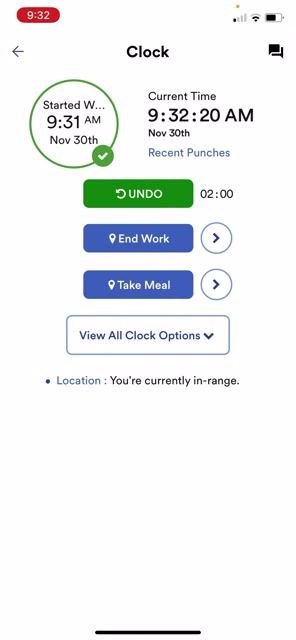
To see every available clock action in one place, tap View All Clock Options. This displays the same options as the main Clock screen, including End Work, Take Meal, and UNDO.
Location requirements
Keep your phone's location services enabled when using the ADP Mobile app. Your location status appears at the bottom of the Clock screen (for example, "You're currently in-range"). Location tracking is set up for the Woburn site and TCI in Manchester.
If you're working from a third-party site, from home, or prefer not to enable location services, you can use the desktop version of Workforce Now to clock in and out instead.
Correcting mistakes and getting help
If you forget to punch in or out, or make a mistake with your punches:
- Refer to the additional training video in your training slides for instructions on correcting missed punches.
- Your supervisor can approve corrections you submit.
- Ask your supervisor or contact payroll if you're unsure how to correct a punch.
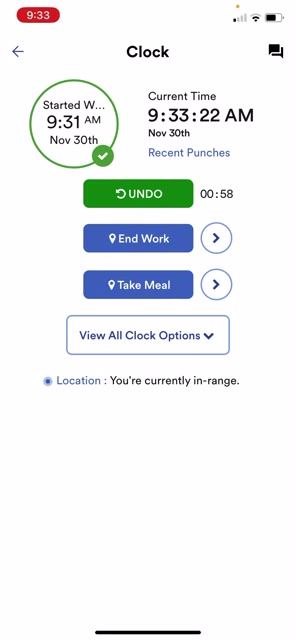
Note: The UNDO feature is available for three minutes after any punch. Always verify your location status before clocking in or out to ensure your punches are recorded correctly. All time punches are automatically sent to your supervisor for approval at the end of the pay period.
Accessing additional help and resources
After making any changes or corrections in the app, verify that your punch details and location status are correct on the Clock screen. If you have questions or need further assistance:
- Refer to the ADP Quick Guide available on iConnect for step-by-step instructions and troubleshooting tips.
- Stop by your HR or payroll office for in-person help.
Confirm your location status at the bottom of the screen reads "You're currently in-range" before making any punches.
What's next
- Consult the ADP Quick Guide on iConnect for the most up-to-date instructions.
- Contact your supervisor, HR, or payroll for any unresolved issues.
By following these steps, you can confidently clock in and clock out in ADP, manage meal breaks, and resolve any time-tracking issues using the ADP Mobile app or the desktop version of Workforce Now.
Generation details: cost, quality tiers
Docsie billed 2,000 credits ($1.40) to analyze this 4-minute video at standard quality. The rewrite, template fill and Word/PDF exports were included. The same video at each quality tier:
| Quality | Frames sampled | Credits | Approx. cost |
|---|---|---|---|
| Draft | every 16-30 s | 1,000 | $0.70 |
| Standard (this guide) | every 8-15 s | 2,000 | $1.40 |
| Detailed | every 4-7 s | 4,000 | $2.80 |
| Ultra | every 1-3 s | 8,000 | $5.60 |
Credits priced at $0.70 per 1,000; plans include a monthly allowance. Enterprise customers on on-premise or bring-your-own-model deployments run this on their own inference and pay no per-video credits.
Generated by Docsie Video-to-Docs on 2026-10-02 from a 3-minute video. Screenshots are frames from the source video and belong to their creator, Krystle Foster, whose original is embedded above. If you own this video and want the guide removed or credited differently, contact us and we will act within one business day.