
How to Change Your Tax Withholding in ADP
This guide shows you how to change your tax withholding in ADP, covering both federal and state-level updates. You'll learn how to log in to the platform, navigate to the correct section, complete your W-4 form, and electronically sign your changes. The steps below also cover updating your Michigan state tax withholding, including city selection and exemptions.
Video: Updating Withholding in ADP by Leif E. Peterson CPA (2022). All credit for the demonstration goes to the creator; watch the original on YouTube. The written guide below was generated from this video by Docsie. Creator? Request a change or removal.
This guide shows you how to change your tax withholding in ADP, covering both federal and state-level updates. You'll learn how to log in to the platform, navigate to the correct section, complete your W-4 form, and electronically sign your changes. The steps below also cover updating your Michigan state tax withholding, including city selection and exemptions.
Prerequisites
- An active ADP account with a valid User ID and password
- Access to the phone number or email address registered with your account for identity verification
- Your filing status, dependent information, and any additional withholding amounts you want to apply
Changing your federal tax withholding
Step 1: Access ADP
Open the ADP app or go to the ADP website (for example, online.adp.com) in your browser. Enter your User ID in the provided field.
Step 2: Log in to your account
Enter your password on the login screen, then click Sign In to access your account.
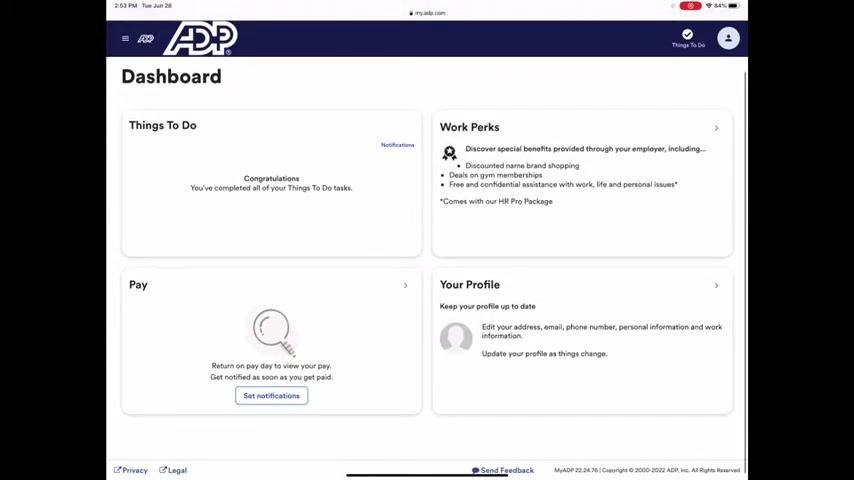
Step 3: Navigate to the Pay section
Once logged in, locate the Pay section on your dashboard and click on the Pay tile to proceed.
Step 4: Scroll to the tax withholding section
On the Pay page, scroll down to find the Tax Withholding section. Click on Federal under Tax Withholding to begin adjusting your federal withholding.
Step 5: Verify your identity
ADP prompts you to verify your identity for security purposes. Enter the verification code sent to your registered phone number or email address.
Step 6: Begin the W-4 federal tax withholding process
The system displays a welcome screen for Federal Tax Withholding (W-4). Read the instructions and click to proceed.
Step 7: Select your filing status
Choose your filing status from the following options:
- Single or Married Filing Separately
- Married Filing Jointly (or Qualifying Widow(er))
- Head of Household
Click Next to continue.
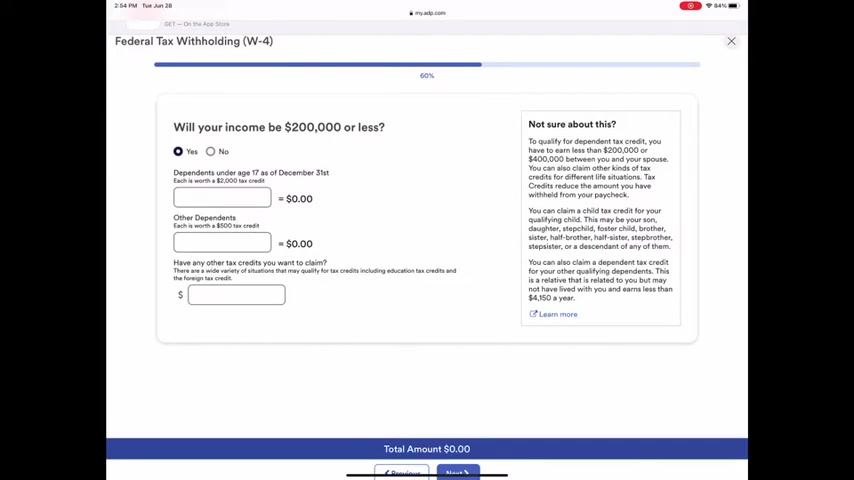
Step 8: Enter dependent and credit information
Indicate whether your income will be $200,000 or less. Enter the number of dependents under age 17 and other dependents, if applicable, and add any other tax credits you wish to claim. Click Next to proceed.
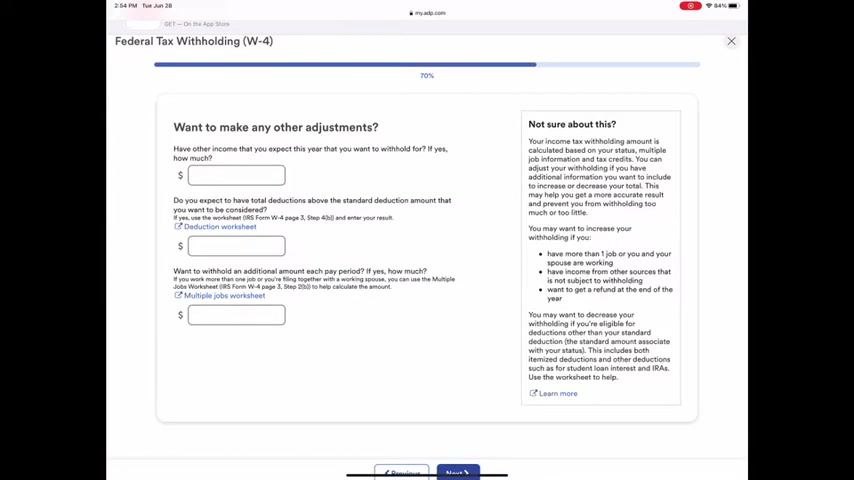
Step 9: Specify additional withholding amounts
In the "Want to make any other adjustments?" section, enter any additional amount you want withheld each pay period in the appropriate field. Use the "Multiple jobs worksheet" if you have more than one job. Click Next to continue.
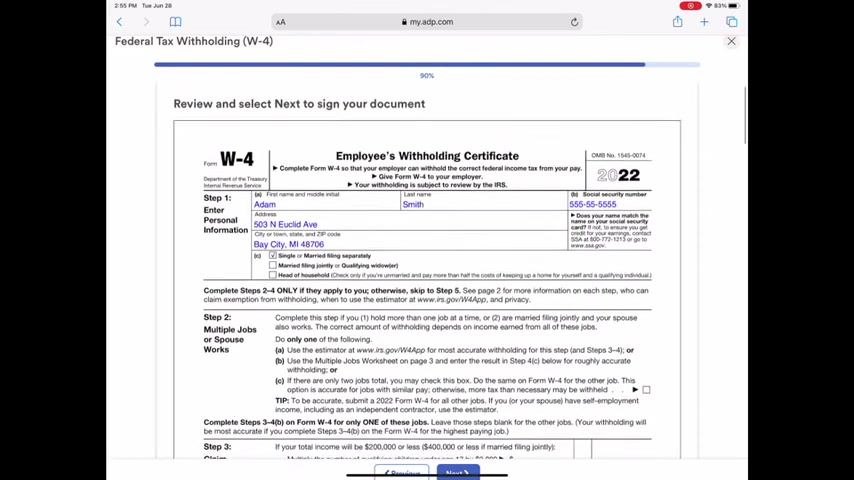
Step 10: Review your W-4 summary
Carefully review all the information you have entered, including your personal details, filing status, dependents, and extra withholding amount. Ensure everything is accurate before proceeding.
Step 11: Electronically sign and submit
Type your full name in the signature field, check the box to certify your information, and click Next or Submit to finalize your changes.
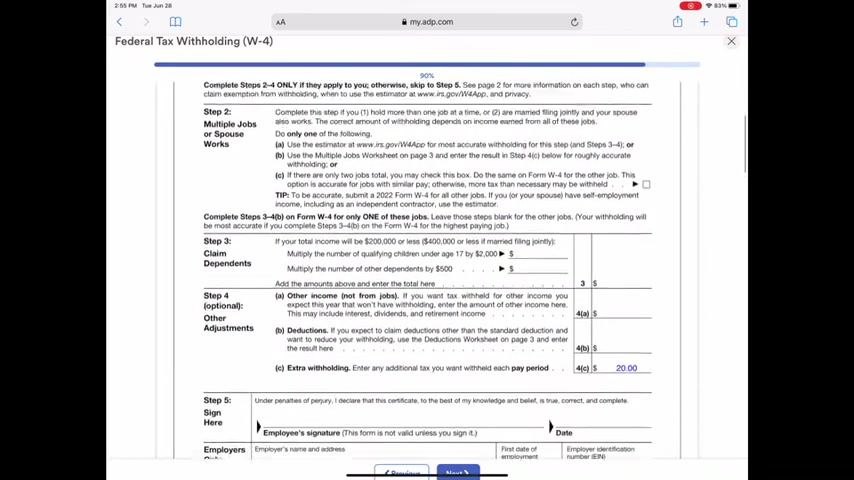
Once you complete these steps, your federal tax withholding is updated in ADP, including any additional amount you specified to be withheld each pay period.
Changing your Michigan state tax withholding
Step 1: Review your federal withholding changes
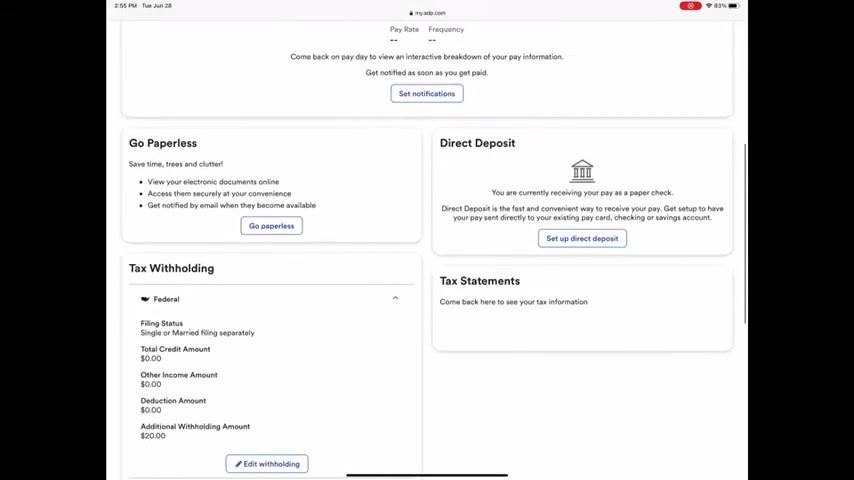
After submitting your federal W-4, scroll down on the Pay page to the Tax Withholding section. Under the Federal header, review the summary box to confirm your changes (for example, Filing Status: Single or Married filing separately, Additional Withholding Amount: $20.00).
Step 2: Begin the Michigan state withholding update
In the Tax Withholding section, find and select Michigan from the list of states. If you are employed in a different state, use the search or dropdown menu to select your state instead.
Step 3: Select your city, if applicable
If you live or work in a taxing city, select the appropriate city from the dropdown menu labeled Select Option. If your city is not listed, you may not need to complete a city-specific form.
Step 4: Verify and update your personal information
Ensure your personal information is correct on the Michigan Tax Withholding (MI-W4) screen, and update any incorrect details before proceeding.
Step 5: Indicate new hire status, exemption, and exemptions claimed
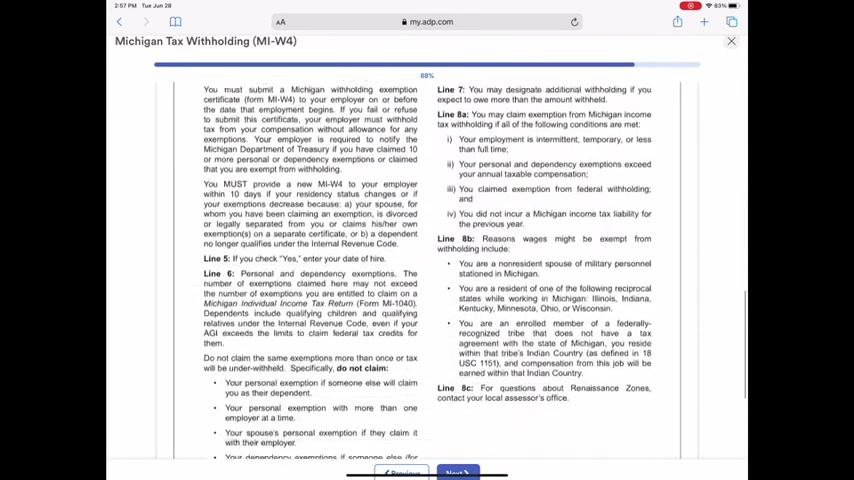
Answer whether you are a new hire and indicate if you are exempt from Michigan tax. Enter the number of withholding exemptions you wish to claim (personal and dependent exemptions). If you claim 10 or more exemptions, you must submit a copy of your Michigan Form MI-W4 to the Michigan Department of Treasury.
Step 6: Specify an additional withholding amount
Enter any additional dollar amount you want withheld from each paycheck in the provided field (for example, $10). Review the guidance on the right side of the screen to help decide whether you should withhold extra.
Step 7: Review the Michigan W-4 instructions
Read the detailed instructions and legal information regarding Michigan withholding exemptions, requirements, and special cases. Scroll through the information to confirm you understand your obligations and options.
Step 8: Electronically sign and submit the Michigan W-4
In the Electronic Signature popup, check the box to certify your information, type your full name in the signature field (for example, Adam Smith), and click Submit to finalize your Michigan W-4 changes.
Step 9: Review and confirm your Michigan withholding changes
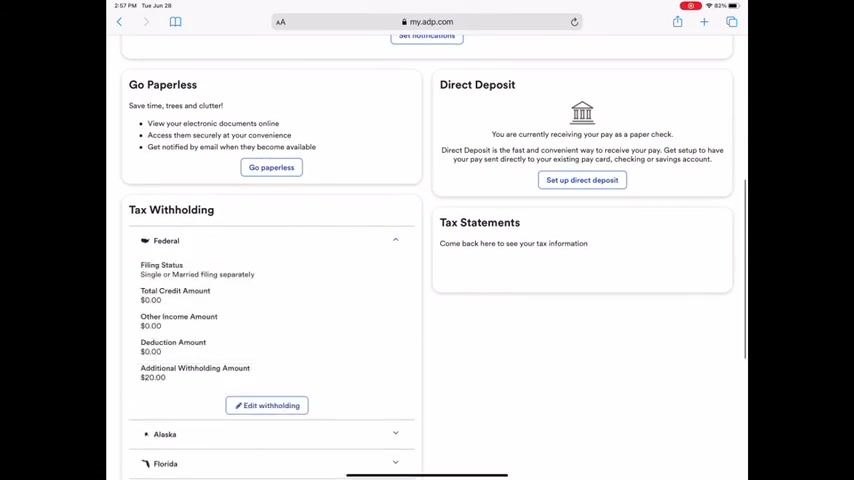
After submission, return to the Pay page, scroll down, and click the dropdown bar under Michigan in the Tax Withholding section to view your updated state withholding details.
Step 10: Contact your employer for assistance
If you have any questions or need further assistance, contact your employer as directed on the ADP platform.
Summary
By following these steps, you can change your tax withholding in ADP for both federal and Michigan state purposes, including city selection, exemptions, and any additional withholding amounts. Always review your entries for accuracy before submitting, and consult your employer if you need further help.
Generation details: cost, quality tiers
Docsie billed 2,000 credits ($1.40) to analyze this 4-minute video at standard quality. The rewrite, template fill and Word/PDF exports were included. The same video at each quality tier:
| Quality | Frames sampled | Credits | Approx. cost |
|---|---|---|---|
| Draft | every 16-30 s | 1,000 | $0.70 |
| Standard (this guide) | every 8-15 s | 2,000 | $1.40 |
| Detailed | every 4-7 s | 4,000 | $2.80 |
| Ultra | every 1-3 s | 8,000 | $5.60 |
Credits priced at $0.70 per 1,000; plans include a monthly allowance. Enterprise customers on on-premise or bring-your-own-model deployments run this on their own inference and pay no per-video credits.
Generated by Docsie Video-to-Docs on 2026-10-02 from a 3-minute video. Screenshots are frames from the source video and belong to their creator, Leif E. Peterson CPA, whose original is embedded above. If you own this video and want the guide removed or credited differently, contact us and we will act within one business day.