Find the moment
Click a line's time in Docsie and the video plays from there, so you can check a word or watch what happened on screen.

Docsie Video to Text · Timestamps
Docsie transcribes your video and puts the time on every line. Click a time to play that moment, or download SRT and VTT files with a start and end time for each line, ready to use as subtitles or captions. Plain TXT is there when you only need the words.
MP4, MOV, WEBM, MKV or AVI, or a Loom, Vimeo or Google Drive link. Read the first 12 lines before you pay.
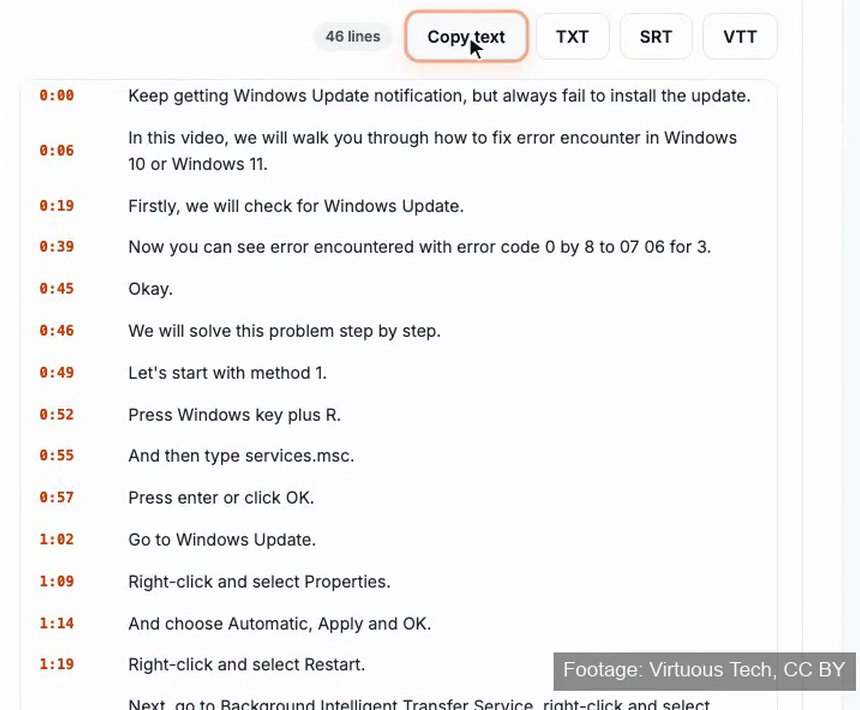
A real Docsie transcript of a 6:57 screen recording: 46 lines, each with its time, and one click to copy or download TXT, SRT or VTT.
Three files, one transcript
All three come from the same transcript. Pick by where the text is going.
| Format | What's in it | Use it for |
|---|---|---|
| TXT | The words, as plain text | Notes, reports, search, or pasting into a document or an AI chat |
| SRT | Numbered lines, each with a start and end time (00:00:06,000) | Subtitles in video players and editors, and uploads to video platforms |
| VTT | A WEBVTT header, then each line with a start and end time (00:00:06.000) | Captions for video on web pages and in web players |
Format example built from the first two lines of the transcript above, kept word for word. The times in your files come from your recording. Footage: Virtuous Tech (CC BY).
Step by step
The same steps give you a VTT file or a timestamped transcript to read.
Why the times matter
Click a line's time in Docsie and the video plays from there, so you can check a word or watch what happened on screen.
Researchers, reporters and reviewers can cite a line with its time, and anyone can go back to the recording to confirm it.
SRT and VTT files turn the transcript into subtitles and captions for viewers who watch without sound or need them to follow along.
Watch it work
From upload to the SRT and VTT downloads, plus the step-by-step document Docsie writes from the same video.
FAQ
A transcript where each line carries the time it was said in the video. The times let you jump back to the moment, quote it accurately, and turn the transcript into subtitles.
Upload the MP4 to Docsie Video to Text, confirm your email and wait for the email that says the transcript is ready. Unlock the result and download the SRT file. Each line has a start and end time, so it loads as subtitles. A VTT file is available too.
Both are plain-text subtitle files with a start and end time for each line. SRT numbers every line and writes times with a comma (00:00:06,000). VTT starts with a WEBVTT header, writes times with a dot (00:00:06.000) and is the caption format for video on web pages.
No. Every line comes with its times from the recording. You only need to check the words, for example names and product terms.
Yes. Both are plain text. Open the file in any text editor, change the words, and leave the number and timing lines as they are.
Docsie shows the first 12 lines of the transcript before you pay, so you can check it reads well. The full transcript and the TXT, SRT and VTT downloads come with the paid unlock.
YouTube links aren't available on free Docsie accounts. If the video is yours, upload the original file, or paste a Loom, Vimeo or Google Drive link to it.
The VTT file. It is the caption format web video players read. Use SRT for desktop players, video editors and most video platforms.
Up to 2 hours per video, and 10 to 20 minutes works best. You can add up to 3 videos at a time.
Docsie Video to Text
Upload a video or paste a link, then download the transcript as TXT, SRT or VTT.