
How to Request Feedback in Workday
Workday makes it easy to request feedback on your performance from colleagues, respond to feedback requests you receive, and review all the feedback you've collected over time. This guide walks you through how to request feedback in Workday, how to respond to a feedback request as a recipient, and how to view feedback you've already received.
Video: C1 Workday Requesting and Giving Feedback by C1 Workday. All credit for the demonstration goes to the creator; watch the original on YouTube. The written guide below was generated from this video by Docsie. Creator? Request a change or removal.
Workday makes it easy to request feedback on your performance from colleagues, respond to feedback requests you receive, and review all the feedback you've collected over time. This guide walks you through how to request feedback in Workday, how to respond to a feedback request as a recipient, and how to view feedback you've already received.
Prerequisites
- An active Workday account with access to the Performance worklet.
- The name of the person or people you want to request feedback from.
Requesting feedback
Step 1: Access the Workday home page
Log in to your Workday account. On the home page, you'll see various worklets, including Inbox, Time, Time Off, Pay, Performance, Benefits, Personal Information, Directory, and Favorites. Locate the Performance worklet.
Step 2: Open the Get Feedback screen
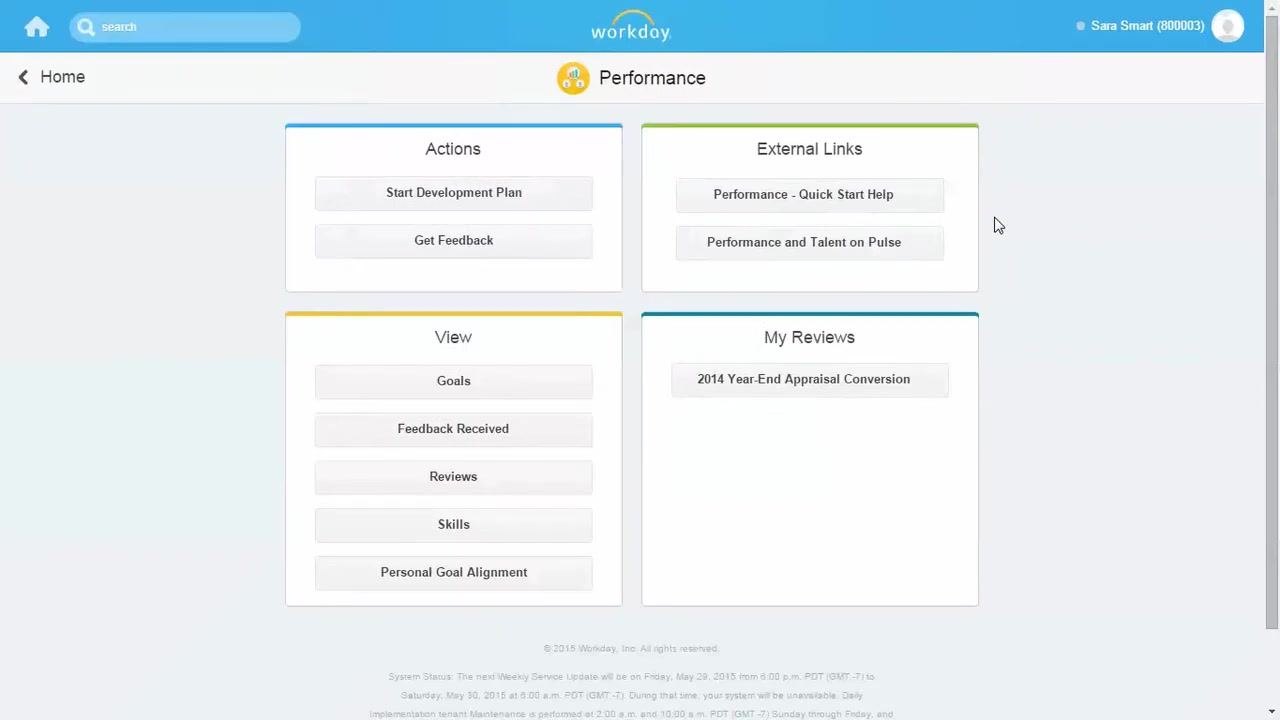
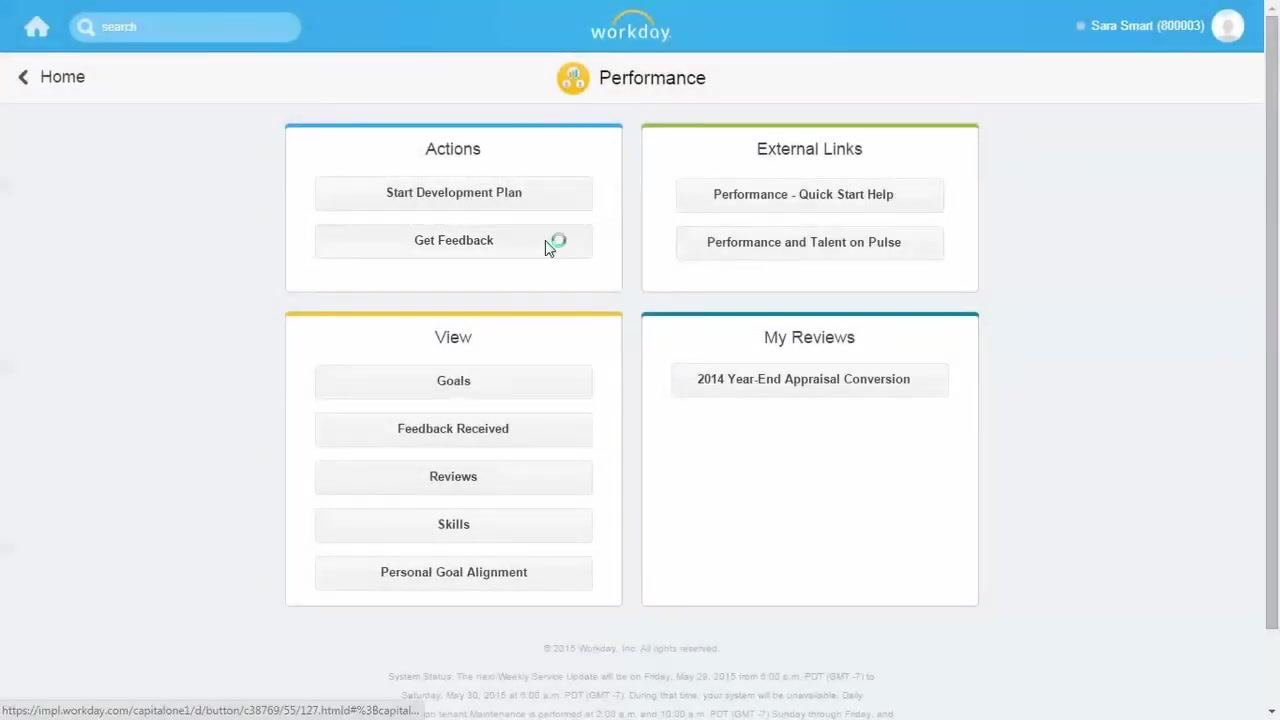
Click the Performance worklet to open the Performance dashboard. Under the Actions heading, click Get Feedback.

Step 3: Select feedback recipients
On the Get Feedback screen, locate the field labeled Who do you want to ask?. Type the name of the person or people you want to request feedback from, or click the prompt to browse from a list. For example, you might enter "Roger Thomas (800001)" as the recipient.
Step 4: Compose your feedback request
In the Questions section, enter your request in the Question box—for example, "Please send me your feedback on my performance during the Pleasanton Project." To request feedback from additional people, click Add. When you're ready, click Submit to send the request.
Responding to a feedback request
Step 5: Check your Inbox
Log in as the feedback recipient. On the home page, click the Inbox worklet, which may display a notification badge indicating new tasks.
Step 6: Complete the feedback task
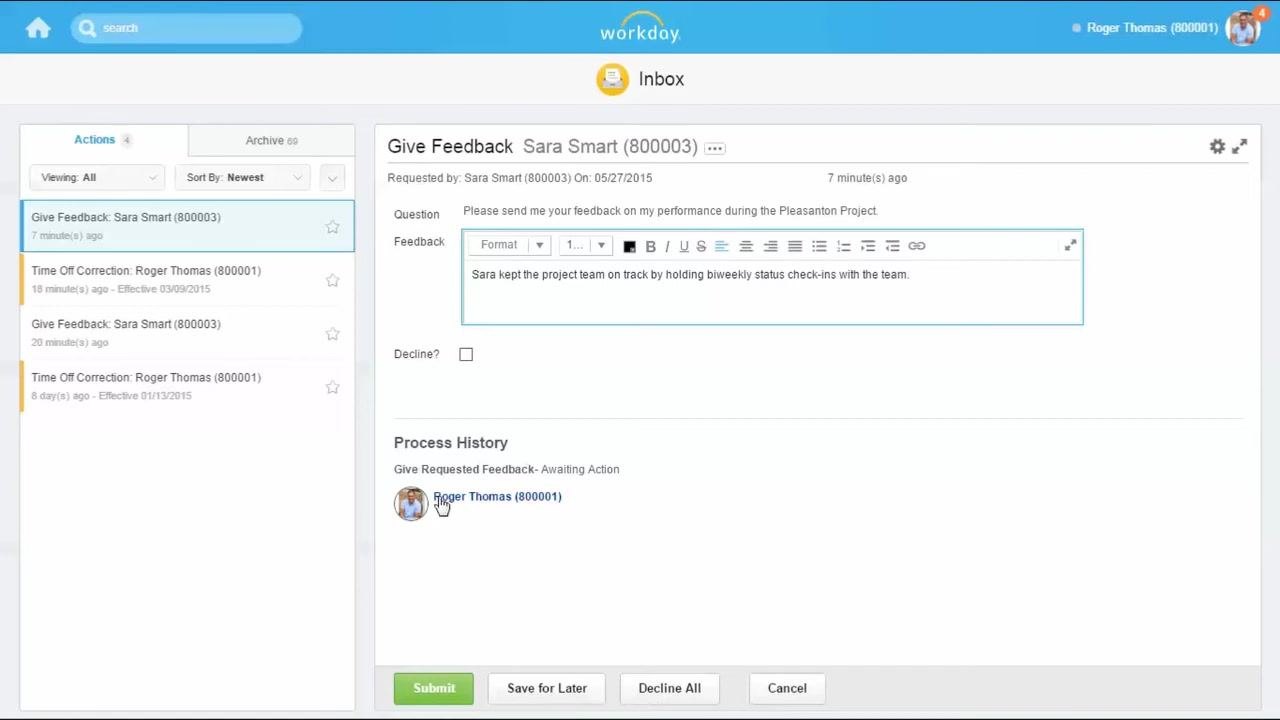
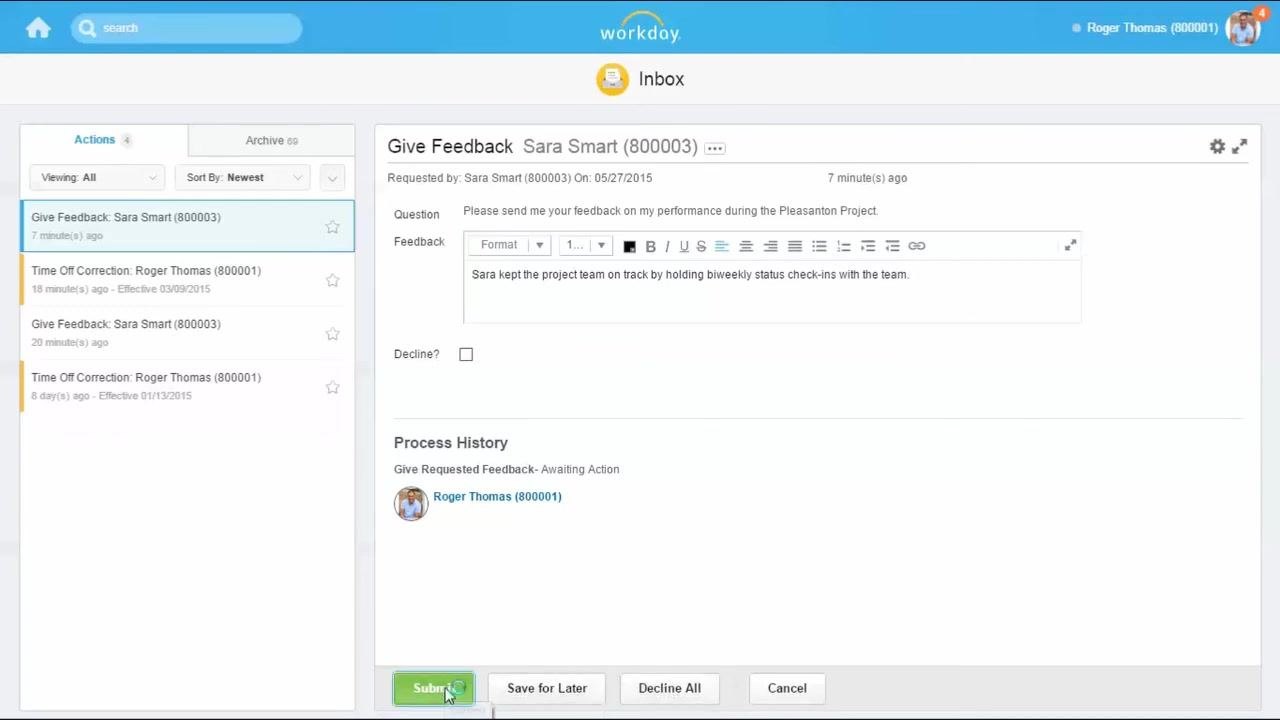
In the Inbox, locate the Give Feedback task from the requester and click it to open. Review the feedback question—for example, "Please send me your feedback on my performance during the Pleasanton Project." Enter your response in the provided text box, such as "Sara kept the project team on track by holding biweekly status check-ins with the team."
If you don't wish to respond, check the Decline? box, or click Decline All. Click Submit to send your feedback to the requester.
You can also provide unsolicited feedback for any associate at any time using this same process. People managers can likewise request feedback on behalf of an associate.
Viewing feedback you've received
Step 7: Open the Performance worklet
Log in as the person who requested feedback. On the Workday home page, locate and click the Performance worklet.
Step 8: Open Feedback Received
In the Performance dashboard, find the View section and click Feedback Received to open the list of feedback you've received.
Step 9: Review your feedback summary
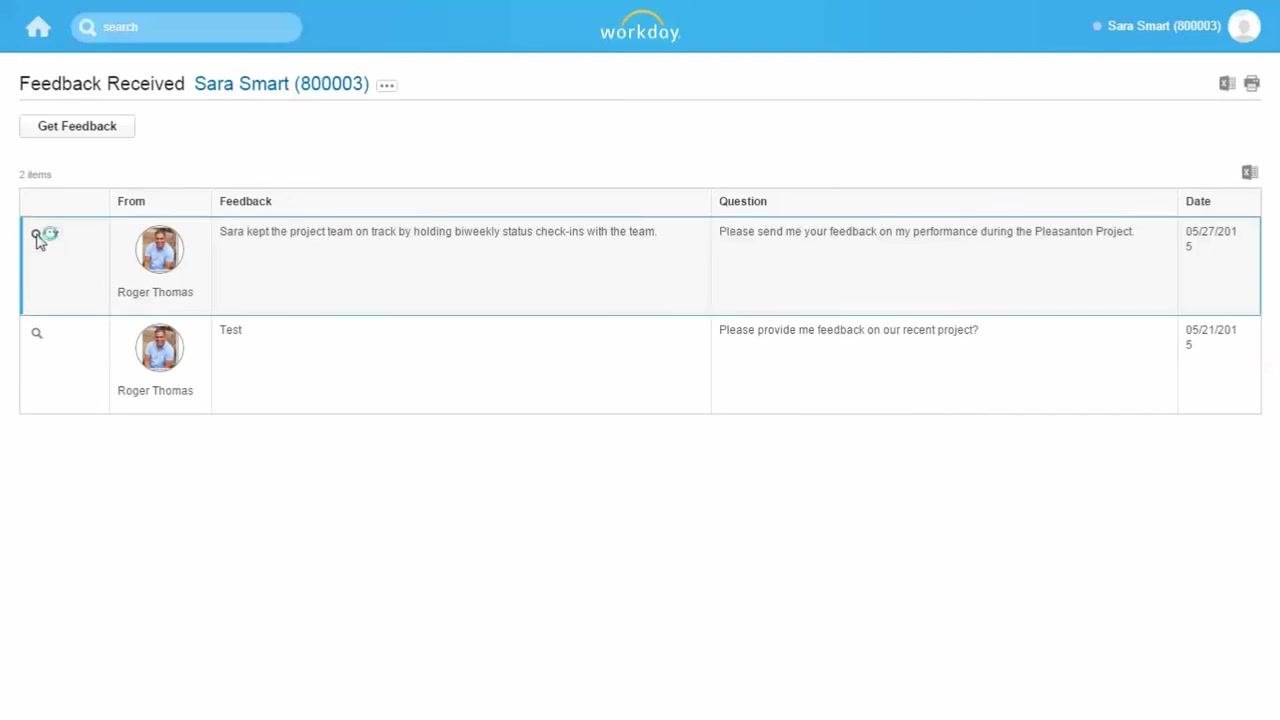
The Feedback Received screen displays a summary table listing all feedback entries. Each entry shows:
- The sender's name and photo
- The feedback text
- The original feedback question
- The date the feedback was received
Step 10: View detailed feedback
Click a feedback entry to see more details. The detailed view shows:
- Subject (your name)
- From (the feedback provider)
- Whether the feedback is confidential
- The feedback question and the response
- The date and time the feedback was submitted
Summary
Now you know how to request feedback in Workday, respond to a feedback request as a recipient, and review all the feedback you've received through the Feedback Received screen. These steps help ensure clear communication and support continuous performance development within your organization.
Generation details: cost, quality tiers
Docsie billed 1,500 credits ($1.05) to analyze this 3-minute video at standard quality. The rewrite, template fill and Word/PDF exports were included. The same video at each quality tier:
| Quality | Frames sampled | Credits | Approx. cost |
|---|---|---|---|
| Draft | every 16-30 s | 750 | $0.52 |
| Standard (this guide) | every 8-15 s | 1,500 | $1.05 |
| Detailed | every 4-7 s | 3,000 | $2.10 |
| Ultra | every 1-3 s | 6,000 | $4.20 |
Credits priced at $0.70 per 1,000; plans include a monthly allowance. Enterprise customers on on-premise or bring-your-own-model deployments run this on their own inference and pay no per-video credits.
Generated by Docsie Video-to-Docs on 2026-10-06 from a 2-minute video. Screenshots are frames from the source video and belong to their creator, C1 Workday, whose original is embedded above. If you own this video and want the guide removed or credited differently, contact us and we will act within one business day.