
How to Find Your Offer Letter in Workday
If you have received a call letter from PwC, your official offer details are posted to the Workday-based PwC Candidate Portal. This guide walks you through how to find your offer letter in Workday, starting from the notification email in your inbox through to reviewing, acknowledging, and submitting your acceptance.
Video: How to Review & Accept PwC Offer Letter on Workday Portal | Step-by-Step Guide @mr._bagdi by CA Students. All credit for the demonstration goes to the creator; watch the original on YouTube. The written guide below was generated from this video by Docsie. Creator? Request a change or removal.
If you have received a call letter from PwC, your official offer details are posted to the Workday-based PwC Candidate Portal. This guide walks you through how to find your offer letter in Workday, starting from the notification email in your inbox through to reviewing, acknowledging, and submitting your acceptance.
Prerequisites
- You have already received a call letter or notification email from PwC confirming your offer.
- You have access to the Gmail account used during your job application.
- You have a web browser (such as Google Chrome) installed and an active internet connection.
- Some sensitive personal details shown in the screenshots below have been blurred for privacy; your own screen will display your actual information.
If you have any doubts during the process, keep a note of your questions so you can raise them with your recruiter.
Find your offer notification in Gmail
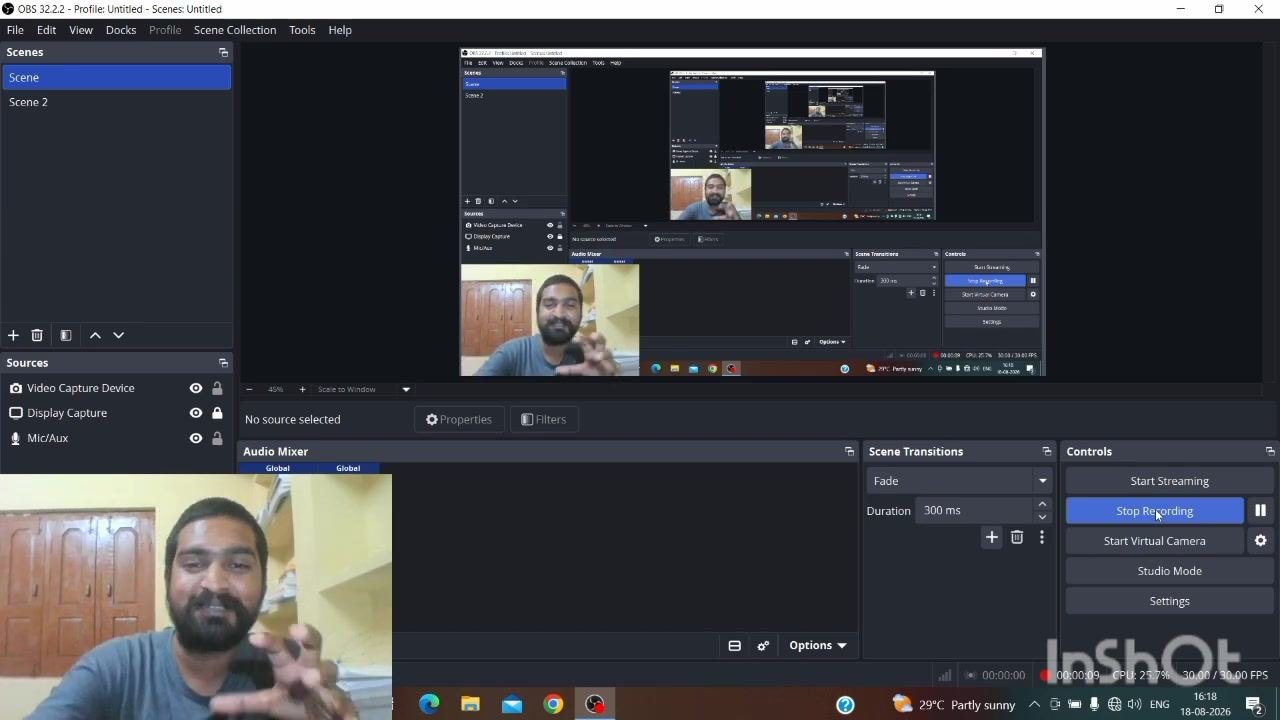
- Open Gmail in your browser.
-
Look for the offer email from PwC India. The subject typically references your job application or offer.
-
Open the email. It confirms: "Congratulations! We're delighted to extend you an offer with PwC India. Offer details will be posted to your Candidate Portal shortly. Please login to review your documents and complete any pending tasks once the offer letter is available on the candidate portal."
- Locate the candidate portal link included in the email (for example,
https://pwc.wd3.myworkdayjobs.com/NonPublic_Postings/login).
- Click the candidate portal link. Your browser opens a new tab and navigates to the portal login page.
Sign in to the Workday candidate portal
- On the login page, enter your email address and password. These fields may be auto-filled if previously saved in your browser.
- If prompted, click Accept Cookies at the top of the page.
- If you have forgotten your password, click Forgot your password? to start a reset.
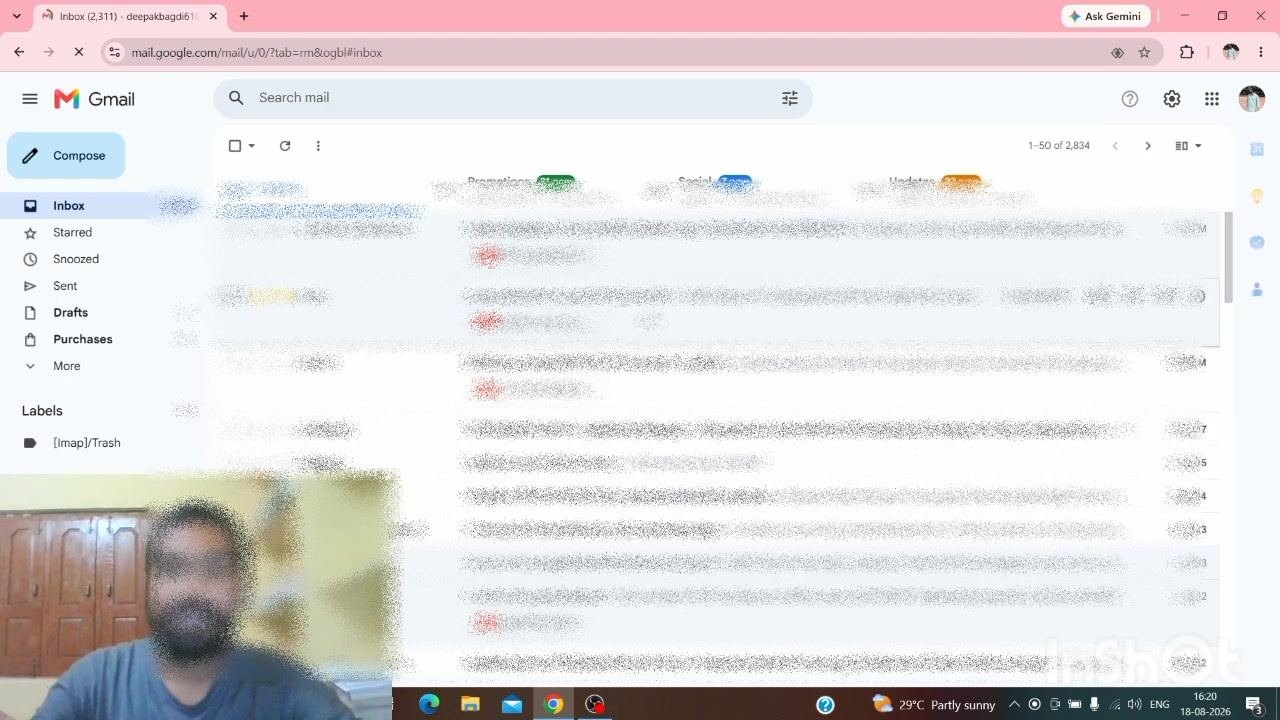
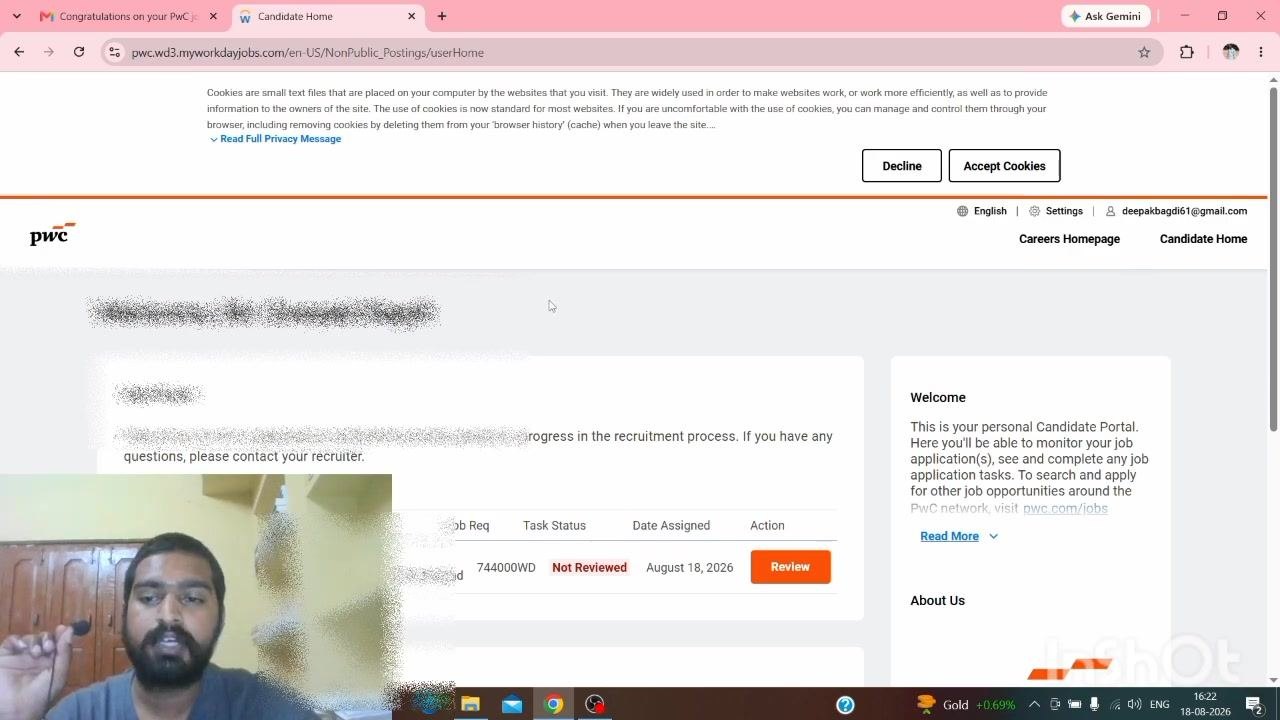
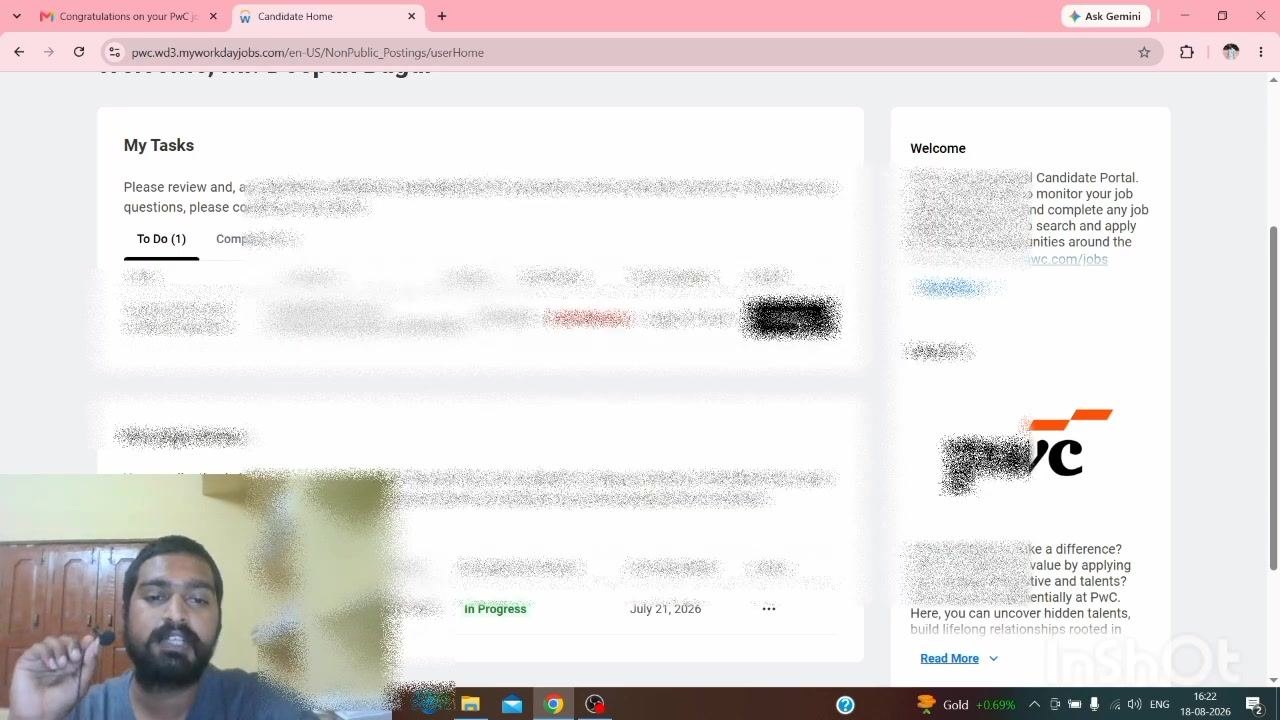
- After logging in, you arrive at your Candidate Home dashboard. Here you can see:
- Navigation options at the top, such as Careers Homepage and Candidate Home.
- Your email address in the upper right corner.
- Your recruitment progress in the main section.
- A To Do List / My Tasks section listing pending actions.
- An Active Applications section showing Job Req, Task Status, Date Assigned, and Action.
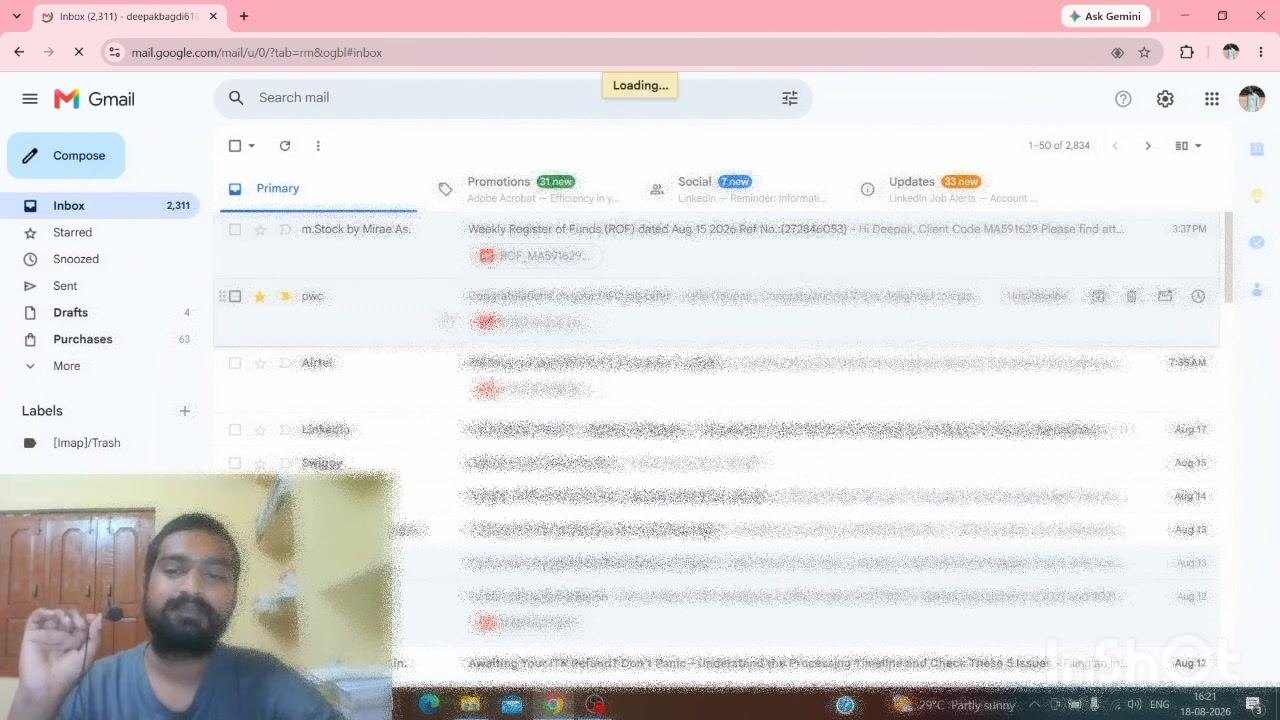
Open your pending offer review task
- In the My Tasks section, locate the task marked Not Reviewed, labeled "Review India Total Reward Statement."
-
Note the job requisition number (for example, 744000WD) and the date assigned (for example, August 18, 2026).
-
Click the orange Review button next to this task.
Review and download your reward statement
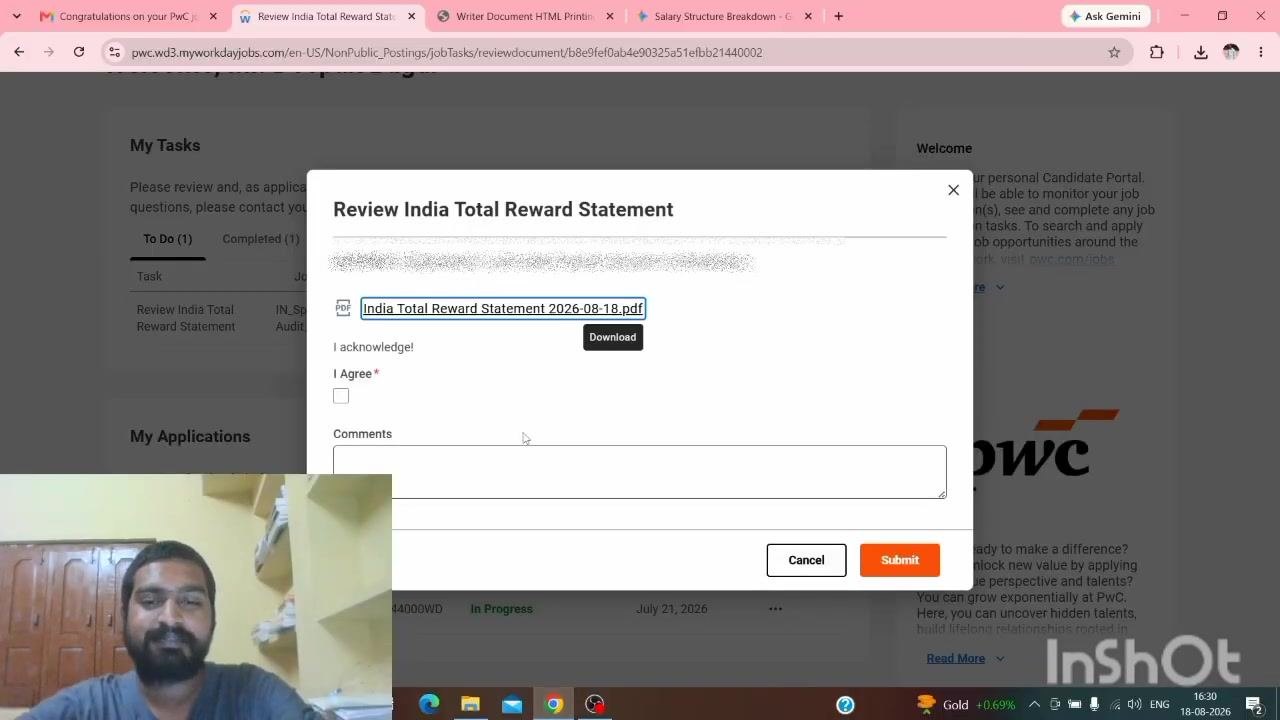
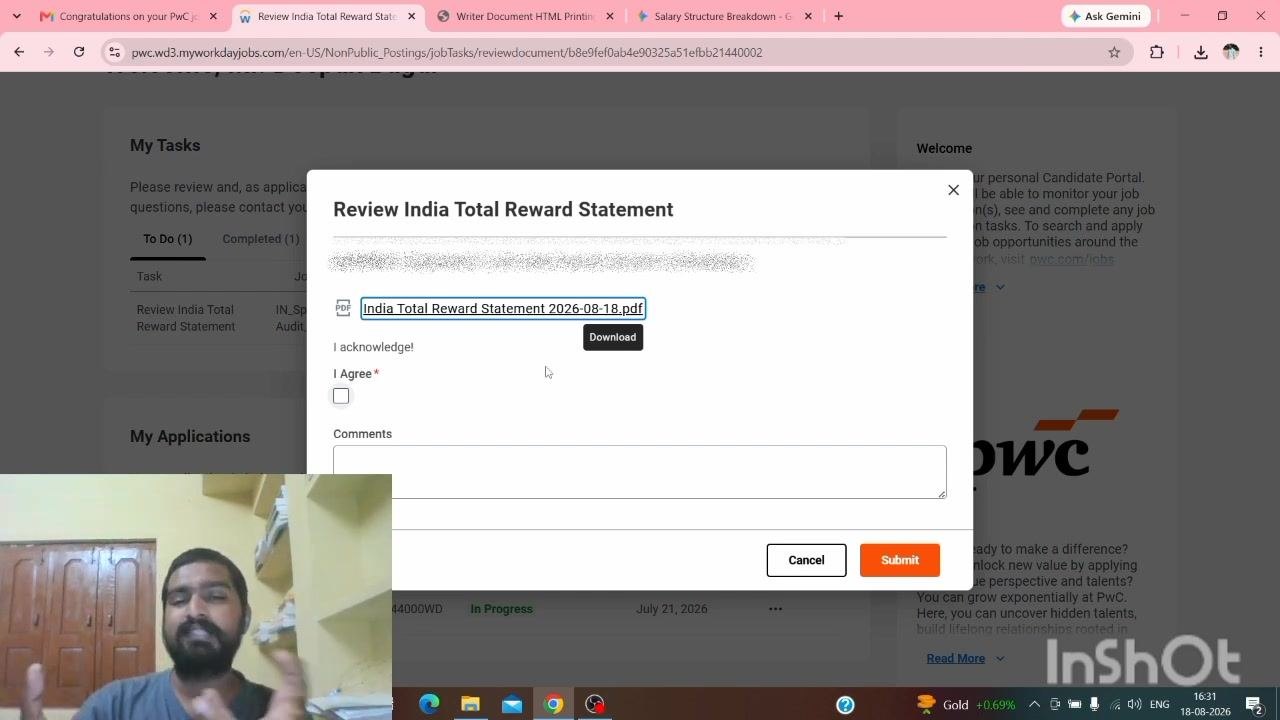
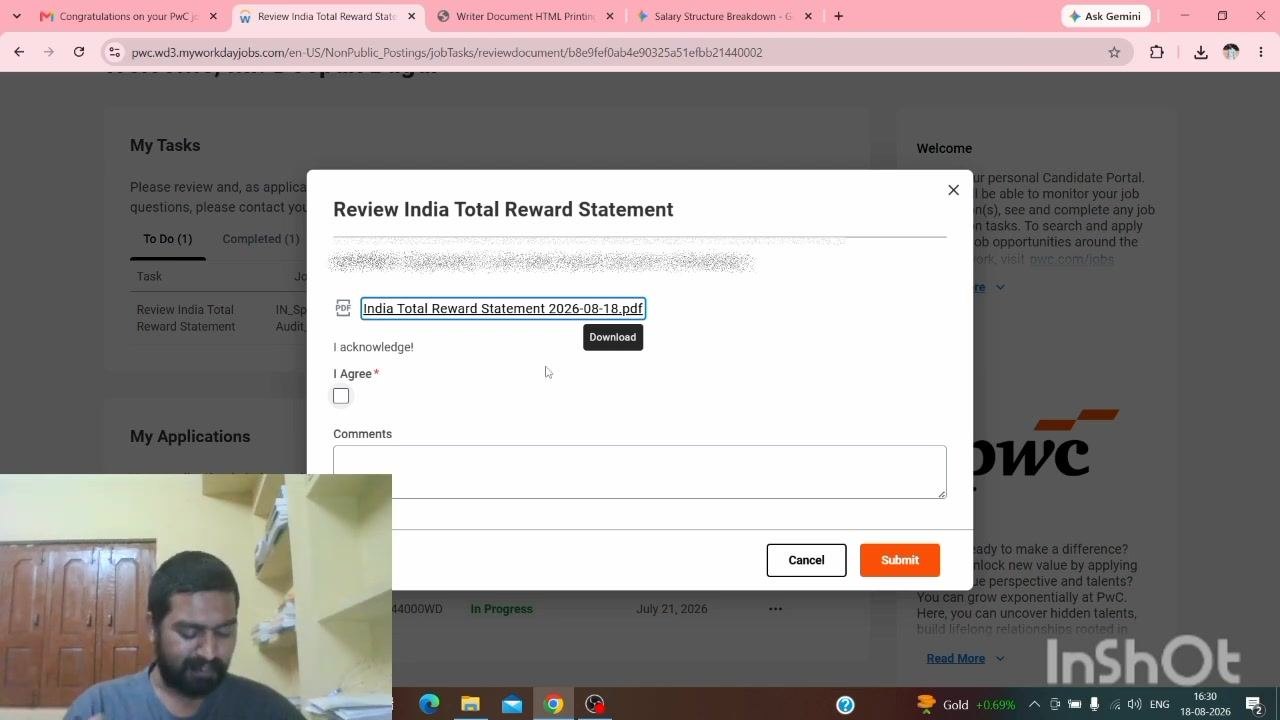
- A pop-up window titled Review India Total Reward Statement appears.
-
Click the link to the PDF document (for example, "India Total Reward Statement 2026-08-18.pdf").
-
Wait for the download to complete. A notification confirms the file has downloaded (for example, "India Total Reward Statement 2026-08-18.pdf, 662 KB, Done"). Your browser may also show a security scan notification.
-
Open the downloaded PDF and review your offer details, including:
- Salary breakdown, including basic pay and House Rent Allowance (HRA).
- Reimbursements and flexible benefits.
- Employee Provident Fund (EPF) details and special allowances.
- Fixed pay (guaranteed earnings) and variable pay (performance-based or annual bonuses).
- Gratuity contribution amounts.
- Insurance premium information for you and your family.
- Any applicable bonuses or additional benefits.
Acknowledge and submit your offer
- Return to the Review India Total Reward Statement pop-up after reviewing the PDF.
-
Check the I Agree box to confirm you have read and understood the offer details. You can optionally add comments or questions in the text box provided.
-
On revisiting the task, the dialog confirms all required fields: the downloadable PDF link, the I acknowledge section, the required I Agree checkbox, an optional Comments field, and the Cancel and Submit buttons.
-
The statement also provides information about your annual compensation, as well as upskilling and career growth resources (such as platforms and tools like Gemini, ChatGPT, and cloud services).
- Check the I Agree checkbox to confirm your review is complete.
- Add any feedback or questions in the Comments field, if needed.
- Click Submit to complete the review process.
Confirm your task is complete
-
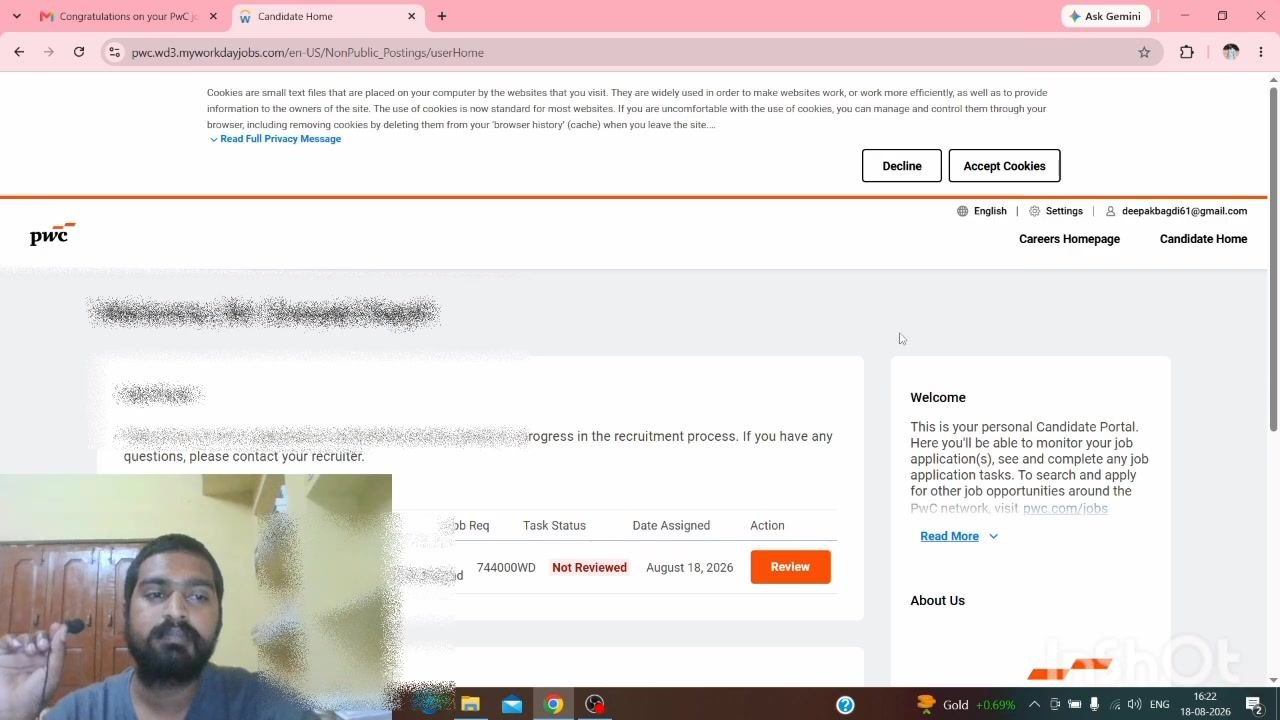
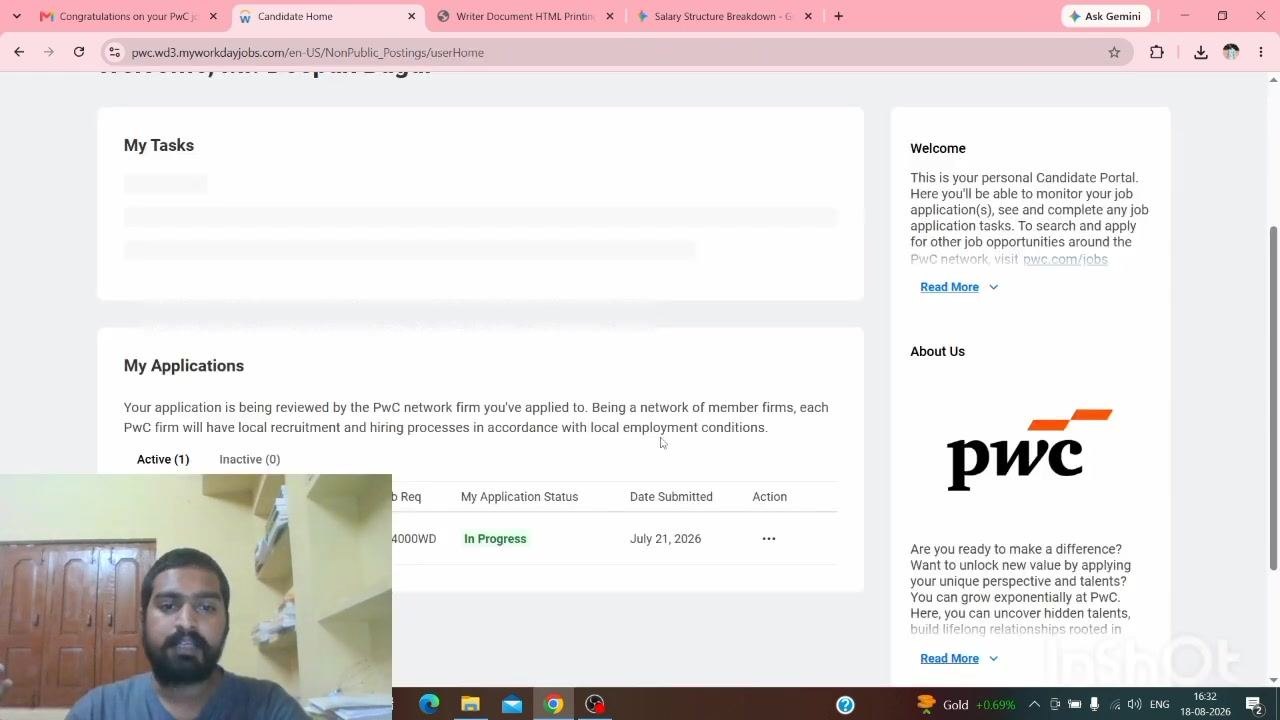
After submitting, you return to the portal home page. The My Applications section shows your application status (for example, "In Progress"), and the My Tasks section updates to reflect the completed review.
-
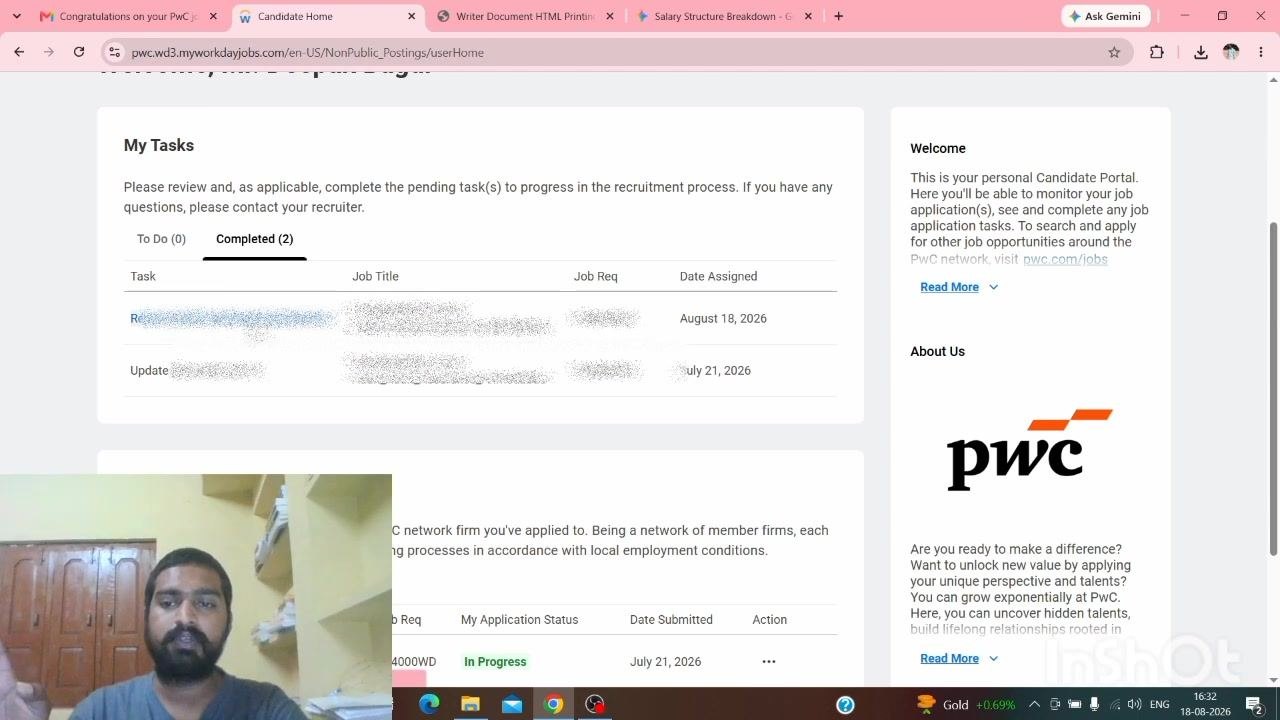
Open the Completed tab in My Tasks to confirm your reward statement review now appears there. The To Do tab shows zero pending tasks.
What's next
With your reward statement reviewed and submitted, keep an eye on the My Tasks section of your Candidate Home dashboard for any further pending actions related to your offer. If you have questions about any section of your offer or reward statement, use the Comments field on the task or contact your recruiter directly for clarification.
Generation details: cost, quality tiers
Docsie billed 3,500 credits ($2.45) to analyze this 7-minute video at standard quality. The rewrite, template fill and Word/PDF exports were included. The same video at each quality tier:
| Quality | Frames sampled | Credits | Approx. cost |
|---|---|---|---|
| Draft | every 16-30 s | 1,750 | $1.22 |
| Standard (this guide) | every 8-15 s | 3,500 | $2.45 |
| Detailed | every 4-7 s | 7,000 | $4.90 |
| Ultra | every 1-3 s | 14,000 | $9.80 |
Credits priced at $0.70 per 1,000; plans include a monthly allowance. Enterprise customers on on-premise or bring-your-own-model deployments run this on their own inference and pay no per-video credits.
Generated by Docsie Video-to-Docs on 2026-10-06 from a 6-minute video. Screenshots are frames from the source video and belong to their creator, CA Students, whose original is embedded above. If you own this video and want the guide removed or credited differently, contact us and we will act within one business day.