
How to Close a Job Requisition in Workday
This guide walks you through how to close a job requisition in Workday, whether the position has been filled, is no longer required, or was opened in error. Follow the steps below to locate the requisition, complete the required fields, and confirm that the closure has been processed successfully.
Video: How to Close job Requisition in Workday HCM? by Wizard of HCM. All credit for the demonstration goes to the creator; watch the original on YouTube. The written guide below was generated from this video by Docsie. Creator? Request a change or removal.
This guide walks you through how to close a job requisition in Workday, whether the position has been filled, is no longer required, or was opened in error. Follow the steps below to locate the requisition, complete the required fields, and confirm that the closure has been processed successfully.
Prerequisites
- Access to your organization's Workday instance with an active login session.
- Knowledge of the job requisition you want to close (for example, by location, manager, or supervisory organization).
- The reason for closing the requisition and the intended close date.
Steps to close a job requisition
- Navigate to the Workday Home page
- Open your browser and go to your Workday instance.
- Confirm you are logged in and viewing the Home page.
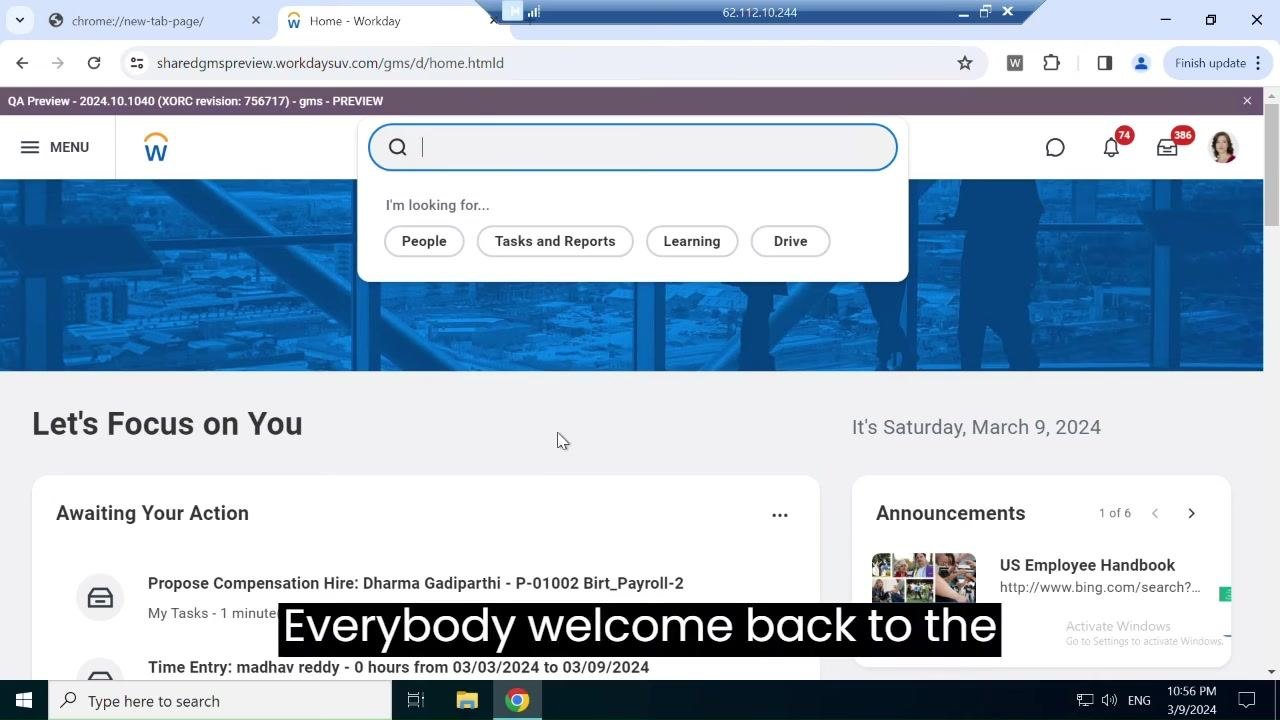
- The Home page displays a search bar at the top, along with notification icons and sections such as Let's Focus on You, Awaiting Your Action, and Announcements.
-
Access the search bar
- Locate the search bar at the top of the page.
- Click inside the search bar to activate it.
-
Search for the Close Job Requisition task
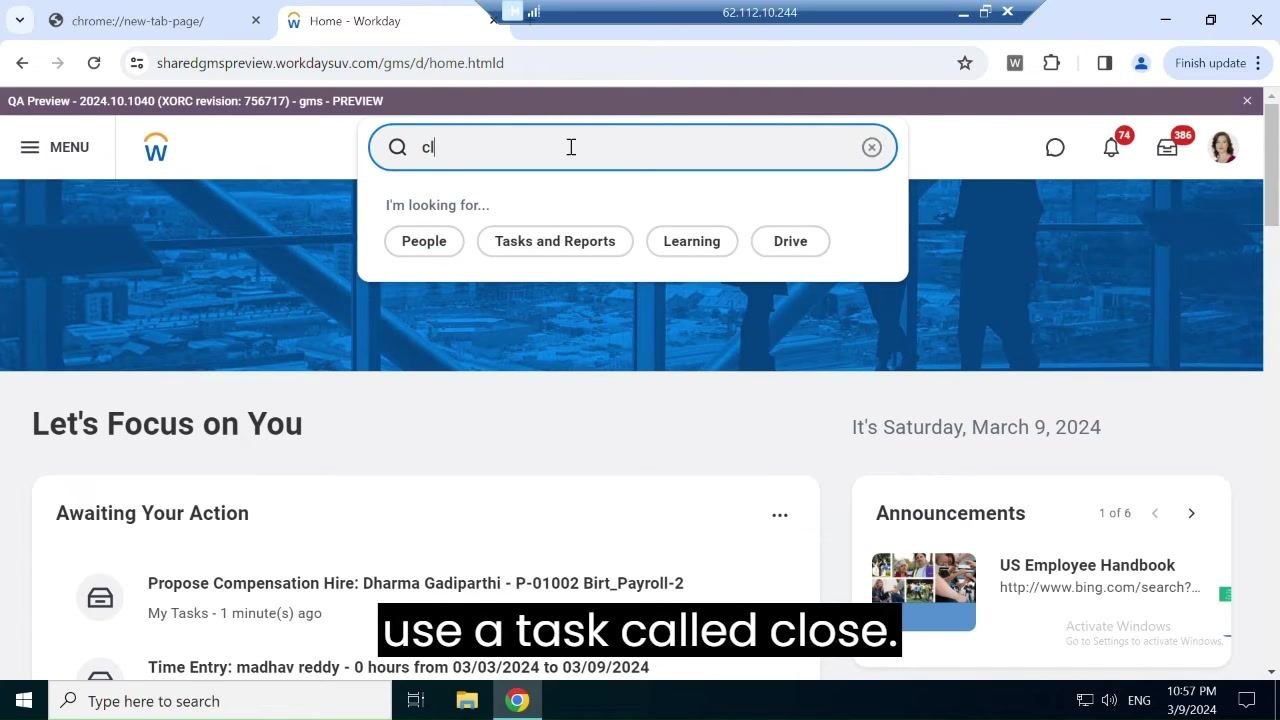
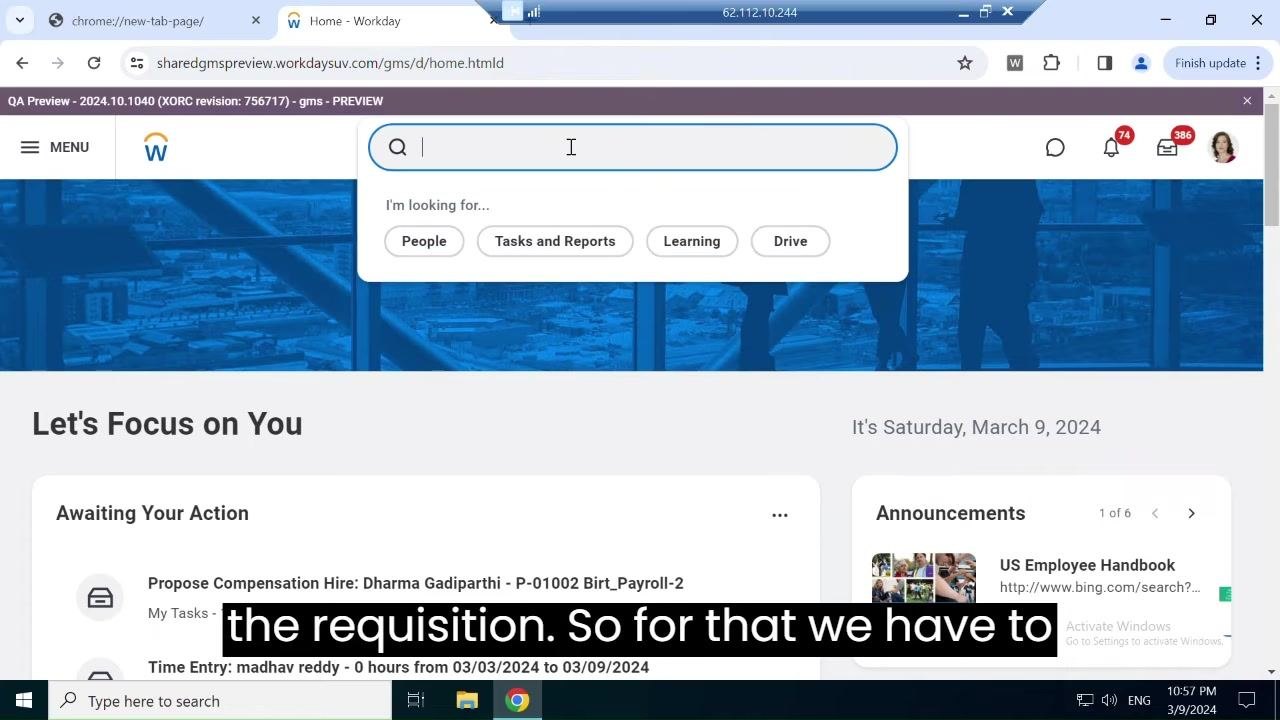
- Begin typing close job requisition in the search bar.
- As you type, matching suggestions appear below the search field.
-
Select the Close Job Requisition task
- Click Close Job Requisition from the list of search results.
-
Open the Close Job Requisition dialog
- A dialog box titled Close Job Requisition appears.
- In the Job Requisition field, you can search for the requisition you want to close using one of several methods:
- Job Requisitions by Location
- Job Requisitions by Supervisory Organization Hierarchy
- Job Requisitions by Supervisory Organization
- Job Requisitions by Manager
- Job Requisitions by Manager Hierarchy
-
Search for the job requisition
- Choose your preferred search method, for example Job Requisitions by Manager.
- Select the appropriate requisition from the resulting list.
-
Fill out the Close Job Requisition form
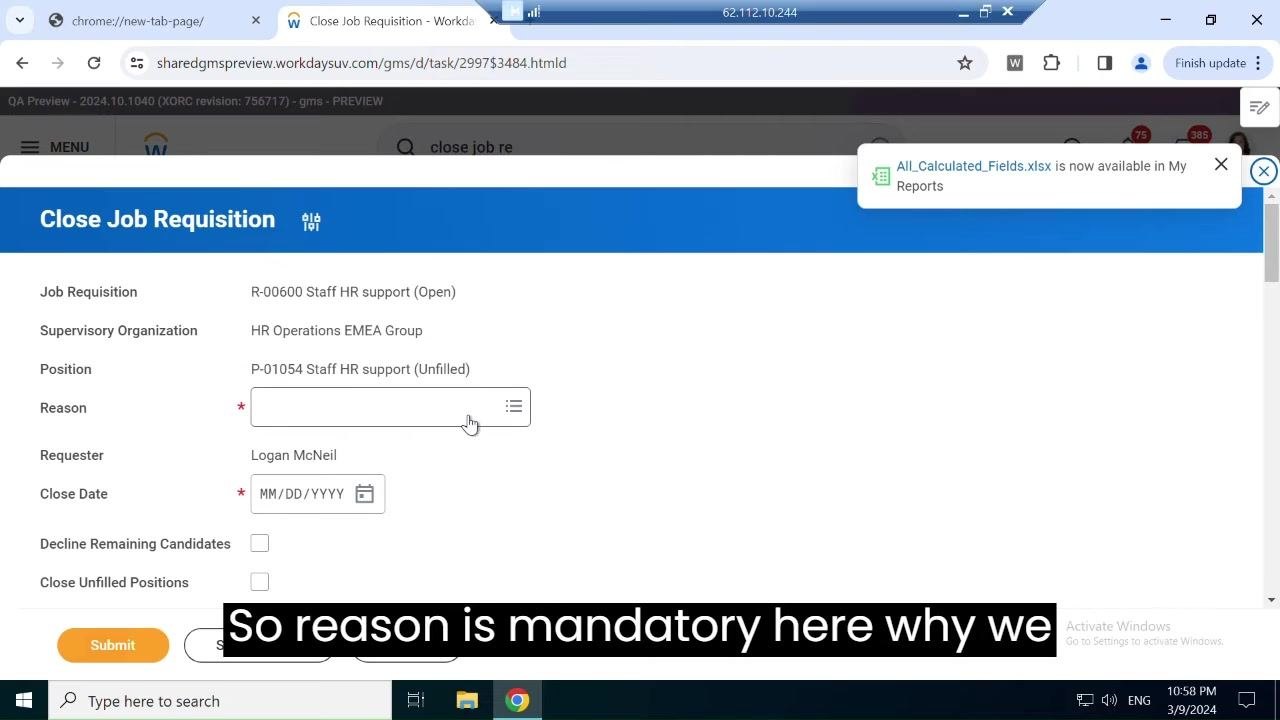
- The form displays details including:
- Job Requisition (for example, R-00600 Staff HR support (Open))
- Supervisory Organization (for example, HR Operations EMEA Group)
- Position (for example, P-01054 Staff HR support (Unfilled))
- Requester (for example, Logan McNeil)
- You must enter the following information:
- Reason: select the reason for closing the requisition (mandatory).
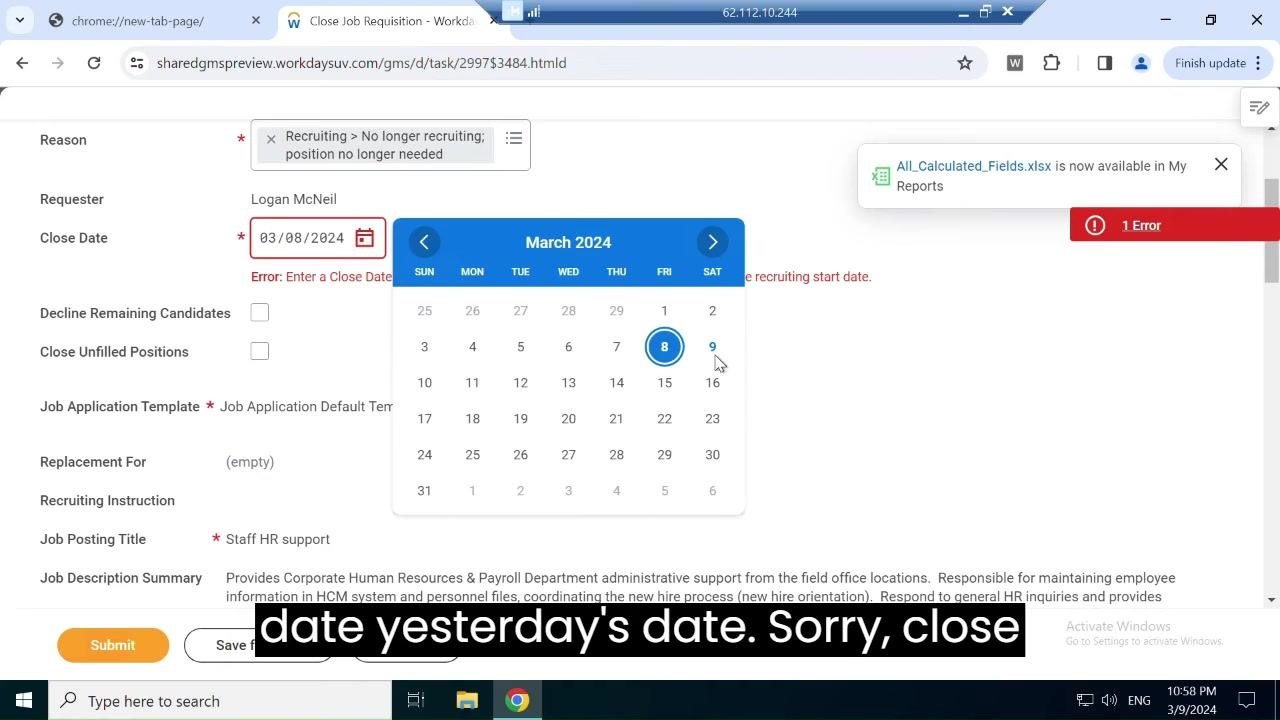
- Close Date: enter the date the requisition should close, in MM/DD/YYYY format.
- Optionally, check Decline Remaining Candidates and/or Close Unfilled Positions if applicable.
- Select the reason for closing the job requisition
- Click the Reason field to open the dropdown menu.
- Select the appropriate reason, for example Recruiting > No longer recruiting; position no longer needed, if the position is no longer required.
- Enter the close date
- Click the calendar icon in the Close Date field.
- Select the date you want the requisition to close, for example 03/09/2024.
- Make sure the close date is not earlier than the recruiting start date, or Workday will display an error.
-
Choose additional actions (optional)
- Decide whether to check Decline Remaining Candidates to automatically decline all candidates who have not been selected for the position.
- Decide whether to check Close Unfilled Positions to close any positions that remain unfilled.
- Select these options according to your requirements.
-
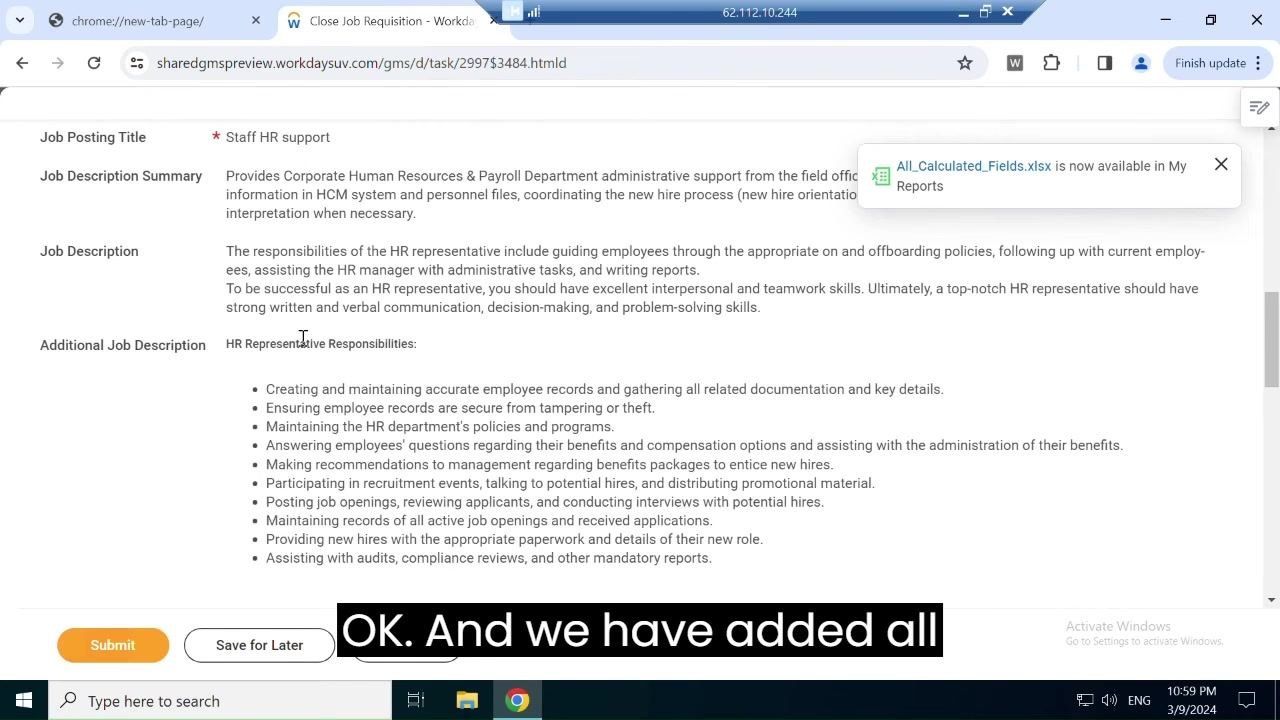
Review job details
- Scroll down to review all job details, including:
- Job Posting Title (for example, Staff HR support)
- Job Description Summary
- Job Description
- Additional Job Description (for example, HR Representative Responsibilities)
- Confirm all information is accurate before submitting.
-
Submit the Close Job Requisition
- Click Submit to finalize closing the requisition.
- Alternatively, click Save for Later or Cancel if you need to pause or stop the process.
-
Verify the position is closed
- After submission, a confirmation screen displays the details of the closed requisition.
- Confirm the following:
- Overall Status: Successfully Completed
- Job Requisition and Position are marked as Closed
- Reason, Requester, and Close Date are correct (for example, Reason: Recruiting > No longer recruiting; position no longer needed, Requester: Logan McNeil, Close Date: 03/09/2024)
- Decline Remaining Candidates: Yes, if selected
-
Review final details
- Scroll through the confirmation page to review all submitted details, including supervisory organization, job requisition, position, reason, requester, close date, and any additional notes.
- Click Done to finish the process.
Summary
By completing these steps, you can successfully close a job requisition in Workday. Make sure all required fields are filled in, the correct requisition is selected, and the reason, close date, and any additional options are set according to your needs before confirming the closure.
Generation details: cost, quality tiers
Docsie billed 1,500 credits ($1.05) to analyze this 3-minute video at standard quality. The rewrite, template fill and Word/PDF exports were included. The same video at each quality tier:
| Quality | Frames sampled | Credits | Approx. cost |
|---|---|---|---|
| Draft | every 16-30 s | 750 | $0.52 |
| Standard (this guide) | every 8-15 s | 1,500 | $1.05 |
| Detailed | every 4-7 s | 3,000 | $2.10 |
| Ultra | every 1-3 s | 6,000 | $4.20 |
Credits priced at $0.70 per 1,000; plans include a monthly allowance. Enterprise customers on on-premise or bring-your-own-model deployments run this on their own inference and pay no per-video credits.
Generated by Docsie Video-to-Docs on 2026-10-06 from a 2-minute video. Screenshots are frames from the source video and belong to their creator, Wizard of HCM, whose original is embedded above. If you own this video and want the guide removed or credited differently, contact us and we will act within one business day.