
How to Change Your Preferred Name in Workday
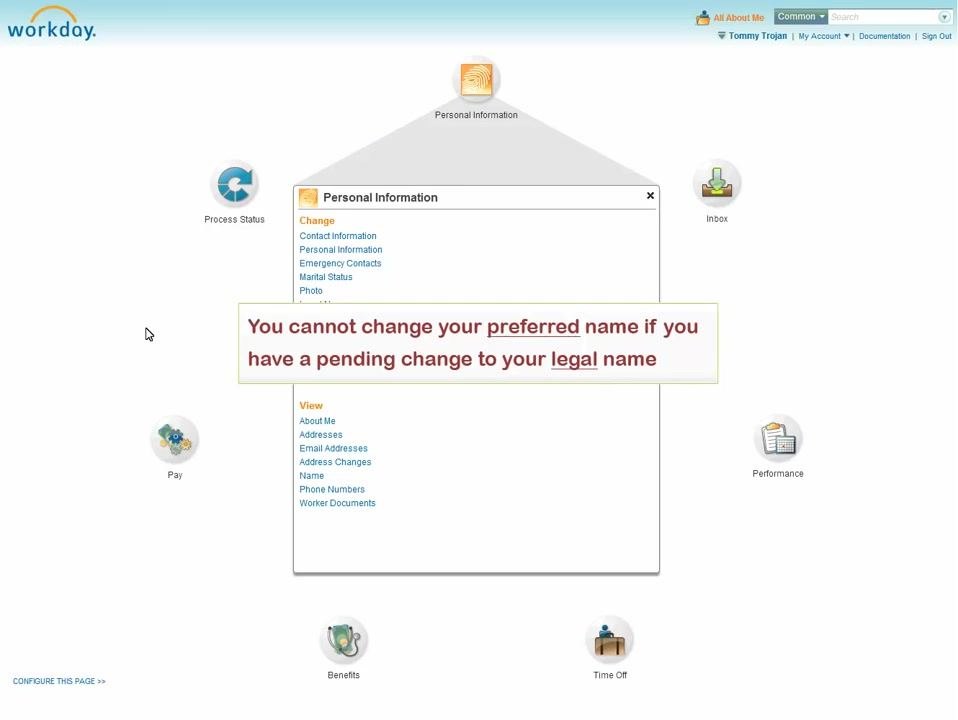
This guide walks you through how to change your preferred name in Workday, including the related process for updating your legal name. If you also need to update your legal name, complete that process first, since a pending legal name change will block any preferred name update until it is resolved.
Video: Changing your Legal and Preferred Name by William Tutton. All credit for the demonstration goes to the creator; watch the original on YouTube. The written guide below was generated from this video by Docsie. Creator? Request a change or removal.
This guide walks you through how to change your preferred name in Workday, including the related process for updating your legal name. If you also need to update your legal name, complete that process first, since a pending legal name change will block any preferred name update until it is resolved.
Prerequisites
- You cannot change your preferred name if you have a pending change to your legal name. Resolve any outstanding legal name change before starting the preferred name update.
Changing your legal name
- Begin on the Personal Information Worklet in Workday.
-
Click the Change Legal Name link. If you have a pending legal name change, the system displays a message stating that you cannot change your preferred name until that change is resolved.
-
The Change Legal Name screen opens with your current information pre-populated in the fields, such as Country, First Name, Middle Name, and Last Name.
-
Enter your new name in the required fields. If a required field has not changed, you can leave it as is.
- Click Submit at the bottom of the page to save your legal name change.
Uploading proof of your legal name change
- After you submit, Workday generates a to-do task asking you to attach proof of your legal name change to your Worker Documents file. You can access this task from the confirmation page or from your Inbox Worklet.
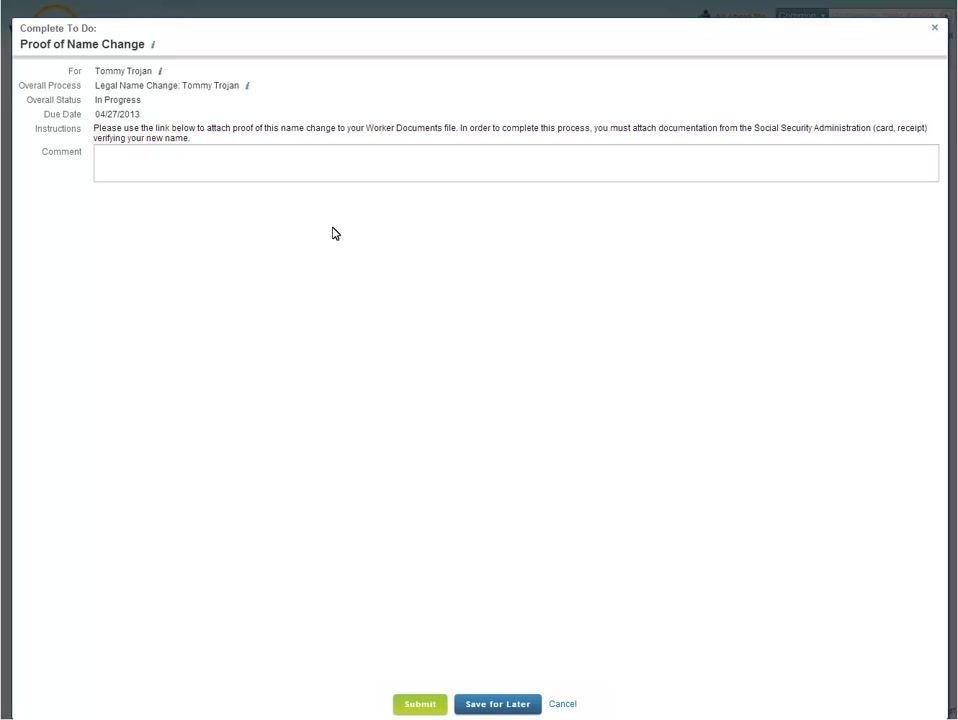
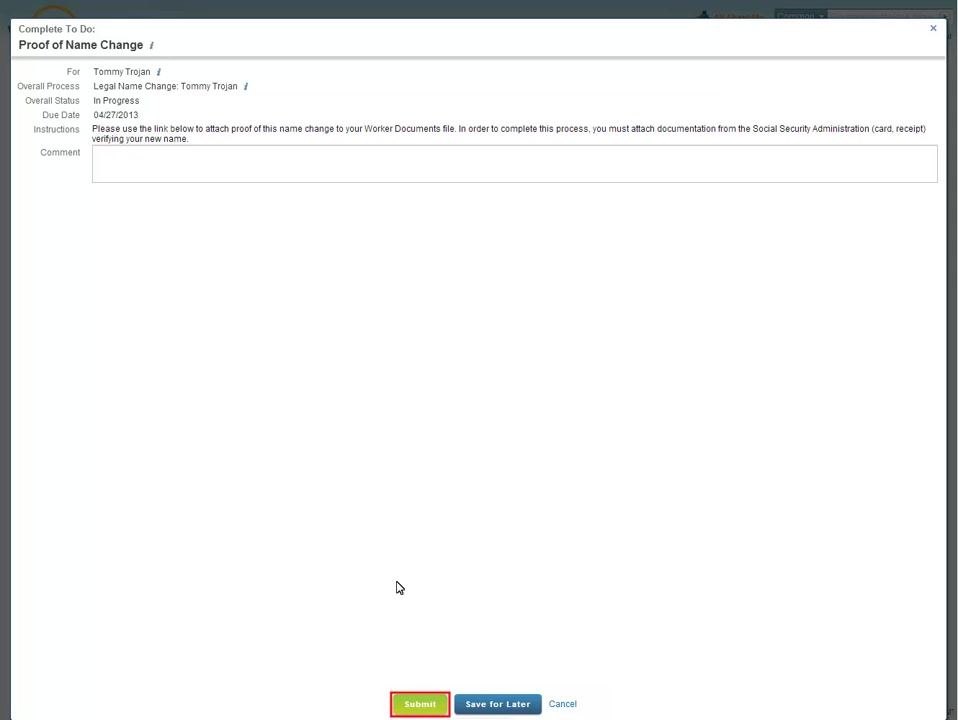
- Click the To Do button to open the Proof of Name Change screen. Attach documentation from the Social Security Administration, such as a card or receipt, that verifies your new name.
- Once you have uploaded the required documentation, click Submit at the bottom of the screen.
Changing your preferred name in Workday
- Return to the Personal Information Worklet.
-
Click the Preferred Name link.
-
If you want your legal name to also serve as your preferred name, leave the Use Legal Name As Preferred Name checkbox checked. To enter a different preferred name, uncheck the box to open the fields for editing.
-
Enter your new preferred name in the required fields, including Country, First Name, Middle Name, and Last Name.
-
Use the prompts to select your country if it differs from the one currently displayed. Optionally, enter a name prefix or suffix, then enter your preferred first name, middle name, and last name.
-
Once you have made all the necessary changes, click Submit at the bottom of the page to save your preferred name update.
-
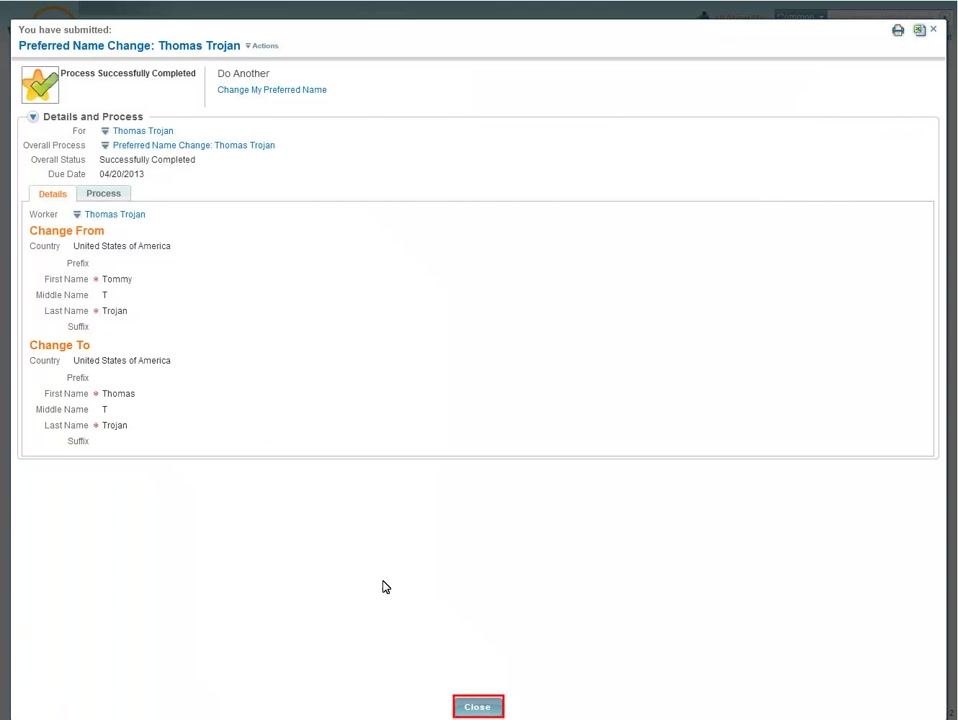
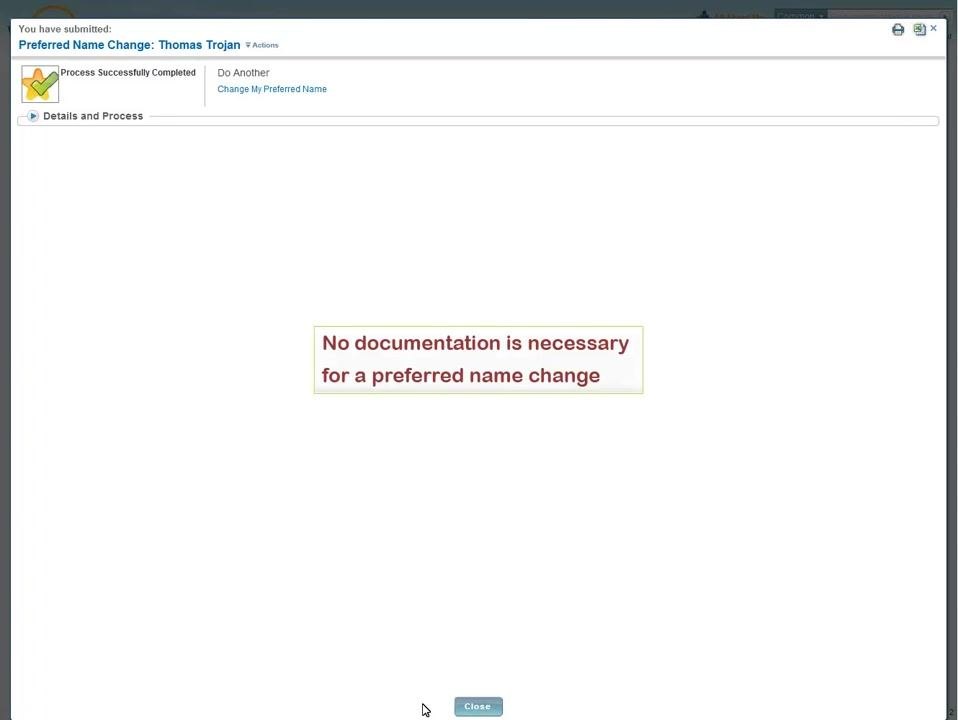
Review the confirmation screen indicating that your preferred name change has been submitted. No documentation is required for a preferred name change.
-
To review the details of your change, open the Details and Process pane. It displays both your previous and updated name information, for example showing the change from your prior name to your new preferred name. Click Close when you are finished reviewing.
- The next time you log in to Workday, your new preferred name displays throughout the system.
Summary
- Confirm there are no pending legal name changes before changing your preferred name.
- Complete all required fields accurately and click Submit to finalize each step.
- Upload official documentation only when completing a legal name change; a preferred name change does not require supporting documentation.
- Use the Details and Process pane to verify your updates before closing.
- Your new preferred name appears the next time you log in to Workday.
What's next
Explore other eLearning modules for additional Workday self-service tasks, such as reporting a marriage or requesting time off.
Generation details: cost, quality tiers
Docsie billed 1,500 credits ($1.05) to analyze this 3-minute video at standard quality. The rewrite, template fill and Word/PDF exports were included. The same video at each quality tier:
| Quality | Frames sampled | Credits | Approx. cost |
|---|---|---|---|
| Draft | every 16-30 s | 750 | $0.52 |
| Standard (this guide) | every 8-15 s | 1,500 | $1.05 |
| Detailed | every 4-7 s | 3,000 | $2.10 |
| Ultra | every 1-3 s | 6,000 | $4.20 |
Credits priced at $0.70 per 1,000; plans include a monthly allowance. Enterprise customers on on-premise or bring-your-own-model deployments run this on their own inference and pay no per-video credits.
Generated by Docsie Video-to-Docs on 2026-10-06 from a 2-minute video. Screenshots are frames from the source video and belong to their creator, William Tutton, whose original is embedded above. If you own this video and want the guide removed or credited differently, contact us and we will act within one business day.