
How to Change Your Major in Workday
This guide walks you through how to change your major in Workday by reviewing a student's application and updating their program of study. You'll see how to check an application's status, understand why it may be incomplete, and submit a program of study change for approval.
Video: How to Change an Application Program of Study | Workday Student Admissions by Workday. All credit for the demonstration goes to the creator; watch the original on YouTube. The written guide below was generated from this video by Docsie. Creator? Request a change or removal.
This guide walks you through how to change your major in Workday by reviewing a student's application and updating their program of study. You'll see how to check an application's status, understand why it may be incomplete, and submit a program of study change for approval.
Prerequisites
Before you begin, keep the following in mind:
- You need access to the student's application profile in Workday, either through the Find Student Applications task or by navigating directly to the student's profile.
- The application's Decision Status must show No Decision Rendered. You can only change the program of study if no admission decision has been made.
- Changing the program of study automatically waives requirements that are no longer relevant and adds any new requirements tied to the new program.
Scenario overview
In this example, a prospect has submitted an application to Alma Mater University with Undeclared listed as their program of study. The student now wants to change their program of study to Business Administration.
Locate the student's application
Open the student's profile in Workday. You can also use the Find Student Applications task if you prefer to search directly for the application instead of navigating through the profile.
Open the application overview
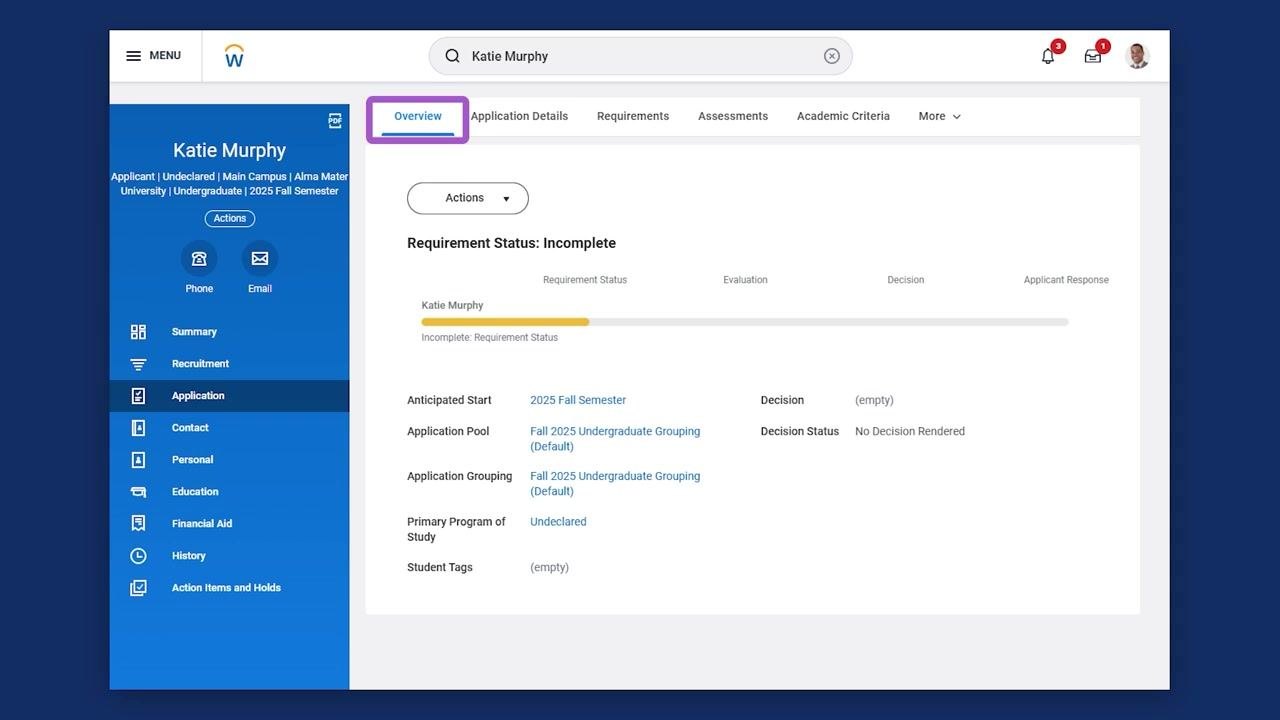
On the student's profile, select Application from the left navigation menu, then click the Overview tab at the top of the application profile to view its current status.
Check the application status
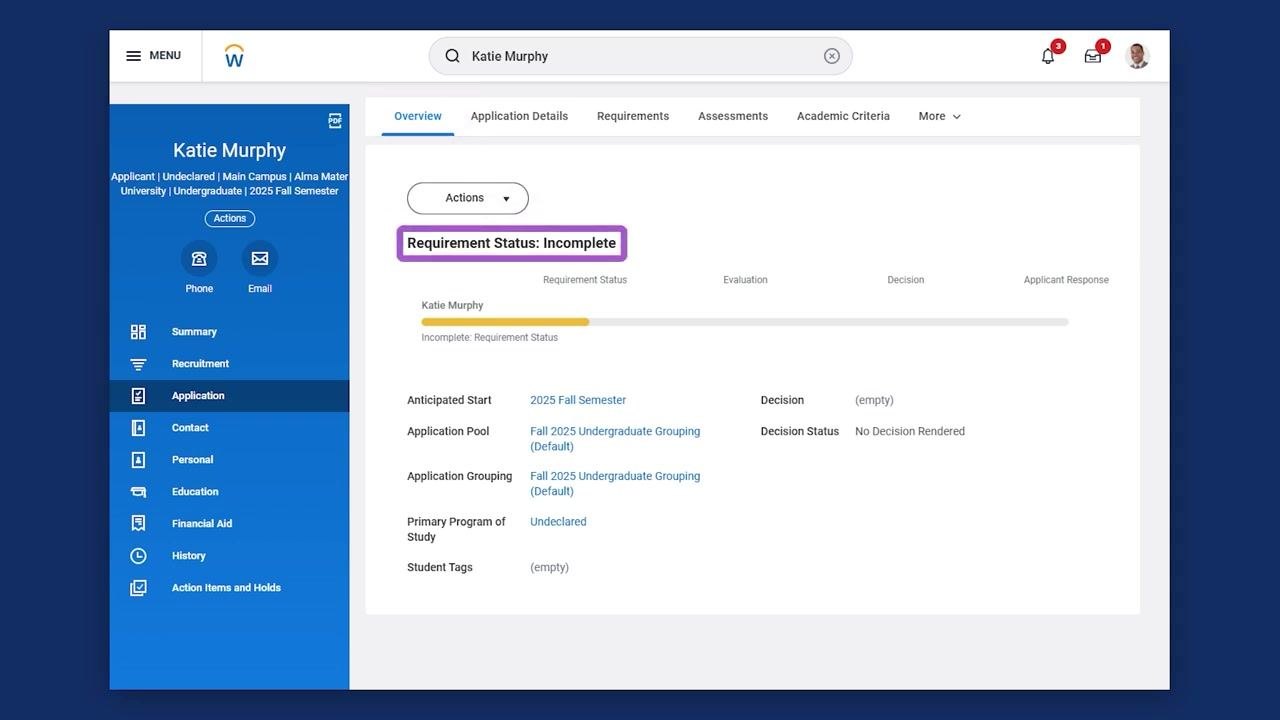
Review the Requirement Status shown at the top of the Overview tab. In this example, the status reads Incomplete, and the primary program of study is listed as Undeclared.
Review the reason for the incomplete status
Hover over the status bar and select the pencil icon to view the incomplete message. This message lists any outstanding application requirements. In this case, the student still needs to submit a writing sample.
Keep in mind that once you change the program of study, requirements that no longer apply will be waived, and any new requirements for the updated program will be added automatically.
Start the program of study change
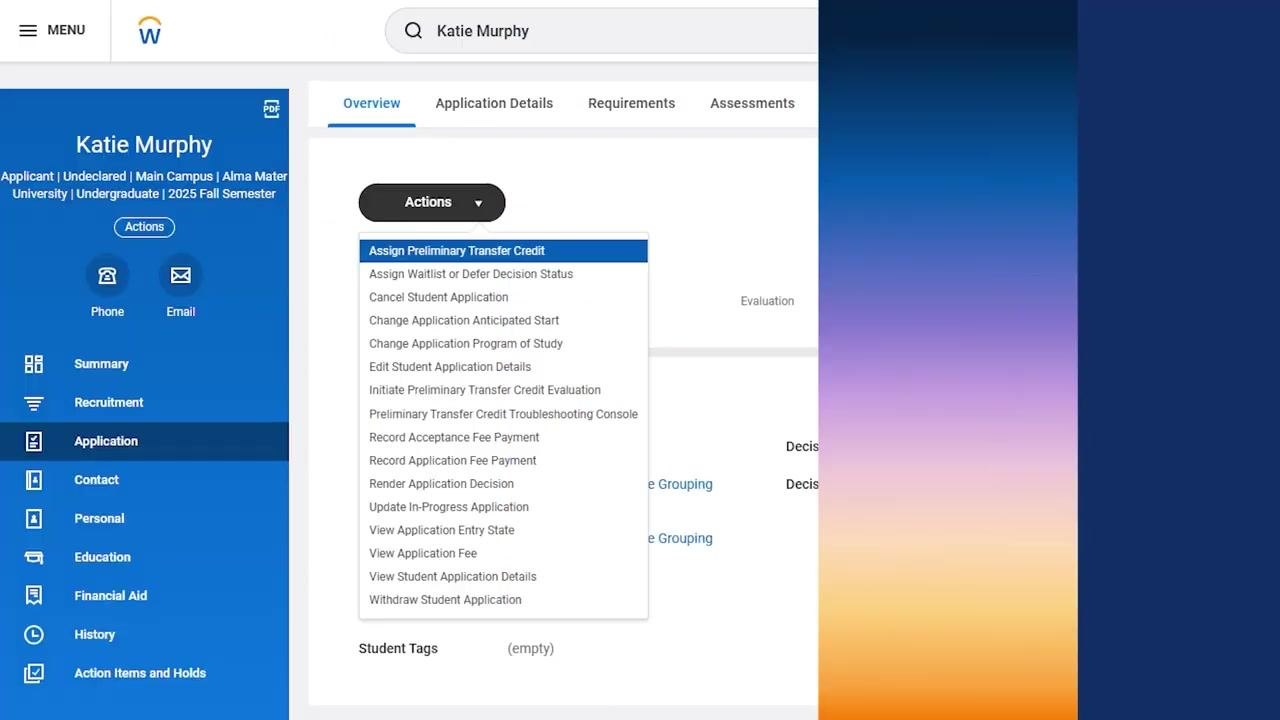
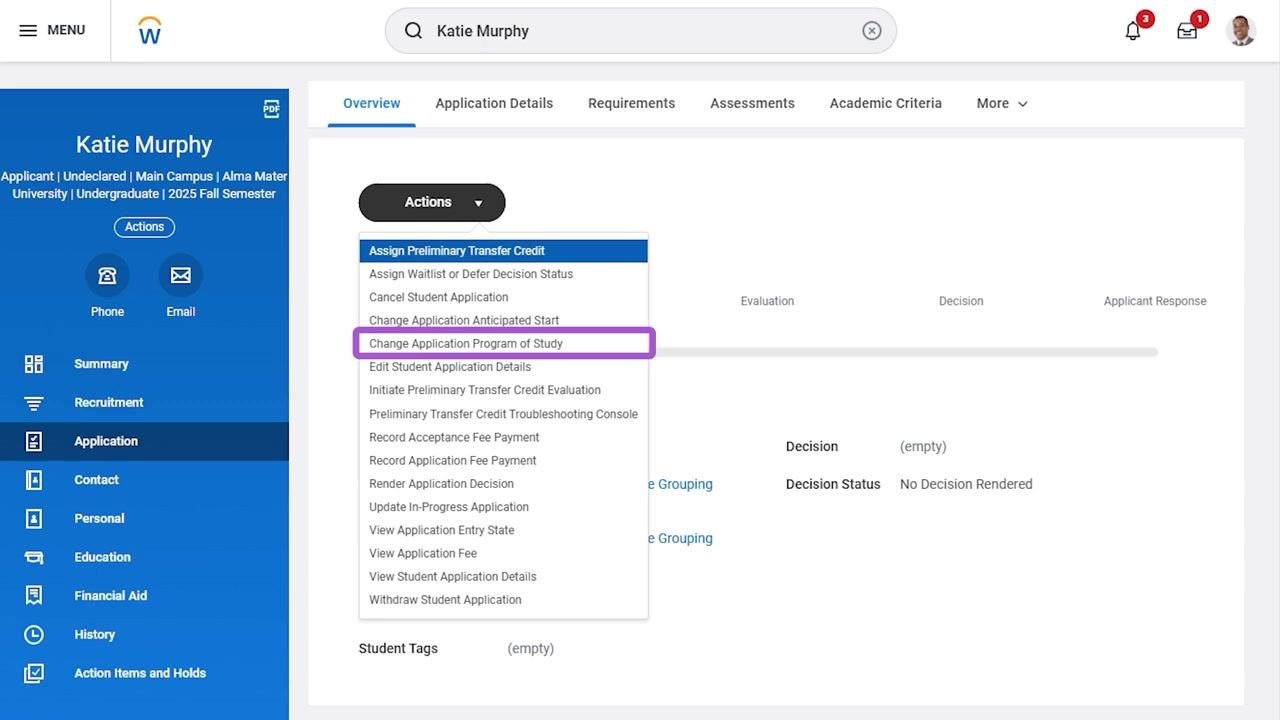
On the application profile, click the Actions button, then select Change Application Program of Study from the dropdown menu.
Confirm eligibility for the change
Before proceeding, confirm that the Decision Status shows No Decision Rendered. If a decision has already been made on the application, you won't be able to change the program of study.
Enter the new program of study
In the Change Application Program of Study dialog, review the student's current program, shown here as Undeclared. Then:
- In the New Program of Study field, select Business Administration Major.
- Enter a Program Focus if applicable, or leave the field blank if not required.
- Set the Date of Change to 11/15/2024.
- Click OK to submit the change.
Allow the change to route for approval
After you click OK, Workday routes the change through the appropriate business process for approval. No further action is needed on your part until the approval process is complete.
Summary
You've now reviewed a student's application status and successfully changed their program of study in Workday. The system automatically updates application requirements based on the new program and routes the change for approval tracking.
Generation details: cost, quality tiers
Docsie billed 1,500 credits ($1.05) to analyze this 3-minute video at standard quality. The rewrite, template fill and Word/PDF exports were included. The same video at each quality tier:
| Quality | Frames sampled | Credits | Approx. cost |
|---|---|---|---|
| Draft | every 16-30 s | 750 | $0.52 |
| Standard (this guide) | every 8-15 s | 1,500 | $1.05 |
| Detailed | every 4-7 s | 3,000 | $2.10 |
| Ultra | every 1-3 s | 6,000 | $4.20 |
Credits priced at $0.70 per 1,000; plans include a monthly allowance. Enterprise customers on on-premise or bring-your-own-model deployments run this on their own inference and pay no per-video credits.
Generated by Docsie Video-to-Docs on 2026-10-06 from a 2-minute video. Screenshots are frames from the source video and belong to their creator, Workday, whose original is embedded above. If you own this video and want the guide removed or credited differently, contact us and we will act within one business day.