
How to Approve Time in Workday
This guide walks you through how to approve time in Workday for your direct reports, from receiving a time entry request in your inbox to finalizing it for payroll. You'll also learn how to review time details, send an entry back for corrections, and locate approved time cards afterward.
Video: C1 Workday Approve Time by C1 Workday. All credit for the demonstration goes to the creator; watch the original on YouTube. The written guide below was generated from this video by Docsie. Creator? Request a change or removal.
This guide walks you through how to approve time in Workday for your direct reports, from receiving a time entry request in your inbox to finalizing it for payroll. You'll also learn how to review time details, send an entry back for corrections, and locate approved time cards afterward.
Prerequisites
- You must have manager access to a Workday inbox.
- A direct report must have already submitted their worked time for the week.
- You should know how to navigate to Time and Leave actions for an associate if revisions are needed.
Receive the approval request
Once a direct report submits their worked time, Workday automatically routes a time entry approval request to your inbox. No action is needed from you until this request arrives.
Access your Workday inbox
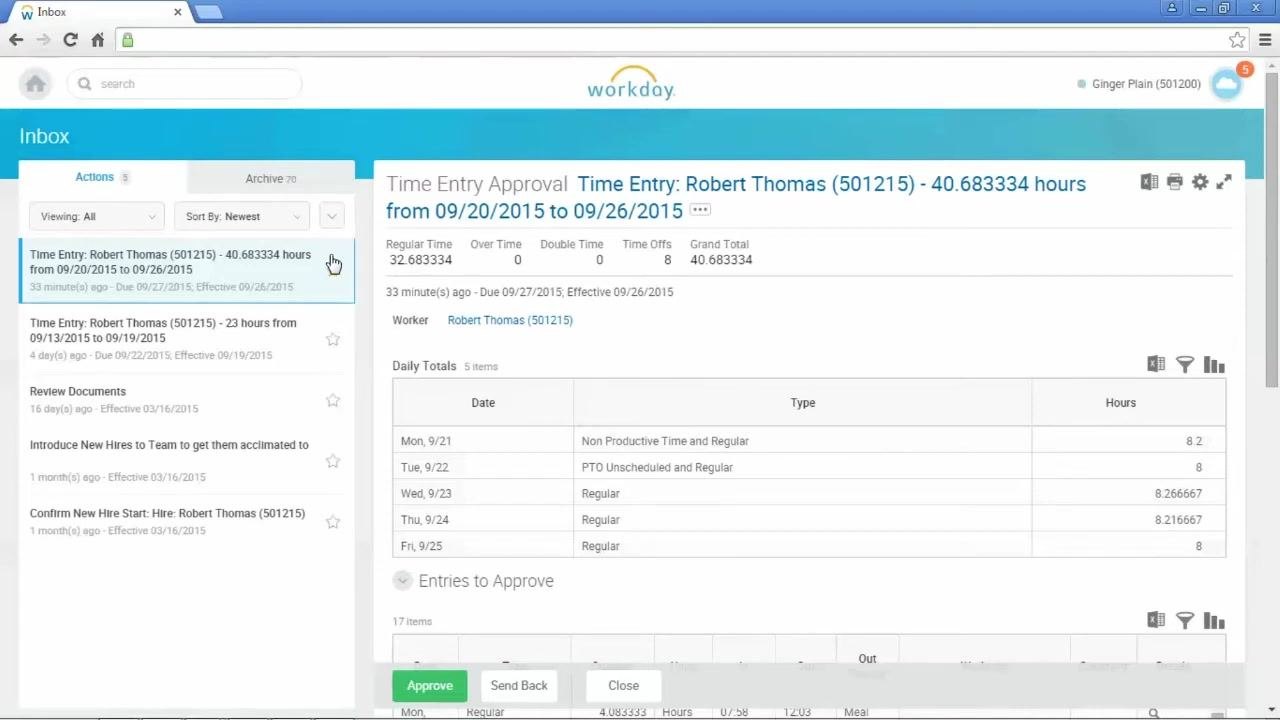
Click the Inbox icon on your Workday home screen. From the list of pending items, locate and select the relevant time entry request — for example, "Time Entry: Robert Thomas (501215) - 40.683334 hours from 09/20/2015 to 09/26/2015."
Review the time entry summary
At the top of the time entry message, check the summary totals: Regular Time, Over Time, Double Time, Time Offs, and Grand Total. Below the summary, review the Daily Totals table, which breaks down hours by date and type (for example, Regular, PTO Unscheduled, or Non Productive Time).
Understand the two time sections
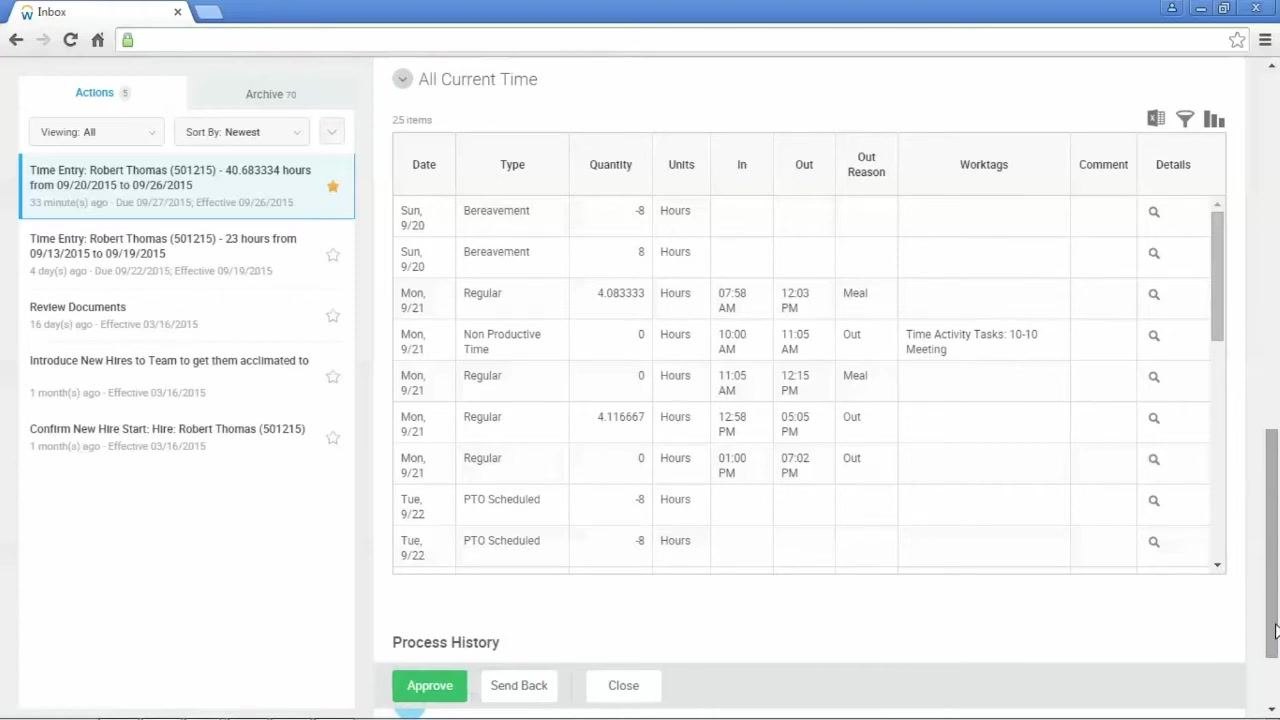
Each time entry request includes two sections:
- Entries to Approve — lists days and times that have not yet been approved.
- All Current Time — shows all time entered for the week, including both previously approved and pending entries.
If no time has been approved yet for the week, both sections display identical information.
View additional entry details
To inspect a specific time entry more closely, click the Related Actions button located next to the magnifying glass icon on that time block. In the pop-up window, open the History tab to see when the entry was created, modified, or approved, along with details such as worker, date, status, reported hours, clock-in and clock-out times, and any out reason (for example, "Meal").
Approve or revise the entry
If the time entry is accurate, click the Approve button at the bottom of the screen to finalize it.
If revisions are needed instead:
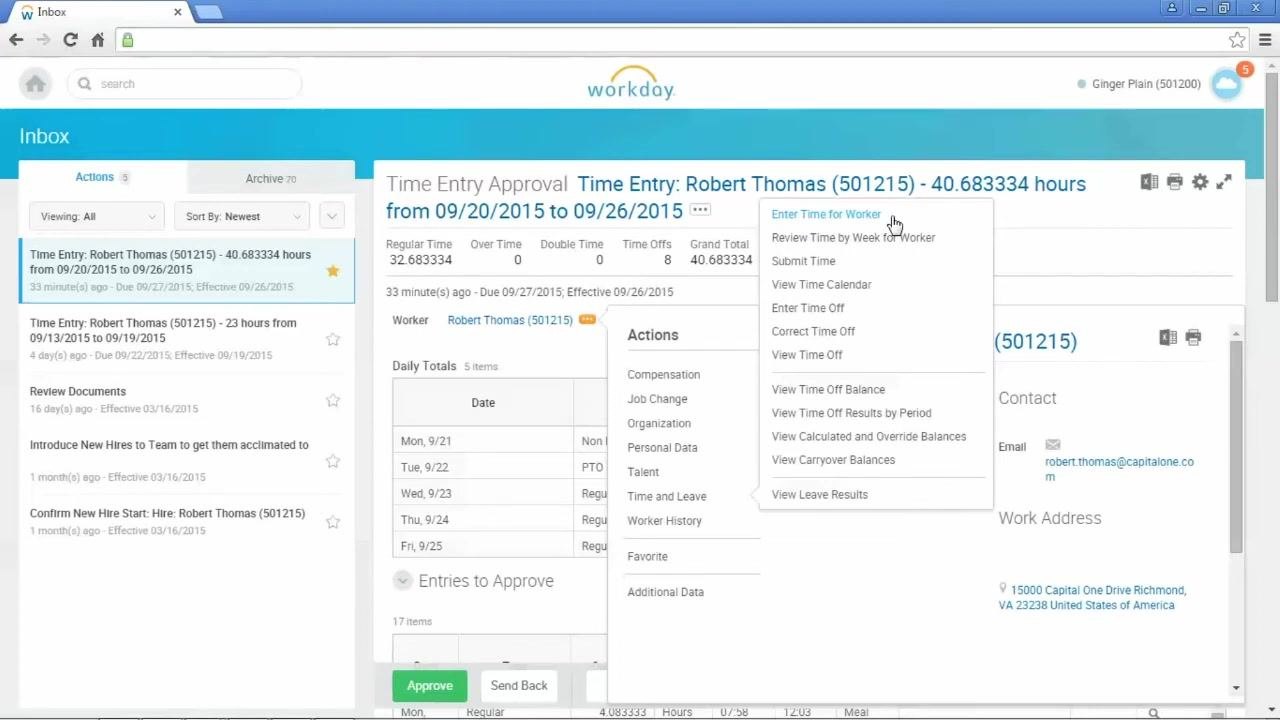
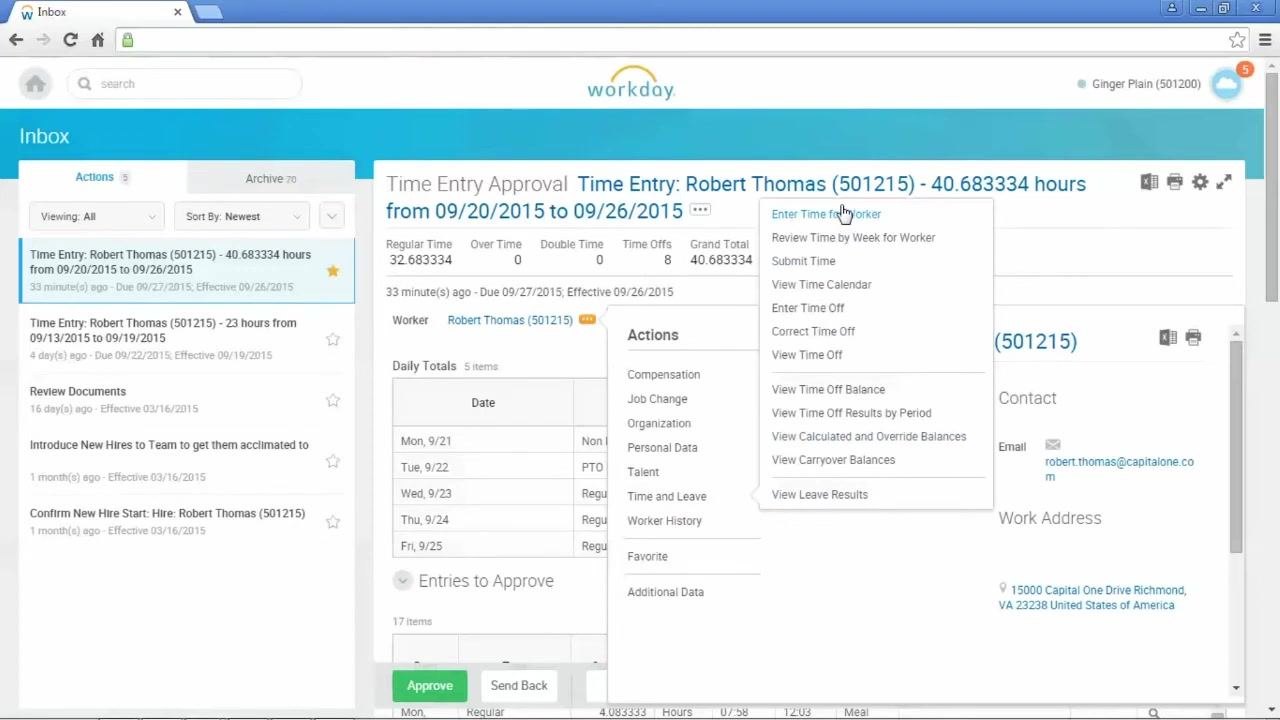
- Click the Related Actions button next to the associate's name.
- Navigate to Time and Leave > Enter Time for Worker.
- Make the necessary edits directly in the associate's time card and save your changes.
Submit the time card on behalf of the associate (if needed)
If it's the end of the work week and no further time will be added, you can submit the time card on behalf of your associate. This helps ensure timely processing and keeps the submission within payroll deadlines.
Send the entry back for edits (if necessary)
If the associate needs to make corrections, click the Send Back button at the bottom of the time entry approval screen. Before doing so, confirm the associate is available to receive and act on the changes, and communicate with them directly about what needs correcting. Use the Comments section to provide clear instructions on the required edits.
Approve the finalized time entry
Once the time entry is correct and complete, click the Approve button at the bottom of the screen. This finalizes the time card for payroll processing.
Understand inbox and archive behavior
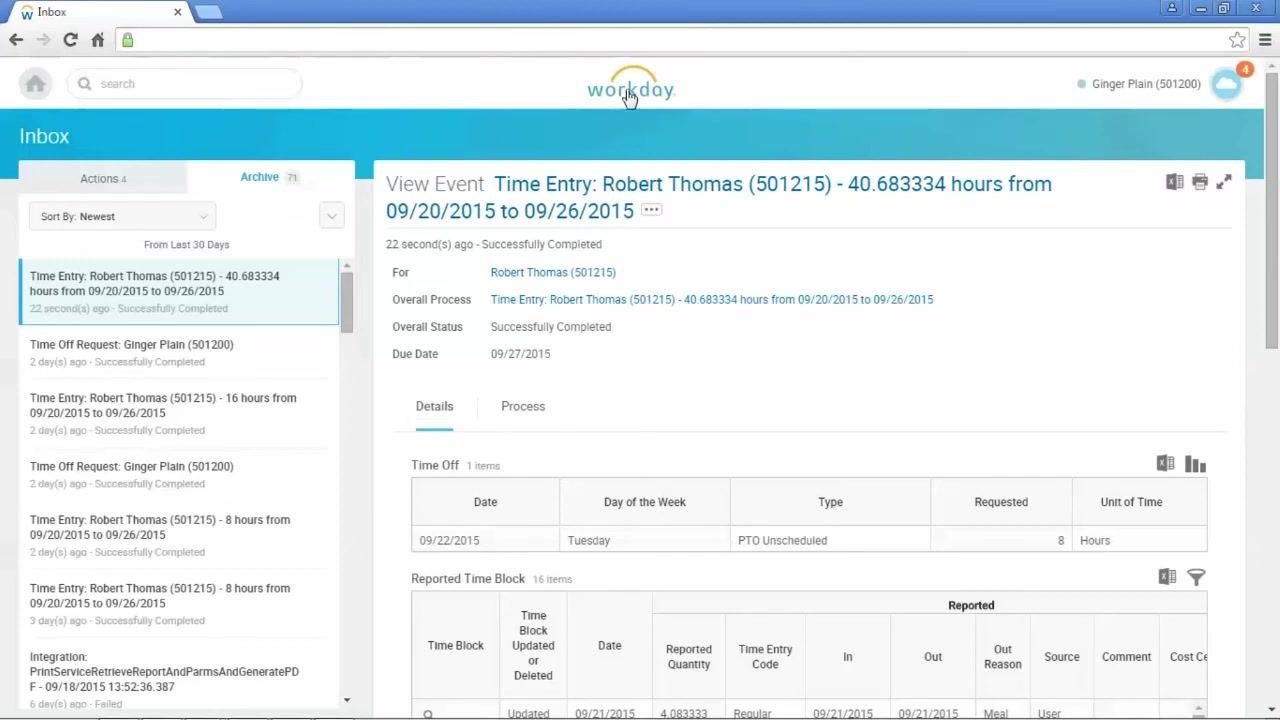
Inbox items remain in your Workday inbox until you take action by approving or sending them back. Once actioned, the item moves to the Archive tab of your inbox, where it stays available for 30 days before being automatically deleted.
Review approved time cards in the archive
To check the details of an approved time card, go to the Archive tab in your inbox and select the relevant entry. You'll see the approval status along with a detailed breakdown of reported time blocks and time off — for example, "Time Entry: Robert Thomas (501215) - 40.683334 hours from 09/20/2015 to 09/26/2015" will display as "Successfully Completed."
Compliance reminder
Managers are required to approve time cards every Monday by 10 a.m. Eastern Standard Time to ensure timely payroll processing.
What's next
Now that you know how to approve time in Workday, make it a habit to check your inbox regularly so time entries don't accumulate. If you ever need to confirm an approval after the fact, remember that archived entries remain accessible for 30 days before they're removed.
Generation details: cost, quality tiers
Docsie billed 1,500 credits ($1.05) to analyze this 3-minute video at standard quality. The rewrite, template fill and Word/PDF exports were included. The same video at each quality tier:
| Quality | Frames sampled | Credits | Approx. cost |
|---|---|---|---|
| Draft | every 16-30 s | 750 | $0.52 |
| Standard (this guide) | every 8-15 s | 1,500 | $1.05 |
| Detailed | every 4-7 s | 3,000 | $2.10 |
| Ultra | every 1-3 s | 6,000 | $4.20 |
Credits priced at $0.70 per 1,000; plans include a monthly allowance. Enterprise customers on on-premise or bring-your-own-model deployments run this on their own inference and pay no per-video credits.
Generated by Docsie Video-to-Docs on 2026-10-01 from a 2-minute video. Screenshots are frames from the source video and belong to their creator, C1 Workday, whose original is embedded above. If you own this video and want the guide removed or credited differently, contact us and we will act within one business day.