
How to Apply for an Internal Job in Workday
This guide shows you how to apply for an internal job in Workday, from browsing open positions through submitting and tracking your application. It also covers the external candidate experience and walks through a complete application example, so you understand the full process whether you're applying as a current employee or as an external candidate.
Video: How Candidates Apply for Jobs | Workday Recruiting by Workday. All credit for the demonstration goes to the creator; watch the original on YouTube. The written guide below was generated from this video by Docsie. Creator? Request a change or removal.
This guide shows you how to apply for an internal job in Workday, from browsing open positions through submitting and tracking your application. It also covers the external candidate experience and walks through a complete application example, so you understand the full process whether you're applying as a current employee or as an external candidate.
Prerequisites
- An active Workday account as a current employee or contingent worker (for internal applications), or a candidate account on your organization's external careers site (for external applications).
- Your professional profile information or an up-to-date resume ready to upload.
- The job title or keywords for the position you want to find.
Accessing internal job postings
Step 1: Access the Jobs Hub
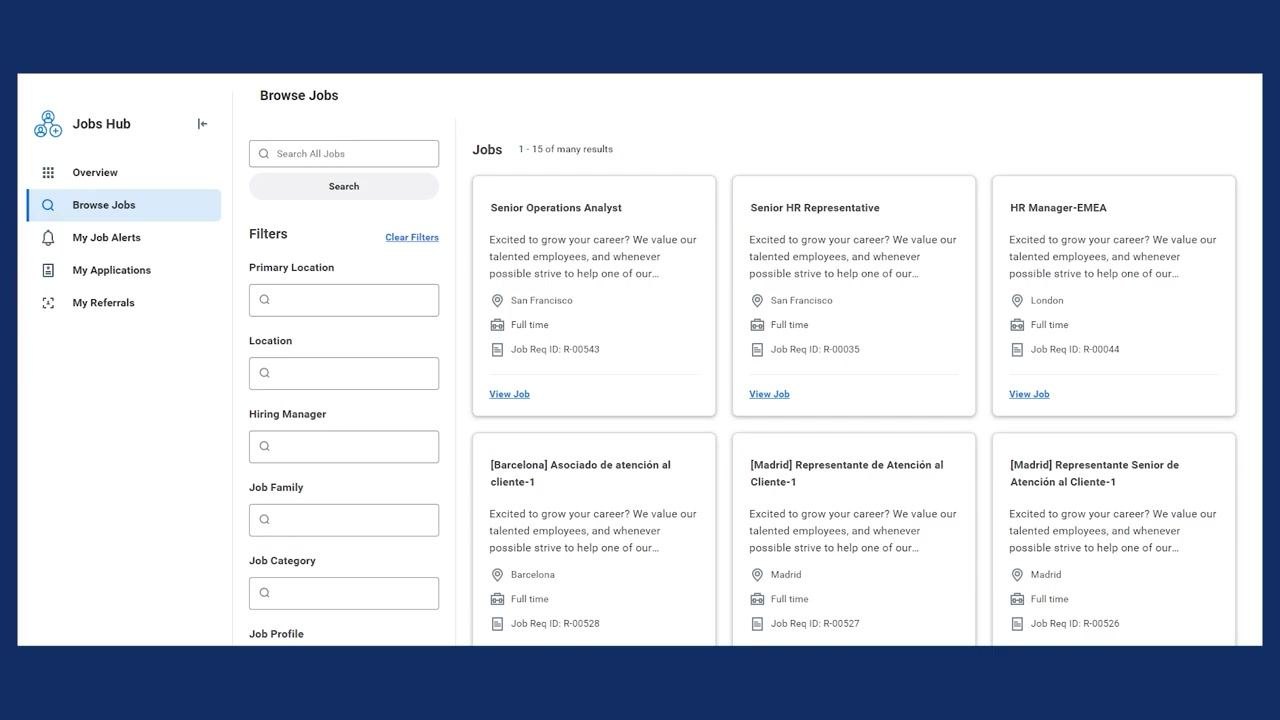
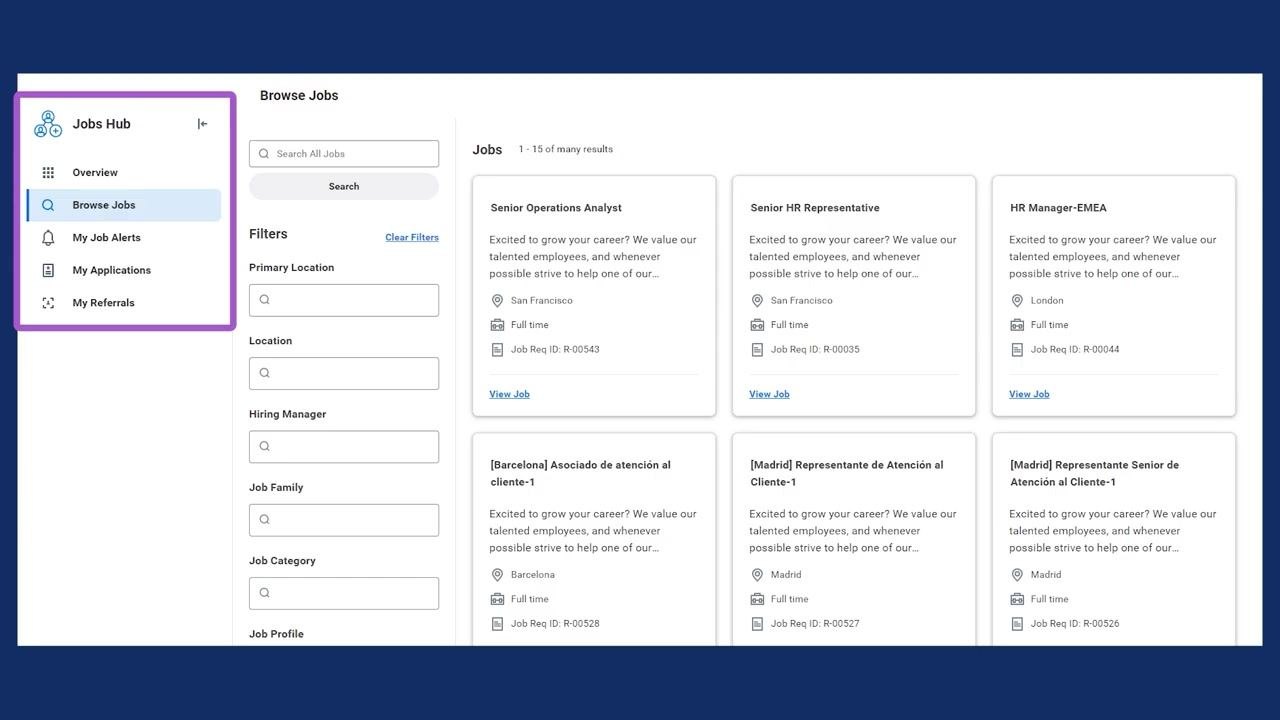
Log in to Workday and navigate to the Jobs Hub application. From the navigation pane on the left, select Browse Jobs to view available internal job postings. The navigation pane also gives you access to additional tasks and reports, including Overview, Browse Jobs, My Job Alerts, My Applications, and My Referrals.
Step 2: Filter and search for jobs
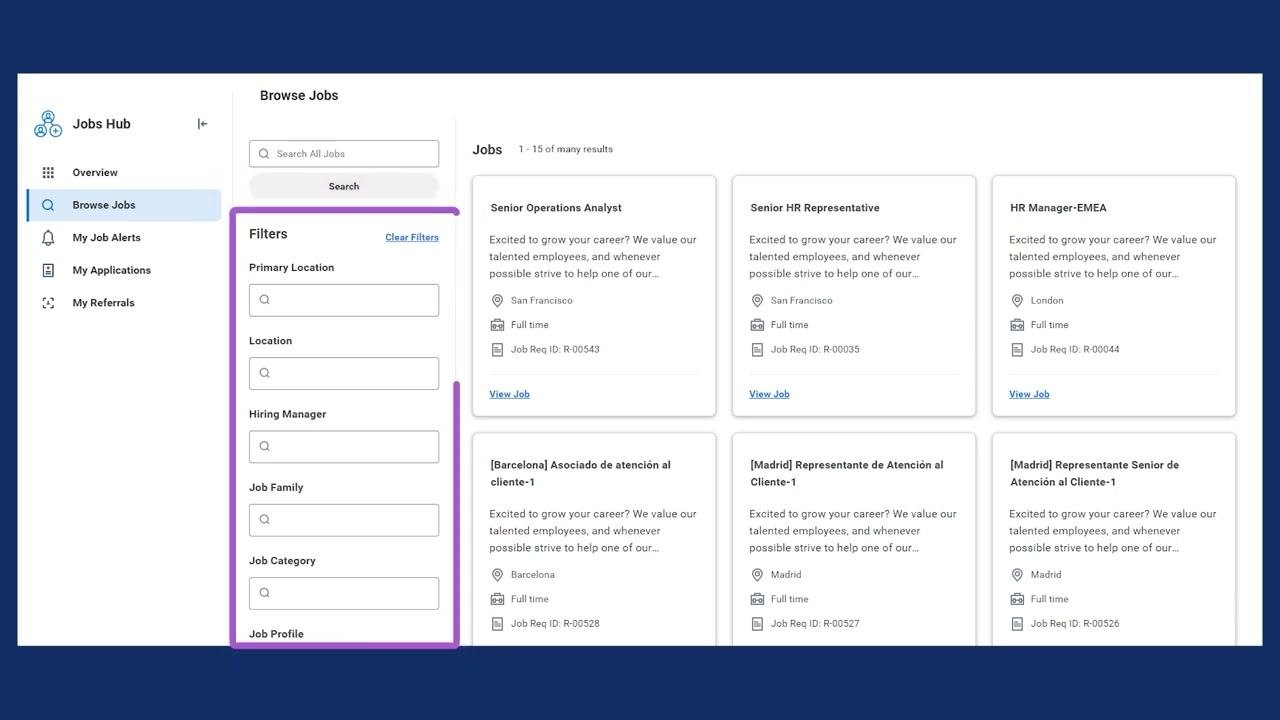
Use the search bar to look for specific job titles or keywords. You can also apply filters to narrow down job postings by Primary Location, Location, Hiring Manager, Job Family, Job Category, and Job Profile.
Step 3: View job posting details
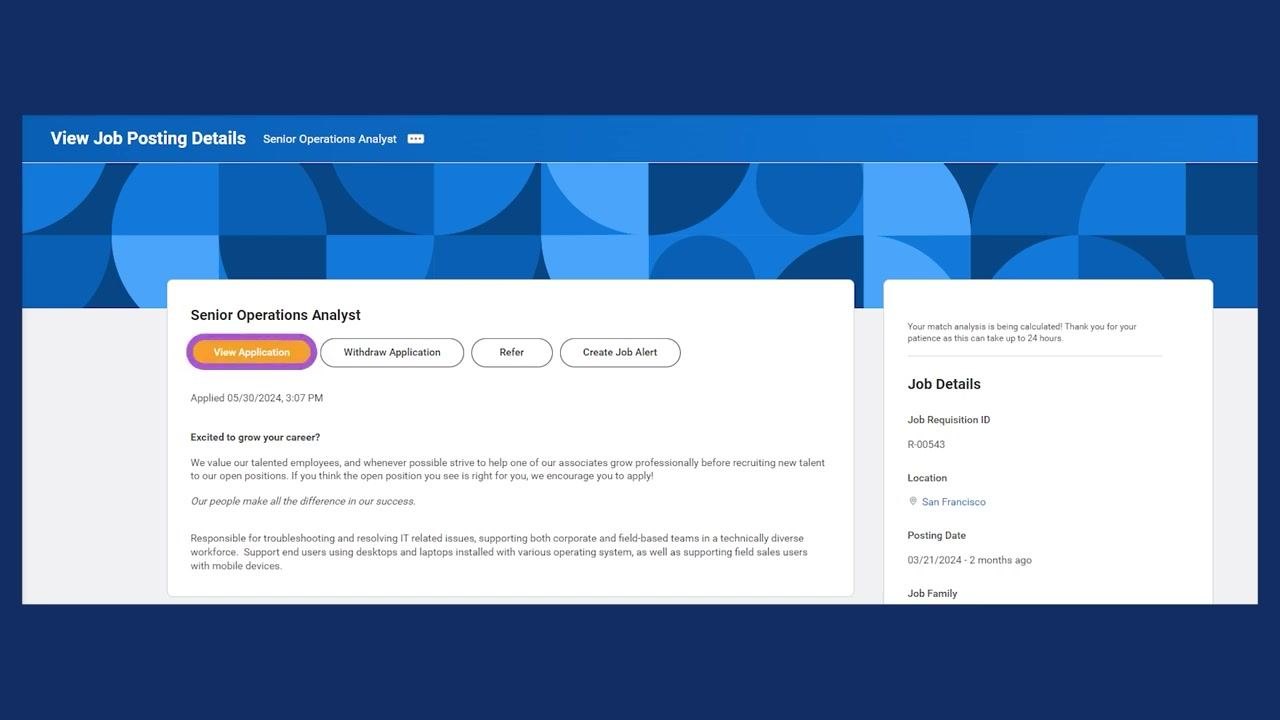
Click on a job posting card, such as "Senior Operations Analyst," to view detailed information. The Job Posting Details page displays the job title and description, options to Apply, Refer, or Create Job Alert, and job details such as Job Requisition ID, Location, Posting Date, Job Family, Time Type, and Job Type.
Step 4: Apply for an internal job
Apply for a posted job using your professional profile information or by uploading a resume. Depending on the business process, you may need to answer pre-screening questions. Once you've applied, the Apply button no longer appears for that posting, and you'll see View Application and Withdraw Application options instead — you can only apply once per job posting.
Managing your application
Step 5: Manage your application after submission
After submitting an application, check its status by selecting View Application on the job posting details page. If you need to withdraw, click Withdraw Application. You can also use Refer to send the job to someone else, or Create Job Alert to get notified about similar jobs. The application timestamp and job details, including Job Requisition ID, Location, and Posting Date, appear on the right side of the page.
Step 6: Monitor application status and tasks
Monitor the status of your job applications using the My Applications report, accessible from the Jobs Hub or the Career Worklet. You can also view pending and completed tasks related to your applications in the My Tasks section of Workday.
Step 7: Indicate job interests in your worker profile
From your Workday profile, navigate to the Career section. Add or update your Job Profiles to indicate your job interests, for example "Accounting Specialist - AP" or "Payroll Coordinator." Specify your Skill Interests, such as "Critical Thinking" or "Writing," and indicate your willingness to travel and relocate under the Travel and Relocation sections. Click Edit at the bottom of the page to make changes.
Step 8: How recruiters use job interests
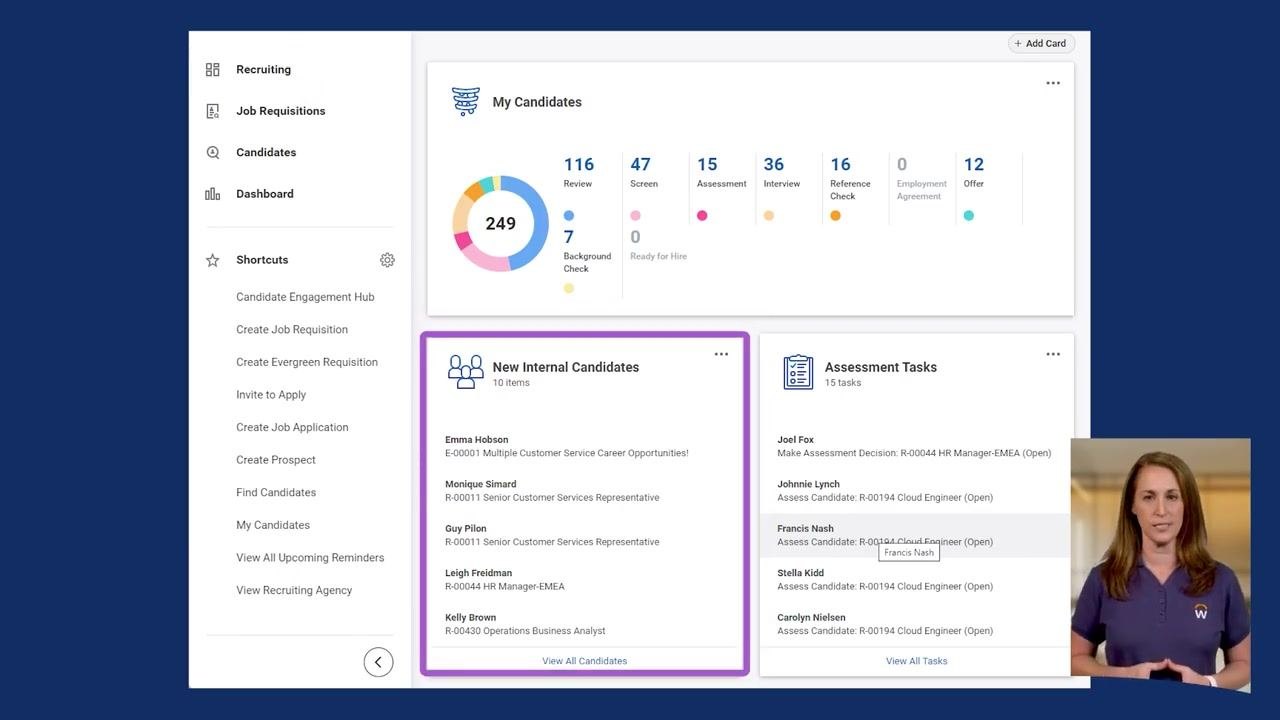
Recruiters can view internal applicants who have indicated interest in specific jobs by accessing the Recruiting dashboard. From the navigation pane, select the Recruiting icon to view submitted applications, then review the New Internal Candidates section to see employees who have expressed interest in open positions.
The external candidate experience
Step 9: Find job postings as an external candidate
External candidates can find your organization's job postings through various channels, on both desktop and mobile devices, by accessing the external career site. Use the search bar to enter job titles or keywords, and review the list of available jobs, including job title, location, posting date, and requisition ID.
Step 10: Apply filters to refine your search
Apply filters such as Distance or Location, Time Type, Organization, and more to narrow down job results and refine your search further.
Step 11: Select a language and start an application
Depending on the external career site's functionality, select your preferred language for the job application form using a language dropdown, typically at the top right. Then begin the application process by selecting a job and starting the application wizard.
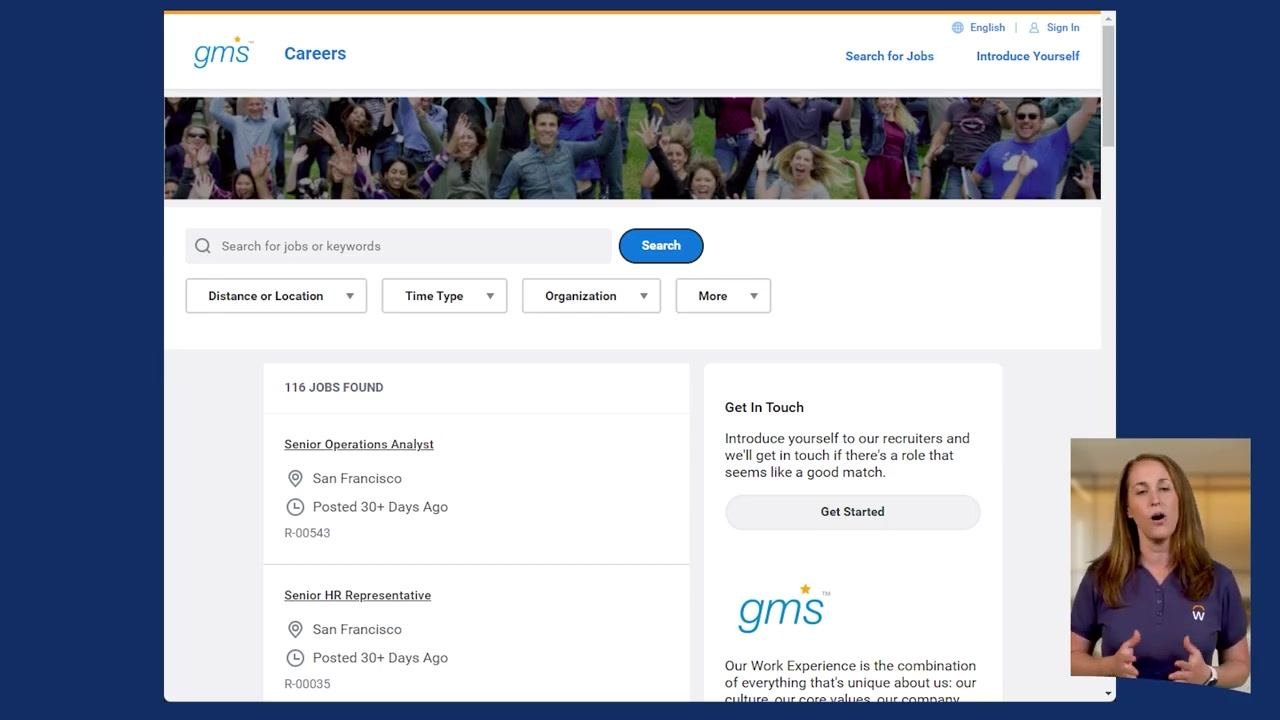
Step 12: Navigate the application wizard
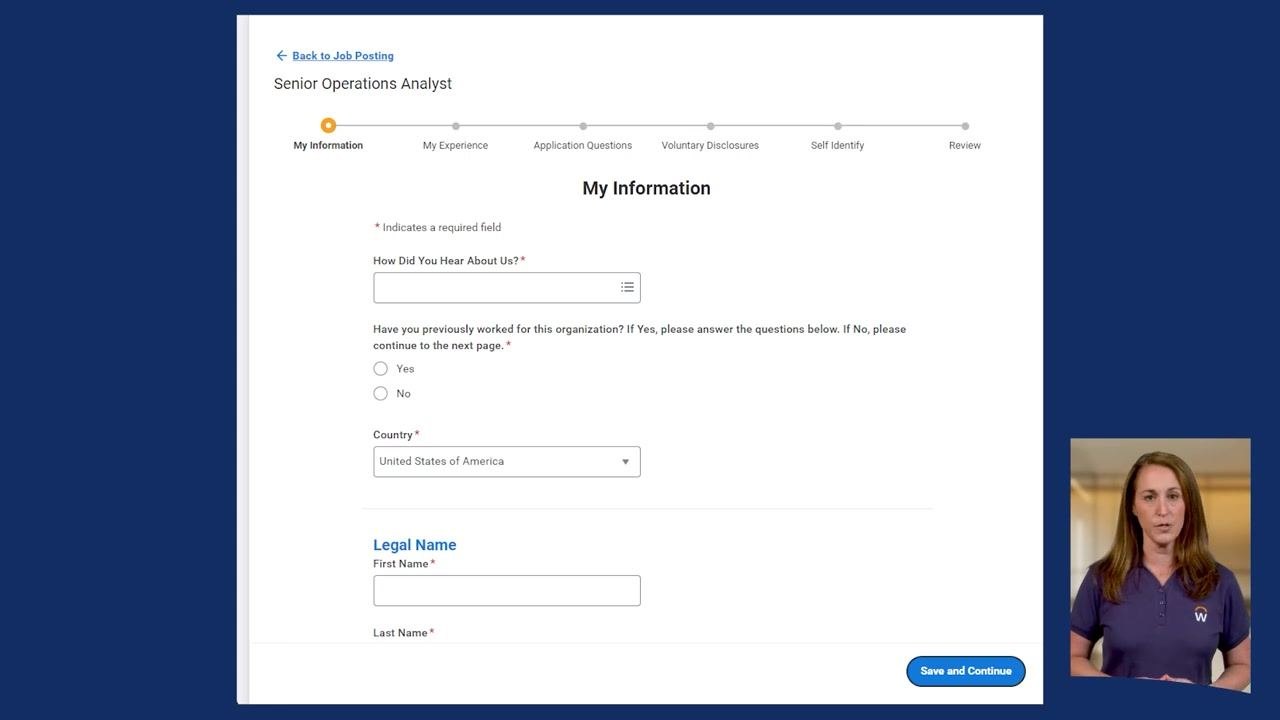
Complete each step of the application wizard, which typically includes My Information, My Experience, Application Questions, Voluntary Disclosures, Self Identify, and Review. Progress through each section as guided to ensure all required information is submitted.
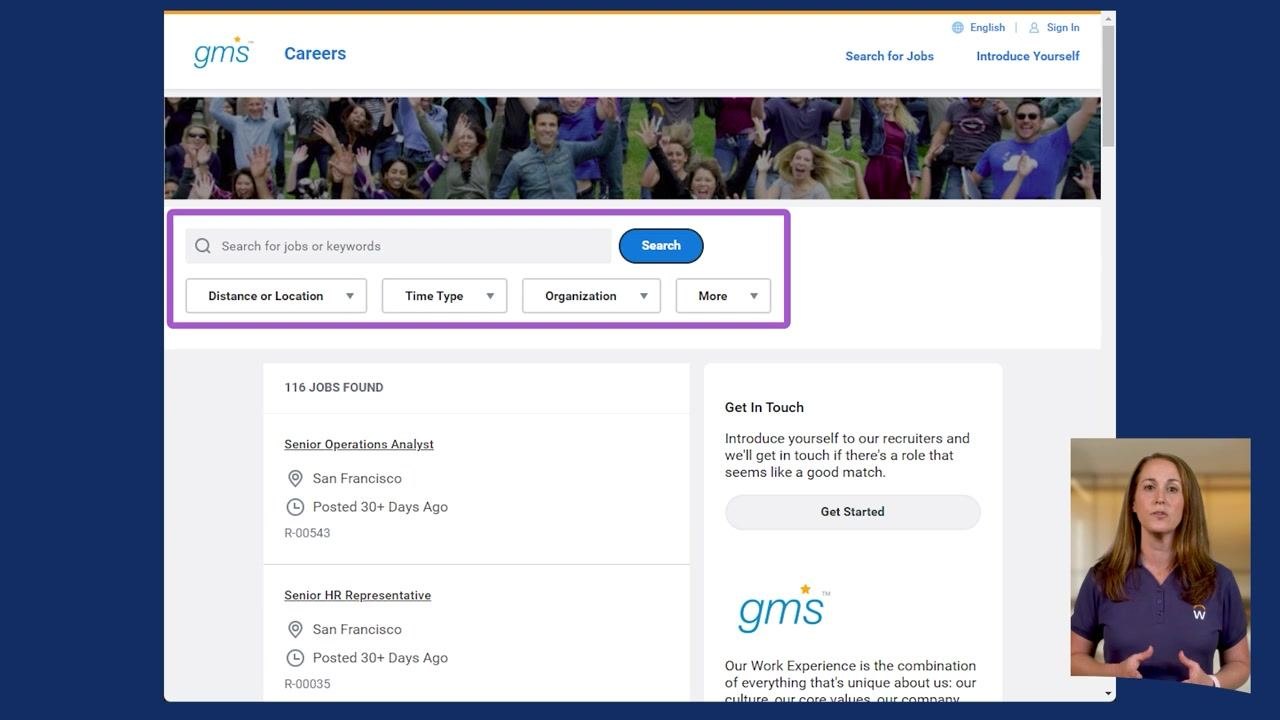
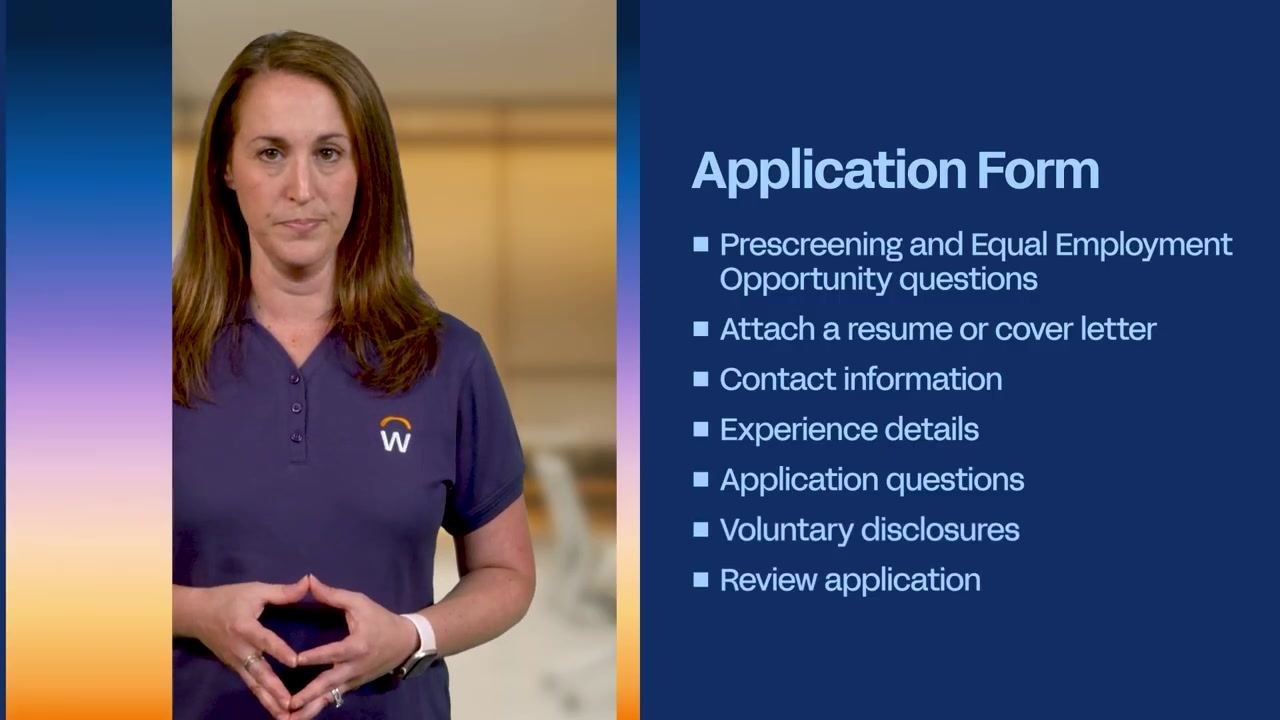
Completing an external application
Step 13: Review the application form components
The job application form typically includes pre-screening and Equal Employment Opportunity (EEO) questions, an option to attach a resume or cover letter, contact information fields, experience details, application-specific questions, voluntary disclosures, and a final review section. These components may vary based on your organization's business needs.
Step 14: Choose how you apply
Workday offers four primary ways to apply for a job:
-
Apply Manually — Enter your personal details and qualifications for each job, completing required fields such as "How Did You Hear About Us?", previous employment with the organization, country, and legal name, then click Save and Continue to proceed through each section.
-
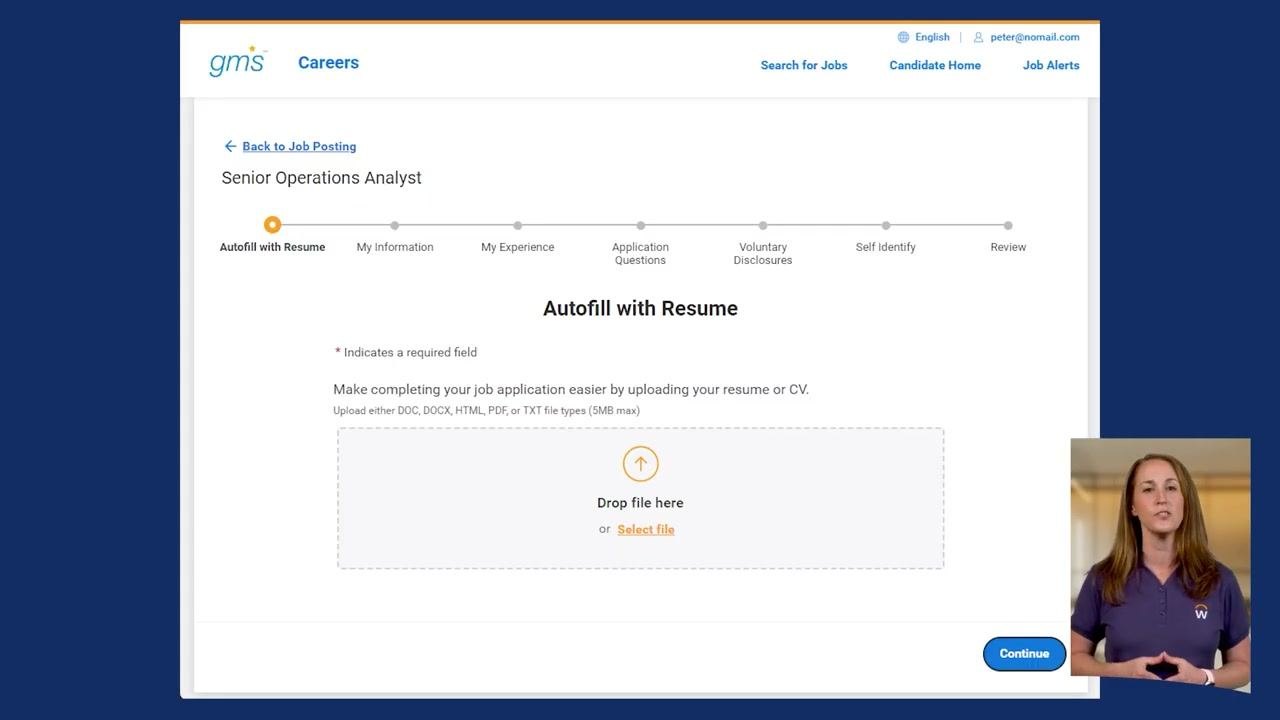
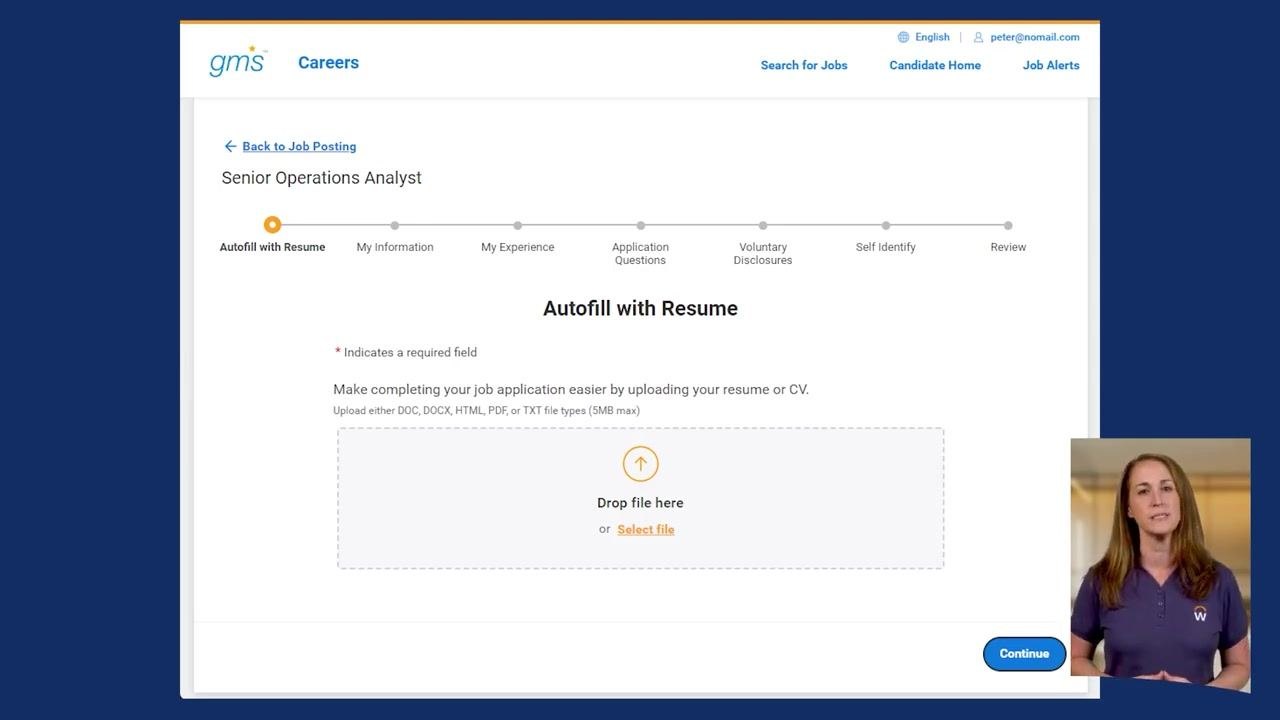
Autofill with Resume — Upload your resume or CV (supported file types: DOC, DOCX, HTML, PDF, TXT; maximum size 5MB). The system parses your resume and pre-fills relevant fields; click Continue to review and confirm the parsed information.
-
Apply with LinkedIn — Select Apply With LinkedIn on the job posting so your LinkedIn profile data transfers automatically to your Workday job application. Workday suggests relevant skills based on your profile, which you can keep or remove.
-
Use My Last Application or Apply with SEEK — If available, select Use My Last Application to reuse information from a previous application, or use Apply with SEEK if your organization supports this job board integration.
Step 15: Candidate Skills Cloud scoring (if enabled)
If your organization has enabled the Candidate Skills Cloud feature, Workday analyzes your application and resume to score your candidate profile, giving recruiters detailed insights to better understand your fit for the role.
Walking through a full application example
Workday evaluates how well a candidate's skills align to a job requisition by analyzing the candidate's profile against the job's requirements, helping both recruiters and candidates identify the best fit for open positions. Workday also suggests jobs based on a candidate's experience and the jobs they have previously applied to, so candidates receive personalized job recommendations.

Step 16: Access your Candidate Home account
Log in to your Candidate Home account on the company's careers portal to start new applications, track progress, and receive notifications. When starting a new application, you'll see options such as Autofill with Resume, Apply Manually, Use My Last Application, and Apply with SEEK.
Step 17: Track applications from the Candidate Home dashboard
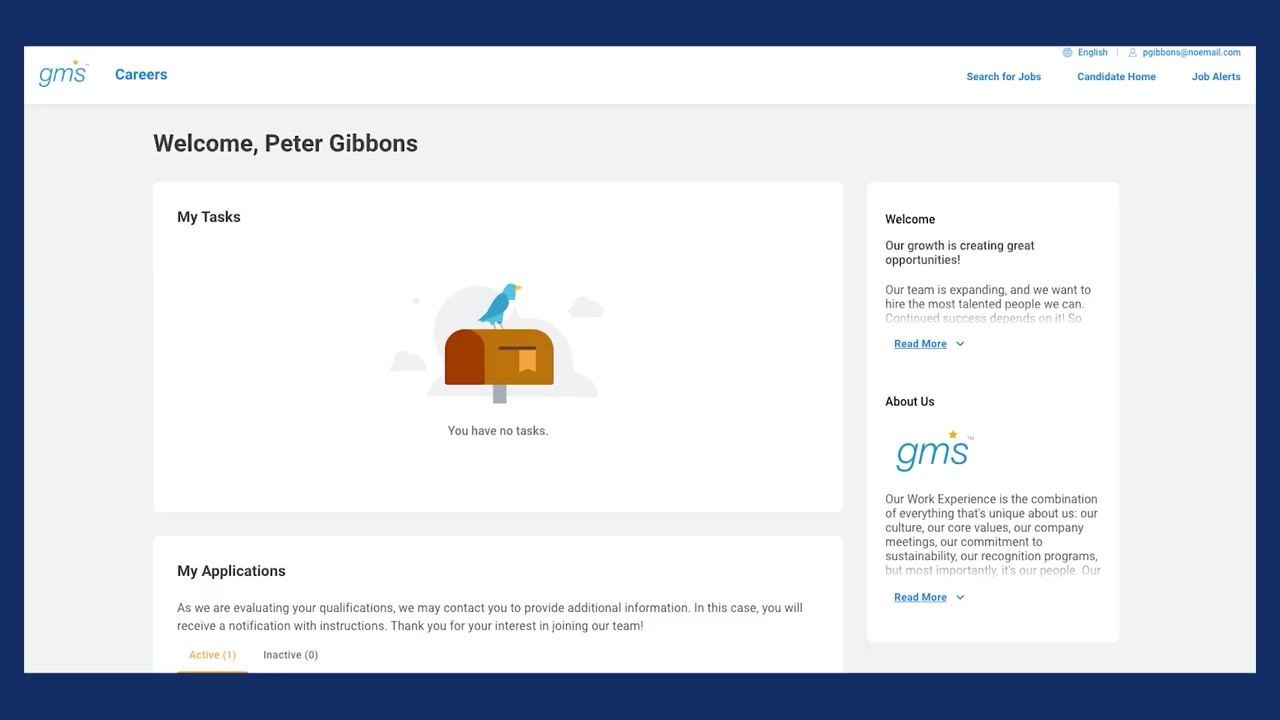
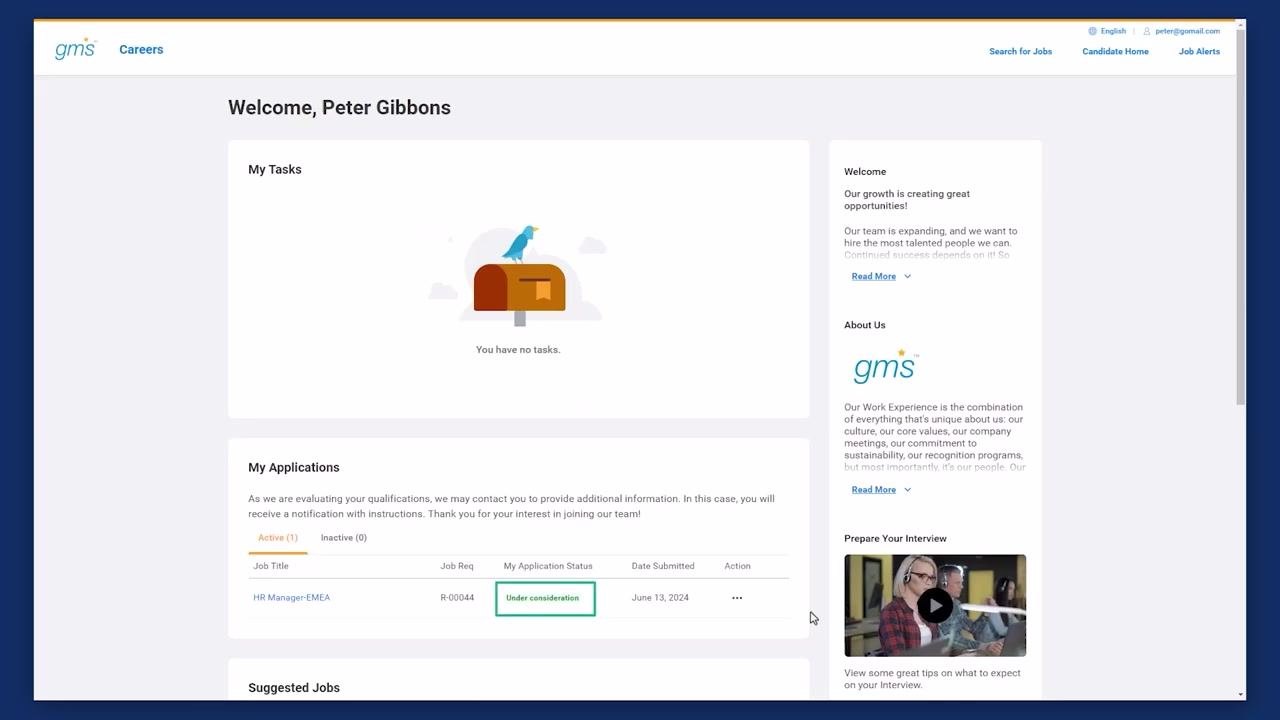
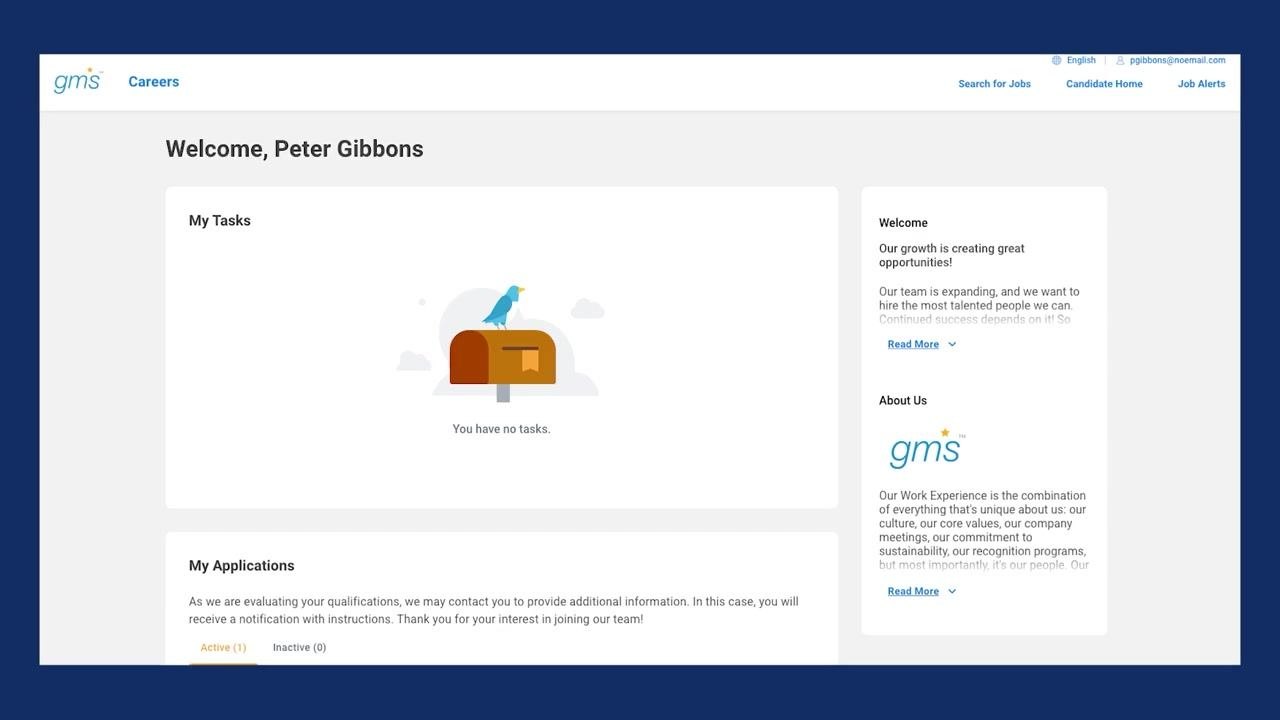
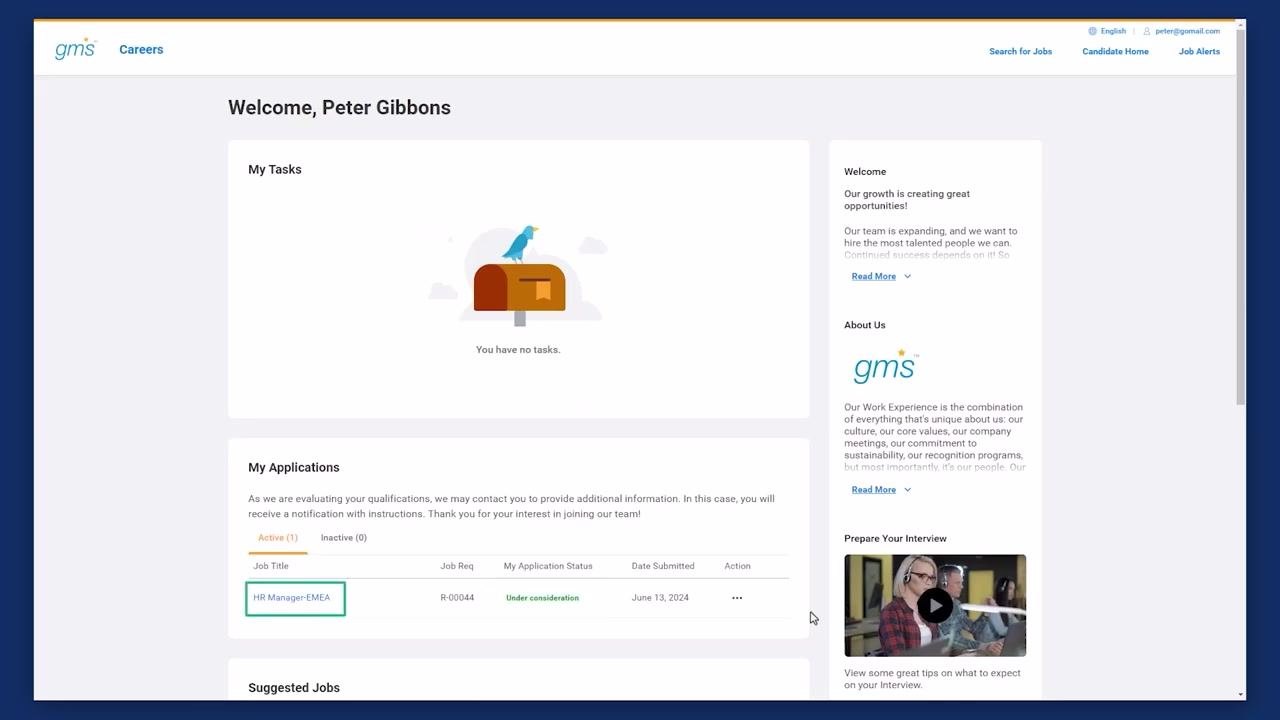
The Candidate Home dashboard displays a welcome message with your name. The My Tasks section shows any outstanding actions required, and the My Applications section lists your active and inactive applications with status updates. Additional information about the company and opportunities appears in the sidebar.
Step 18: Search for a job on the careers portal
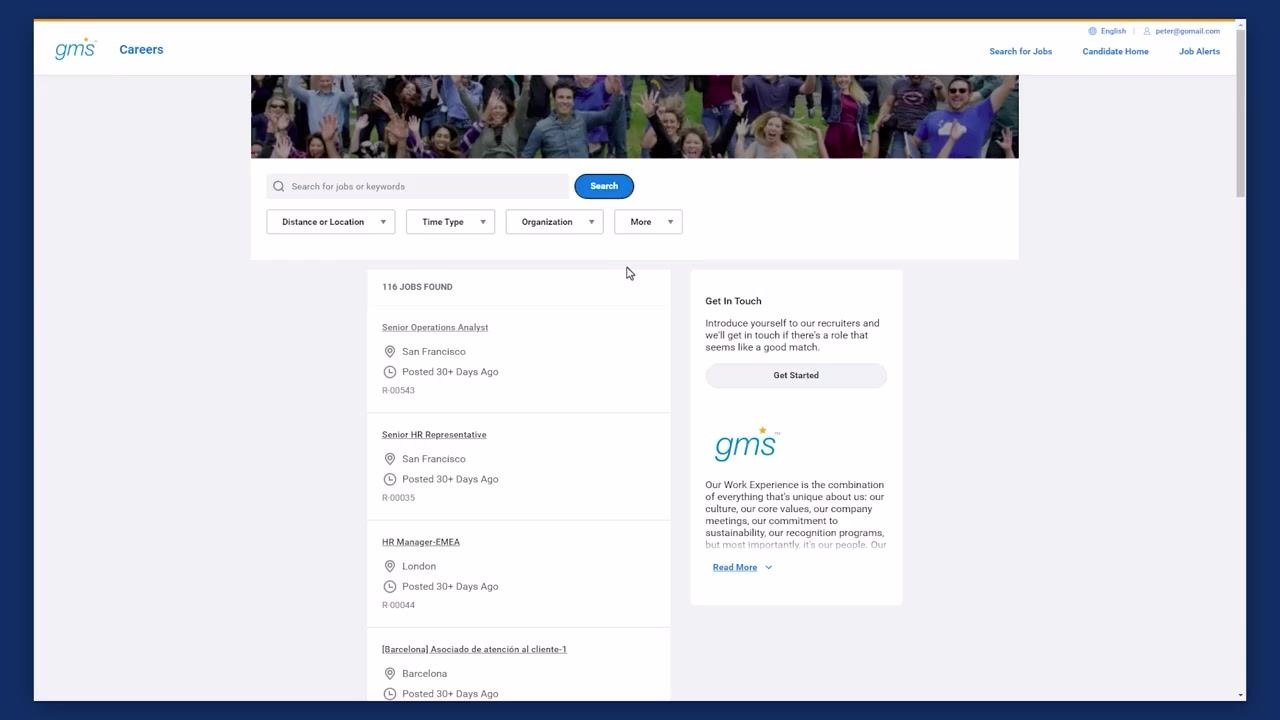
Sign in to your Candidate Home account and use the job search or browse the job listings. You can use search facets such as Distance or Location, Time Type, Organization, or other filters to narrow down results.
Step 19: Locate and select the job posting
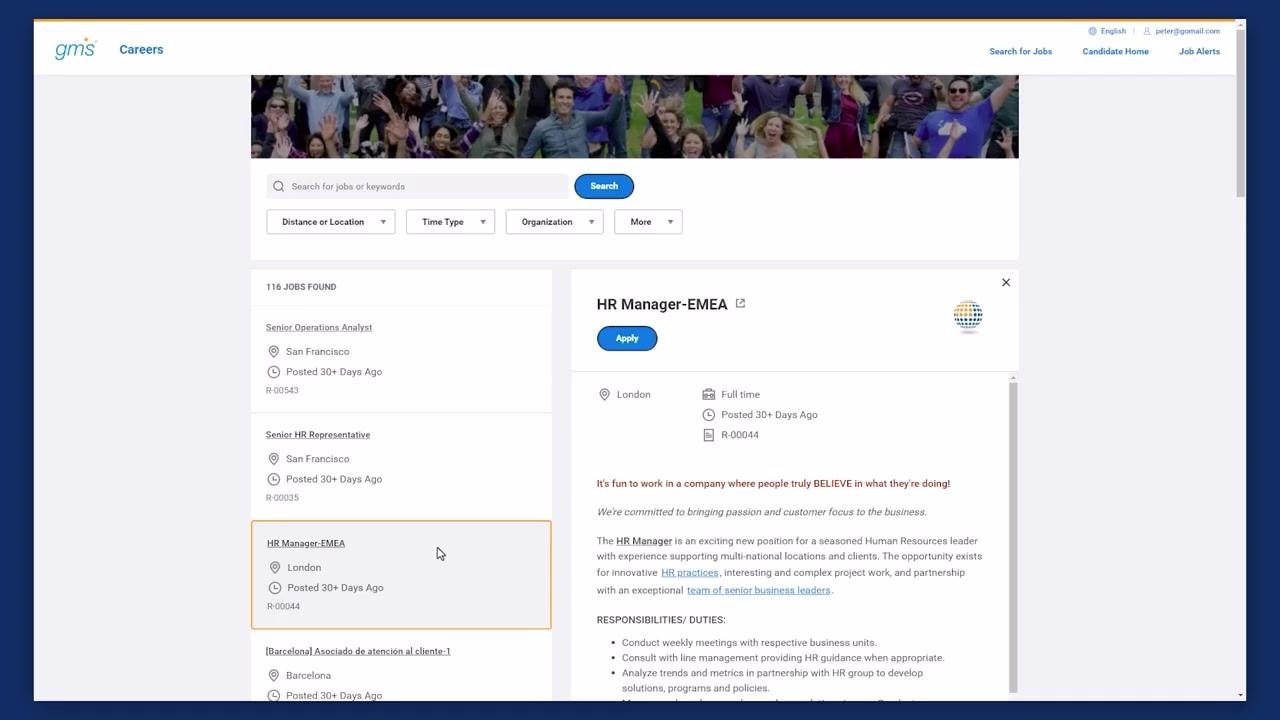
In the job search results, identify the posting you want to apply for, for example "HR Manager-EMEA" in London, posted more than 30 days ago under job code R-00044.
Step 20: View job details and start your application
Click the job title to open the job description and review details such as location, time type, posting date, and responsibilities. Click the blue Apply button to begin your application.
Step 21: Choose apply manually
After clicking Apply, select Apply Manually to proceed with a manual application.
Step 22: Complete the My Information section
Enter how you heard about the organization in the "How Did You Hear About Us?" field, indicate whether you have previously worked for the organization, select your country from the dropdown, and enter your legal first and last name. Click Save and Continue to proceed.
Step 23: Complete the My Experience section
Add your work experience, education, certifications, and languages spoken, read, or written, including proficiency levels, by clicking Add for each category. Click Save and Continue to move to the next section.
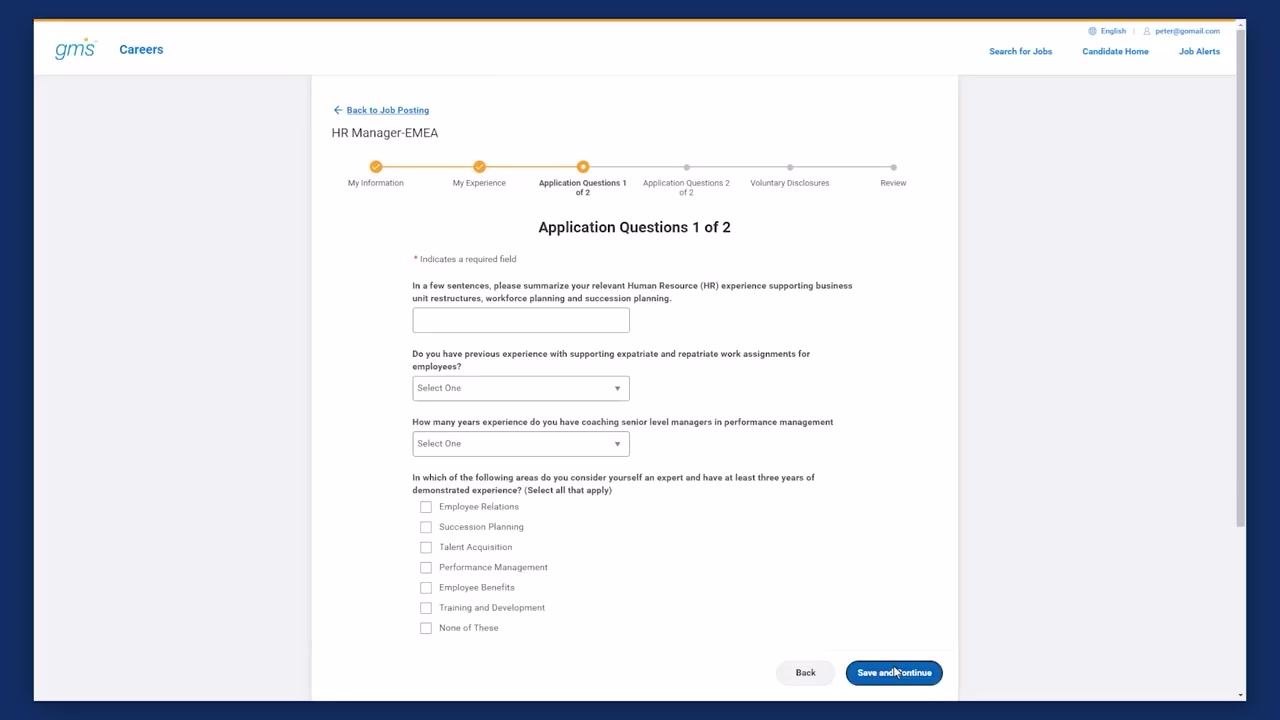
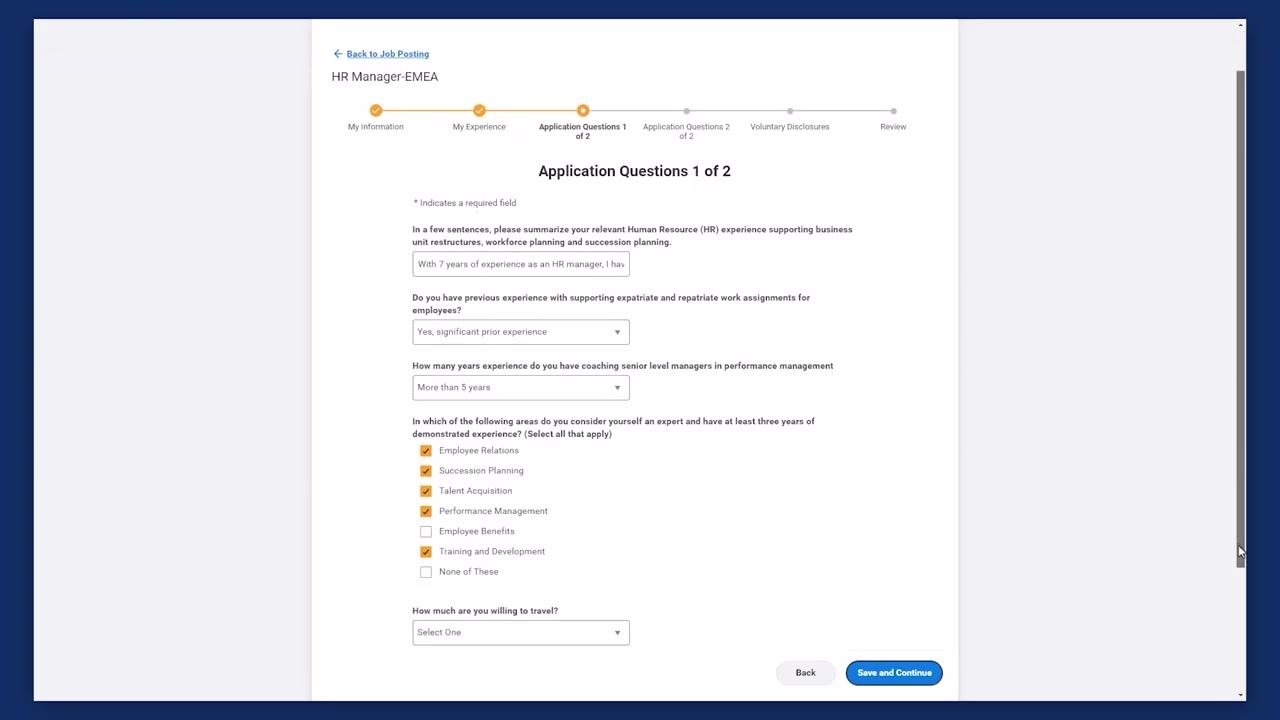
Step 24: Answer application questions (page 1 of 2)
Summarize your relevant experience in the text box provided, indicate your previous experience with expatriate and repatriate assignments, specify how many years of experience you have coaching senior managers in performance management, select the areas in which you have at least three years of expertise, and indicate your willingness to travel.
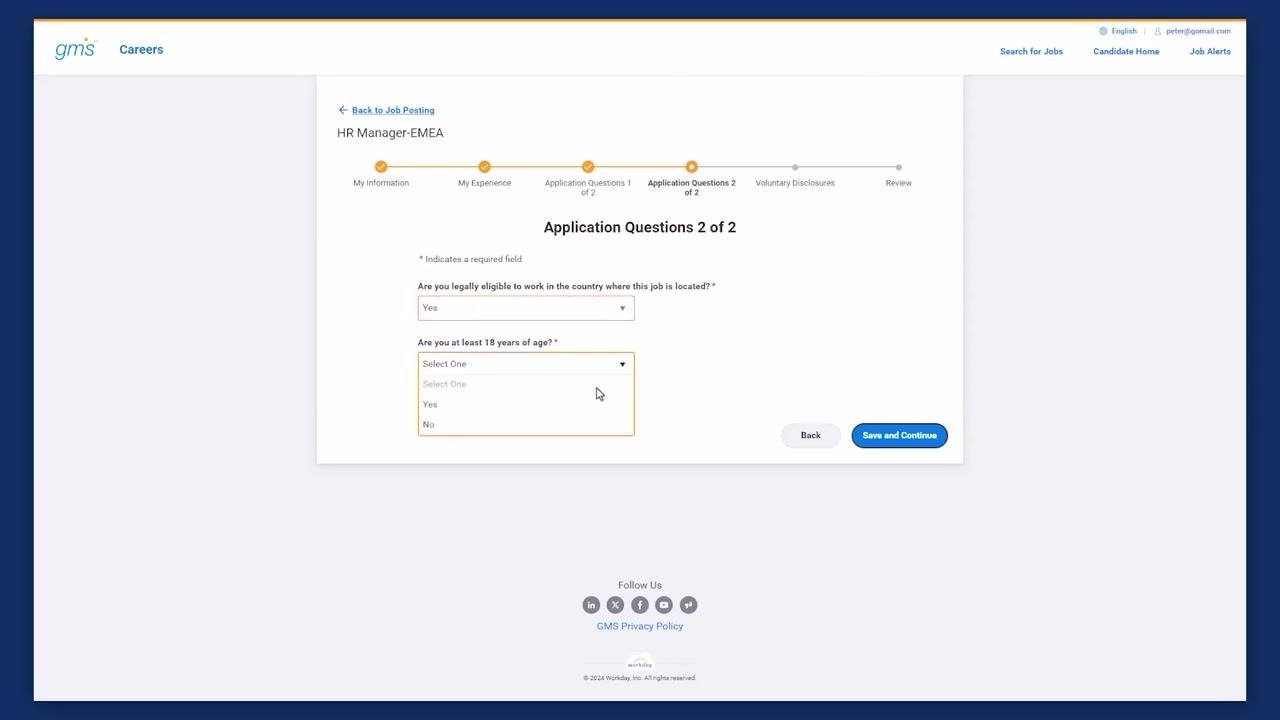
Step 25: Answer application questions (page 2 of 2)
Answer whether you are legally eligible to work in the country where the job is located, and whether you are at least 18 years of age, by selecting "Yes" from each dropdown menu. Click Save and Continue to proceed.
Step 26: Accept voluntary disclosures and terms
Review the Terms and Conditions under the Voluntary Disclosures section, check the box to confirm you accept the terms for submitting an application, and click Save and Continue.
Step 27: Review your application
Carefully review all the information you've entered, including how you heard about the organization, previous employment, legal name, preferred name, address, email address, and phone number. If any information is incorrect, use the Back button to make corrections. When everything is accurate, click the blue Submit button to finalize your application.
Step 28: Confirm your submission
After submitting, Workday automatically redirects you to the Candidate Home page. The My Tasks section indicates whether you have any outstanding actions, and the My Applications section confirms your application status, such as "Under consideration," along with the submission date. Click on the job title to view your submitted application details.
Summary
- Use the Browse Jobs report to find internal postings, and apply filters to refine your search.
- Review job details carefully before applying; you can only apply once per job posting.
- After applying, manage your application using View Application, Withdraw Application, Refer, and Create Job Alert.
- Indicate job interests in your worker profile so recruiters can find you as a potential internal candidate.
- External candidates can search, filter, and apply through the career site using Apply Manually, Autofill with Resume, Apply with LinkedIn, Use My Last Application, or Apply with SEEK.
- The Candidate Skills Cloud, if enabled, gives recruiters deeper insight into how your skills align with a role.
- The full application process covers My Information, My Experience, Application Questions, Voluntary Disclosures, and a final Review before you submit.
What's next
After submitting your application, check the My Applications section regularly to track its status, and keep your Job Profiles, Skill Interests, Travel, and Relocation preferences up to date in your worker profile so you're visible for future opportunities that match your skills.
Generation details: cost, quality tiers
Docsie billed 5,000 credits ($3.50) to analyze this 10-minute video at standard quality. The rewrite, template fill and Word/PDF exports were included. The same video at each quality tier:
| Quality | Frames sampled | Credits | Approx. cost |
|---|---|---|---|
| Draft | every 16-30 s | 2,500 | $1.75 |
| Standard (this guide) | every 8-15 s | 5,000 | $3.50 |
| Detailed | every 4-7 s | 10,000 | $7.00 |
| Ultra | every 1-3 s | 20,000 | $14.00 |
Credits priced at $0.70 per 1,000; plans include a monthly allowance. Enterprise customers on on-premise or bring-your-own-model deployments run this on their own inference and pay no per-video credits.
Generated by Docsie Video-to-Docs on 2026-10-06 from a 9-minute video. Screenshots are frames from the source video and belong to their creator, Workday, whose original is embedded above. If you own this video and want the guide removed or credited differently, contact us and we will act within one business day.