
How to View Your Pay Stubs in UKG
This guide walks you through how to view your pay stubs in UKG, including your most recent pay statement and your historical pay records. You'll also learn how to access related payroll reports such as your YTD summary, direct deposit details, and W-2 forms.
Video: Viewing Pay Statements in UKG by Star of the West Training. All credit for the demonstration goes to the creator; watch the original on YouTube. The written guide below was generated from this video by Docsie. Creator? Request a change or removal.
This guide walks you through how to view your pay stubs in UKG, including your most recent pay statement and your historical pay records. You'll also learn how to access related payroll reports such as your YTD summary, direct deposit details, and W-2 forms.
Prerequisites
- An active UKG account with valid login credentials.
- Access to your organization's UKG login page through a web browser.
Viewing your most recent pay stub
Log in to UKG
Open your web browser, navigate to your UKG login page, and enter your credentials to sign in.
Go to the Home page and locate My pay
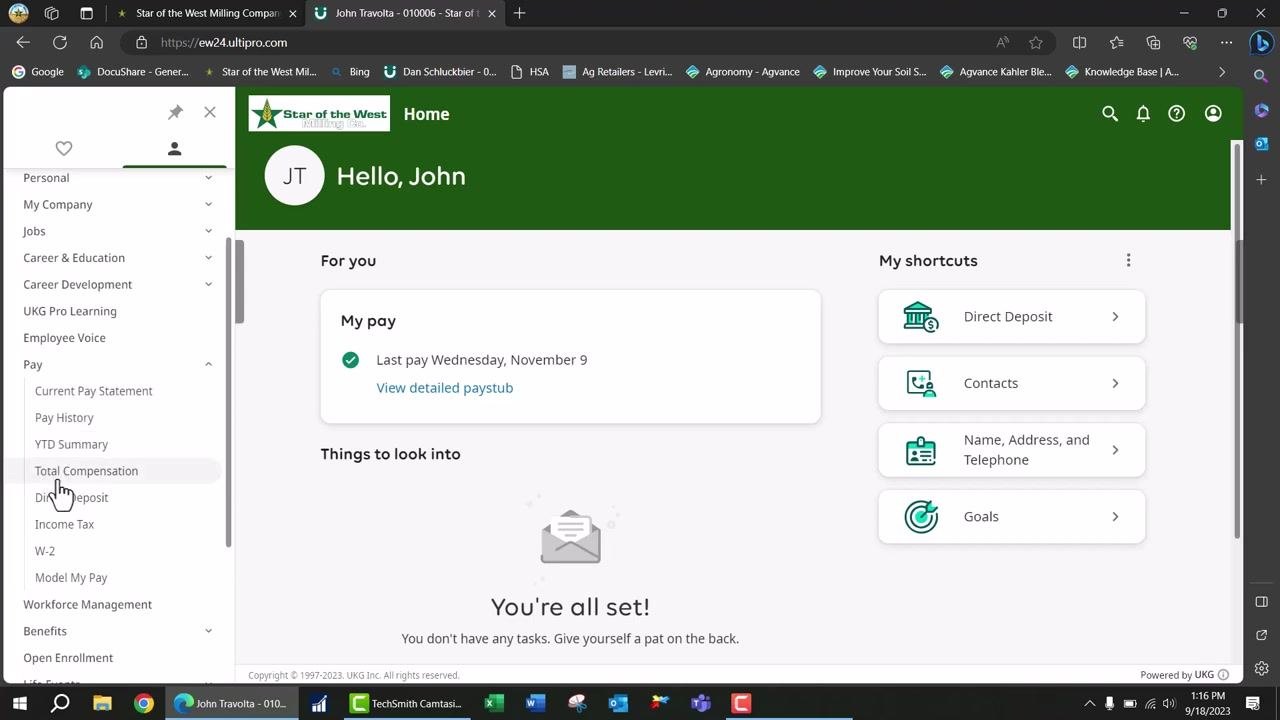
After logging in, you land on the Home page. Look for the My pay section in the center of the screen, where your last pay date is displayed (for example, "Last pay Wednesday, November 9"). Under this section, locate the View detailed paystub link.
Open your most recent pay stub
Click the View detailed paystub link to open your most recent active pay stub automatically.
Review your pay statement details
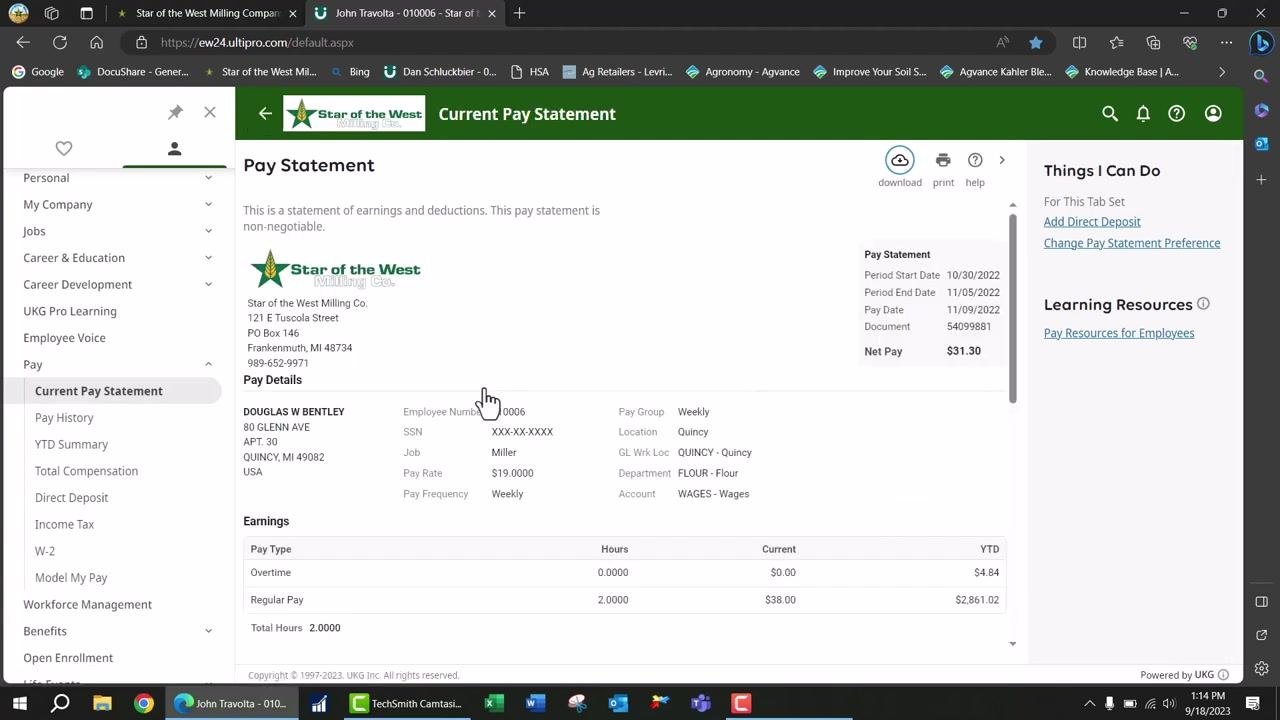
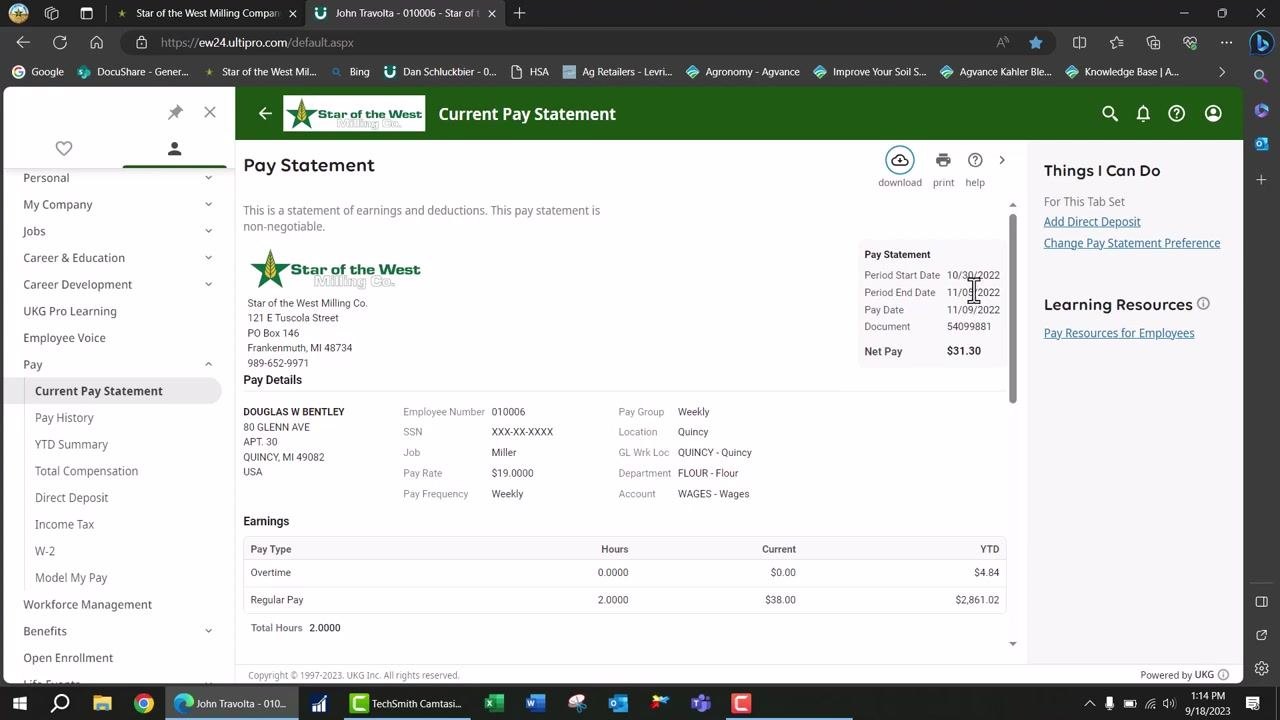
Your pay statement opens in a read-only format. At the top right, you can verify key pay period information:
- Period Start Date: 10/30/2022
- Period End Date: 11/05/2022
- Pay Date: 11/09/2022
- Document Number: 54099881
- Net Pay: $31.30
Your personal and job details also appear, including your name, address, employee number, job title, pay rate, department, and pay frequency.
Review earnings, deductions, and taxes
Scroll down on the pay statement to review the following breakdowns:
- Earnings: Shown by pay type (for example, Overtime, Regular Pay), including hours worked and amounts for both the current period and year-to-date (YTD).
- Deductions: Includes 401K contributions (for example, Employee Current: $2.28, Employee YTD: $2.28).
- Taxes: Includes Federal Income Tax, Employee Medicare, Social Security Employee Tax, and MI State Income Tax, each with current and YTD values.
Review the pay summary and net pay distribution
At the bottom of the pay statement, review the Pay Summary section for current and year-to-date values:
- Gross: Current: $38.00, YTD: $2,865.86
- FIT Taxable Wages: Current: $35.72, YTD: $2,863.58
- Taxes: Current: $4.42, YTD: $543.08
- Deductions: Current: $2.28, YTD: $2.28
- Net Pay: Current: $31.30, YTD: $2,320.50
The Net Pay Distribution section shows the account number (for example, xxxxxxxxxx9674), account type (Checking), and the deposited amount ($31.30).
Viewing historical pay stubs
Return to the Home page
From the Home page, you can see the My pay section along with the navigation menu on the left side of the screen.
Expand the Pay menu
In the left navigation pane, click Pay to expand the menu. This reveals additional payroll options, including Current Pay Statement, Pay History, YTD Summary, Total Compensation, Direct Deposit, Income Tax, and W-2.
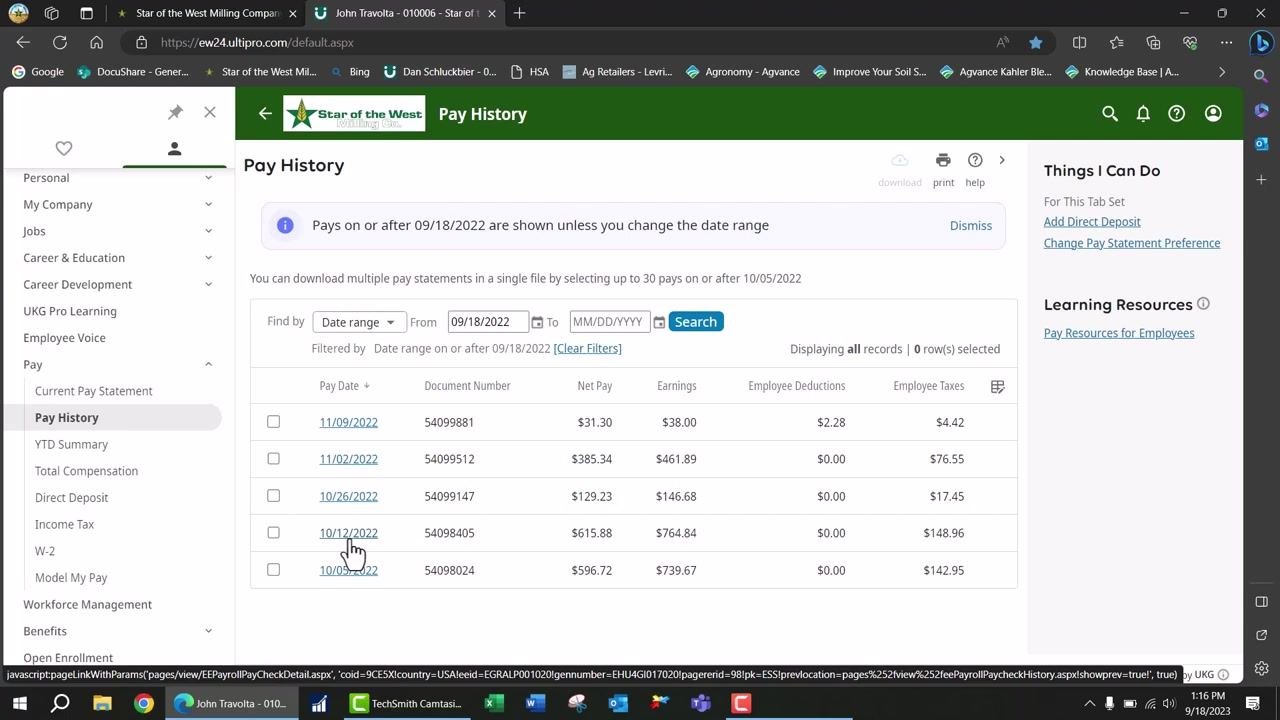
Click Pay History
Under the expanded Pay section, click Pay History to open the Pay History page.
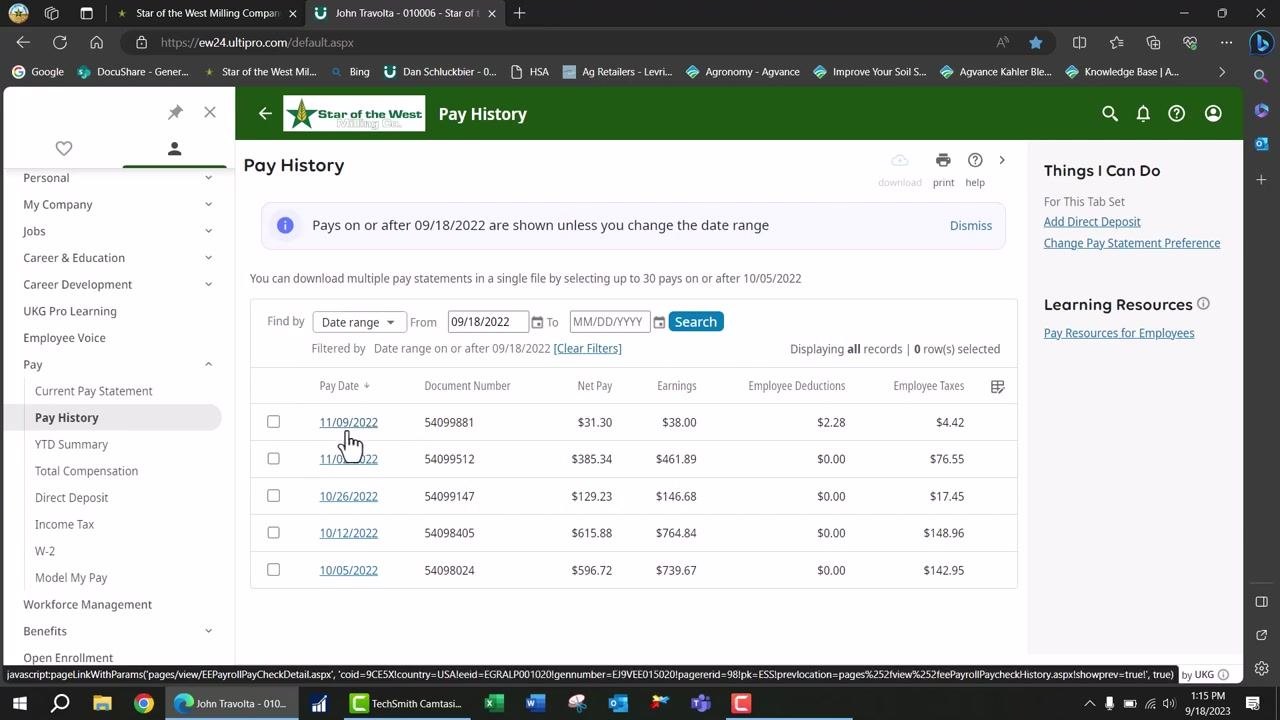
Review the pay history table
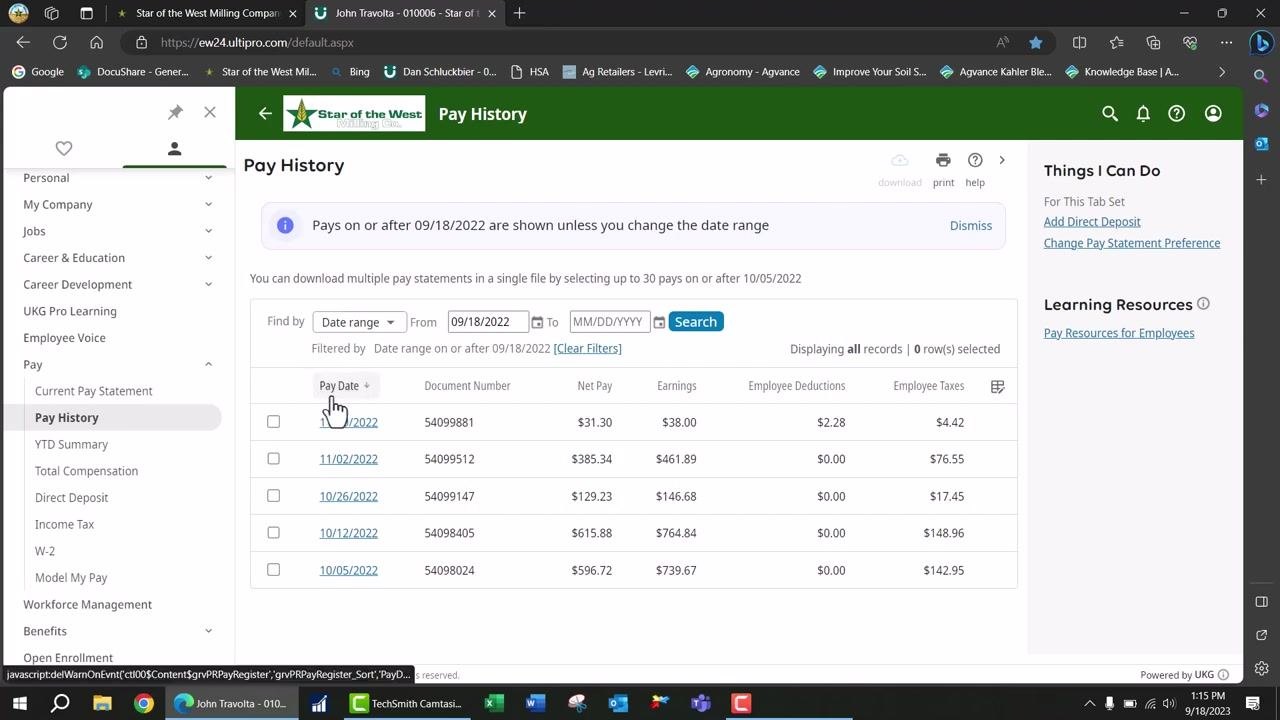
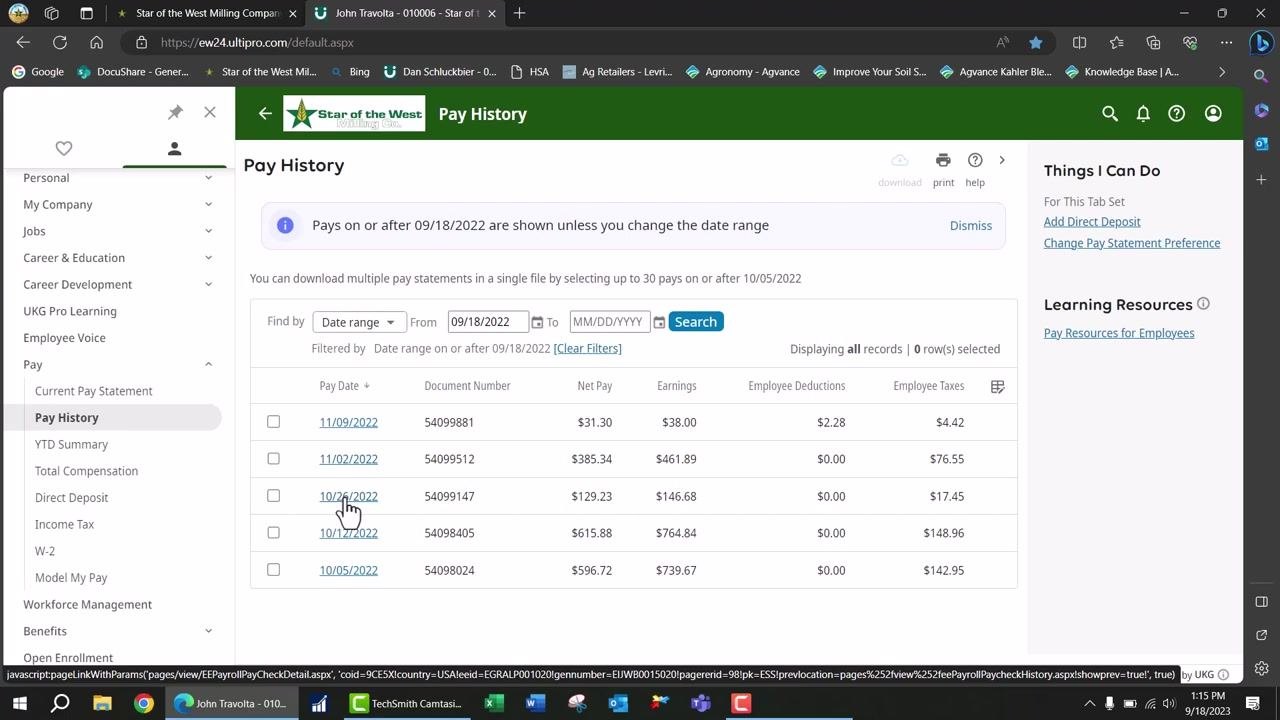
The Pay History page displays a table of your previous pay statements. Each row includes:
- Pay Date (shown in blue as a clickable link)
- Document Number
- Net Pay
- Earnings
- Employee Deductions
- Employee Taxes
Filter pay history by date range
Use the fields at the top of the Pay History page to filter the table by a specific date range, making it easier to locate a particular pay statement.
Open a historical pay statement
Click any blue Pay Date in the far left column of the table to open the detailed pay statement for that date.
Exploring additional payroll reports
Access other payroll reports
In the Pay section of the navigation pane, you can also open several other payroll-related reports:
- YTD Summary: View your year-to-date payroll summary.
- Total Compensation: Review your total compensation details.
- Direct Deposit: Manage your direct deposit information.
- Income Tax: Access your income tax documents.
- W-2: View and download your W-2 forms.
Click any of these options to open the corresponding report or document.
Summary
By following these steps, you can view your pay stubs in UKG — both your most recent pay statement and your historical pay records — and review all the relevant pay, deduction, and tax details. You can also use the Pay section of the navigation pane to access additional payroll reports, such as your YTD summary, direct deposit information, income tax documents, and W-2 forms, keeping all your payroll information up to date and easily accessible.
Generation details: cost, quality tiers
Docsie billed 1,500 credits ($1.05) to analyze this 3-minute video at standard quality. The rewrite, template fill and Word/PDF exports were included. The same video at each quality tier:
| Quality | Frames sampled | Credits | Approx. cost |
|---|---|---|---|
| Draft | every 16-30 s | 750 | $0.52 |
| Standard (this guide) | every 8-15 s | 1,500 | $1.05 |
| Detailed | every 4-7 s | 3,000 | $2.10 |
| Ultra | every 1-3 s | 6,000 | $4.20 |
Credits priced at $0.70 per 1,000; plans include a monthly allowance. Enterprise customers on on-premise or bring-your-own-model deployments run this on their own inference and pay no per-video credits.
Generated by Docsie Video-to-Docs on 2026-10-06 from a 2-minute video. Screenshots are frames from the source video and belong to their creator, Star of the West Training, whose original is embedded above. If you own this video and want the guide removed or credited differently, contact us and we will act within one business day.