
How to Create a Legal Entity in SuccessFactors
This guide shows you how to create a legal entity in SuccessFactors using the Manage Data tool in the Admin Center. You open Manage Data, create a new Legal Entity object, fill in its details, and save it. The example creates a legal entity for Skanda IT Solutions' India operations.
Video: 🚀 Learn how to create a Legal Entity in SAP SuccessFactors Employee Call/WhatsApp +91 8877664459 by Skanda IT Solutions (2026). All credit for the demonstration goes to the creator; watch the original on YouTube. The written guide below was generated from this video by Docsie. Creator? Request a change or removal.
This guide shows you how to create a legal entity in SuccessFactors using the Manage Data tool in the Admin Center. You open Manage Data, create a new Legal Entity object, fill in its details, and save it. The example creates a legal entity for Skanda IT Solutions' India operations.
Prerequisites
Before you begin, make sure you have:
- Access to SAP SuccessFactors and its Admin Center.
- The details for your legal entity: start date, a unique ID, name, description, standard weekly hours, currency, and country.
Steps
Open the Admin Center
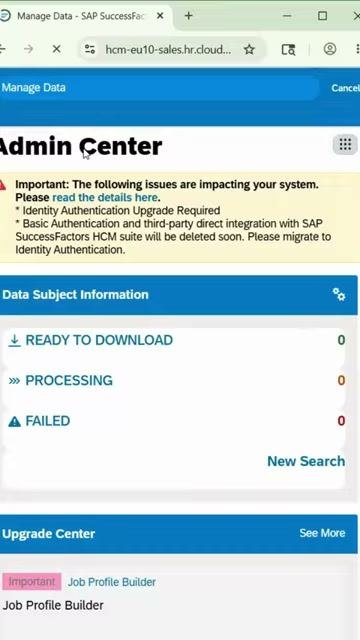
Open SAP SuccessFactors and go to the Admin Center. Check that you see the Admin Center heading and any important system notifications.
Open Manage Data
Use the search bar at the top of the Admin Center to search for Manage Data. Select Manage Data from the search results to open the data management interface.
Start creating a legal entity
On the right side of the Manage Data screen, find the Create New dropdown menu. Click it to display the list of objects you can create.
From the list, scroll to and select Legal Entity.
Set the effective start date
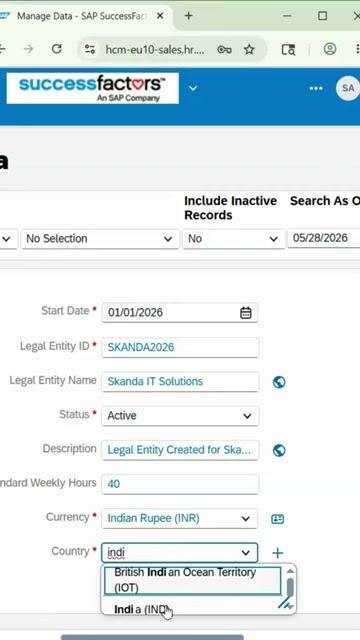
In the Start Date field, enter the date from which the legal entity becomes active. In this example, enter 01/06/2026 (1 June 2026).
Enter a unique legal entity ID
In the Legal Entity ID field, enter a unique identifier. In this example, enter SKANDA2026. The ID must be unique because SAP uses it internally to identify the legal entity.
Enter the company name
In the Legal Entity Name field, enter the company name as you want users to see it. In this example, enter Skanda IT Solutions. This name is visible throughout SAP SuccessFactors.
Set the status
Make sure the Status field is set to Active. This lets you use the legal entity in future configurations and transactions.
Enter a description
In the Description field, briefly explain the purpose of the legal entity. In this example, enter Legal Entity Created for Skanda IT Solutions India Operations.
Enter the standard weekly hours
In the Standard Weekly Hours field, enter the number of working hours per week according to your company policy. In this example, enter 40.
Select the default currency
In the Currency field, type or select the default currency for payroll and business transactions. In this example, select Indian Rupee (INR).
Choose the country
In the Country field, type or select the country where the legal entity is launched. In this example, select India (IND).
Add more information (optional)
You can add further details, such as address, tax details, or local logistics, depending on your business requirements.
Save the legal entity
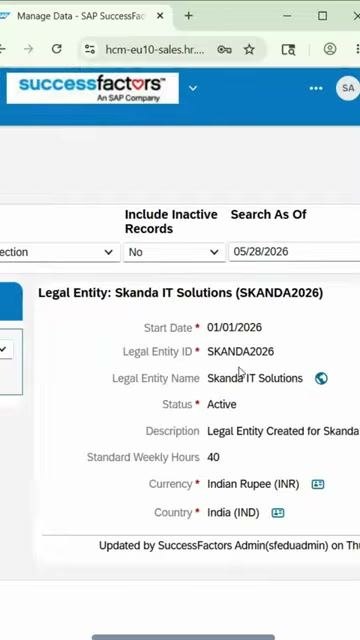
After you complete all required and optional fields, click Save to create the legal entity. The system displays a summary of the new legal entity so you can confirm the details you entered.
Summary
You now know how to create a legal entity in SuccessFactors. Open Manage Data from the Admin Center, choose Create New > Legal Entity, and enter the start date, a unique ID, name, status, description, weekly hours, currency, and country. Add optional details if you need them, then click Save and review the summary.
Generation details: cost, quality tiers
Docsie billed 2,000 credits ($1.40) to analyze this 4-minute video at standard quality. The rewrite, template fill and Word/PDF exports were included. The same video at each quality tier:
| Quality | Frames sampled | Credits | Approx. cost |
|---|---|---|---|
| Draft | every 16-30 s | 1,000 | $0.70 |
| Standard (this guide) | every 8-15 s | 2,000 | $1.40 |
| Detailed | every 4-7 s | 4,000 | $2.80 |
| Ultra | every 1-3 s | 8,000 | $5.60 |
Credits priced at $0.70 per 1,000; plans include a monthly allowance. Enterprise customers on on-premise or bring-your-own-model deployments run this on their own inference and pay no per-video credits.
Generated by Docsie Video-to-Docs on 2026-11-15 from a 3-minute video. Screenshots are frames from the source video and belong to their creator, Skanda IT Solutions, whose original is embedded above. If you own this video and want the guide removed or credited differently, contact us and we will act within one business day.