
How to Reverse an Accounting Document with FB08 in SAP S/4HANA
This guide explains how to reverse an accounting document with FB08 in SAP, using the SAP ECC 6 Accounts Payable module. The process applies specifically to non-PO (Purchase Order) invoices and credit memos—documents that do not reference a purchase order. You will see where FB08 fits in the procure-to-pay process, review the scenarios that call for a reversal, post a duplicate invoice to create a practice scenario, reverse it with FB08, and confirm the result in the vendor line item display.
Video: SAP Transaction FB08 - Reverse Document by Efficient eLearning. All credit for the demonstration goes to the creator; watch the original on YouTube. The written guide below was generated from this video by Docsie. Creator? Request a change or removal.
This guide explains how to reverse an accounting document with FB08 in SAP, using the SAP ECC 6 Accounts Payable module. The process applies specifically to non-PO (Purchase Order) invoices and credit memos—documents that do not reference a purchase order. You will see where FB08 fits in the procure-to-pay process, review the scenarios that call for a reversal, post a duplicate invoice to create a practice scenario, reverse it with FB08, and confirm the result in the vendor line item display.
What this guide covers
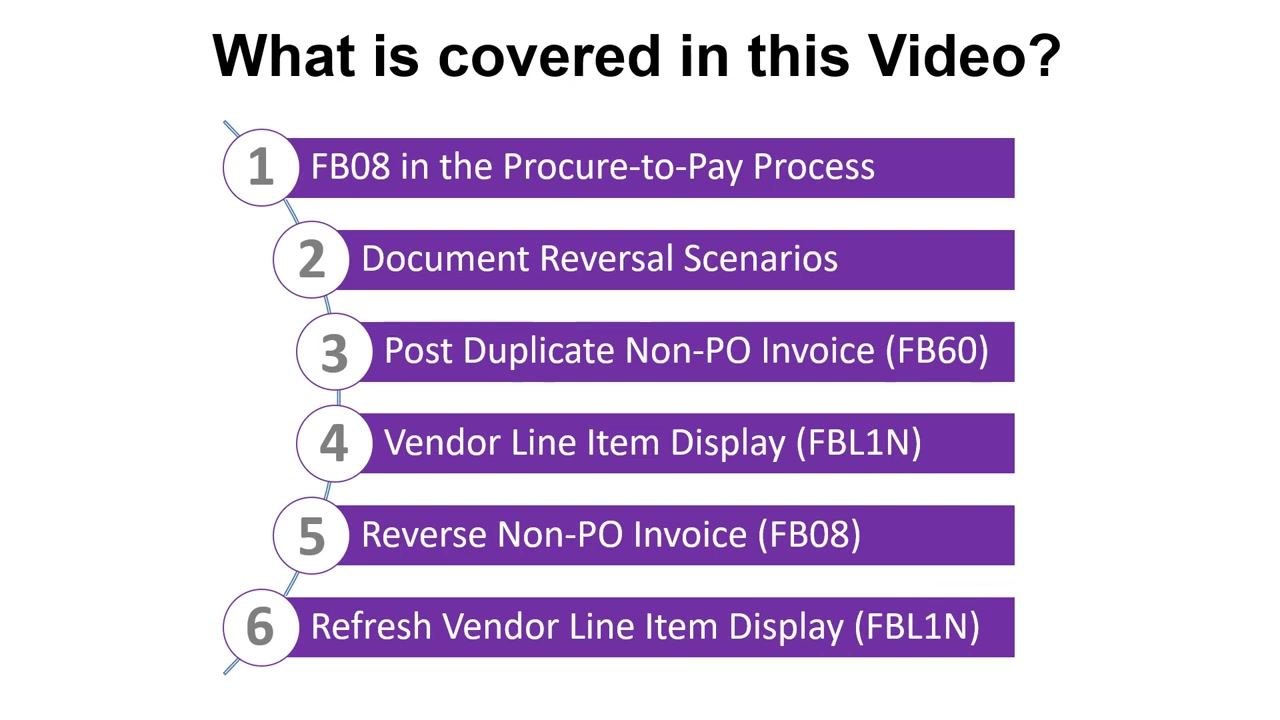
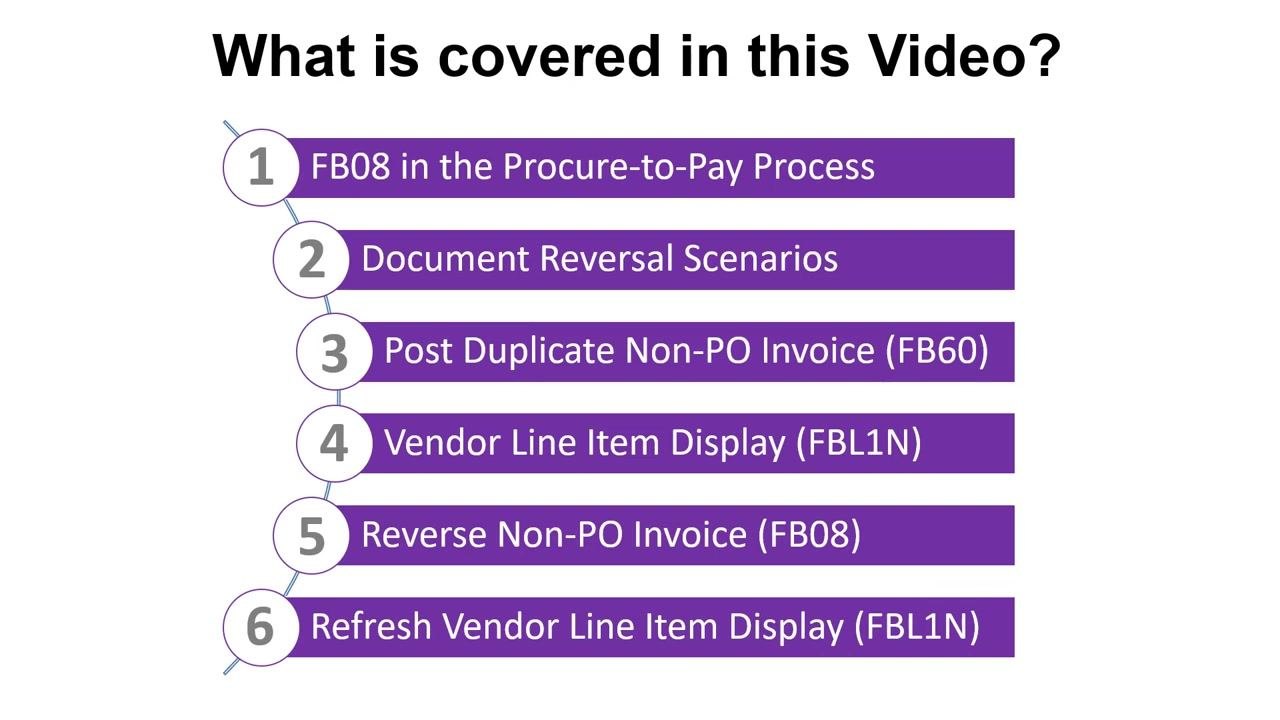
Before you begin, it helps to know the full scope of the process:
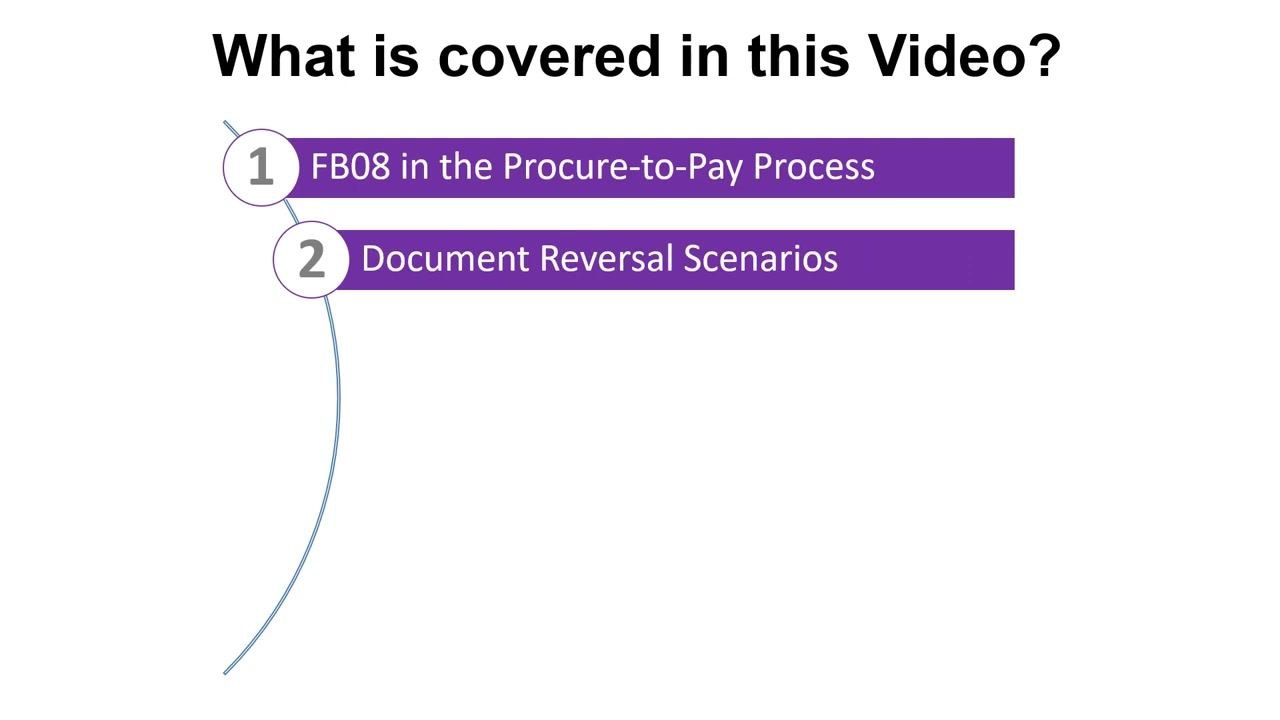
- Where transaction code FB08 fits within the procure-to-pay process.
- The scenarios that require a document reversal.
- How to post a duplicate non-PO invoice using transaction FB60 to create a reversal scenario.
- How to analyze the vendor line item display using transaction FBL1N.
- How to reverse the duplicate invoice using transaction FB08.
- How to refresh the vendor line item display to confirm the reversal took effect.
Prerequisites
FB08 is used to reverse non-PO invoices and credit memos—documents that do not reference a purchase order. The following procurement steps are not relevant when working with FB08:
- Create Purchase Requisition
- Approve Purchase Requisition
- Convert Requisition to Purchase Order
- Post Goods Receipt
Understanding where FB08 fits in the procure-to-pay process
- Review the full procure-to-pay cycle for context. The process typically follows this order: Create Purchase Requisition, Approve Purchase Requisition, Convert Requisition to Purchase Order, Post Goods Receipt, Post Vendor Invoice, and Post Payment. When working with FB08, you focus only on reversing non-PO invoices and credit memos, skipping the procurement steps listed above.
- Locate FB08 within the Post Vendor Invoice step of the cycle. This step is completed by the Accounts Payable Department. FB08 is not used for Create Purchase Requisition, Approve Purchase Requisition, Convert Requisition to Purchase Order, or Post Goods Receipt.
Reviewing document reversal scenarios
- Review the scenarios in which FB08 is commonly used. The most frequent use of FB08 is to reverse non-PO invoices and credit memos when:
- The same invoice has been posted twice (duplicate documents).
- A document has been posted to the wrong vendor code.
- A document has been posted against the wrong company code.
- A document contains other incorrect details that cannot be changed once posted.
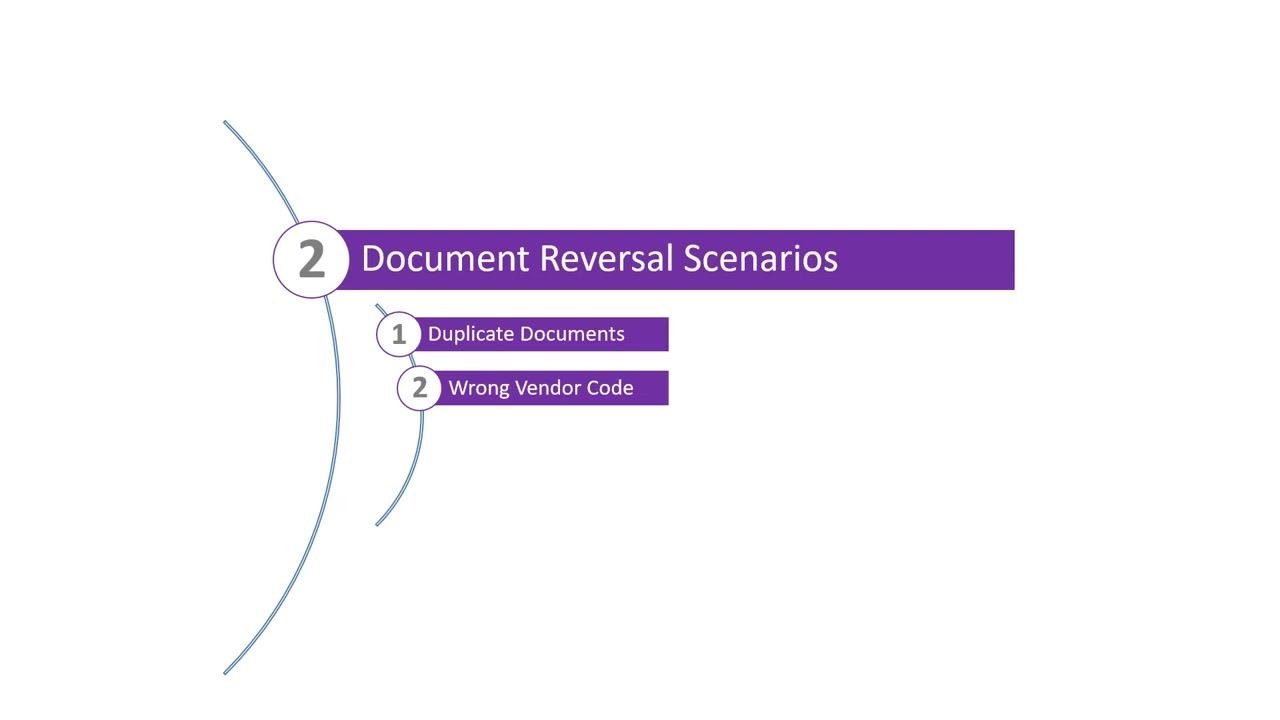
- Identify the main reversal scenario categories in more detail:
- Duplicate documents: the same invoice posted more than once.
- Wrong vendor code: an invoice posted to an incorrect vendor.
- Wrong company code: an invoice posted to the wrong company code.
- Other incorrect details: any other errors that cannot be corrected on a posted document.
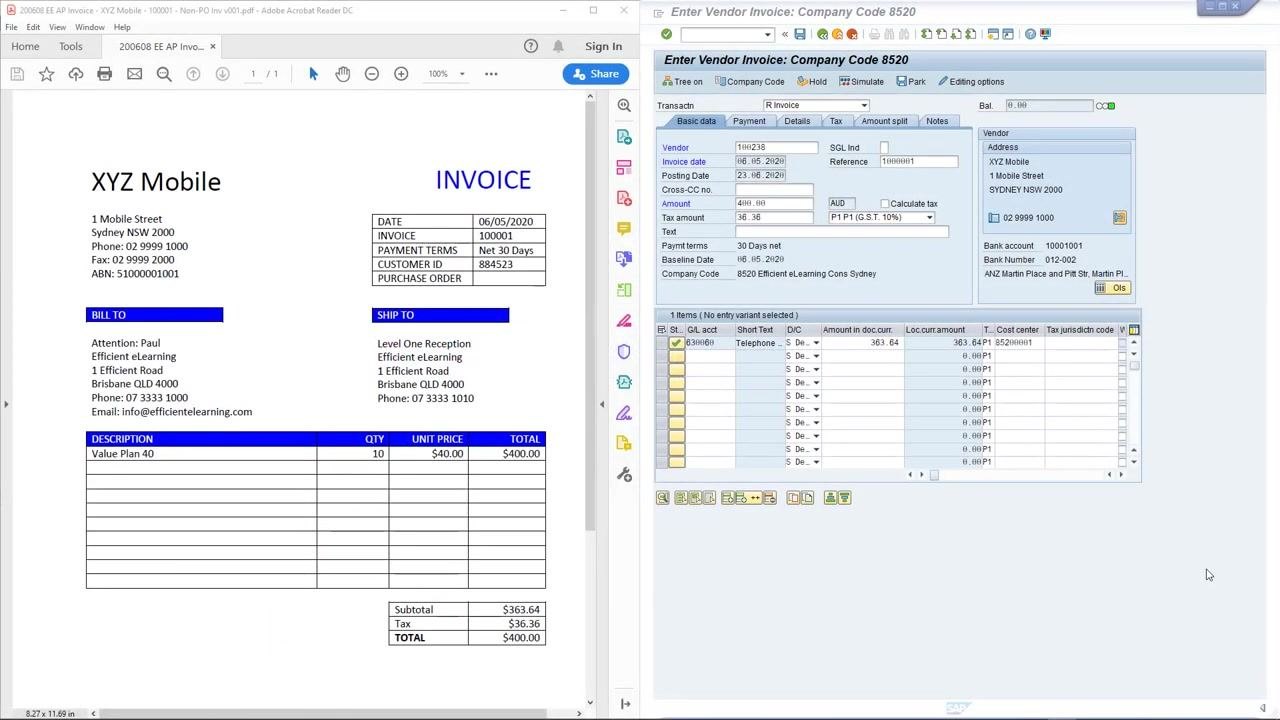
Posting a duplicate non-PO invoice to create a practice scenario
- Compare the original invoice to the duplicate invoice entry screen. On the left side of the screen, view the original non-PO invoice (PDF format) that was previously posted with FB60. On the right side, view the SAP FB60 transaction screen pre-populated with the same invoice details. The only difference is the invoice number: an extra zero has been added so the invoice can be posted a second time as a duplicate.
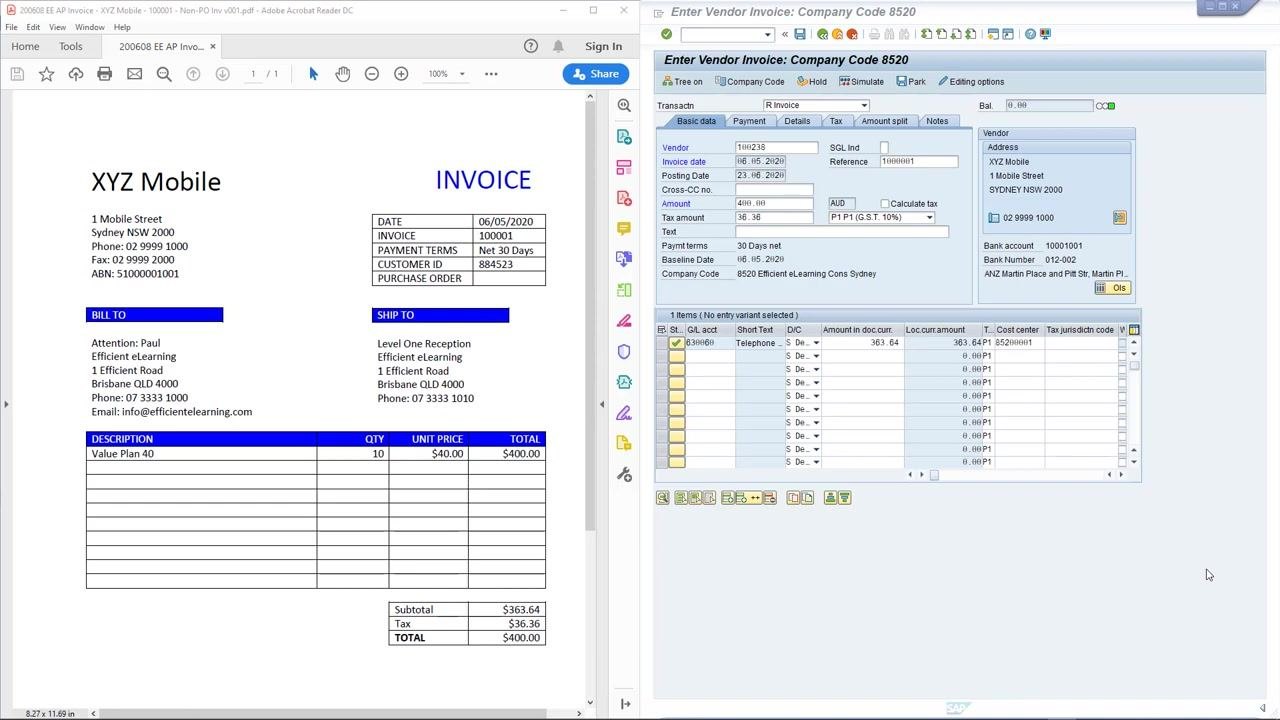
-
Verify that the duplicate invoice entry matches the original in every field except the invoice number. In SAP FB60, the Reference field should display the duplicate invoice number (for example, "10000001" instead of "1000001").
-
Confirm the balance of the invoice is zero and no error messages appear, then click Post to post the vendor invoice. Example values used in this scenario:
- Vendor:
100238 - Invoice date:
06.05.2020 - Posting Date:
23.06.2020 - Reference:
10000001 - Amount:
400.00 AUD - Tax amount:
36.36 - Company Code:
8520 Efficient eLearning Cons Sydney - Vendor Address:
XYZ Mobile, 1 Mobile Street, SYDNEY NSW 2000
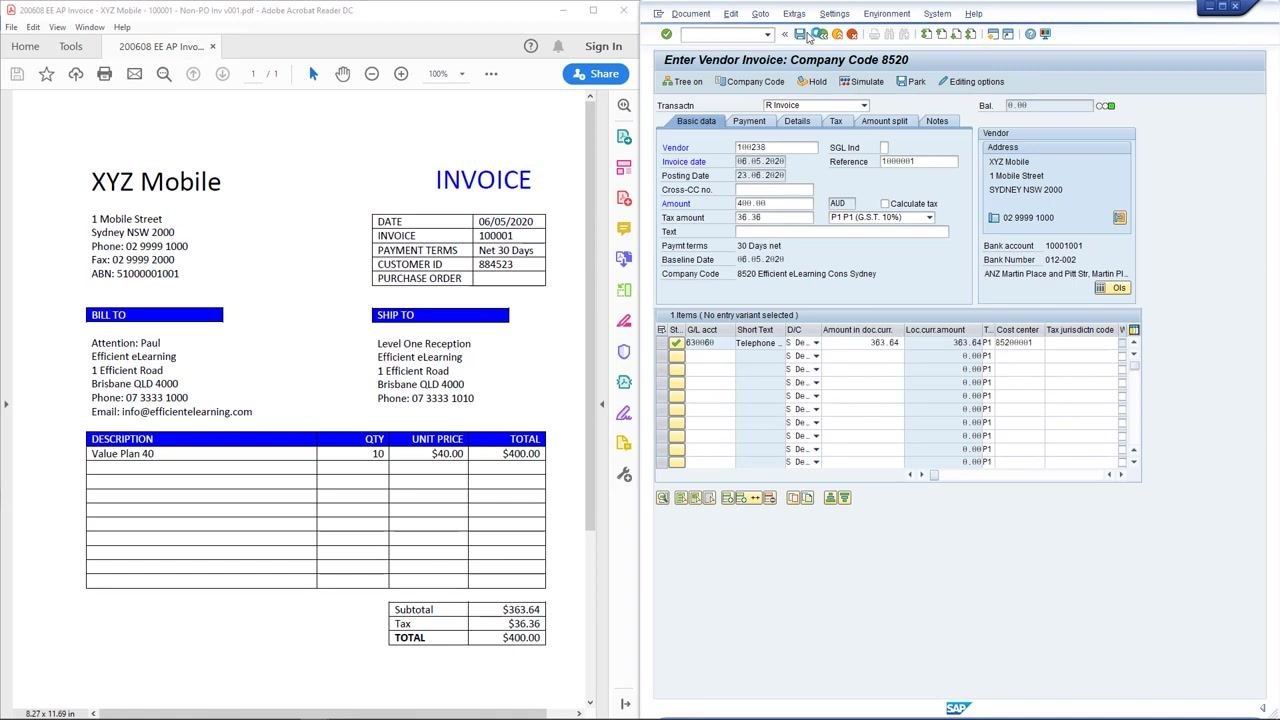
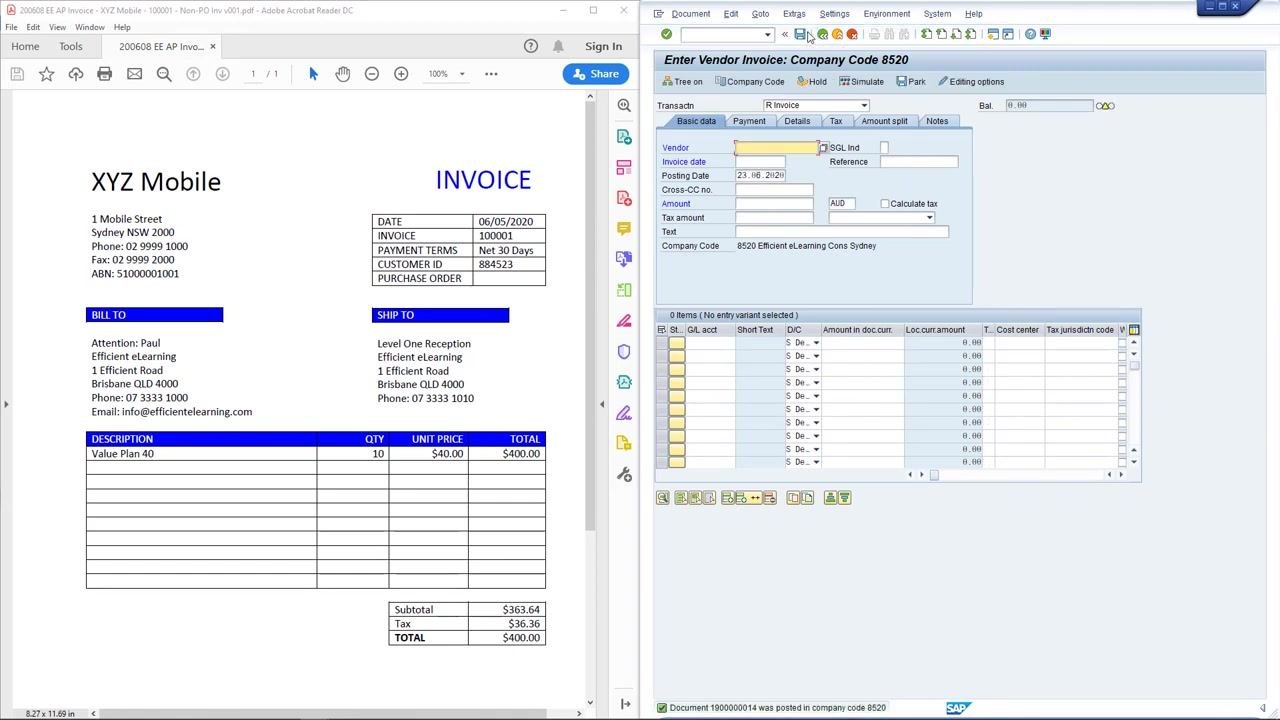
- Observe the confirmation message at the bottom of the screen after posting. The message displays the internal SAP document number for the posted invoice (for example,
Document 19000000014 was posted in company code 8520).
Reviewing the vendor line items with FBL1N
-
From the SAP Easy Access menu, double-click the FBL1N - Vendor Line Item Report favorite to open the transaction.
-
Verify that the Vendor account and Company code fields are pre-filled on the Vendor Line Item Display screen (Vendor account:
100238, Company code:8520). The Open items radio button is selected by default, with the key date set to23.06.2020.
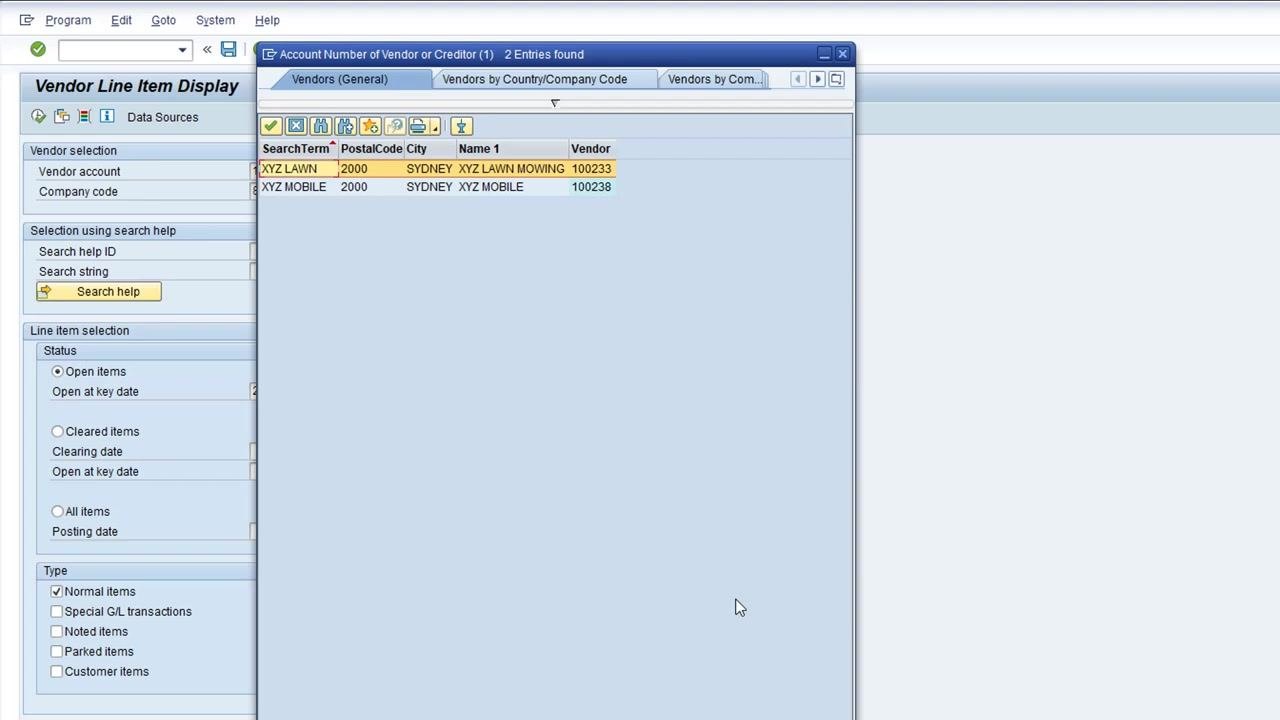
- If you are unsure of the vendor code, click the drop-down list to the right of the Vendor account field, click in the Name field, type
XYZ*, and click Start Search to display matching vendors.
-
In the search results, locate the correct vendor (for example,
XYZ MOBILEwith vendor code100238) and double-click the entry to populate the Vendor account field. -
In the Line item selection section, choose the desired status: Open items for items not yet cleared, Cleared items for items already cleared, or All items for both. For this scenario, select All items to view both open and cleared items.
-
Click the All items radio button so your search results include both open and cleared items. Leave the Posting date field blank to include all posting dates, and confirm the Normal items checkbox is selected under the Type section to display standard transactions.
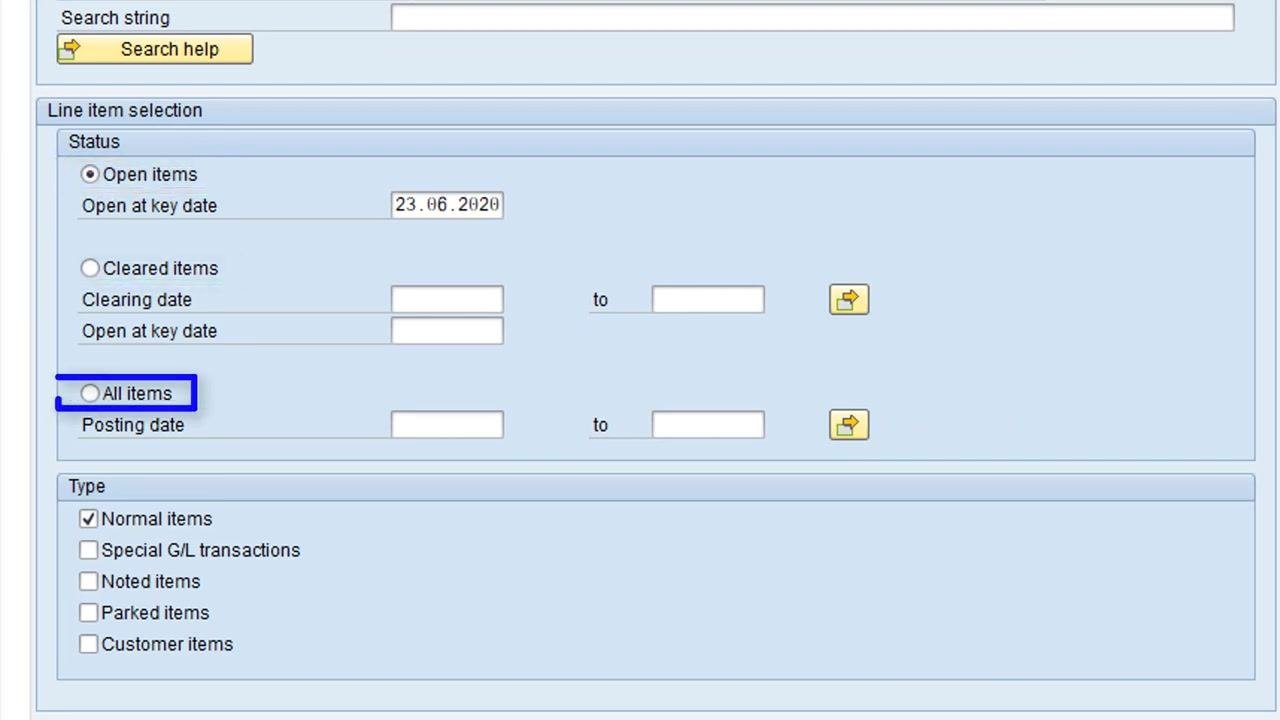
- Confirm the Normal items checkbox remains selected under the Type section—this is the default selection for both invoices and credit memos—and leave the other type options unchanged unless specifically required.
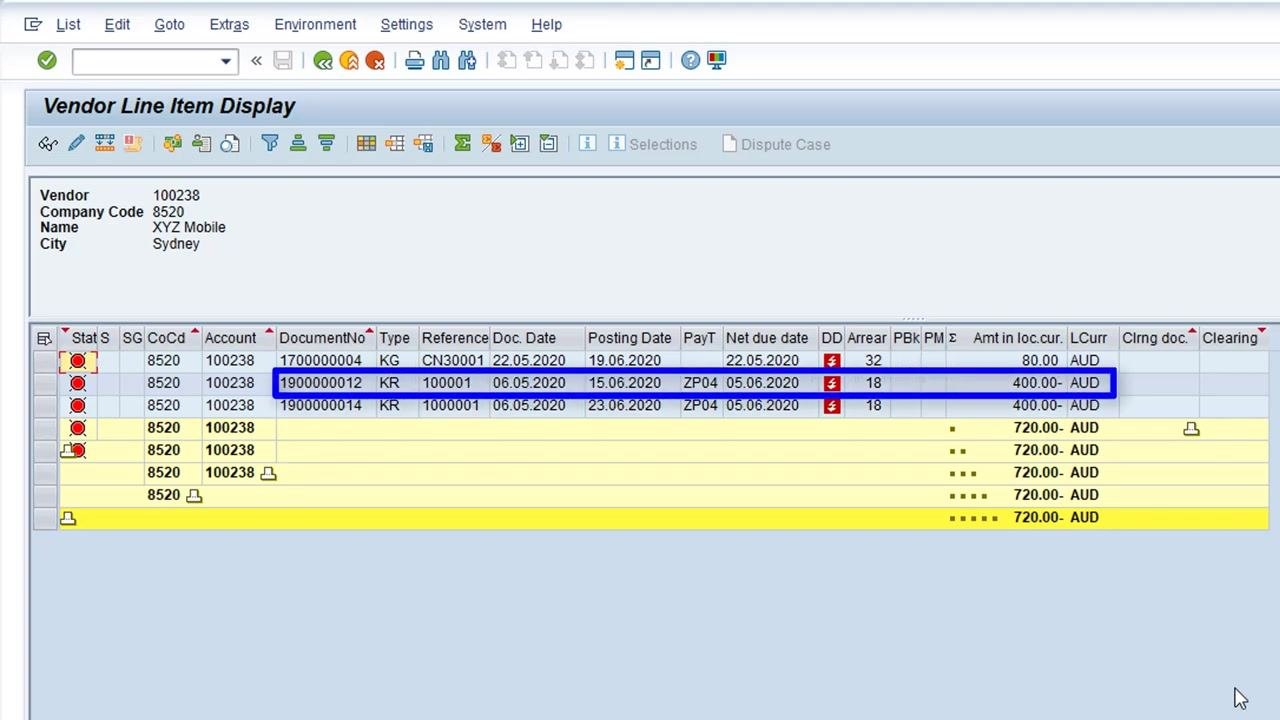
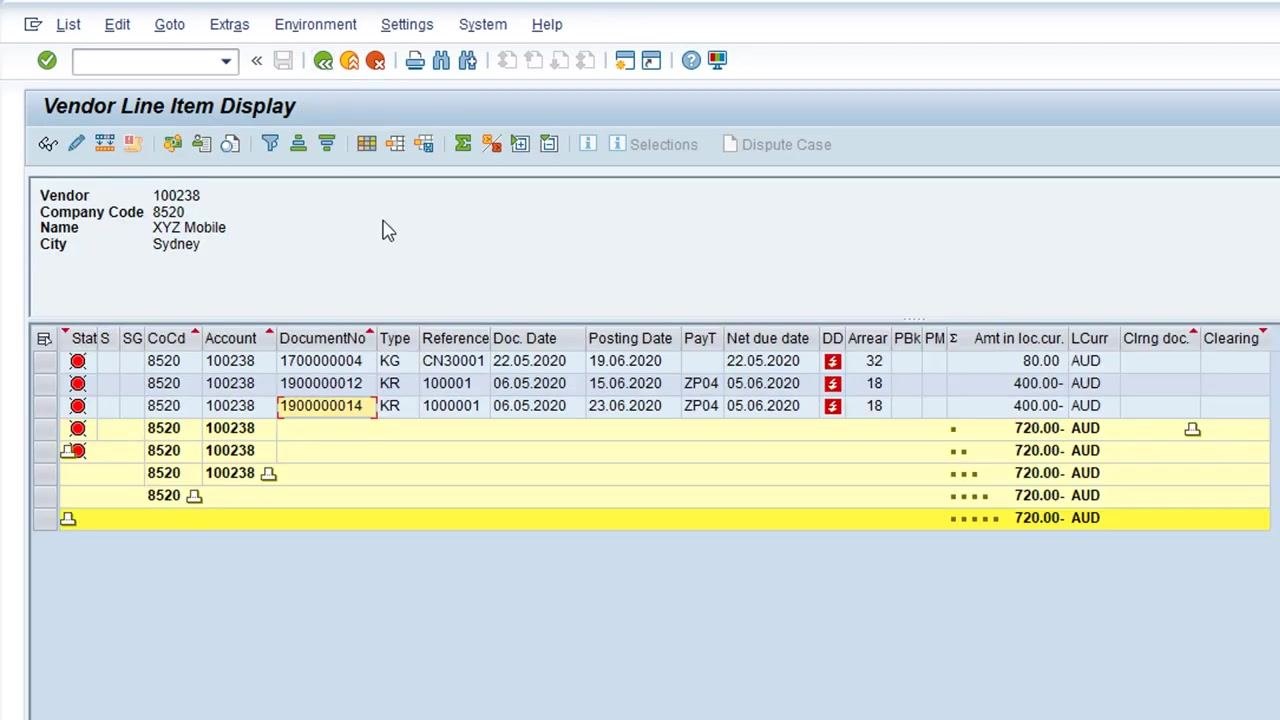
- Execute the report, then review the results to locate the relevant vendor (Vendor:
100238, Company Code:8520, Name: XYZ Mobile, City: Sydney) and identify the original invoice and the duplicate by document number and posting date:
- Original Invoice: DocumentNo
1900000012, Posting Date:15.06.2020, Amount:400.00 AUD - Duplicate Invoice: DocumentNo
1900000014, Posting Date:23.06.2020, Amount:400.00 AUD
Both invoices are listed under the same account and reference.
- Confirm that the duplicate invoice (DocumentNo
1900000014) is visible and highlighted, and that all its details match the duplicate you just posted.
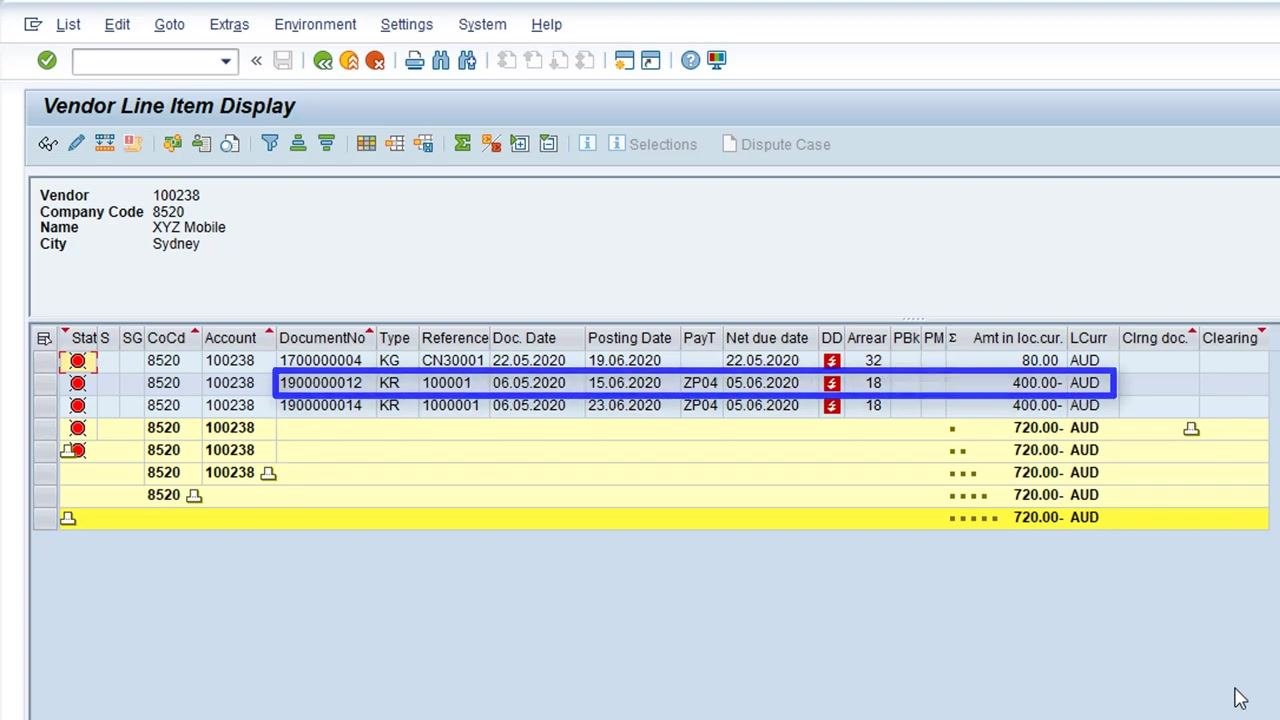
- Double-click the duplicate invoice entry and use Call Up Document Overview to open its document details. Note the following three values, displayed at the top of the Display Document: Data Entry View screen—you will need them to post the reversal in FB08:
- Document Number:
1900000014 - Company Code:
8520 - Fiscal Year:
2020
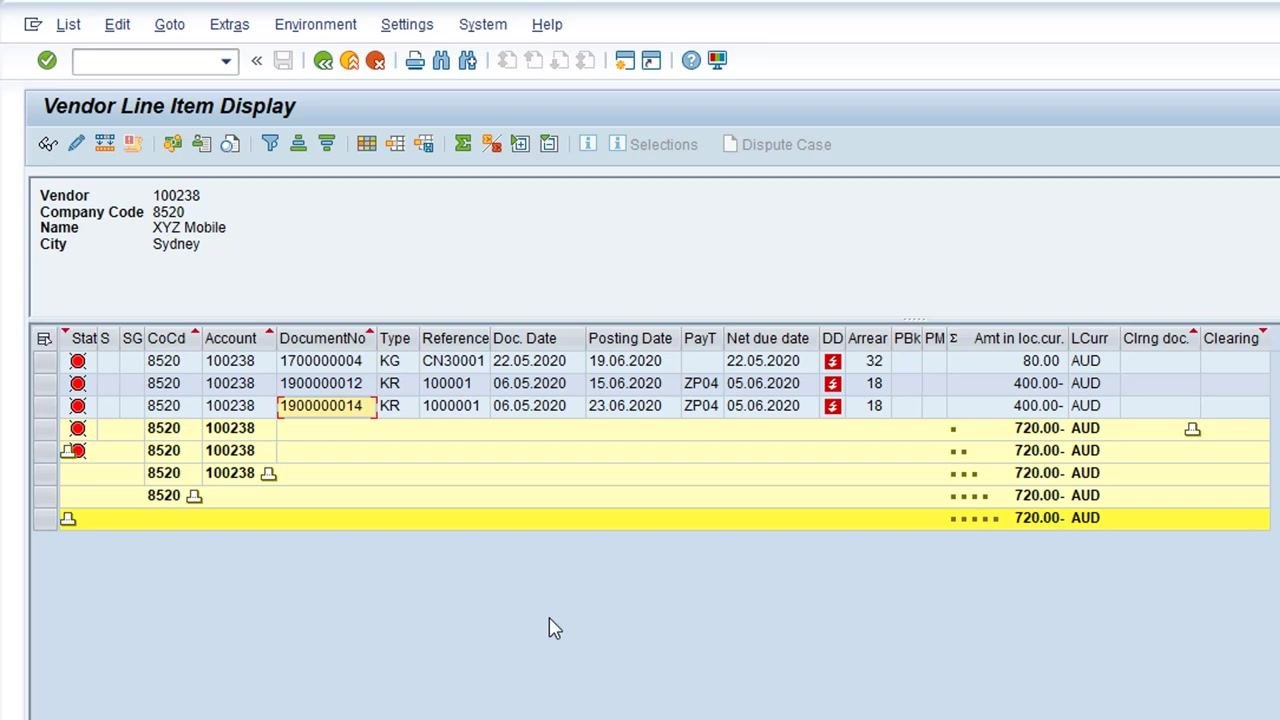
- Click the green back arrow to return to the vendor line item display, and leave this screen open in SAP so you can quickly return and refresh the list after posting the reversal. The duplicate invoice (DocumentNo
1900000014) remains visible in the list.
- Keep this screen available so that, after posting the reversal in FB08, you can return and refresh the list to confirm its impact.
Reversing the duplicate invoice with FB08
-
From the SAP Easy Access screen, locate and expand the Accounting folder in the SAP menu.
-
Within the Accounting folder, expand Financial Accounting to proceed toward Accounts Payable.
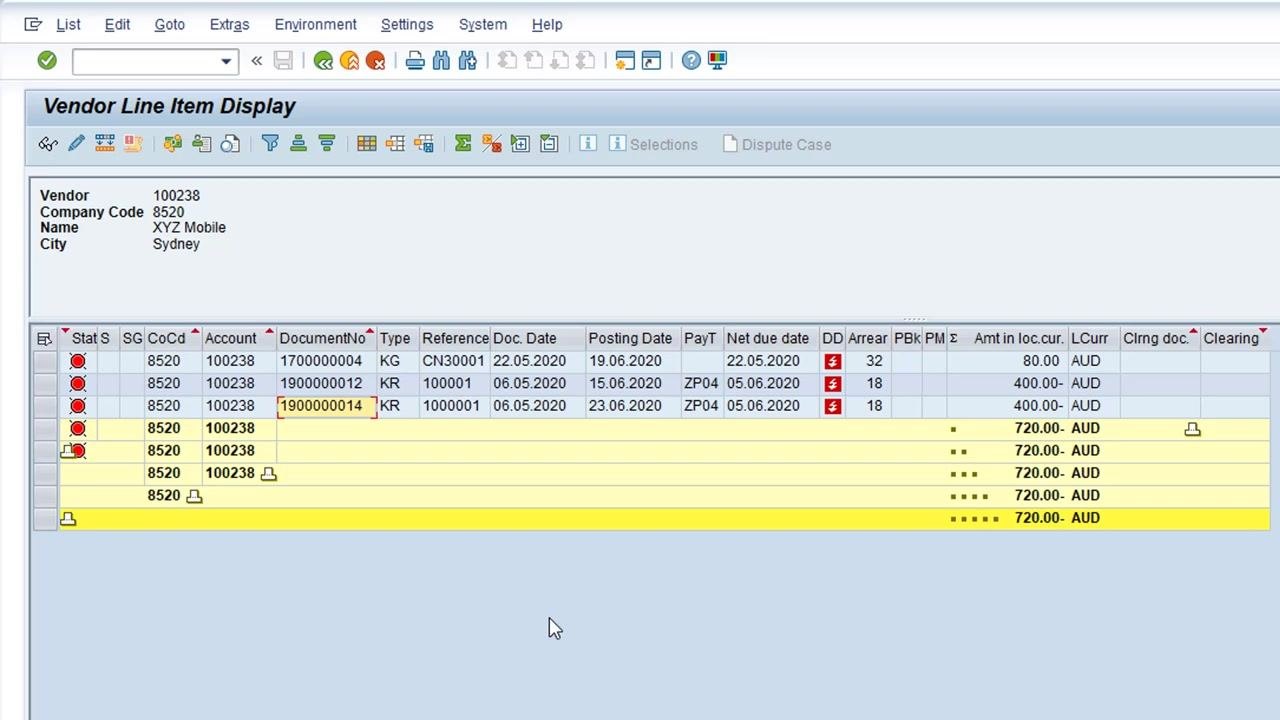
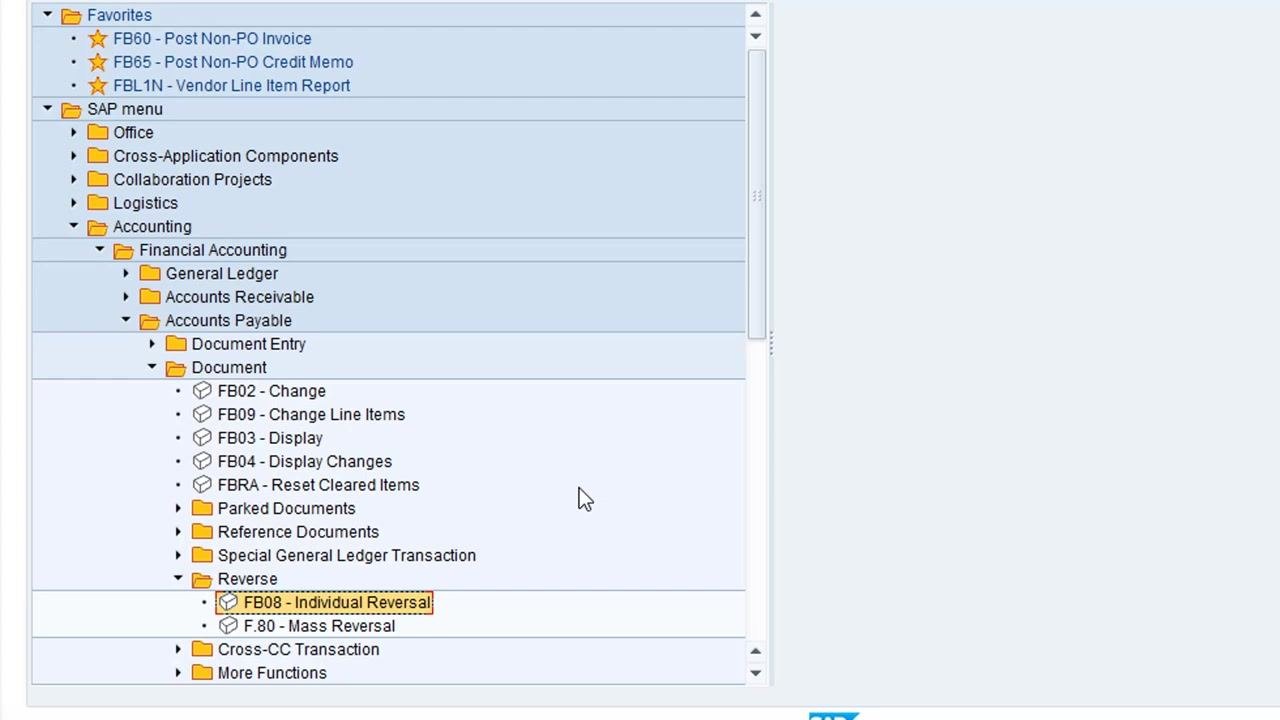
- Follow the path SAP menu > Accounting > Financial Accounting > Accounts Payable > Document Entry > Document > Reverse to locate FB08 - Individual Reversal. If you are new to the transaction, you can also find FB08 by expanding the Accounting and Financial Accounting folders in the SAP Standard menu.
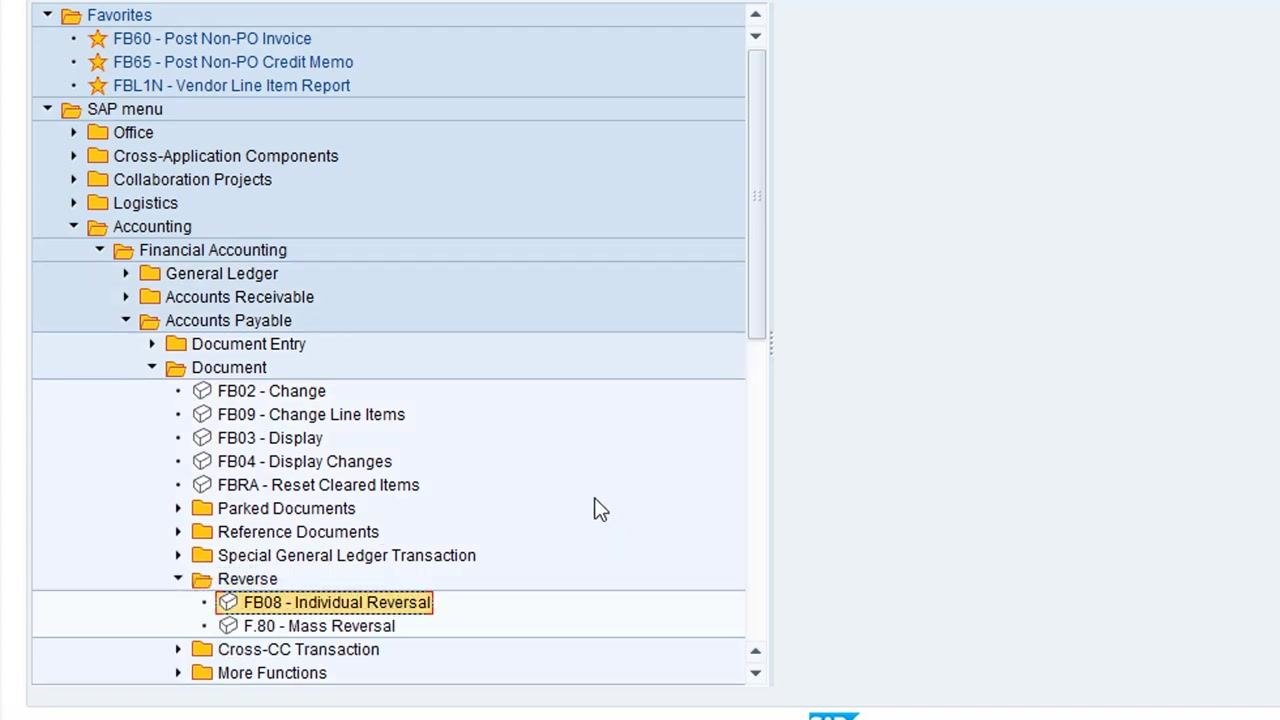
- Click and drag the FB08 - Individual Reversal entry from the SAP menu, and drop it on top of the FB65 - Post Non-PO Credit Memo entry in the Favorites section to add it for quick access.
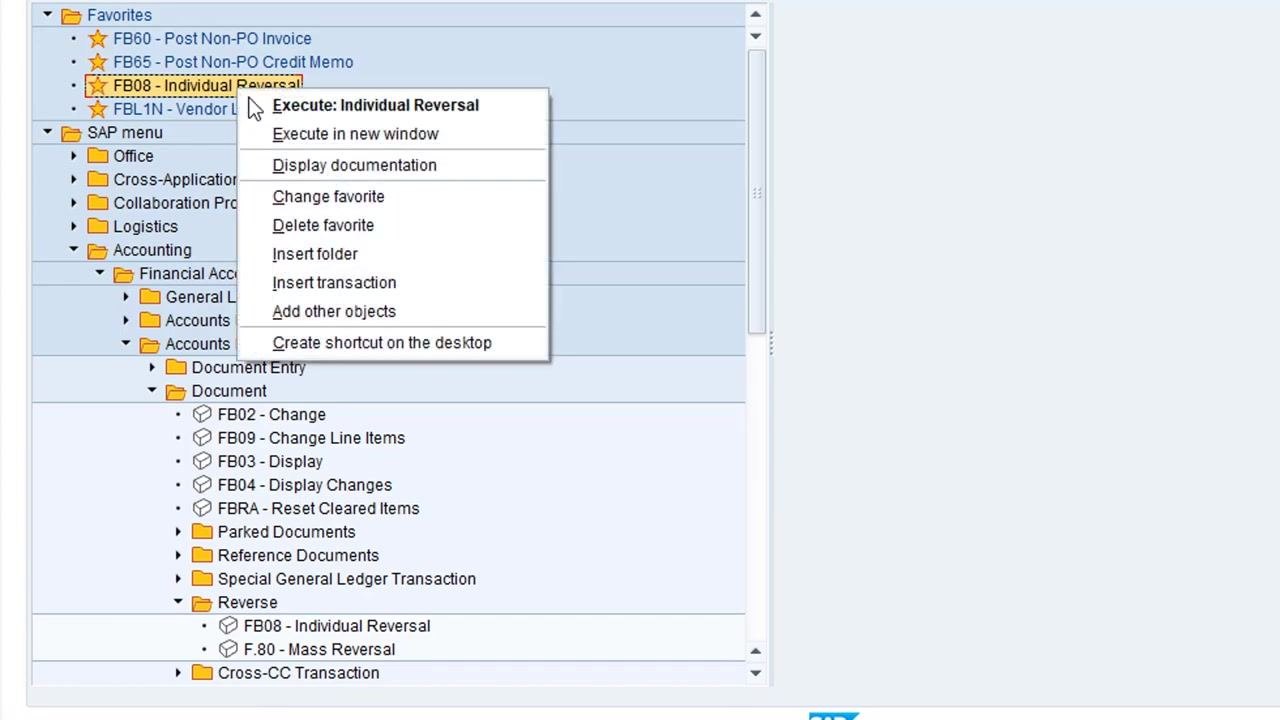
- Right-click on the newly added FB08 - Individual Reversal favorite and select Change favorite from the context menu.
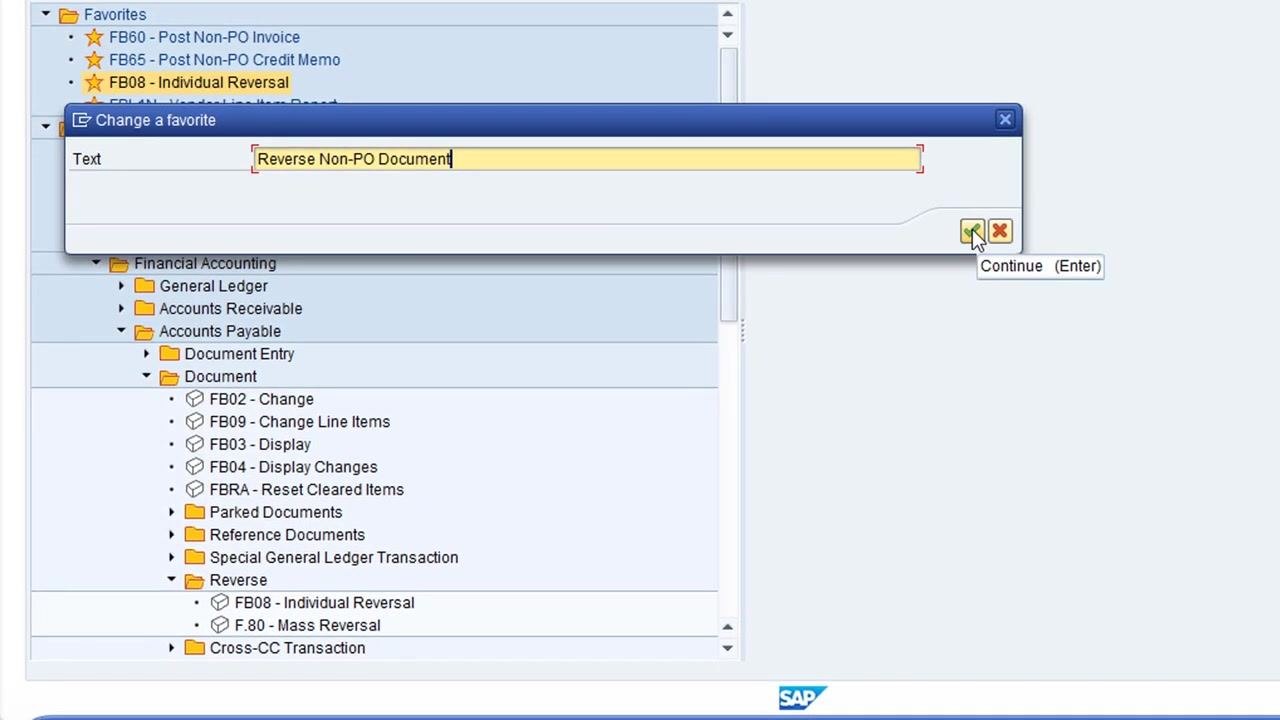
-
In the Change a favorite dialog, enter "Reverse Non-PO Document" in the Text field and click the green checkmark button labeled Continue (Enter) to save the new name.
-
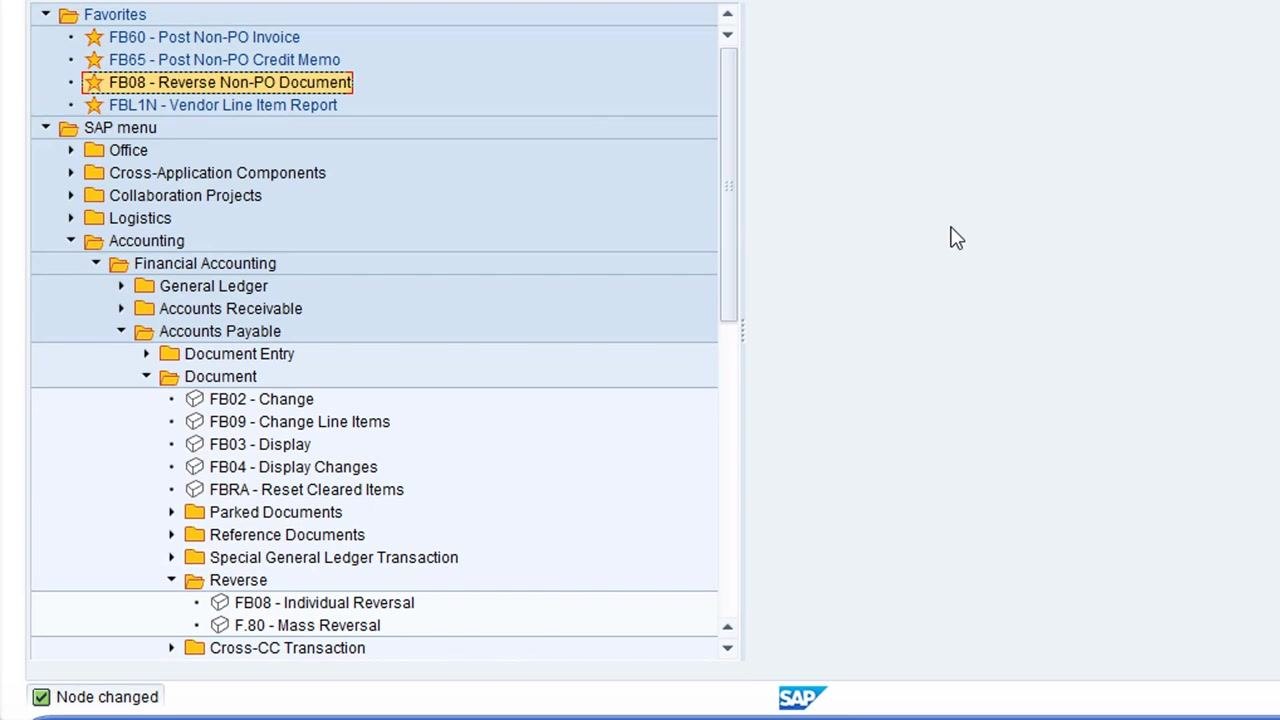
Confirm that the Favorites list now displays FB08 - Reverse Non-PO Document as the renamed entry.
-
Double-click the FB08 - Reverse Non-PO Document favorite to launch the reversal transaction. The system opens the Reverse Document: Header Data screen. Fill in the following fields under Document Details:
- Document Number:
1900000014 - Company Code:
8520 - Fiscal Year:
2020
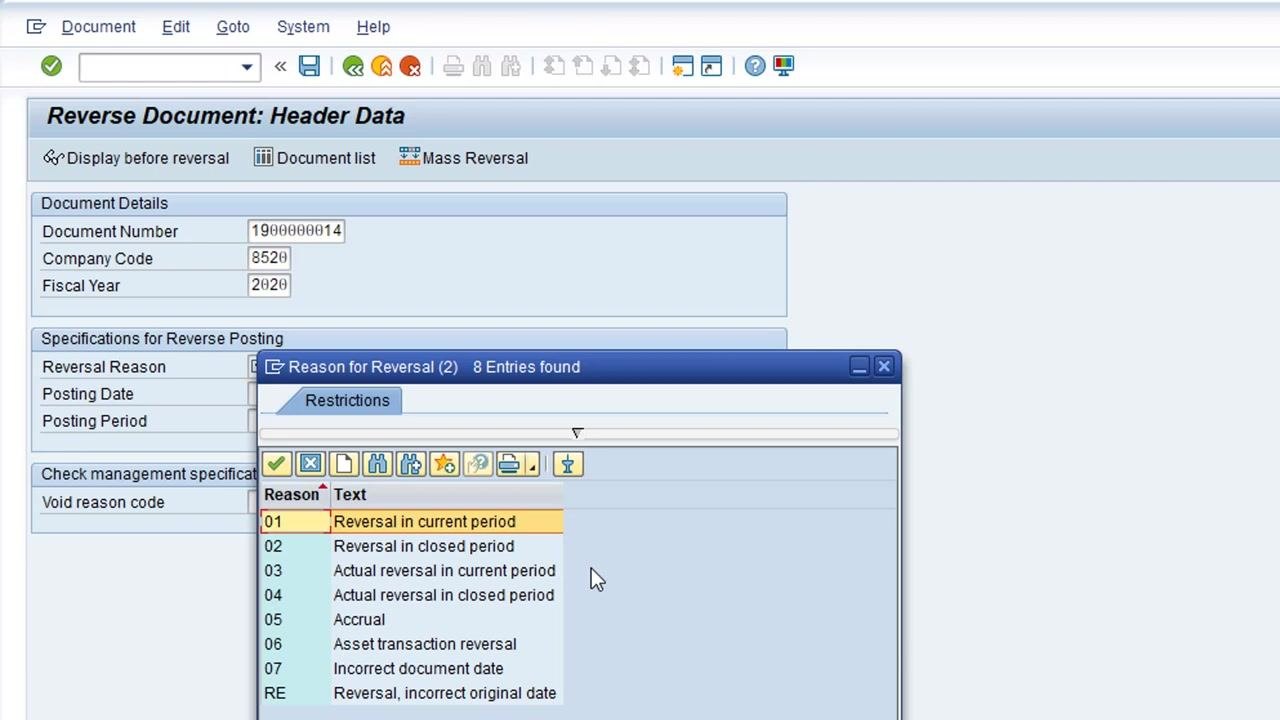
- Click in the Reversal Reason field under Specifications for Reverse Posting, then click the drop-down list to the right of the field to select the appropriate reversal reason code.
- In the Reason for Reversal pop-up window, review the available reversal reasons and double-click "01 Reversal in current period" to select it. The Reverse Document: Header Data screen now displays "01" in the Reversal Reason field.
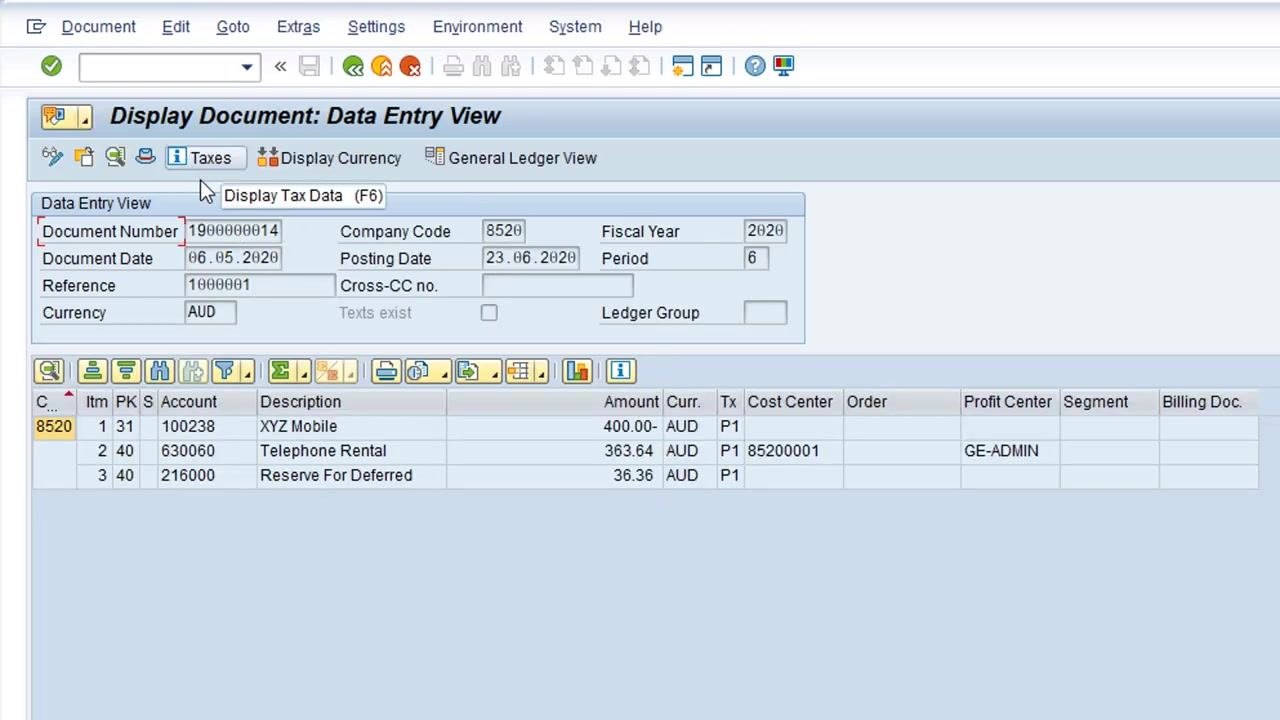
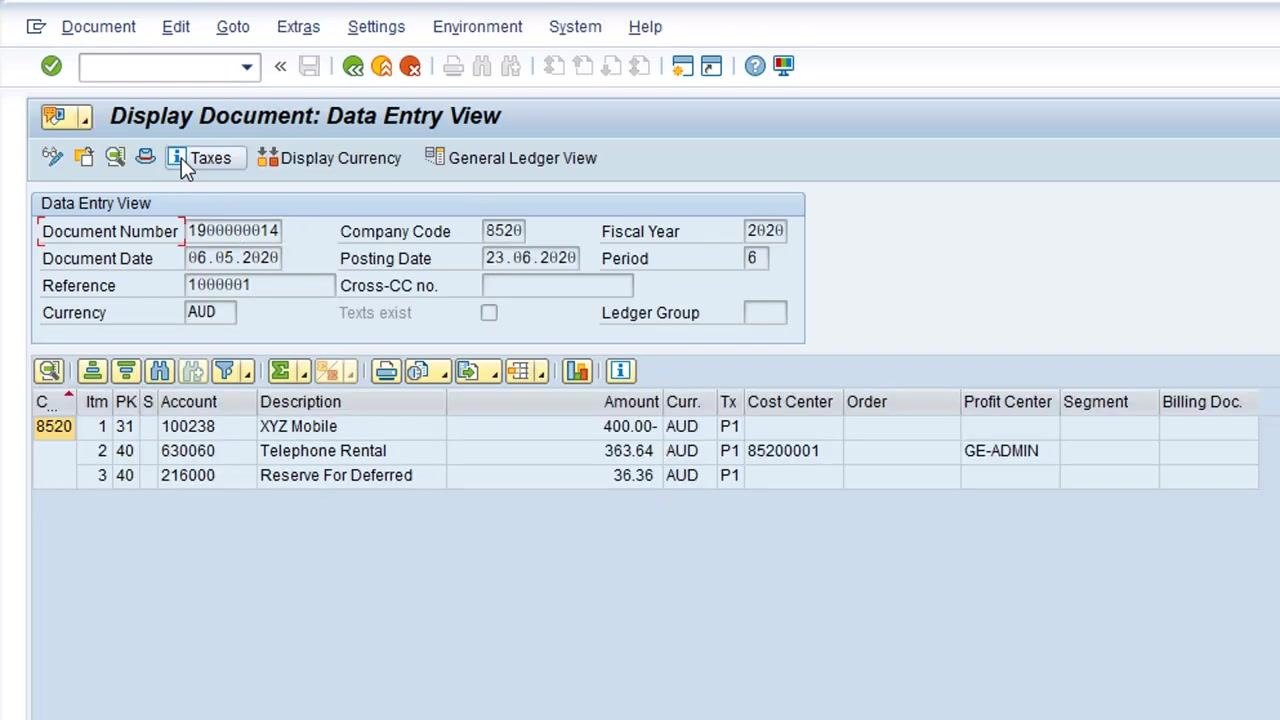
- Review the document details on the Display Document: Data Entry View screen before confirming the reversal. Verify the following:
- Document Number:
1900000014 - Company Code:
8520 - Fiscal Year:
2020 - Document Date:
06.05.2020 - Posting Date:
23.06.2020 - Reference:
1000001 - Currency:
AUD - Line items such as "XYZ Mobile", "Telephone Rental", and "Reserve For Deferred" with their respective amounts.
Ensure all information matches the document you intend to reverse.
- Once satisfied it is the correct document, click the green back arrow at the top of the screen to return to the previous screen.
- After returning to the Reverse Document: Header Data screen, observe the confirmation message at the bottom: "Document 2500000002 was posted in company code 8520." Record this reversal document number (
2500000002) for your records.
Verifying the reversal in the vendor line item display
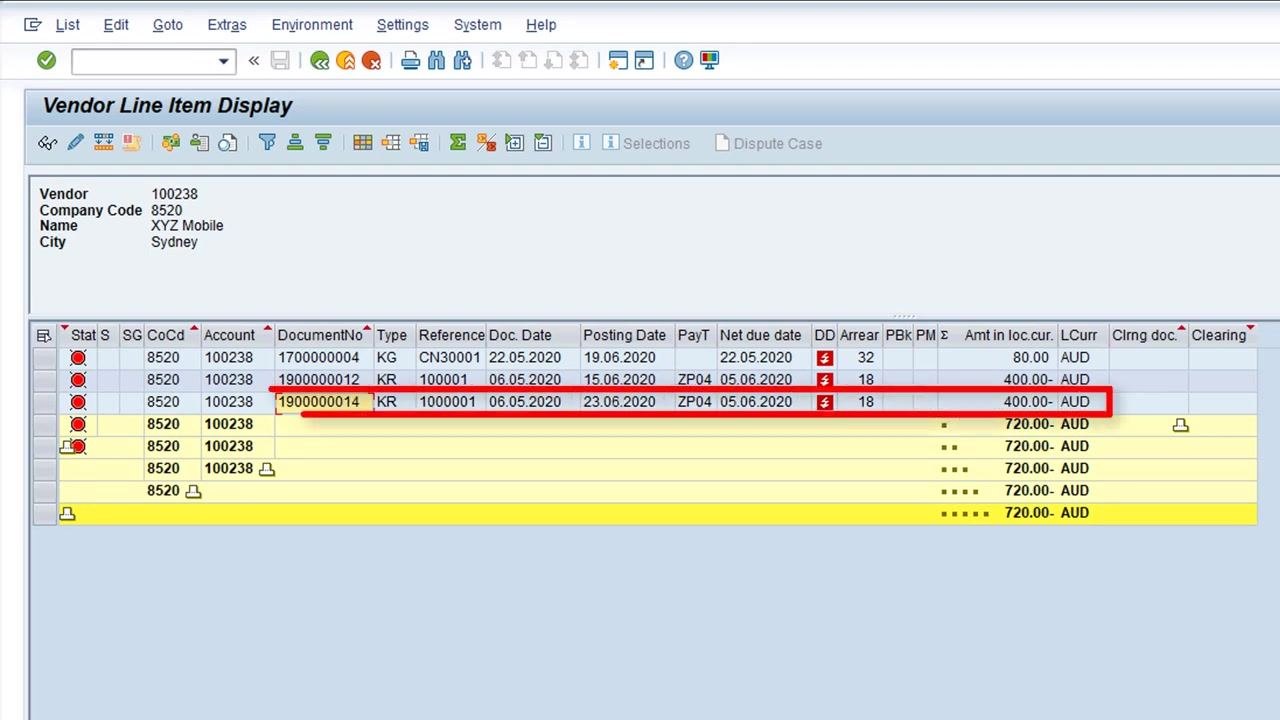
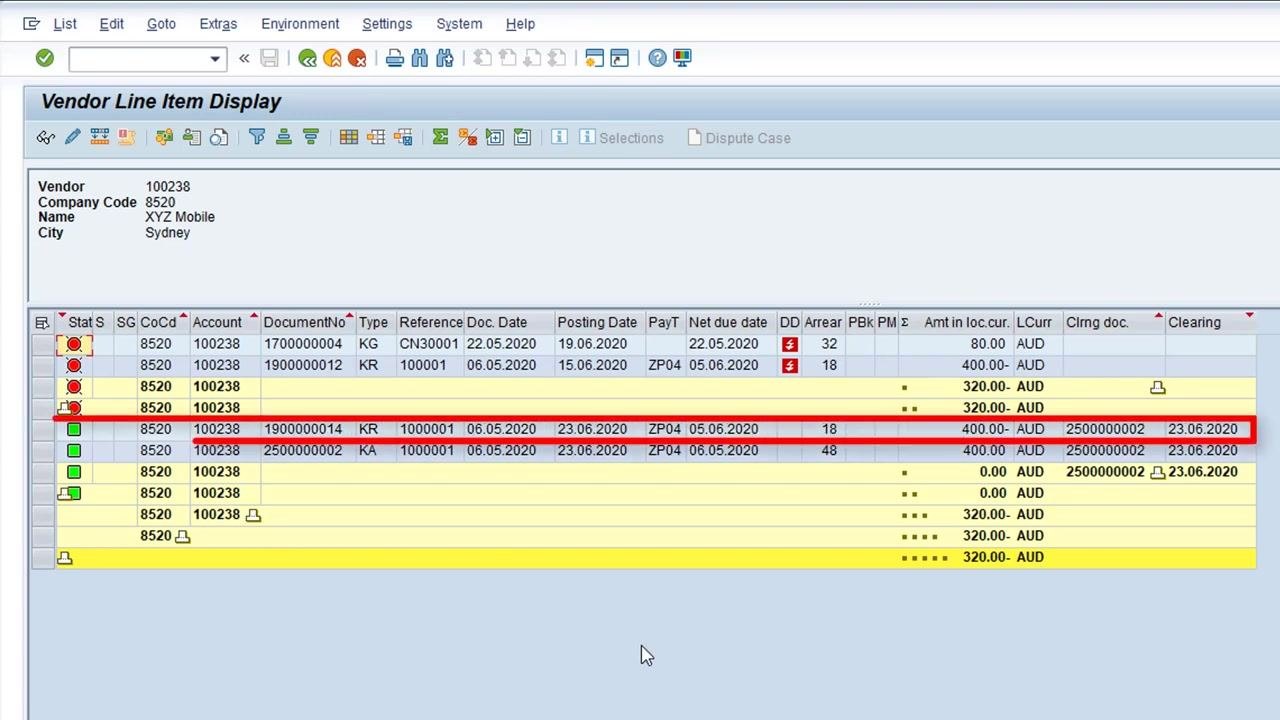
- Return to the Vendor Line Item Display screen, which lists all items for vendor
100238(XYZ Mobile) in company code8520. Locate the duplicate invoice with Document Number1900000014and Type KR, and note that it is currently an open item, shown with a red status indicator.
- Click the refresh button, or use the appropriate menu option, to update the list. Before the refresh completes, the duplicate invoice (Document Number
1900000014) is still highlighted as an open item.
-
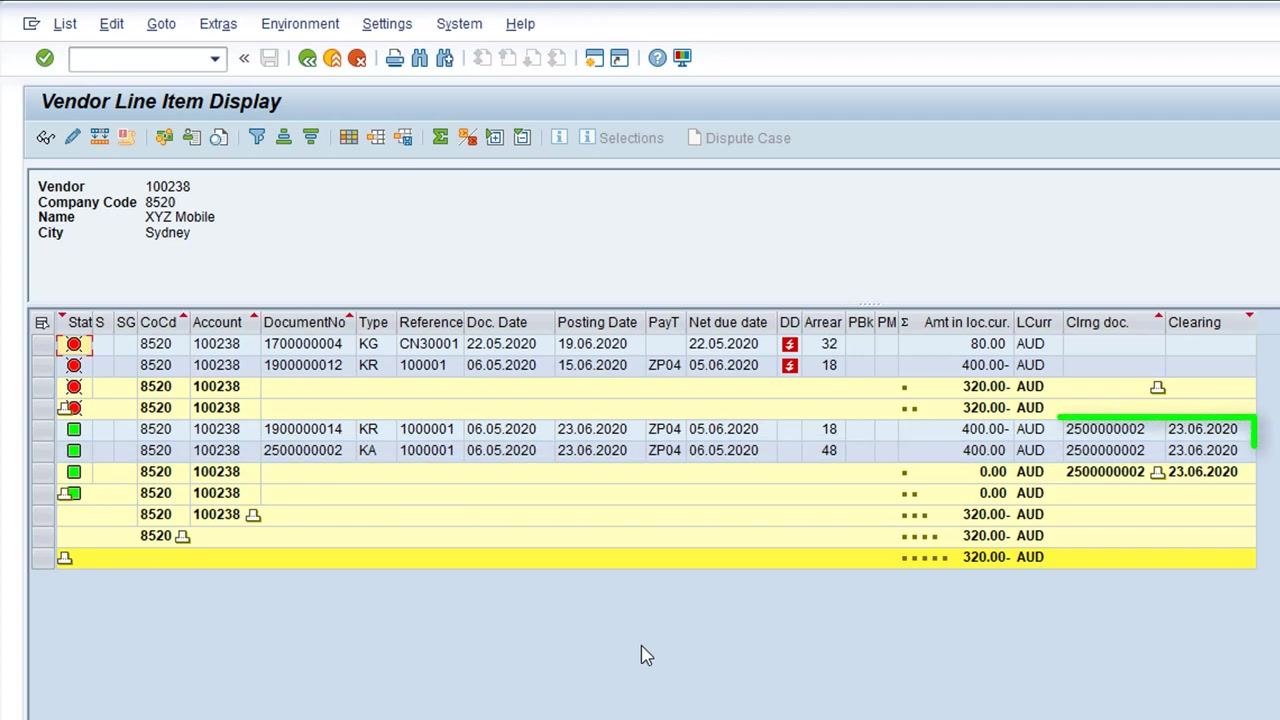
After refreshing, verify that the status of Document Number
1900000014has changed from an open item (red indicator) to a cleared item (green indicator). The Clrng doc. column now displays the reversal document number (2500000002), and the Clearing column shows the clearing date (23.06.2020). This confirms the duplicate invoice has been successfully reversed and cleared. -
Confirm that the reversal document (Document Number
2500000002) now appears in the list alongside the duplicate invoice, and that both entries show as cleared.
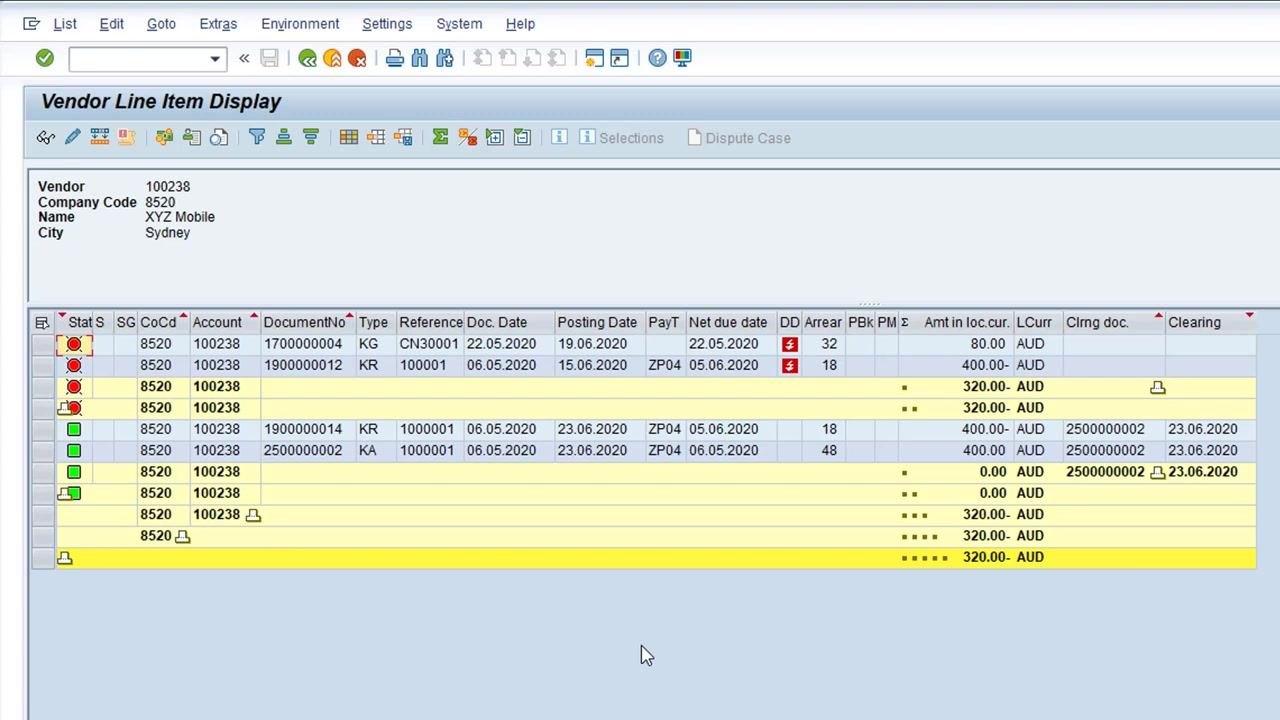
- Check the Clrng doc. column for both the duplicate invoice and the reversal document. Both entries should display the reversal document number (
2500000002) and the clearing date (23.06.2020), with a green status indicator confirming that both items are cleared.
Summary
You have now completed the process to reverse an accounting document with FB08 in SAP: you reviewed where FB08 fits in the procure-to-pay process, identified the scenarios that call for a reversal, posted a duplicate non-PO invoice with FB60, reversed it using FB08, and confirmed in the vendor line item display that both the duplicate invoice and the reversal document show as cleared.
What's next
The same FB08 process applies to the other reversal scenarios covered in this guide—documents posted to the wrong vendor code, documents posted against the wrong company code, and documents with other incorrect details that cannot be changed once posted. In each case, you follow the same pattern: locate the document number, company code, and fiscal year, then use FB08 to post the reversal and verify the result in the vendor line item display.
Generation details: cost, quality tiers
Docsie billed 5,500 credits ($3.85) to analyze this 11-minute video at standard quality. The rewrite, template fill and Word/PDF exports were included. The same video at each quality tier:
| Quality | Frames sampled | Credits | Approx. cost |
|---|---|---|---|
| Draft | every 16-30 s | 2,750 | $1.92 |
| Standard (this guide) | every 8-15 s | 5,500 | $3.85 |
| Detailed | every 4-7 s | 11,000 | $7.70 |
| Ultra | every 1-3 s | 22,000 | $15.40 |
Credits priced at $0.70 per 1,000; plans include a monthly allowance. Enterprise customers on on-premise or bring-your-own-model deployments run this on their own inference and pay no per-video credits.
Generated by Docsie Video-to-Docs on 2026-10-06 from a 10-minute video. Screenshots are frames from the source video and belong to their creator, Efficient eLearning, whose original is embedded above. If you own this video and want the guide removed or credited differently, contact us and we will act within one business day.