
How to Do a Client Copy in SAP
This guide shows you how to do a client copy in SAP using transaction SCCL. You log on through SAP Logon, choose a profile, set the source client, and then run the copy. You can also use parallel processing or schedule the copy as a background job.
Video: SAP Basis - Copy client on Local by TutorialsPoint (2018). All credit for the demonstration goes to the creator; watch the original on YouTube. The written guide below was generated from this video by Docsie. Creator? Request a change or removal.
This guide shows you how to do a client copy in SAP using transaction SCCL. You log on through SAP Logon, choose a profile, set the source client, and then run the copy. You can also use parallel processing or schedule the copy as a background job.
Prerequisites
Before you start, make sure you have the following:
- The SAP Logon shortcut on your desktop
- Access to the SAP ECC environment (SID: SC7) in SAP Logon 740
- Your SAP username and password
- The profile and source client you plan to copy from. This guide uses profile
SAP_CUST(Customizing) and source client100(Dev).
Log on to SAP
Step 1: Launch SAP Logon
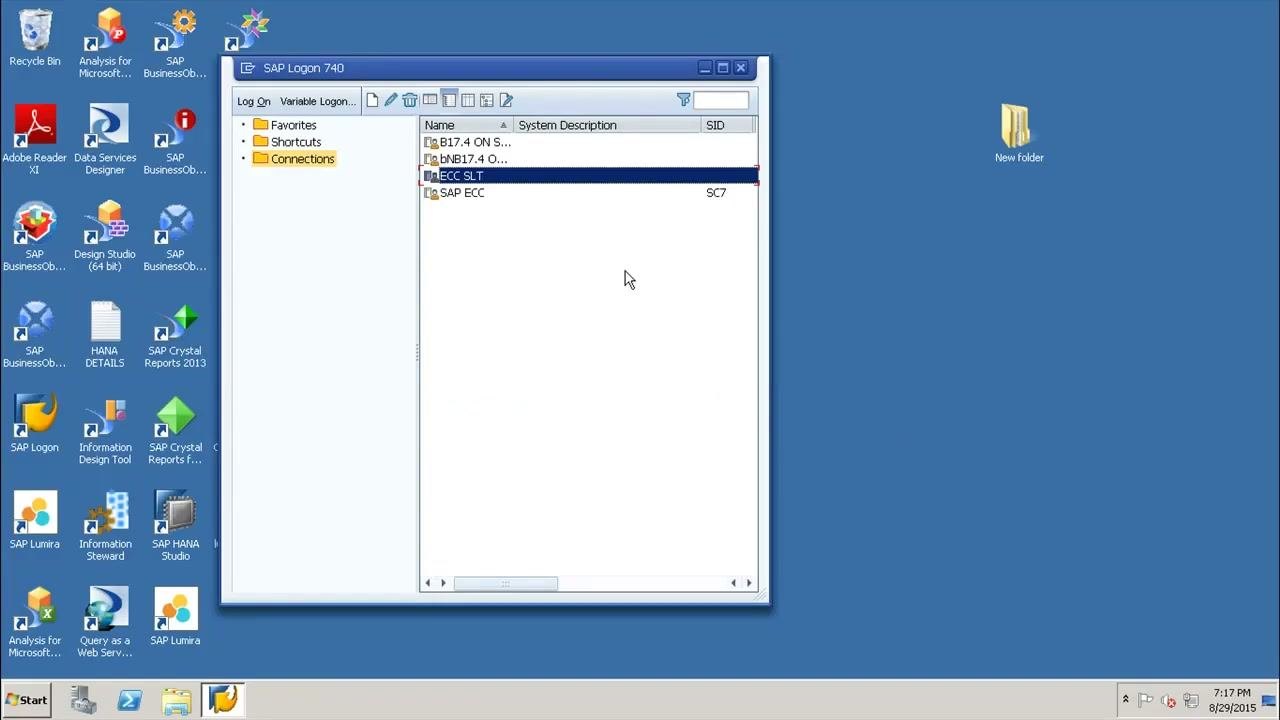
Locate the SAP Logon shortcut on your desktop and open it.
Step 2: Select your SAP ECC environment
In the Connections list of the SAP Logon 740 window, click the SAP ECC entry (SID: SC7). Double-click it or press Enter to continue.
Step 3: Enter your credentials
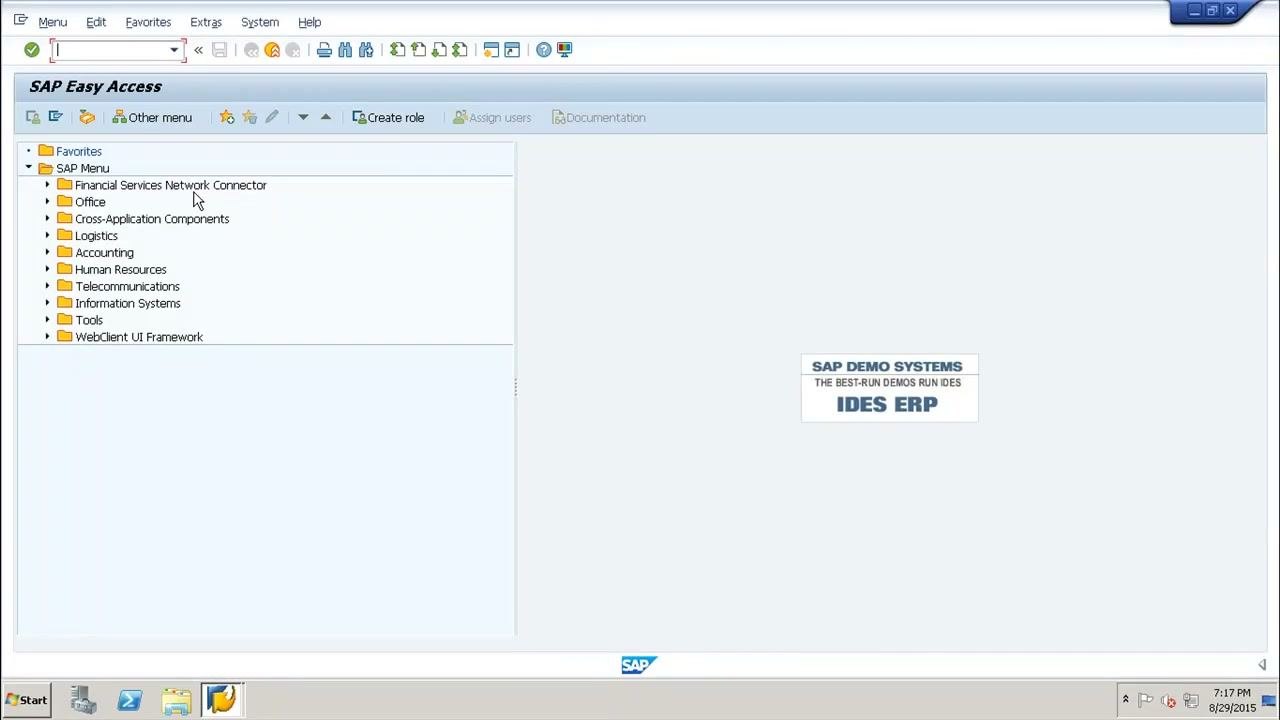
Enter your SAP username and password when prompted. After a successful login, the SAP Easy Access screen opens.
Start the client copy
Step 4: Open the client copy transaction
To begin a client copy in SAP, find the white command field at the top left of the SAP Easy Access window. Type SCCL and press Enter.
Step 5: Select the profile for the client copy
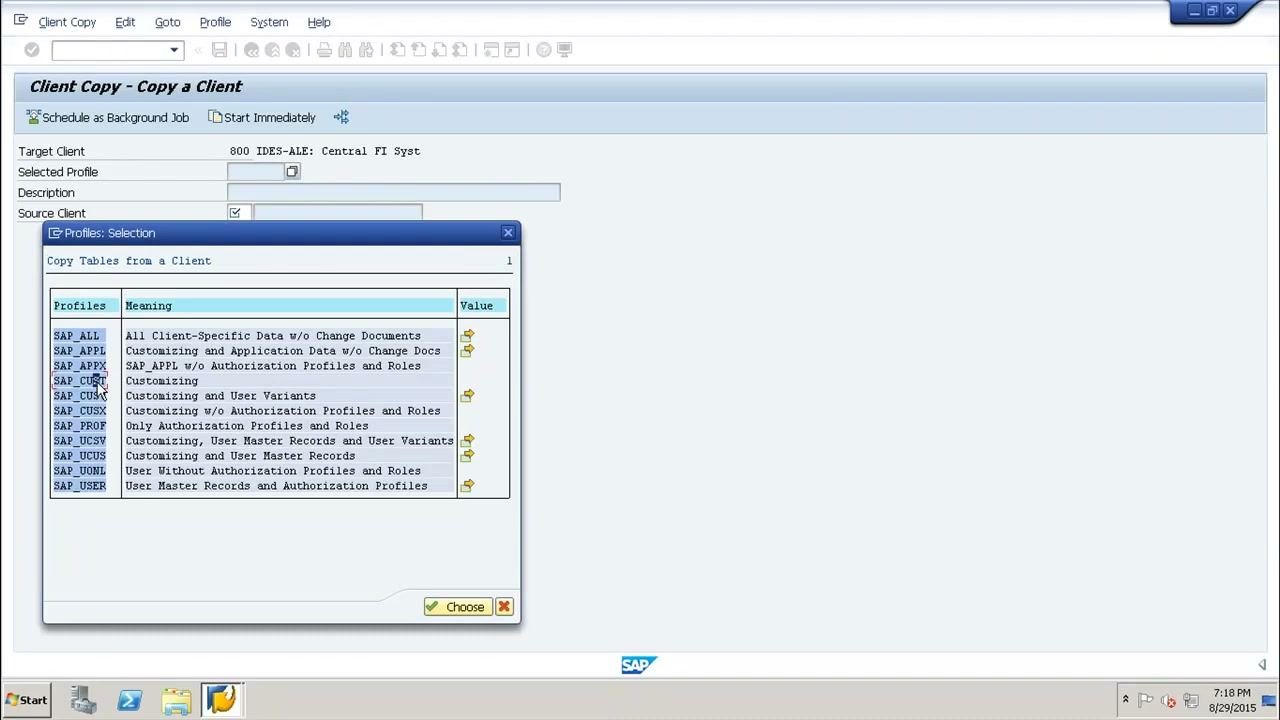
The Client Copy - Copy a Client screen appears. It contains the following fields:
- Target Client: This field is pre-filled (for example, 800 IDES-ALE: Central FI Syst).
- Selected Profile: Click the search button (magnifying glass) next to this field to select a profile.
- Description: Optionally, enter a description for the client copy.
- Source Client: Click the search button next to this field to select the source client.
- Test Run: Optionally, select this box to perform a test run without making changes.
Click the search button next to Selected Profile. In the Profiles: Selection dialog, choose SAP_CUST (Customizing), then click Choose to confirm.
Step 6: Enter a description
In the Description field, type Customizing.
Step 7: Select the source client
Click the search button next to the Source Client field. In the client selection dialog, select client 100 (Dev) from the list, then click Choose to confirm.
Step 8: Run a test first (optional)
Select the Test Run checkbox if you want to simulate the client copy without making actual changes.
At this point, you have set the parameters required to copy an existing SAP client. The next steps cover optional ways to speed up or schedule the copy.
Enable parallel processing (optional)
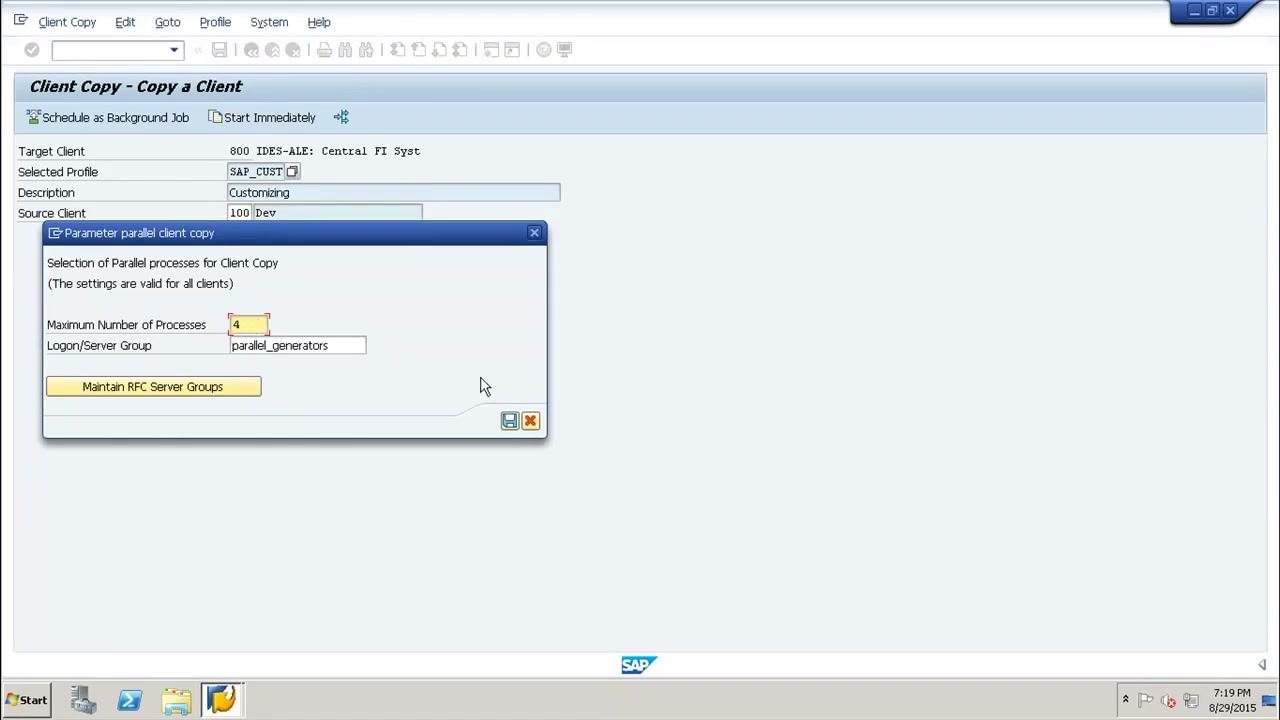
Step 9: Set parallel processes for the client copy
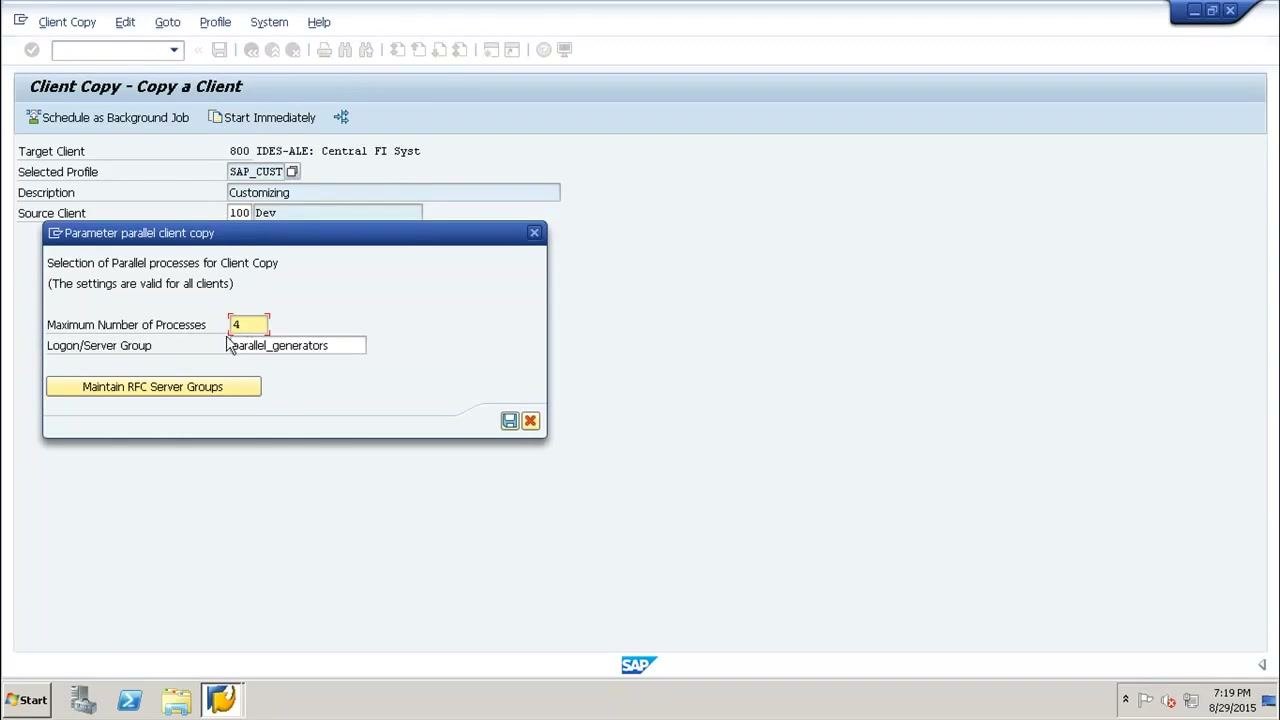
Use this option to divide the workload across multiple processes and reduce the time the copy takes.
- Click the
Gotomenu at the top of the screen. - Select the
Parallel Processesoption. - In the Parameter parallel client copy dialog, enter a value in the Maximum Number of Processes field (for example,
4). - Confirm the Logon/Server Group (for example,
parallel_generators). - Click the save (disk) icon to confirm your settings.
Schedule the client copy in the background (optional)
Step 10: Schedule the client copy as a background job
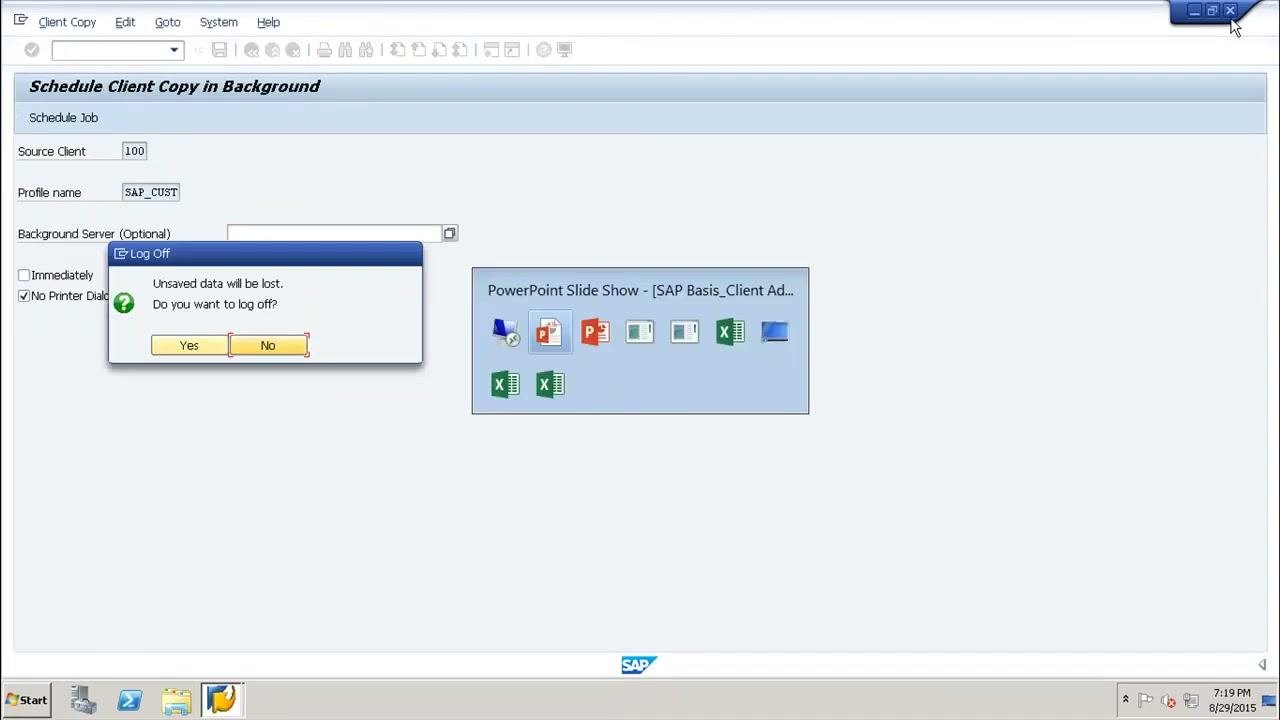
To run the client copy as a background job, click the Schedule as Background Job link at the top left of the Client Copy - Copy a Client screen. The Schedule Client Copy in Background screen appears.
On this screen, you can:
- Optionally select a Background Server by clicking the search button next to the field.
- Choose whether to start the job Immediately by selecting the checkbox.
- Make sure No Printer Dialog is selected if you do not want a printer dialog to appear.
To use a specific server for the job, click the search button next to Background Server and select the server from the list.
Run the client copy
Step 11: Finalize and execute the client copy
Review all settings and parameters, then confirm your selections to start the client copy. The system runs the copy according to your chosen options: single process, parallel processes, or background job.
Step 12: Log off or continue with other tasks
Once the client copy is scheduled or started, you can log off or continue with other SAP tasks. If you try to log off, a confirmation dialog asks: "Unsaved data will be lost. Do you want to log off?" Choose Yes or No as appropriate.
What's next
Continue as your SAP system or organizational procedures direct.
Summary
You now know how to do a client copy in SAP: log on, run SCCL, choose the SAP_CUST profile, set the source client, and start the copy. You can also use parallel processing or schedule the copy as a background job to minimize system downtime and improve performance.
Generation details: cost, quality tiers
Docsie billed 2,000 credits ($1.40) to analyze this 4-minute video at standard quality. The rewrite, template fill and Word/PDF exports were included. The same video at each quality tier:
| Quality | Frames sampled | Credits | Approx. cost |
|---|---|---|---|
| Draft | every 16-30 s | 1,000 | $0.70 |
| Standard (this guide) | every 8-15 s | 2,000 | $1.40 |
| Detailed | every 4-7 s | 4,000 | $2.80 |
| Ultra | every 1-3 s | 8,000 | $5.60 |
Credits priced at $0.70 per 1,000; plans include a monthly allowance. Enterprise customers on on-premise or bring-your-own-model deployments run this on their own inference and pay no per-video credits.
Generated by Docsie Video-to-Docs on 2026-11-15 from a 3-minute video. Screenshots are frames from the source video and belong to their creator, TutorialsPoint, whose original is embedded above. If you own this video and want the guide removed or credited differently, contact us and we will act within one business day.