
How to Display Warehouse Stock with MB52 in SAP S/4HANA
This guide explains how to display warehouse stock with MB52 in SAP ERP, a transaction code used to evaluate the amount of stock available in your warehouse. This is especially useful for financial year-end evaluation and ongoing inventory management. Follow the steps below to run the report and interpret the resulting stock data.
Video: How to check WAREHOUSE stock availibility in SAP MM using T Code MB52 by ERP SAP Team . All credit for the demonstration goes to the creator; watch the original on YouTube. The written guide below was generated from this video by Docsie. Creator? Request a change or removal.
This guide explains how to display warehouse stock with MB52 in SAP ERP, a transaction code used to evaluate the amount of stock available in your warehouse. This is especially useful for financial year-end evaluation and ongoing inventory management. Follow the steps below to run the report and interpret the resulting stock data.
Prerequisites
Before you begin, make sure you have access to the SAP Easy Access screen and the relevant material and plant codes for the items you want to review.
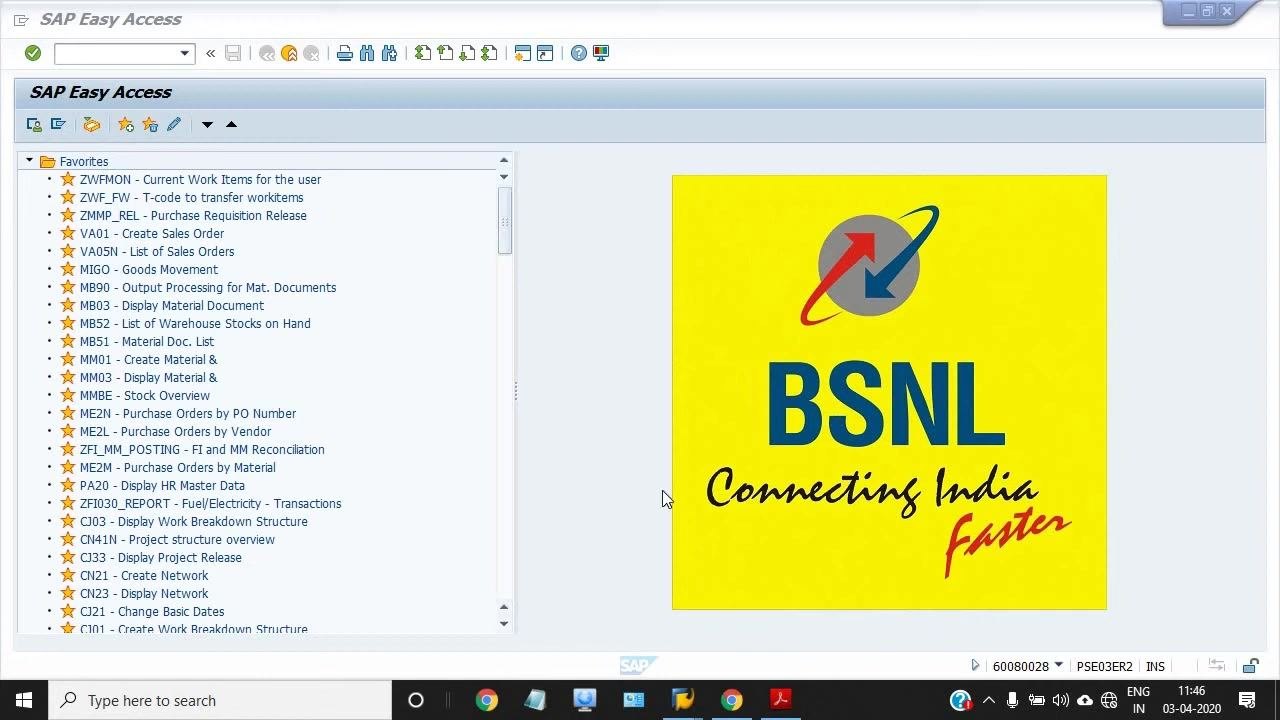
Open the SAP Easy Access screen
Launch SAP and confirm that you are on the SAP Easy Access main screen. You will see the navigation menu on the left side and a company logo or welcome image on the right.
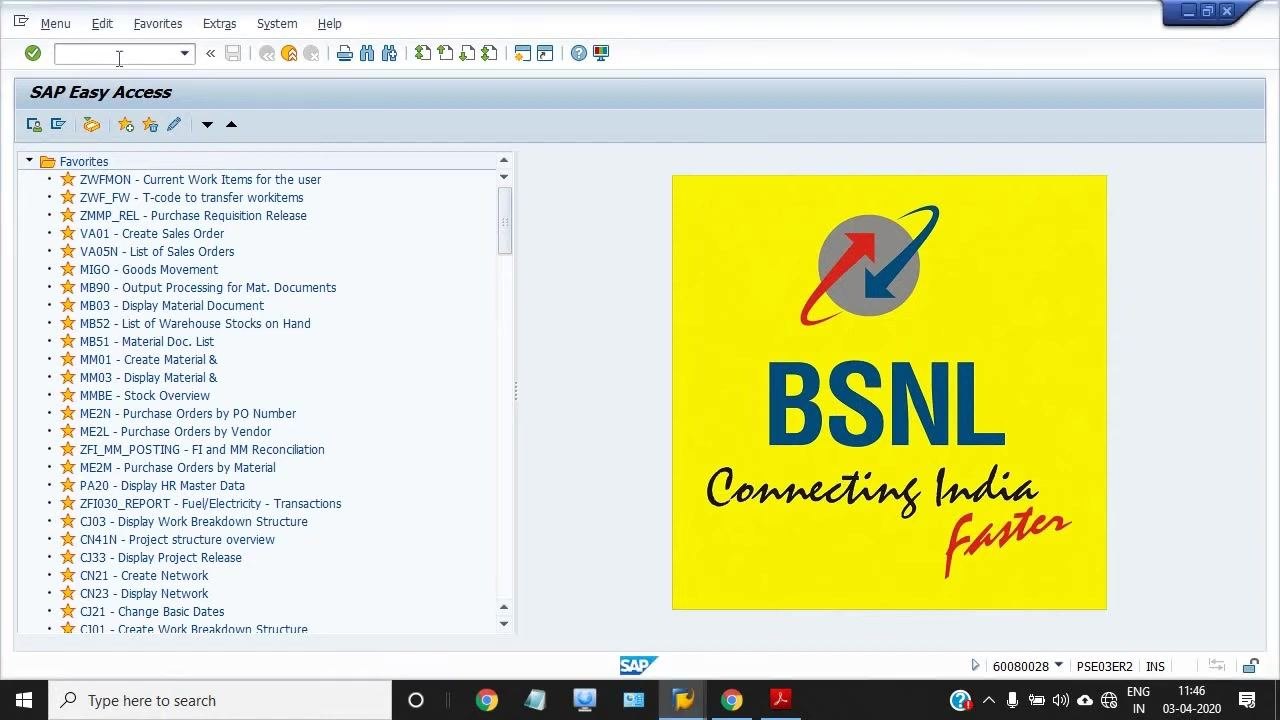
Enter transaction code MB52
Locate the transaction code input field at the top of the SAP Easy Access screen. Type MB52 into the field and press Enter to proceed.
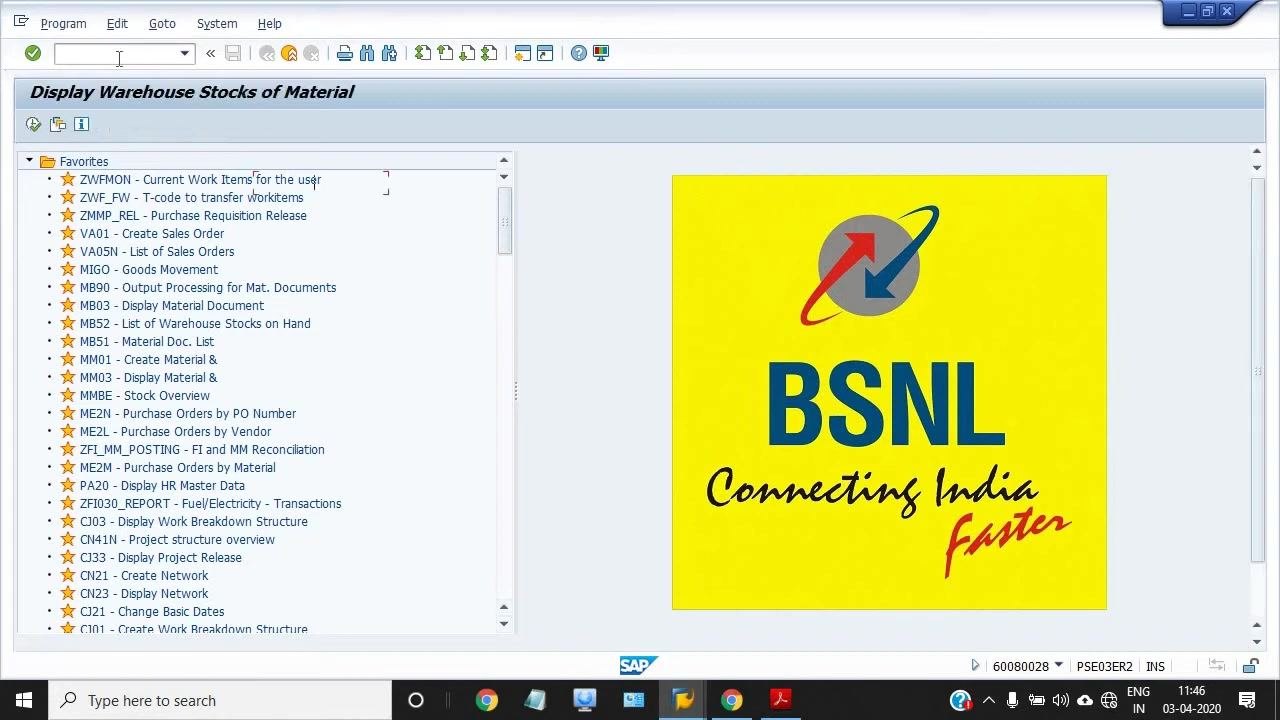
Access the Display Warehouse Stocks of Material screen
Once MB52 loads, the screen title reads Display Warehouse Stocks of Material. The navigation menu remains on the left, and the main area is ready for your input.
Fill in material and plant details
In the Database Selections section, enter the details for the stock you want to check:
- Material: for example,
120011002 - Plant: for example, a range from
1701to1710 - Leave other fields, such as Storage Location or Batch, blank unless you need to filter further
- Check Also Select Special Stocks if you want to include special stocks
- Under Settings, make sure Display Batch Stocks and No zero stock lines are checked
Execute the transaction
Click the Execute button (green checkmark or F8) to run the report.
Review the warehouse stock report
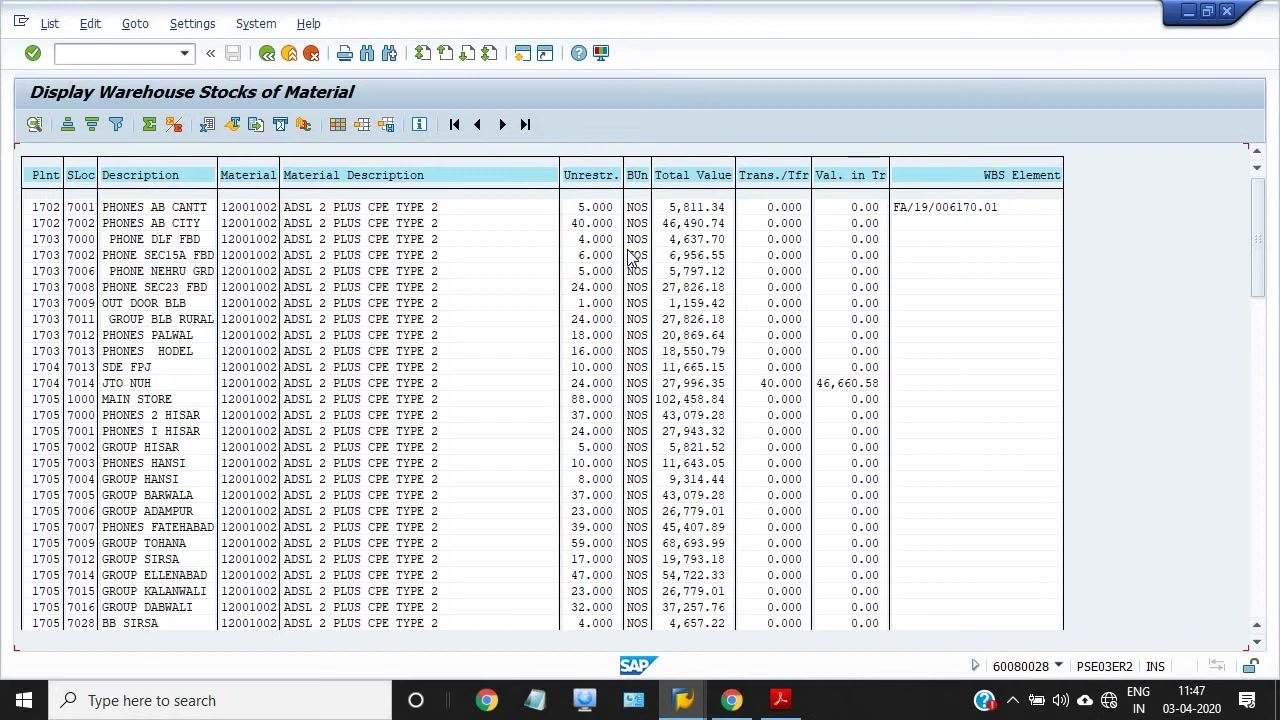
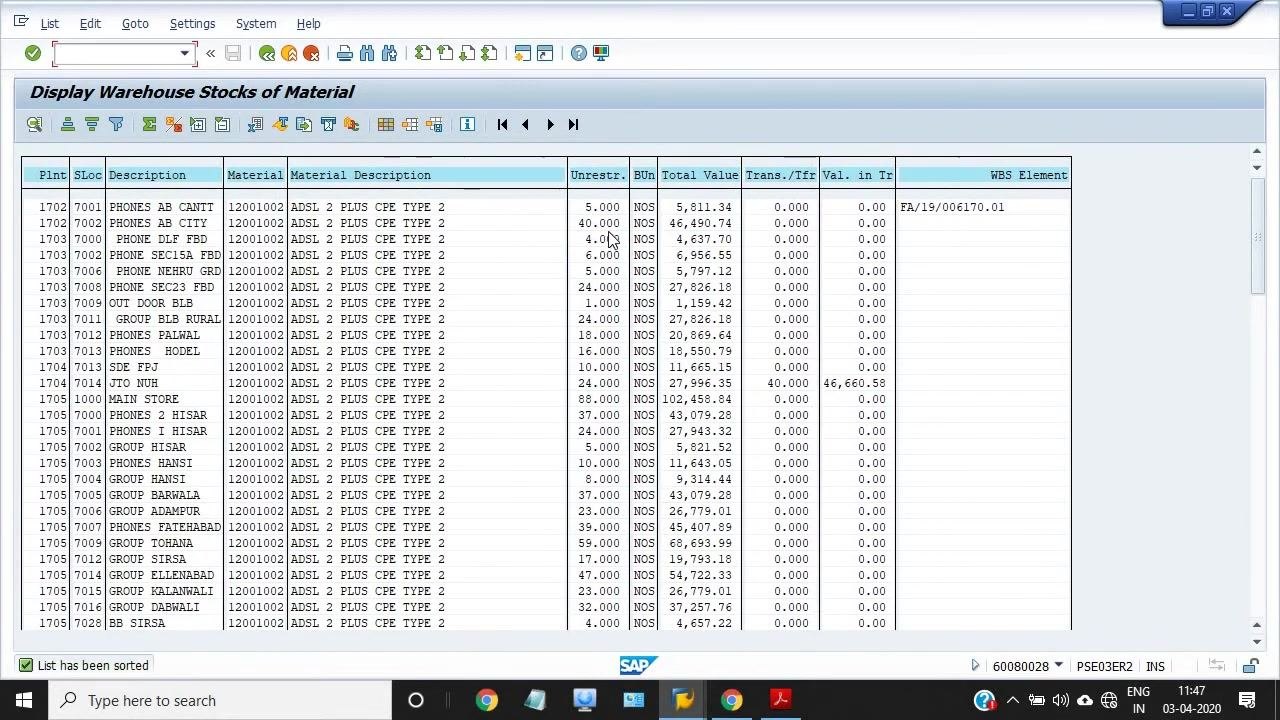
The system displays a table listing all relevant stock information for the selected materials and plants. Columns include Plant, Storage Location, Description, Material, Material Description, Unrestricted Stock, Base Unit of Measure (BUn), Total Value, and more. Review the quantities and values for each location.
Apply subtotals to separate material types
To distinguish between different material types, such as Type 1 and Type 2 modems, apply the subtotal function in the report. This groups and separates the stock data for each material type, making it easier to analyze.
Interpret the results
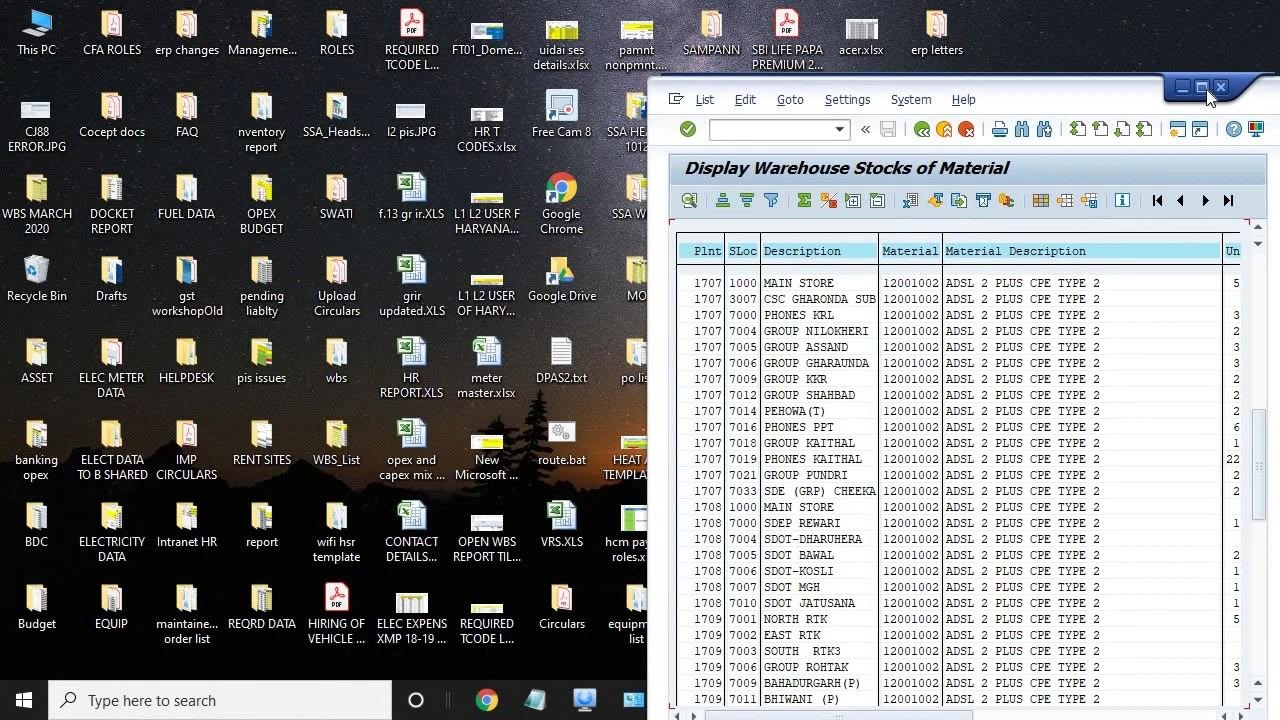
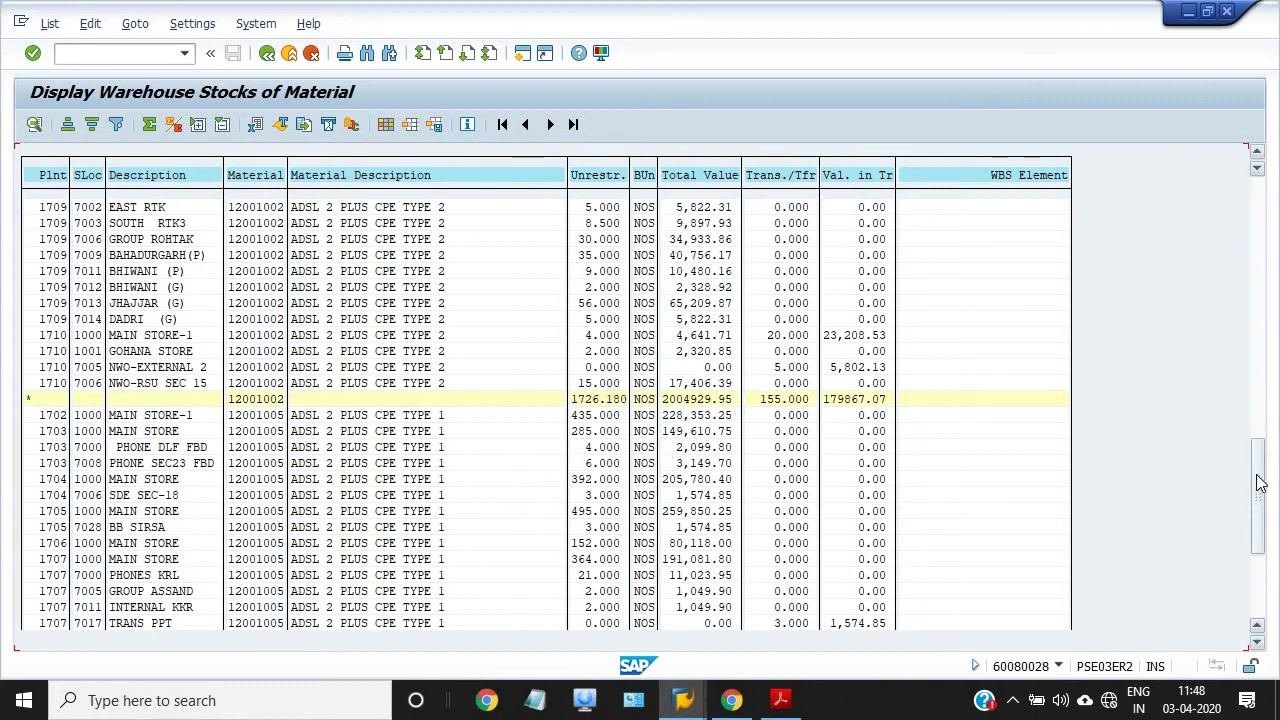
After applying subtotals, the upper section of the table shows Type 2 modems, and the lower section shows Type 1 modems. Use this breakdown to evaluate your warehouse stock for each material type.
Understanding and interpreting the warehouse stock report
Once you have displayed warehouse stock with MB52 in SAP, you can analyze the report in more detail using the following guidance.
Identify material types and business areas
Review the Material Description column to distinguish between different modem types, for example:
ADSL 2 PLUS CPE TYPE 2(Type 2 modem)ADSL 2 PLUS CPE TYPE 1(Type 1 modem)
The business area for these modems is categorized by type, which helps with inventory segregation and reporting.
Locate storage locations
Examine the SLoc (Storage Location) and Description columns to identify where each material is stored. Example storage locations include:
MAIN STOREPHONE DLF FBDSECTOR 18NWO-RSU SEC 15
These locations represent physical or logical storage points within your organization.
Review stock quantities and values
Check the Unrestr. (Unrestricted Stock) column for the available quantity of each material. The Total Value column shows the monetary value of the stock at each location. The BUn (Base Unit of Measure) column, such as NOS (Numbers), indicates the unit used for the stock count.
Analyze transfer and project data
The Trans./Trfr (Transfer/Transfer) and Val. in Tr (Value in Transfer) columns display any stock that is in transit or being transferred. The WBS Element column may show project codes or references if stock is linked to specific projects.
Interpret subtotals and groupings
Use the subtotal lines, shown as highlighted rows, to quickly see total quantities and values for each modem type or storage location. This helps summarize and report inventory for audits or financial closure.
Finalize your review
Scroll through the report to confirm that all relevant storage locations and material types are included in your analysis. Verify that the data matches your physical inventory records for accuracy.
What's next
By following these steps, you can display warehouse stock with MB52 in SAP and thoroughly interpret the resulting report, including the distribution, value, and location of your inventory. Use this process regularly to support accurate inventory evaluation and effective business management.
Generation details: cost, quality tiers
Docsie billed 1,500 credits ($1.05) to analyze this 3-minute video at standard quality. The rewrite, template fill and Word/PDF exports were included. The same video at each quality tier:
| Quality | Frames sampled | Credits | Approx. cost |
|---|---|---|---|
| Draft | every 16-30 s | 750 | $0.52 |
| Standard (this guide) | every 8-15 s | 1,500 | $1.05 |
| Detailed | every 4-7 s | 3,000 | $2.10 |
| Ultra | every 1-3 s | 6,000 | $4.20 |
Credits priced at $0.70 per 1,000; plans include a monthly allowance. Enterprise customers on on-premise or bring-your-own-model deployments run this on their own inference and pay no per-video credits.
Generated by Docsie Video-to-Docs on 2026-10-06 from a 2-minute video. Screenshots are frames from the source video and belong to their creator, ERP SAP Team , whose original is embedded above. If you own this video and want the guide removed or credited differently, contact us and we will act within one business day.