
How to Create an Assessment Cycle in SAP
If you want to know how to create an assessment cycle in SAP, start with the first requirement: an actual posting on a cost center. This guide covers the full workflow. You verify the cost center hierarchy, the posting, and the secondary cost element, and then review the cycle's segment settings. Finally you run the actual assessment (test run first, then update run) and check the results in the Actual/Plan/Variance report.
Video: SAP CO-assessment cycle (S/4HANA) by Isabel Sanchez (2019). All credit for the demonstration goes to the creator; watch the original on YouTube. The written guide below was generated from this video by Docsie. Creator? Request a change or removal.
If you want to know how to create an assessment cycle in SAP, start with the first requirement: an actual posting on a cost center. This guide covers the full workflow. You verify the cost center hierarchy, the posting, and the secondary cost element, and then review the cycle's segment settings. Finally you run the actual assessment (test run first, then update run) and check the results in the Actual/Plan/Variance report.
Prerequisites
Before you begin, make sure you have the following in place:
- An actual posting in cost center 1104. The example in this guide was created with transaction FB50.
- A G/L account set up as a secondary cost element with cost element category 42 (assessment). This guide uses G/L account 100604.
- Active cost centers in controlling area 1104: CC01, 1104, and 1105.
- Access to SAP GUI and the SAP Easy Access menu.
Review the standard hierarchy of cost centers
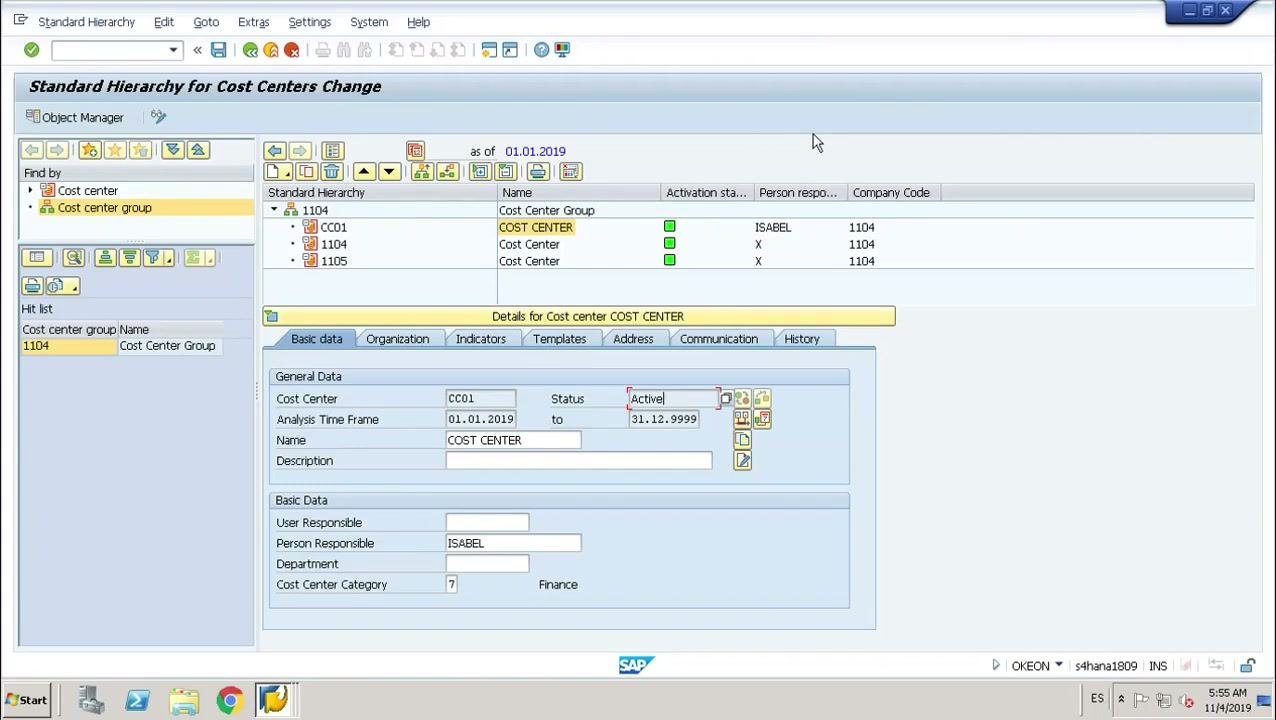
Open the Standard Hierarchy for Cost Centers Change screen and look at the hierarchy for controlling area 1104. It contains three cost centers: CC01, 1104, and 1105. The cost center group is labeled COST CENTER, the person responsible is ISABEL, and the company code is 1104.
In the Details for Cost center COST CENTER section, check these values:
- Cost Center: CC01
- Status: Active
- Analysis Time Frame: 01.01.2019 to 31.12.9999
- Name: COST CENTER
- Person Responsible: ISABEL
- Cost Center Category: Finance
Find the cost center report in the SAP Easy Access menu
The first step of the assessment cycle is an actual posting. In this example, the posting already exists in cost center 1104, created with transaction FB50.
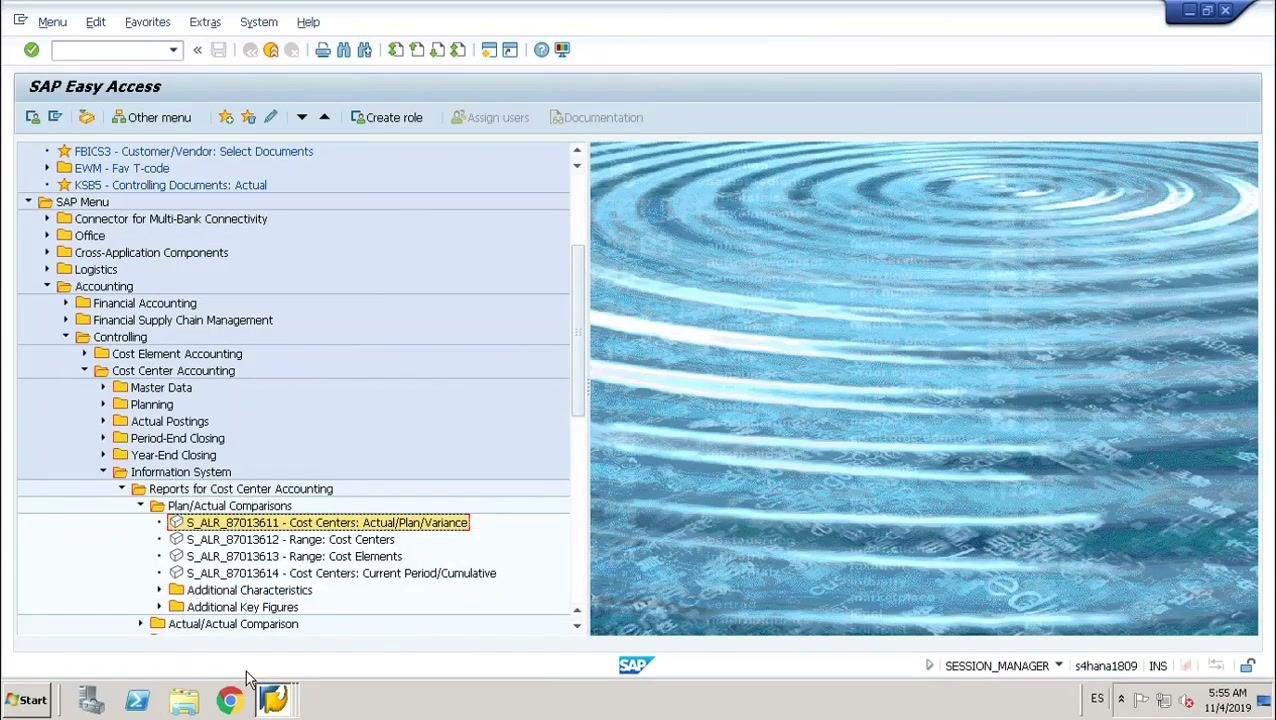
Return to the SAP Easy Access main menu and expand this path:
Accounting > Controlling > Cost Center Accounting > Information System > Reports for Cost Center Accounting > Plan/Actual Comparisons
Highlight the report S_ALR_87013611 - Cost Centers: Actual/Plan/Variance.
Display the actual posting in the cost center report
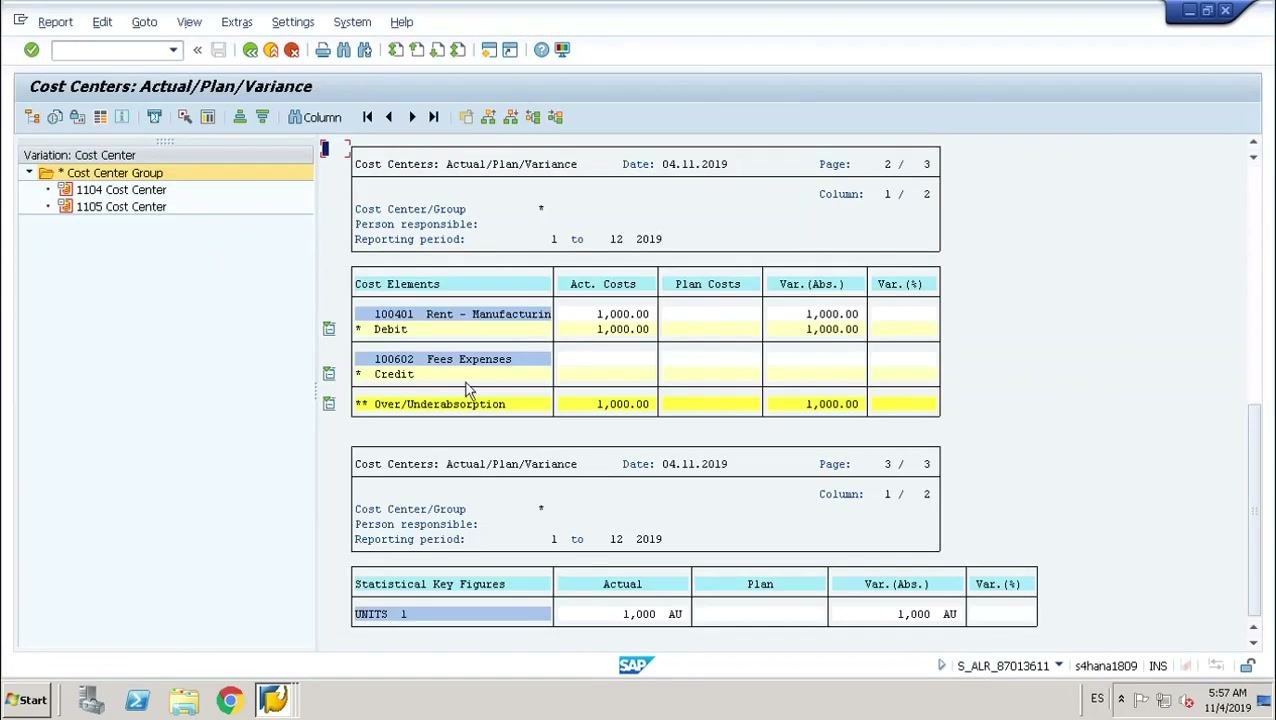
Open the S_ALR_87013611 - Cost Centers: Actual/Plan/Variance report and review the actual posting for cost center 1104:
- Cost Element: 100401 (Rent - Manufacturing)
- Actual Costs: 1,000.00 INR
- Plan Costs: 1,000.00 INR
- Variance (Absolute): 1,000.00
- Variance (%): 1,000.00
- Debit: 1,000.00 INR
- Credit: shown if applicable (for example, 100602 Fees Expenses)
- Over/Underabsorption: 1,000.00 INR
Confirm that the posting of 1,000 INR to cost center 1104 under cost element 100401 Rent - Manufacturing is visible. This posting is the first step of the assessment cycle. It is the primary cost element posting you need before you run the assessment.
Return to the report selection screen
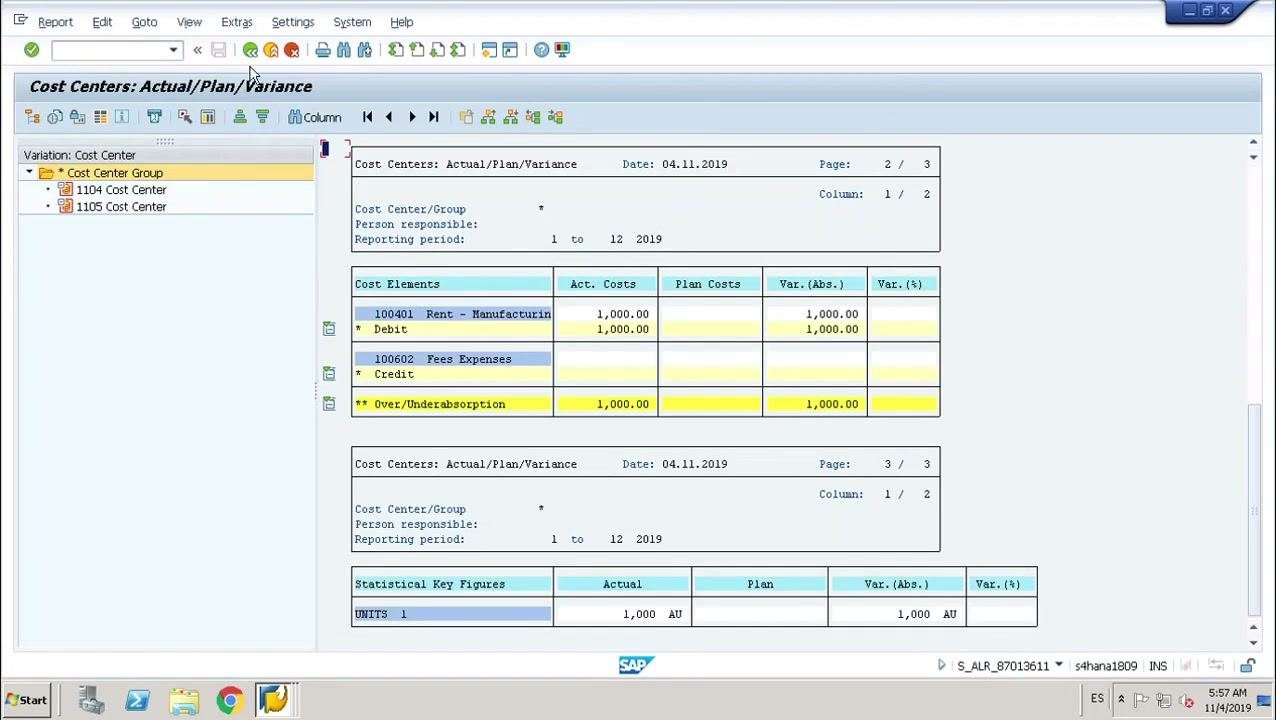
Click the green back arrow (F3) at the top of the SAP window to leave the report. On the Cost Centers: Actual/Plan/Variance: Selection screen, verify these selection values:
- Controlling Area: 1104
- Fiscal Year: 2019
- From Period: 1
- To Period: 12
- Plan Version: 0
Verify the secondary cost element setup
Open the Display G/L Account Centrally screen. Confirm that G/L Account is 100604 and Company Code is 1104 (Company Pvt Ltd).
On the Type/Description tab, verify the following:
- G/L Account Type: Secondary Costs
- Account Group: Secondary Costs/Revenues
- Short Text: X
- G/L Acct Long Text: XXX
This G/L account must already exist as a secondary cost element with cost element category 42 (assessment). The assessment cycle requires this setup.
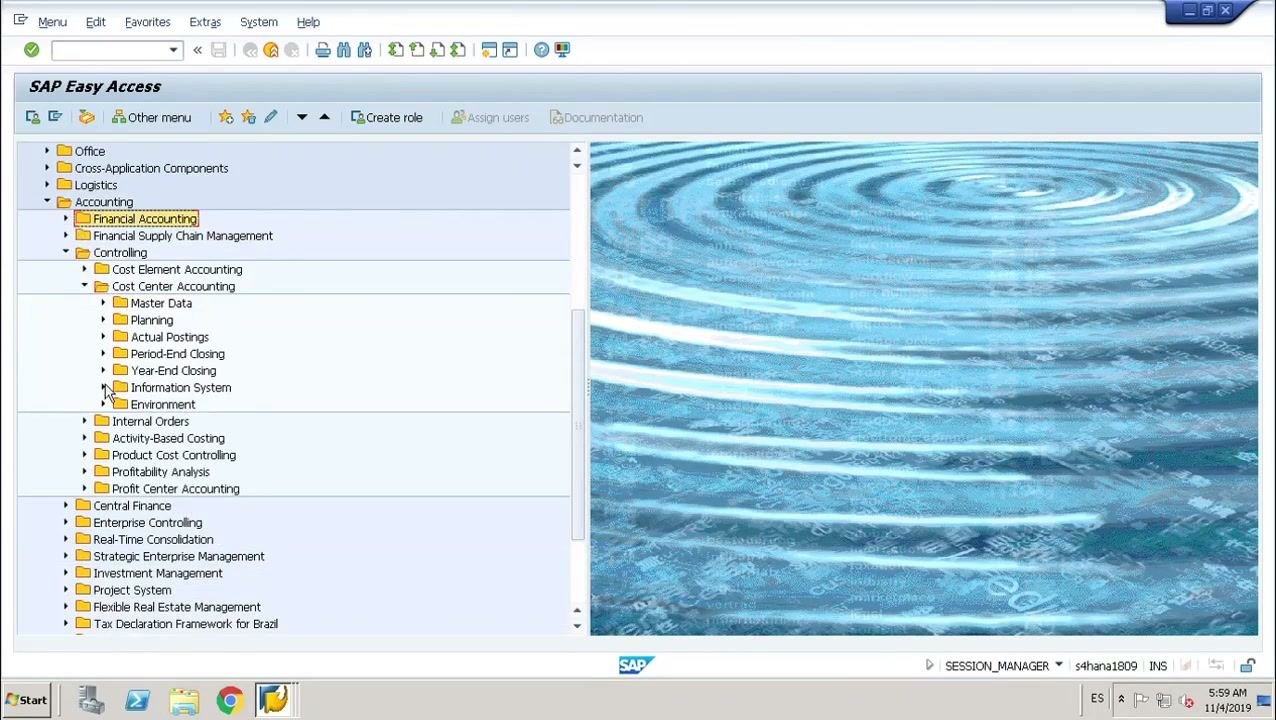
Open the period-end closing folder in the assessment cycle menu
Return to the SAP Easy Access menu and expand this path:
Accounting > Controlling > Cost Element Accounting > Cost Center Accounting
Then locate and expand the Period-End Closing folder.
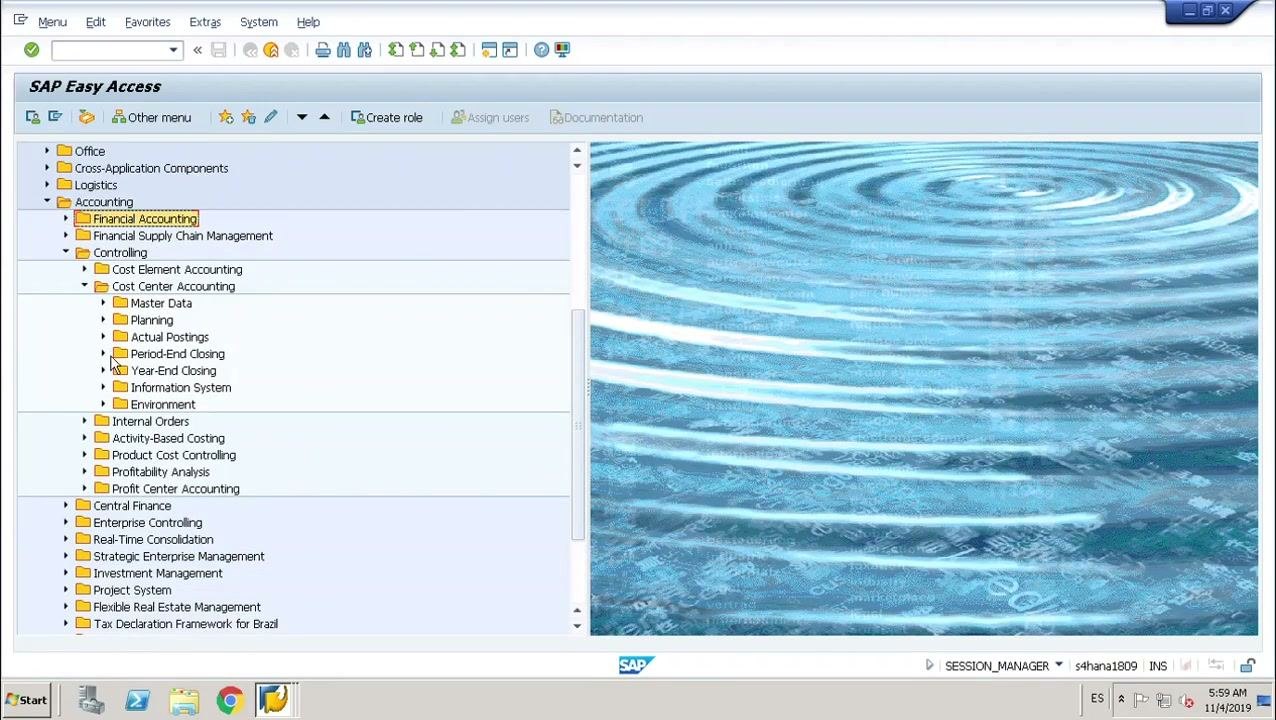
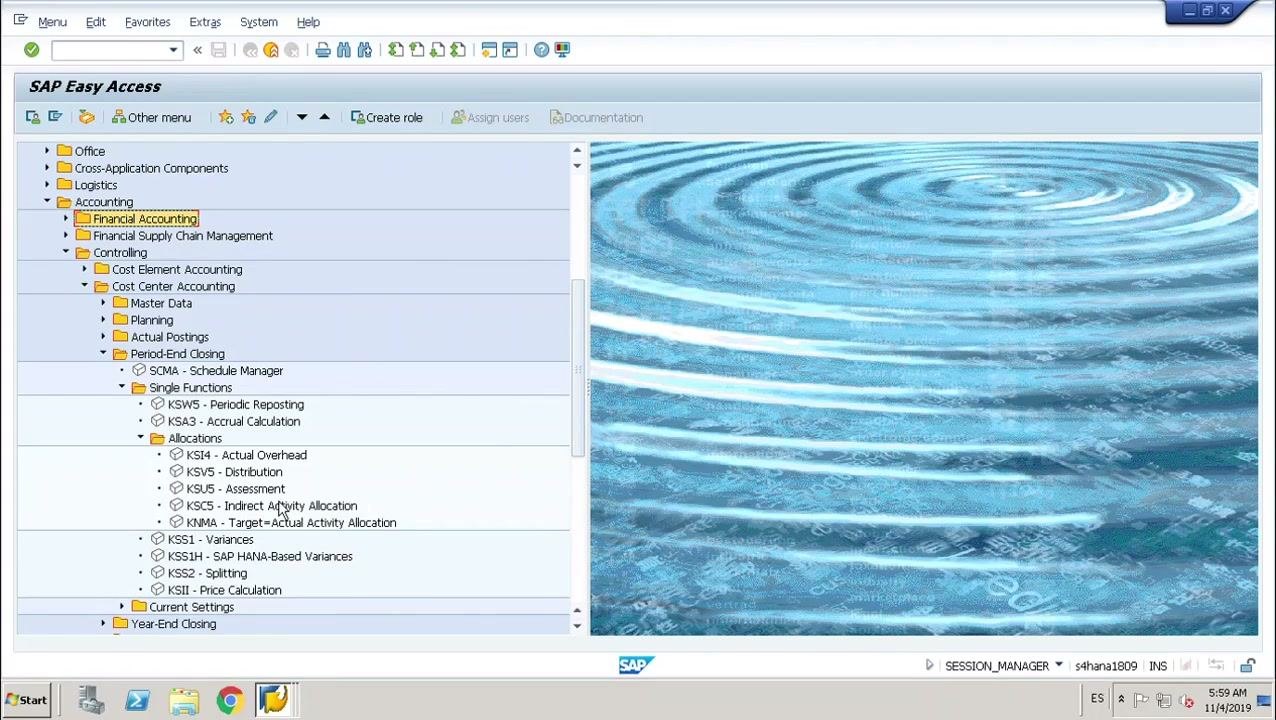
Locate the assessment transaction under allocations
Under Period-End Closing, expand the Single Functions folder, and then expand the Allocations subfolder. You see these transactions:
- KSWS - Periodic Reposting
- KSA3 - Accrual Calculation
- KSU5 - Assessment (used for assessment cycles)
- KS14 - Actual Overhead
- KSV5 - Distribution
- KSC5 - Indirect Activity Allocation
- KNMA - Target-Actual Activity Allocation
You can navigate through the menu tree, or you can enter transaction codes directly if you prefer.
Open the Execute Actual Assessment initial screen
Open the Execute Actual Assessment: Initial Screen (transaction KSU5 - Assessment). Check the following fields and settings:
- Controlling Area: 1104
- Period: 1 to 12
- Fiscal Year: 2019
- Processing Options: Test Run and Detail Lists are checked.
- Additional Functions: Lock Segments for Test Run, Display Documents and Simulations, and Show Executions in Schedule Manager are available.
The lower section has Cycle and Start Date fields, which are empty at this point.
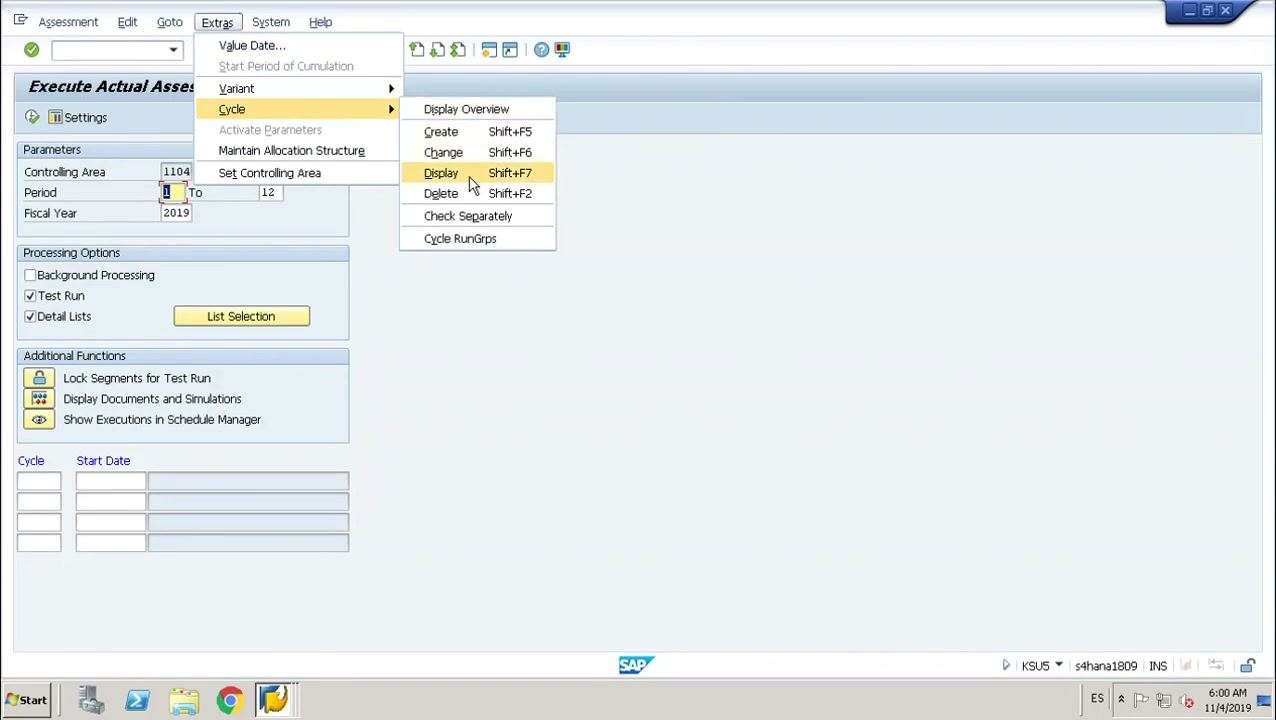
Display the assessment cycle before you execute it
Before you run the assessment, review the cycle setup. From the top menu, select Extras > Cycle > Display, or press Shift+F7.
The system opens the Display Actual Assessment Cycle: Segment screen. These key fields appear:
- Controlling Area: 1104
- Cycle: 1
- Segment Name: 1
The Segment Header tab is active and shows these values:
- Assessment CElem: 100604
- Sender Rule: Posted amounts
- Share in %: 100.00%
- Receiver Rule: Fixed amounts
This cycle contains only one segment.
Confirm the sender and receiver cost centers
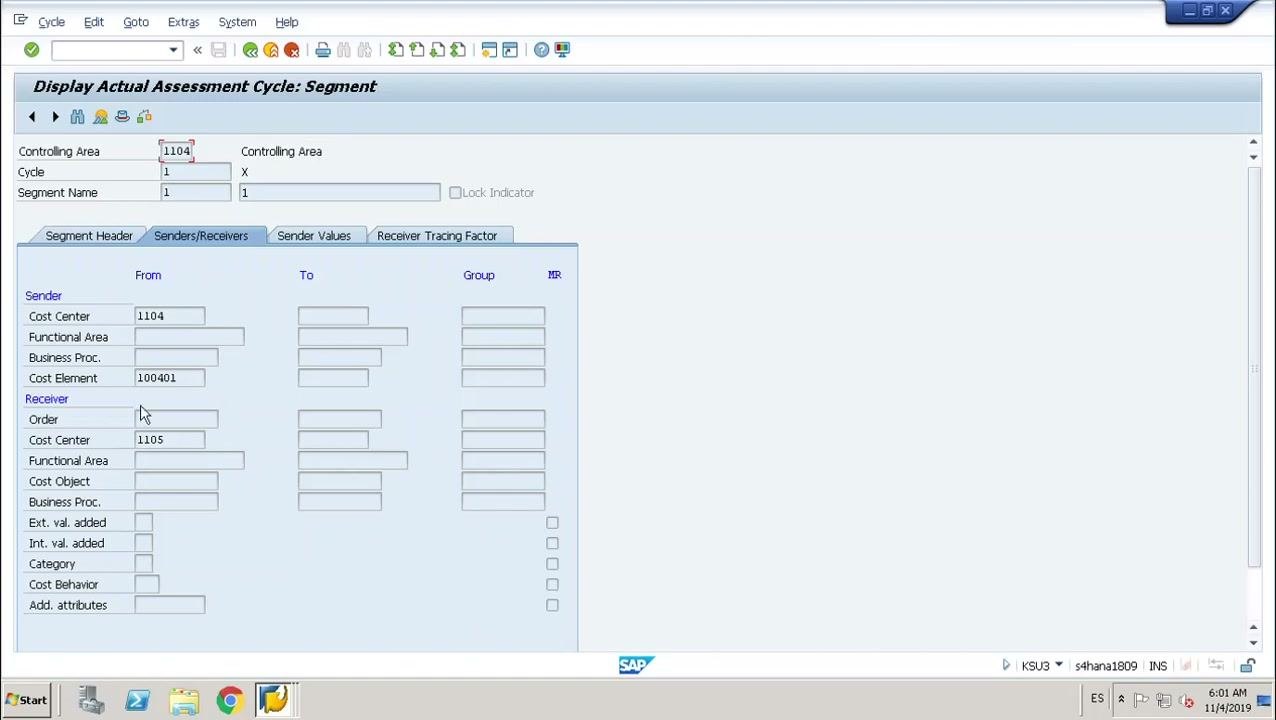
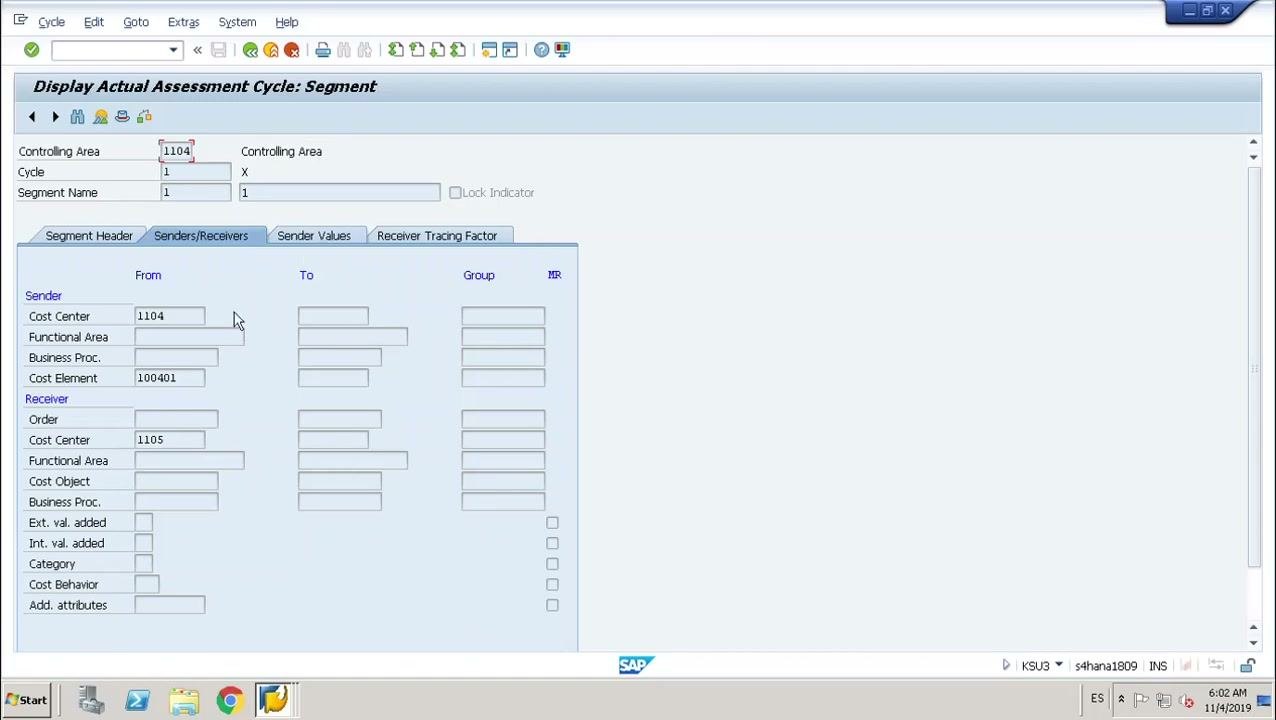
Switch to the Senders/Receivers tab of the Display Actual Assessment Cycle: Segment screen and verify the following:
- Sender cost center: 1104
- Sender cost element: 100401
- Receiver cost center: 1105
No values are entered for Functional Area, Business Proc., Cost Object, or the other receiver fields.
Check the sender values
Switch to the Sender Values tab and check these details:
- Share in %: 100.00
- Version (From): 0
Make sure Actual Value Origin is selected.
Check the receiver tracing factor and amount
Switch to the Receiver Tracing Factor tab and check these details:
- Currency: INR
- Cost Center: 1105
- Amount: 500.00
Click Find Receiver if you need to search for available receivers.
Review the segment header settings
Return to the Segment Header tab and review all settings:
- Assessment CElem: 100604
- Sender Rule: Posted amounts
- Share in %: 100.00
- Receiver Rule: Fixed amounts
Set the parameters and run the test run
Return to the Execute Actual Assessment: Initial Screen and make sure these parameters are set:
- Controlling Area: 1104
- Period: 1 to 12
- Fiscal Year: 2019
- Processing Options: Test Run and Detail Lists are checked.
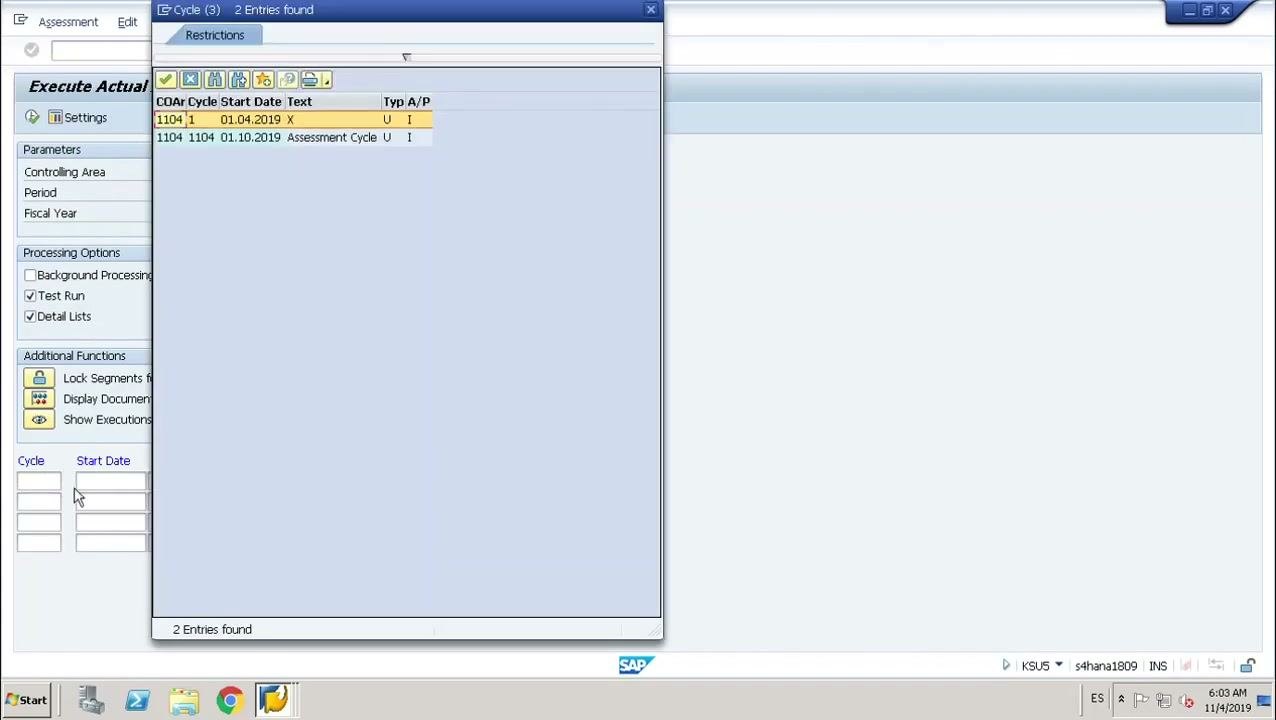
- Cycle: 1
- Start Date: 01.04.2019
Click List Selection to proceed.
Review the test run summary
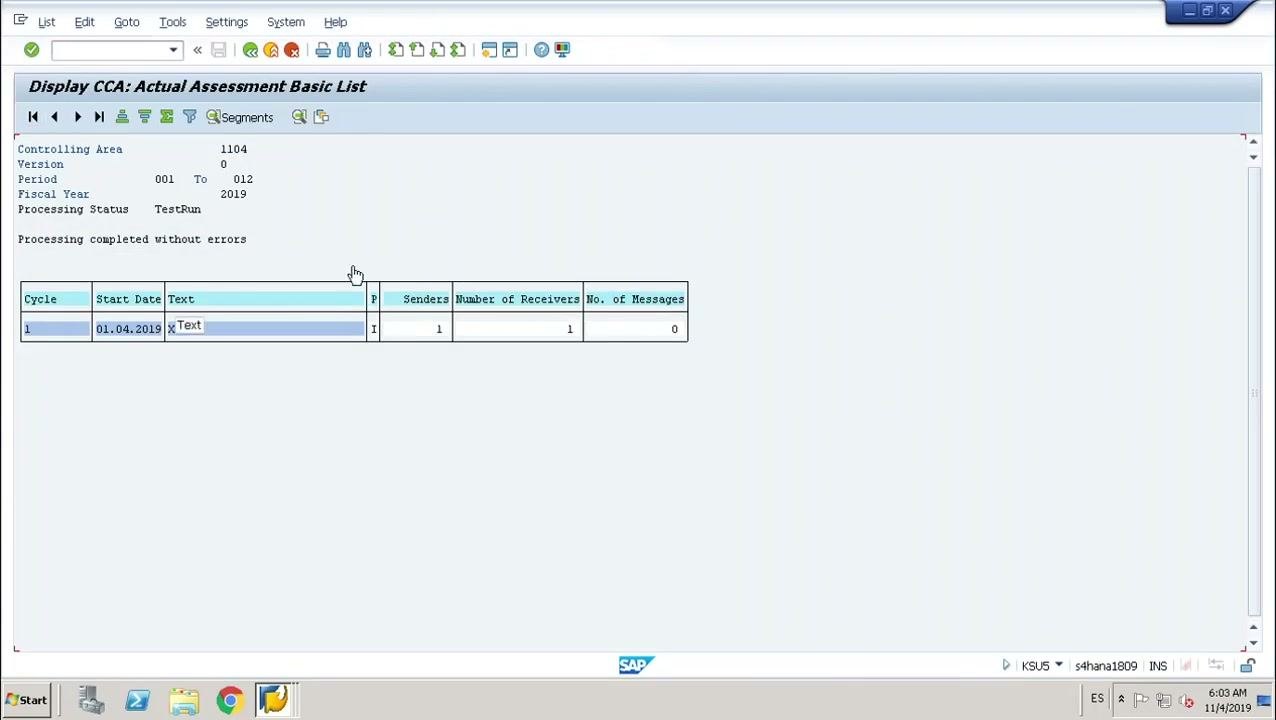
On the Display CCA: Actual Assessment Basic List screen, verify these details:
- Controlling Area: 1104
- Version: 0
- Period: 001 to 012
- Fiscal Year: 2019
- Processing Status: TestRun
- A message that processing completed without errors
In the summary table, confirm Cycle 1, Start Date 01.04.2019, Senders 1, Number of Receivers 1, and No. of Messages 0. This confirms that the test run succeeded with one sender and one receiver.
Go back to prepare the update run
Click Back (or press F3) to return to the previous screen. You return to the execution screen so you can clear the Test Run option and run the assessment for real.
Run the update run and check the result
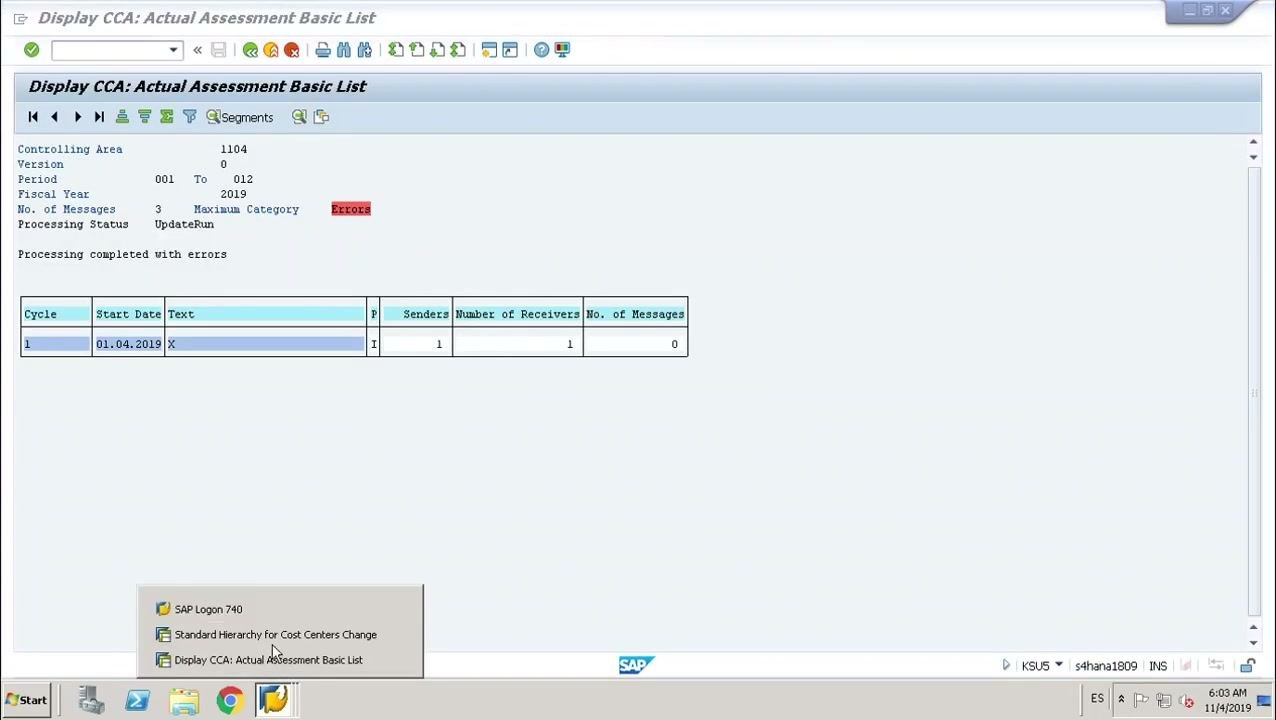
On the execution screen, uncheck Test Run and execute the assessment cycle again to perform the real posting. Then verify the following on the Display CCA: Actual Assessment Basic List screen:
- Processing Status: UpdateRun
- No. of Messages: 3
- Maximum Category: Error (highlighted in red)
- A message that processing completed with errors
The summary table still shows Cycle 1, Start Date 01.04.2019, Senders 1, and Number of Receivers 1. The errors mean the update run did not finish cleanly, so continue with the next steps to investigate.
Check the cost center configuration
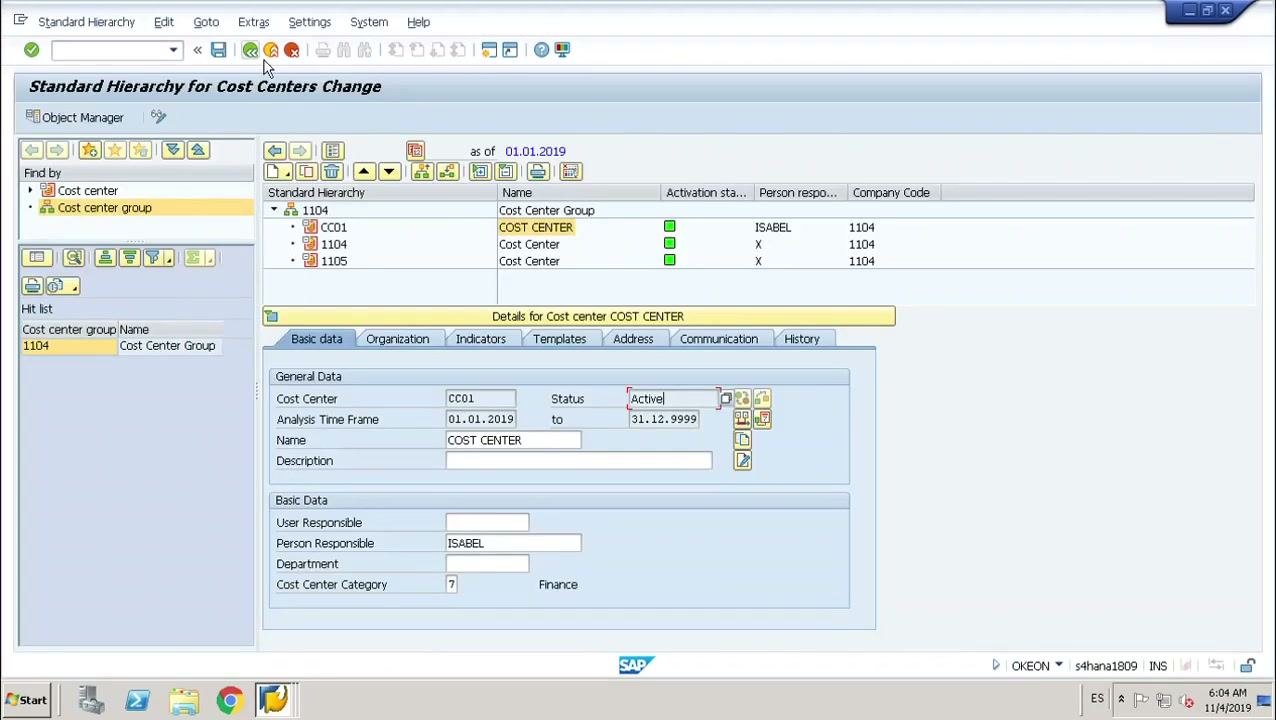
Switch to the Standard Hierarchy for Cost Centers Change screen and review the cost center group and the individual cost centers:
- Cost Center Group: 1104
- Cost Centers: CC01, 1104, 1105
- Status: Active
- Person Responsible: ISABEL
- Company Code: 1104
- Department: Finance
Confirm that the cost centers involved in the assessment are active and properly configured.
Open the Actual/Plan/Variance report to review the assessment results
From the SAP Easy Access screen, expand this path:
SAP Menu > Accounting > Controlling > Cost Center Accounting > Information System > Reports for Cost Center Accounting > Plan/Actual Comparisons
Select the report S_ALR_87013611 - Cost Centers: Actual/Plan/Variance so you can review the results of the assessment cycle in detail.
Verify the report values
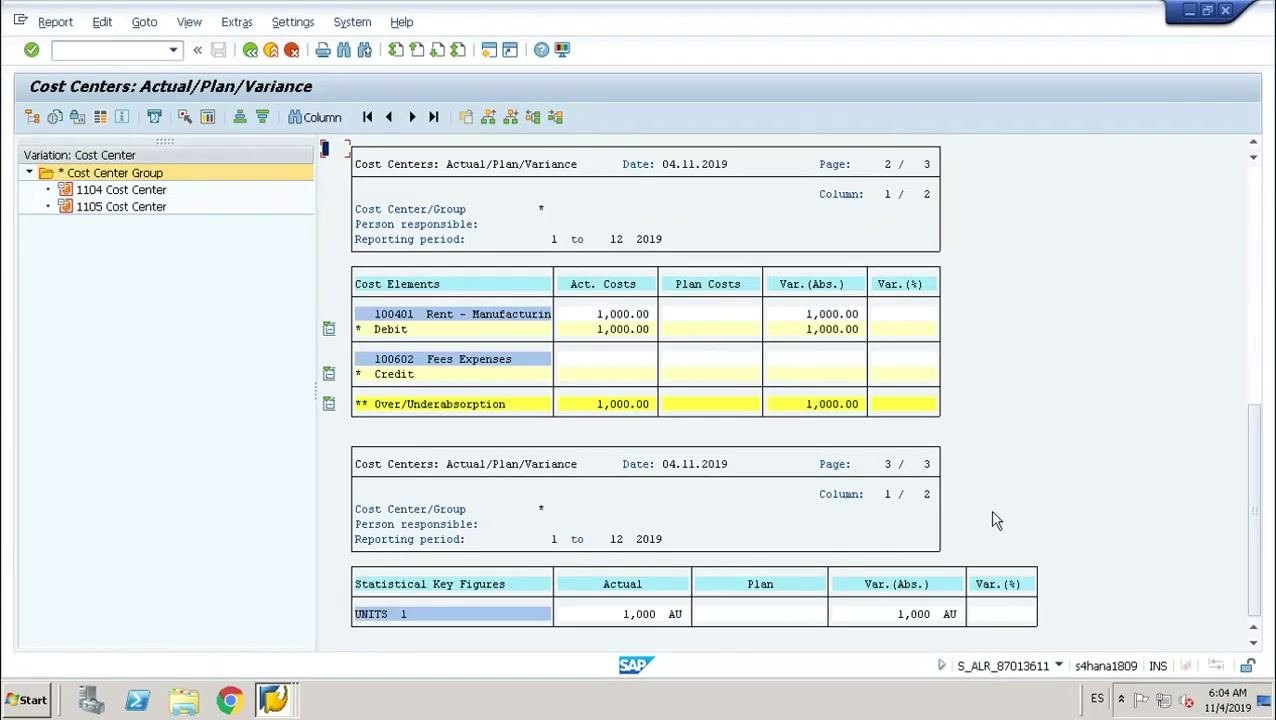
On the Cost Centers: Actual/Plan/Variance report screen, verify the following:
- Cost Center Group: 1104
- Cost Centers: 1104, 1105
- Cost Element 100401 Rent - Manufacturing (Debit): Actual Costs 1,000.00, Plan Costs 1,000.00, Variance 1,000.00
- Cost Element 100602 Fees Expenses (Credit)
- Over/Underabsorption: 1,000.00
- Statistical Key Figures: Actual 1,000 AU
Review the report for discrepancies or errors in the assessment results. Make sure the report reflects the intended assessment postings and that all values are as you expect.
Summary
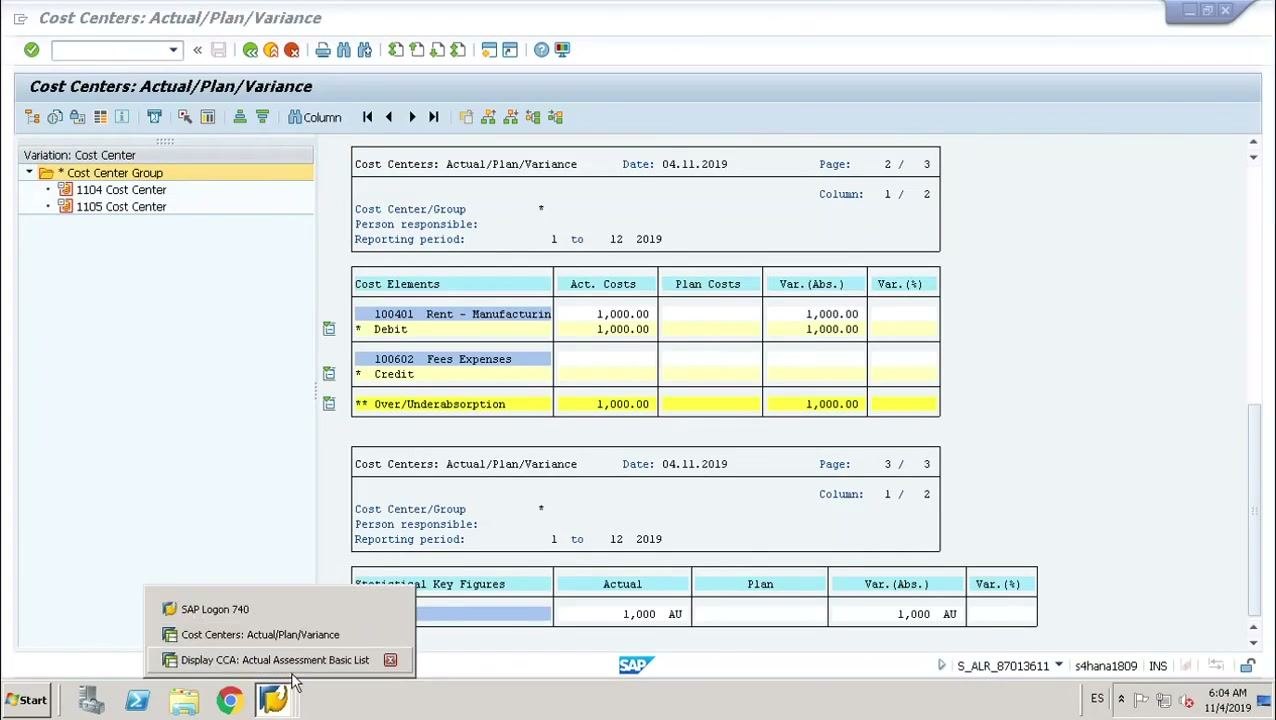
You have walked through how to create an assessment cycle in SAP from the ground up. You verified the cost center hierarchy, the actual posting, and the secondary cost element. You reviewed the cycle segment settings, ran a test run and an update run, and checked the results in the Actual/Plan/Variance report.
If errors persist after the update run, review the error messages from that run and adjust the configuration as needed.
Generation details: cost, quality tiers
Docsie billed 5,000 credits ($3.50) to analyze this 10-minute video at standard quality. The rewrite, template fill and Word/PDF exports were included. The same video at each quality tier:
| Quality | Frames sampled | Credits | Approx. cost |
|---|---|---|---|
| Draft | every 16-30 s | 2,500 | $1.75 |
| Standard (this guide) | every 8-15 s | 5,000 | $3.50 |
| Detailed | every 4-7 s | 10,000 | $7.00 |
| Ultra | every 1-3 s | 20,000 | $14.00 |
Credits priced at $0.70 per 1,000; plans include a monthly allowance. Enterprise customers on on-premise or bring-your-own-model deployments run this on their own inference and pay no per-video credits.
Generated by Docsie Video-to-Docs on 2026-11-15 from a 9-minute video. Screenshots are frames from the source video and belong to their creator, Isabel Sanchez, whose original is embedded above. If you own this video and want the guide removed or credited differently, contact us and we will act within one business day.