
How to Create a Transformation in SAP
This guide shows you how to create a transformation in SAP BW from a DataSource in the SAP BW Modeling interface. You create the transformation, map source fields to InfoObject target fields, define a direct assignment rule, and check that the rules contain no errors. The example uses the "Material Id" DataSource (ZMAT).
Video: 17. How to create transformation rules in SAP Business Intelligence (BI / BW) by show top (2015). All credit for the demonstration goes to the creator; watch the original on YouTube. The written guide below was generated from this video by Docsie. Creator? Request a change or removal.
This guide shows you how to create a transformation in SAP BW from a DataSource in the SAP BW Modeling interface. You create the transformation, map source fields to InfoObject target fields, define a direct assignment rule, and check that the rules contain no errors. The example uses the "Material Id" DataSource (Z_MAT).
Prerequisites
Before you begin, make sure you have the following:
- Access to the SAP BW Modeling interface, with the DataSources tree visible.
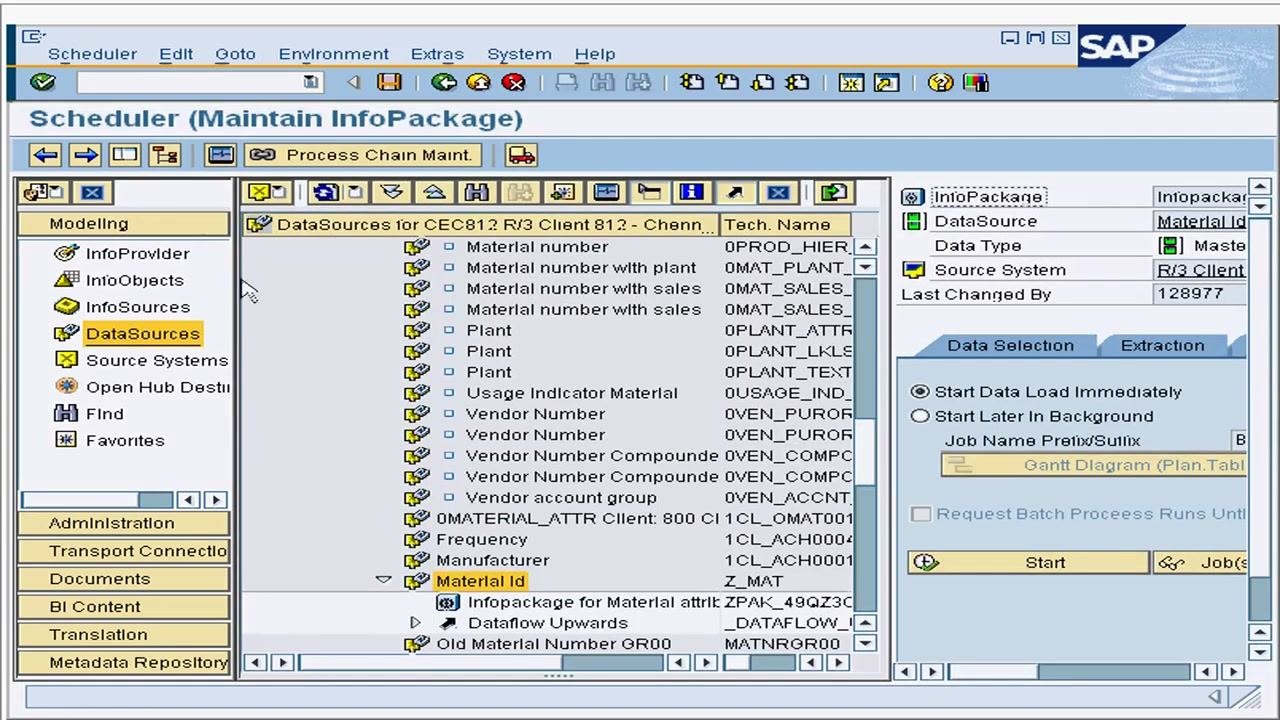
- A DataSource named "Material Id" (Z_MAT) in the source system CEC812.
- An InfoObject name for the target. This example uses Z_Mat.
Steps
Start creating a transformation from the DataSource
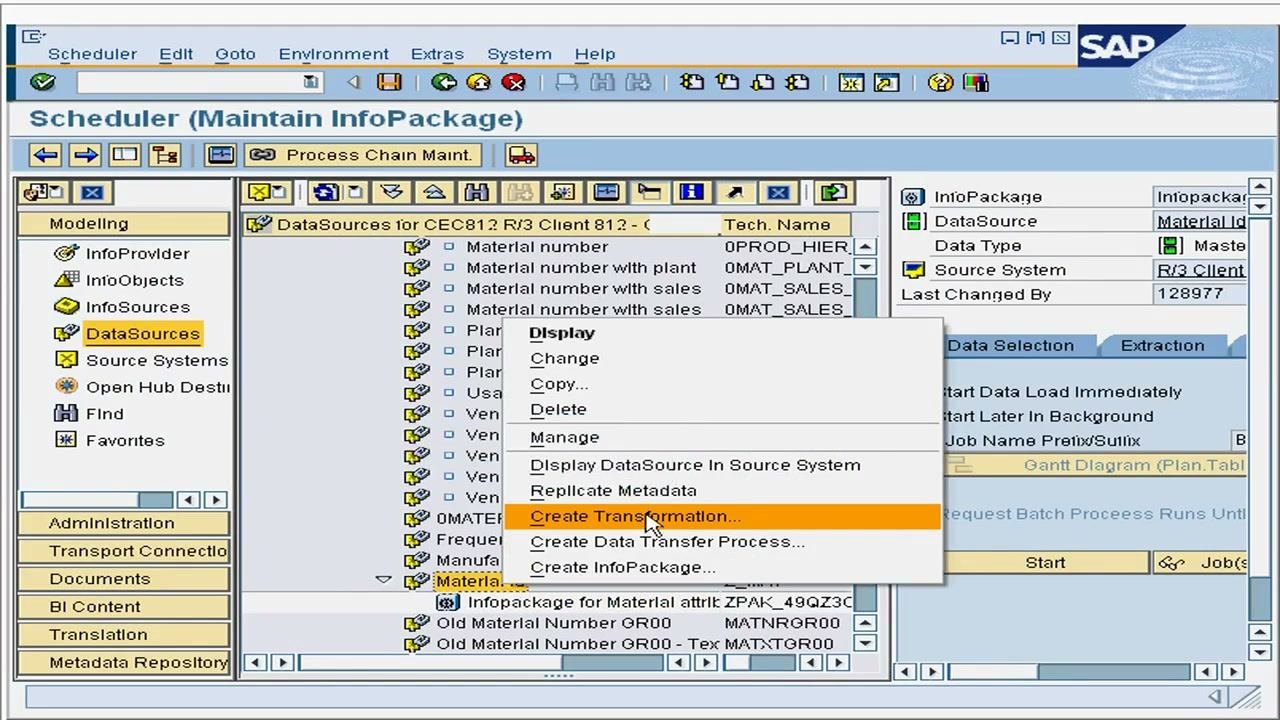
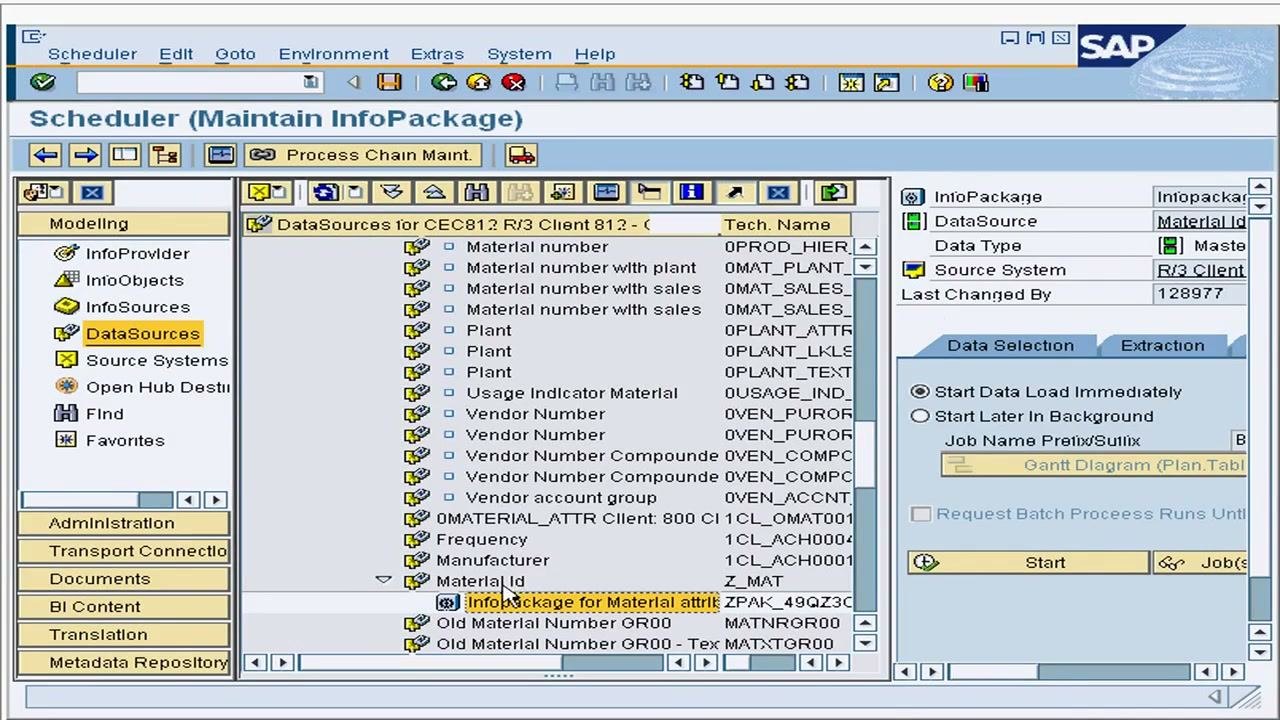
In the DataSources list, right-click the DataSource labeled "Material Id". A context menu opens with these options: Display, Change, Copy, Delete, Manage, Display DataSource In Source System, Replicate Metadata, Create Transformation, Create Data Transfer Process, and Create InfoPackage.
Select Create Transformation.
Configure the transformation target and source
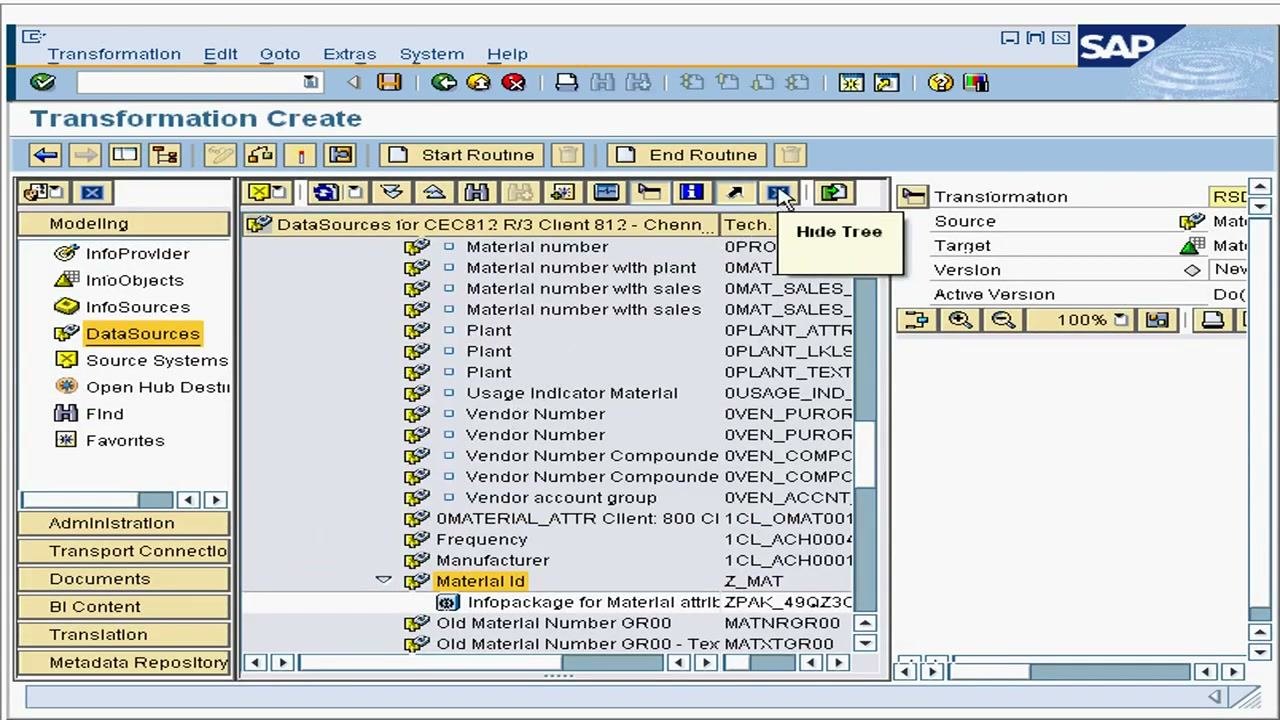
The Create Transformation dialog opens. Under Target of the Transformation, set Object Type to "InfoObject" from the dropdown.
Under Source of the Transformation, set the following values:
- Object Type: DataSource
- DataSource: Z_MAT
- Source System: CEC812
Specify the InfoObject name
In the same dialog, enter "Z_Mat" as the Name of the target InfoObject. If the Subtype of Object field applies, make sure it is set to "Attributes".
Confirm that all fields match this configuration:
- Target: InfoObject, Name: Z_Mat
- Source: DataSource, DataSource: Z_MAT, Source System: CEC812
Map source fields to target fields
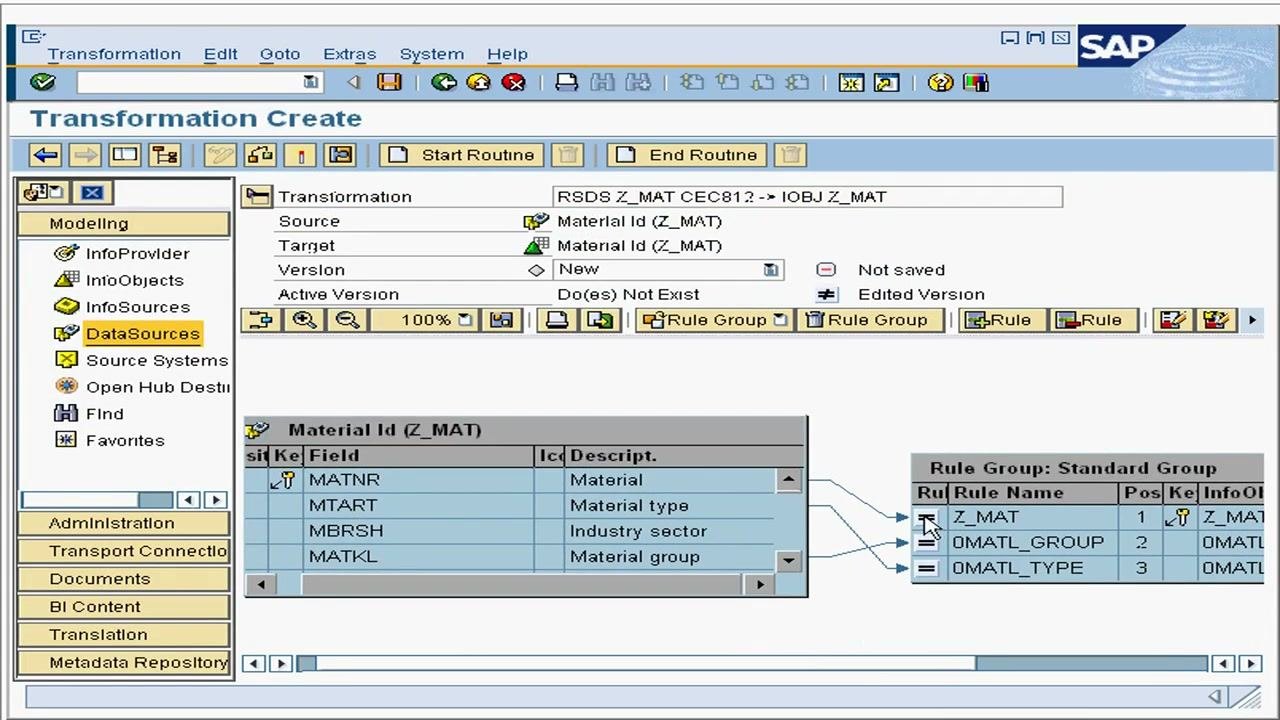
In the "Material Id (Z_MAT)" table, select the fields you want to map:
- MATNR (Material)
- MTART (Material type)
- MBRSH (Industry sector)
- MATKL (Material group)
A tooltip reads "Map the source fields to Target fields". On the right, the "Rule Group: Standard Group" table lists the mapping rules.
Review the field mapping
Make sure all required fields are mapped:
- MATNR → Z_MAT
- MATKL → 0MATL_GROUP
- MTART → 0MATL_TYPE
Mapping lines connect each source field to its corresponding target field.
Open the rule details for the field mapping
In the Transformation Create screen, click the rule entry for the field mapping (for example, Z_MAT) in the "Rule Group: Standard Group" table. The Rule Details dialog opens and shows the following:
- Description: Material
- Target InfoObject: Z_MAT (Material Id)
- Rule Type: Direct Assignment
- Source Fields of Rule: MATNR (Material), type CHAR, length 18
- Target Fields of Rule: Z_MAT (Material Id), type CHAR, length 18, conversion routine MATN1
No values have been transferred yet. A tooltip prompts you to enter the InfoObject name and then transfer the values.
Transfer values from source to target
In the Rule Details dialog, make sure the InfoObject name (Z_MAT) is entered in the target field. Then click Transfer Values at the bottom of the dialog.
The mapping updates. The IOAssignment column for MATNR now shows Z_MAT, and the Long Description for the target field is "Material Id". This finalizes the direct assignment mapping for the rule.
Return to the overview and validate the transformation
After you transfer the values, the screen returns to the Transformation Create overview. Mapping lines connect the source fields (MATNR, MTART, MBRSH, MATKL) to the target fields (Z_MAT, 0MATL_GROUP, 0MATL_TYPE).
The "Rule Group: Standard Group" table now lists these entries:
- Rule Name: Material, 0MATL_GROUP, 0MATL_TYPE
- InfoObjects: Z_MAT, 0MATL_GROUP, 0MATL_TYPE
A status message at the bottom confirms "No errors found during rule check". This means the transformation rules are correctly defined and validated.
Summary
You now know how to create a transformation in SAP BW. You started from the "Material Id" DataSource and set the InfoObject target and the DataSource source. Then you mapped MATNR, MATKL, and MTART to their target fields, defined a Direct Assignment rule, and transferred the values. The final rule check reported no errors.
Generation details: cost, quality tiers
Docsie billed 1,500 credits ($1.05) to analyze this 3-minute video at standard quality. The rewrite, template fill and Word/PDF exports were included. The same video at each quality tier:
| Quality | Frames sampled | Credits | Approx. cost |
|---|---|---|---|
| Draft | every 16-30 s | 750 | $0.52 |
| Standard (this guide) | every 8-15 s | 1,500 | $1.05 |
| Detailed | every 4-7 s | 3,000 | $2.10 |
| Ultra | every 1-3 s | 6,000 | $4.20 |
Credits priced at $0.70 per 1,000; plans include a monthly allowance. Enterprise customers on on-premise or bring-your-own-model deployments run this on their own inference and pay no per-video credits.
Generated by Docsie Video-to-Docs on 2026-11-15 from a 2-minute video. Screenshots are frames from the source video and belong to their creator, show top, whose original is embedded above. If you own this video and want the guide removed or credited differently, contact us and we will act within one business day.