
How to Create a Tile in the SAP Fiori Launchpad
Creating and displaying a tile in the SAP Fiori Launchpad is not a single action — it depends on how roles, catalogs, groups, and tiles are connected to one another. This guide walks you through how to create a tile in the SAP Fiori Launchpad by assigning it to the right catalog and group, and linking those to a user's role, so the tile actually appears on the launchpad instead of staying hidden or showing an error.
Video: SAP® Fiori® - Understanding Fiori® Catalogs, Tiles, Roles and Groups by UI5 Community Network. All credit for the demonstration goes to the creator; watch the original on YouTube. The written guide below was generated from this video by Docsie. Creator? Request a change or removal.
Creating and displaying a tile in the SAP Fiori Launchpad is not a single action — it depends on how roles, catalogs, groups, and tiles are connected to one another. This guide walks you through how to create a tile in the SAP Fiori Launchpad by assigning it to the right catalog and group, and linking those to a user's role, so the tile actually appears on the launchpad instead of staying hidden or showing an error.
Prerequisites
Before you start, make sure you have:
- One or more roles defined for your users (for example, Engineer, Employee, Business Manager).
- Access to create or edit catalogs, which group applications together.
- Access to create or edit groups, which organize tiles for display in the launchpad.
- A clear idea of which application tile you want users to see.
Assign roles to a user
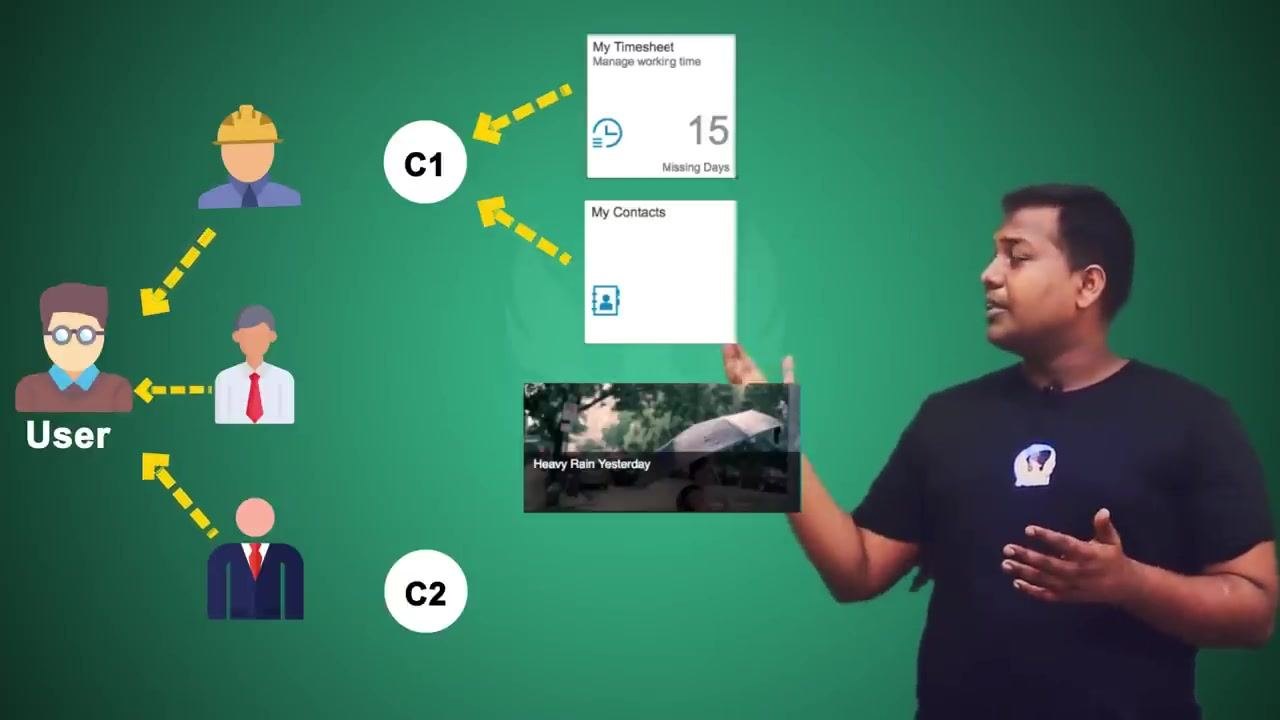
Start by assigning one or more roles to a user. A user can hold several roles at the same time — for example, Engineer, Employee, and Business Manager (the role responsible for financial transactions). A user does not need every available role; they may have only some of them.
Define catalogs for application access
Create catalogs to group the applications you want to make available. For example, define Catalog C1 and Catalog C2. Catalogs hold the application tiles that represent individual apps or features.
Assign application tiles to catalogs
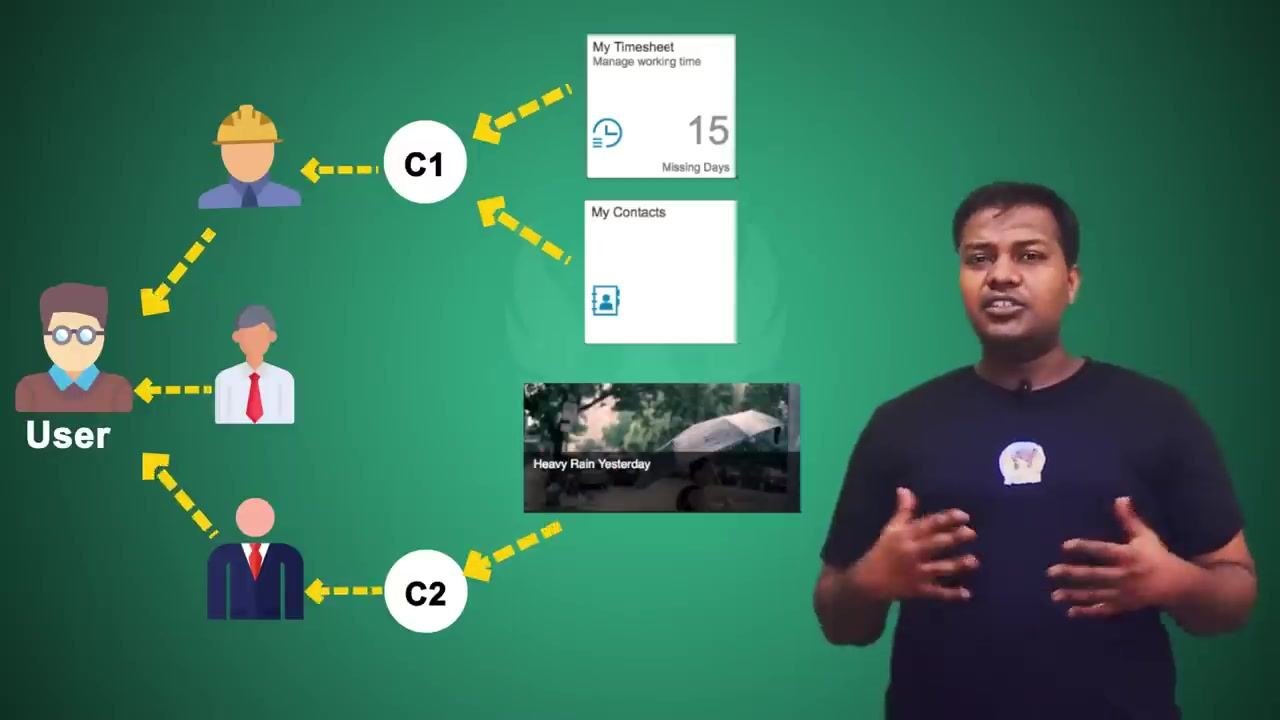
Add the relevant application tiles to each catalog. For instance, add "My Timesheet" (which manages working time and can show a status such as "15 Missing Days") and "My Contacts" to Catalog C1. Add "Heavy Rain Yesterday" (a newsfeed tile) to Catalog C2.
Map catalogs to roles
Connect each catalog to the role that should have access to it. Assign Catalog C1 to the Engineer role so engineers can reach its applications. Assign Catalog C2 to the Business Manager role so business managers can reach the newsfeed tile.
With this structure, a user who holds multiple roles — such as Supervisor and Employee — gains access to the catalogs and applications tied to those roles. If a user lacks a specific role, such as Business Manager, they will not have access to the corresponding catalog, such as C2. This gives you flexible control over which applications each user can reach based on their organizational role.
Set up the abstract role-catalog-tile model
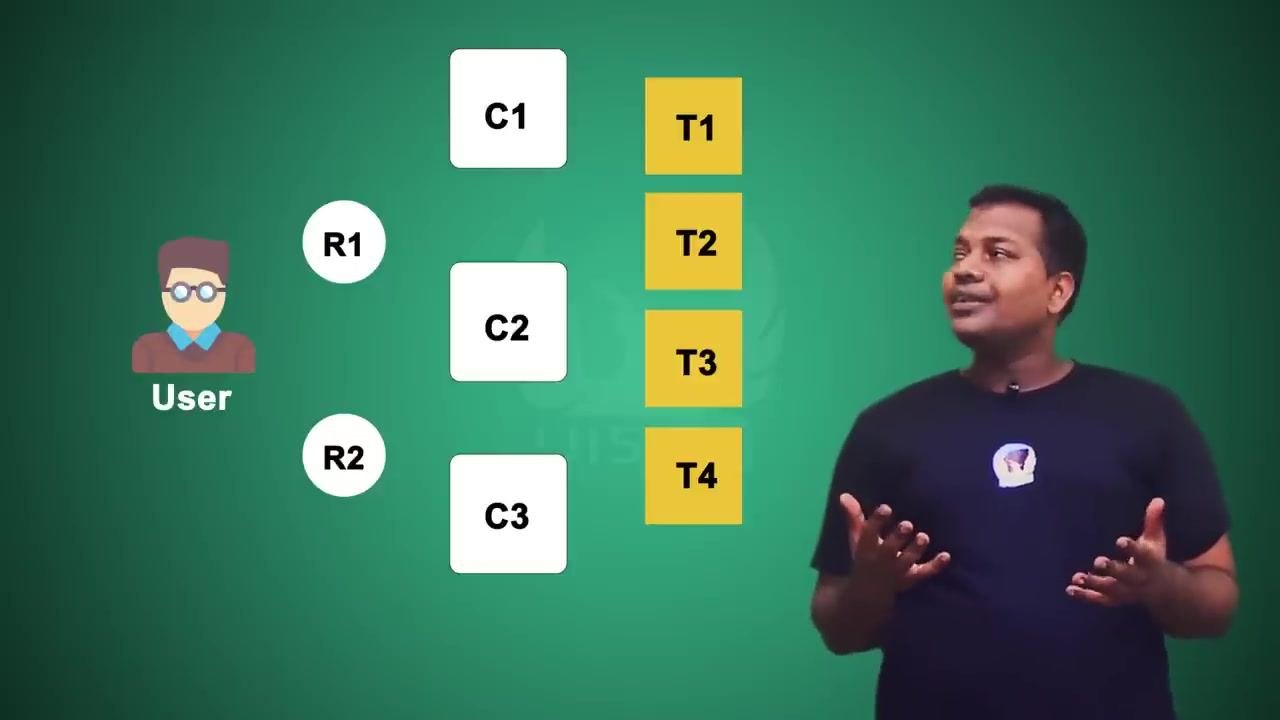
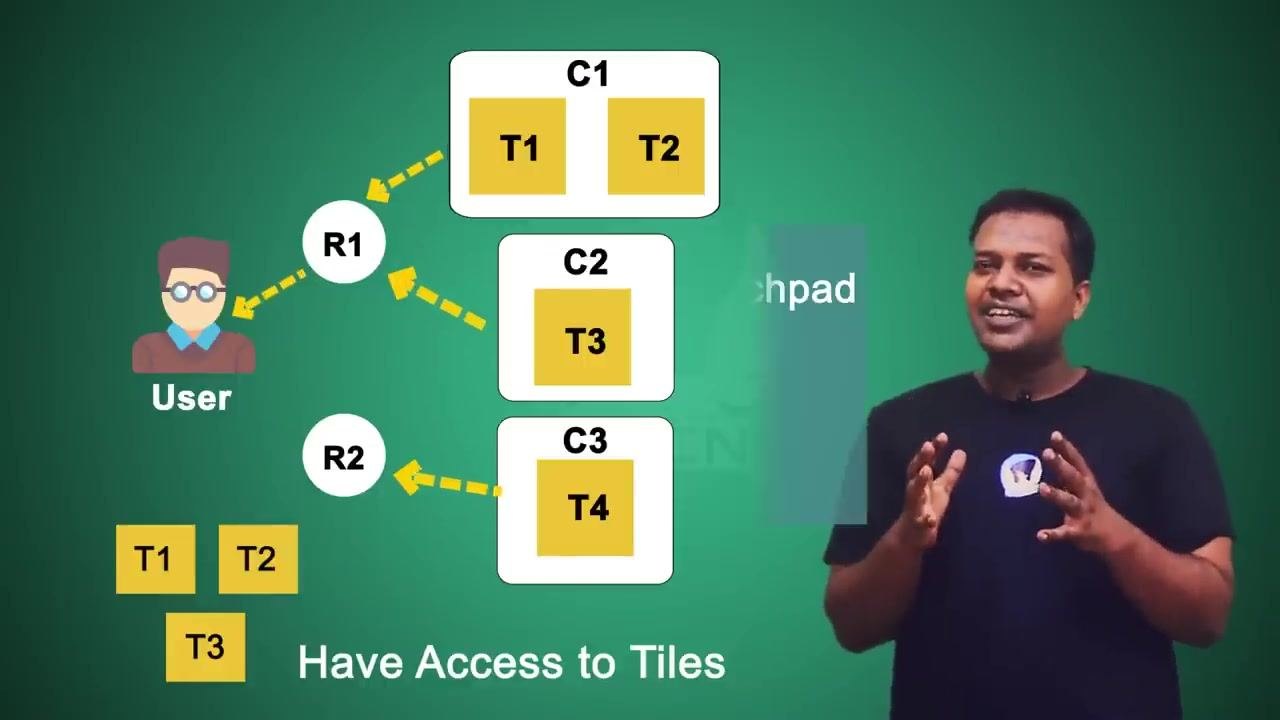
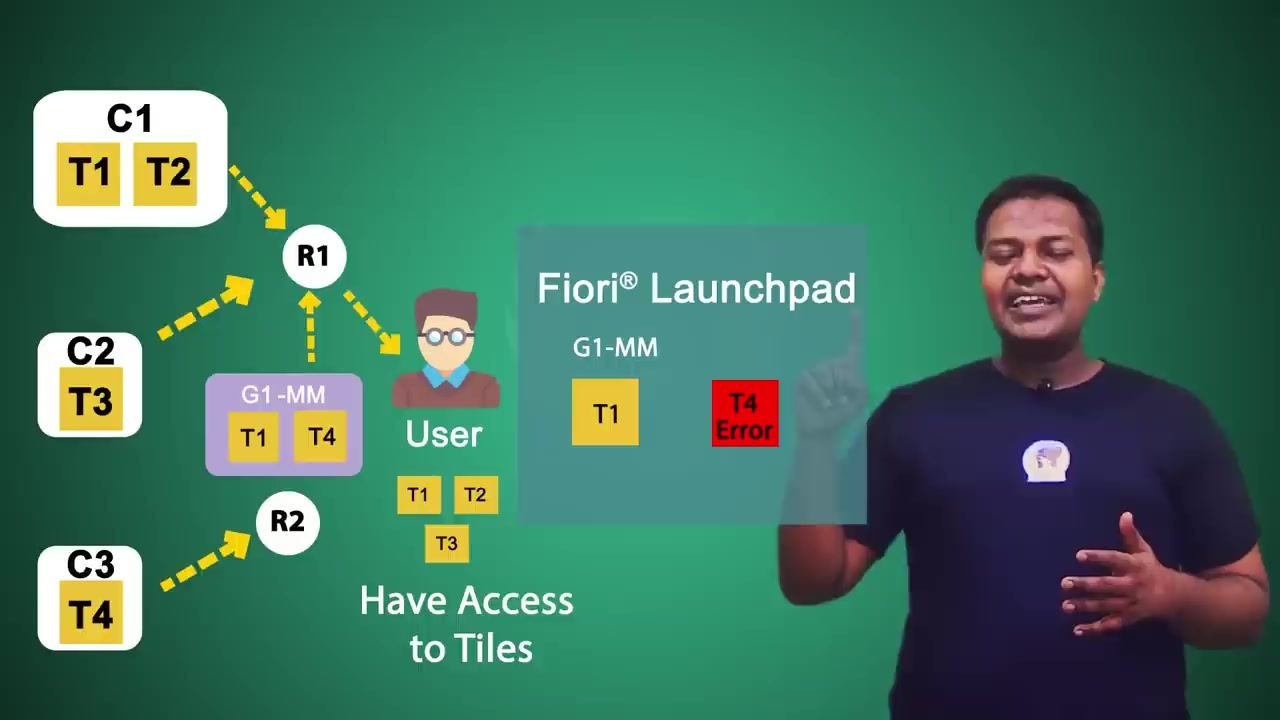
To understand the mechanics more generally, work with abstract entities: a User, Roles (R1, R2), Catalogs (C1, C2, C3), and Tiles (T1, T2, T3, T4).
Assign tiles to catalogs
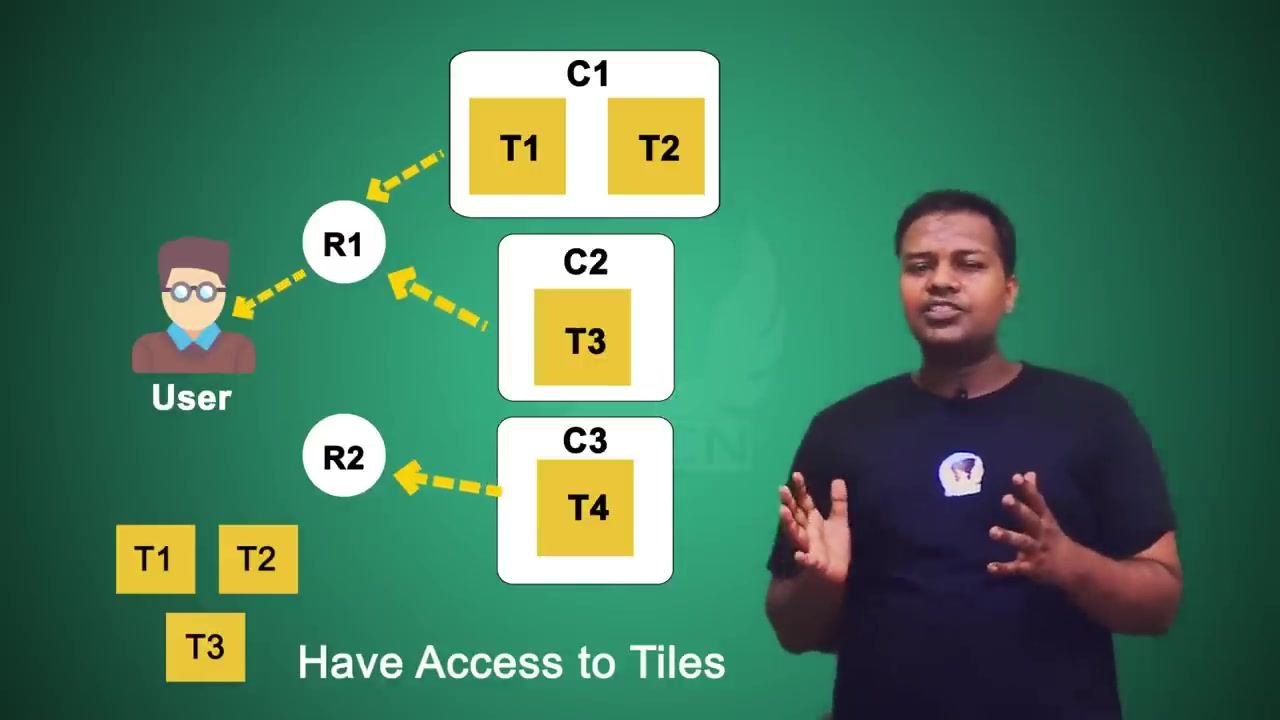
Place each tile into its catalog. Assign T1 and T2 to Catalog C1, assign T3 to Catalog C2, and assign T4 to Catalog C3.
Map catalogs to roles
Connect each catalog to a role. Assign Catalog C1 and Catalog C2 to Role R1. Assign Catalog C3 to Role R2.
Assign a role to the user and check tile access
Assign only Role R1 to the user, and do not assign Role R2. With only R1, the user gains access to Catalog C1 (tiles T1, T2) and Catalog C2 (tile T3), but not to Catalog C3 (tile T4), since that catalog requires Role R2.
Check why the tiles are not yet visible
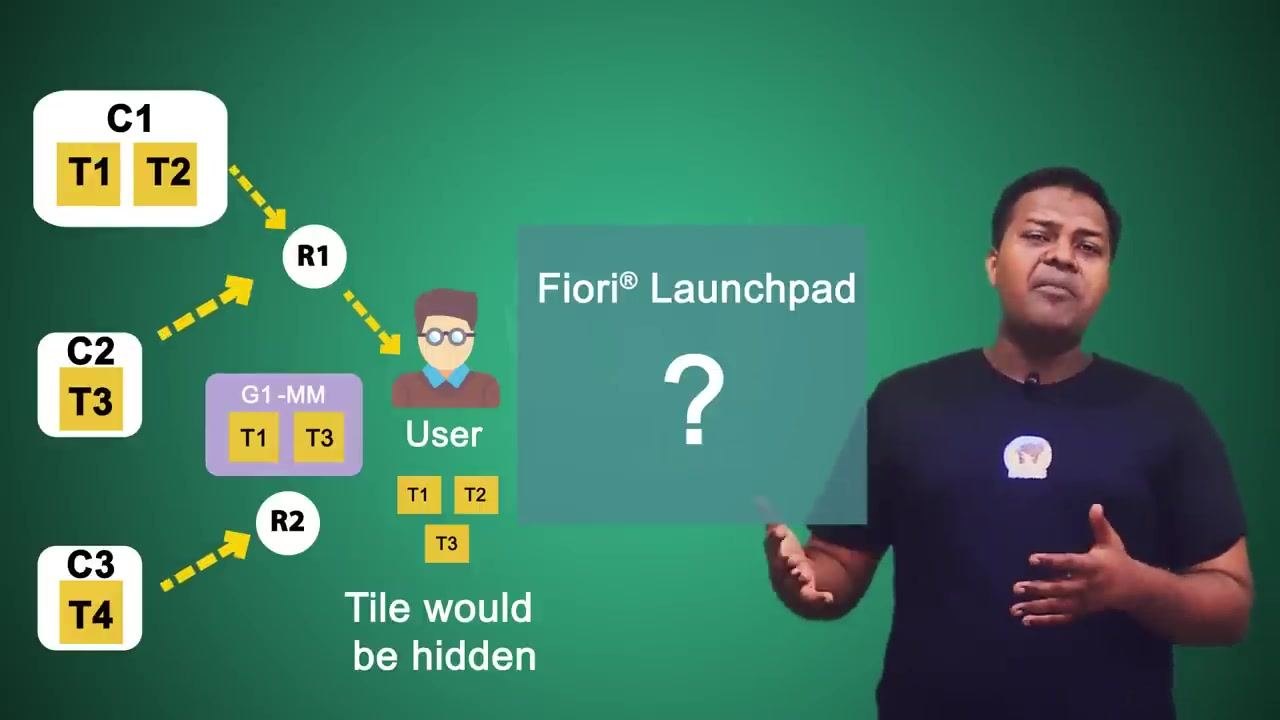
Even though the user now has catalog and role access to tiles T1, T2, and T3, these tiles will not appear in the Fiori Launchpad until additional configuration is completed. Catalog and role access alone are not enough — the system hides tiles from the launchpad if the required group or page assignment is missing.
Confirm the limitation without a group
Before adding a group, the tiles T1, T2, and T3 remain hidden in the Fiori Launchpad, even though the user has the correct role and catalog access. Group assignment is the missing, critical step for tile visibility.
Create a group and assign tiles to it
In the Fiori Launchpad, tiles are organized into groups for easier access and better usability. Create a group named G1 and assign T1 and T3 to it. In this example, G1 represents all Material Management (MM) related tiles.
Assign the group to a role
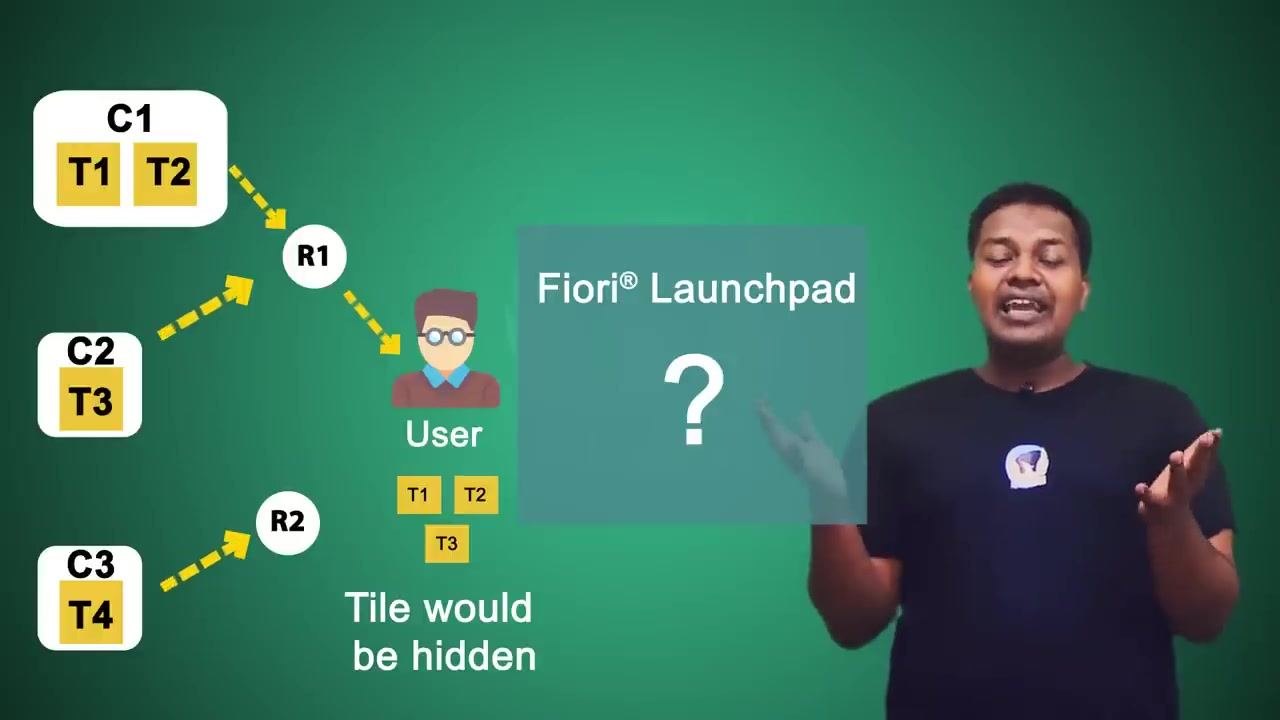
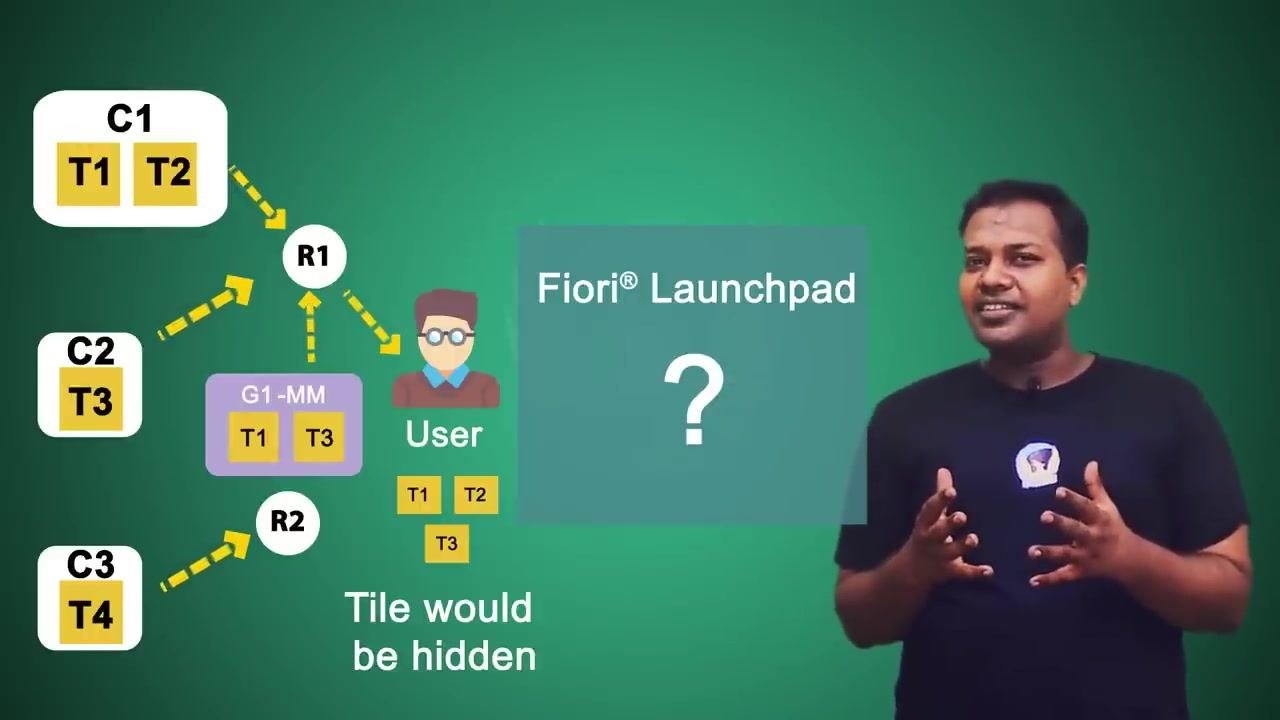
Assign Group G1 to Role R1. Because the user already holds Role R1, they now inherit access to Group G1 and the tiles it contains.
Verify which tiles become visible
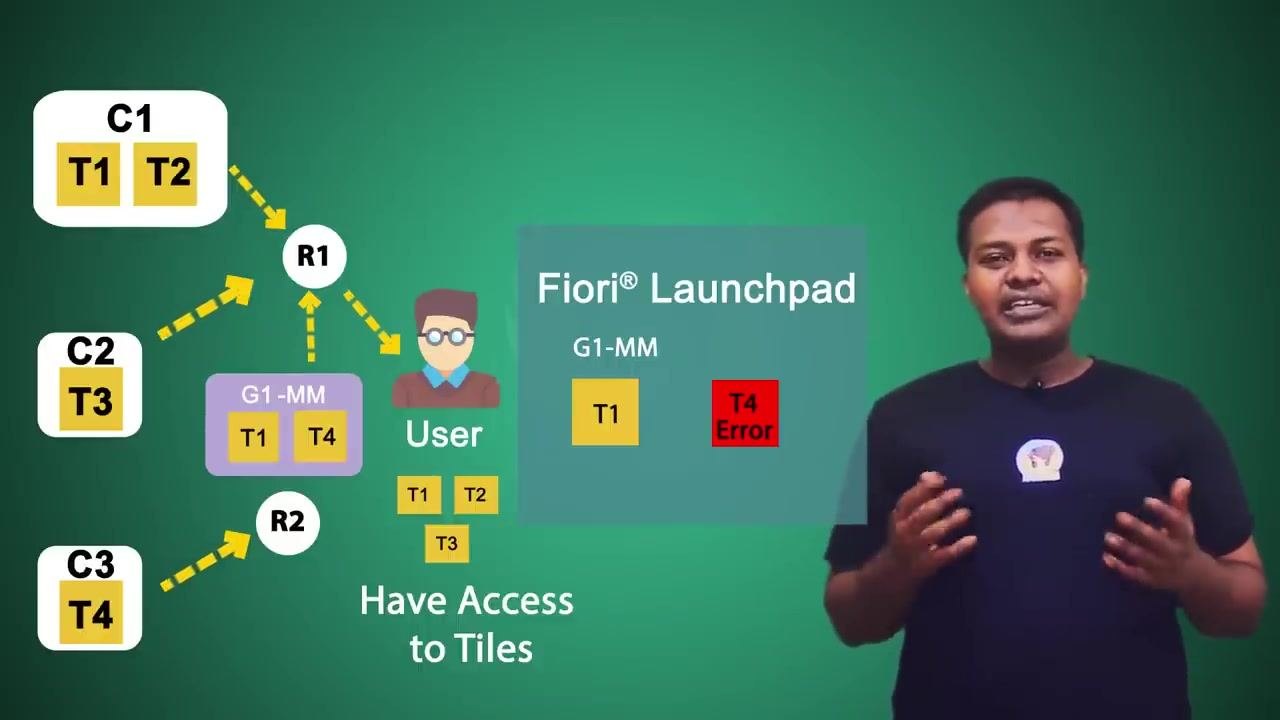
With the group assigned, the user will now see only T1 and T3 in the Fiori Launchpad, under the G1-MM group. Tile T2 remains hidden, even though the user has catalog access to it, because T2 is not assigned to any group. Tiles that are not assigned to a group stay hidden regardless of catalog or role access.
Review the resulting launchpad view
When the user opens the Fiori Launchpad, they see the group G1-MM (Material Management) containing only tiles T1 and T3. Tiles T2 and T4 remain invisible — T2 because it is not part of any group, and T4 because it is not reachable through the user's roles.

Review the full role, catalog, group, and tile relationship
Review how roles, catalogs, groups, and tiles connect overall. The user's Role R1 links to Catalogs C1 and C2 and to Group G1-MM. Tiles T1 and T4 exist in group G1-MM, but only T1 exists in both the catalog and the group — this combination determines what the Fiori Launchpad actually displays.
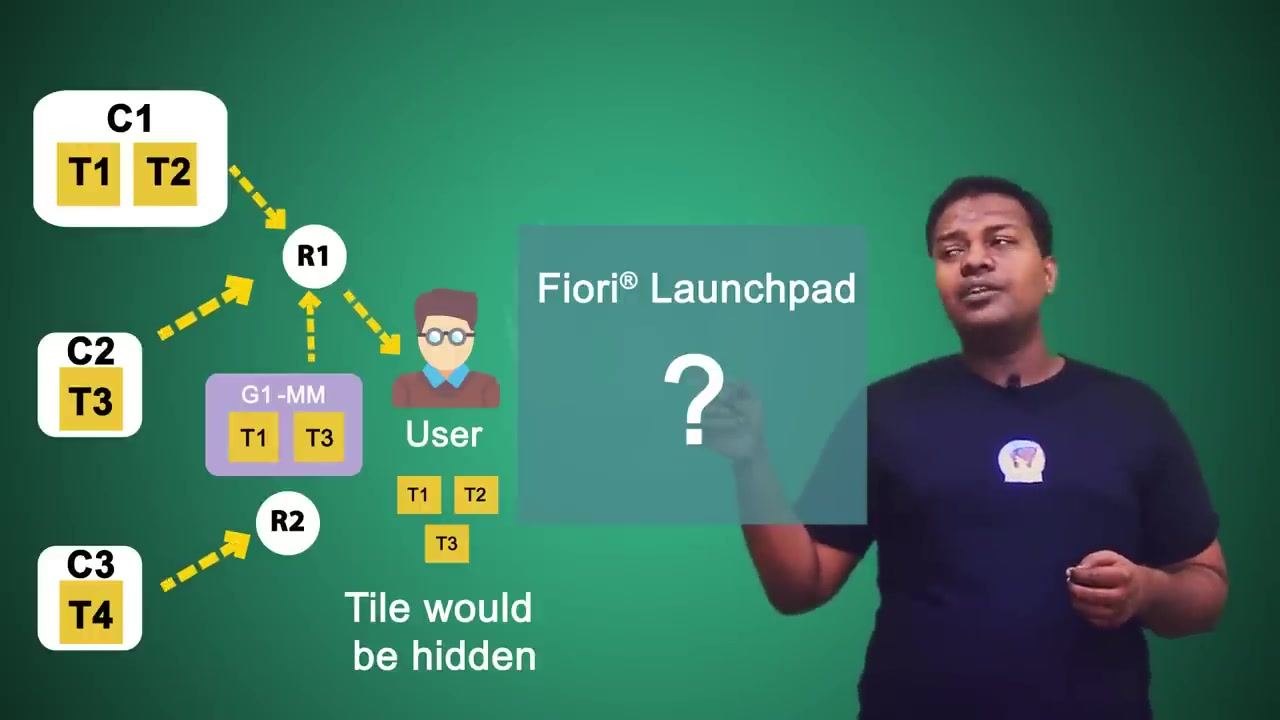
Check what happens when a tile is missing from the catalog
Consider the case where a tile is not present in Catalog C1 or C2, even though those catalogs belong to Role R1. In this situation, ask whether the launchpad will show the tile or display nothing for it.
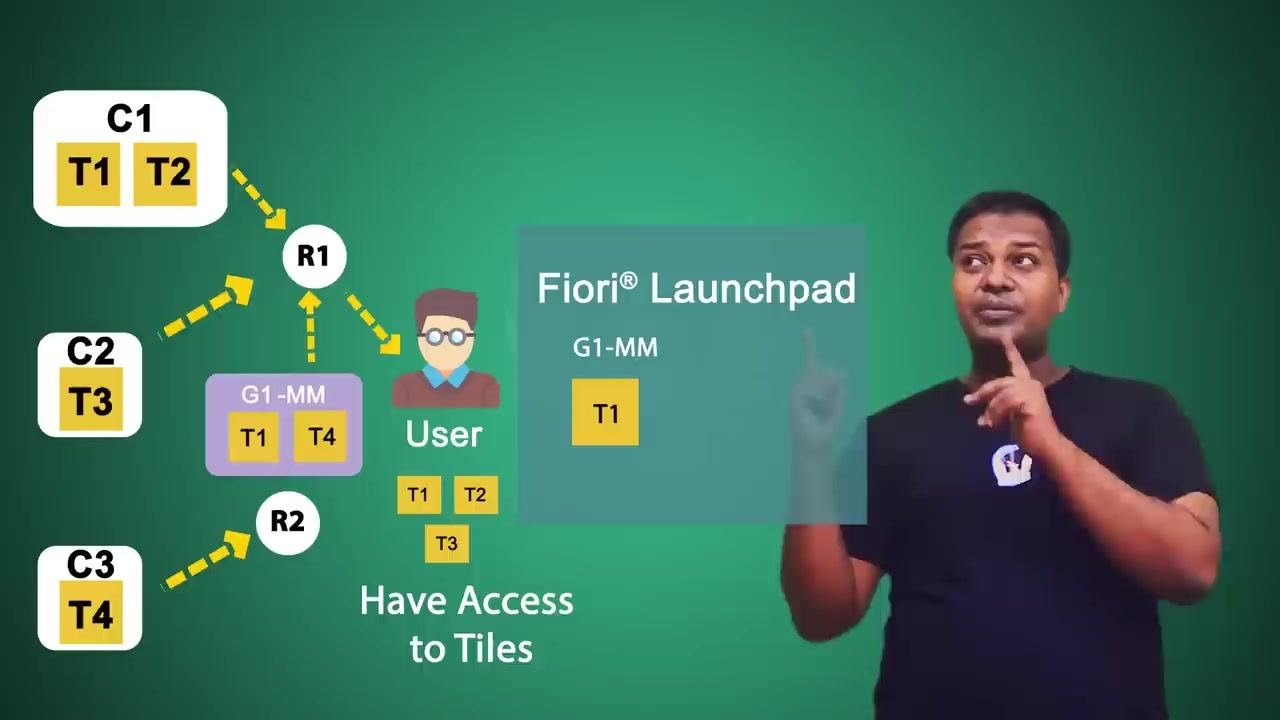
Identify the error state for a tile missing from the catalog
If a tile — such as T4 — exists in the group but not in the catalog, the Fiori Launchpad displays that tile with an error (for example, "T4 Error"). This indicates an authorization or configuration issue that needs to be resolved.
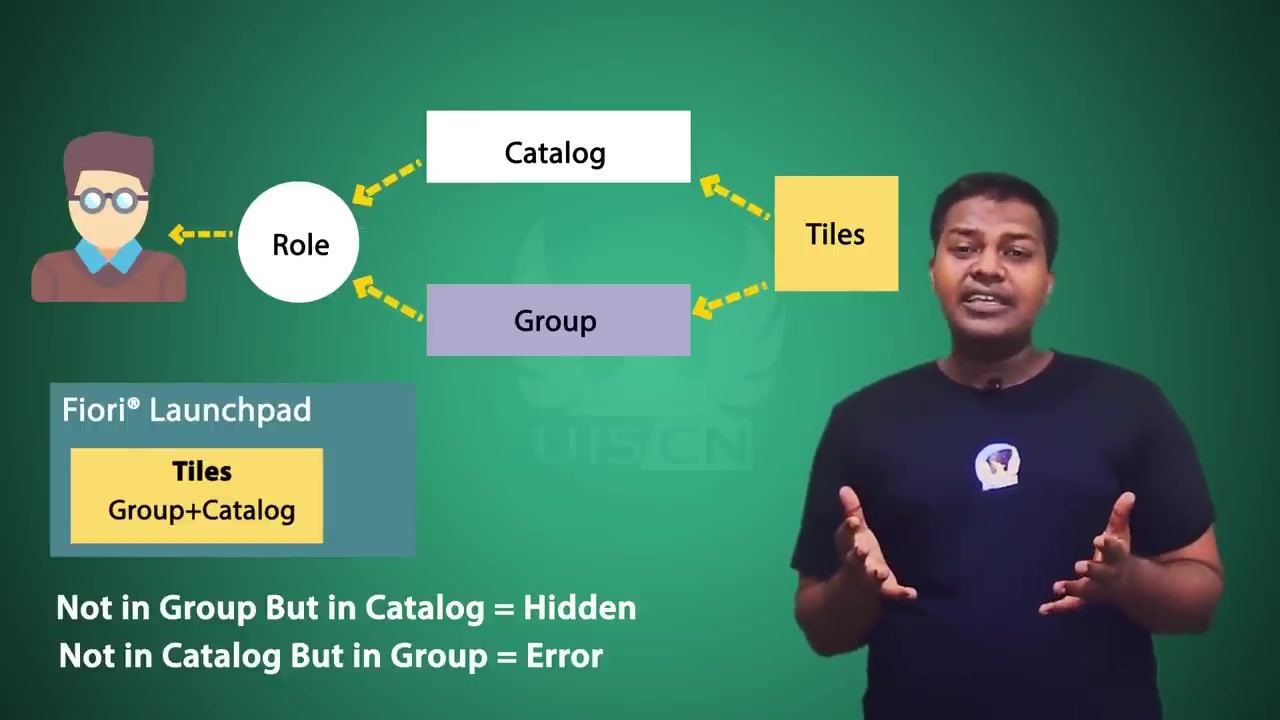
Understand the overall assignment flow
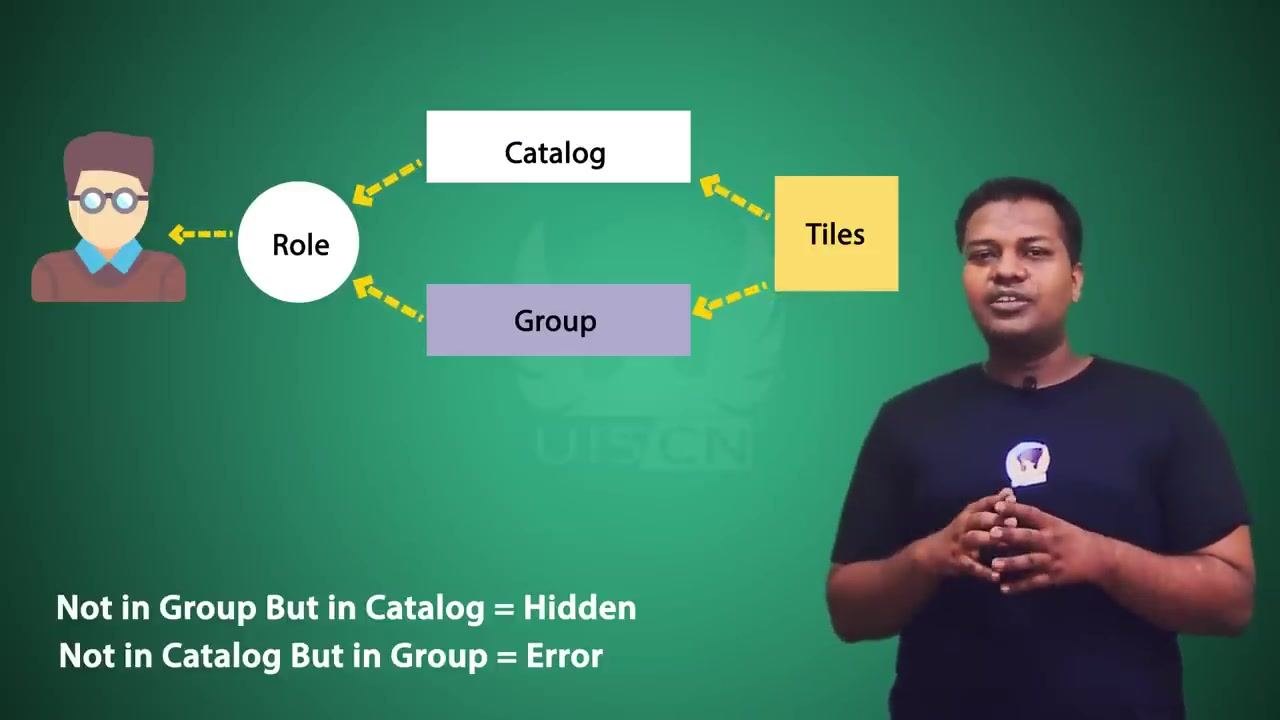
Keep in mind that the role is the central element: it is assigned catalogs and groups, which in turn provide tiles to the user. Ultimately, the user's tile access depends on this full chain of assignments.
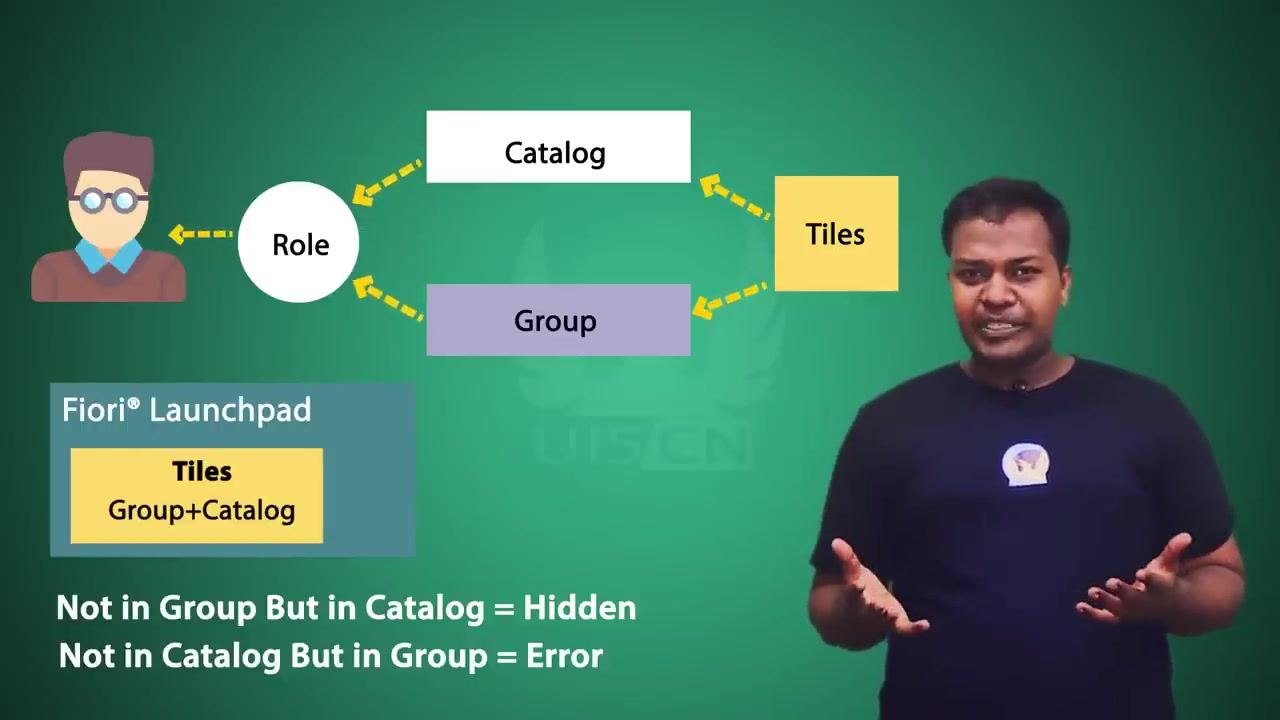
Apply the general rule for tile visibility
Use this rule to predict tile behavior:
- If a tile is present in both the group and the catalog, it is visible.
- If a tile is present in the catalog but not in the group, it is hidden.
- If a tile is present in the group but not in the catalog, it shows an error.
Confirm the hidden state
When a tile is not in the group but is in the catalog, it stays hidden from the user. This is shown as: "Not in Group But in Catalog = Hidden."
Confirm the error state
When a tile is not in the catalog but is in the group, it displays as an error. This is shown as: "Not in Catalog But in Group = Error."
Confirm successful tile display
When a tile is present in both the group and the catalog, the user successfully sees it under their assigned group in the Fiori Launchpad. The launchpad displays the tile based on this combined group-and-catalog assignment.
Tile visibility rules at a glance
| Tile location | Result in Fiori Launchpad |
|---|---|
| In Group & In Catalog | Visible |
| In Catalog, Not in Group | Hidden |
| In Group, Not in Catalog | Error |
Summary
To create a tile that is actually visible in the SAP Fiori Launchpad, you need to complete the full chain of assignments:
- Assign the tile to a catalog.
- Assign the tile to a group.
- Assign both the catalog and the group to the user's role.
Having catalog and role access alone does not guarantee that a tile will appear. Only tiles that exist in both a group and a catalog linked to the user's role will be visible. A tile present in the catalog but missing from the group stays hidden, while a tile present in the group but missing from the catalog shows an error.
What's next
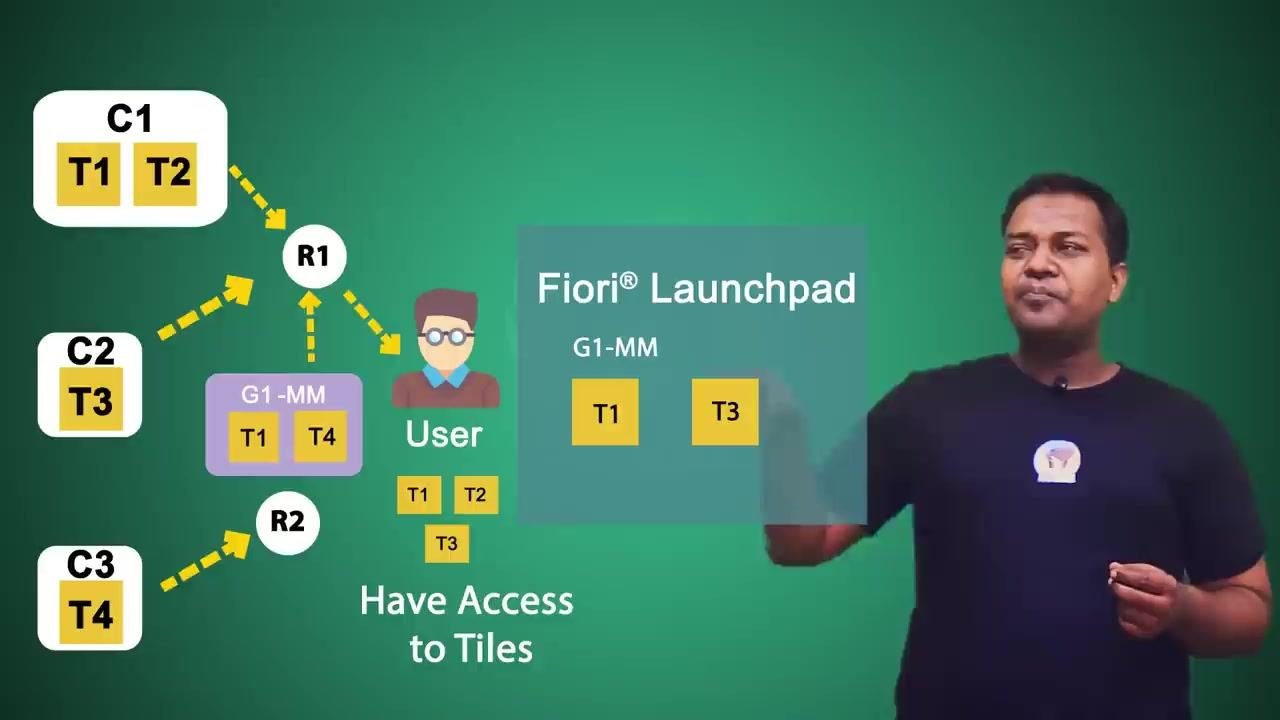
With a solid understanding of how roles, catalogs, groups, and tiles interact to control visibility in the SAP Fiori Launchpad, the next step is to explore the underlying Fiori architecture and the different types of Fiori applications.



Generation details: cost, quality tiers
Docsie billed 4,000 credits ($2.80) to analyze this 8-minute video at standard quality. The rewrite, template fill and Word/PDF exports were included. The same video at each quality tier:
| Quality | Frames sampled | Credits | Approx. cost |
|---|---|---|---|
| Draft | every 16-30 s | 2,000 | $1.40 |
| Standard (this guide) | every 8-15 s | 4,000 | $2.80 |
| Detailed | every 4-7 s | 8,000 | $5.60 |
| Ultra | every 1-3 s | 16,000 | $11.20 |
Credits priced at $0.70 per 1,000; plans include a monthly allowance. Enterprise customers on on-premise or bring-your-own-model deployments run this on their own inference and pay no per-video credits.
Generated by Docsie Video-to-Docs on 2026-10-01 from a 7-minute video. Screenshots are frames from the source video and belong to their creator, UI5 Community Network, whose original is embedded above. If you own this video and want the guide removed or credited differently, contact us and we will act within one business day.