
How to Create a Function Module in SAP
This guide covers the basics you need before you create a function module in SAP ABAP: what function modules are, what they contain, and how to open the Function Builder. You then build a complete report that prompts for a number and calls the predefined SPELLAMOUNT function module to convert it into words. The example shows how to set up the function call, handle the return code, and run the finished report.
Video: SAP ABAP - Function Module by TutorialsPoint (2018). All credit for the demonstration goes to the creator; watch the original on YouTube. The written guide below was generated from this video by Docsie. Creator? Request a change or removal.
This guide covers the basics you need before you create a function module in SAP ABAP: what function modules are, what they contain, and how to open the Function Builder. You then build a complete report that prompts for a number and calls the predefined SPELL_AMOUNT function module to convert it into words. The example shows how to set up the function call, handle the return code, and run the finished report.
Prerequisites
- Access to the SAP Easy Access screen.
- The ability to open transactions
SE37(Function Builder) andSE38(ABAP Editor).
Understand what function modules are
Before you create a function module in SAP ABAP, it helps to know how function modules work:
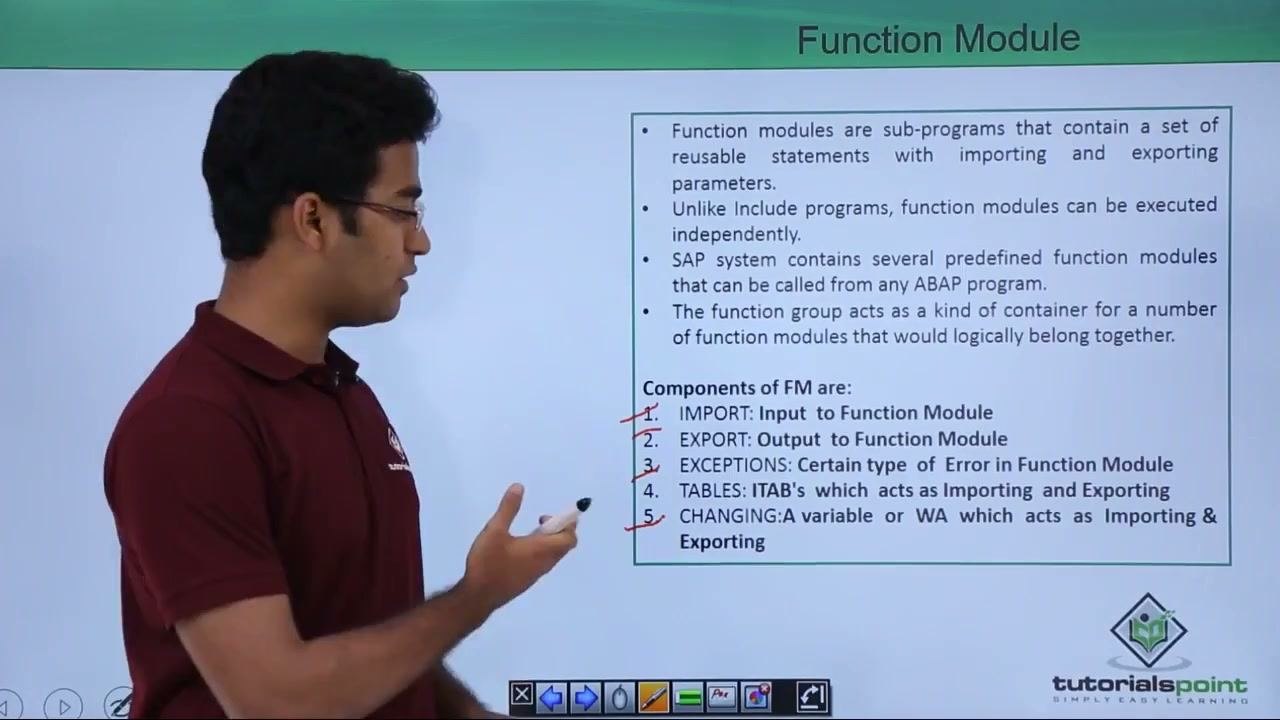
- Function modules are sub-programs that contain a set of reusable statements with importing and exporting parameters.
- Unlike include programs, function modules can be executed independently.
- SAP provides several predefined function modules that you can use in different programs.
- You can also create custom function modules.
- Function modules are grouped into function groups, which act as containers for logically related modules.
Learn the components of a function module
Every function module is built from the following components:
- IMPORT: Input to the function module.
- EXPORT: Output from the function module.
- EXCEPTIONS: Handle specific types of errors in the function module.
- TABLES: Internal tables (ITABs) that act as importing and exporting parameters.
- CHANGING: A variable or work area (WA) that acts as both an importing and an exporting parameter.
Open the Function Builder to start working with function modules
The Function Builder is where you view and create function modules in SAP.
- Go to the SAP Easy Access screen.
- Enter
SE37in the command field to open the Function Builder.
Create the program for the function module example
In this example, the report prompts the user for a numeric amount. When the user runs the report, the SPELL_AMOUNT function module converts the entered number into words.
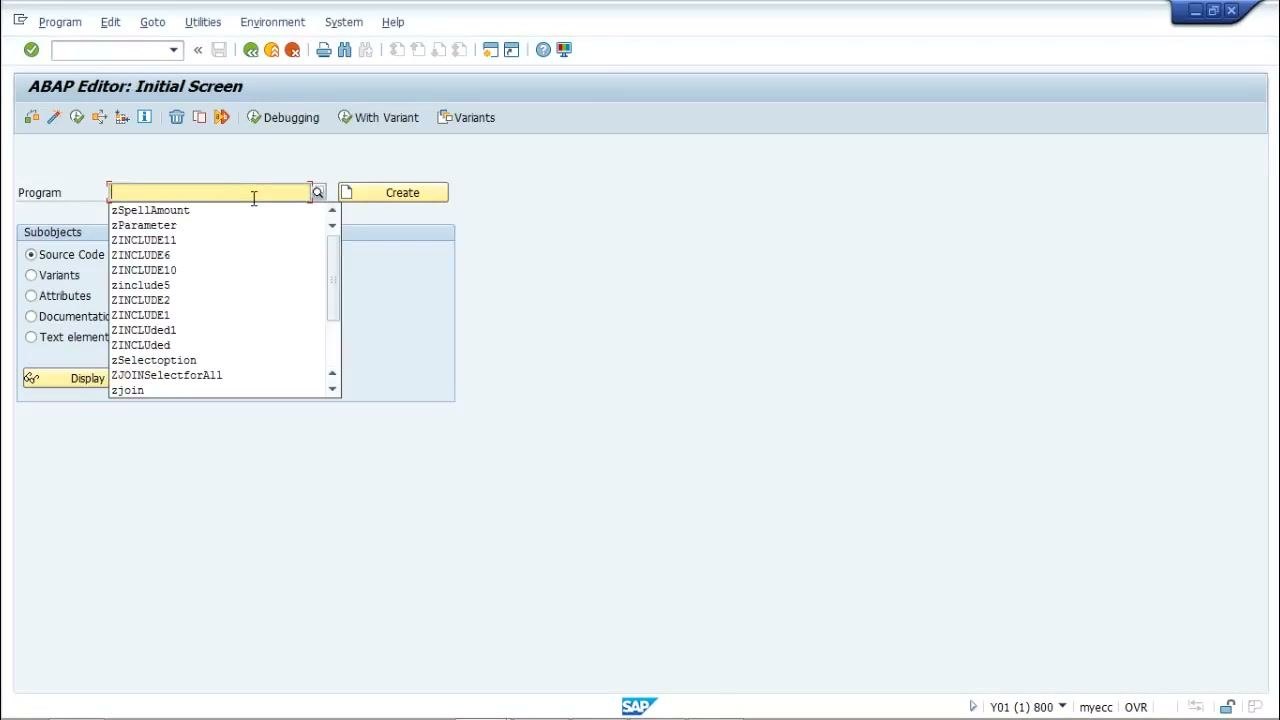
- Go to transaction
SE38to open the ABAP Editor. - Create a new program named
Z_SPELLAMOUNT.
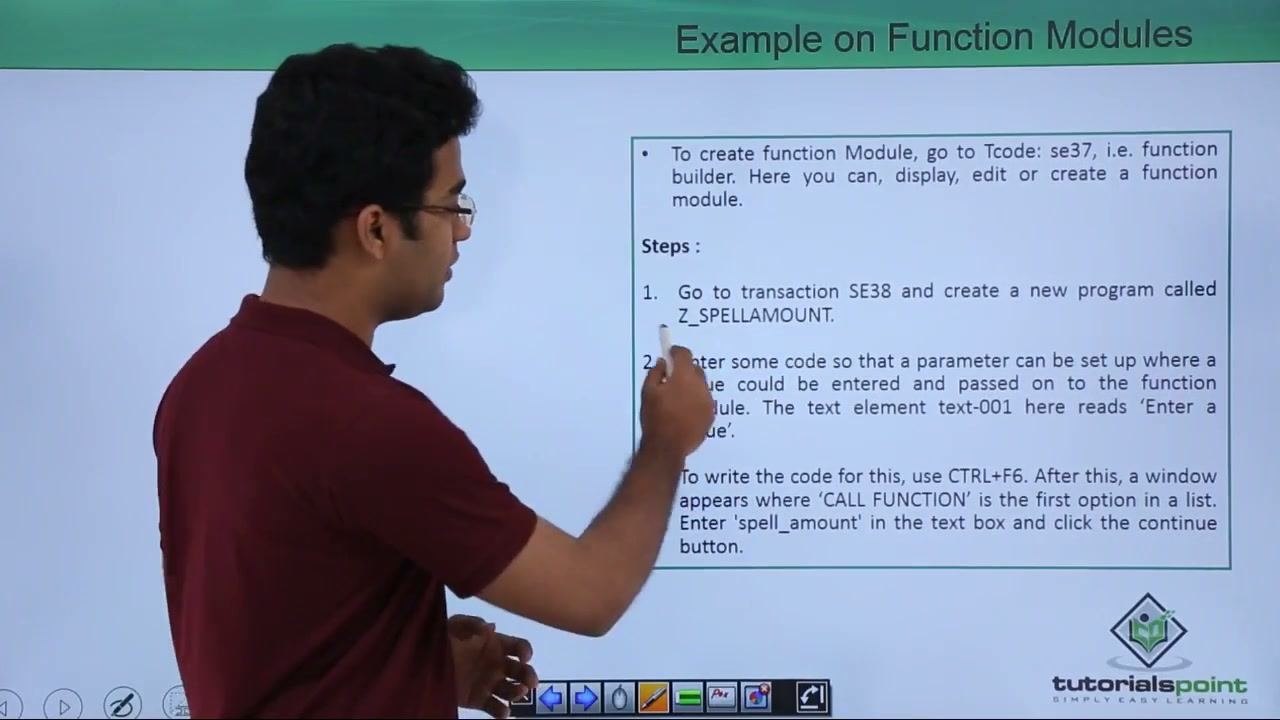
The "Example on Function Modules" slide summarizes the overall approach:
- Create the program in
SE38. - Enter code that sets up a parameter, so a value can be entered and passed to the function module. The text element
text-001reads "Enter a Value". - To write the function call, use
CTRL+F6. In the window that appears,CALL FUNCTIONis the first option in the list. Enterspell_amountin the text box and click the continue button.
Switch to change mode
If the report opens in display mode, switch to change mode so you can edit it. Confirm that the title bar reads ABAP Editor: Change Report ZSPELLAMOUNT.
Define a result structure for the output
Declare a variable above the function call to hold the output of the function module.
- Enter the following line at the top of your report:
DATA result LIKE spell.
- Note that this creates a variable
resultbased on the predefined structurespell, which the output requires.
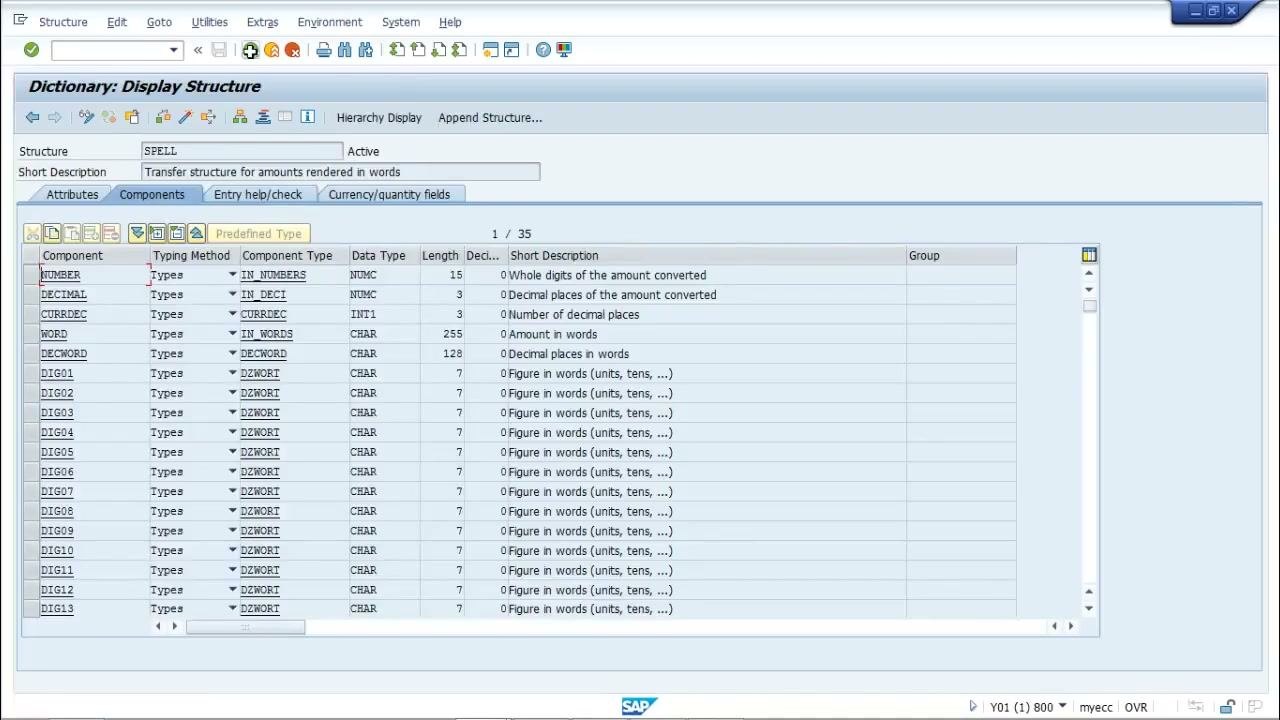
For reference, SPELL is a predefined SAP structure that stores the output of SPELL_AMOUNT. It contains fields such as NUMBER, DECIMAL, CURRDEC, and WORD, which represent the amount in words and related details. You can view its definition in the Data Dictionary.
Add a parameter for user input
Define a parameter so the user can enter the amount to convert.
- Add the following line near the top of your report:
PARAMETERS: num_1 TYPE I.
- Note that this creates an input field where the user enters an integer value.
Insert the function module call
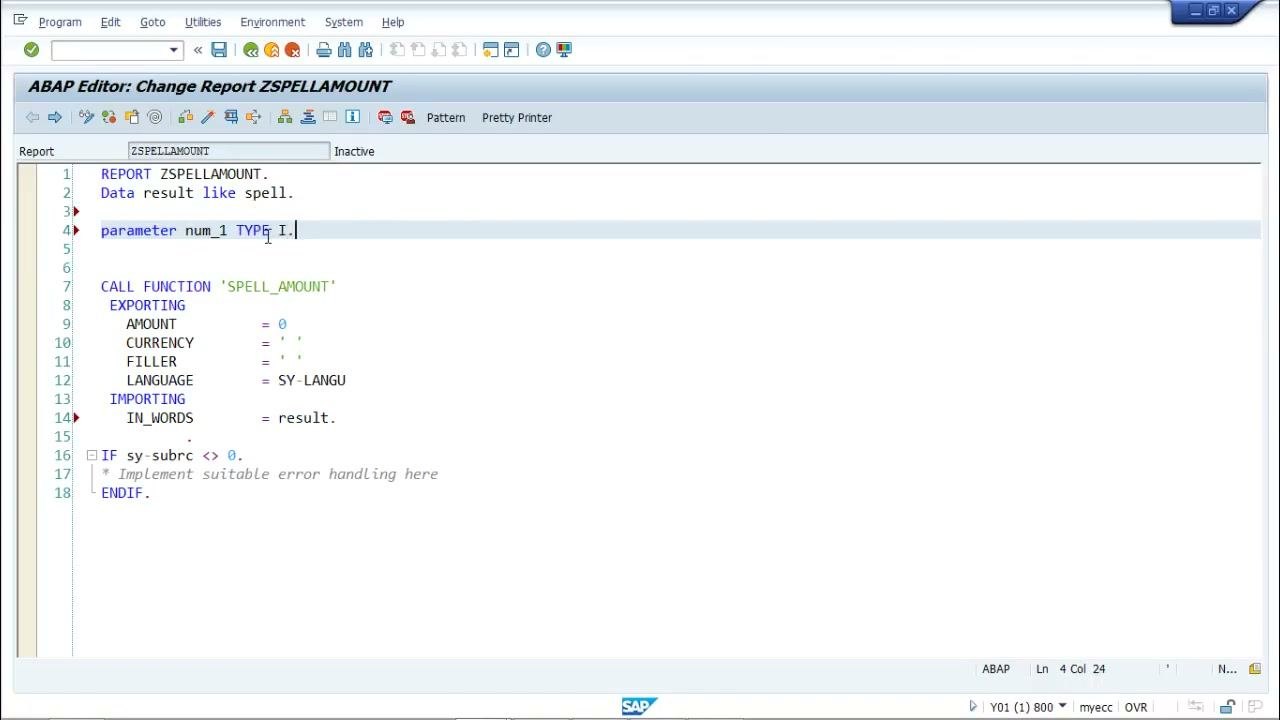
Use the pattern tool to add the function module call to your function module example.
- Place the cursor where you want the function call.
- Click the Pattern button in the ABAP Editor toolbar.
- In the Ins. statement dialog, select CALL FUNCTION.
- Begin typing
spell_amountin the function name field and select it from the dropdown.
Click the green checkmark (Continue/Enter) to insert the template. The editor adds a code block for CALL FUNCTION 'SPELL_AMOUNT' with exporting, importing, and exception parameters, mostly commented out.
Configure the function module call
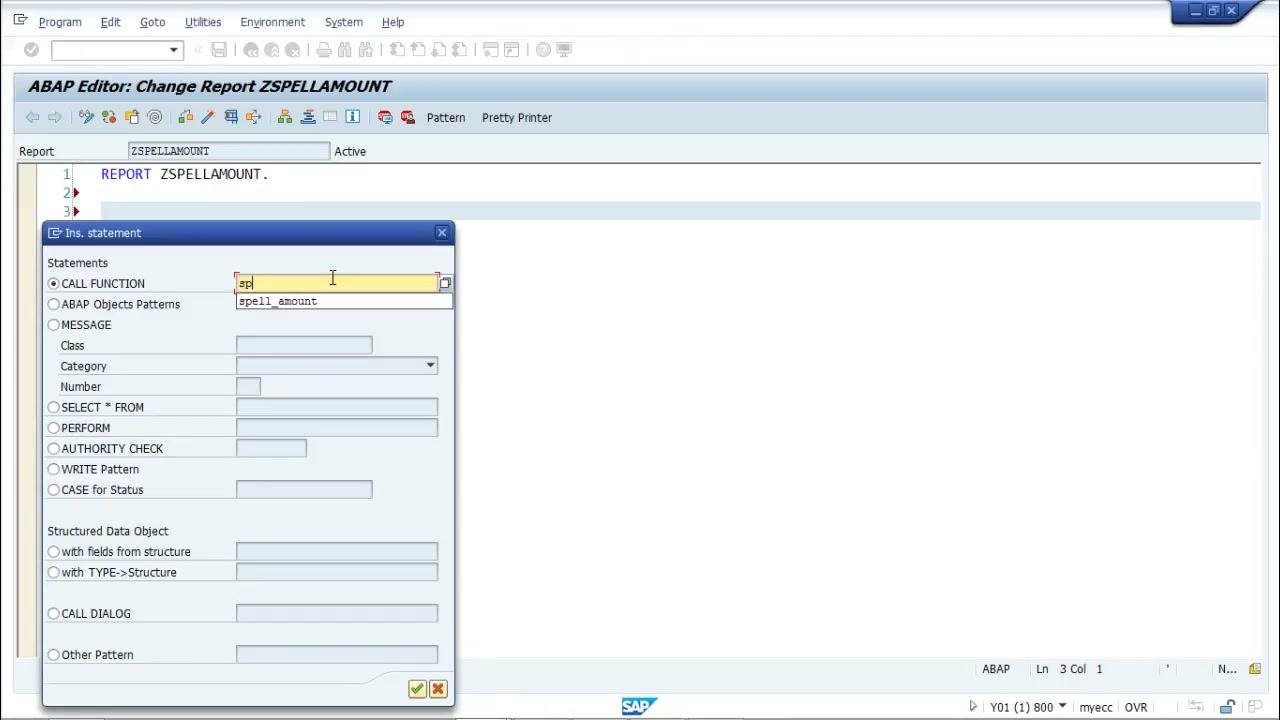
Edit the inserted template so it passes your input and captures the result.
- Uncomment the EXPORTING and IMPORTING parameter sections.
- Remove the EXCEPTIONS section if your program doesn't need it.
- Set the parameters as follows:
AMOUNT = num_1CURRENCY = ''(leave blank if not required)FILLER = ''(leave blank if not required)LANGUAGE = SY-LANGUIN_WORDS = result
The code should look like this:
CALL FUNCTION 'SPELL_AMOUNT'
  EXPORTING
    AMOUNT   = num_1
    CURRENCY = ''
    FILLER   = ''
    LANGUAGE = SY-LANGU
  IMPORTING
    IN_WORDS = result.
Add error handling and output logic
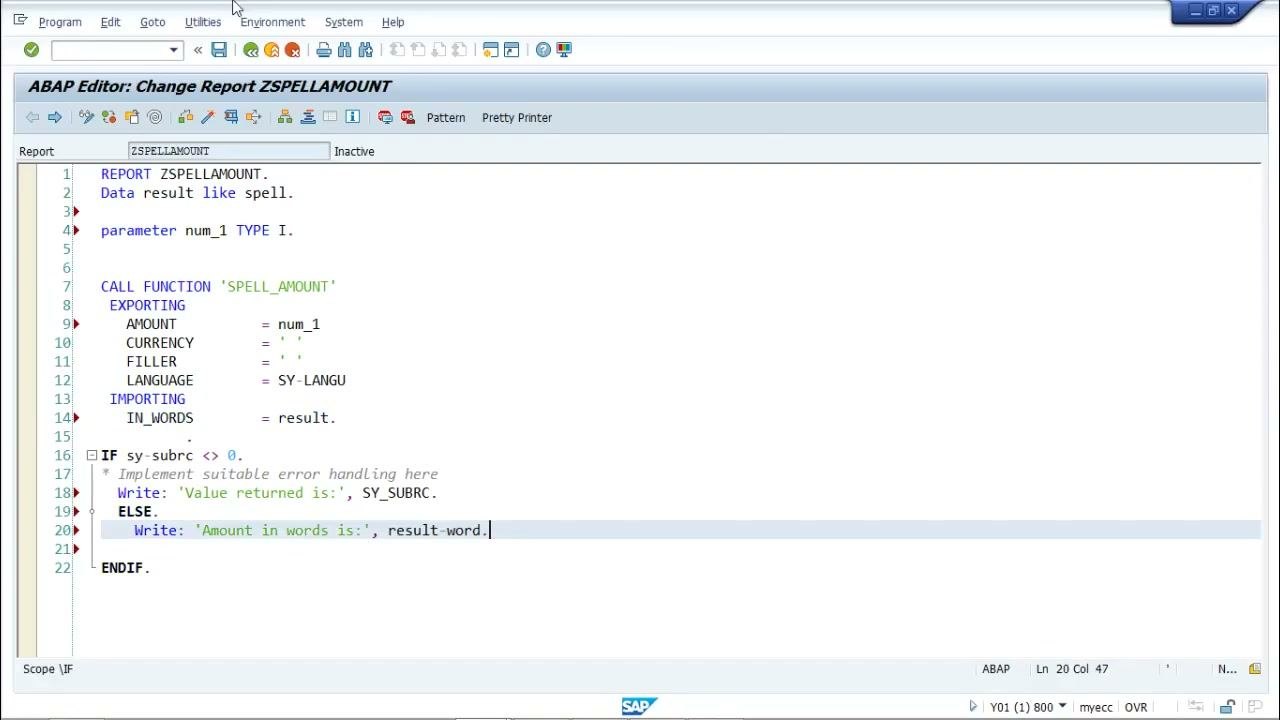
After the function call, check the return code sy-subrc to see whether the function module ran successfully.
- If
sy-subrcis not equal to 0, the program outputs the returned value. - If
sy-subrcis 0, the program outputs the converted amount using theresult-wordfield.
Enter the following code after the function call:
IF sy-subrc <> 0.
  WRITE: 'Value returned is:', SY-SUBRC.
ELSE.
  WRITE: 'Amount in words is:', result-word.
ENDIF.
Save the report
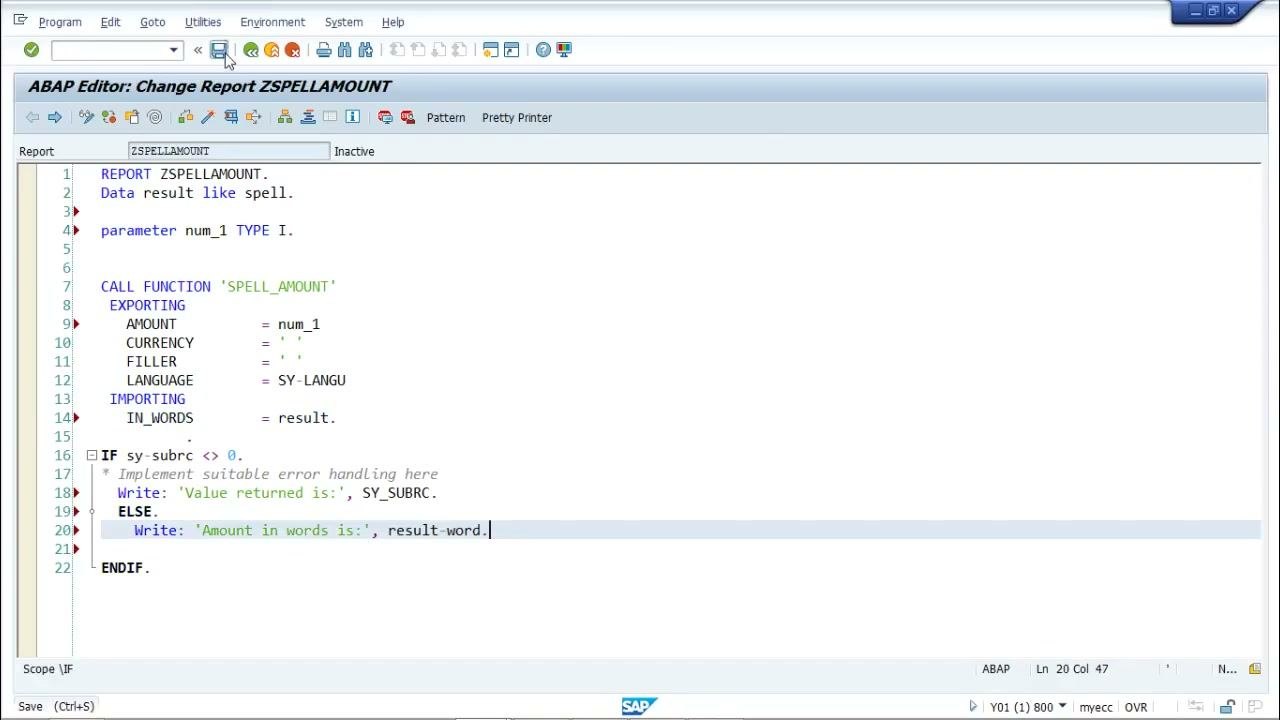
Click the save icon (floppy disk) in the ABAP Editor toolbar, or press Ctrl+S. Make sure there are no syntax errors before you continue.
Activate the report
If prompted, activate the report so you can run it. In the Inactive Objects dialog, select your report (ZSPELLAMOUNT) and confirm the activation.
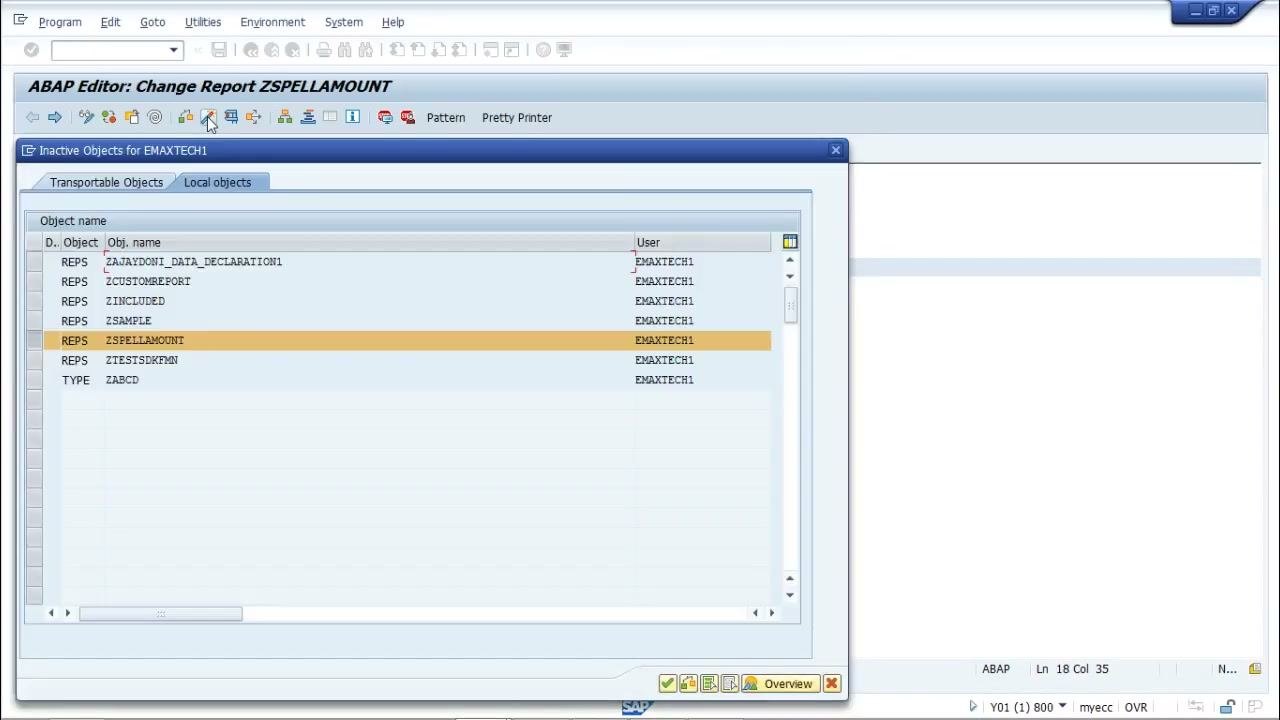
Execute the report and verify the output
- Run the report.
- Enter a numeric value when prompted, for example
2314. - Check the output screen. It should display the amount in words:
Amount in words is:
   TWO THOUSAND THREE HUNDRED FOURTEEN
Summary
By following these steps, you have:
- Reviewed what function modules are and how their components work.
- Opened the Function Builder with
SE37. - Built a report that calls the
SPELL_AMOUNTfunction module with a user-entered value. - Implemented error handling for the function module call.
- Displayed the result in words when the function executes successfully.
- Saved, activated, and executed the report to verify it works.
Your ABAP report now lets users enter a number and receive its value in words. The example shows how parameters enable user input, how SPELL_AMOUNT does the conversion, and how modularization lets a function module run independently of the report that calls it.
Generation details: cost, quality tiers
Docsie billed 5,500 credits ($3.85) to analyze this 11-minute video at standard quality. The rewrite, template fill and Word/PDF exports were included. The same video at each quality tier:
| Quality | Frames sampled | Credits | Approx. cost |
|---|---|---|---|
| Draft | every 16-30 s | 2,750 | $1.92 |
| Standard (this guide) | every 8-15 s | 5,500 | $3.85 |
| Detailed | every 4-7 s | 11,000 | $7.70 |
| Ultra | every 1-3 s | 22,000 | $15.40 |
Credits priced at $0.70 per 1,000; plans include a monthly allowance. Enterprise customers on on-premise or bring-your-own-model deployments run this on their own inference and pay no per-video credits.
Generated by Docsie Video-to-Docs on 2026-11-15 from a 10-minute video. Screenshots are frames from the source video and belong to their creator, TutorialsPoint, whose original is embedded above. If you own this video and want the guide removed or credited differently, contact us and we will act within one business day.