
How to Connect Uber in SAP Concur
Connecting your Uber and Lyft accounts to SAP Concur lets ride receipts flow directly into your expense reports, eliminating manual uploads. This guide explains how to connect Uber in SAP Concur step by step, and also covers the matching process for Lyft, including how to set up a Lyft business profile and link it to Concur.
Video: How to Connect Your Uber & Lyft Accounts to Concur by CSUF Financial Services. All credit for the demonstration goes to the creator; watch the original on YouTube. The written guide below was generated from this video by Docsie. Creator? Request a change or removal.
Connecting your Uber and Lyft accounts to SAP Concur lets ride receipts flow directly into your expense reports, eliminating manual uploads. This guide explains how to connect Uber in SAP Concur step by step, and also covers the matching process for Lyft, including how to set up a Lyft business profile and link it to Concur.
Prerequisites
- The SAP Concur mobile app installed on your device
- An active Uber and/or Lyft account
- Access to the phone number or email address associated with your Uber/Lyft account, for verification codes
Connect Uber to SAP Concur
-
Open the SAP Concur app Locate and tap the SAP Concur app on your device to launch it.
-
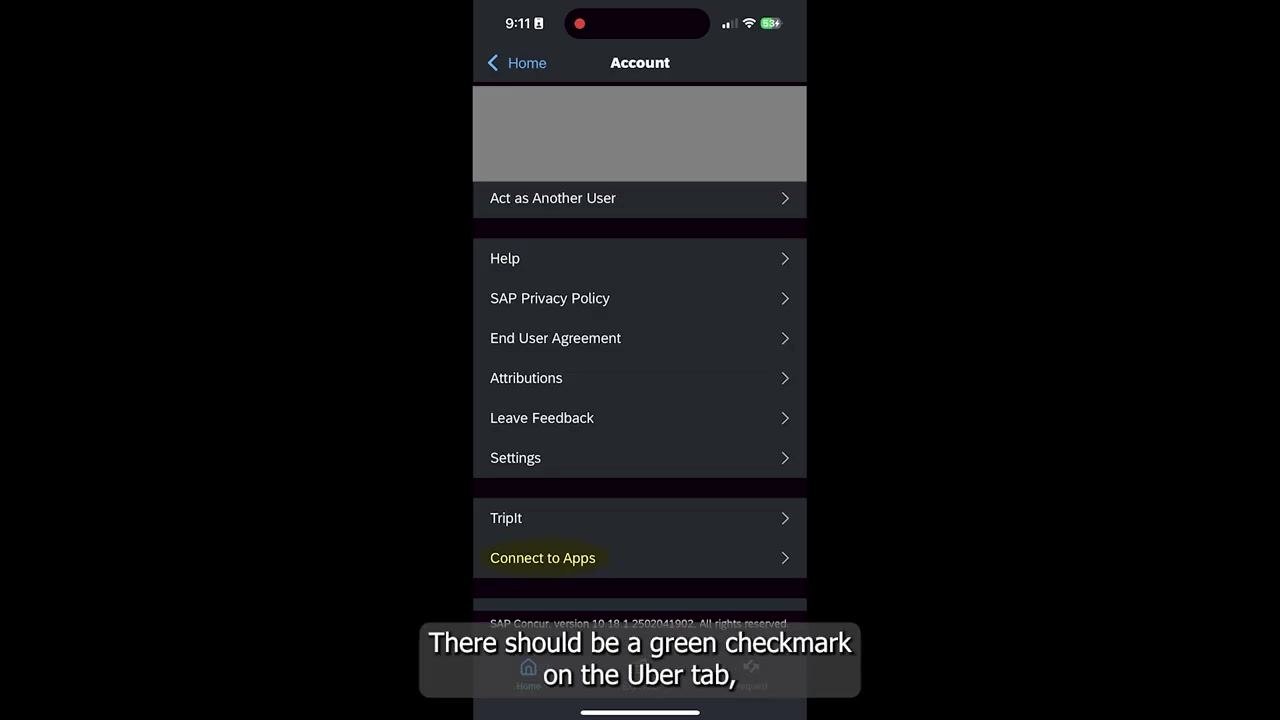
Access your account settings On the homepage, tap your initials in the top right corner of the screen.
-
Go to Connect to Apps Scroll down and tap the Connect to Apps tab near the bottom of the Account screen.
-
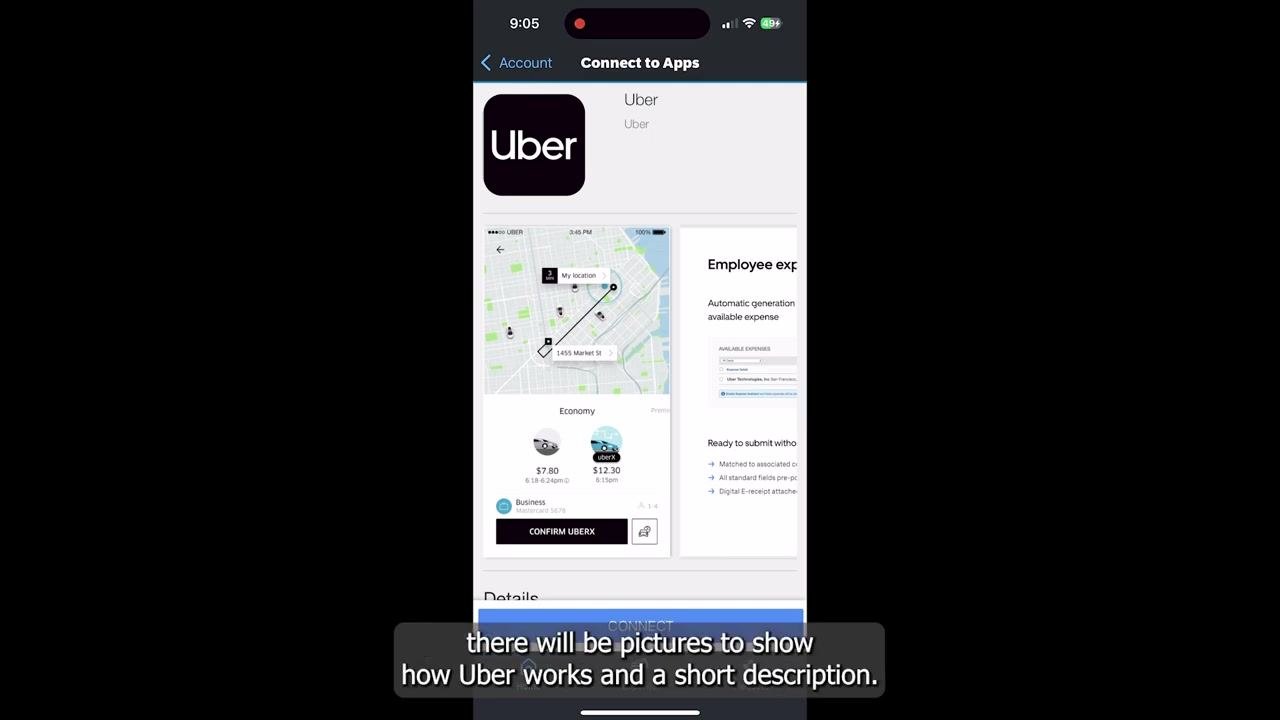
Select Uber from the list of apps On the apps list screen, tap the Uber tab.
-
Review the Uber integration details View the sample images and read the short description explaining how Uber works with Concur.
-
Start the connection Tap the Connect button at the bottom of the Uber integration screen.
-
Agree to the terms and conditions Check the two boxes to agree to Concur's terms and conditions and to confirm you consent to sharing information with Uber.
-
Accept to proceed Tap I Accept to continue.
-
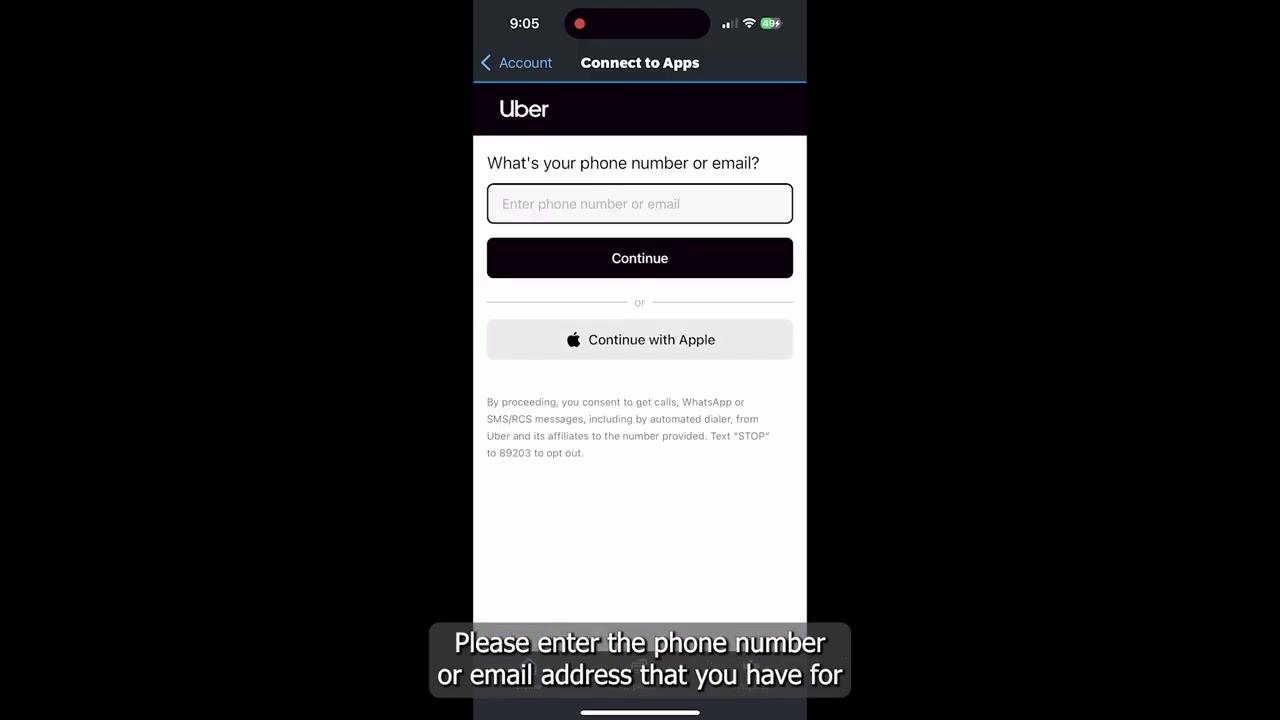
Log in to your Uber account You'll be redirected to the Uber login page. Enter the phone number or email address associated with your Uber account, then tap Continue.
-
Enter your verification code Uber sends a 4-digit code to your phone number or email. Enter this code in the text box provided.
-
Confirm the accounts are linked Once the code is accepted, a confirmation screen appears stating "Your accounts are now linked." From this point on, all future Uber receipts for work rides are automatically sent to Concur.
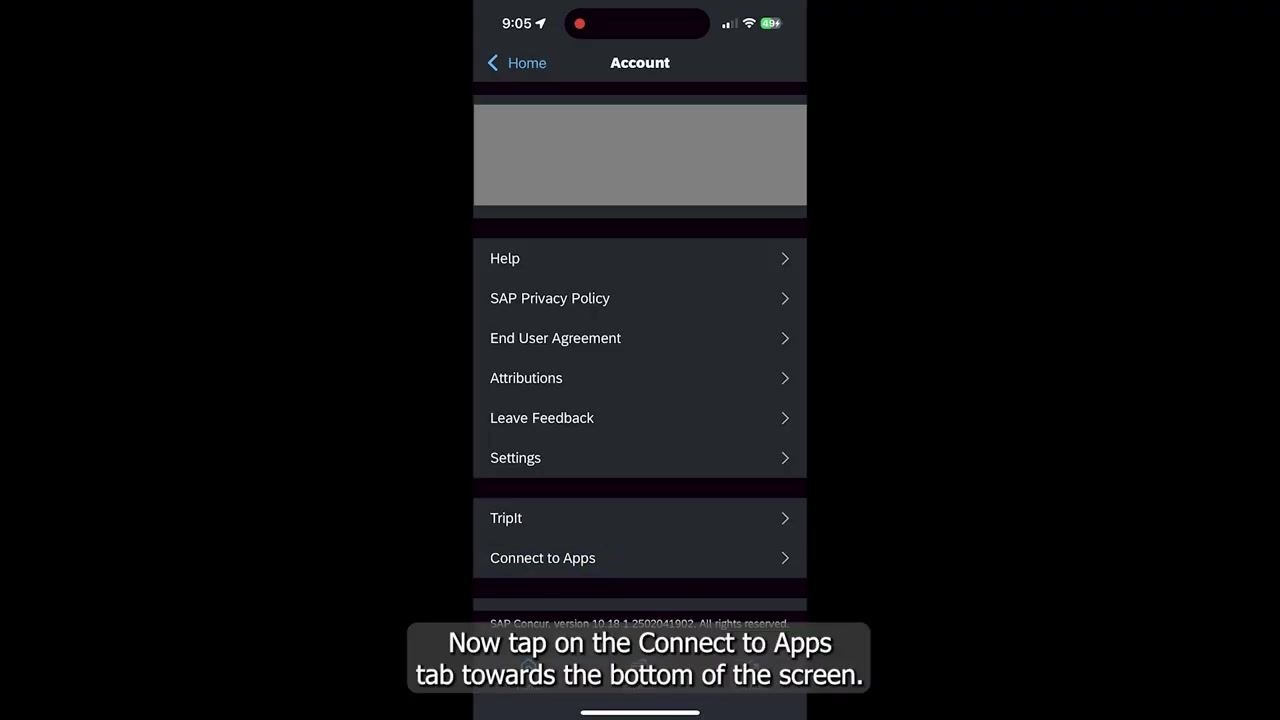
- Verify the connection Return to the Account screen and tap Connect to Apps again. A green checkmark should appear on the Uber tab, confirming your accounts are connected.
Connect Lyft to SAP Concur
The process for connecting Lyft is similar to Uber, with a few additional steps for setting up a business profile.
-
Select Lyft from the list of apps In the Connect to Apps section, tap the Lyft tab.
-
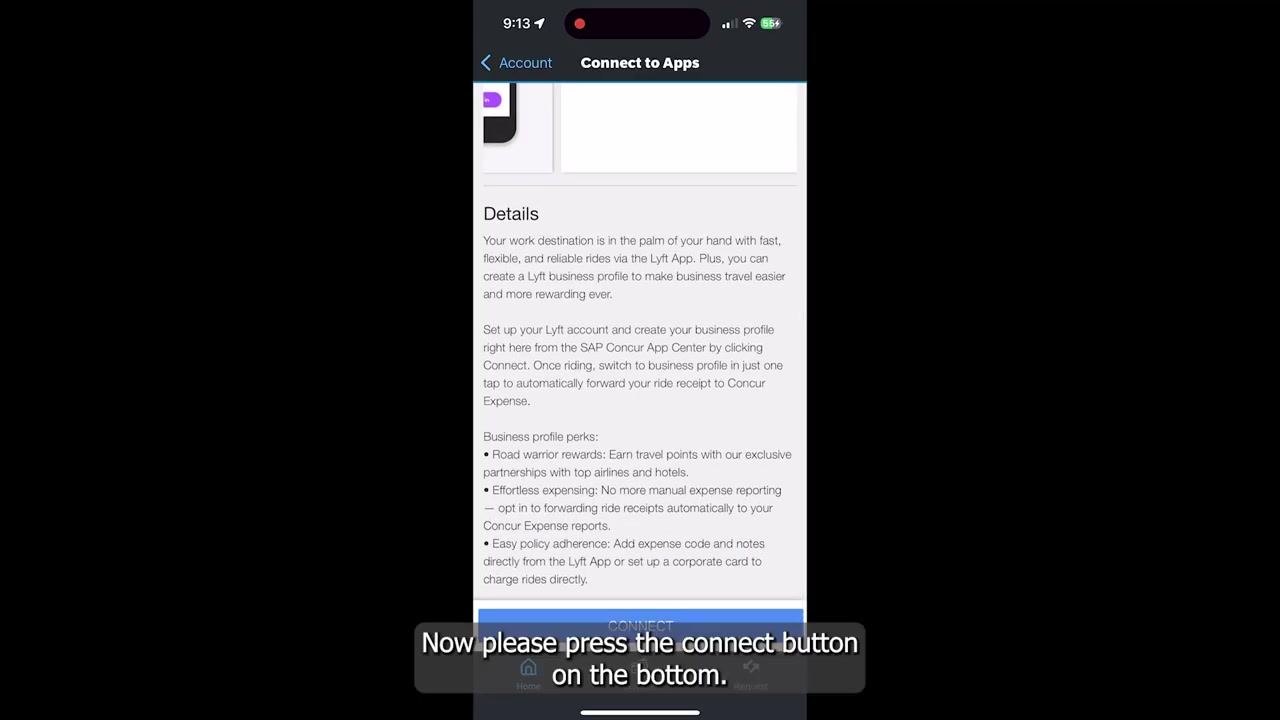
Review the Lyft integration details View the sample images and read the description of how Lyft works with Concur.
-
Press the Connect button Scroll to the bottom of the Lyft integration details screen and tap the blue Connect button to begin linking.
-
Agree to share information with Lyft On the next screen, check the box agreeing to share information with Lyft, then tap I Accept to proceed.
-
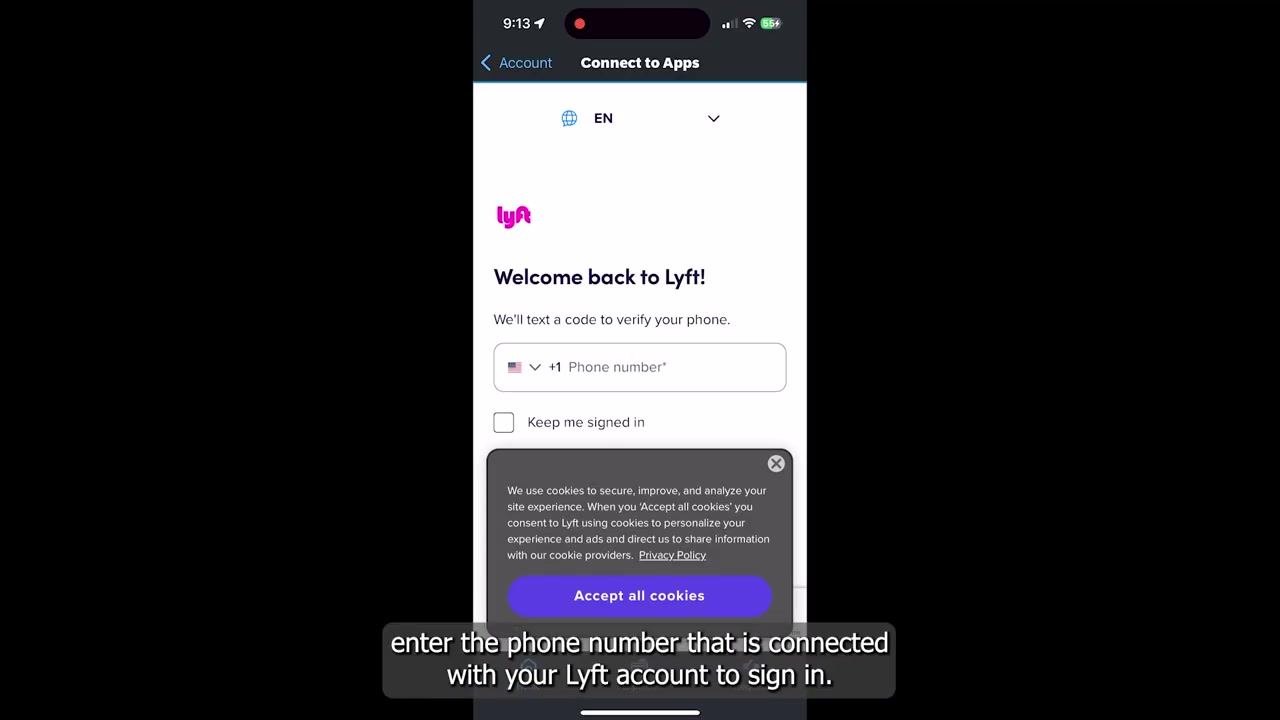
Enter your Lyft account phone number On the "Welcome back to Lyft!" screen, enter the phone number associated with your Lyft account. Optionally, check Keep me signed in, then tap Continue with phone (the label may vary slightly by app version).
-
Enter the verification code Lyft sends a 6-digit verification code to your phone. Enter the code in the text box provided and tap Next.
-
Verify your identity with email On the "Verify identity" screen, enter the email address associated with your Lyft account and tap Next.
-
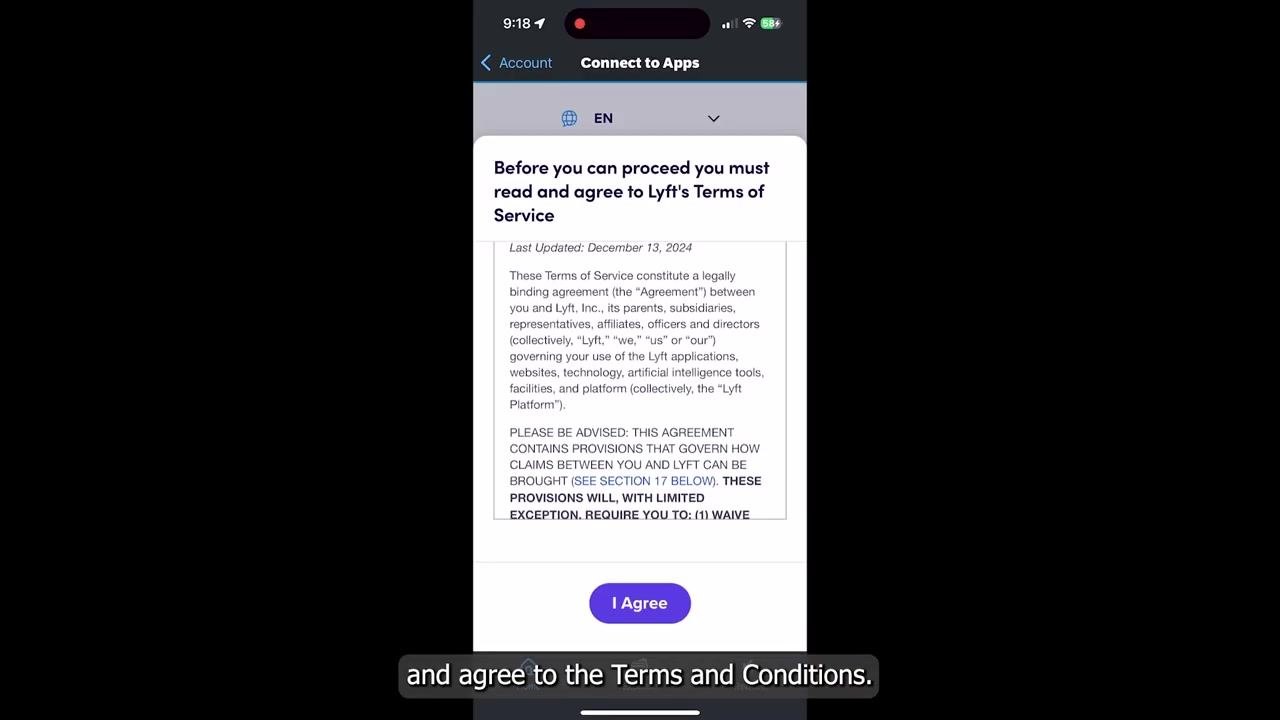
Agree to Lyft's Terms of Service Read the Terms of Service, then tap I Agree to accept and continue.
-
Create a Lyft business account If prompted, tap Create Business Account to set up a business profile.
-
Enter your work email On the "Get moving with your business profile" screen, enter your work email address in the Work email field and tap Get started.
-
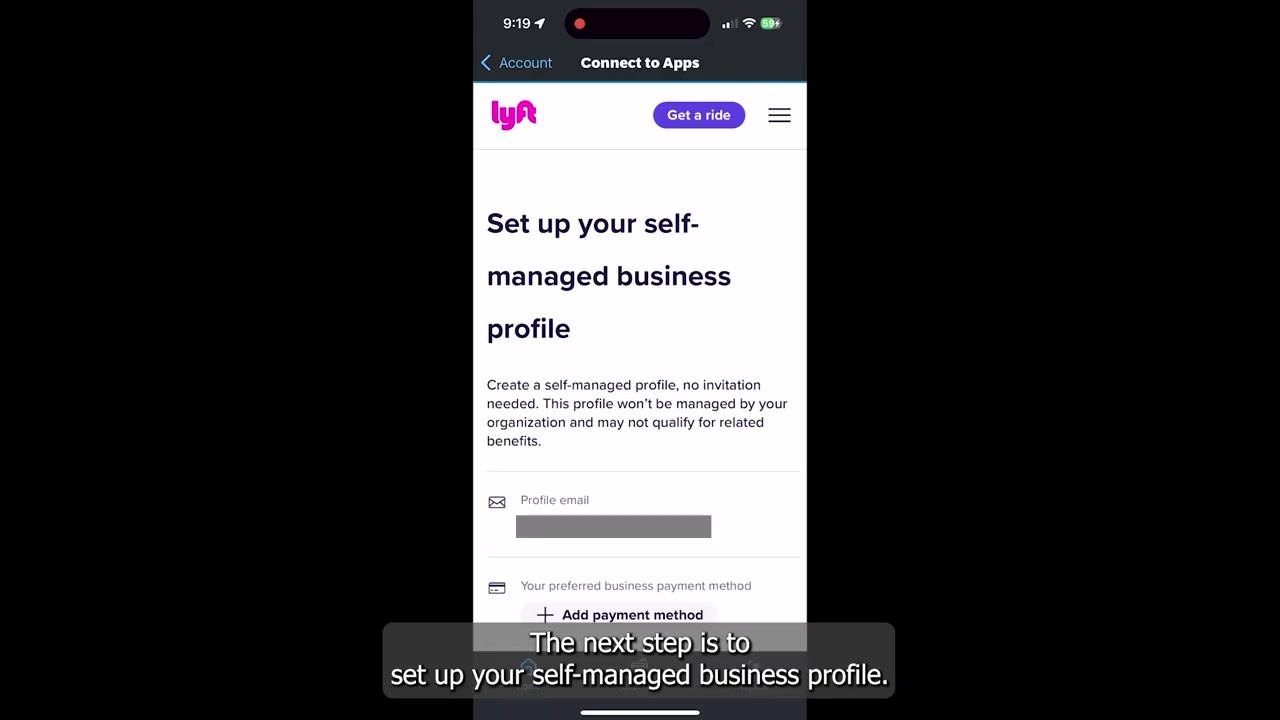
Set up your self-managed business profile Review your profile email. Tap Add payment method to enter your credit or debit card details, then under Receipt forwarding (optional), select SAP Concur as the provider.
-
Confirm and create your business profile Review the entered profile email, payment method, and receipt forwarding provider, then tap Create business profile to finalize the setup.
Finalize and verify the Lyft–SAP Concur connection
- Link SAP Concur to your Lyft business profile On the "Choose the correct profile" screen in the Lyft app, make sure you're viewing your business profile, then tap the purple Link SAP Concur button at the bottom.
-
Log in to SAP Concur using SSO When prompted, log in to your SAP Concur account using your Single Sign-On (SSO) code or credentials, and follow any on-screen instructions to complete authentication.
-
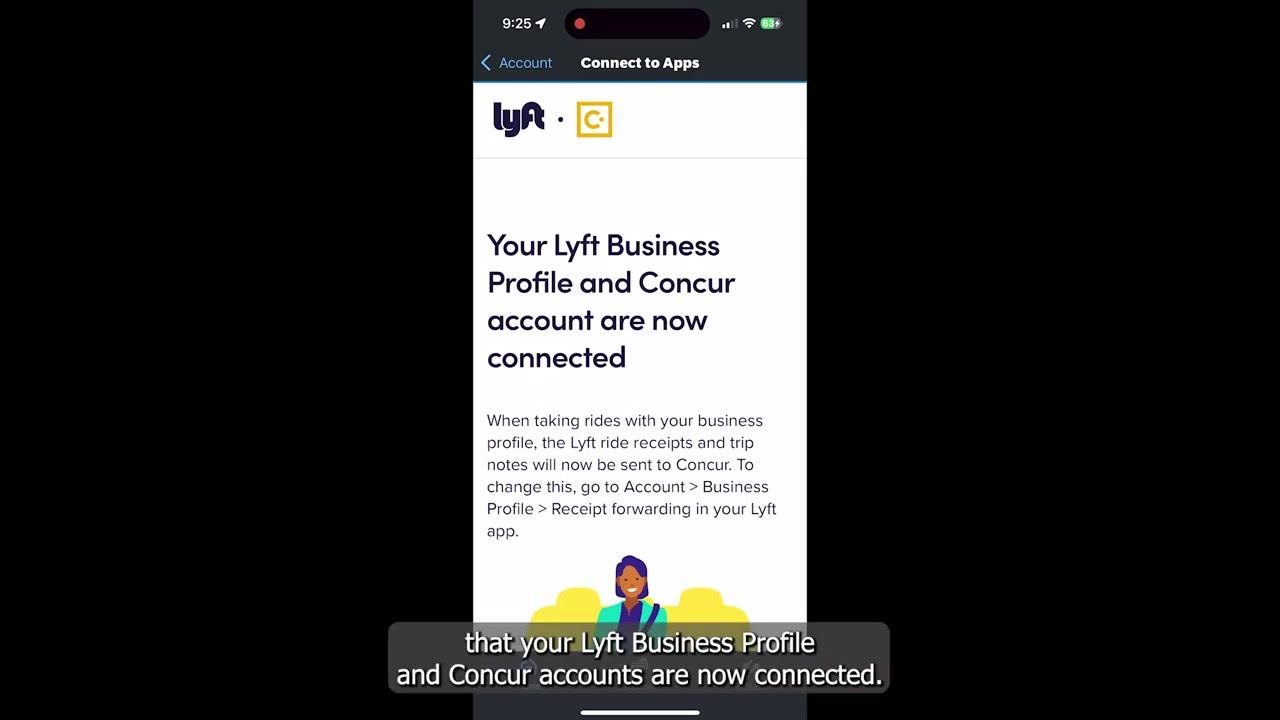
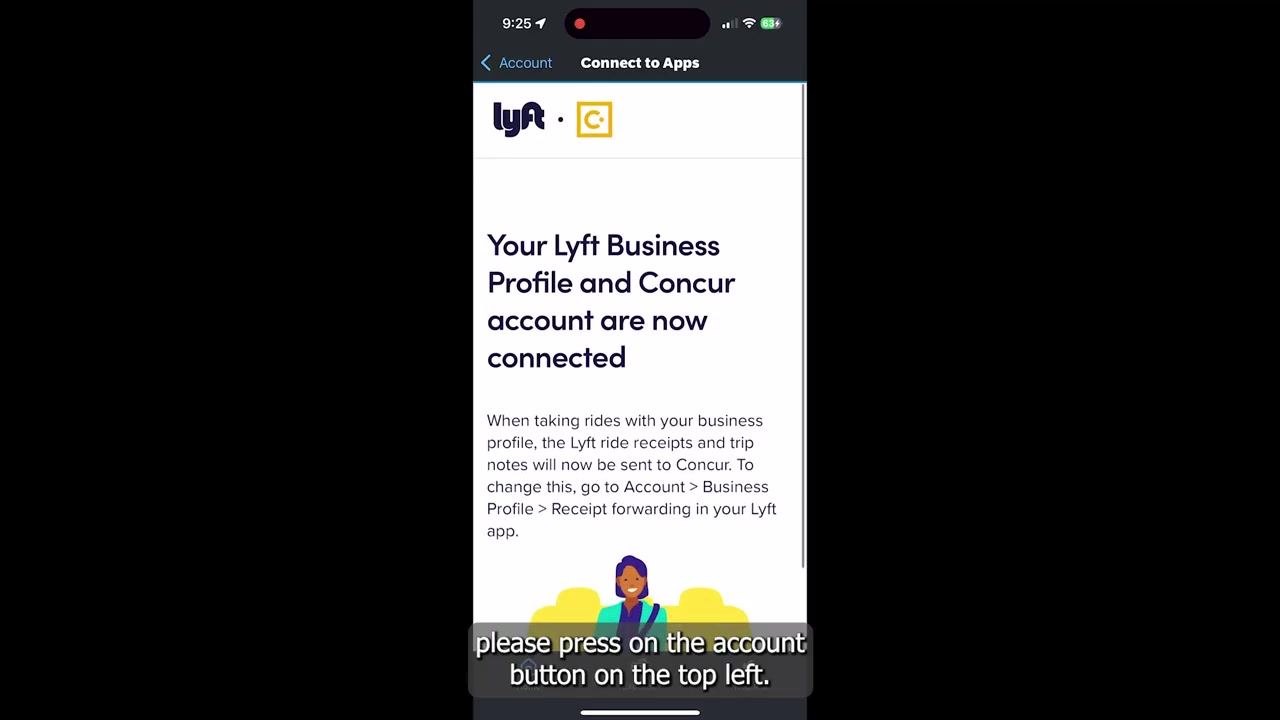
Confirm the connection succeeded After logging in, a confirmation screen states: "Your Lyft Business Profile and Concur account are now connected." This screen explains that Lyft ride receipts and trip notes will be sent to Concur whenever you use your business profile.
-
Verify the connection in SAP Concur Tap the Account button at the top left of the screen, then scroll down in the Account menu and tap Connect to Apps.
-
Check for a successful integration In the Connect to Apps section, look for the Lyft tab and confirm a green checkmark appears next to it, indicating your Lyft and SAP Concur accounts are successfully connected.
What's next
With both apps connected, your Uber and Lyft ride receipts for work trips are automatically forwarded to SAP Concur, streamlining your expense reporting. If you run into any issues or want to connect additional travel apps, revisit the Connect to Apps section in the SAP Concur Account menu to check connection status or repeat the setup steps.
Generation details: cost, quality tiers
Docsie billed 2,500 credits ($1.75) to analyze this 5-minute video at standard quality. The rewrite, template fill and Word/PDF exports were included. The same video at each quality tier:
| Quality | Frames sampled | Credits | Approx. cost |
|---|---|---|---|
| Draft | every 16-30 s | 1,250 | $0.88 |
| Standard (this guide) | every 8-15 s | 2,500 | $1.75 |
| Detailed | every 4-7 s | 5,000 | $3.50 |
| Ultra | every 1-3 s | 10,000 | $7.00 |
Credits priced at $0.70 per 1,000; plans include a monthly allowance. Enterprise customers on on-premise or bring-your-own-model deployments run this on their own inference and pay no per-video credits.
Generated by Docsie Video-to-Docs on 2026-10-06 from a 4-minute video. Screenshots are frames from the source video and belong to their creator, CSUF Financial Services, whose original is embedded above. If you own this video and want the guide removed or credited differently, contact us and we will act within one business day.