
How to Add Per Diem in SAP Concur
This guide explains how to add per diem in SAP Concur when submitting a non-employee reimbursement report. It covers understanding per diem rules, locating the correct Travel Meals expense types, entering per diem amounts for the first day, last day, and intermediate days of a trip, and reviewing the report before submission.
Video: Concur How-to: Adding Meal Per Diem to a Non-Employee Reimbursement Report by Finance Procurement Business Services (2019). All credit for the demonstration goes to the creator; watch the original on YouTube. The written guide below was generated from this video by Docsie. Creator? Request a change or removal.
This guide explains how to add per diem in SAP Concur when submitting a non-employee reimbursement report. It covers understanding per diem rules, locating the correct Travel Meals expense types, entering per diem amounts for the first day, last day, and intermediate days of a trip, and reviewing the report before submission.
Prerequisites
Before you add per diem in SAP Concur, keep the following rules in mind:
- The Meals and Incidental Expense (M&IE) per diem is the maximum allowable amount for meal reimbursement.
- Per diem rates vary by destination.
- On the first and last days of a trip, per diem is prorated to 75%.
Access the Concur Travel and Expense system
Log in to the Concur system to begin the reimbursement process.
Start a non-employee reimbursement report
Create a new expense report and complete the report header. In the Policy dropdown, select Non-Employee Reimbursement.
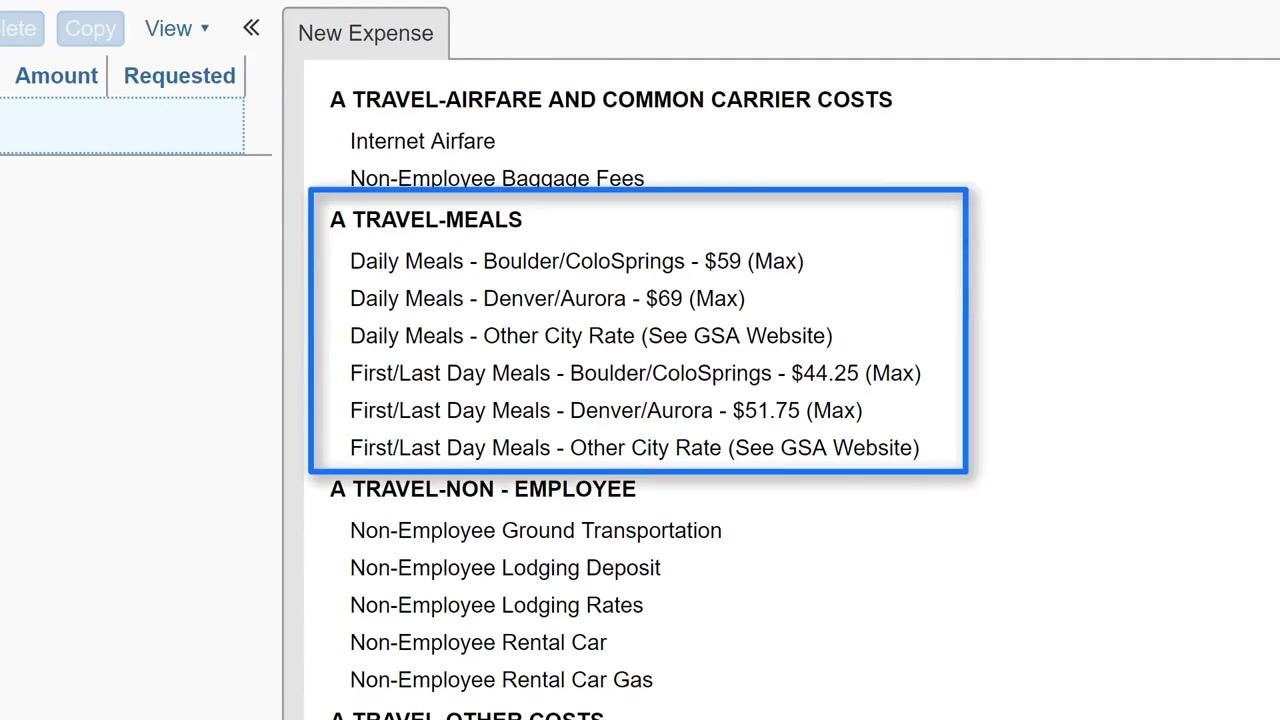
Locate the correct expense types for per diem
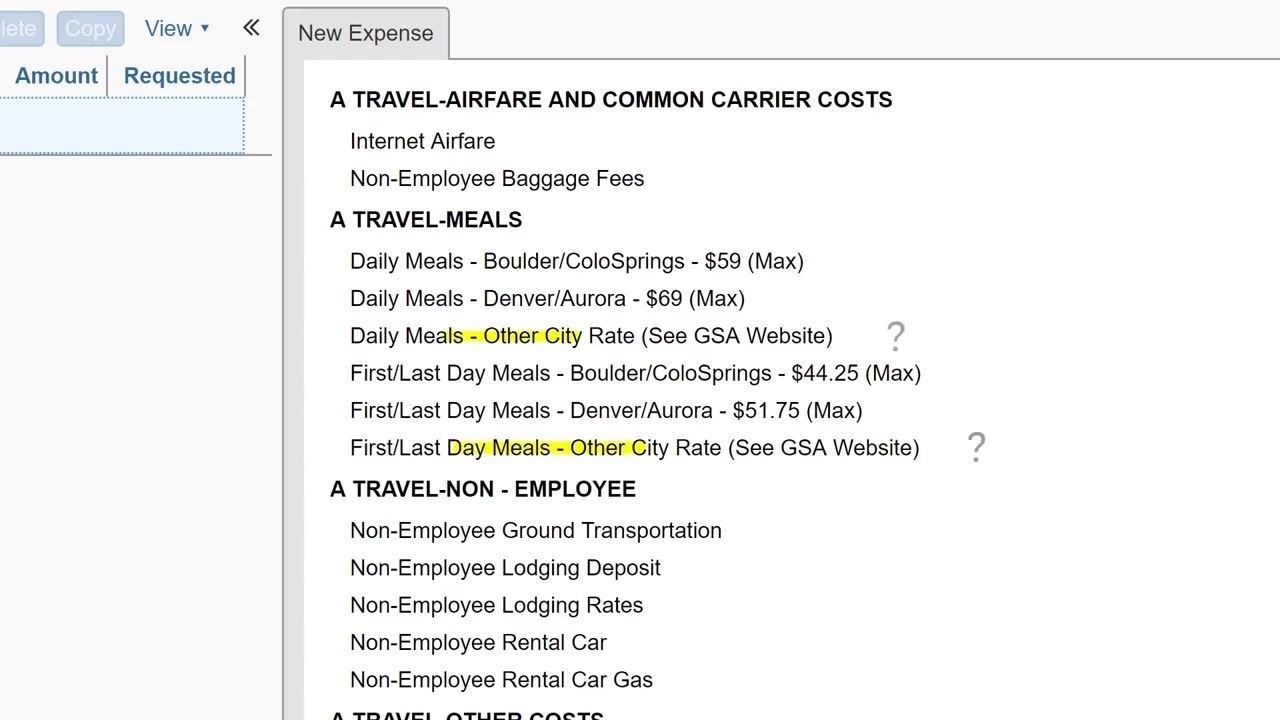
Under the Travel Meals section, identify the appropriate expense type for your destination:
- Daily Meals - Boulder/ColoSprings: $59 (Max)
- Daily Meals - Denver/Aurora: $69 (Max)
- Daily Meals - Other City Rate: See the GSA website for the rate
- First/Last Day Meals - Boulder/ColoSprings: $44.25 (Max)
- First/Last Day Meals - Denver/Aurora: $51.75 (Max)
- First/Last Day Meals - Other City Rate: See the GSA website for the rate
For destinations outside these listed cities, look up the per diem rate on the GSA website.
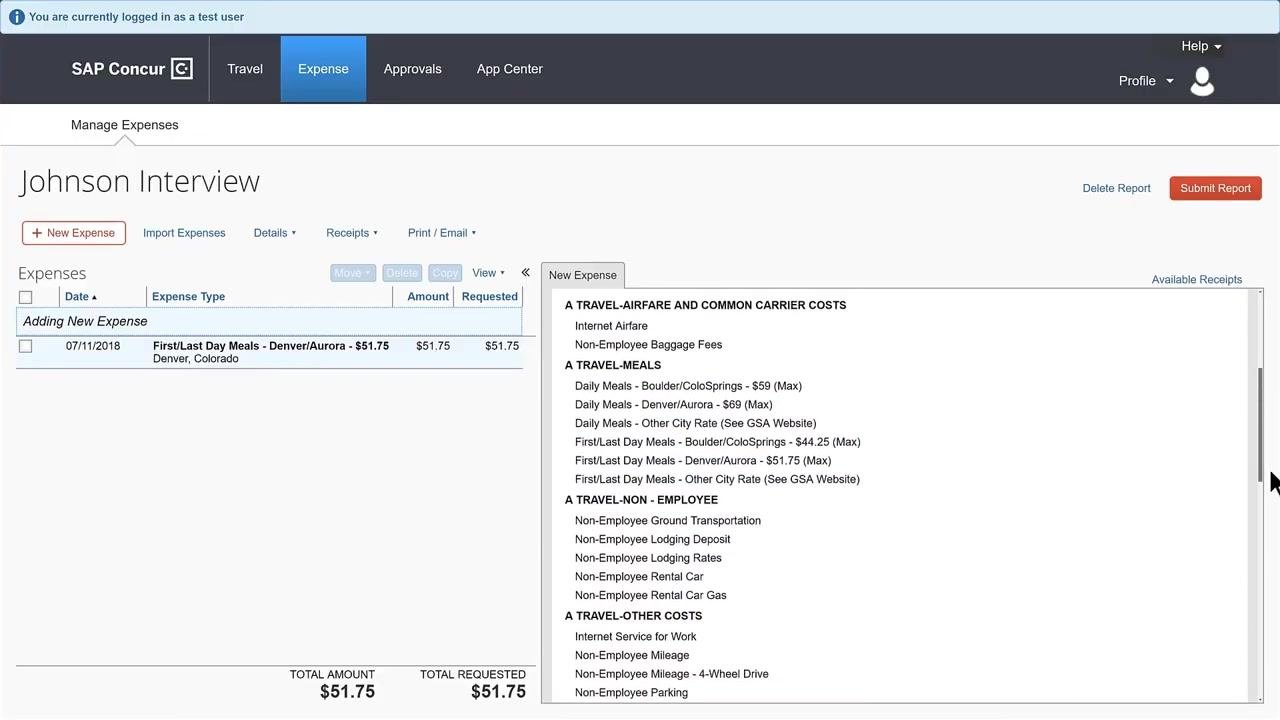
Add the per diem entry for the first day
Click + New Expense to add a per diem entry. Then:
- Select the appropriate expense type, such as First/Last Day Meals - Denver/Aurora.
- Enter the Transaction Date as the first day of the trip.
- Enter the Amount as the per diem rate for the location, or the actual cost if it is lower than the per diem.
- Select the Location (for example, Denver, Colorado).
- Optionally, add a comment.
- Click Save to add the expense to the report.
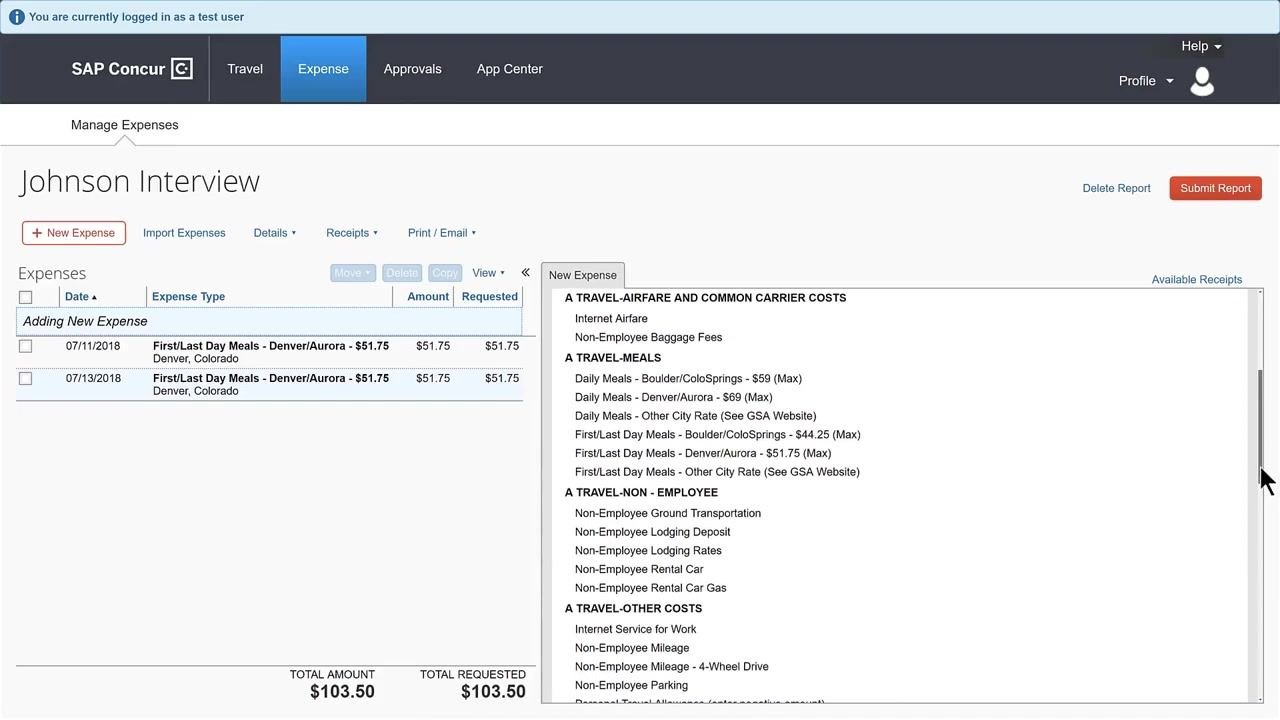
Add the per diem entry for the last day
If the trip spans more than one day, add another First/Last Day Meals expense for the last day. You can either:
- Add a new expense manually, following the same steps as above, or
- Copy the existing first-day expense by checking the box next to it and clicking Copy.
Add per diem for intermediate days
For each full day between the first and last day of the trip, add a Daily Meals expense entry:
- Click + New Expense to begin adding a new entry.
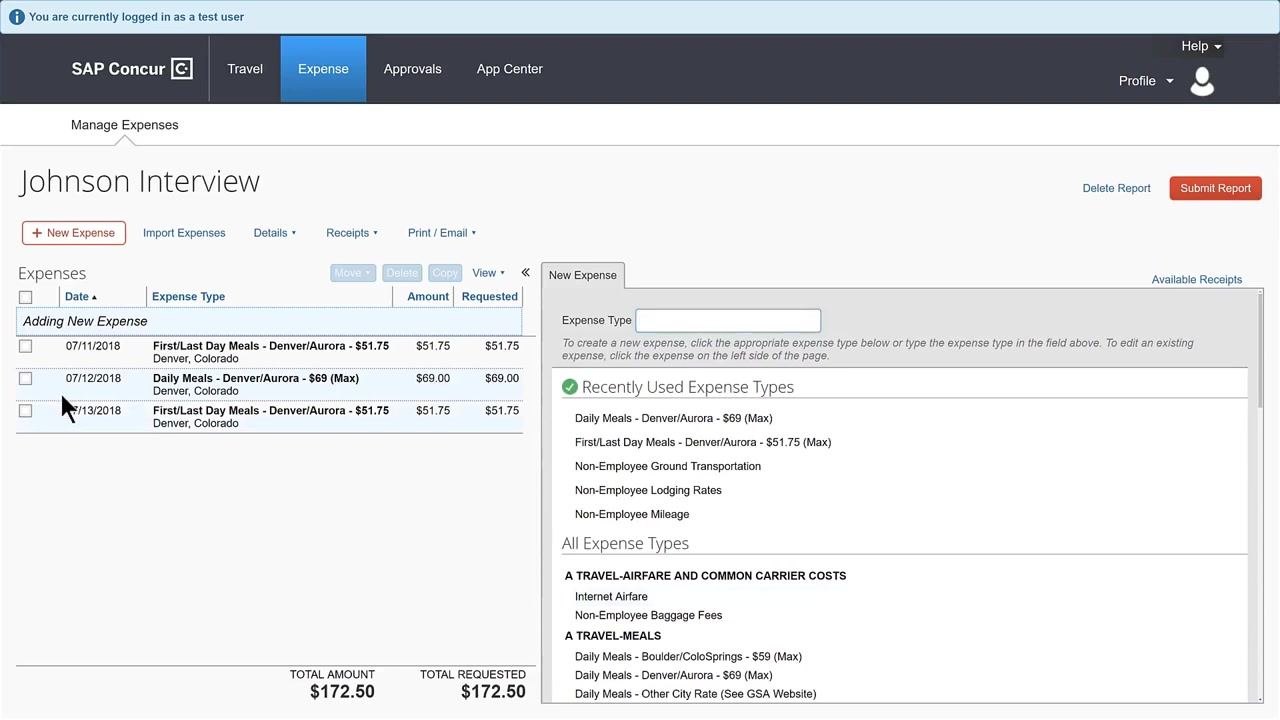
- In the Expense Type field, select the appropriate Daily Meals expense type for the destination, such as Daily Meals - Denver/Aurora - $69 (Max).
- Enter the Transaction Date as the first full day of the trip (for example, 07/12/2018).
- Enter the Amount as the per diem rate for the location (for example, $69.00 for Denver/Aurora), or the actual cost if it is lower than the per diem.
- Enter the Location (for example, Denver, Colorado).
- Optionally, add a comment for additional context.
- Click Save to add the expense to the report.
Add remaining Daily Meals entries by copying
If the trip includes more than one intermediate day, repeat the process for each day, either by adding a new Daily Meals expense each time or by copying an existing entry to save time:
- Select the Daily Meals expense entry from the list on the left side of the screen by clicking the checkbox next to it.
- Click the Copy button at the top of the expense list.
- Update the Transaction Date and Amount fields as needed for the new day.
- Click Save to add the copied expense.
Verify all per diem entries
Before submitting, check that:
- There is an expense line for each day of per diem (first day, each full day, and last day).
- Each entry has the correct date, amount, and location.
- The total requested amount at the bottom of the expense list is accurate.
Submit the report
Confirm that all per diem entries are correct and correspond to the correct dates and locations. When you are finished, click Submit Report to send it for approval.
Summary
By following these steps, you can accurately add per diem in SAP Concur for meal expenses on a non-employee reimbursement report, ensuring compliance with per diem rules and proper documentation for each day of the trip.
Generation details: cost, quality tiers
Docsie billed 1,500 credits ($1.05) to analyze this 3-minute video at standard quality. The rewrite, template fill and Word/PDF exports were included. The same video at each quality tier:
| Quality | Frames sampled | Credits | Approx. cost |
|---|---|---|---|
| Draft | every 16-30 s | 750 | $0.52 |
| Standard (this guide) | every 8-15 s | 1,500 | $1.05 |
| Detailed | every 4-7 s | 3,000 | $2.10 |
| Ultra | every 1-3 s | 6,000 | $4.20 |
Credits priced at $0.70 per 1,000; plans include a monthly allowance. Enterprise customers on on-premise or bring-your-own-model deployments run this on their own inference and pay no per-video credits.
Generated by Docsie Video-to-Docs on 2026-10-11 from a 2-minute video. Screenshots are frames from the source video and belong to their creator, Finance Procurement Business Services, whose original is embedded above. If you own this video and want the guide removed or credited differently, contact us and we will act within one business day.