
How to Add Mileage in SAP Concur
This guide explains how to add mileage in SAP Concur to request reimbursement for university business travel using your personal vehicle. Mileage reimbursement covers only the distance driven in excess of your normal round-trip commute to your primary work location—gas expenses cannot be submitted separately. Always deduct your commute distance, even on days when you would not typically drive to work.
Video: CONCUR How-to: Adding Mileage to Expense Reports by Finance Procurement Business Services. All credit for the demonstration goes to the creator; watch the original on YouTube. The written guide below was generated from this video by Docsie. Creator? Request a change or removal.
This guide explains how to add mileage in SAP Concur to request reimbursement for university business travel using your personal vehicle. Mileage reimbursement covers only the distance driven in excess of your normal round-trip commute to your primary work location—gas expenses cannot be submitted separately. Always deduct your commute distance, even on days when you would not typically drive to work.
Prerequisites
Before you begin, keep the following policy points in mind:
- You can only be reimbursed for mileage that exceeds your normal round-trip commute to your primary work location.
- Always deduct your commute distance, regardless of whether you usually drive to work.
- Do not check the commute deduction on weekends or holidays, since no regular commute applies on those days.
Start a new expense report
Log in to Concur and click the Expense tab, then select Create a New Expense Report. Fill in the required fields, including Policy (such as Travel Reconciliation), Report Name, Travel Type, Travel Business Purpose, Routing/Reimbursement SpeedType, Submit Report to, Comment, and Alternate Contact Employee as required by your organization. Click Next to proceed.
Add a new mileage expense
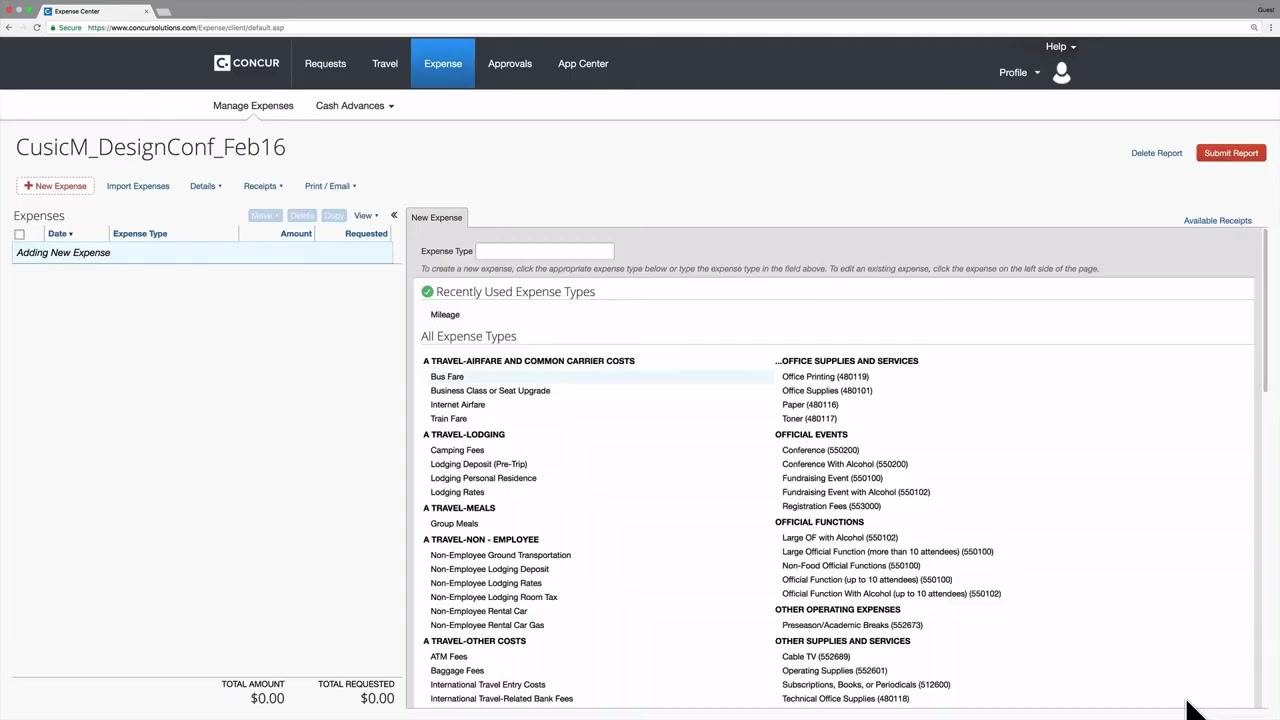
Click New Expense, then in the Expense Type field, type and select Mileage from the list of expense types.
Enter trip details
Enter the Transaction Date for the day you drove and the Purpose of Trip (for example, "Drive to DIA"). Leave the Distance, Amount, From Location, and To Location fields blank for now, then click the Mileage Calculator link to open the calculator tool.
Enter waypoints in the mileage calculator
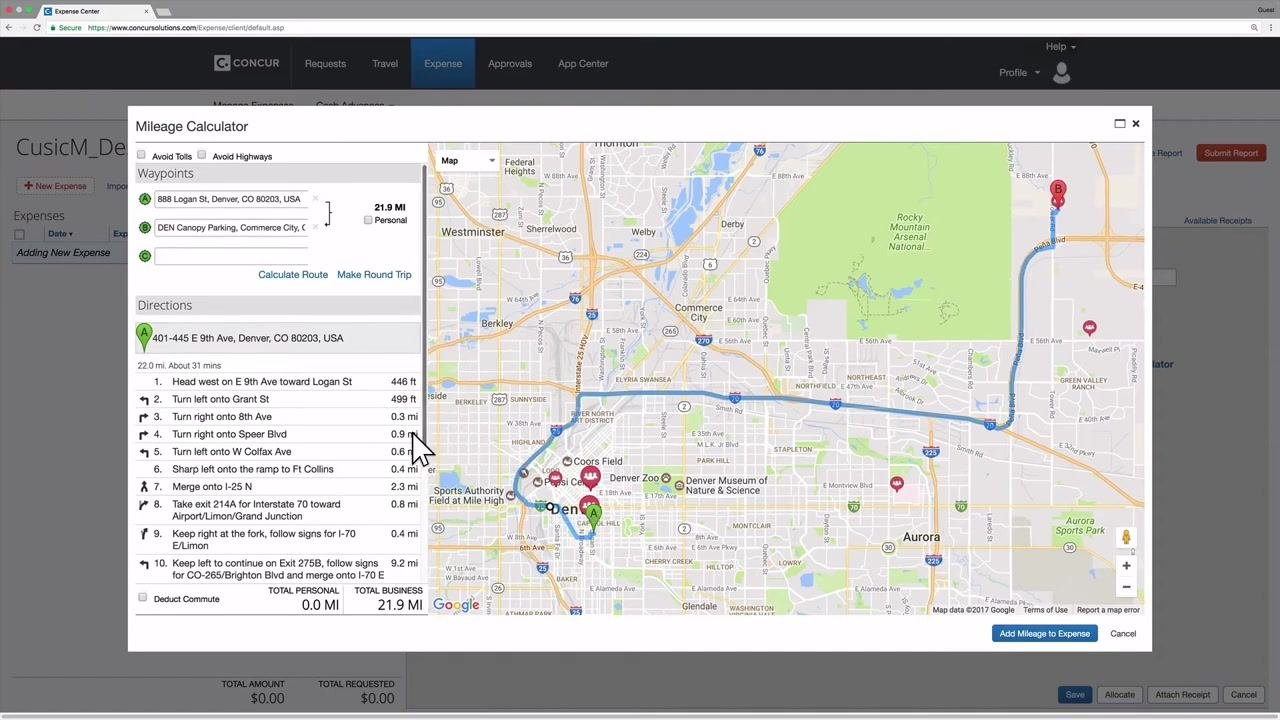
In the pop-up window, enter your starting address as Waypoint A and your destination as Waypoint B. As you type, you will see recently used addresses and several preloaded addresses, including popular campus locations, DIA, and airport parking lots. Select the appropriate addresses from the list.
Calculate and adjust your route
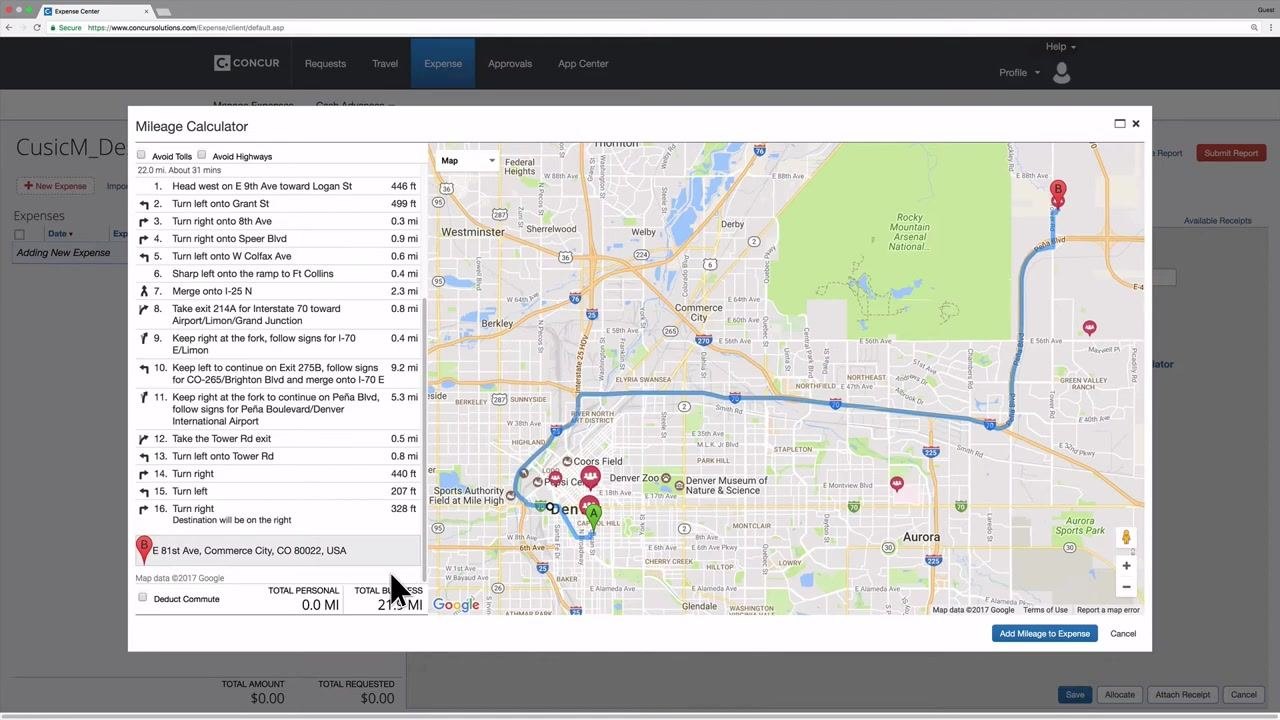
Click Calculate Route to generate a suggested path. If needed, adjust the route by dragging the blue line on the map, and scroll down to see all route details and options.
Deduct your commute on normal workdays
If you drove on a normal workday, whether or not you actually went into work, check the Deduct Commute box. The calculator automatically subtracts your normal commute distance from the total mileage.
Skip the commute deduction on weekends or holidays
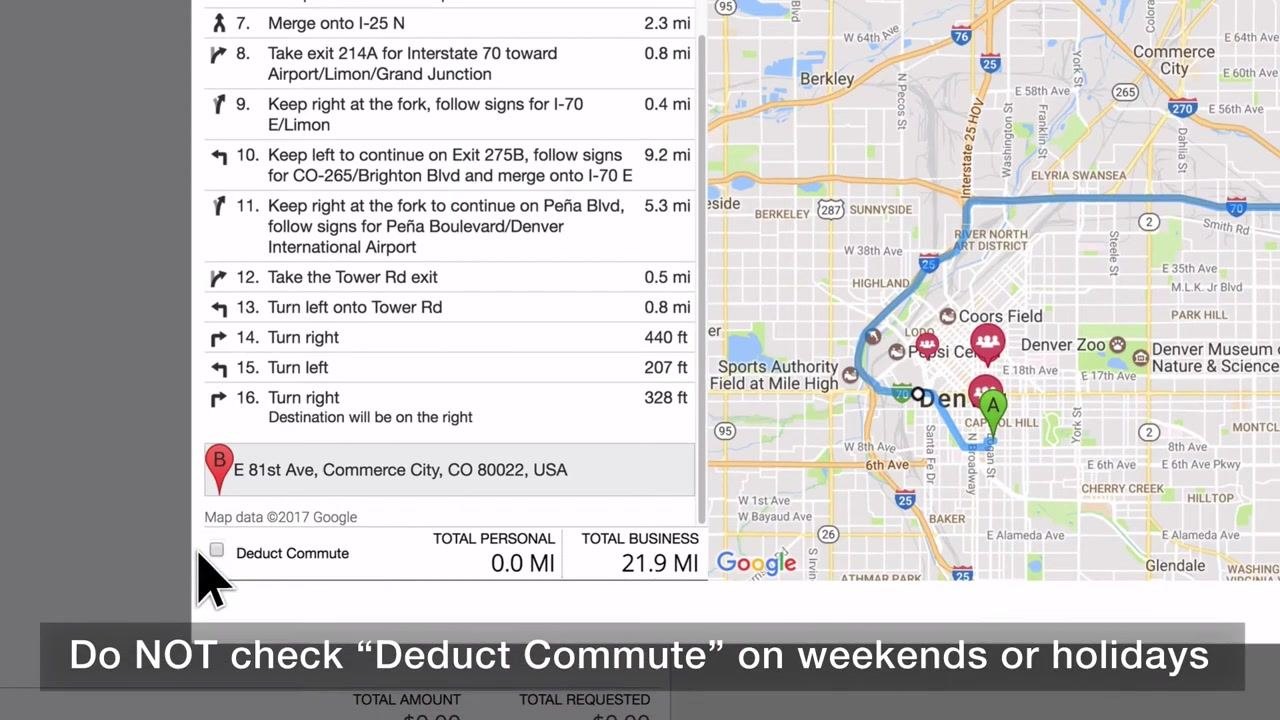
If your trip occurred on a weekend or holiday—not a normal workday—do not check the Deduct Commute box. Only check this box for normal workdays. The on-screen reminder confirms: "Do NOT check 'Deduct Commute' on weekends or holidays."
Enter home and office addresses when deducting commute
When you check the Deduct Commute box, you are prompted to enter your Home and Office addresses. After entering these addresses, check the Deduct Round Trip box to ensure your normal round-trip commute is subtracted from the total mileage.
Add the calculated mileage to your expense
Click the Add Mileage to Expense button at the bottom of the Mileage Calculator window. The system automatically populates the From Location, To Location, and Distance fields in your expense report with the calculated business mileage.
Add comments and save the expense
If you need to communicate any special circumstances or details about your trip, enter them in the Comment field. Click Save to add the mileage expense to your report.
Verify the expense entry
Confirm that your new mileage expense appears in the Expenses list with the correct date, amount, and type. The expense should reflect your calculated reimbursable miles and the current mileage reimbursement rate.
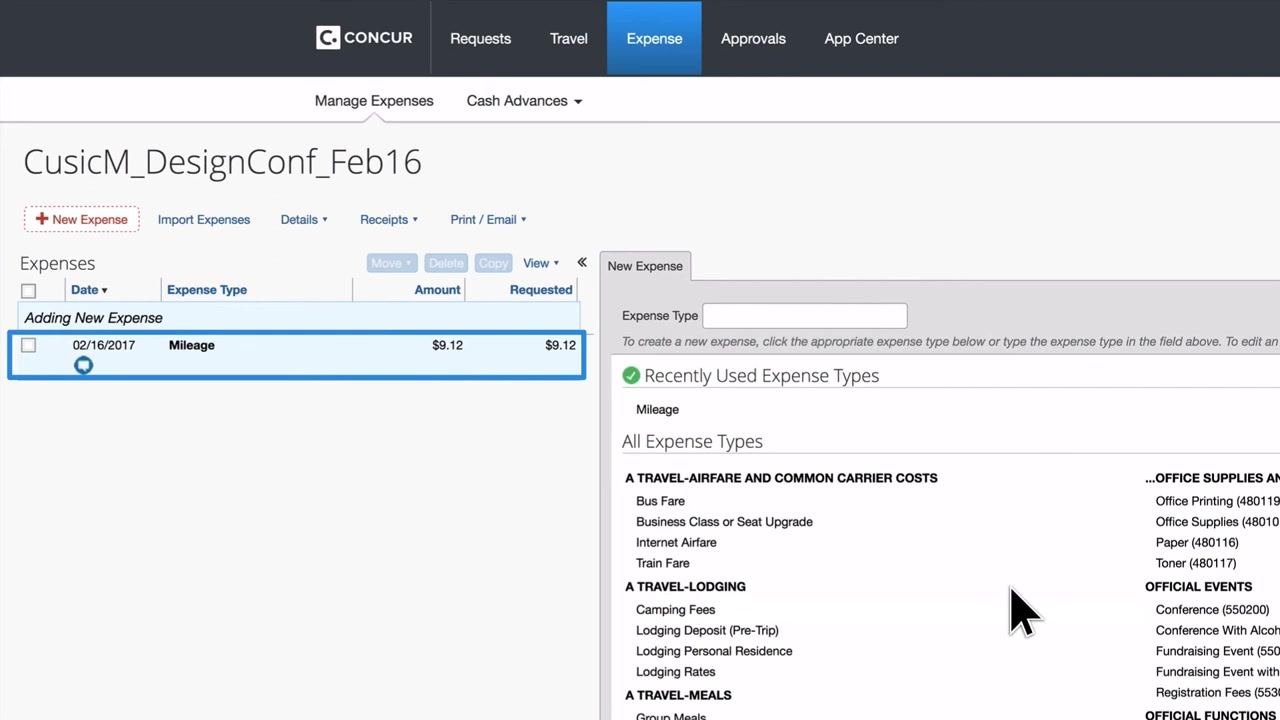
Add additional mileage expenses as needed
Continue adding all your mileage expenses, making sure to separate them by the date each trip occurred. For example, if you drove to the airport on one date and returned on another, enter these as two separate mileage expenses.
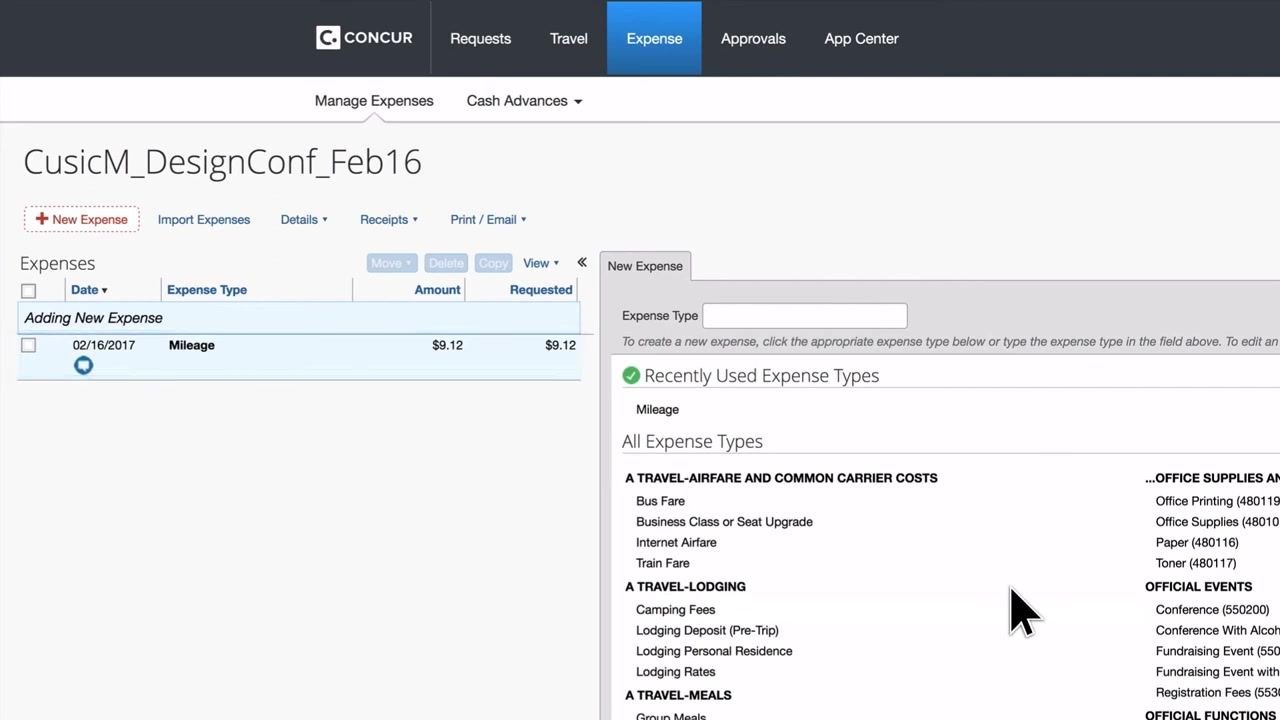
Submit your expense report
Review all entered information for accuracy and attach any required receipts or documentation. Click Submit Report to finalize your reimbursement request.
What's next
For more information about when mileage is reimbursable and whether to deduct a one-way or round-trip commute, consult the learning resources on the PSC (Procurement Service Center) website. For further assistance, visit www.cu.edu/controller/help, provided by the Office of University Controller, University of Colorado.
By following these steps, you ensure compliance with university policy and accurately request reimbursement for business mileage using your personal vehicle.
Generation details: cost, quality tiers
Docsie billed 1,500 credits ($1.05) to analyze this 3-minute video at standard quality. The rewrite, template fill and Word/PDF exports were included. The same video at each quality tier:
| Quality | Frames sampled | Credits | Approx. cost |
|---|---|---|---|
| Draft | every 16-30 s | 750 | $0.52 |
| Standard (this guide) | every 8-15 s | 1,500 | $1.05 |
| Detailed | every 4-7 s | 3,000 | $2.10 |
| Ultra | every 1-3 s | 6,000 | $4.20 |
Credits priced at $0.70 per 1,000; plans include a monthly allowance. Enterprise customers on on-premise or bring-your-own-model deployments run this on their own inference and pay no per-video credits.
Generated by Docsie Video-to-Docs on 2026-10-06 from a 2-minute video. Screenshots are frames from the source video and belong to their creator, Finance Procurement Business Services, whose original is embedded above. If you own this video and want the guide removed or credited differently, contact us and we will act within one business day.