
How to Import a Crystal Report in SAP Business One
This guide shows you how to import a Crystal Report in SAP Business One, using a client invoice report as the example. You open the Report and Layout Management window, run the import assistant, assign the report to the Sales Reports category, and verify the result. The interface labels appear in Spanish, with English translations in parentheses.
Video: Cómo importar un reporte de Crystal Reports en SAP Business One by B1Pro - Odoo & SAP Business One (2012). All credit for the demonstration goes to the creator; watch the original on YouTube. The written guide below was generated from this video by Docsie. Creator? Request a change or removal.
This guide shows you how to import a Crystal Report in SAP Business One, using a client invoice report as the example. You open the Report and Layout Management window, run the import assistant, assign the report to the Sales Reports category, and verify the result. The interface labels appear in Spanish, with English translations in parentheses.
Prerequisites
Before you start, make sure you have the following:
- Access to SAP Business One, with you logged in and the navigation modules visible.
- A Crystal Reports file with the .rpt extension (for example, Factura.rpt) saved in a location you can browse to.
Open the Report and Layout Management window
Step 1: Open SAP Business One and locate the main menu
Launch SAP Business One. On the left side of the screen, find the Menú principal (Main Menu) panel. Confirm that you are logged in and can see the navigation modules.
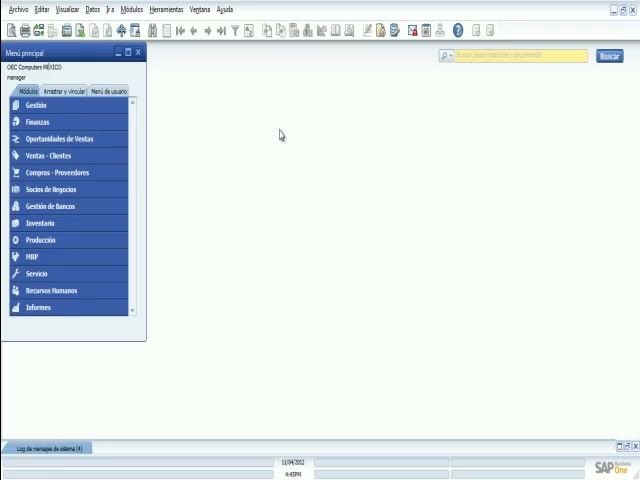
Step 2: Go to Report and Layout Management
In the Menú principal, click Gestión (Management). Then expand the following path: Gestión > Definiciones > General > Gestión de informes y de layout (Report and Layout Management).
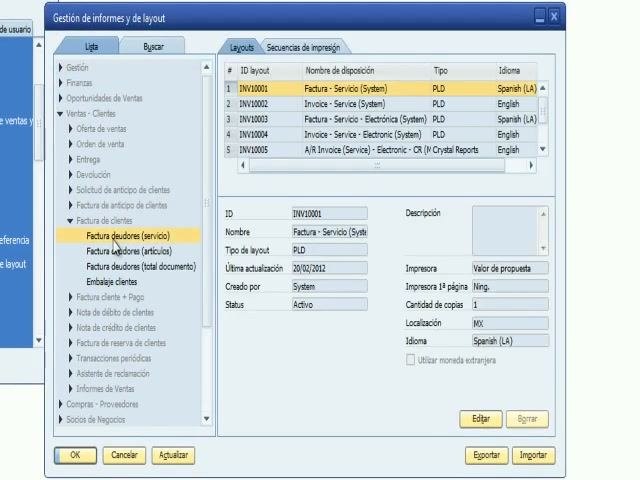
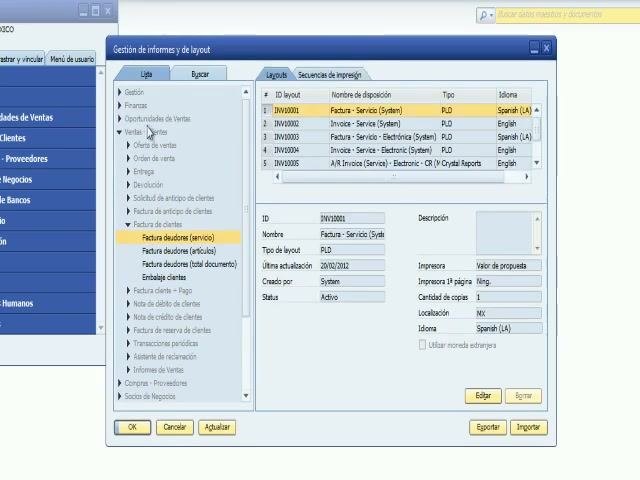
The Gestión de informes y de layout window opens. On the left, you see a list of categories such as Gestión, Finanzas, and Oportunidades de Ventas. At the bottom, you see these buttons: OK, Cancelar (Cancel), Actualizar (Update), Exportar (Export), and Importar (Import).
Step 3: View the available layouts for client invoices
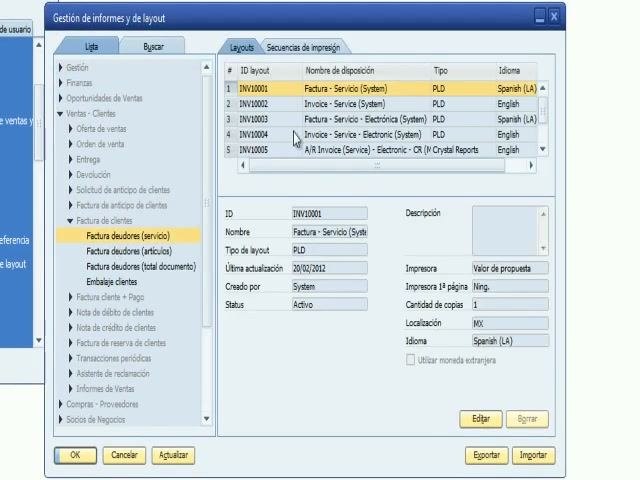
Click the Layouts tab at the top of the window. In the left pane, select Factura deudores (servicio) (Debtor Invoice - Service).
The right pane lists all available layouts for this document type. For each layout, you see the ID layout, Nombre de disposición (Layout Name), Tipo (Type), and Idioma (Language).
Import the Crystal Report
Step 4: Start the import assistant
Click the Importar (Import) button at the bottom right of the window. The Asistente de importación de informes y layout window appears. Read the instructions, then click Siguiente (Next).
Step 5: Browse to and select the Crystal Reports file
In the file selection dialog, navigate to the location where your Crystal Reports file is saved. Select the .rpt file (for example, Factura.rpt) and click Abrir (Open).
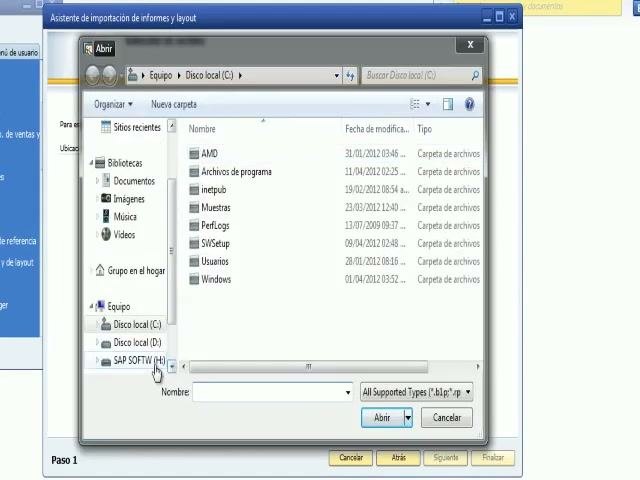
Step 6: Set the content type and open the destination selector
In the Selección de archivo (File Selection) window, confirm the file path under Ubicación de archivo (File Location). Under Tipo de contenido (Content Type), select Informe (Report) instead of Layout. Then click the button with three dots (...) to specify where to save the report.
Step 7: Assign the report to the Sales Reports category
In the Formulario de la selección del menú (Menu Selection Form) window, select Informe de Ventas (Sales Report) as the destination for the imported report. Click OK to confirm.
Step 8: Finish the import
Back in the Selección de archivo window, check the following before you continue:
- The path under Ubicación de archivo is correct (for example, H:\Report\Factura.rpt).
- Informe (Report) is selected as the content type.
- The destination path is Ventas - Clientes > Informes de Ventas.
Click Finalizar (Finish) at the bottom right to start the import.
Step 9: Confirm that the import succeeded
Wait a few moments while SAP Business One processes the import. A confirmation window appears and indicates that the import was successful. Close this window to return to the main application.
Verify the imported report
Step 10: Open the Sales Reports section
In the Gestión de informes y de layout window, expand this path in the left pane: Ventas - Clientes (Sales - Clients) > Informes de Ventas (Sales Reports). Scroll through the list to find your imported report.
Step 11: Find the report in the list
Look for your report under the name you assigned (for example, Factura). Confirm that its details, such as ID, name, type, and language, are correct.
Step 12: Review the report properties
Select the imported report to display its properties on the right side of the window. Verify these details:
- ID (for example, RCH10011)
- Name (for example, Factura)
- Last update date
- Created by
- Status, which should be Activo
- Location (for example, Ventas - Clientes > Informes de Ventas)
- Crystal Reports file association
Summary
You now know how to import a Crystal Report in SAP Business One. You imported a Crystal Reports client invoice report, assigned it to the Sales Reports category, and verified it in the Informes de Ventas section. The report is ready to use in the system.
Generation details: cost, quality tiers
Docsie billed 1,500 credits ($1.05) to analyze this 3-minute video at standard quality. The rewrite, template fill and Word/PDF exports were included. The same video at each quality tier:
| Quality | Frames sampled | Credits | Approx. cost |
|---|---|---|---|
| Draft | every 16-30 s | 750 | $0.52 |
| Standard (this guide) | every 8-15 s | 1,500 | $1.05 |
| Detailed | every 4-7 s | 3,000 | $2.10 |
| Ultra | every 1-3 s | 6,000 | $4.20 |
Credits priced at $0.70 per 1,000; plans include a monthly allowance. Enterprise customers on on-premise or bring-your-own-model deployments run this on their own inference and pay no per-video credits.
Generated by Docsie Video-to-Docs on 2026-11-15 from a 2-minute video. Screenshots are frames from the source video and belong to their creator, B1Pro - Odoo & SAP Business One, whose original is embedded above. If you own this video and want the guide removed or credited differently, contact us and we will act within one business day.