
How to Cancel a Landed Cost in SAP Business One
SAP Business One does not provide a direct cancellation feature for landed cost documents. You can still cancel a landed cost by creating a reversal document that offsets the original, then closing both documents. This guide shows you how to cancel a landed cost in SAP Business One this way. The method also helps if the original document contains mistakes, such as a wrong date or document number.
Video: How to Cancel Landed Cost Document in SAP Business One by STEM - iREAP POS - SAP - UIPATH - MICROSOFT 365 (2022). All credit for the demonstration goes to the creator; watch the original on YouTube. The written guide below was generated from this video by Docsie. Creator? Request a change or removal.
SAP Business One does not provide a direct cancellation feature for landed cost documents. You can still cancel a landed cost by creating a reversal document that offsets the original, then closing both documents. This guide shows you how to cancel a landed cost in SAP Business One this way. The method also helps if the original document contains mistakes, such as a wrong date or document number.
Prerequisites
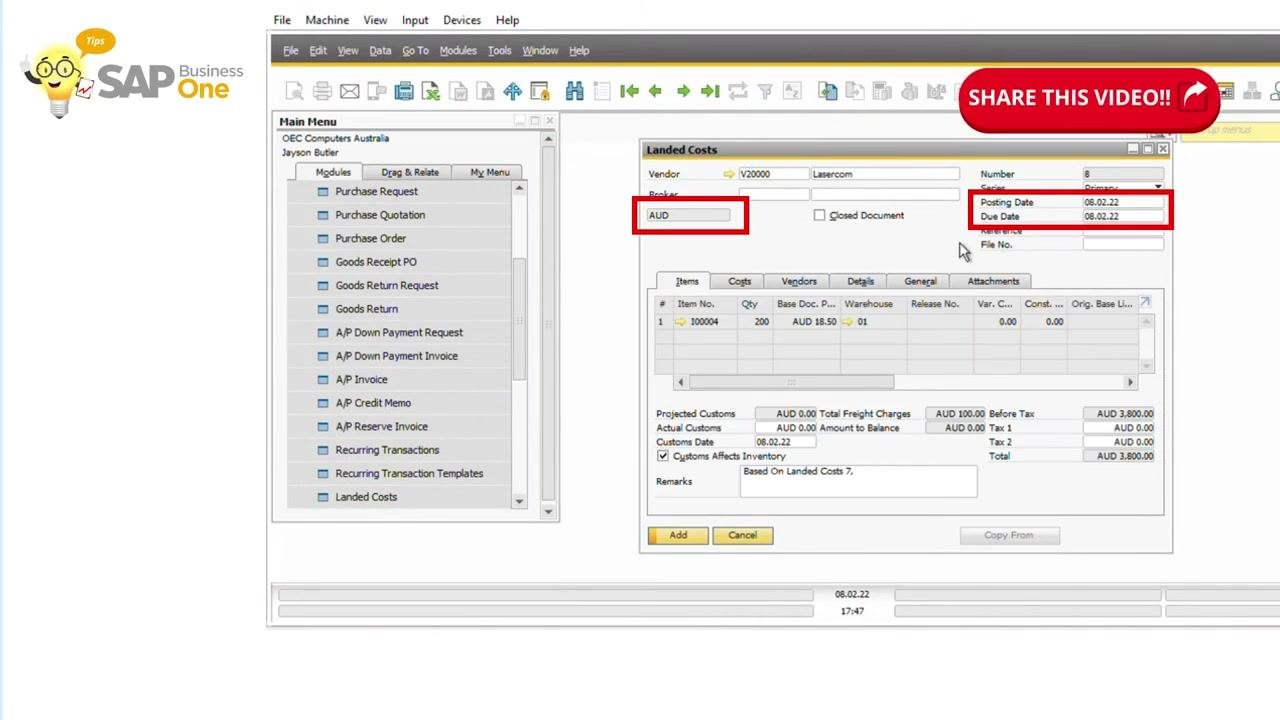
Before you start, check whether you created an AP Invoice for the landed cost document you want to cancel.
- If an AP Invoice exists, cancel the AP Invoice first.
- If there is no AP Invoice, continue with the steps below.
Steps
Create a new landed cost document by copying the original
- Open SAP Business One and go to the Landed Costs module.
- Start a new landed cost document.
- Select the same vendor as the original document.
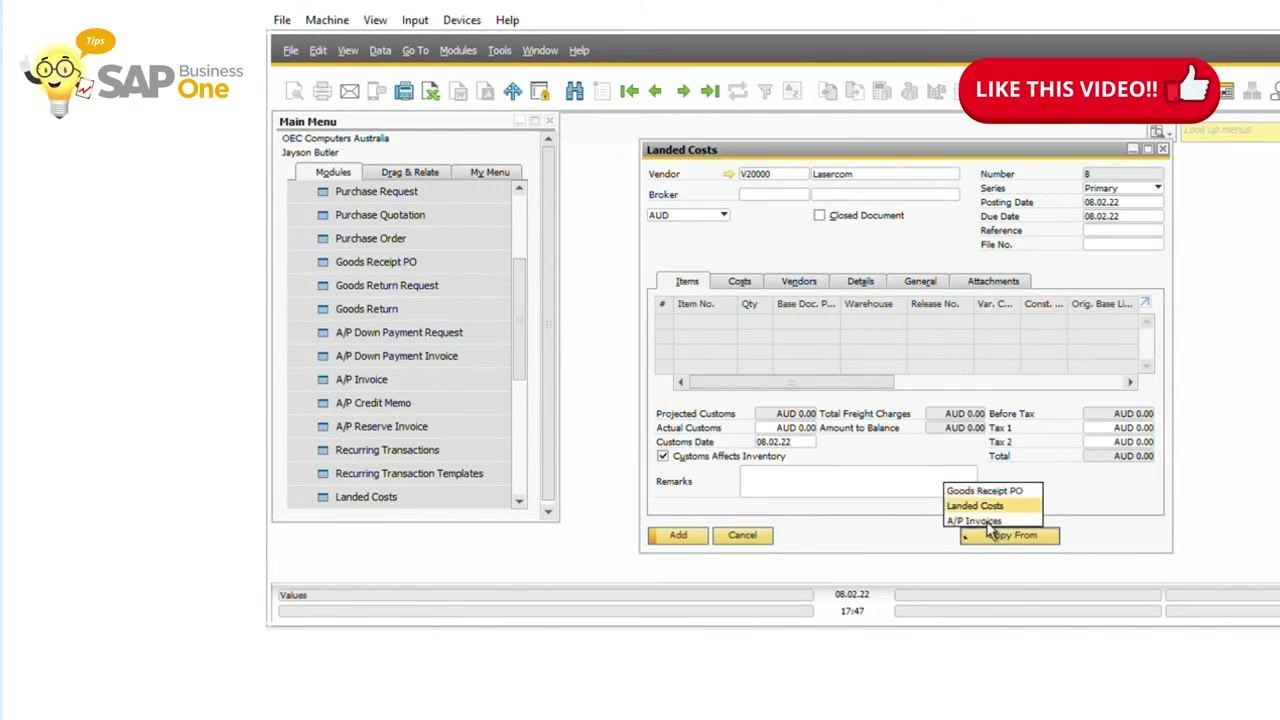
- Use the Copy From function and choose the landed cost document you want to cancel.
Match the posting date and currency
Make sure the new document has the same posting date and document currency as the original. Also check that the other header information matches, including the vendor, due date, and currency.
Adjust the Costs tab
- In the new landed cost document, go to the Costs tab.
- Choose the Fixed option.
- Enter the adjustments needed to reverse the original landed cost allocations.
Verify that every detail in the new document matches the original, except for the cost adjustments needed to reverse the transaction.
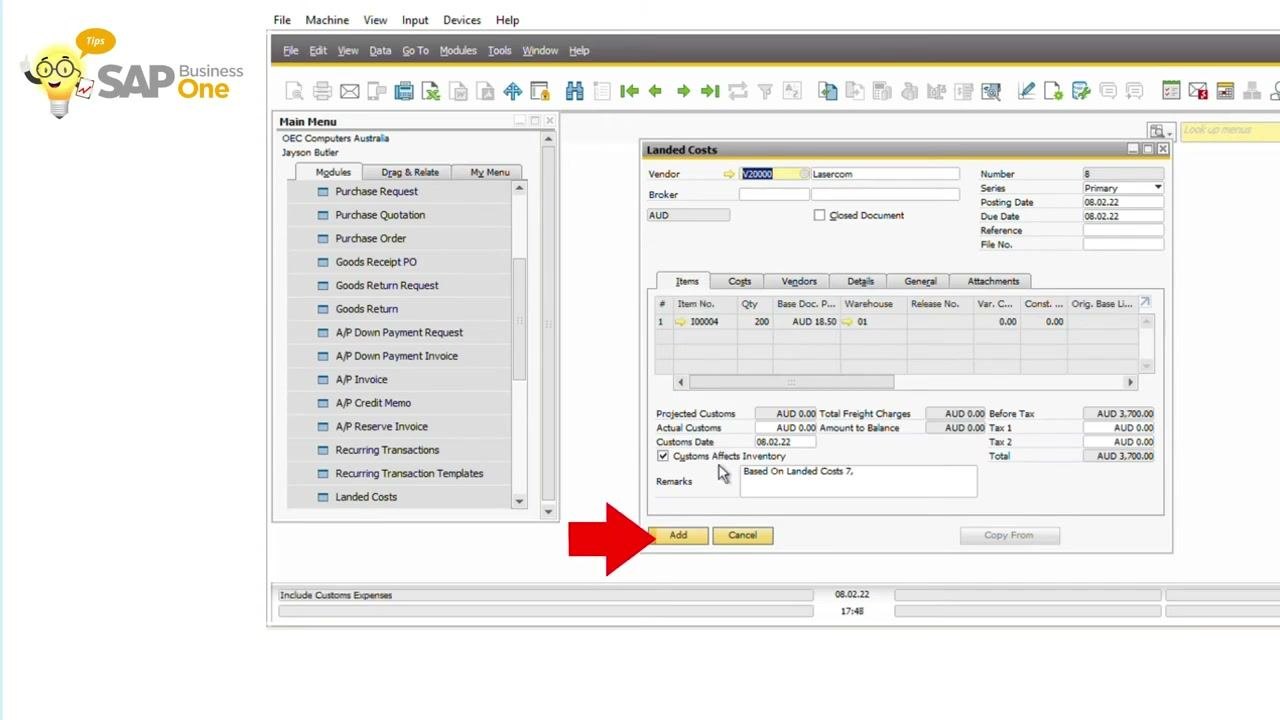
Set all amount fields to zero and add the document
- In the new document, stay on the Costs tab.
- Change all values in the Amount fields to zero so that no costs are applied.
- Double-check that all other header and line details match the original document.
- Click Add to save the reversal landed cost document.
Close the original landed cost document
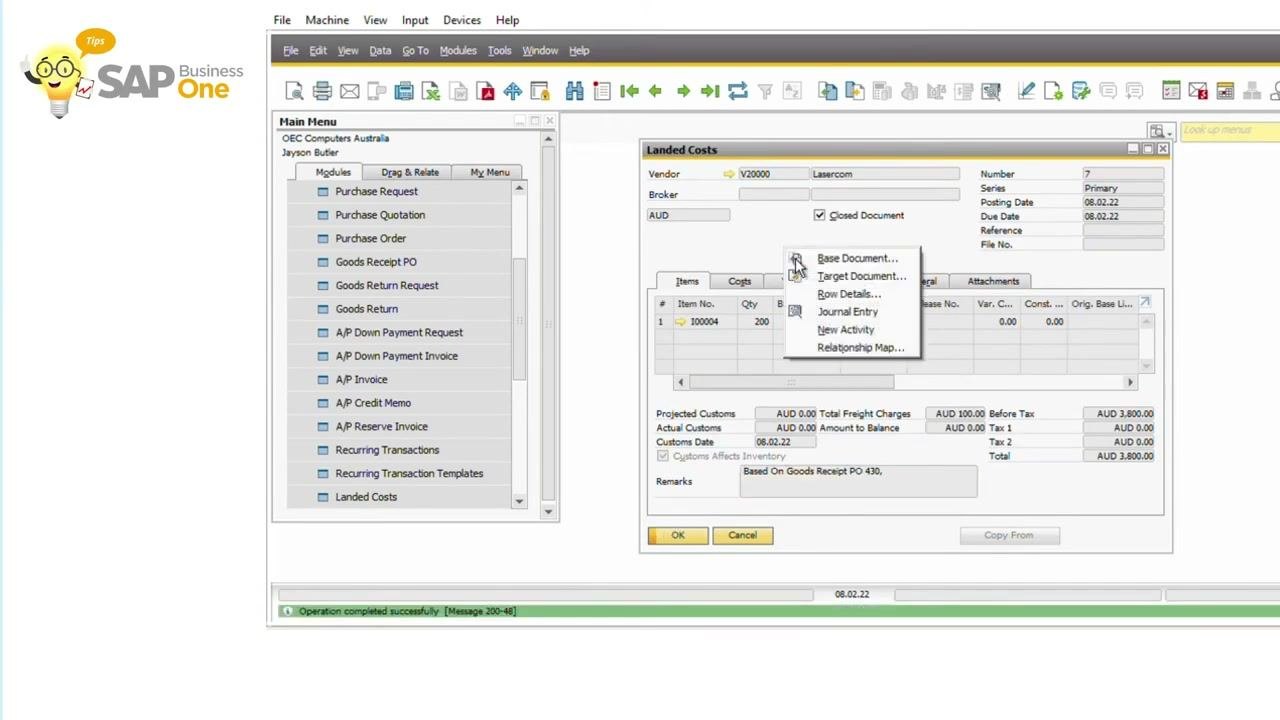
- Open the original landed cost document that you want to cancel.
- Select the Closed Document checkbox.
- Click Update to save the change.
Close the reversal landed cost document
- Open the reversal landed cost document you created in the previous steps.
- Select the Closed Document checkbox.
- Click Update to finalize the process.
Result
Both the original and the reversal landed cost documents are now closed, which cancels the original entry. A confirmation message such as Operation completed successfully appears at the bottom of the SAP Business One window.
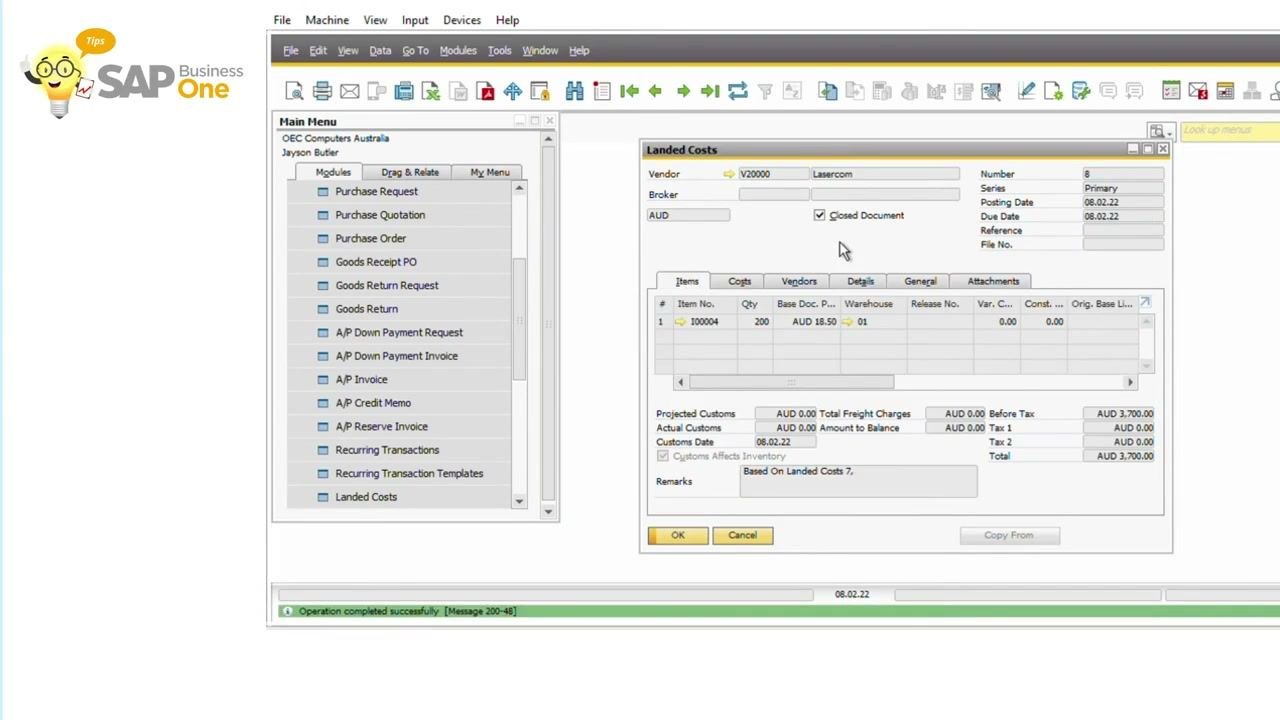
This process corrects your inventory and accounting records without directly deleting or cancelling the original landed cost document.
Summary
To cancel a landed cost in SAP Business One, follow these steps:
- Cancel any associated AP Invoice first.
- Copy the original landed cost document into a new one with the same vendor, posting date, and currency.
- Set the cost amounts to zero and add the reversal document.
- Close both the original and the reversal documents.
Generation details: cost, quality tiers
Docsie billed 1,500 credits ($1.05) to analyze this 3-minute video at standard quality. The rewrite, template fill and Word/PDF exports were included. The same video at each quality tier:
| Quality | Frames sampled | Credits | Approx. cost |
|---|---|---|---|
| Draft | every 16-30 s | 750 | $0.52 |
| Standard (this guide) | every 8-15 s | 1,500 | $1.05 |
| Detailed | every 4-7 s | 3,000 | $2.10 |
| Ultra | every 1-3 s | 6,000 | $4.20 |
Credits priced at $0.70 per 1,000; plans include a monthly allowance. Enterprise customers on on-premise or bring-your-own-model deployments run this on their own inference and pay no per-video credits.
Generated by Docsie Video-to-Docs on 2026-11-15 from a 3-minute video. Screenshots are frames from the source video and belong to their creator, STEM - iREAP POS - SAP - UIPATH - MICROSOFT 365, whose original is embedded above. If you own this video and want the guide removed or credited differently, contact us and we will act within one business day.