
How to Change the Language in SAP Business One
Language configuration is one of the first things you may need to adjust, especially in an environment set up for a different country or subsidiary. This guide shows you how to change the language in SAP Business One from the General Settings window and how to check the result. It also explains how to set the screen lock timeout from the same window.
Video: Vídeo 023 - Curso de SAP Business One - Como Mudar o Idioma do SAP Business One by JULIO BATTISTI - LIVROS E CURSOS LTDA. (2019). All credit for the demonstration goes to the creator; watch the original on YouTube. The written guide below was generated from this video by Docsie. Creator? Request a change or removal.
Language configuration is one of the first things you may need to adjust, especially in an environment set up for a different country or subsidiary. This guide shows you how to change the language in SAP Business One from the General Settings window and how to check the result. It also explains how to set the screen lock timeout from the same window.
Most users have the environment set to their local language. Consultants and users working abroad often need to switch to another installed language.
Prerequisites
Before you start, make sure you have the following:
- Access to SAP Business One and a login to your company database.
- Access to General Settings under System Initialization. Administrators and users can switch between installed languages as needed.
Change the language
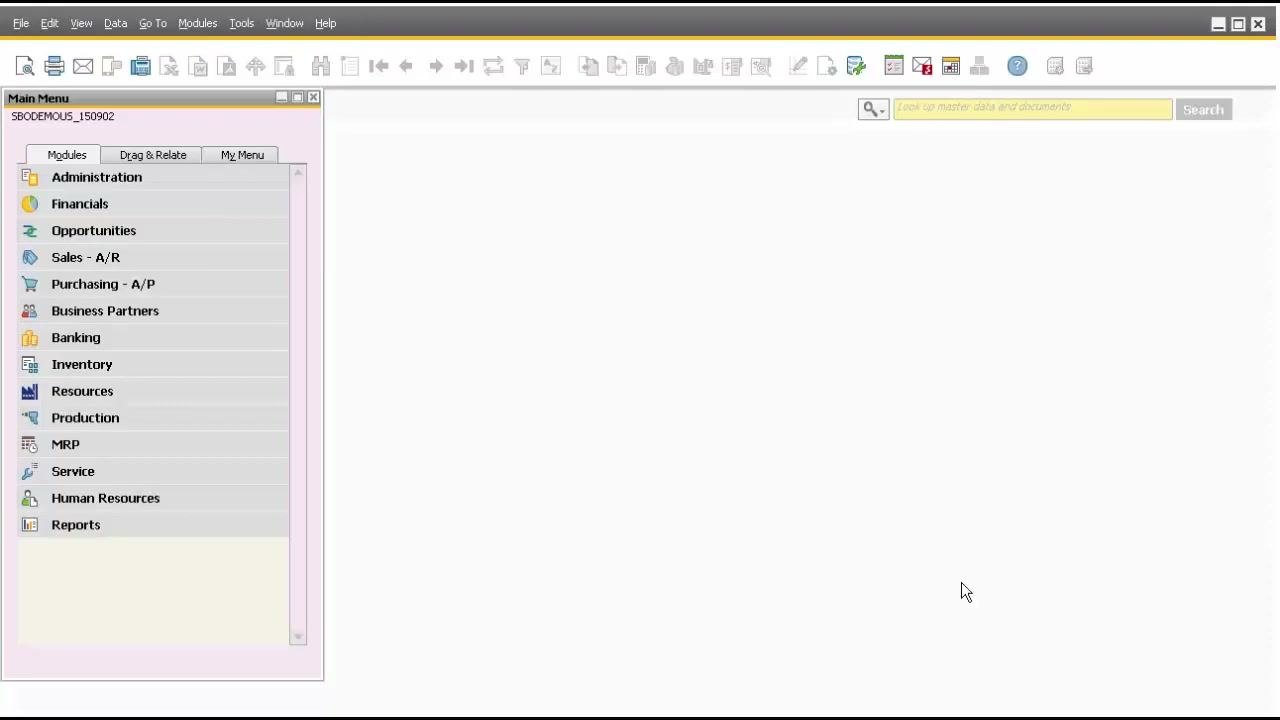
Start from the SAP Business One main screen
The main menu appears on the left. It lists modules such as Administration, Financials, Opportunities, Sales - A/R, Purchasing - A/P, Business Partners, Banking, Inventory, Resources, Production, MRP, Service, Human Resources, and Reports.
Go to General Settings
To open the language settings, follow this path:
- In the top menu bar, click Modules.
- In the dropdown, select Administration.
- Navigate to System Initialization.
- Choose General Settings.
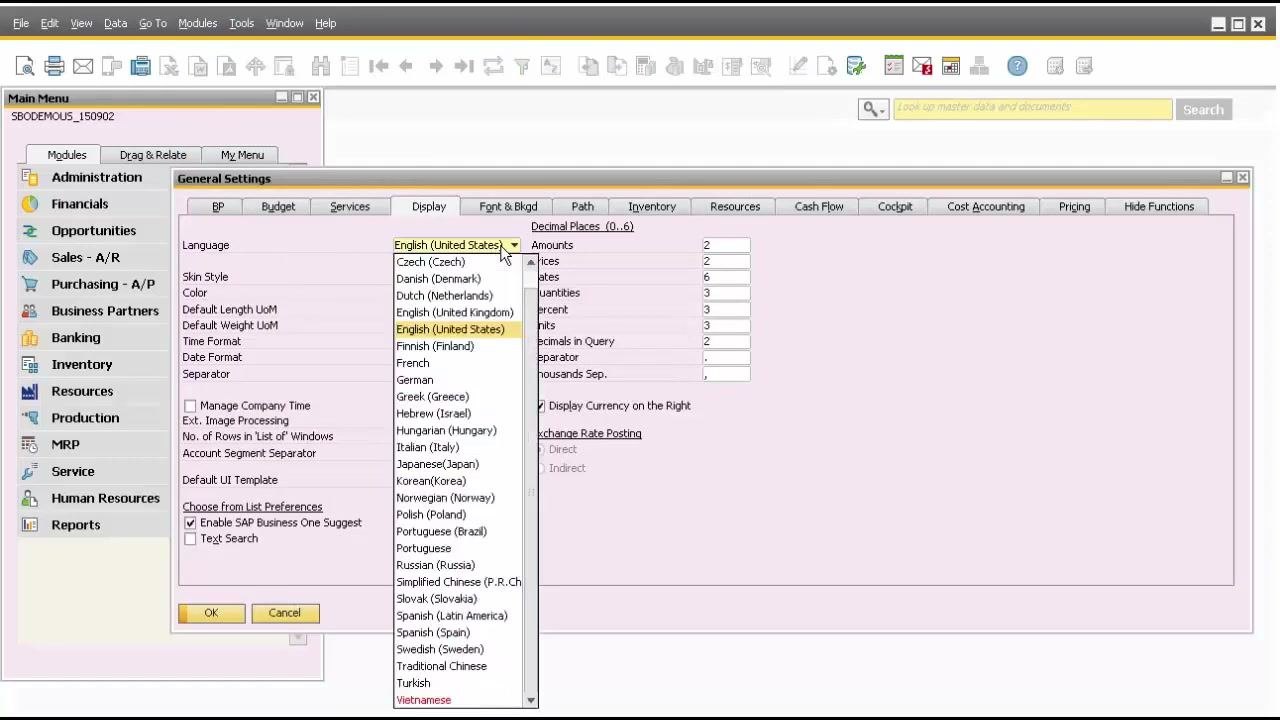
Review the General Settings window
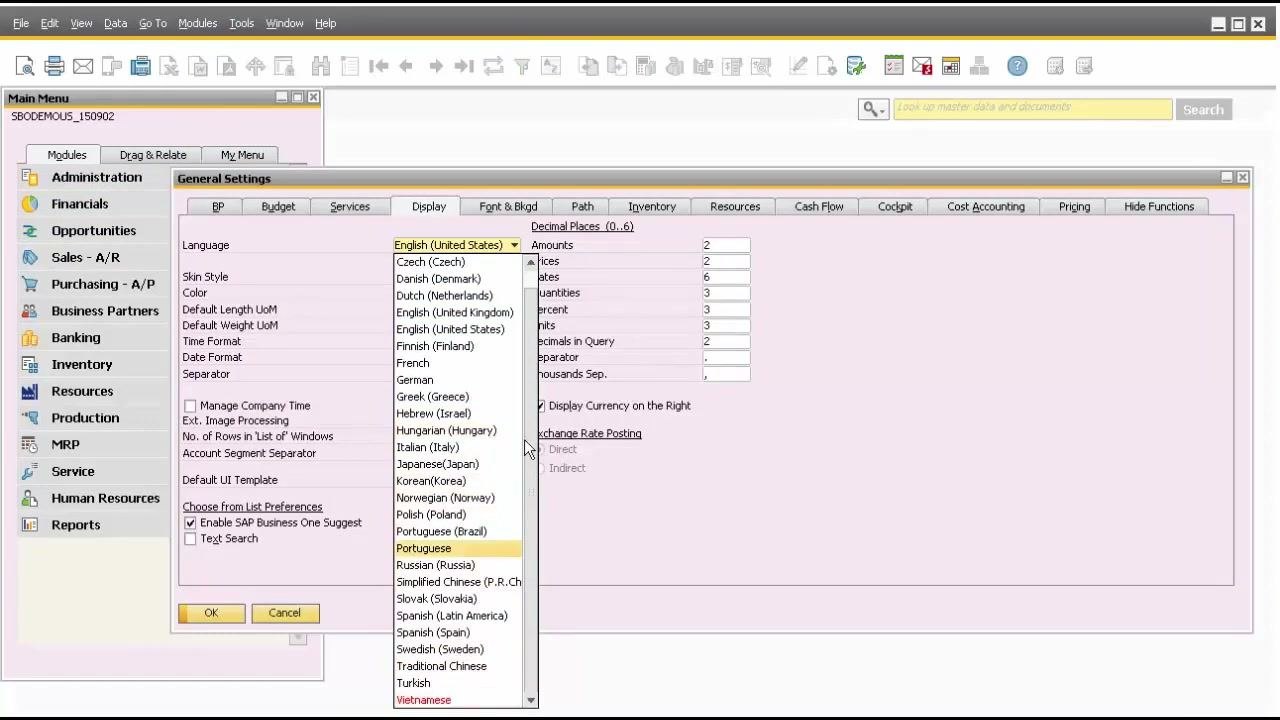
The General Settings window opens with several tabs: BP, Budget, Services, Display, Font & Bkgd, Path, Inventory, Resources, Cash Flow, Cockpit, Cost Accounting, Pricing, and Hide Functions.
The Display tab is selected by default, and the current language is English (United States). This tab also shows settings such as Skin Style, Color, Default Length UoM, Default Weight UoM, Time Format, Date Format, and various decimal places.
Select a new language
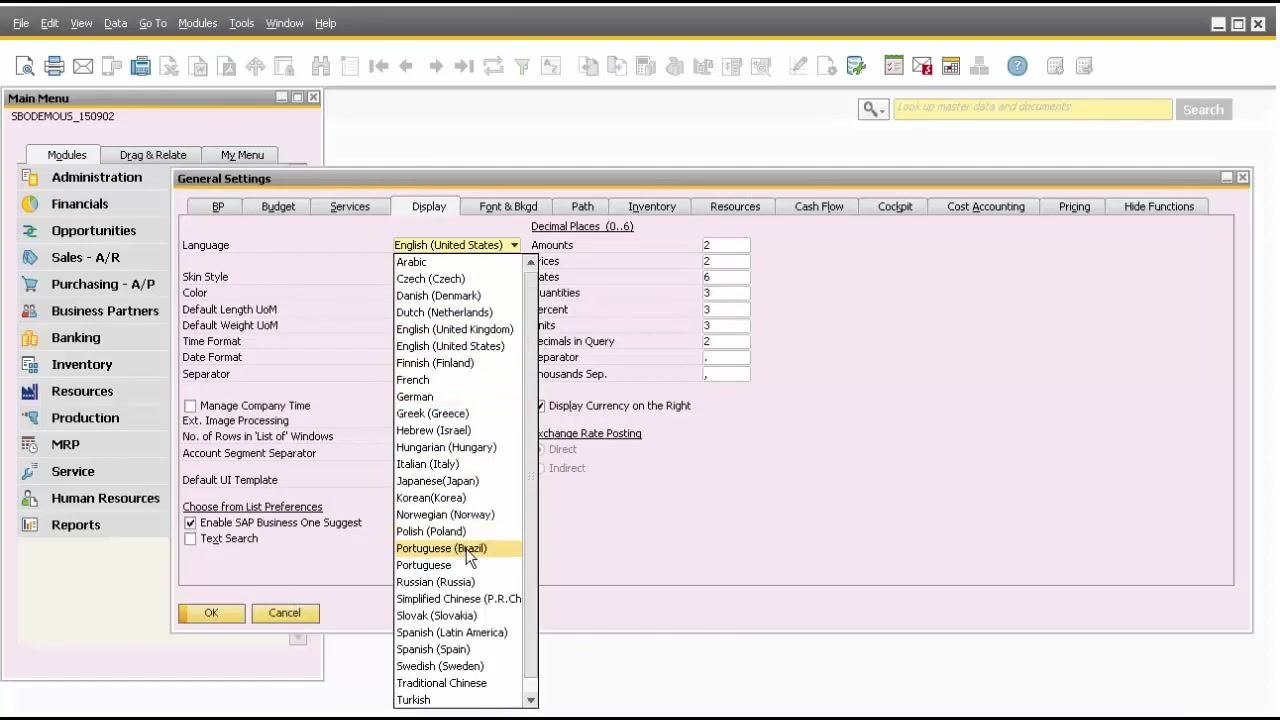
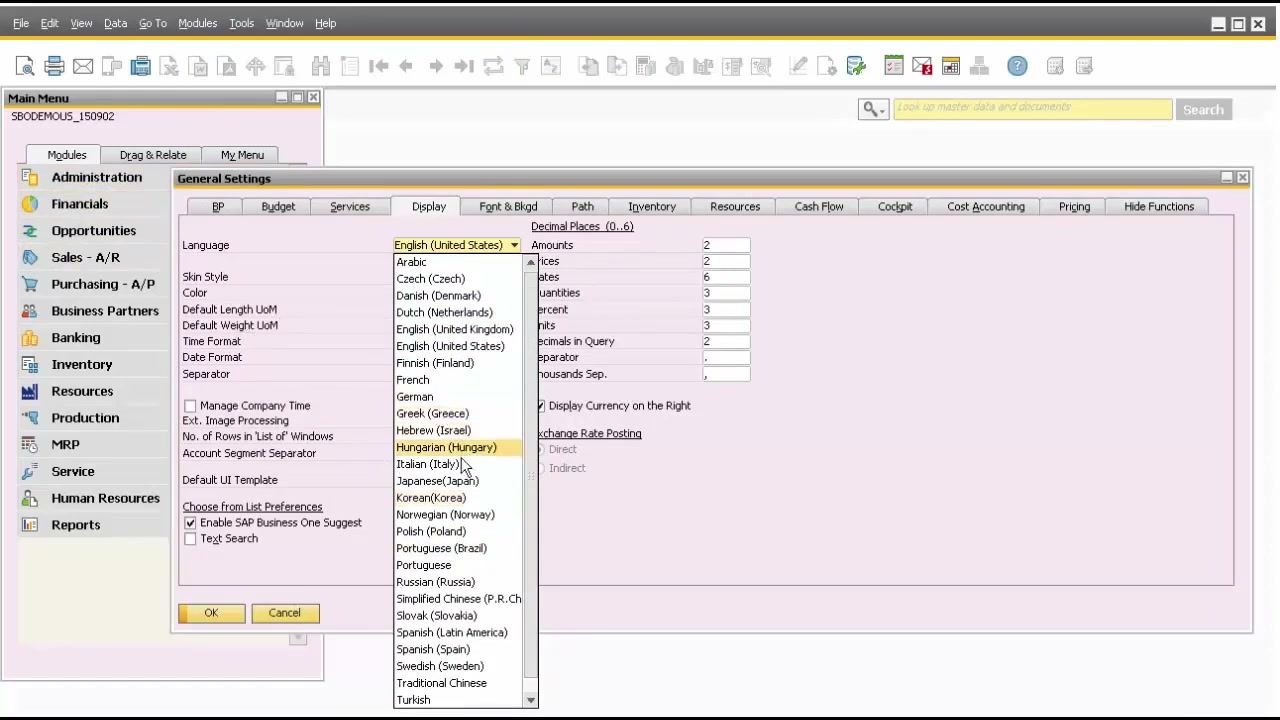
Click the dropdown menu next to Language. The list of available languages includes:
- English (United States) and English (United Kingdom)
- Czech, Danish, Dutch, Finnish, French, German, and Greek
- Hebrew, Hungarian, Italian, Japanese, Korean, and Norwegian
- Polish, Portuguese (Brazil), Portuguese, and Russian
- Simplified Chinese, Slovak, Spanish (Latin America), and Spanish (Spain)
- Swedish, Traditional Chinese, Turkish, and Vietnamese
Select the language you want. This example uses Portuguese (Brazil).
The new language setting updates all screens, menu labels, and field names. It changes the entire user interface layout for the current user.
Save the setting
Click OK to save and apply the new language setting.
Confirm the language change
A System Message dialog appears: "In order to change the current language setting, all open windows will be closed. Do you want to continue?"
Click Yes to confirm.
Check the updated interface
SAP Business One refreshes, and all menus, fields, and labels appear in Portuguese. The main menu now shows modules such as Administração, Finanças, Oportunidades de vendas, Vendas - C/R, Compras - C/P, Parceiros de negócios, Banco, Estoque, Recursos, Produção, MRP, Serviço, Recursos humanos, and Relatórios.
Verify the language in a business partner record
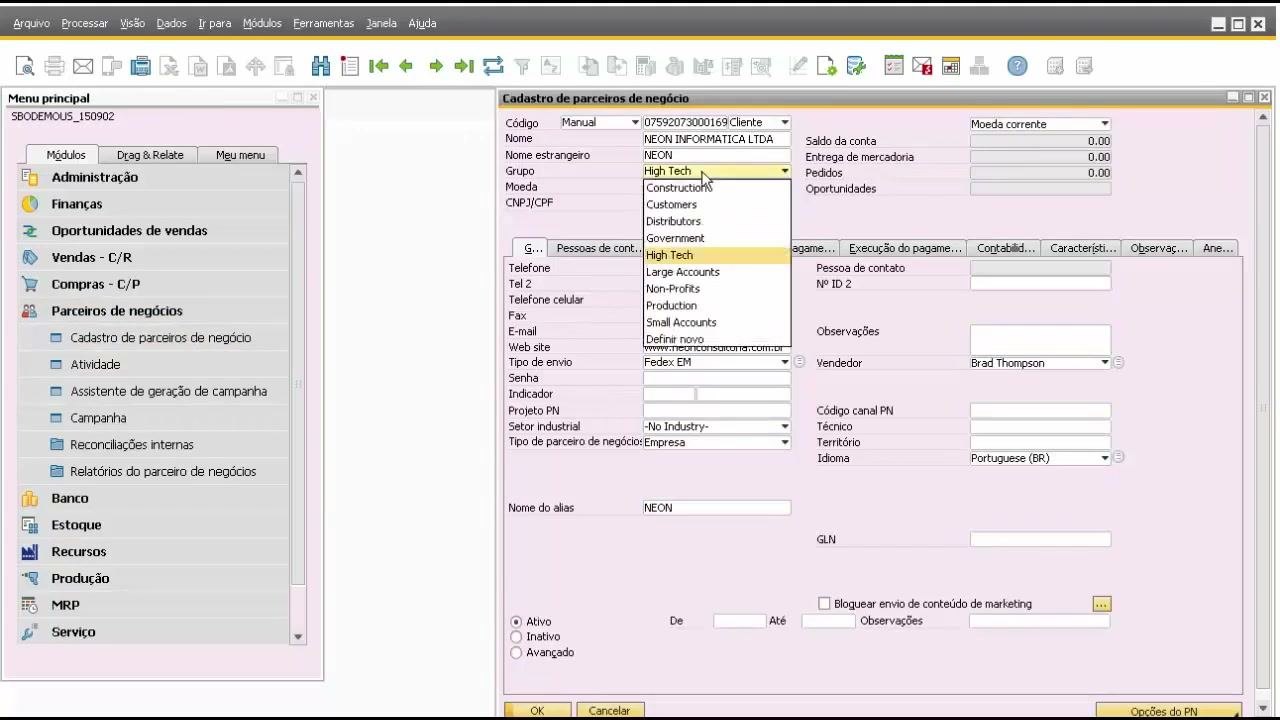
The interface language changes, but the underlying database may still be in English if it was originally installed that way. Some data fields or default values can therefore remain in English, even though the layout and field labels are in Portuguese.
To check this, follow these steps:
- In the main menu, go to Parceiros de negócios (Business Partners).
- Open Cadastro de parceiros de negócio (Business Partner Master Data).
- Review the form. Fields and labels appear in Portuguese. Some dropdown values, such as group names or vendor names, may still appear in English if they were created before the language change.
Set the screen lock timeout
You can also configure the screen lock timeout in General Settings. The following steps use the Portuguese interface from the previous section.
Log in
Open SAP Business One and log in to your company database.
Open General Settings
Follow this menu path:
- In the top menu bar, select Módulos (Modules).
- Hover over Administração (Administration).
- In the next submenu, hover over Inicialização do sistema (System Initialization).
- In the following submenu, hover over Configuração (Configuration).
- In the final submenu, click Configurações gerais (General Settings).
The General Settings window opens.
Find the screen lock field
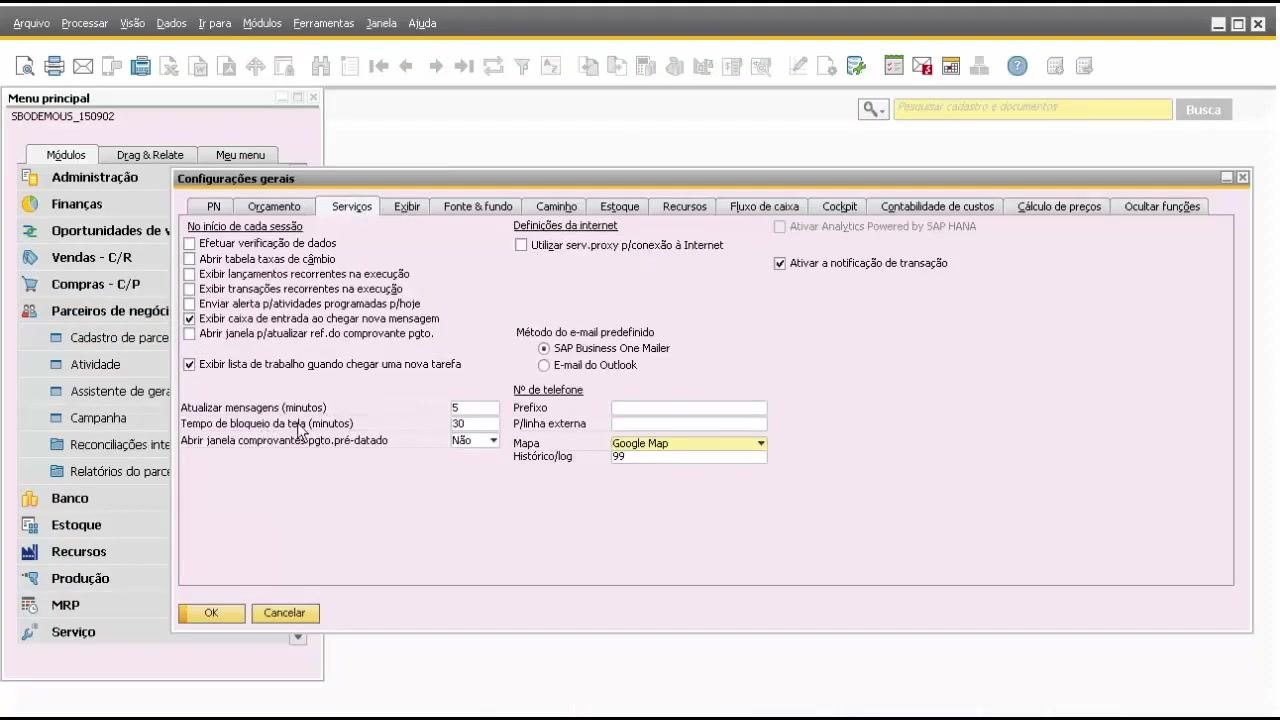
In the Configurações gerais (General Settings) window, select the Serviços (Services) tab. Locate the field Tempo de bloqueio da tela (minutos) (Screen lock timeout in minutes).
Enter the timeout value
Enter the timeout in minutes. For example:
- Enter
30to lock the screen after 30 minutes of inactivity. - Enter
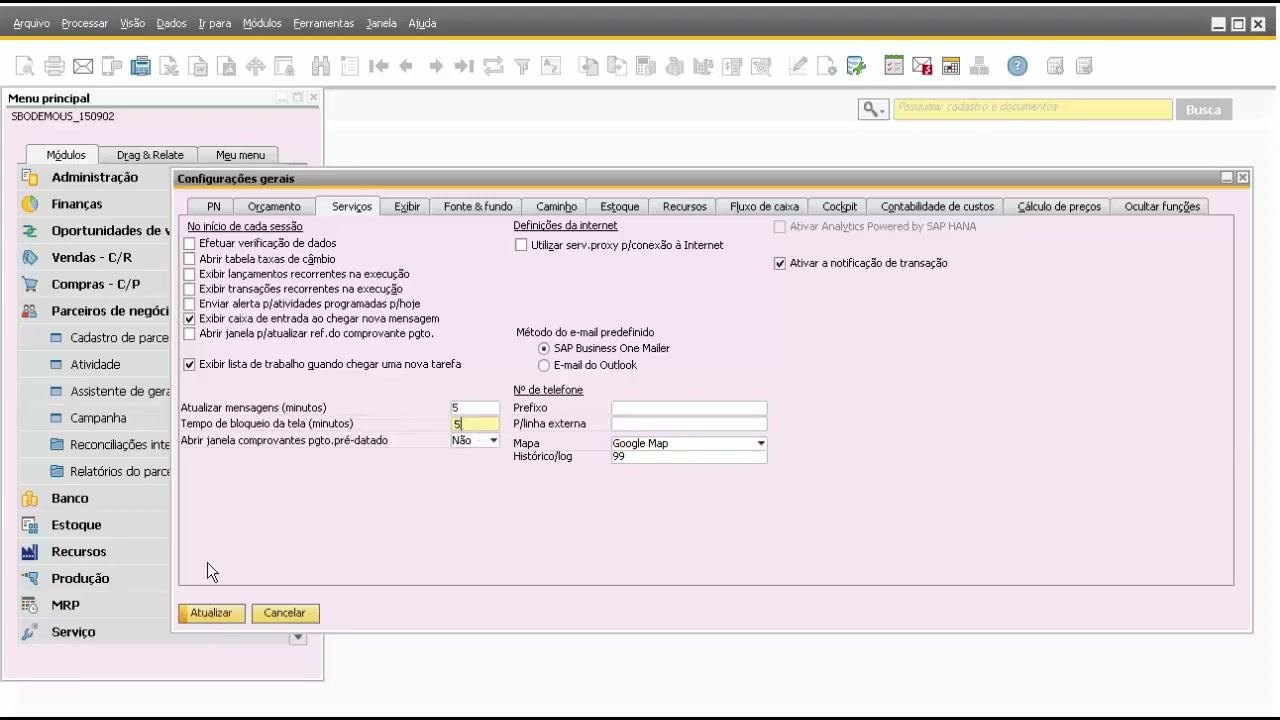
5for a shorter timeout of 5 minutes.
Save your changes
Click Atualizar (Update) to save your changes. Then click OK to close the General Settings window.
After the specified period of inactivity, the SAP Business One screen locks and you must re-authenticate to continue. This works similarly to the Windows lock screen and helps secure your session when you step away from your computer. You can customize the setting per user or company policy.
Summary
You now know how to change the language in SAP Business One through Modules > Administration > System Initialization > General Settings. Selecting a language in the Display tab and confirming the System Message updates all menus, fields, and labels. Existing database values may still appear in English. You also learned how to set a screen lock timeout so your session is secured according to your organization's requirements.
What's next
Continue with additional best practices and hands-on activities within SAP Business One, and review your General Settings as a final check.
Generation details: cost, quality tiers
Docsie billed 5,000 credits ($3.50) to analyze this 10-minute video at standard quality. The rewrite, template fill and Word/PDF exports were included. The same video at each quality tier:
| Quality | Frames sampled | Credits | Approx. cost |
|---|---|---|---|
| Draft | every 16-30 s | 2,500 | $1.75 |
| Standard (this guide) | every 8-15 s | 5,000 | $3.50 |
| Detailed | every 4-7 s | 10,000 | $7.00 |
| Ultra | every 1-3 s | 20,000 | $14.00 |
Credits priced at $0.70 per 1,000; plans include a monthly allowance. Enterprise customers on on-premise or bring-your-own-model deployments run this on their own inference and pay no per-video credits.
Generated by Docsie Video-to-Docs on 2026-11-15 from a 9-minute video. Screenshots are frames from the source video and belong to their creator, JULIO BATTISTI - LIVROS E CURSOS LTDA., whose original is embedded above. If you own this video and want the guide removed or credited differently, contact us and we will act within one business day.