
How to Enter Opening Balances in SAP Business One
This guide shows you how to enter opening balances in SAP Business One for your inventory. You create an Inventory Opening Balance entry, assign the equity adjustment account, and save the entry. Then you check the result in the trial balance.
Video: How to enter opening balances in SAP Business One by Upskill-Education (2021). All credit for the demonstration goes to the creator; watch the original on YouTube. The written guide below was generated from this video by Docsie. Creator? Request a change or removal.
This guide shows you how to enter opening balances in SAP Business One for your inventory. You create an Inventory Opening Balance entry, assign the equity adjustment account, and save the entry. Then you check the result in the trial balance.
Prerequisites
Before you start, make sure you have the following:
- A list of all inventory items and their opening balances.
- Vendor and customer balances, if you need them.
- A login for SAP Business One with appropriate permissions.
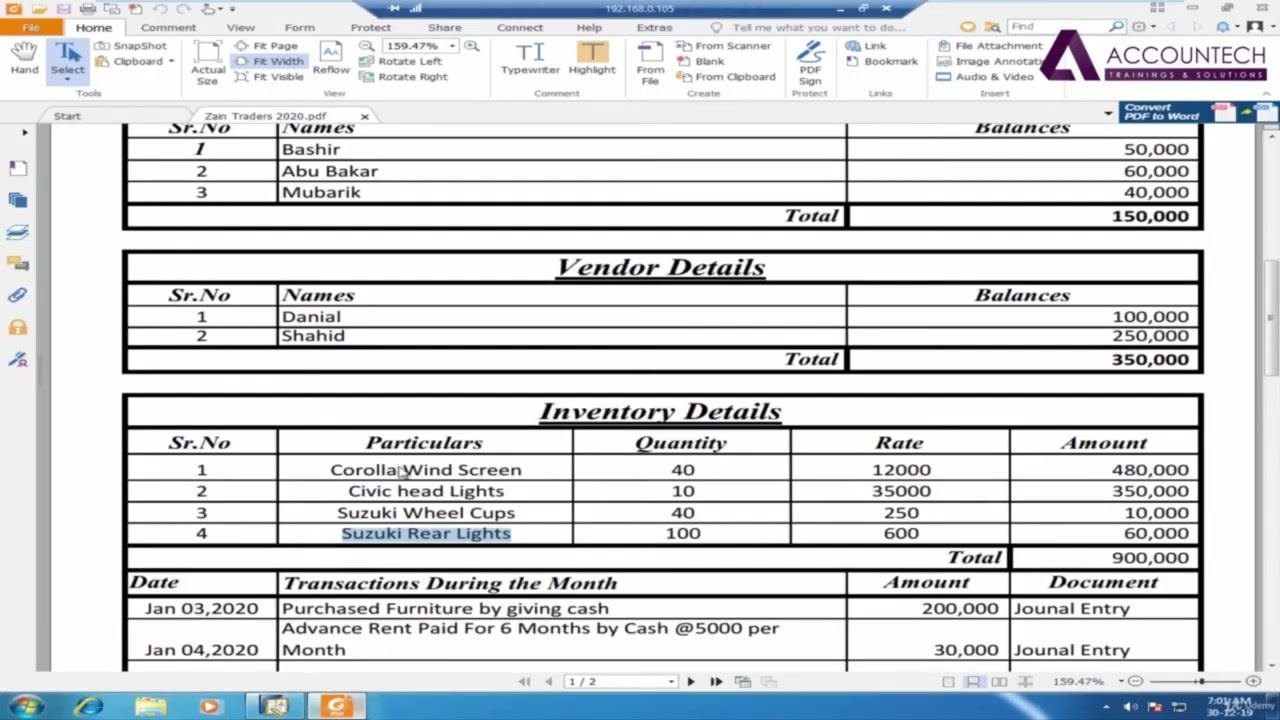
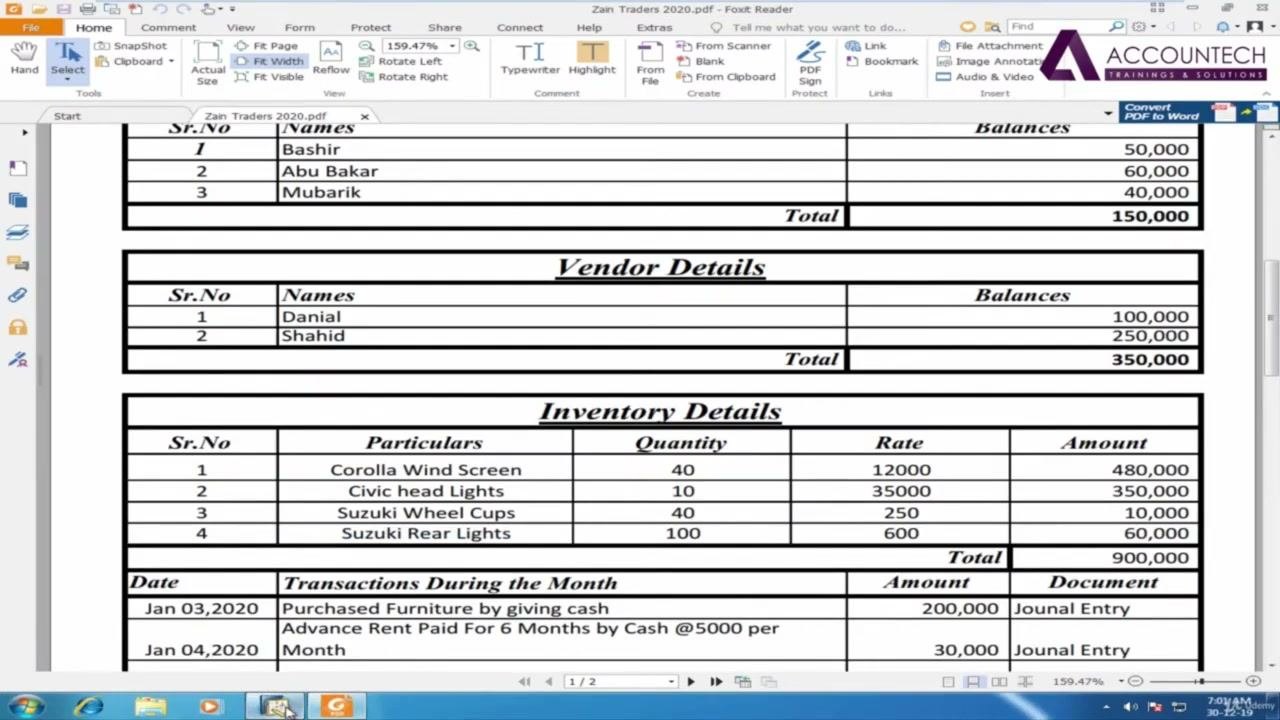
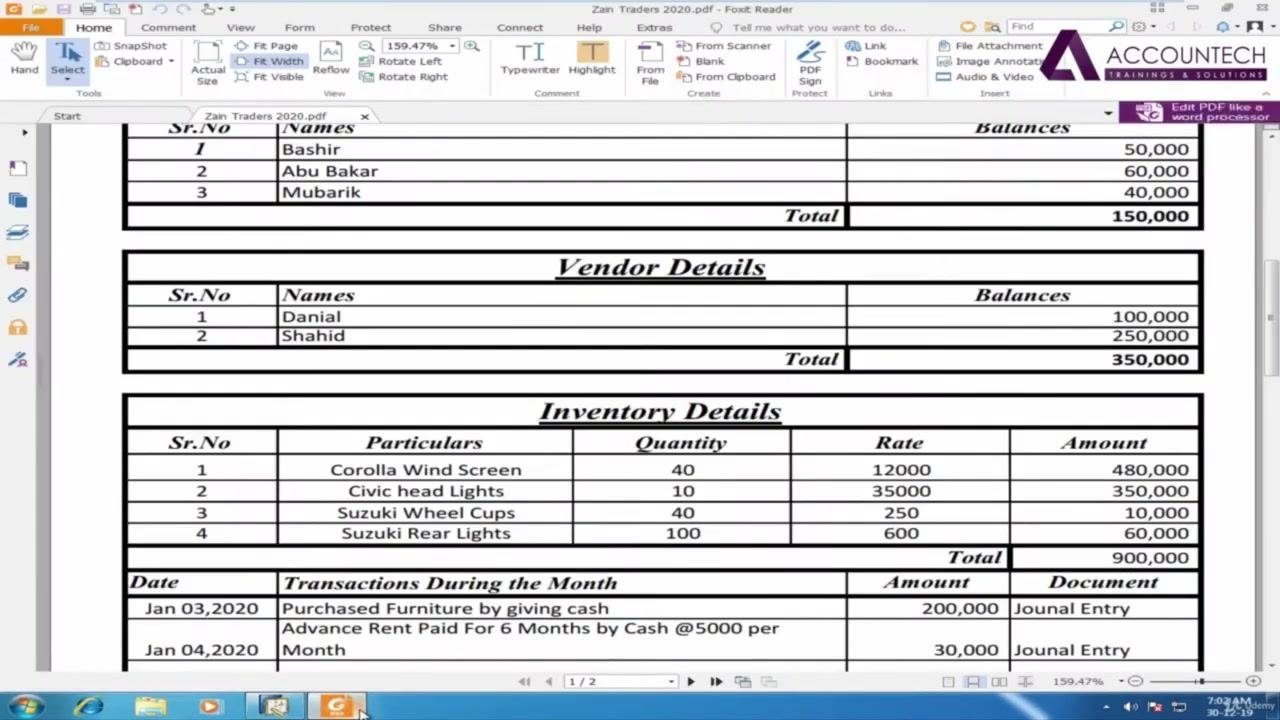
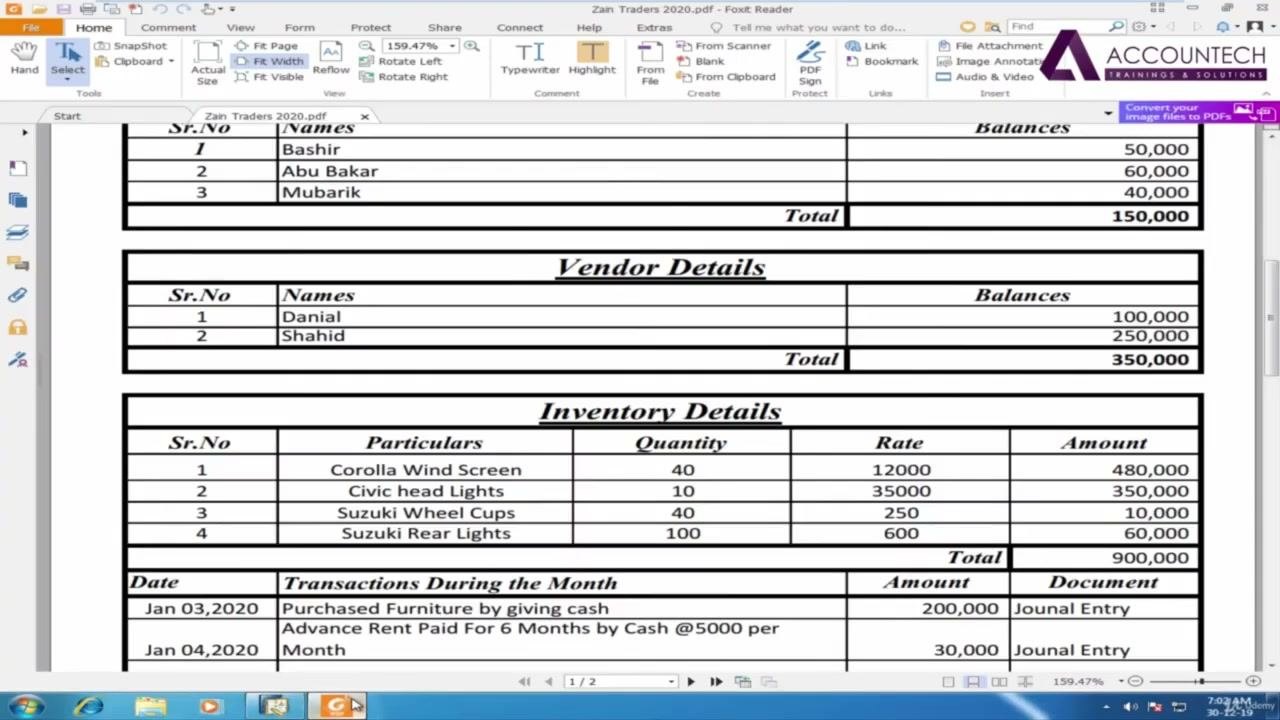
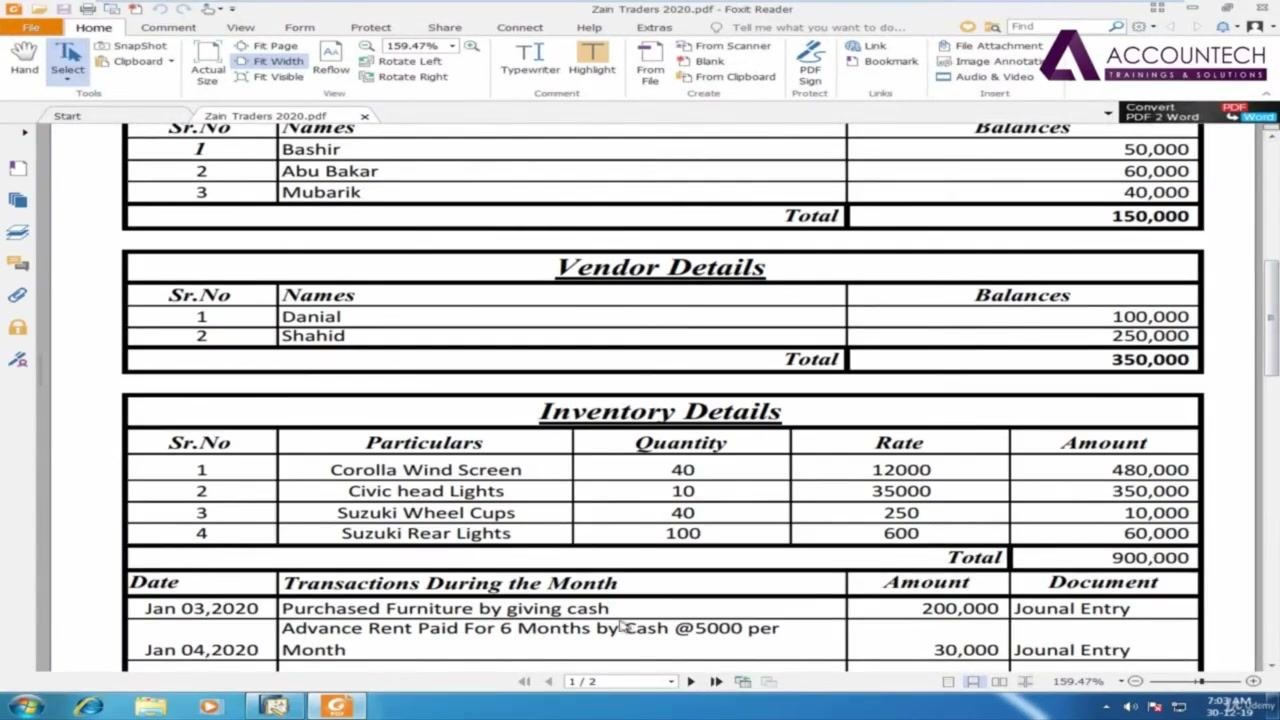
This guide uses the following example inventory:
- Corolla Wind Screen: Quantity = 40, Rate = 12,000, Amount = 480,000
- Civic Head Lights: Quantity = 10, Rate = 35,000, Amount = 350,000
- Suzuki Wheel Cups: Quantity = 40, Rate = 250, Amount = 10,000
- Suzuki Rear Lights: Quantity = 100, Rate = 600, Amount = 60,000
Open the Inventory Opening Balance window
- Open SAP Business One and log in.
- Confirm that the main menu shows modules such as Sales - A/R, Purchasing - A/P, Business Partners, Banking, and Inventory.
- In the search dropdown at the top right, select Search Menus (Ctrl+F3) to enable menu searching.
Enter the inventory opening balance details
In the search bar, type "Opening Balance" and select the option for inventory opening balances. The Inventory Opening Balance window opens.
Set the following header fields:
- Posting Date: 01-01-19
- Document Date: 01-01-19
- Price Source for Warehouse Inventory Posting: Item Cost
For each inventory item, complete these fields:
- Enter the Item No. and Item Description.
- Specify the warehouse (Whse) and the In Warehouse location if applicable.
- Enter the opening balance, which is the quantity on hand as of the posting date.
- Enter the Unit Price, which is the cost per unit.
The Total is calculated automatically. You can add remarks if needed, for example "Inventory Opening Balances". Click Add Items to include more items. Click Add only when you are ready to save, as described in Step 8.
Select all items at once
You can add opening stock for every item in one action.
- In the List of Items window, click the first item (for example, IT001 Corolla Wind Screen).
- Hold Shift and click the last item (for example, IT004 Suzuki Rear Lights) to select all items in between.
- Click Choose to add the selected items to the Inventory Opening Balance screen.
Set the price source and update unit prices
By default, Price Source for Whse Inventory Posting is set to Item Cost. This may not show the correct prices if you have already defined them in a price list.
- Click the dropdown next to Price Source for Whse Inventory Posting.
- Select By Price List.
- In the Price List dropdown, select Cost Price, or the price list where you defined your item costs.
The system updates the Unit Price for each item based on the price list you selected.
Enter the quantity for each item
Refer to your inventory details for the correct quantities, then enter them as follows:
- Corolla Wind Screen: 40
- Civic Head Lights: 10
- Suzuki Wheel Cups: 40
- Suzuki Rear Lights: 100
Use the down arrow key to move quickly between items as you enter each quantity.
Verify the totals
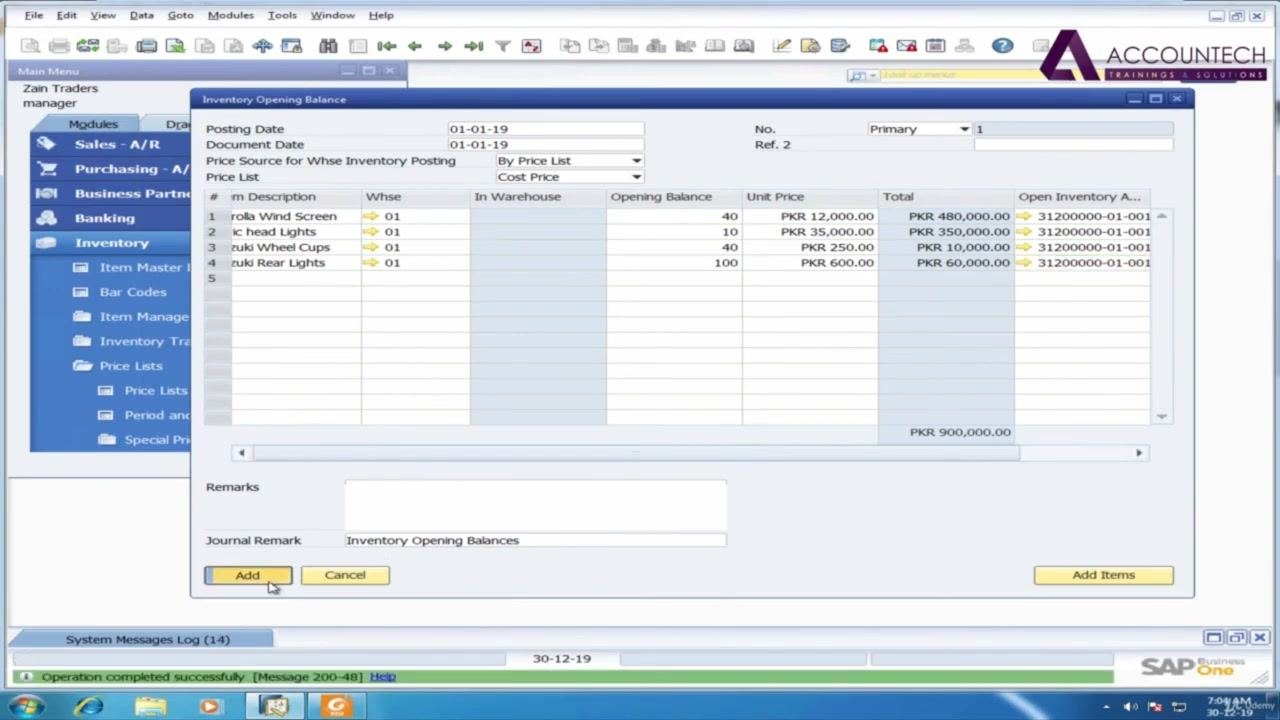
Confirm that the Total for all items matches your inventory details. In this example, the total is PKR 900,000.
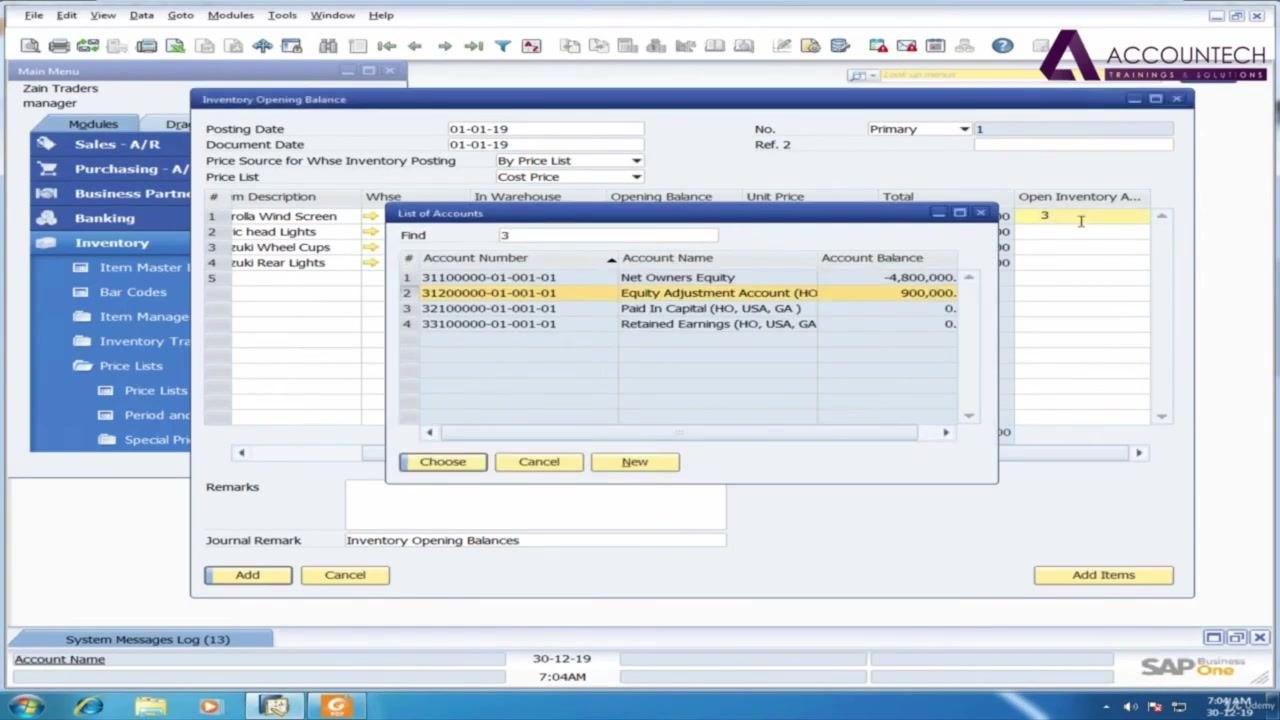
Then look at the Open Inventory Account column. Select the equity adjustment account here, not the regular inventory account. The system uses this account for inventory settlement adjustments.
Assign the equity adjustment account to all items
- In the Inventory Opening Balance window, go to the Open Inventory Account column.
- For the first item, select Equity Adjustment Account (HO, USA, GA) (Account Number: 31200000-01-001-01).
- Click the next field in the Open Inventory Account column.
- Hold Ctrl and press the Up Arrow key to copy the value from the cell above.
- Repeat for each remaining item until all items have the same account.
Save the inventory opening balances
- Confirm that all items have the correct account and values.
- Click Add at the bottom of the window to save your entries.
- Wait for the confirmation message in the System Messages Log showing that the operation completed successfully.
Extract the trial balance
To verify your entries, extract the trial balance.
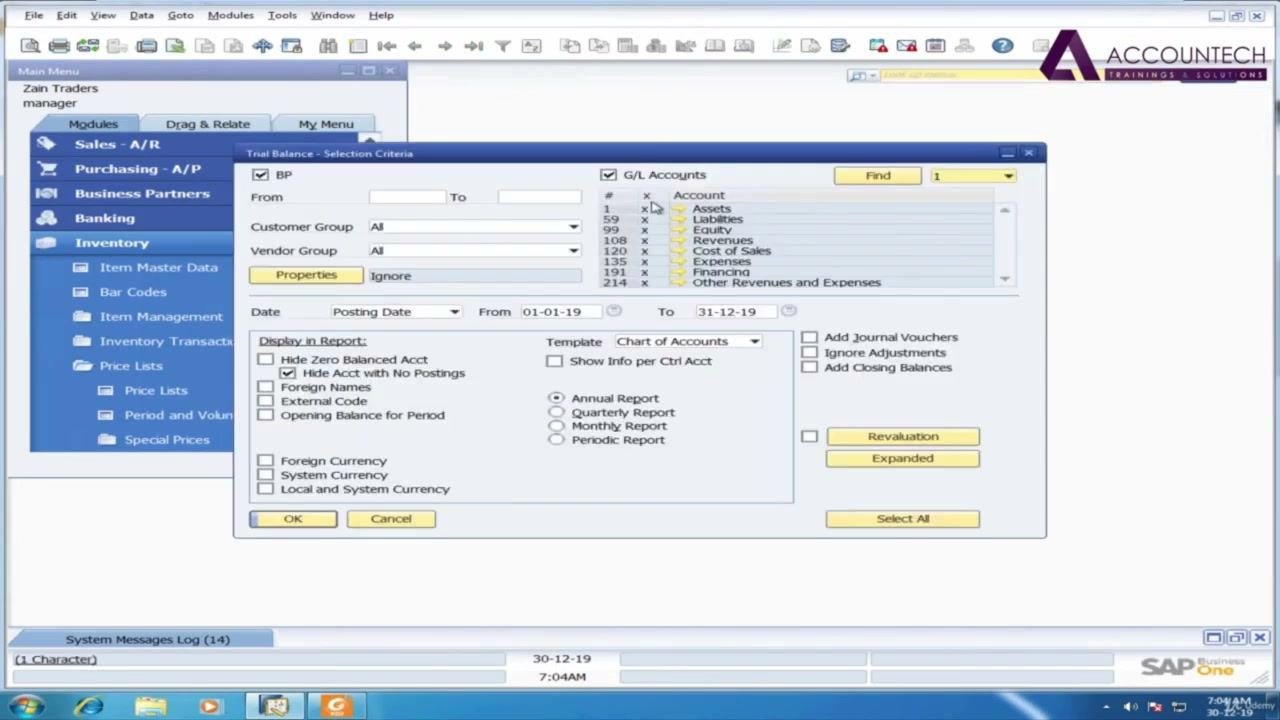
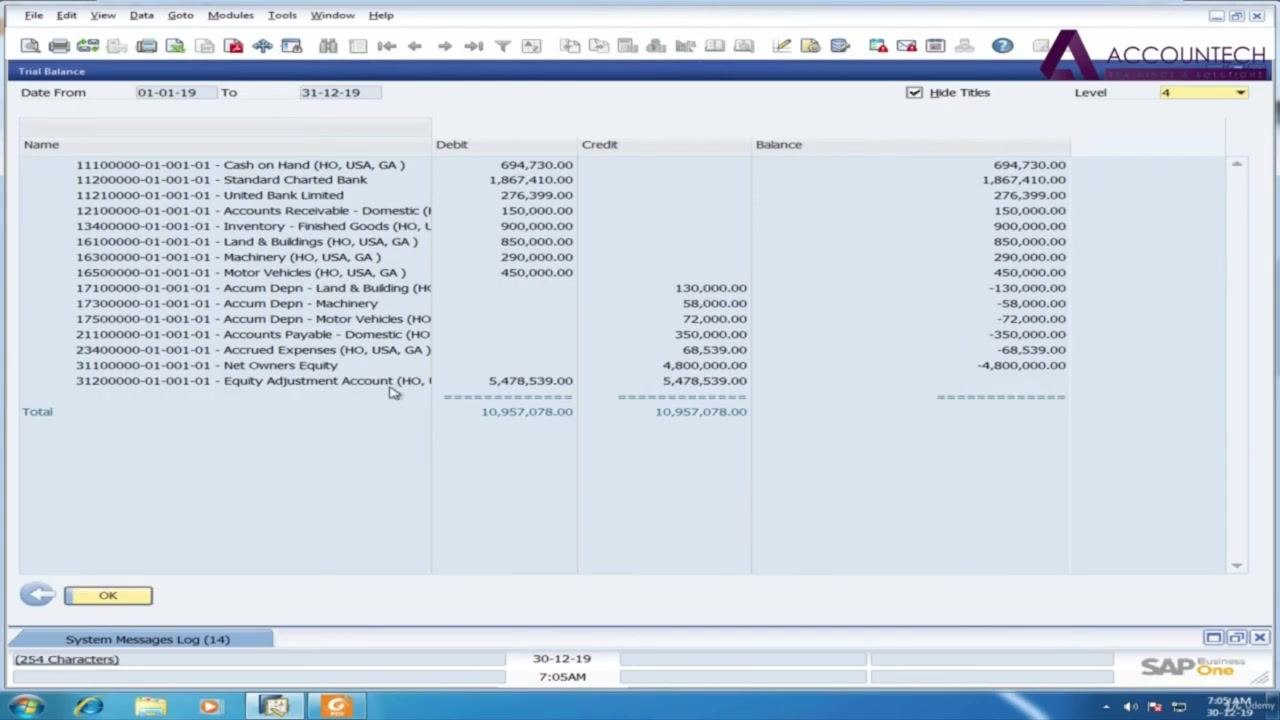
- Open the Trial Balance - Selection Criteria window.
- Make sure G/L Accounts is checked.
- Check or uncheck BP (Business Partners) as needed.
- Set the date range, for example From: 01-01-19 and To: 31-12-19.
- Select any additional display options you need, such as Hide Acct with No Postings.
- Click OK to generate the report.
Verify the inventory and equity adjustment balances
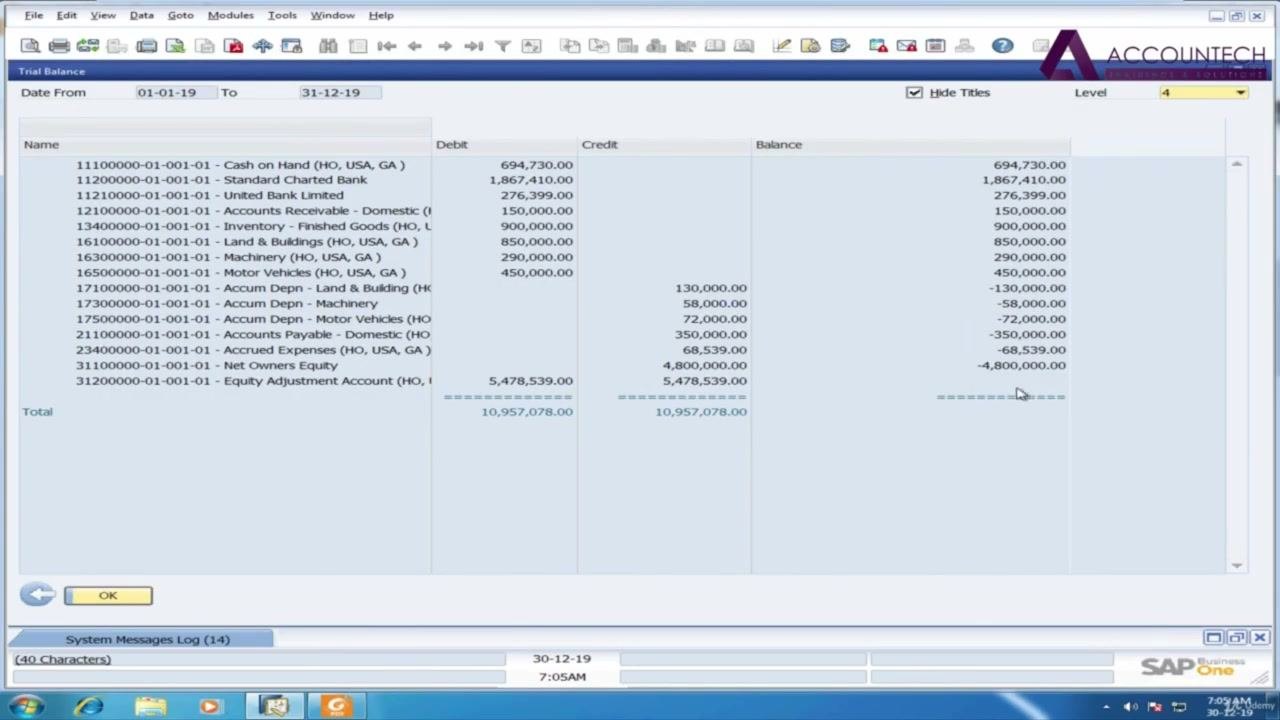
In the Trial Balance report, check the following:
- The Inventory - Finished Goods account shows a balance of PKR 900,000.
- The Equity Adjustment Account balance is zero.
If there is any difference, review your previous entries for errors.
Troubleshooting mismatched balances
If the balances do not match, or the Equity Adjustment Account does not show zero, double-check these items in your Inventory Opening Balance entries:
- Quantities
- Unit prices
- Account assignments
Correct any discrepancies and repeat the process as needed.
Summary
To enter opening balances in SAP Business One for inventory, you open the Inventory Opening Balance window and add your items. You set the price source to By Price List, enter quantities, and assign the equity adjustment account. After you click Add, you confirm the result in the trial balance. The Inventory - Finished Goods account should show PKR 900,000 and the Equity Adjustment Account should show zero.
Generation details: cost, quality tiers
Docsie billed 3,000 credits ($2.10) to analyze this 6-minute video at standard quality. The rewrite, template fill and Word/PDF exports were included. The same video at each quality tier:
| Quality | Frames sampled | Credits | Approx. cost |
|---|---|---|---|
| Draft | every 16-30 s | 1,500 | $1.05 |
| Standard (this guide) | every 8-15 s | 3,000 | $2.10 |
| Detailed | every 4-7 s | 6,000 | $4.20 |
| Ultra | every 1-3 s | 12,000 | $8.40 |
Credits priced at $0.70 per 1,000; plans include a monthly allowance. Enterprise customers on on-premise or bring-your-own-model deployments run this on their own inference and pay no per-video credits.
Generated by Docsie Video-to-Docs on 2026-11-15 from a 5-minute video. Screenshots are frames from the source video and belong to their creator, Upskill-Education, whose original is embedded above. If you own this video and want the guide removed or credited differently, contact us and we will act within one business day.