
How to Enable the Cockpit and Dashboard in SAP Business One
This guide shows you how to enable the cockpit and dashboard in SAP Business One. You turn on the Cockpit in General Settings, activate it from the Tools menu, and sign in again. You then work with the modules and widgets in My Cockpit, customize the Browser widget, and review the final layout.
Video: How to enable cockpit in SAP B1 by Khaled Ali- ERP Consultant (2020). All credit for the demonstration goes to the creator; watch the original on YouTube. The written guide below was generated from this video by Docsie. Creator? Request a change or removal.
This guide shows you how to enable the cockpit and dashboard in SAP Business One. You turn on the Cockpit in General Settings, activate it from the Tools menu, and sign in again. You then work with the modules and widgets in My Cockpit, customize the Browser widget, and review the final layout.
Prerequisites
- Access to the Administration section in the left navigation pane, including System Initialization and General Settings.
- The ability to sign out of SAP Business One and sign in again. Signing out stops all running processes and closes all open windows.
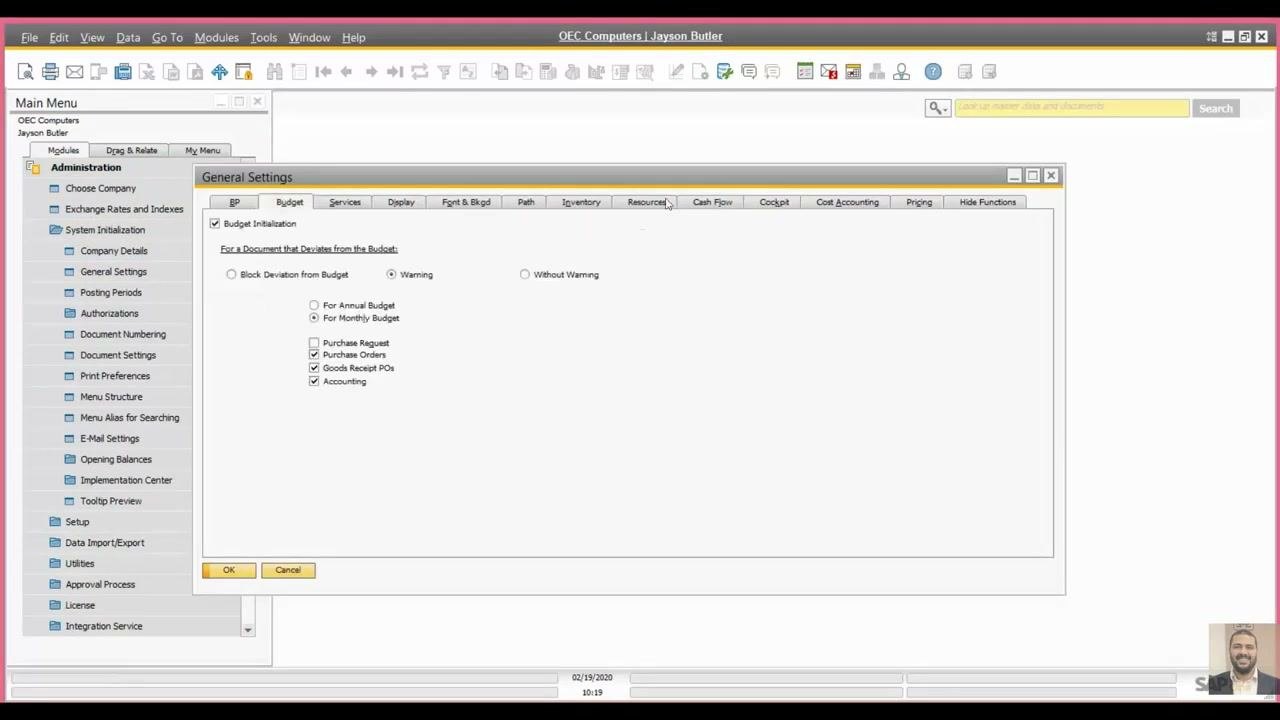
Open General Settings and select the Cockpit option
- In the left navigation pane, expand Administration.
- Expand System Initialization.
- Select General Settings.
- In the General Settings window, click the Cockpit tab at the top.
- Select the Cockpit radio button.
- Click OK to save your changes.
Activate the cockpit from the Tools menu
- Go to the Tools menu at the top of the screen.
- Select Enable My Cockpit from the dropdown.
Sign out and sign in again
You must sign out of SAP Business One and sign in again for the changes to take effect.
When SAP Business One displays the message "Closing SAP Business One will stop all running processes and close all open windows. Do you want to continue?", click Yes.
Open My Cockpit and use the modules
After you sign back in, look at the left side of the screen. The My Cockpit section shows these modules:
- Home
- Sales
- Service
- Finance
- Purchasing
The Widget Gallery is also available. Its General Widgets include Common Functions, Open Documents, Messages and Alerts, and Browser.
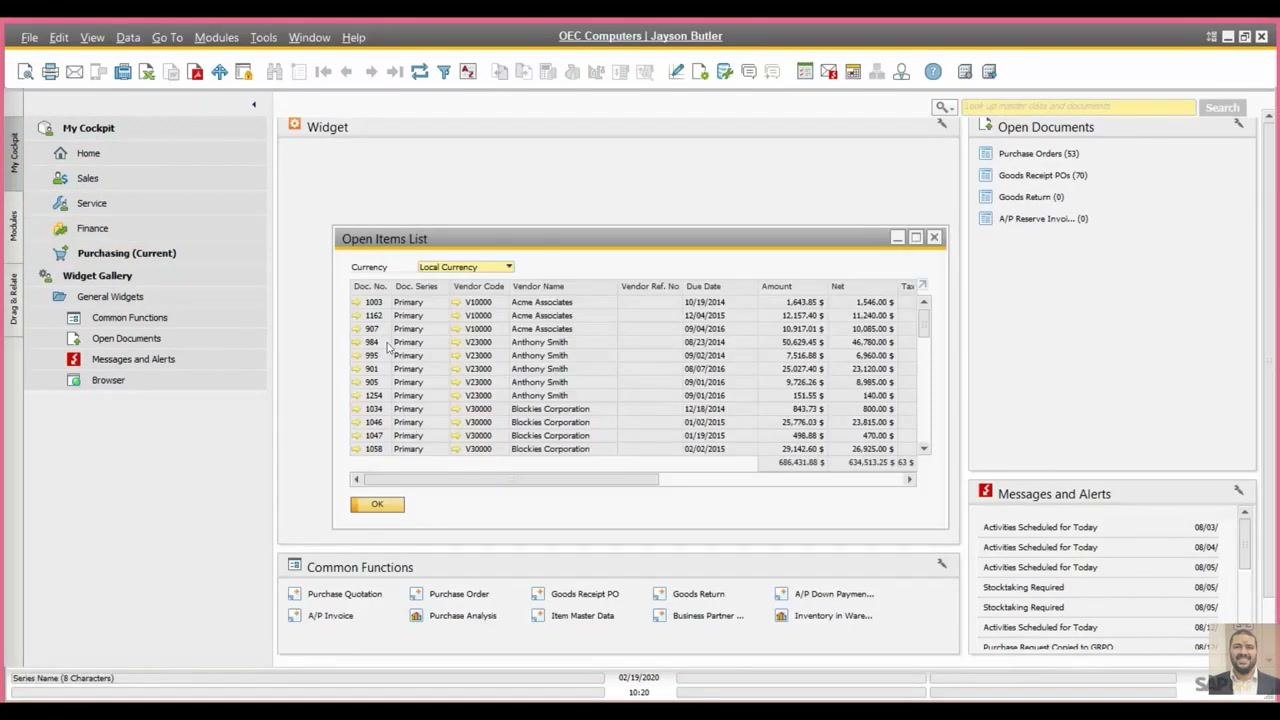
To view related widgets and reports, click any module. For example, select Purchasing to display an Open Items List. It includes these columns:
- Doc. No.
- Vendor Code
- Vendor Name
- Due Date
- Amount
- Net
When you finish, click OK to close the Open Items List.
Customize the Browser widget
- In the Widget Gallery, select the Browser widget.
- In the Browser widget, click the settings icon (three horizontal lines).
- Enter the URL of your client or the site you want to display.
By default, the browser shows the SAP website. You can change it to your preferred client URL.
Review the final cockpit layout
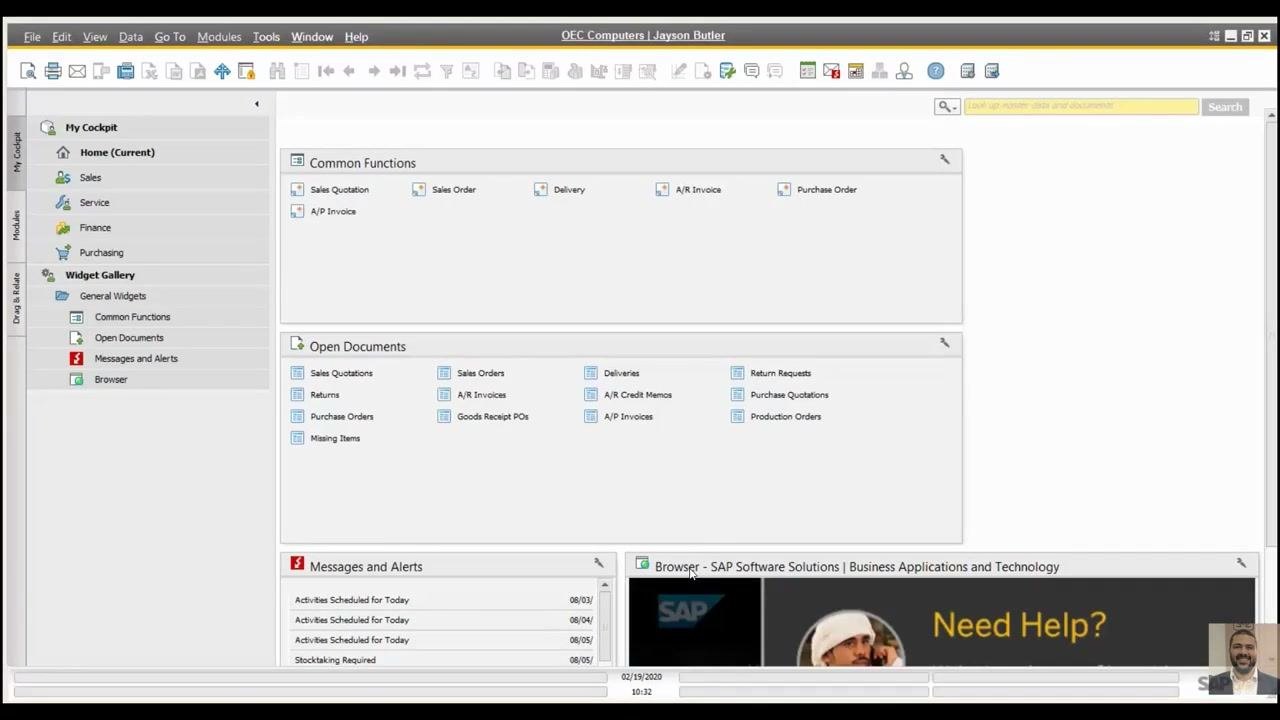
Check the Cockpit interface to confirm that all modules and widgets are configured correctly. The main screen should show the following:
- My Cockpit navigation pane on the left, with the modules Home (Current), Sales, Service, Finance, and Purchasing.
- Widget Gallery section with the General Widgets Common Functions, Open Documents, Messages and Alerts, and Browser.
- Common Functions widget in the main area, with shortcuts for Sales Quotation, Sales Order, Delivery, A/R Invoice, Purchase Order, and A/P Invoice.
- Open Documents widget, listing Sales Quotations, Sales Orders, Deliveries, Returns, A/R Invoices, A/R Credit Memos, Purchase Orders, Goods Receipt POs, A/P Invoices, Return Requests, Purchase Quotations, Production Orders, and Missing Items.
- Messages and Alerts widget at the bottom left, displaying scheduled activities and alerts.
- Browser widget at the bottom right, showing the SAP website or your configured client URL.
Confirm that the date and time appear at the bottom of the screen.
Summary
You now know how to enable the cockpit and dashboard in SAP Business One. You selected the Cockpit option in General Settings, chose Enable My Cockpit from the Tools menu, and signed in again. You then explored the My Cockpit modules, set a URL in the Browser widget, and reviewed the final layout.
Generation details: cost, quality tiers
Docsie billed 1,000 credits ($0.70) to analyze this 2-minute video at standard quality. The rewrite, template fill and Word/PDF exports were included. The same video at each quality tier:
| Quality | Frames sampled | Credits | Approx. cost |
|---|---|---|---|
| Draft | every 16-30 s | 500 | $0.35 |
| Standard (this guide) | every 8-15 s | 1,000 | $0.70 |
| Detailed | every 4-7 s | 2,000 | $1.40 |
| Ultra | every 1-3 s | 4,000 | $2.80 |
Credits priced at $0.70 per 1,000; plans include a monthly allowance. Enterprise customers on on-premise or bring-your-own-model deployments run this on their own inference and pay no per-video credits.
Generated by Docsie Video-to-Docs on 2026-11-15 from a 2-minute video. Screenshots are frames from the source video and belong to their creator, Khaled Ali- ERP Consultant, whose original is embedded above. If you own this video and want the guide removed or credited differently, contact us and we will act within one business day.