
How to Request Time Off in Paylocity
This guide walks you through how to request time off in Paylocity, from logging into your account to submitting your request and tracking its status. You'll also learn how to check your time off balances, delete a pending request, and understand how your available hours are calculated.
Video: Paylocity Training Video: Submitting a Time Off Request for Office Staff by The Independence Center. All credit for the demonstration goes to the creator; watch the original on YouTube. The written guide below was generated from this video by Docsie. Creator? Request a change or removal.
This guide walks you through how to request time off in Paylocity, from logging into your account to submitting your request and tracking its status. You'll also learn how to check your time off balances, delete a pending request, and understand how your available hours are calculated.
Prerequisites
- An active Paylocity account with valid login credentials.
- Access to your organization's Paylocity self-service portal.
Logging in and locating the time off section
- Log into Paylocity using your credentials.
- After logging in, you will land on either the Self-Service Portal page or your Time Card page.
- If you land on the Time Card page, click the Home button in the top navigation bar to return to the Self-Service Portal page.
Reviewing your time off balances
- On the Self-Service Portal dashboard, review the layout, which includes sections for Announcements, Pay, Time Entry, Benefits, Company, Time Off, Career, and Employment.
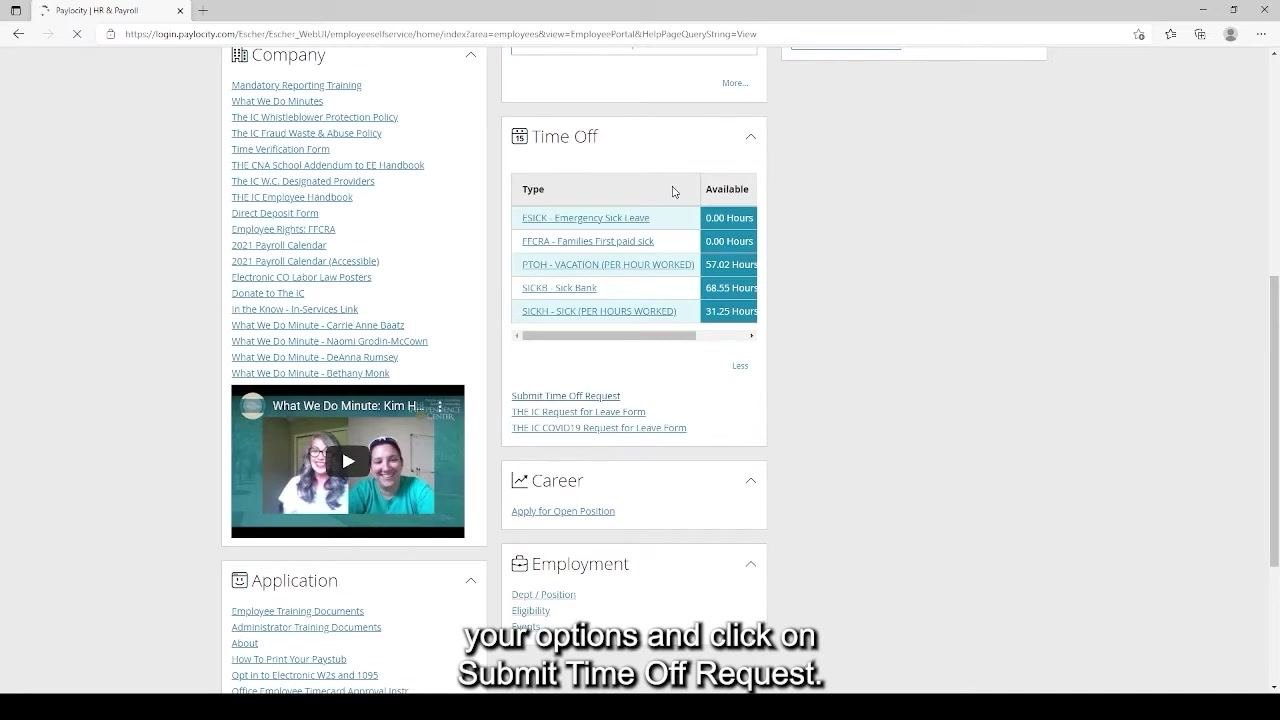
- Locate the Time Off box, which appears as the second box in the middle column.
- Review your available balances listed in the box. Depending on your organization, these may include categories such as Emergency Sick Leave, Families First paid sick leave, Vacation (per hour worked), Sick Bank, and Sick (per hours worked), each shown with its available hours.
- If a More button is available, click it to expand your options.
Starting a time off request
-
Click Submit Time Off Request to proceed.
-
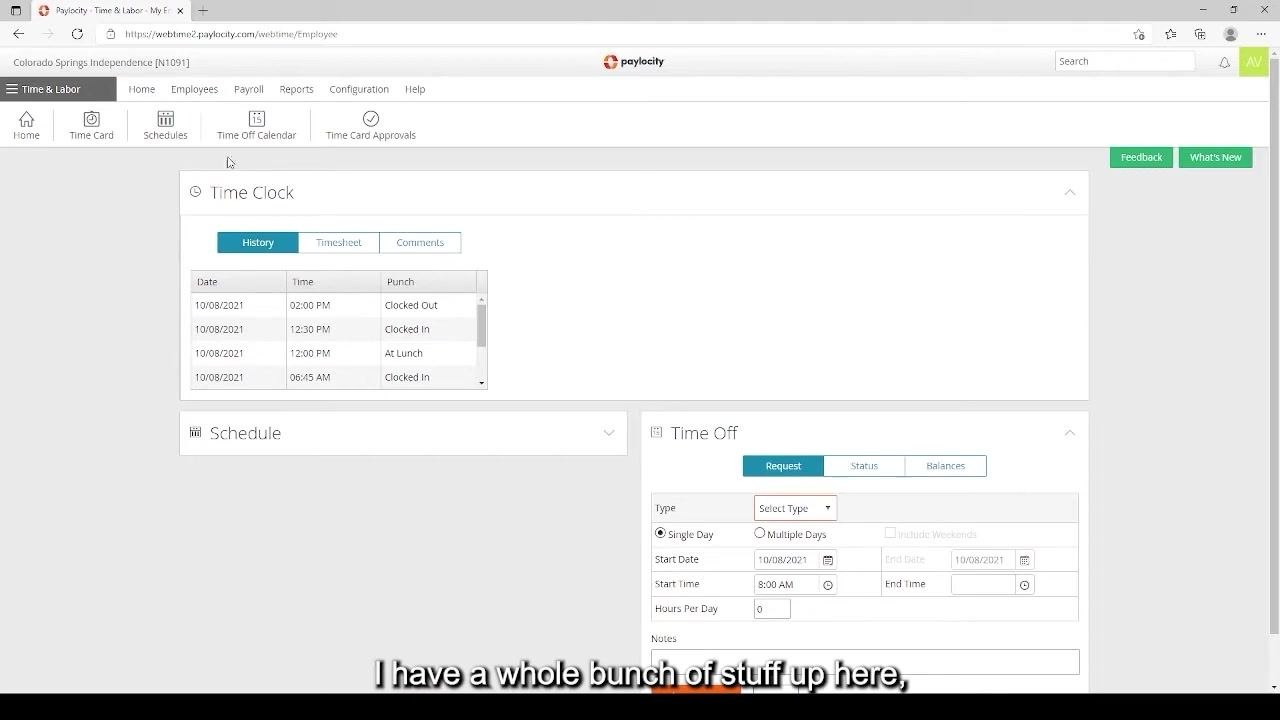
You will be redirected to the Time and Labor area, specifically the Time Off section.
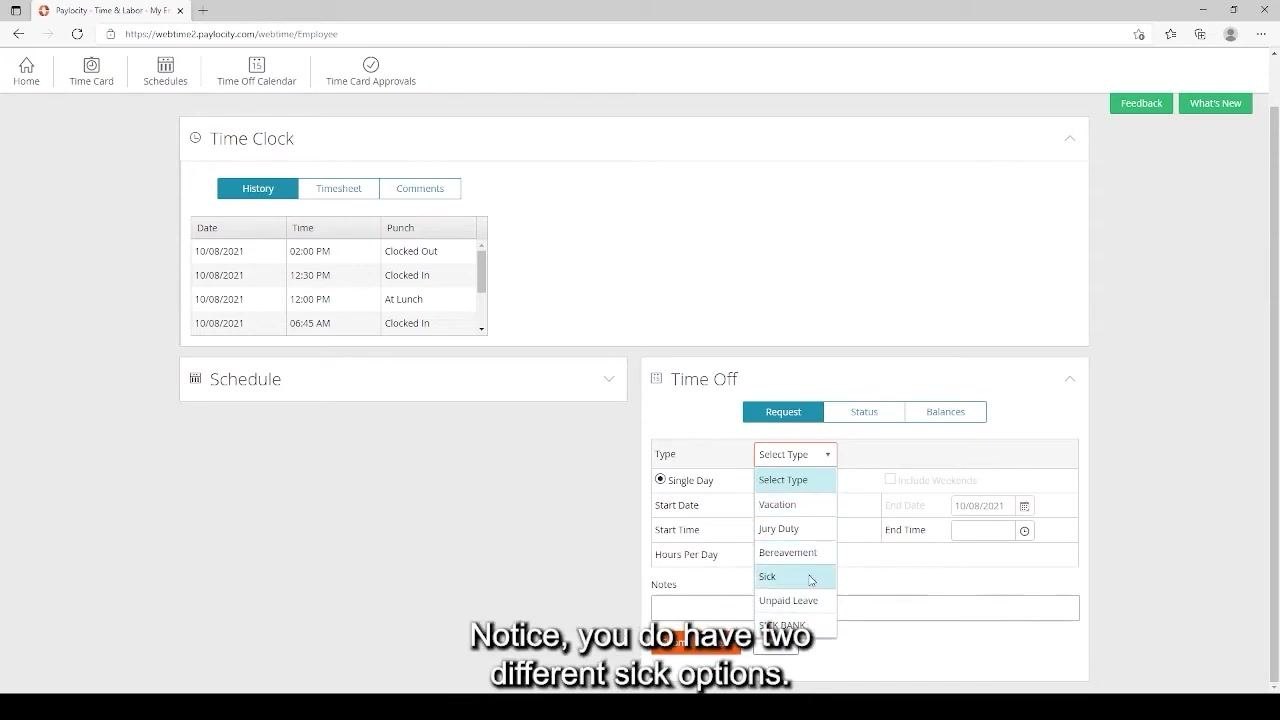
- Locate the Request tab, then click the down arrow in the Select Type box to open the dropdown menu.
Selecting the type of time off
- Click the Select Type dropdown in the Time Off Request form and review the available options.
- Note that there are typically two sick-related options:
- SICK BANK – sick hours rolled over from previous years.
- SICK – sick hours accrued for the current year.
Both options pay out at the same rate, so you can choose either based on your available balance. 3. Select the appropriate type for your request (for example, Vacation).
Choosing single day or multiple days
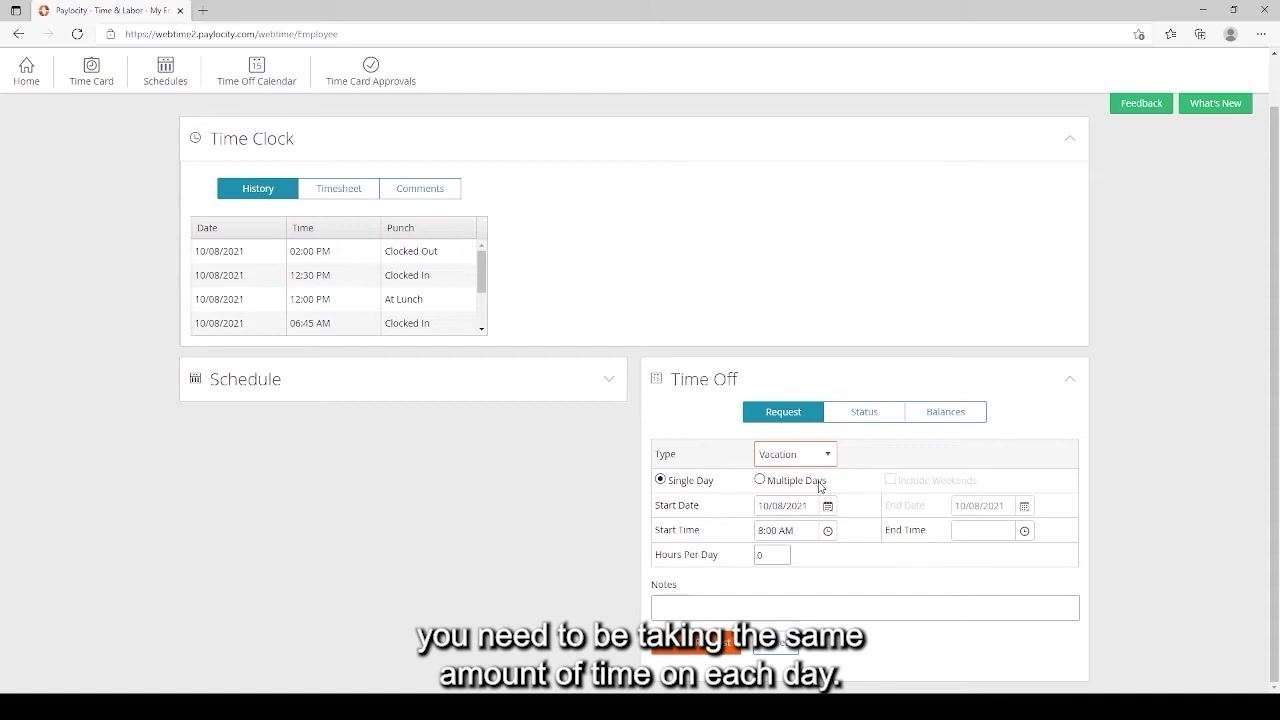
- Decide whether your request covers one day or several days:
- Select Single Day if you are taking time off for only one day, or if the number of hours differs from day to day.
- Select Multiple Days if you are taking the same number of hours off each day for consecutive days (for example, a full week at 8 hours per day).
- If your hours vary across days (for example, 4 hours one day and 7 hours the next), submit separate single day requests for each day.
Setting your start date
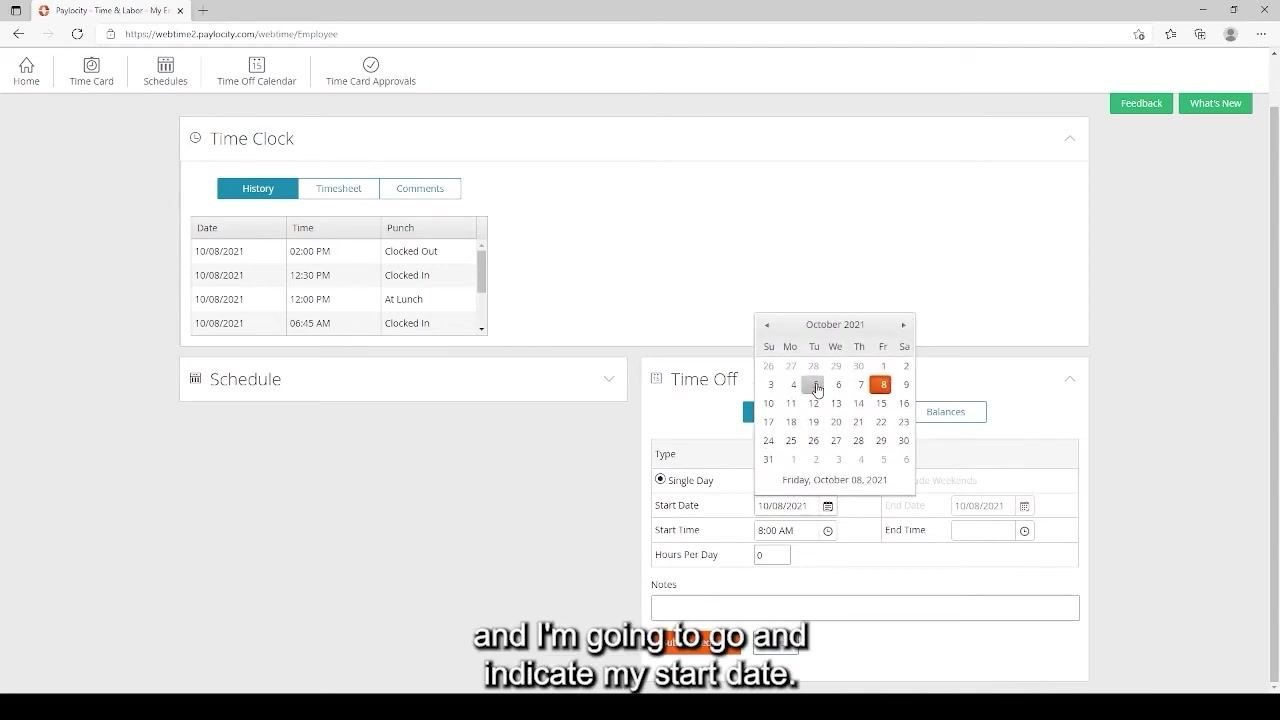
- For a single day request, click the calendar icon next to Start Date and select the desired date.
- Note that when Single Day is selected, there is no End Date field, since the system assumes the start and end dates are the same.
Entering the hours requested
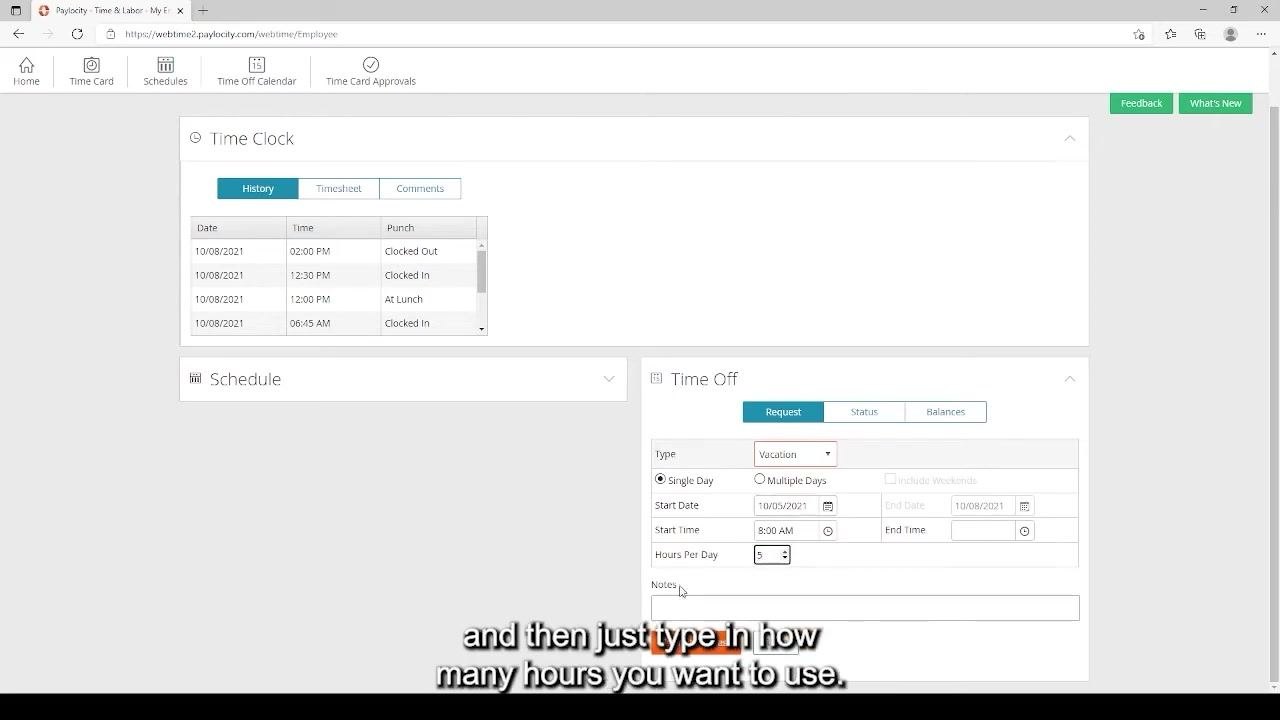
- In the Hours Per Day field, type the total number of hours you want to request off for that day (for example, 5).
Adding an optional note
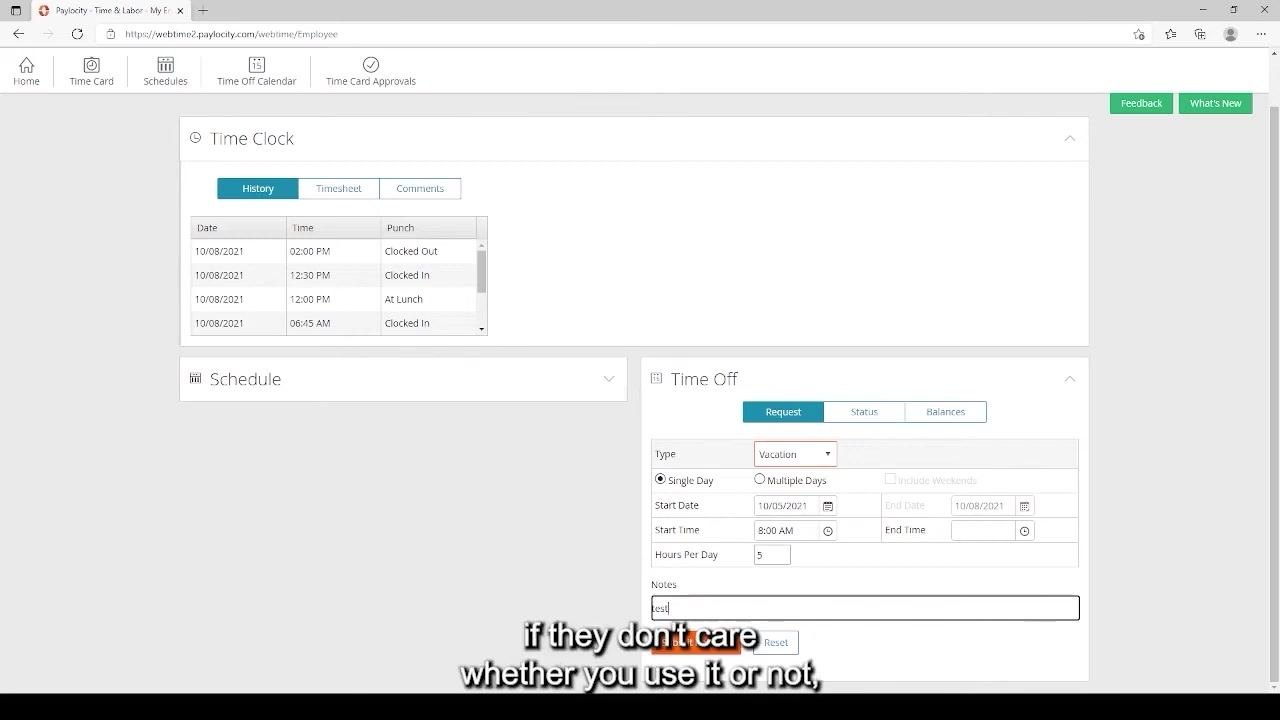
- Use the Notes field if you'd like to add information about your request.
- This field is for your own convenience and reference—it is not required by the system or your manager, though you can check with your manager if they prefer you to use it.
Submitting your request
- Click the Submit Request button at the bottom of the Time Off Request form.
-
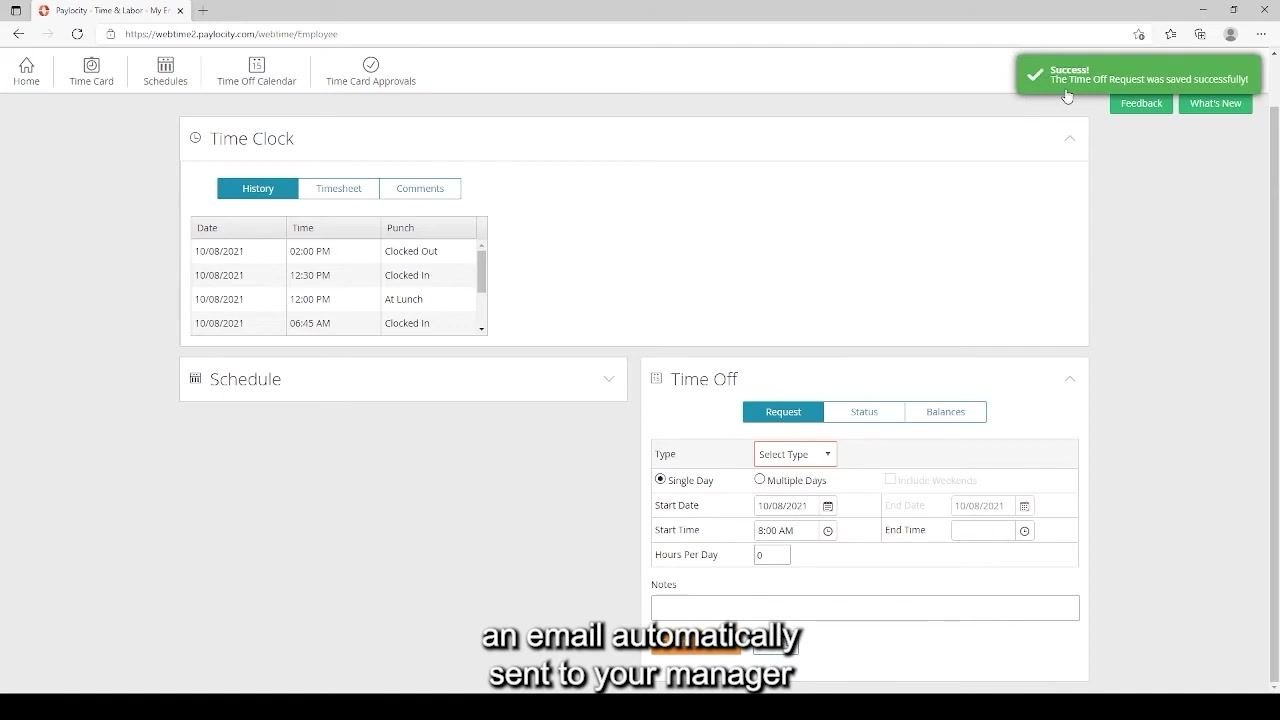
Look for a green confirmation box in the upper right corner of the screen that reads: "Success! The Time Off Request was saved successfully."
-
Once submitted, an email notification is automatically sent to your manager, informing them of your request and prompting them to approve or deny it.
Checking the status of your request
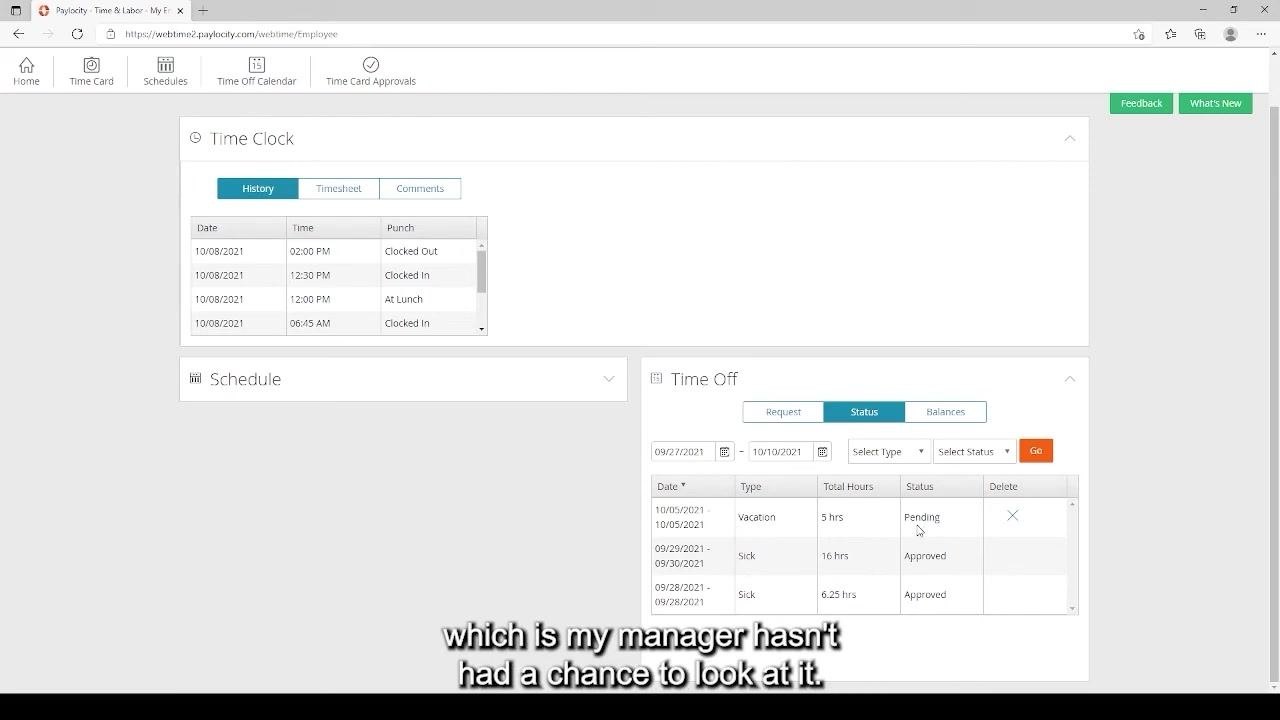
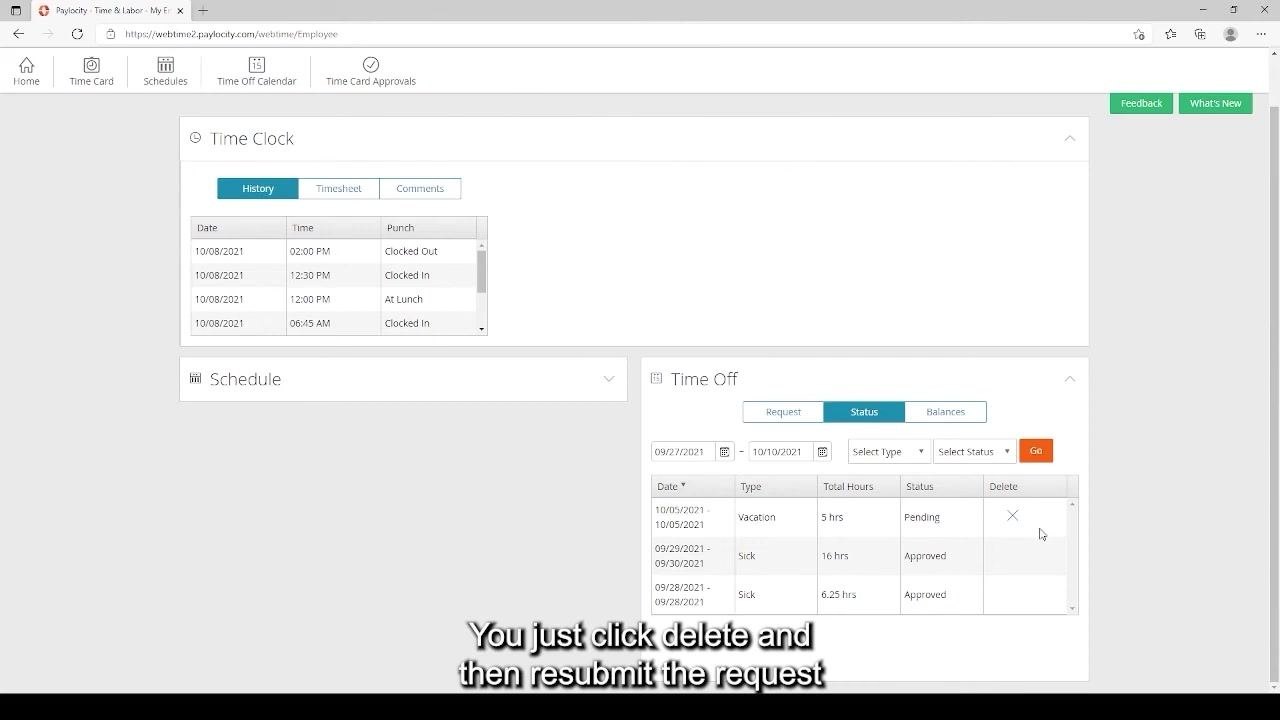
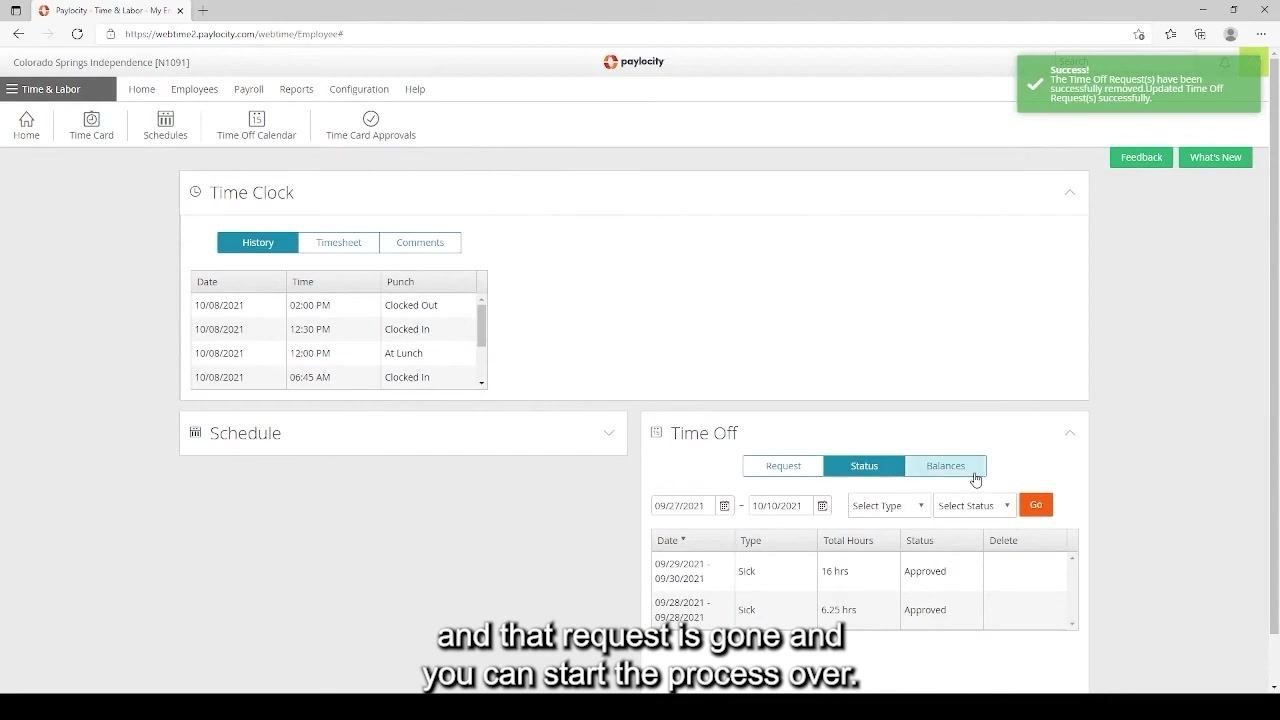
- Click the Status tab in the Time Off box to view the progress of your request.
- The status will display as "Pending" until your manager reviews it.
- Previously approved or denied requests will also appear here, along with their respective statuses.
Deleting or editing a pending request
-
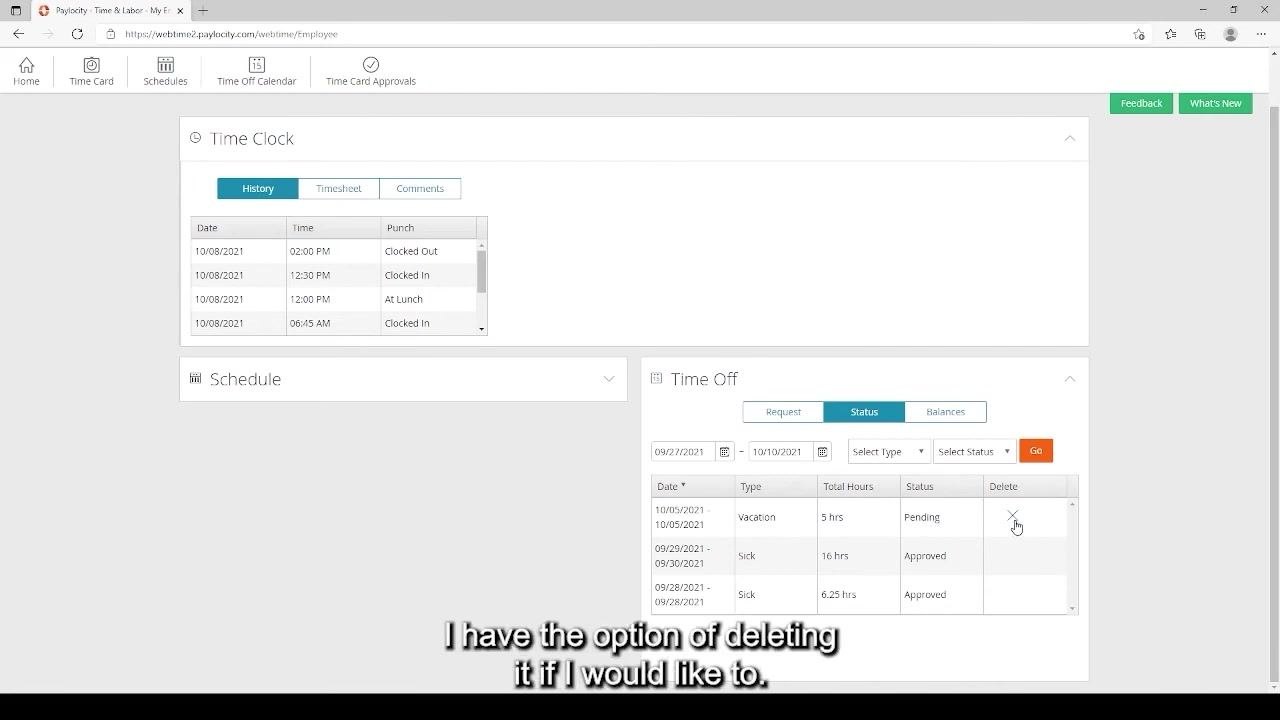
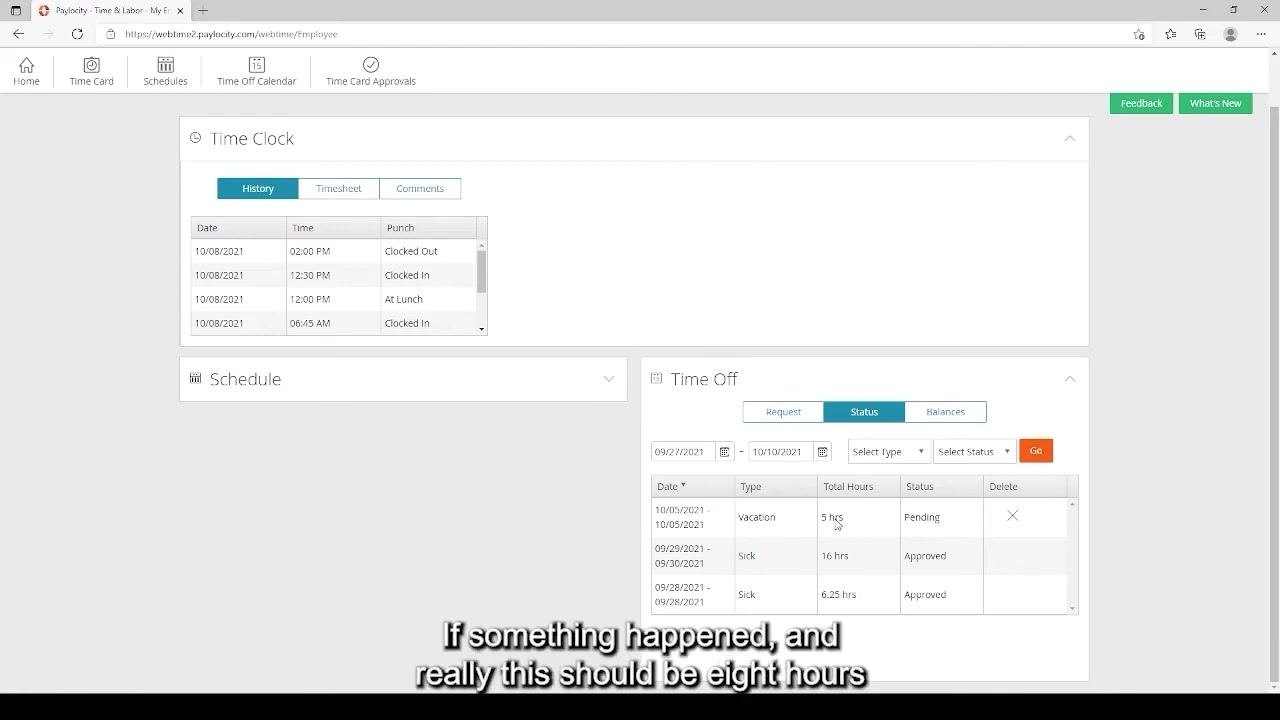
If your request is still pending and you no longer need the time off (for example, if you made up the hours during the week), click the X icon in the Delete column next to your pending request.
-
If you need to change the details of your request (for example, using 8 hours instead of 5), delete the pending request and submit a new one with the correct information.
-
When the verification pop-up appears, confirm the deletion by clicking Yes.
-
After confirming, a green "Success!" notification will appear in the upper right corner, stating: "The Time Off Request(s) have been successfully removed." The deleted request will no longer appear in your list, and you can resubmit a new one if needed.
Viewing your time off balances
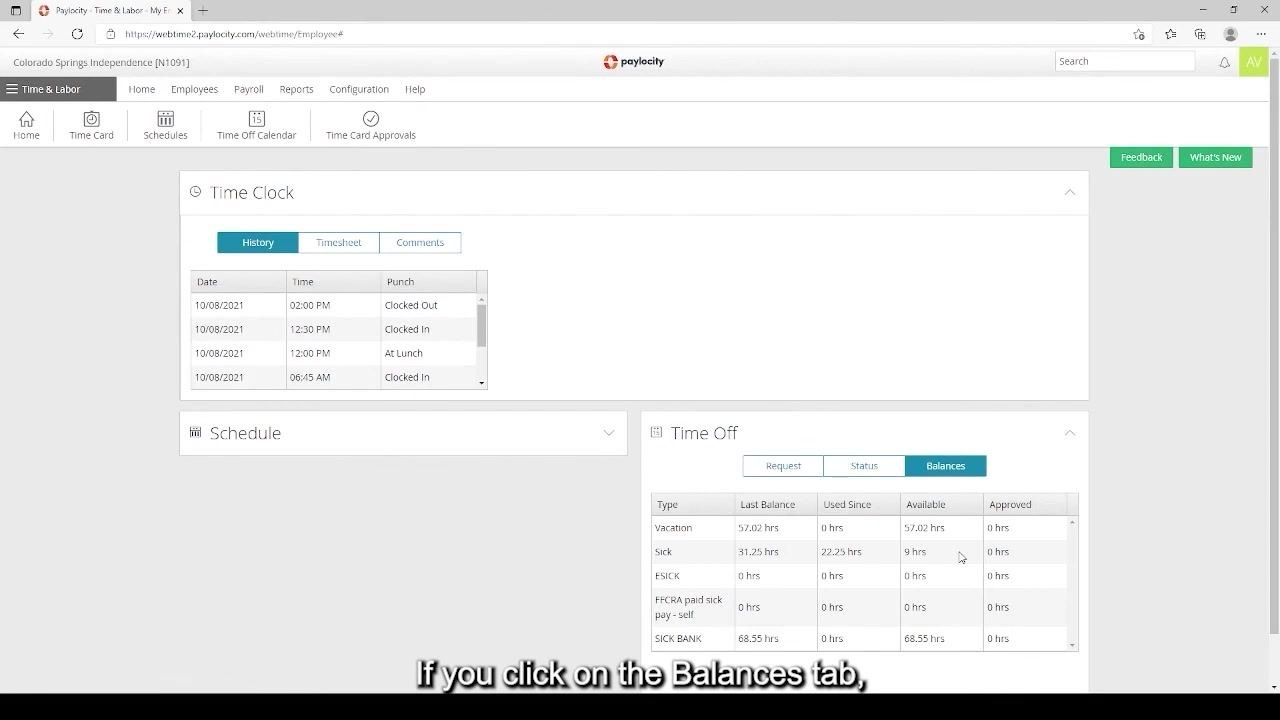
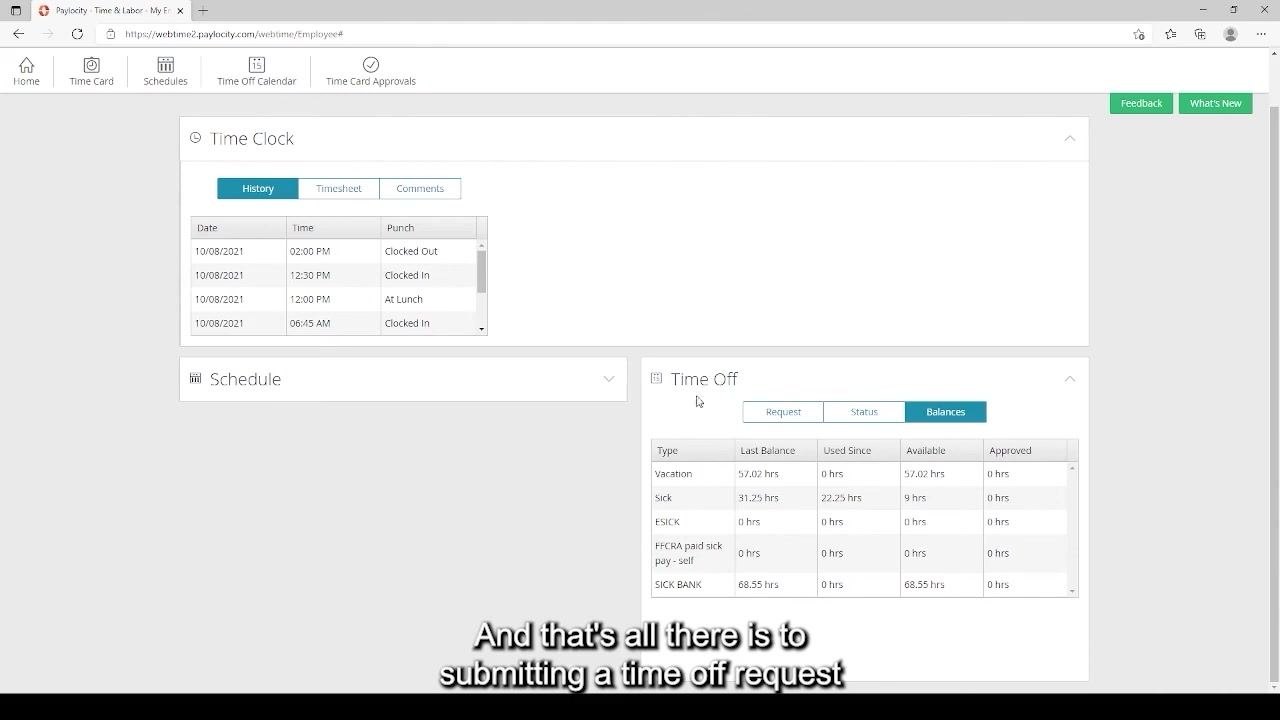
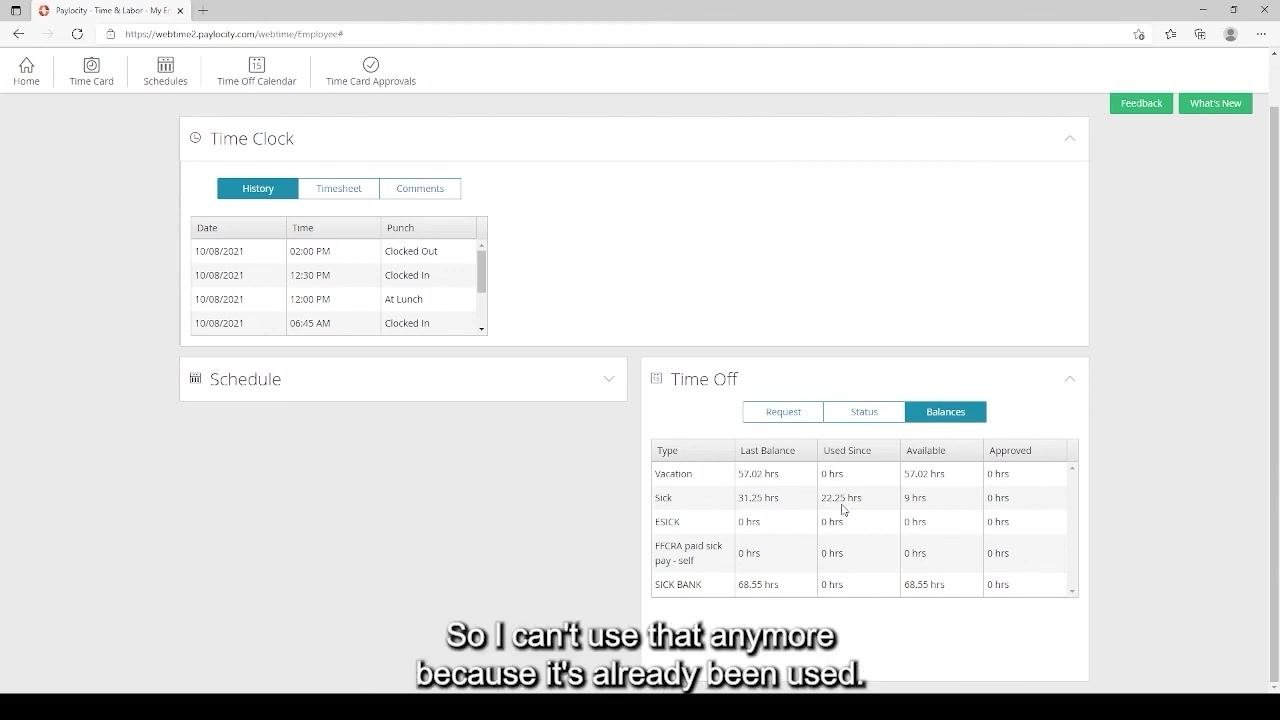
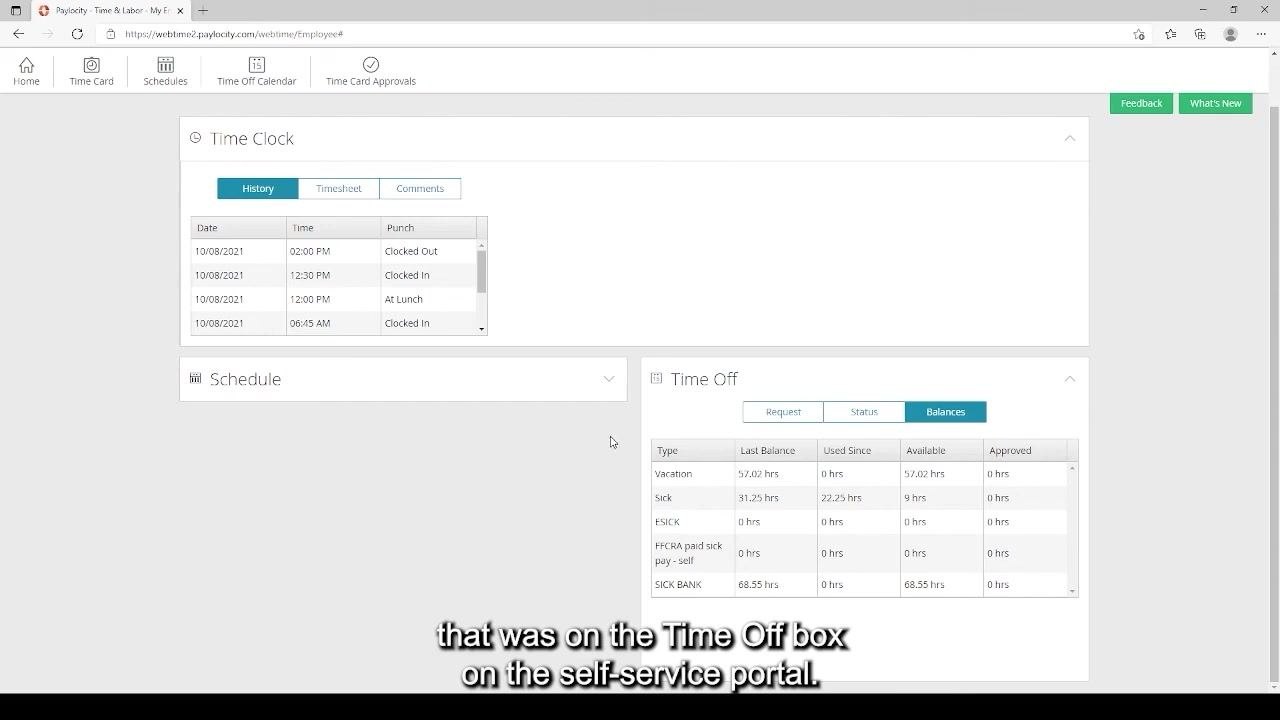
- Click the Balances tab in the Time Off section to see a summary of your available time off.
- The table displays, for each type of leave (such as Vacation, Sick, ESICK, FFCRA paid sick pay - self, and Sick Bank):
- Last Balance – your total accrued balance.
- Used Since – hours already used.
- Available – hours currently available.
- Approved – hours approved but not yet used.
- This information matches what is shown in the self-service portal's Time Off box.
Understanding balance discrepancies
- Note that your available sick time may differ from what was previously shown in the self-service portal. For example, you may see only 9 hours available even if you previously had more, because some hours have already been used.
- If your available sick time is lower than expected, this typically means those hours have already been used and are pending payout. You cannot use time off that has already been used, even if it has not yet been paid out.
Summary
You have now completed the process for submitting, deleting, and reviewing time off requests and balances in Paylocity. Your Time Off box balances, request status, and detailed balance breakdown all work together to help you keep accurate, up-to-date time off records.
What's next
- For further assistance or questions specific to your organization, refer to your company's resources or contact your HR department.
Generation details: cost, quality tiers
Docsie billed 3,500 credits ($2.45) to analyze this 7-minute video at standard quality. The rewrite, template fill and Word/PDF exports were included. The same video at each quality tier:
| Quality | Frames sampled | Credits | Approx. cost |
|---|---|---|---|
| Draft | every 16-30 s | 1,750 | $1.22 |
| Standard (this guide) | every 8-15 s | 3,500 | $2.45 |
| Detailed | every 4-7 s | 7,000 | $4.90 |
| Ultra | every 1-3 s | 14,000 | $9.80 |
Credits priced at $0.70 per 1,000; plans include a monthly allowance. Enterprise customers on on-premise or bring-your-own-model deployments run this on their own inference and pay no per-video credits.
Generated by Docsie Video-to-Docs on 2026-10-06 from a 6-minute video. Screenshots are frames from the source video and belong to their creator, The Independence Center, whose original is embedded above. If you own this video and want the guide removed or credited differently, contact us and we will act within one business day.