
How to Rehire an Employee in Oracle Fusion
This guide shows you how to rehire an employee in Oracle Fusion using the Hire an Employee task in the Oracle Vision HR system. You search for the person's existing record, verify their details, enter job, manager, and salary information, and submit the request. The example rehires an employee named Mike Smith as a Systems Analyst.
Video: Global Human Resources | Rehiring a Worker by Oracle Applications Cloud Tutorials (2019). All credit for the demonstration goes to the creator; watch the original on YouTube. The written guide below was generated from this video by Docsie. Creator? Request a change or removal.
This guide shows you how to rehire an employee in Oracle Fusion using the Hire an Employee task in the Oracle Vision HR system. You search for the person's existing record, verify their details, enter job, manager, and salary information, and submit the request. The example rehires an employee named Mike Smith as a Systems Analyst.
Prerequisites
Before you begin, gather the following:
- Access to the Hiring section in the Oracle Vision HR system.
- The employee's name, gender, date of birth, and Social Security Number.
- The job, assignment, manager, and salary details for the new position.
Steps
Step 1: Open Hire an Employee to start the rehire
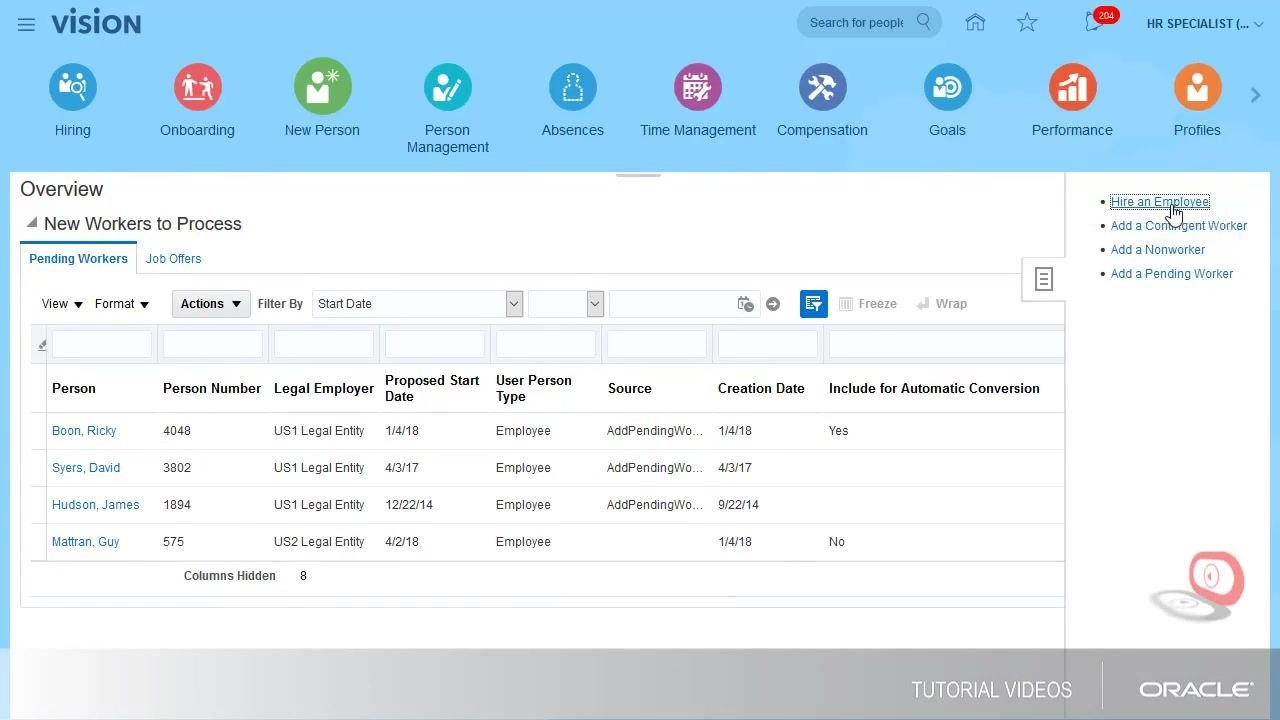
Go to the Hiring section in the Oracle Vision HR system. The dashboard displays tabs for Hiring, Onboarding, New Person, Person Management, Absences, Time Management, Compensation, Goals, Performance, and Profiles.
Click Hire an Employee on the right-hand side of the dashboard to start the process. You can also review the New Workers to Process list for pending workers.
Step 2: Enter the employee's basic and personal details
Fill in the following fields:
- Last Name: Smith
- First Name: Mike
- Gender: Male
- Date of Birth: 8/14/84
Under National Identifiers, select Social Security Number as the identifier type. Set Country to United States, then enter the employee's Social Security Number.
Step 3: Select the matching person record
The system automatically searches for existing contacts, contractors, and previous employees. If it finds a match, such as Mike Smith, select the correct record from the matching person records list.
This step prevents duplicate records and saves time by reusing existing information.
Step 4: Verify the person information when you rehire the employee
Confirm the following details:
- Name: Mike Smith
- Person Number: 107
- Work Email: mike.smith_ecnz@oracledemos.com
- Worker Type: Employee
- Legal Employer: US1 Legal Entity
- National ID: 568-25-4527
- Hire Date: 10/24/18
Then review and update the home address:
- Country: United States
- Address Line 1: 7 Main Street
- ZIP Code: 60603
- State: IL
- City: Chicago
Step 5: Verify contact and citizenship information
Check the work phone, email, and citizenship status. Update them as needed.
Step 6: Record the I-9 documentation status
Set I-9 Status to Not started if the employee will bring the I-9 form on their first day. Enter any additional details required under Work Relationship Details.
Step 7: Enter job and assignment details for the new position
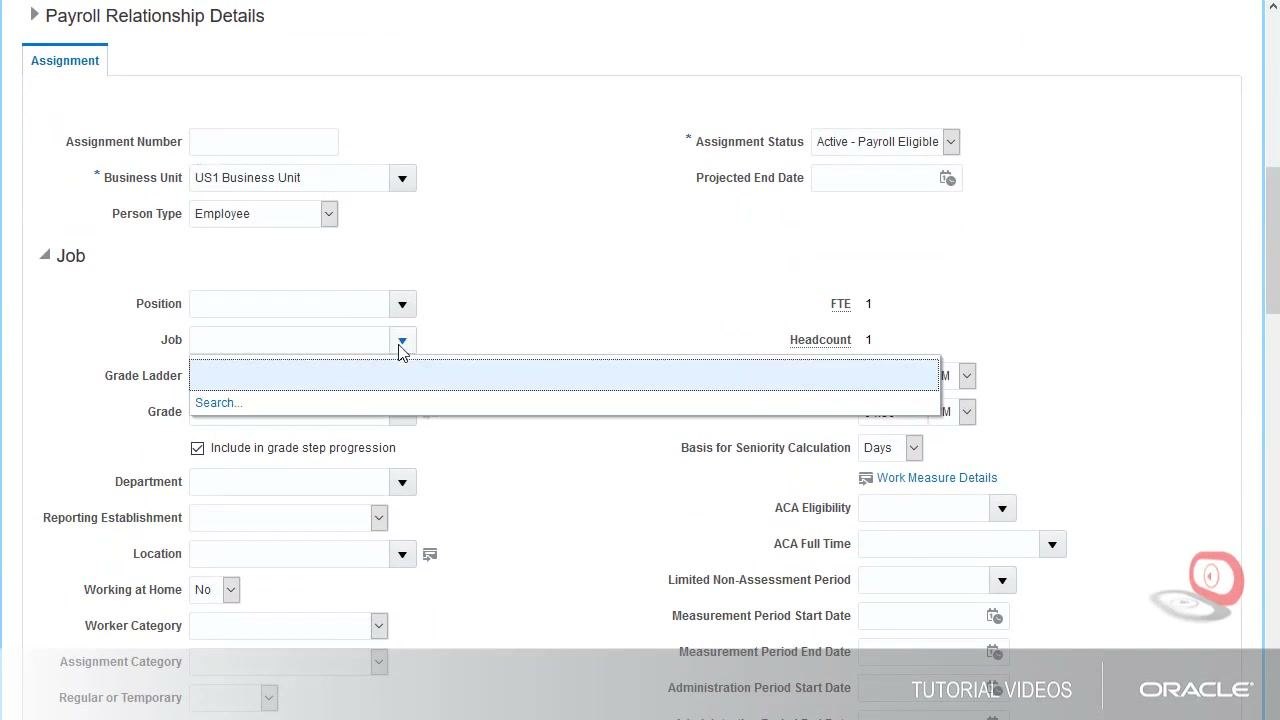
Under Payroll Relationship Details, fill in these fields:
- Business Unit: US1 Business Unit
- Person Type: Employee
- Assignment Status: Active - Payroll Eligible
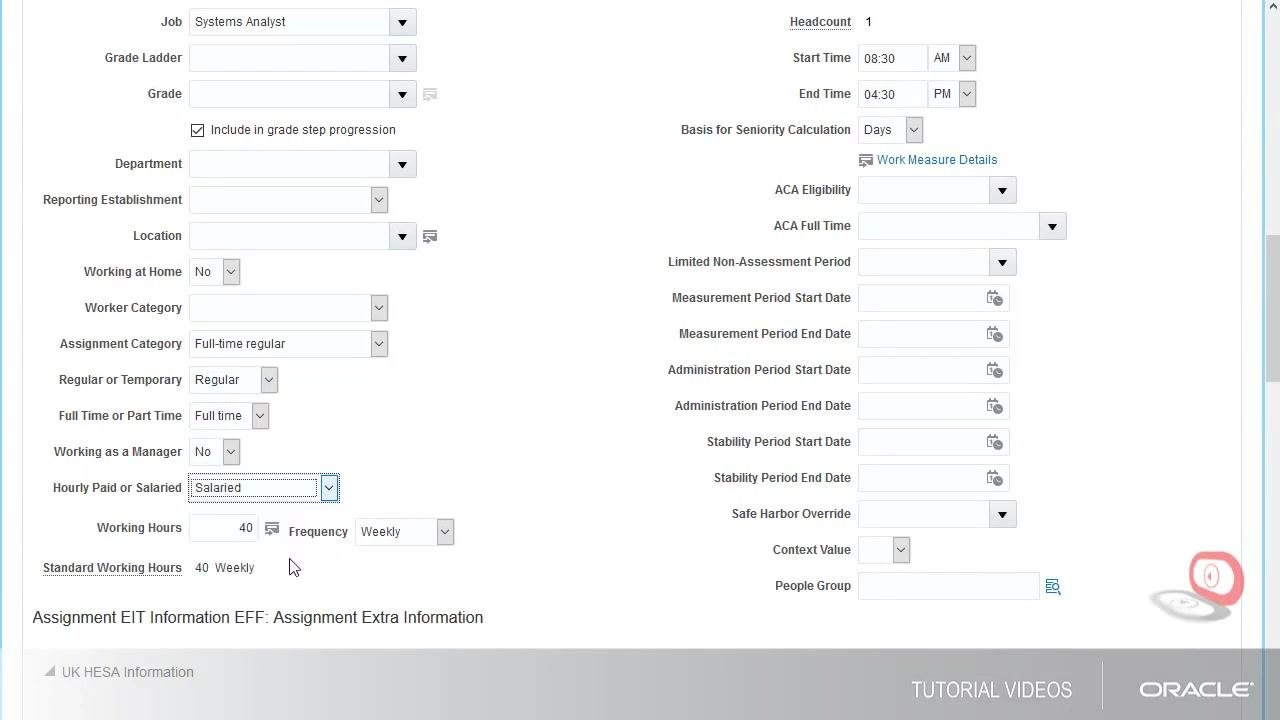
Under Job, select or enter the following:
- Job: Systems Analyst
- Grade Ladder and Grade, as appropriate
- Department, Reporting Establishment, and Location, as needed
- Working at Home: No
- Worker Category and Assignment Category: Full-time regular
- Regular or Temporary: Regular
- Full Time or Part Time: Full time
- Working as a Manager: No
- Hourly Paid or Salaried: Salaried
- Working Hours: 40
- Frequency: Weekly
Step 8: Assign the employee's manager
Under Manager Details, search for and select the manager from the list, then set the type:
- Name: Thomas Kendall
- Type: Line Manager
Enter probation and notice period details if they apply.
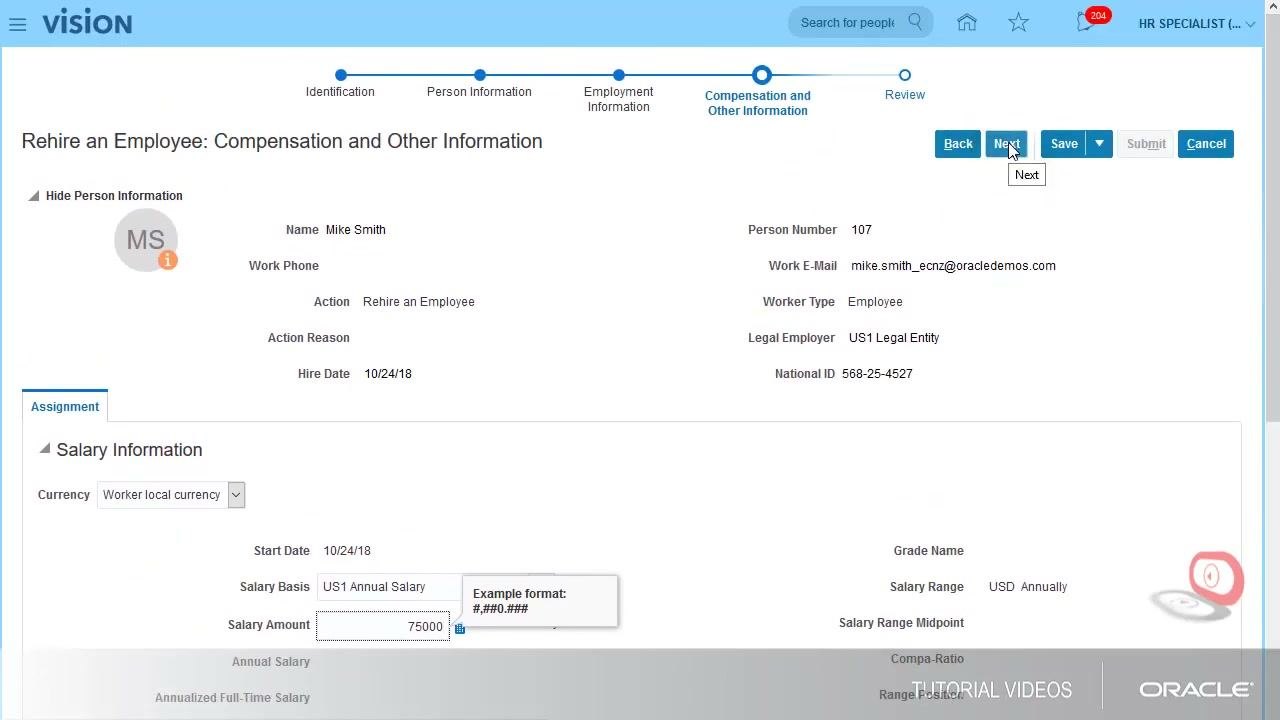
Step 9: Enter salary and compensation details
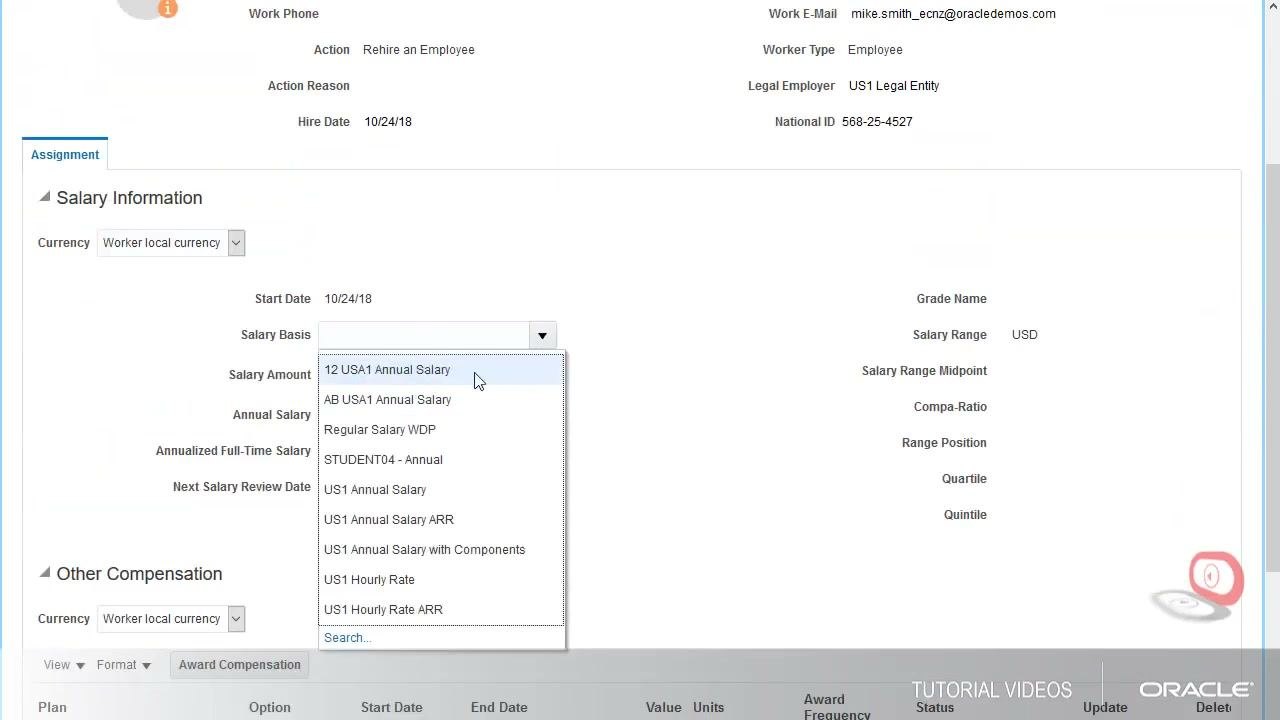
In the Salary Information section, set the following:
- Currency: Worker local currency
- Start Date: 10/24/18
- Salary Basis: US1 Annual Salary (select it from the dropdown list)
- Salary Amount: 75,000
Confirm that the annual salary is set to $75,000.
Step 10: Confirm the role assignment
Verify that the Employee role is assigned automatically. If the employee needs additional roles, add them in this section. This example doesn't need any additional roles.
Step 11: Review all information before you submit
Click Next to open the review screen. Check all details for accuracy, including:
- Name: Mike Smith
- Person Number: 107
- Work Email: mike.smith_ecnz@oracledemos.com
- Worker Type: Employee
- Legal Employer: US1 Legal Entity
- National ID: 568-25-4527
- Hire Date: 10/24/18
- Salary Amount: 75,000
Step 12: Submit the rehire request
When you have verified all the information, click Submit to complete the rehire process.
Step 13: Add or update information after the start date
If any information is missing or needs updating, return to the employee's record after their start date and make the changes. For example, you can add details in the payroll and time definition section.
Summary
You now know how to rehire an employee in Oracle Fusion using the Oracle Vision HR system. You started the Hire an Employee task, selected the existing person record, and verified personal, job, manager, and salary details. You then reviewed everything and submitted the request.
Generation details: cost, quality tiers
Docsie billed 2,000 credits ($1.40) to analyze this 4-minute video at standard quality. The rewrite, template fill and Word/PDF exports were included. The same video at each quality tier:
| Quality | Frames sampled | Credits | Approx. cost |
|---|---|---|---|
| Draft | every 16-30 s | 1,000 | $0.70 |
| Standard (this guide) | every 8-15 s | 2,000 | $1.40 |
| Detailed | every 4-7 s | 4,000 | $2.80 |
| Ultra | every 1-3 s | 8,000 | $5.60 |
Credits priced at $0.70 per 1,000; plans include a monthly allowance. Enterprise customers on on-premise or bring-your-own-model deployments run this on their own inference and pay no per-video credits.
Generated by Docsie Video-to-Docs on 2026-11-15 from a 3-minute video. Screenshots are frames from the source video and belong to their creator, Oracle Applications Cloud Tutorials, whose original is embedded above. If you own this video and want the guide removed or credited differently, contact us and we will act within one business day.