
How to Enable Offerings in Oracle Fusion
This guide shows you how to enable offerings in Oracle Fusion Applications Cloud. You open the Configure Offerings page, review which product families are provisioned, choose which offerings and modules to enable for implementation, save your configuration, and export it for your records.
Video: How to Configure Offerings in Oracle Fusion Apps Cloud? by GudPal Training (2018). All credit for the demonstration goes to the creator; watch the original on YouTube. The written guide below was generated from this video by Docsie. Creator? Request a change or removal.
This guide shows you how to enable offerings in Oracle Fusion Applications Cloud. You open the Configure Offerings page, review which product families are provisioned, choose which offerings and modules to enable for implementation, save your configuration, and export it for your records.
Prerequisites
Before you begin, make sure you have the following:
- The URL of your Oracle Fusion Applications instance.
- Access to the default sysadmin user account for Fusion Apps,
FAAdmin. - Offerings that are provisioned as part of your Fusion Applications implementation. You can enable only provisioned offerings.
Steps
Sign in to Oracle Fusion Applications
- Open your web browser and go to your Oracle Fusion Applications instance URL.
- Log in with the
FAAdminuser account.
Open Setup and Maintenance
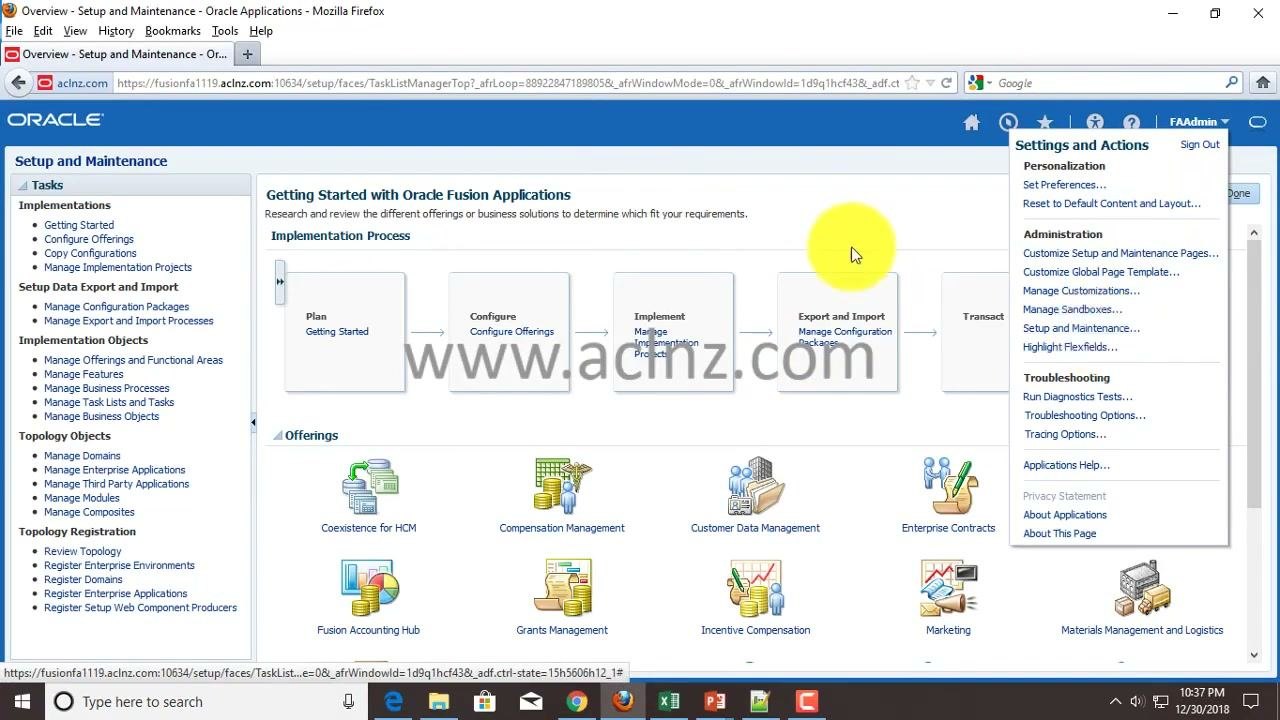
After you log in, find the main navigation menu and go to Setup and Maintenance. You can click the corresponding icon or select the link in the left-hand navigation panel.
Open Configure Offerings
The Setup and Maintenance area opens the "Getting Started with Oracle Fusion Applications" dashboard. The dashboard shows two main areas:
- The Implementation Process flow, with the steps Plan, Configure, Implement, Export and Import, Transact, and Maintain.
- An Offerings section that lists product families such as Coexistence for HCM, Compensation Management, Customer Data Management, Enterprise Contracts, Financials, Fusion Accounting Hub, Grants Management, Incentive Compensation, Marketing, and Materials Management and Logistics.
To start configuring offerings, use either of these options:
- Click the Configure Offerings icon in the main dashboard area.
- Click the Configure Offerings link under the "Implementations" section in the left-hand navigation panel.
Review the available offerings
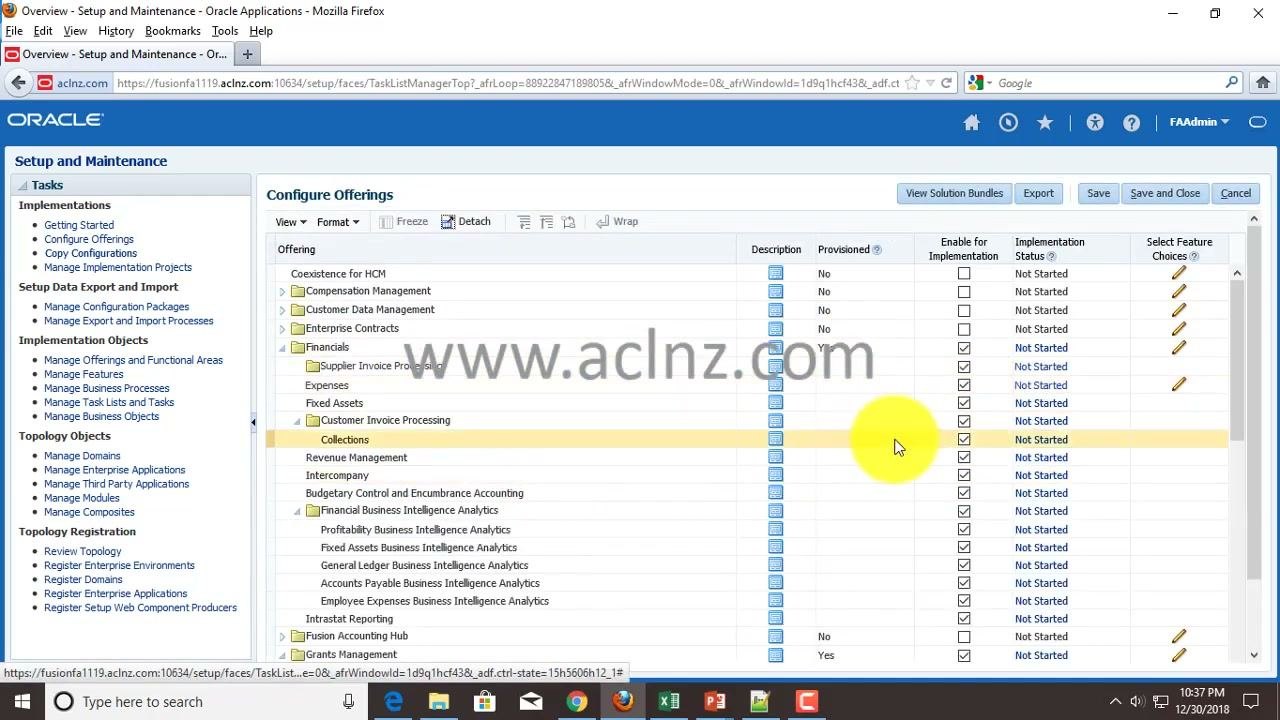
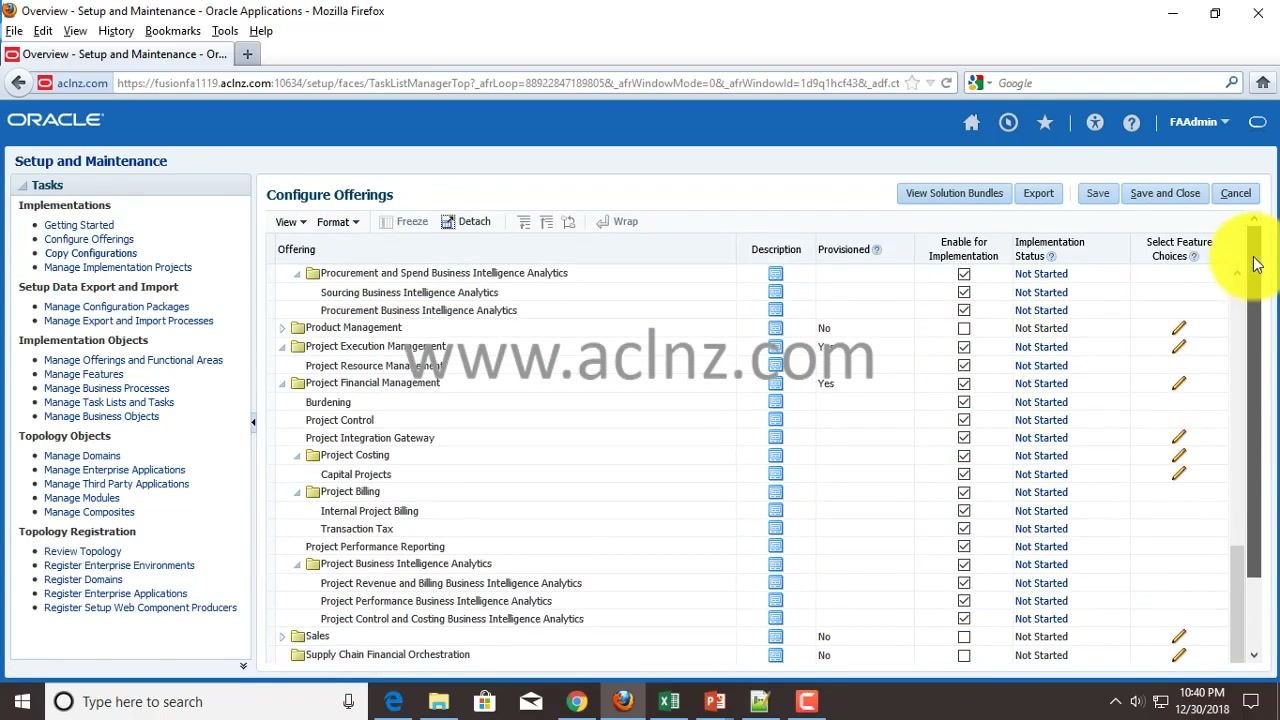
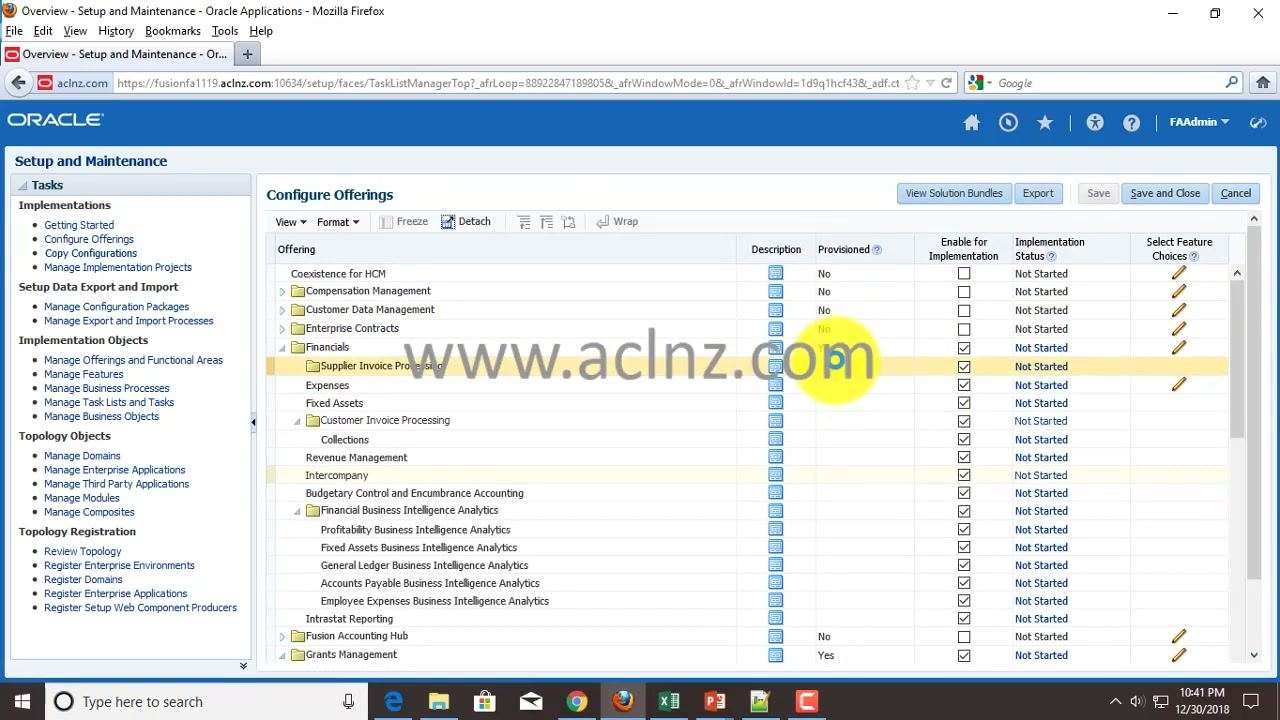
The Configure Offerings page lists all provisioned and available product families. Each row is an offering or sub-offering with these columns:
- Description
- Provisioned (Yes or No)
- Enable for Implementation (a checkbox)
- Implementation Status (for example, Not Started)
- Select Feature Choices (a pencil icon for editing)
Review the list to identify which offerings are provisioned and available in your environment. Only product families provisioned in your Fusion Applications implementation are available for configuration.
Check which offerings you can enable for implementation
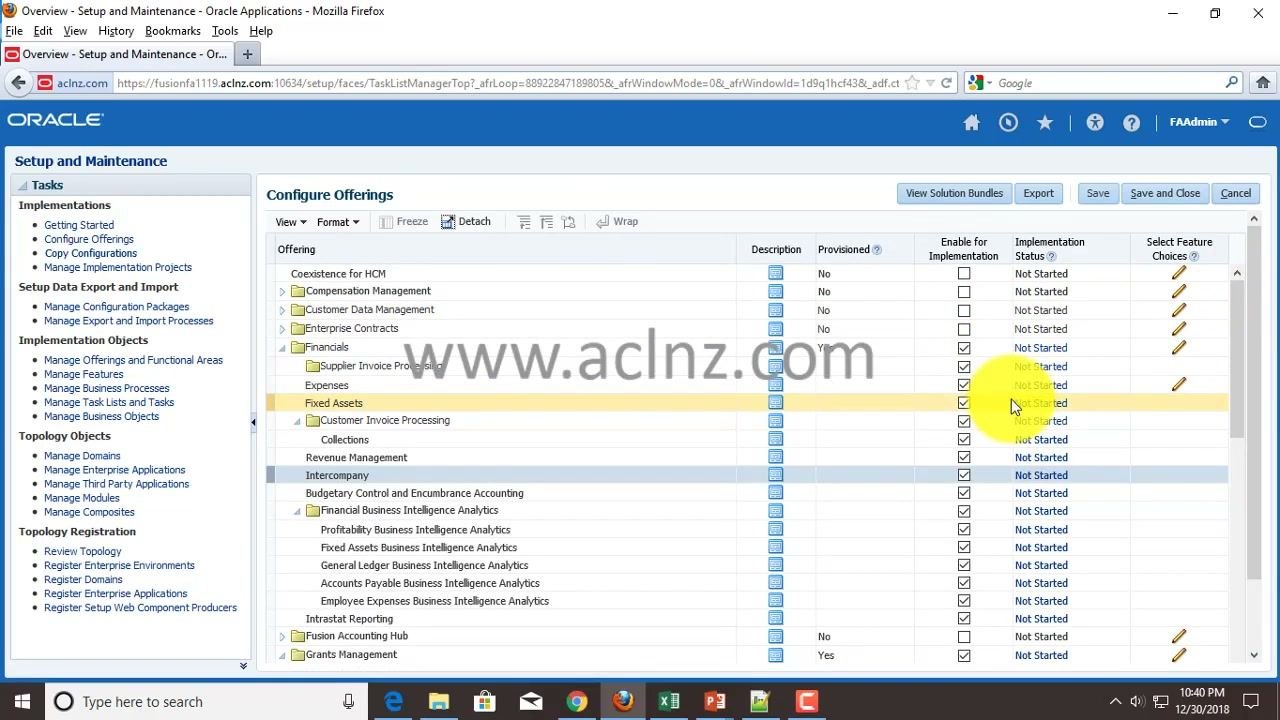
The Enable for Implementation checkbox is checked by default for provisioned offerings and their modules.
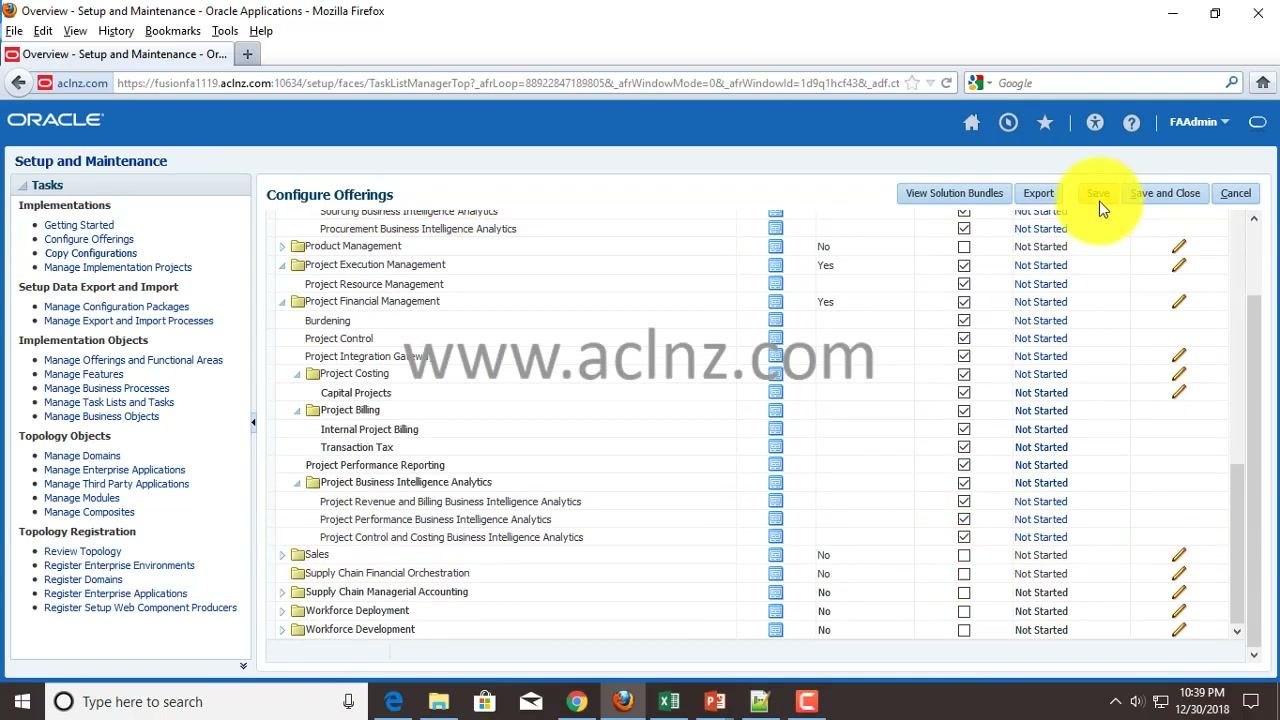
You cannot enable or save an offering that is not provisioned. For example, the "Sales" offering shows Provisioned = No, so its Enable for Implementation checkbox is disabled and you cannot select it. If you try to check and save a non-provisioned offering, an error occurs because the offering is not available in your Fusion Applications Cloud instance.
Exclude or re-include offerings and modules
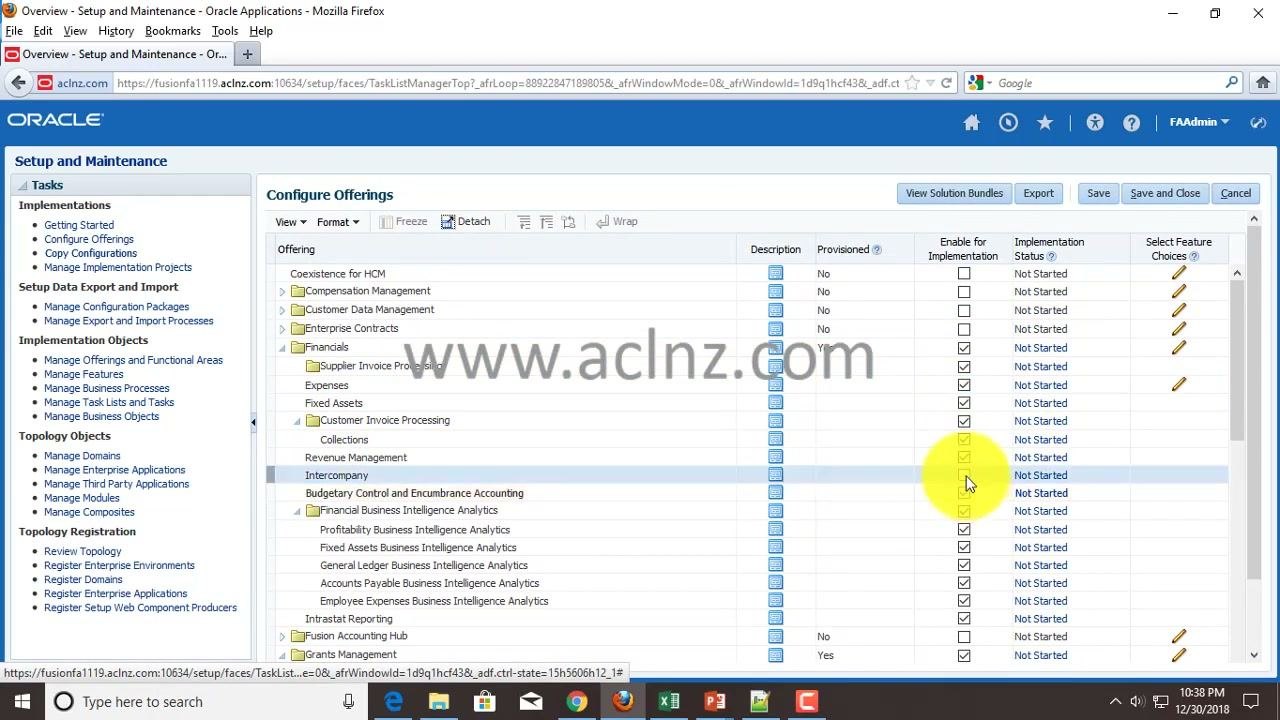
You can uncheck Enable for Implementation for an entire product family or for specific modules within a family if you don't want to implement them. For example, to exclude "Intercompany" from implementation, uncheck the box next to "Intercompany" under the Financials product family.
If you change your mind, check the box again to include the module or offering.
Review the remaining provisioned offerings
Scroll through the list to review the other provisioned offerings:
- "Grants Management" is provisioned, and all of its related modules are checked by default.
- Under "Procurement," the modules Self Service Procurement, Supplier Portal, Sourcing, Supplier Qualification, and Procurement Contracts are all checked by default.
- Offerings with Provisioned = No cannot be enabled for implementation.
Use the scroll bar on the right to move through the full list and verify your selections before you save. Review all enabled offerings and modules carefully to avoid configuration errors.
You can also use the pencil icon in the Select Feature Choices column to configure features for each offering. That task is covered separately.
Save your configuration
Click Save at the top right of the Configure Offerings page. Make sure that only provisioned offerings are enabled for implementation. The system does not allow you to save if non-provisioned offerings are enabled.
Export your configuration
After you save, you can export your configuration for record-keeping or future reference.
- Click Export at the top of the Configure Offerings page.
- In the export dialog, review the directory where the configuration file will be saved. The default directory is
/fusionapps/applications. - Confirm the directory and click OK.
The configuration is saved as a record in the specified directory on your Fusion Applications server. You can use the exported file for backup or auditing purposes.
Return to the Implementation Process
After you save or cancel your changes, exit the configuration screen. You return to the "Getting Started with Oracle Fusion Applications" dashboard.
Review the Implementation Process flow at the top of the dashboard to see where you are in the overall setup process:
- Plan (Getting Started)
- Configure (Configure Offerings)
- Implement (Manage Implementation Projects)
- Export and Import (Manage Configuration Packages)
- Transact
- Maintain (Perform Maintenance Tasks)
Summary
To enable offerings in Oracle Fusion, you open Setup and Maintenance, go to Configure Offerings, and review the provisioned offerings. You then choose which offerings and modules to enable for implementation, click Save, and optionally click Export to keep a record of your configuration.
Keep these points in mind:
- Only offerings with Provisioned = Yes can be enabled and saved for implementation.
- You can revisit and change your selections before you finalize your implementation project task list.
- Exporting your configuration is recommended for maintaining a record of your setup.
Generation details: cost, quality tiers
Docsie billed 3,500 credits ($2.45) to analyze this 7-minute video at standard quality. The rewrite, template fill and Word/PDF exports were included. The same video at each quality tier:
| Quality | Frames sampled | Credits | Approx. cost |
|---|---|---|---|
| Draft | every 16-30 s | 1,750 | $1.22 |
| Standard (this guide) | every 8-15 s | 3,500 | $2.45 |
| Detailed | every 4-7 s | 7,000 | $4.90 |
| Ultra | every 1-3 s | 14,000 | $9.80 |
Credits priced at $0.70 per 1,000; plans include a monthly allowance. Enterprise customers on on-premise or bring-your-own-model deployments run this on their own inference and pay no per-video credits.
Generated by Docsie Video-to-Docs on 2026-11-15 from a 6-minute video. Screenshots are frames from the source video and belong to their creator, GudPal Training, whose original is embedded above. If you own this video and want the guide removed or credited differently, contact us and we will act within one business day.