
How to Create a Value Set in Oracle Fusion
This guide shows you how to create a value set in Oracle Fusion for Self-Service Procurement. You define a character-based value set with a maximum length of 150, save it, confirm it appears in search, and check where it is used.
Video: How to create a Value Set in Oracle Fusion ERP Cloud? (on Release 20C) by GudPal Training (2021). All credit for the demonstration goes to the creator; watch the original on YouTube. The written guide below was generated from this video by Docsie. Creator? Request a change or removal.
This guide shows you how to create a value set in Oracle Fusion for Self-Service Procurement. You define a character-based value set with a maximum length of 150, save it, confirm it appears in search, and check where it is used.
In Oracle Fusion ERP Cloud, you can associate a value set with a functional area or application, such as Self-Service Procurement, Procurement, Sourcing, or Auto Management. You can then filter and search value sets by application, which makes them easier to find and manage. Oracle E-Business Suite does not tie value sets to an application, so this is a difference from that product.
Prerequisites
- You can log in to Oracle Fusion as a user with sufficient privileges, such as a super user.
- You know which module the value set belongs to. This guide uses
Self Service Procurement Common Components. - You know the length of the attribute column in your database table, because the value set code should reflect it.
Steps
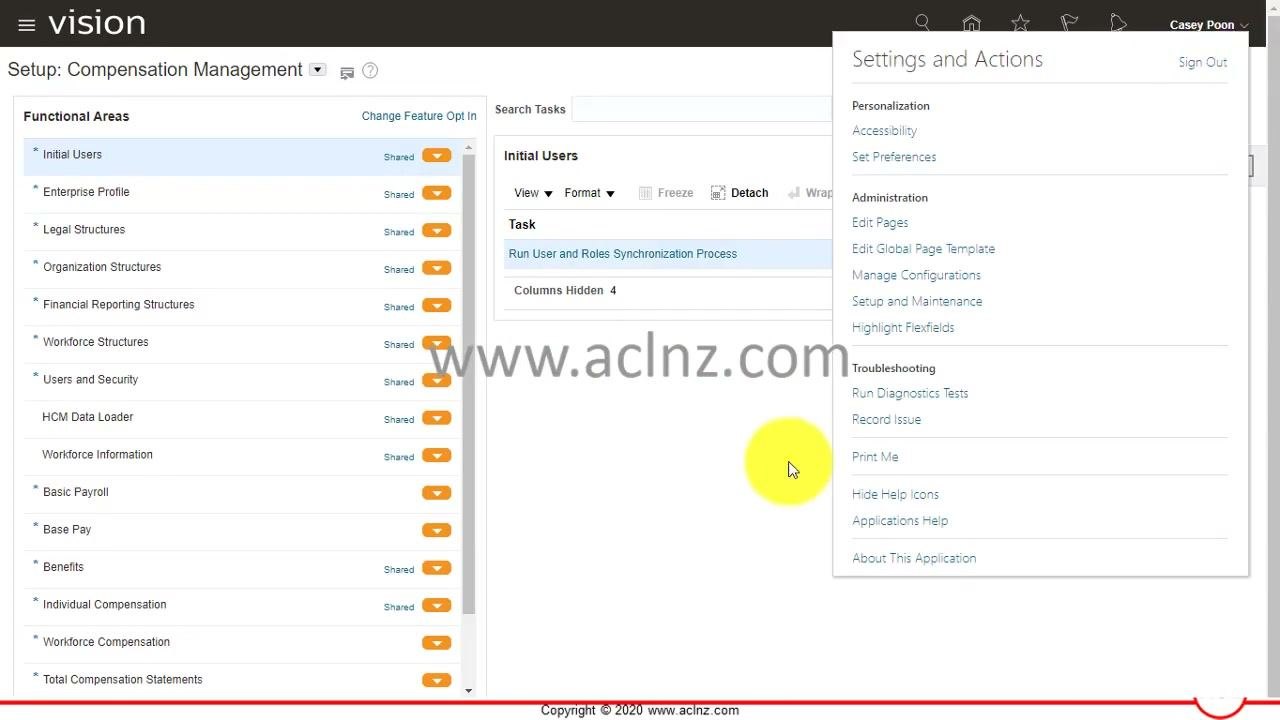
Open Setup and Maintenance
- From the Oracle Fusion home screen, open the navigation menu.
- Select Setup and Maintenance. This area lets you configure and manage application settings.
Switch to the Procurement functional area
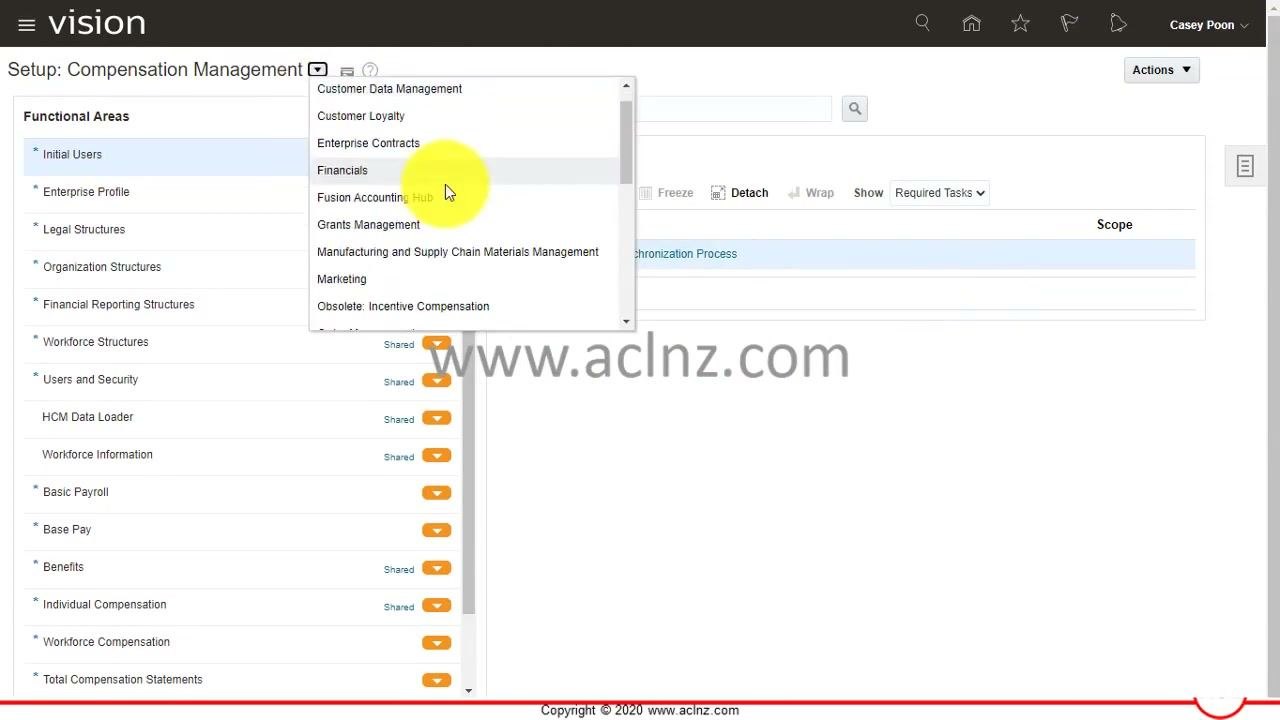
- In Setup and Maintenance, find the functional area dropdown at the top left of the screen.
- Open the dropdown and select Procurement.
Search for value set tasks
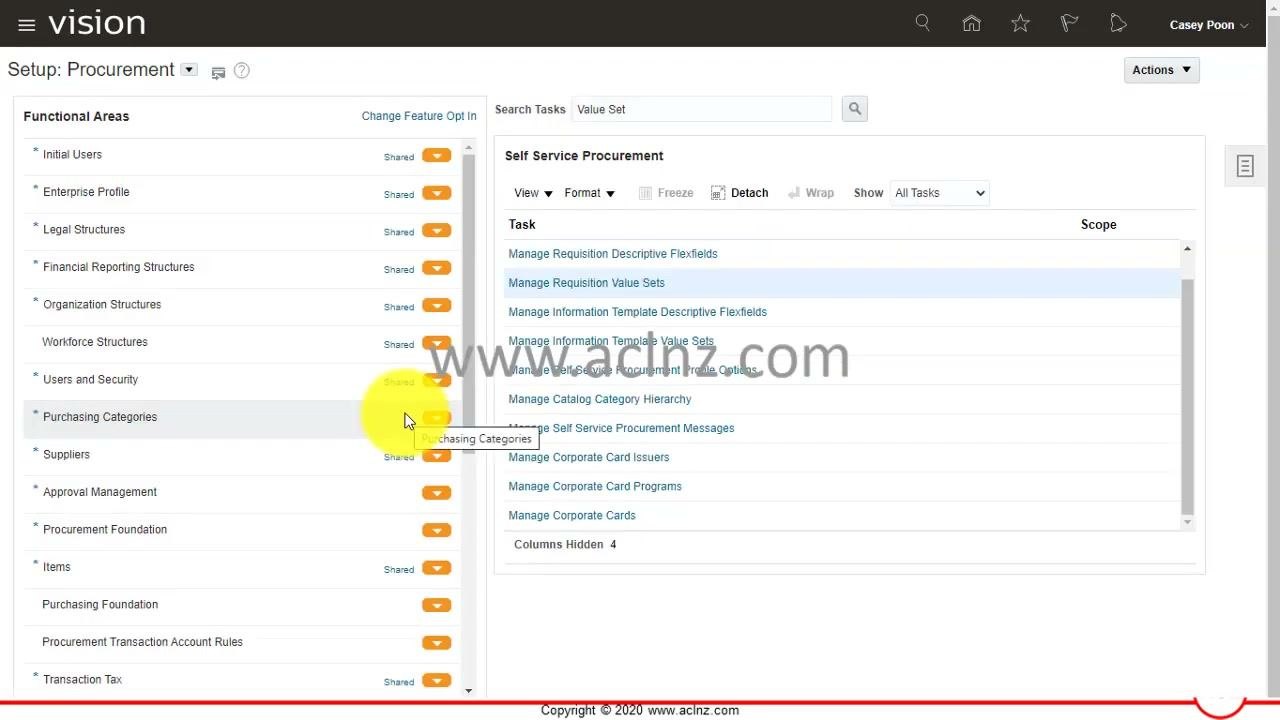
- In the Search Tasks field, enter
Value Set. - Review the results. They list value set management tasks grouped by application context, such as Financial Reporting Structures, Suppliers, Purchasing Foundation, and Self Service Procurement.
Select the Self-Service Procurement value set task
Self-Service Procurement offers two tasks, and either one can create a value set:
- Manage Requisition Value Sets
- Manage Information Template Value Sets
This guide uses Manage Information Template Value Sets. Select it to open its management screen.
Start a new value set
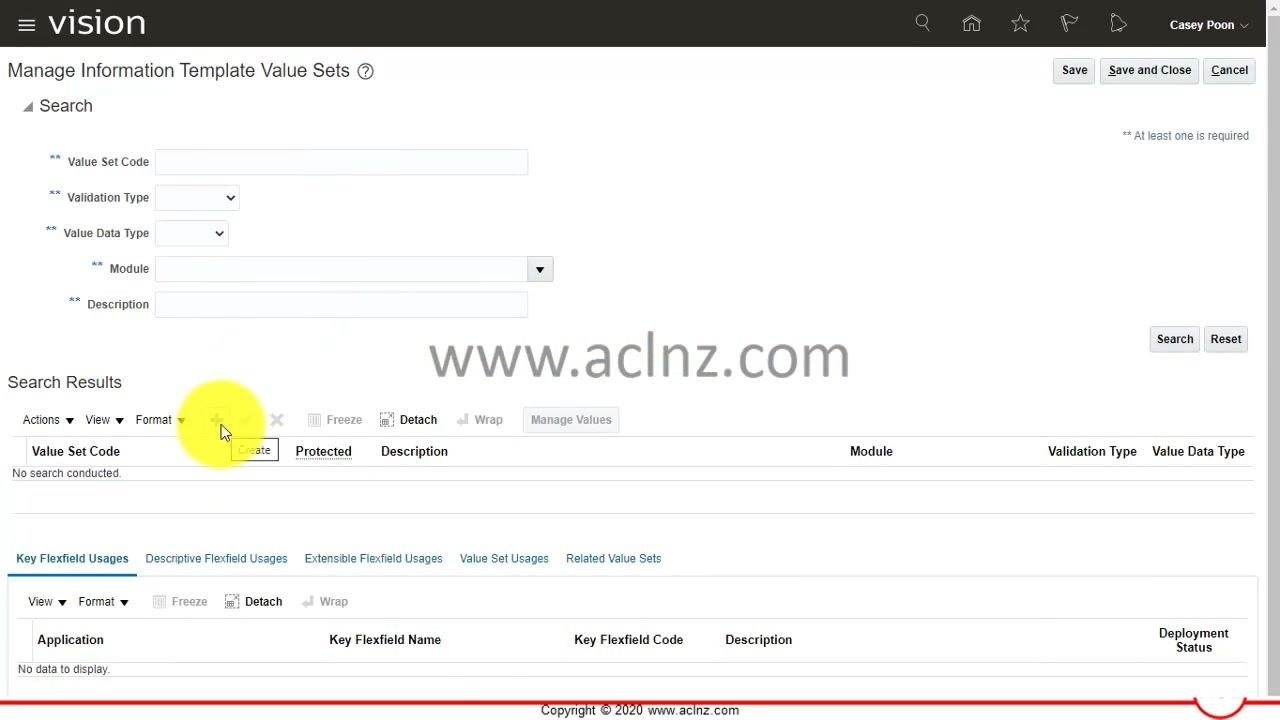
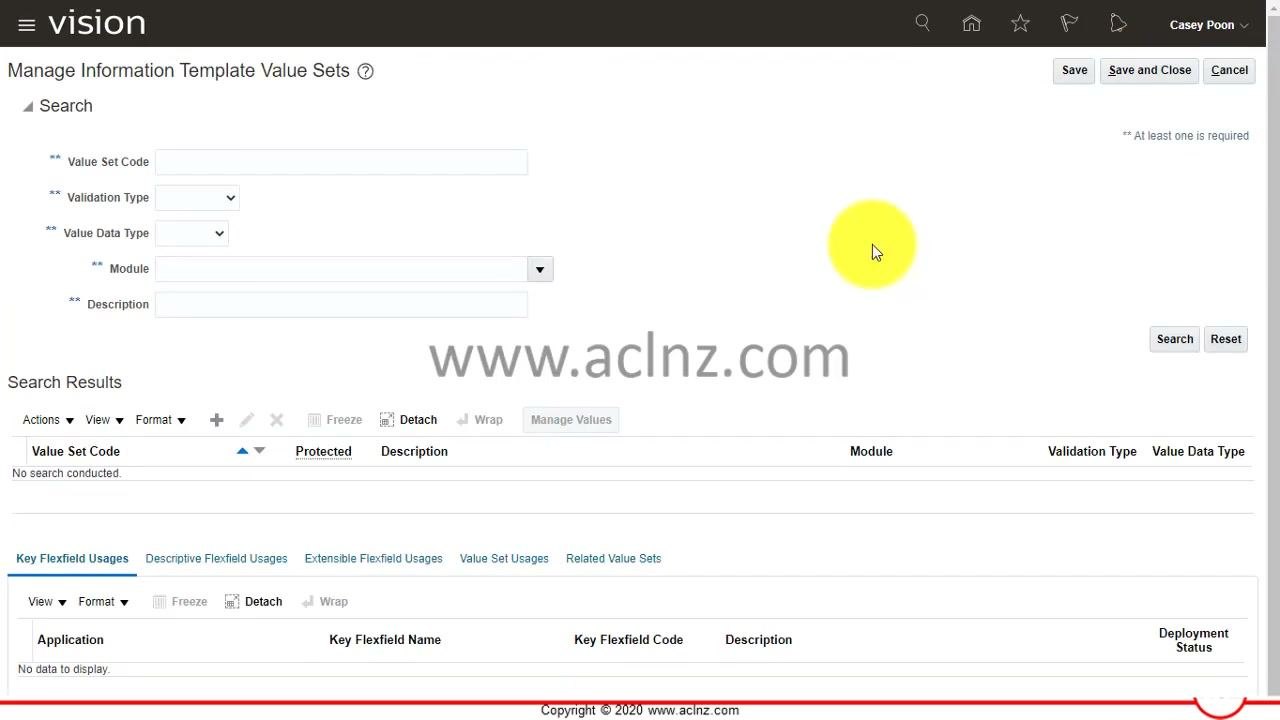
The management screen contains:
- A search panel with the fields Value Set Code, Validation Type, Value Data Type, Module, and Description.
- A results table for existing value sets.
- A toolbar with Actions, View, Format, and a plus (+) icon.
- Tabs for Key Flexfield Usages, Descriptive Flexfield Usages, Extensible Flexfield Usages, Value Set Usages, and Related Value Sets.
To create a value set, choose one of these methods. Both open the form for a new value set.
- Click the plus (+) icon above the results table.
- Open the Actions dropdown and select Create.
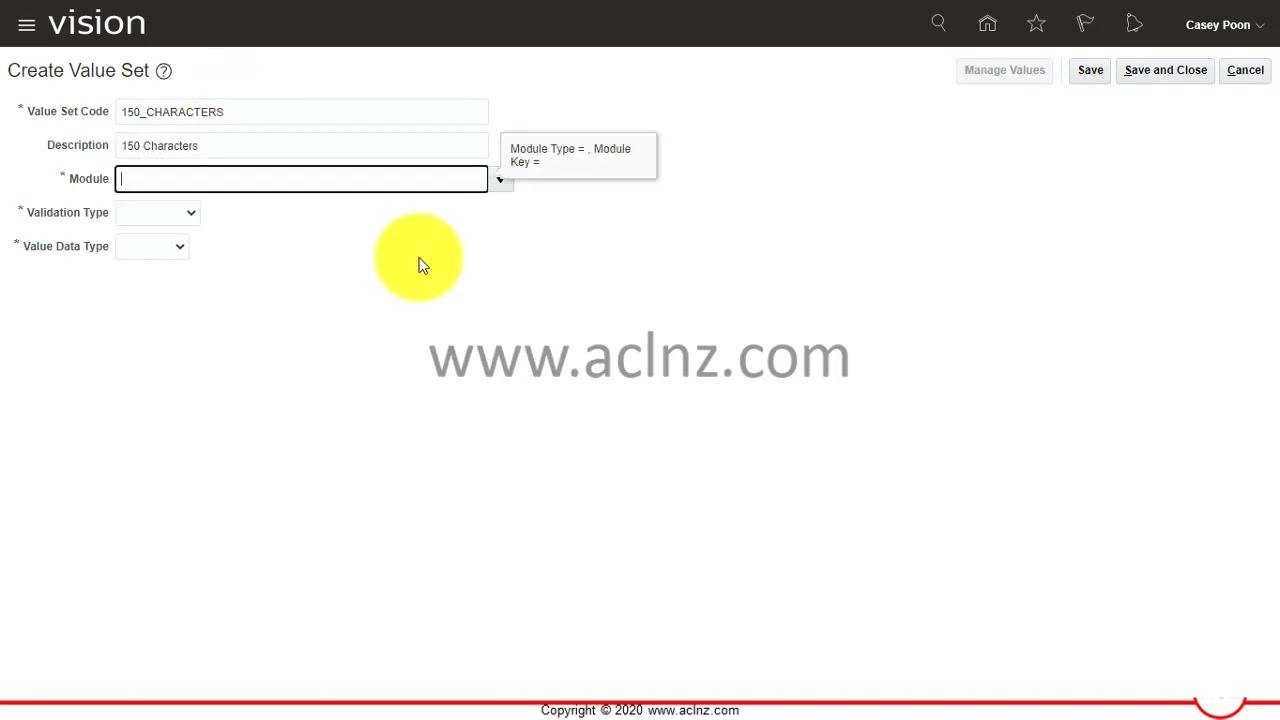
Enter the value set code and description
- In the Value Set Code field, enter a code that matches the length of the attribute column in your database table. You can expand the code for clarity. For example, enter
150_CHARACTERS. - In the Description field, enter a meaningful description, such as
150 Characters.
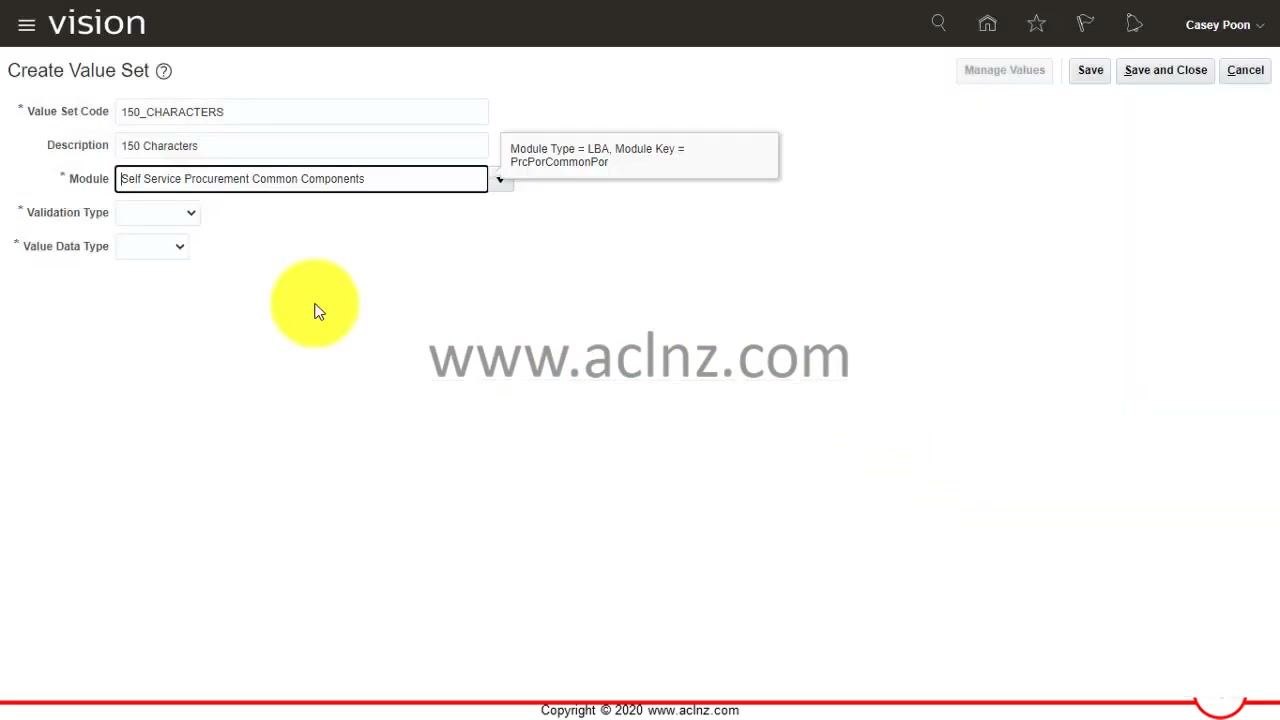
Associate a module with the value set
- Optionally, click the dropdown next to the Module field.
- In the module selection dialog, search for the module. For example, use the User Module Name search box.
- Select the module, such as
Self Service Procurement Common Components, and click OK.
Set the validation type, data type, subtype, and maximum length
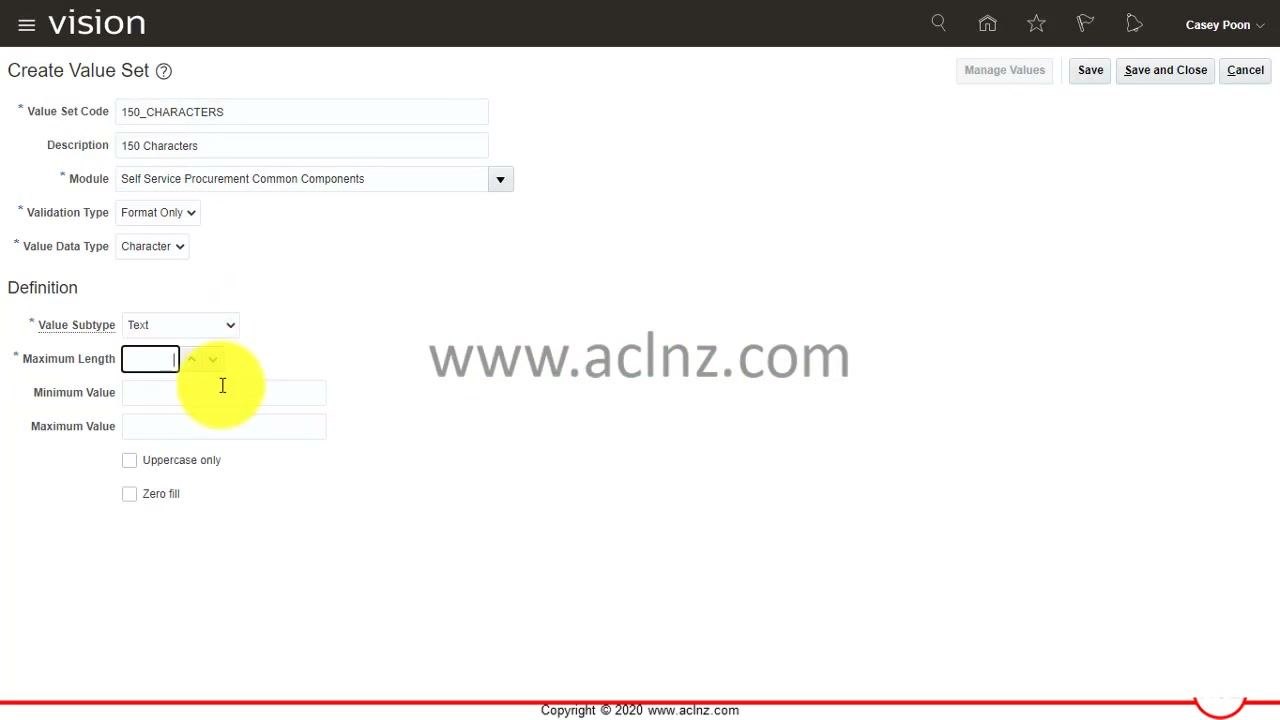
Configure the format of the value set:
- Set Validation Type to
Format Onlyif you do not want to store any values in this value set. - Set Value Data Type to
Character. - Set Value Subtype to
Text. - In Maximum Length, enter
150.
Set optional minimum, maximum, and zero fill options
- If needed, specify minimum and maximum values. This guide leaves them blank.
- To pad entered values with zeros up to the maximum length, select the Zero fill checkbox. This guide leaves it unchecked.
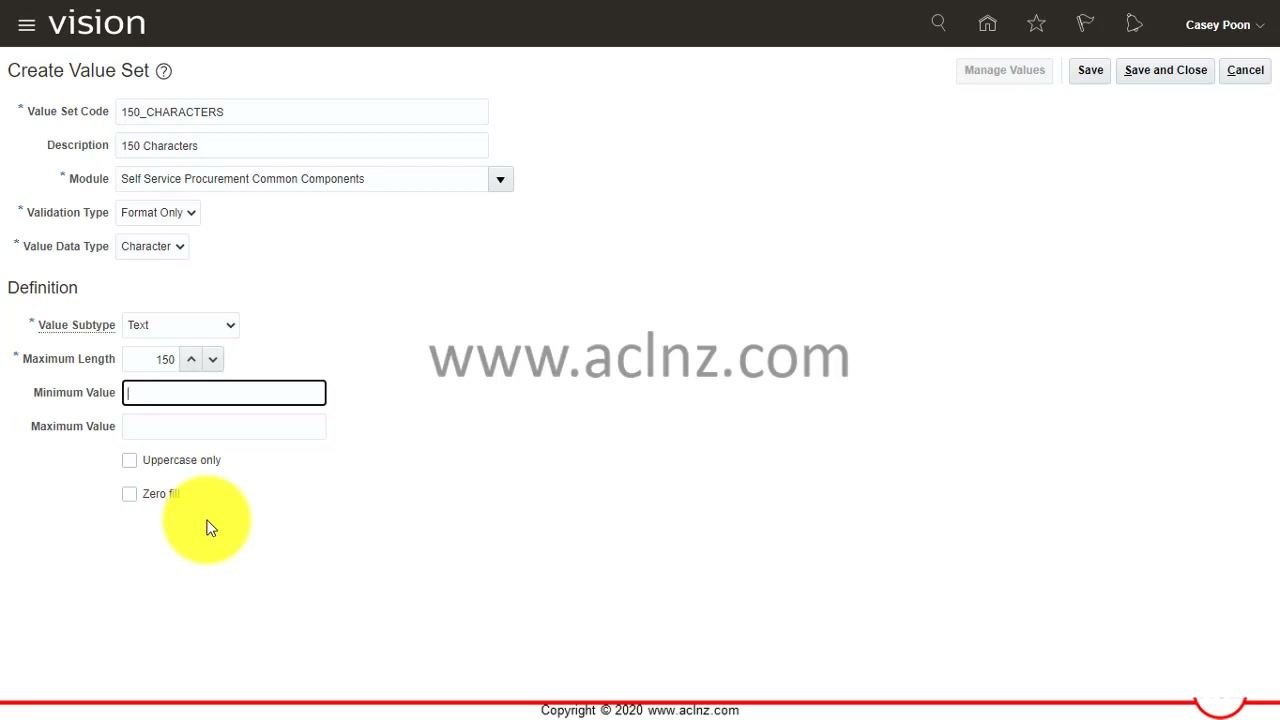
Review the value set configuration
Confirm that the Create Value Set screen shows these values:
- Value Set Code:
150_CHARACTERS - Description:
150 Characters - Module:
Self Service Procurement Common Components - Validation Type:
Format Only - Value Data Type:
Character - Value Subtype:
Text - Maximum Length:
150 - Minimum Value: blank
- Maximum Value: blank
- Uppercase only: unchecked
- Zero fill: unchecked
Save the value set
Choose one of these options:
- Click Save to save your work and stay on the form.
- Click Save and Close to save the value set and exit the form.
- Click Cancel to discard your changes.
You cannot manage values for the value set until you save it.
Verify that you created the value set in Oracle Fusion
Return to Manage Information Template Value Sets
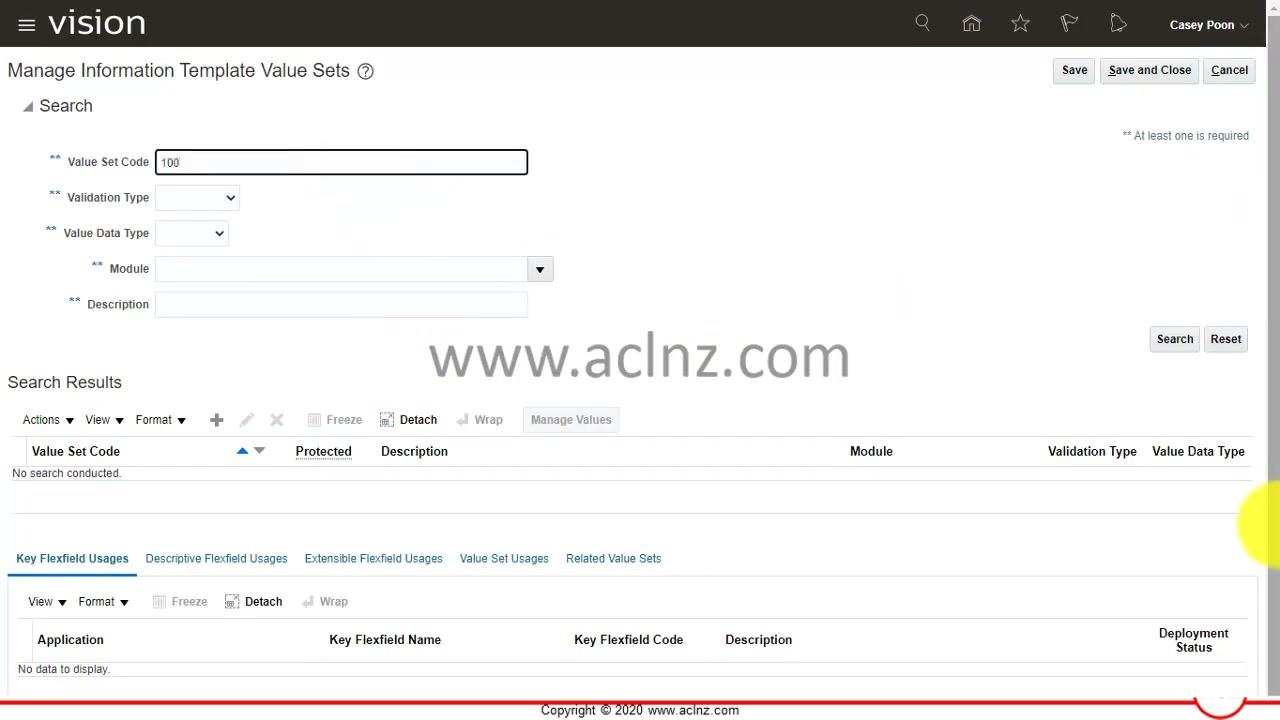
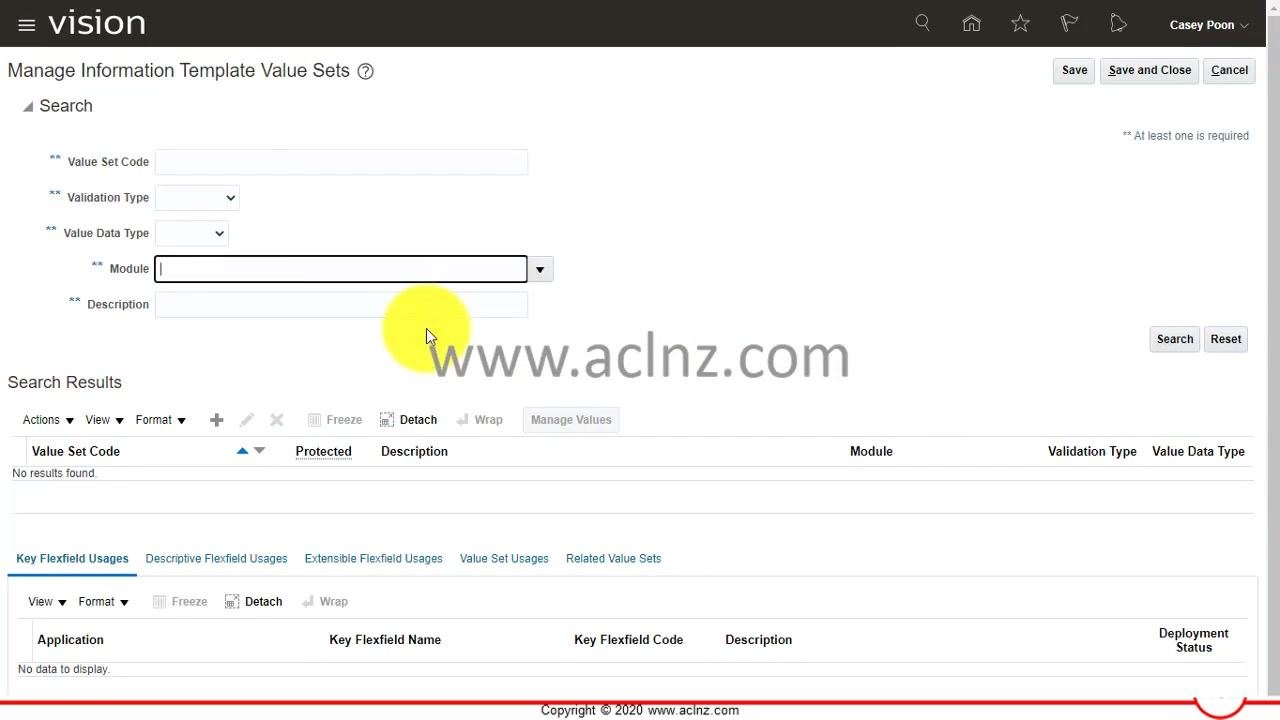
After saving, go to the Manage Information Template Value Sets screen. Use its search panel to confirm that your new value set exists. The results area is empty until you run a search.
Search by value set code
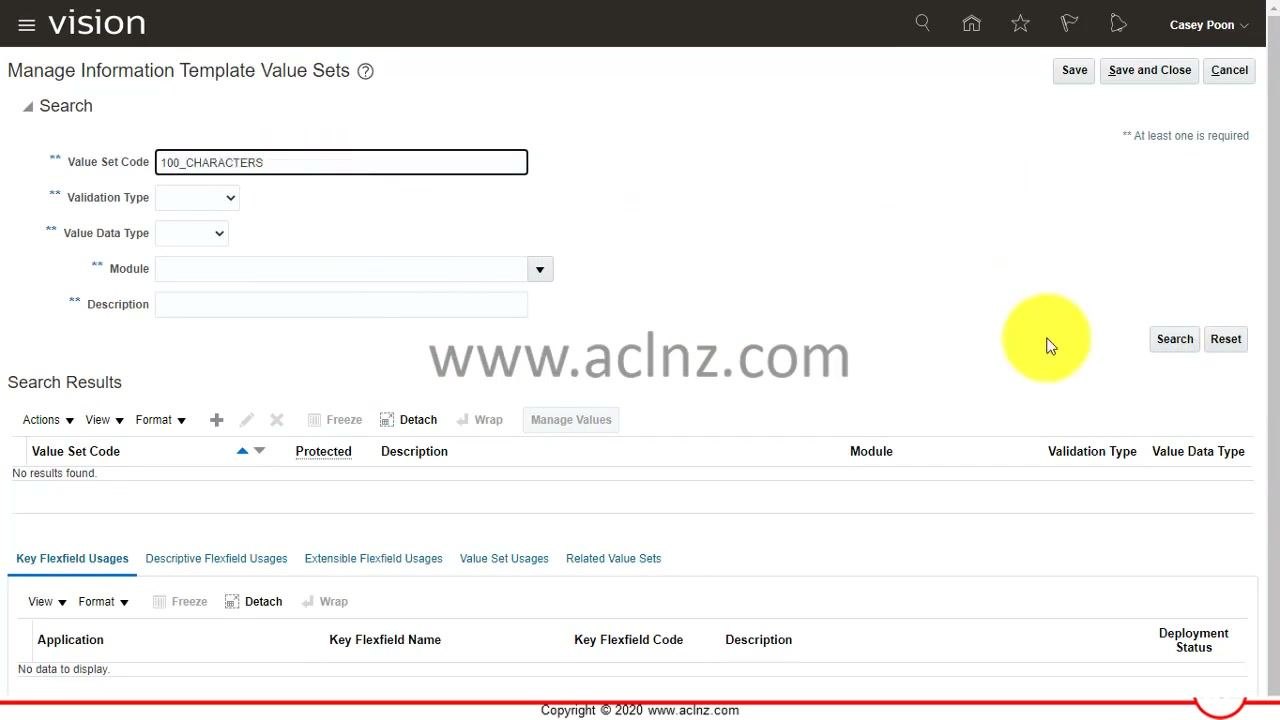
- In the Value Set Code field, enter the code you want to find, such as
100or100_CHARACTERS. - Click Search.
- If no results appear, adjust your search criteria.
Use wildcards or a partial code
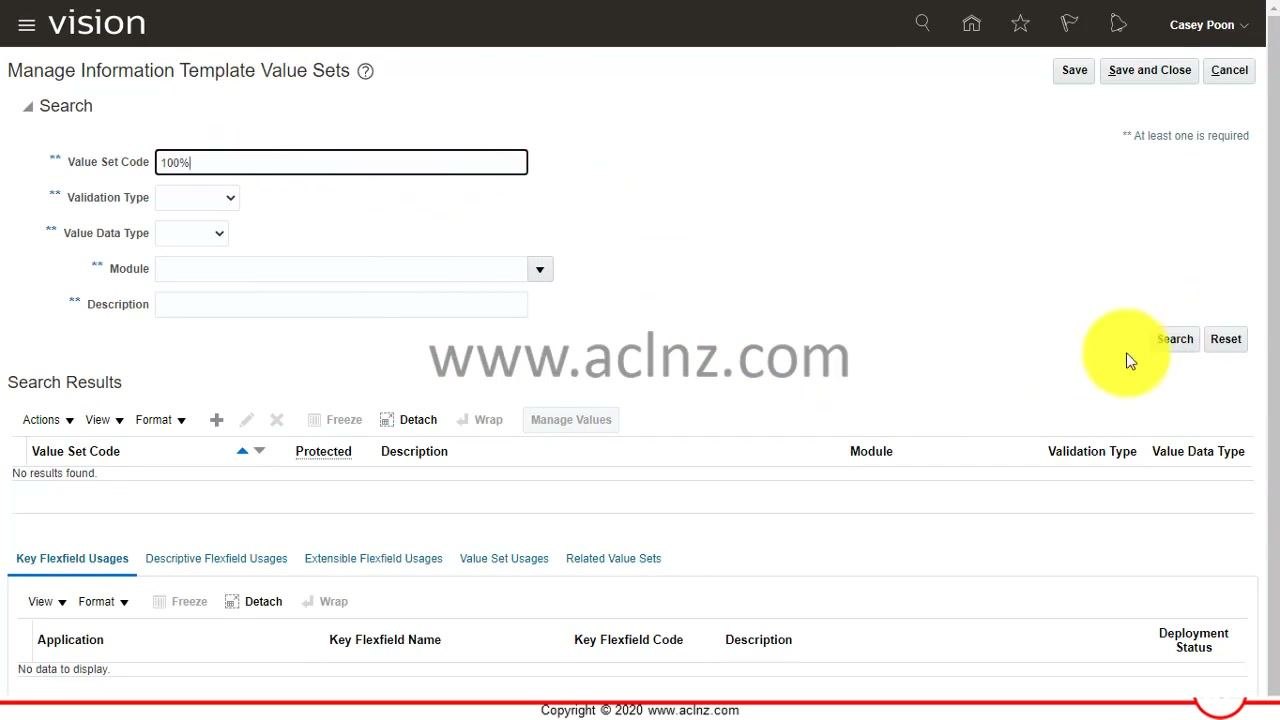
If an exact code returns nothing, try a wildcard such as 100% or a partial code. Click Search again to refresh the results.
Search by module
If you still do not see the value set, use the Module dropdown to select or enter Self Service Procurement Common Components. This narrows the search to value sets associated with that module.
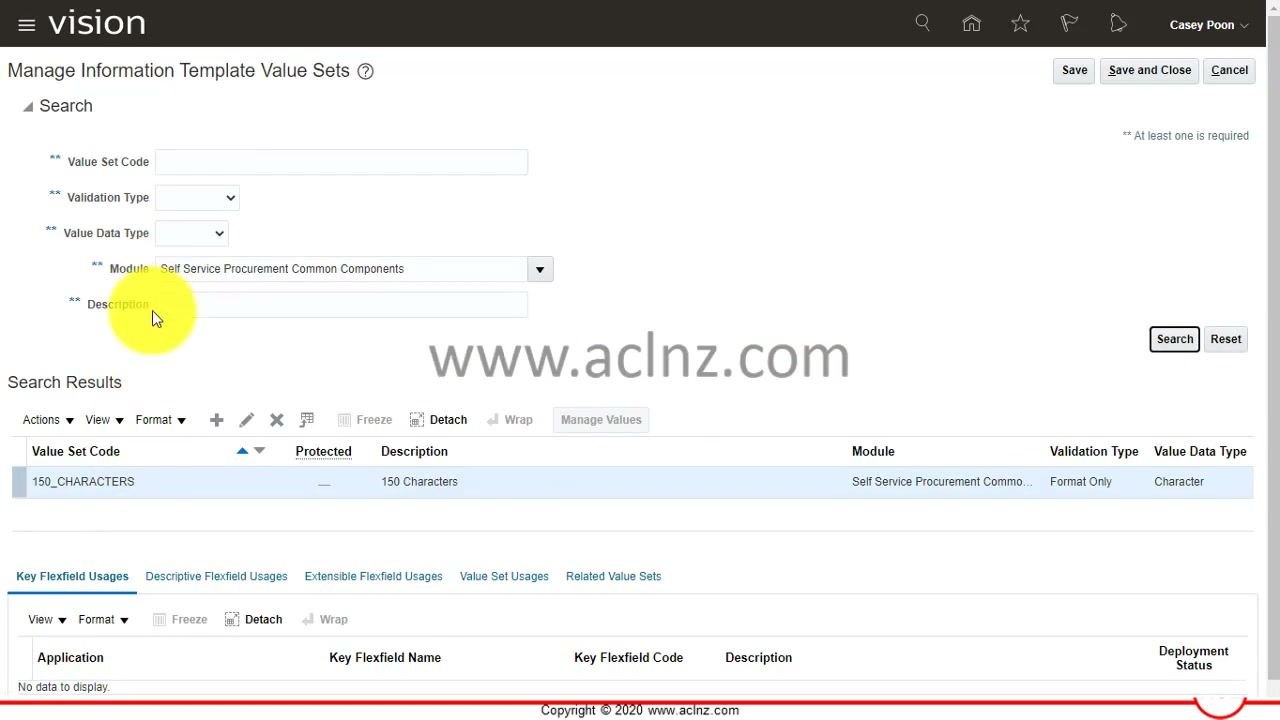
Confirm the value set in the results
Check that your value set appears with these details:
- Value Set Code:
150_CHARACTERS - Description:
150 Characters - Module:
Self Service Procurement Common Components - Validation Type:
Format Only - Value Data Type:
Character
This confirms that the value set was created and is available in the system.
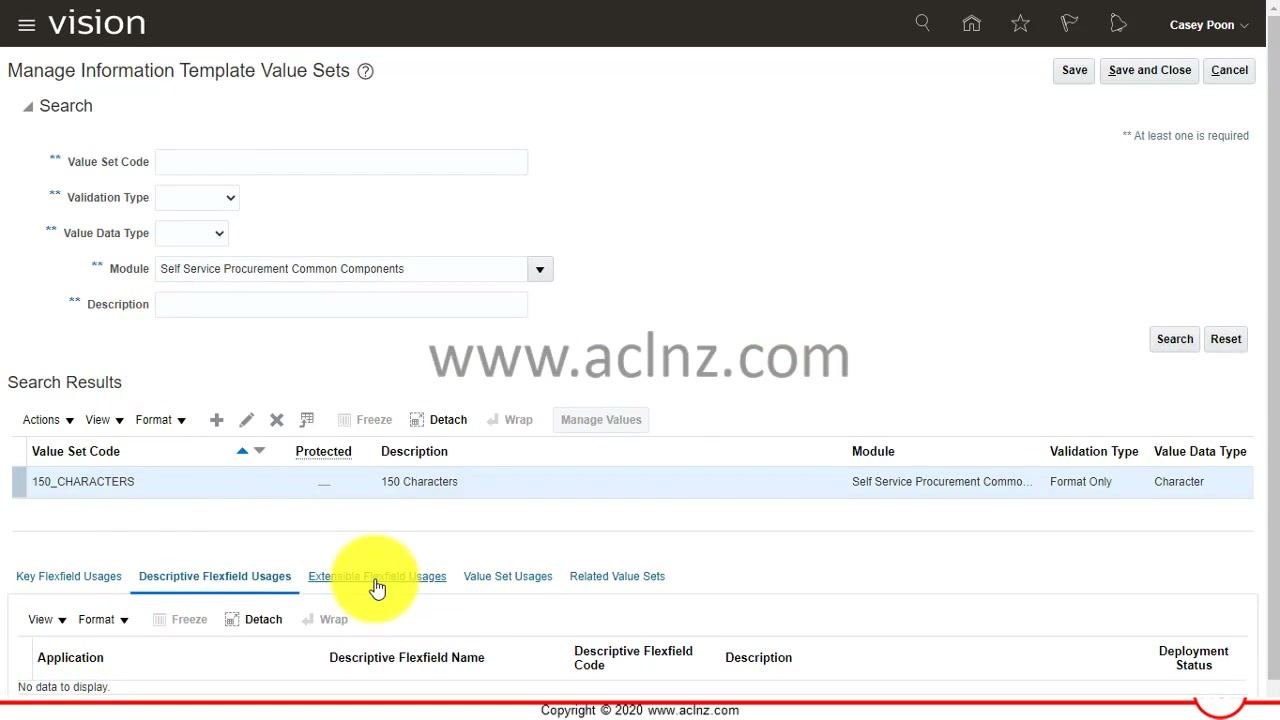
Review value set usages
- Select
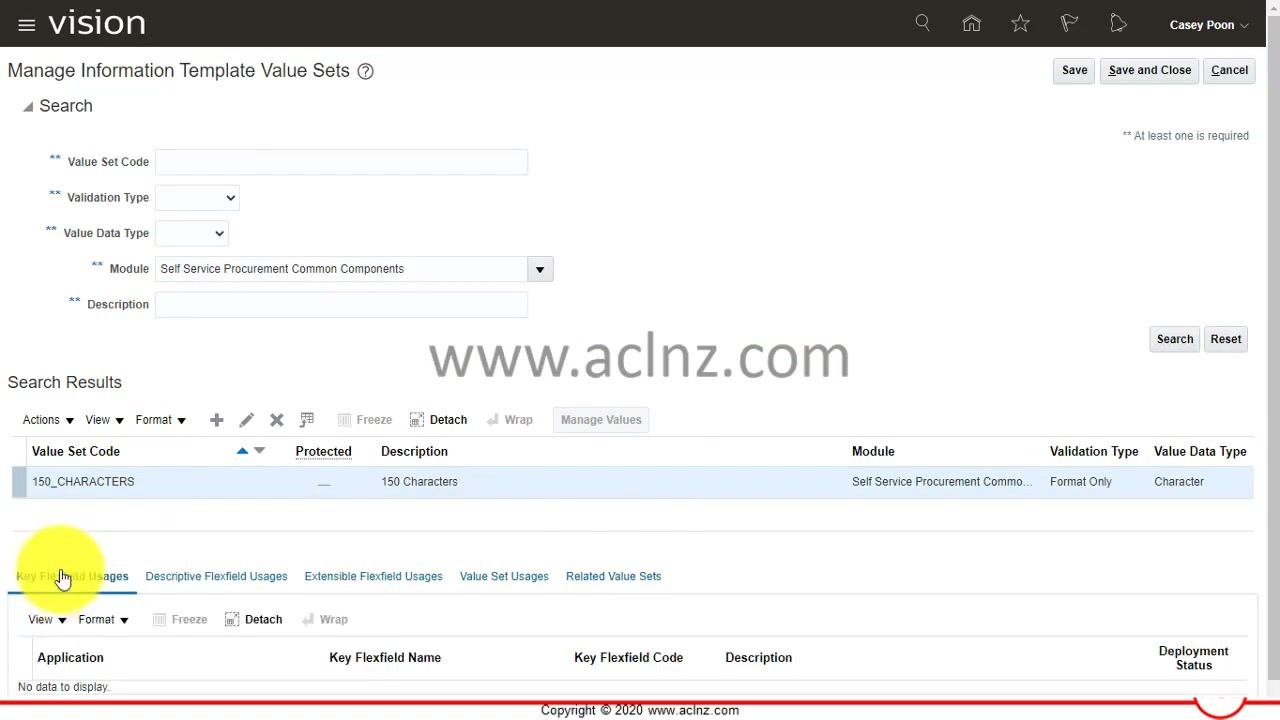
150_CHARACTERSin the search results. - Review the tabs in the lower section: Key Flexfield Usages, Descriptive Flexfield Usages, Extensible Flexfield Usages, Value Set Usages, and Related Value Sets.
- The Key Flexfield Usages tab is active by default. It shows columns for Application, Key Flexfield Name, Key Flexfield Code, Description, and Deployment Status.
Every usage tab shows "No data to display". This means the value set is not yet used in any flexfield or related value set.
If the value set is used later, its usages appear in the matching tab, such as Key Flexfield Usages or Descriptive Flexfield Usages.
Check usage before you disable or delete a value set
Before you disable or delete a value set, check where it is used in Oracle Fusion. If a Key Flexfield, Descriptive Flexfield, or any other field uses the value set, you cannot disable or delete it until you remove those associations. Disabling a value set that is still in use can cause errors in the fields or flexfields that reference it.
To disable a value set safely:
- Identify all usages with the Key Flexfield Usages, Descriptive Flexfield Usages, and other usage tabs at the bottom of the management screen.
- Remove the value set from all associated fields or flexfields.
- Disable or delete the value set.
Tips
- Always provide a meaningful description so others can identify the value set's purpose.
- Double-check your Module, Validation Type, and Value Data Type selections against your business requirements.
What's next
You can now configure specific validation rules, or use the value set in flexfields and other application components as needed.
Summary
You created a character-based value set named 150_CHARACTERS for Self-Service Procurement. You set it to Format Only validation with a Text subtype and a maximum length of 150, and saved it. You then found it by searching on the Manage Information Template Value Sets screen and confirmed it has no usages yet. Before you disable or delete a value set later, check its usages and remove any associations first.
Generation details: cost, quality tiers
Docsie billed 5,000 credits ($3.50) to analyze this 10-minute video at standard quality. The rewrite, template fill and Word/PDF exports were included. The same video at each quality tier:
| Quality | Frames sampled | Credits | Approx. cost |
|---|---|---|---|
| Draft | every 16-30 s | 2,500 | $1.75 |
| Standard (this guide) | every 8-15 s | 5,000 | $3.50 |
| Detailed | every 4-7 s | 10,000 | $7.00 |
| Ultra | every 1-3 s | 20,000 | $14.00 |
Credits priced at $0.70 per 1,000; plans include a monthly allowance. Enterprise customers on on-premise or bring-your-own-model deployments run this on their own inference and pay no per-video credits.
Generated by Docsie Video-to-Docs on 2026-11-15 from a 9-minute video. Screenshots are frames from the source video and belong to their creator, GudPal Training, whose original is embedded above. If you own this video and want the guide removed or credited differently, contact us and we will act within one business day.