
How to Update Item Cost in Oracle EBS
This guide shows you how to update item cost in Oracle EBS (Oracle Applications) using the Average Cost Update function. You select the organization, set the accounting flexfield, review the current cost elements, enter new values, and monitor the cost update request. You then confirm the new cost in the Item Costs Details window.
Video: How to Update Item Cost | Oracle EBS R12 by PressureJet Oracle Learning Videos (2024). All credit for the demonstration goes to the creator; watch the original on YouTube. The written guide below was generated from this video by Docsie. Creator? Request a change or removal.
This guide shows you how to update item cost in Oracle EBS (Oracle Applications) using the Average Cost Update function. You select the organization, set the accounting flexfield, review the current cost elements, enter new values, and monitor the cost update request. You then confirm the new cost in the Item Costs Details window.
Prerequisites
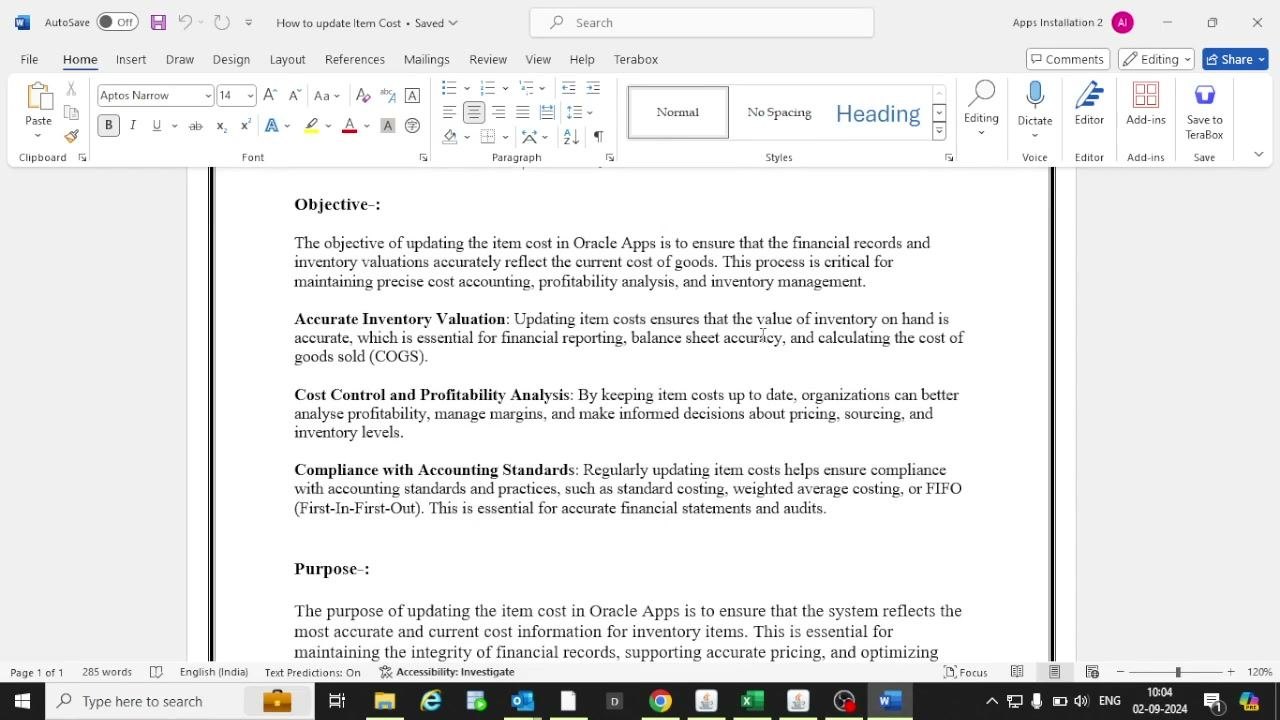
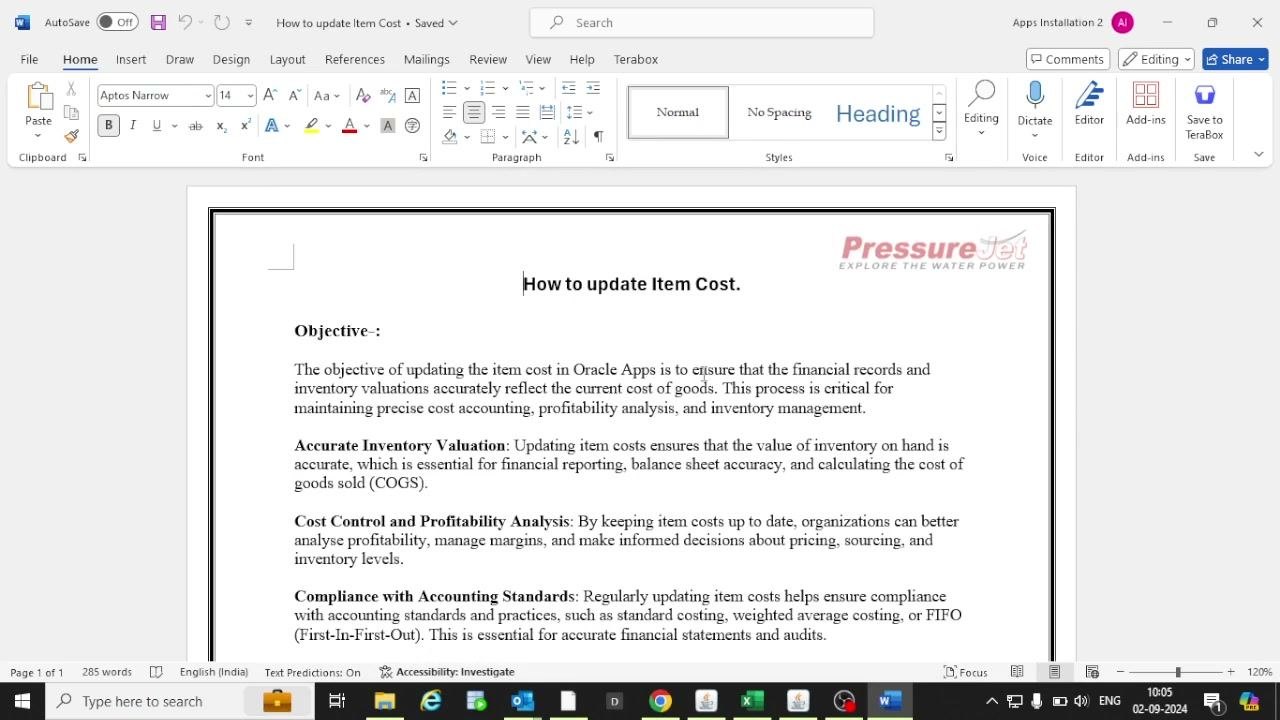
Before you update an item cost, understand why you are making the change. Keeping item costs accurate supports the following goals:
- Accurate inventory valuation: The value of inventory on hand must be correct for financial reporting, balance sheet accuracy, and cost of goods sold (COGS) calculations.
- Cost control and profitability analysis: Current item costs help you analyze profitability, manage margins, and make informed decisions about pricing, sourcing, and inventory levels. You can manage cost control by updating the cost manually as needed.
- Compliance with accounting standards: Regular updates support practices such as standard costing, weighted average costing, or FIFO (First-In-First-Out). They also support accurate financial statements and audits.
- Correction of system or user issues: System issues or user errors can make item costs increase or decrease. Analyze these fluctuations and update the item cost to maintain accuracy.
You also need:
- Access to the Cost Management Super User responsibility in Oracle Applications.
- The item code of the item you want to update.
- The account details for the accounting flexfield.
Open the Average Cost Update form
Step 1: Open the Average Cost Update function
- Open Oracle Applications.
- In the Navigator, select the Cost Management Super User responsibility.
- Expand Item Costs.
- Under Update Costs, select Average Cost Update.
- Click Open to launch the Average Cost Update form.
Step 2: Select the organization
In the Organizations dialog, choose the organization whose item cost you want to update. For example, select AVT - AXAR VATVA Organization. Click OK to confirm.
Step 3: Set the update parameters
In the Update Average Cost window, make sure these fields are set:
- Date: 02-SEP-2024 10:11:40
- Type: Average cost update
In the Defaults section, set Adjustment Acct as required.
Set the adjustment account
Step 4: Enter the accounting flexfield for the cost update
In the PJSPL_ACCOUNTING_FLEXFIELD dialog, enter the following values:
- Company: 1 (PressureJet Systems Pvt. Ltd.)
- Location: 01 (Ahmedabad - VTV Mfg)
- Department: 000 (Default)
- Account: Use the search to select the appropriate account. For example, search for "cost" and select the relevant account.
- Product Division/Business Line: 00 (Default)
- Future1/Future2: 000 (Default)
Click OK to proceed.
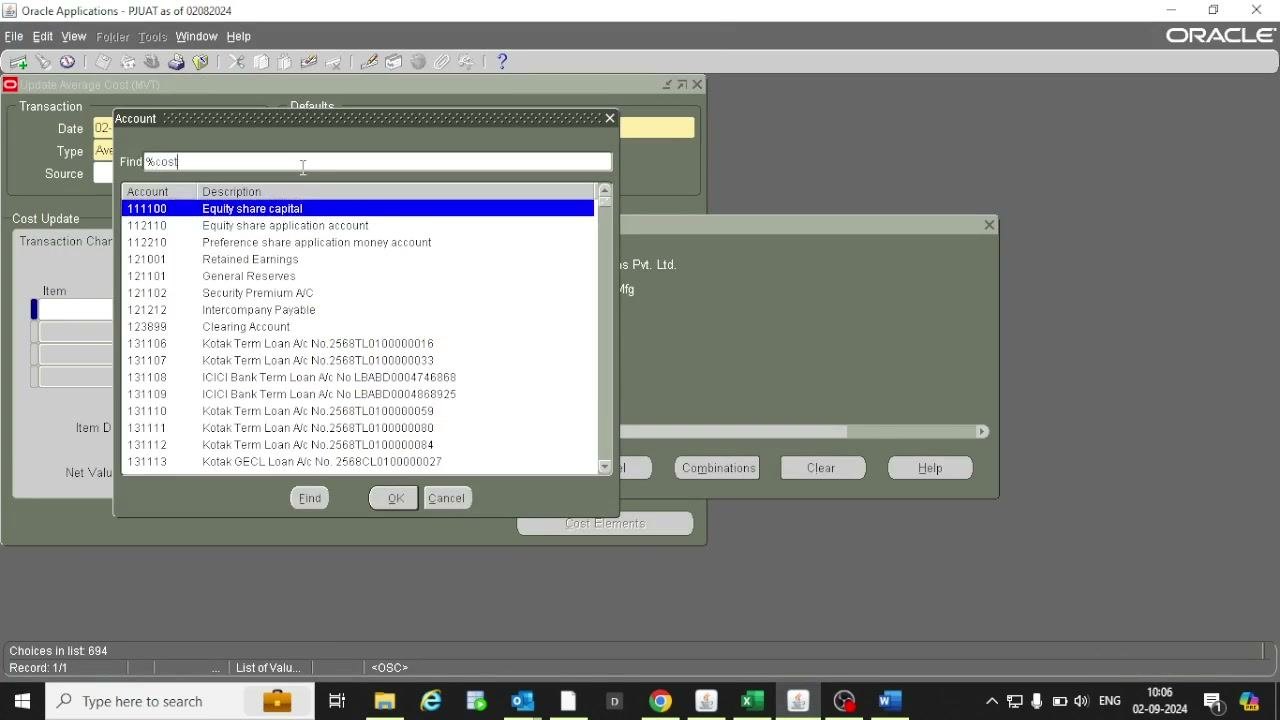
Step 5: Select the account for the cost update
- In the Account dialog, use the search bar to filter accounts. For example, enter
%cost%. - Select the appropriate account from the list. For example, select COJ.
- Click OK to confirm.
Review the current item cost
Step 6: Enter the item code and cost group
In the Cost Update section, enter the item code of the item you want to update. For example, enter O.FV.FOV-30.
The Cost Group (for example, CG-1006) populates automatically. Make sure the correct account code appears in the Adjustment Acct field. Perform the transaction according to the person's account.
Step 7: Open the cost elements
Click the three dots next to the Cost Group field to open the Cost Elements window.
Step 8: Review and analyze the cost elements
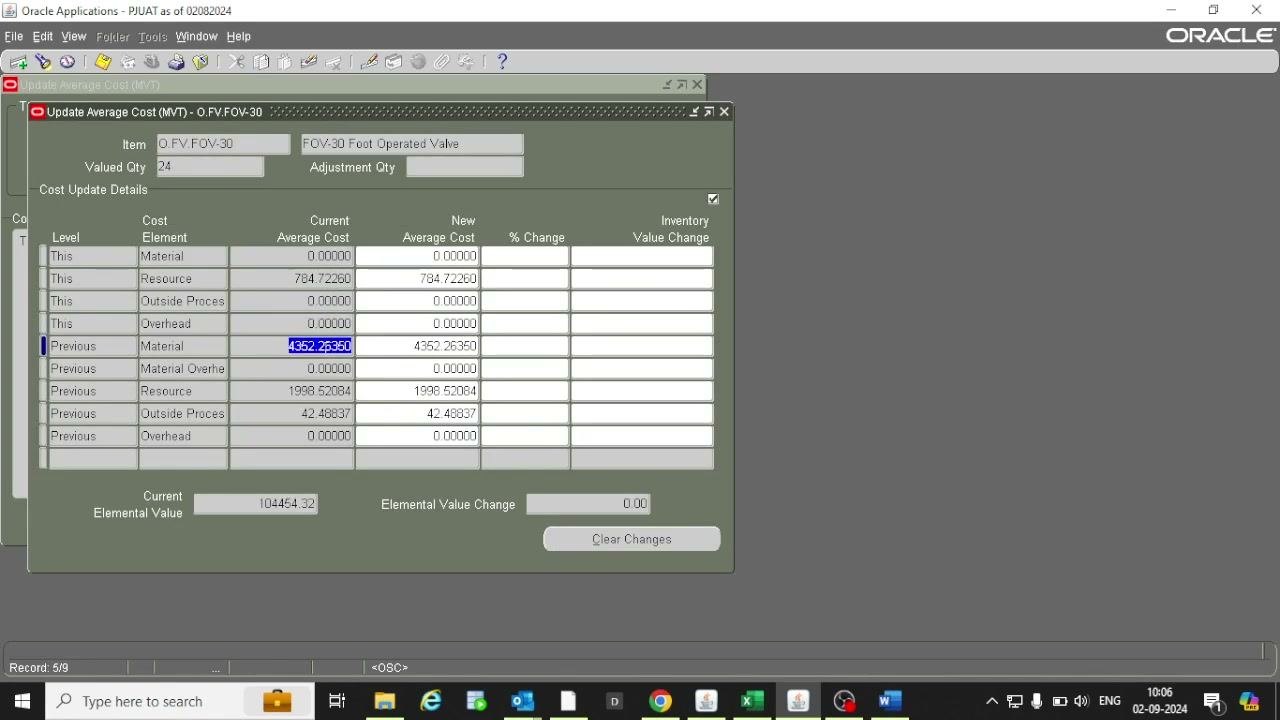
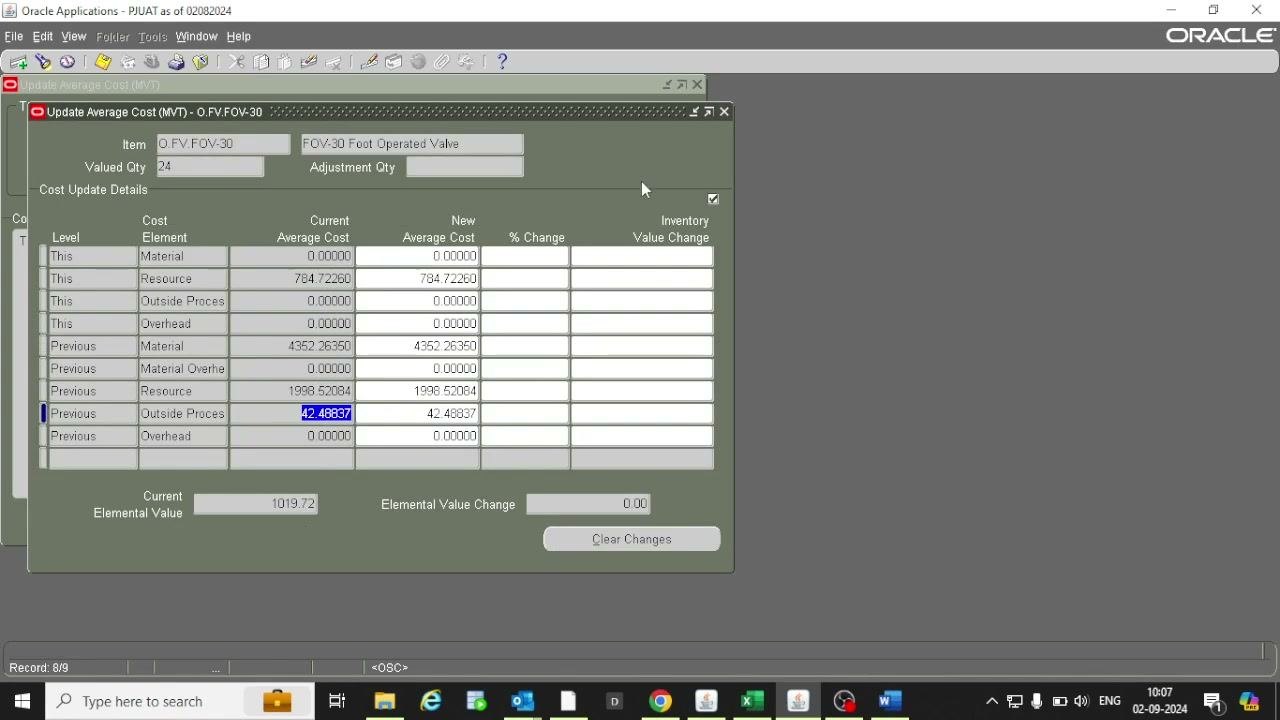
In the Cost Update Details window, review the breakdown of cost elements for the item:
- Material
- Resource
- Outside Processing
- Overhead
- Material Overhead
Check the Current Average Cost for each element. In this example, the values are:
- Material: 4352.26350
- Resource: 1996.52084
- Outside Process: 42.48837
- Overhead: 0.00000
The Current Elemental Value appears at the bottom. In this example, it is 10454.32.
Step 9: View the detailed item cost information
Open the Item Costs Details window to see a summary of all cost components and accounts. In this example, you see:
- Material: 4352.26350
- Resource: 2783.24344
- Outside Processing: 42.48837
- Unit Cost: 7177.99531
- COGS Account: 1.01.000.413001.HH.000.000
- Sales Account: 1.01.000.313101.HH.000.000
- Quantity: 24
- Extended Value: 172271.89
Confirm all details before you update the cost.
Update the average cost
Step 10: Update the cost elements
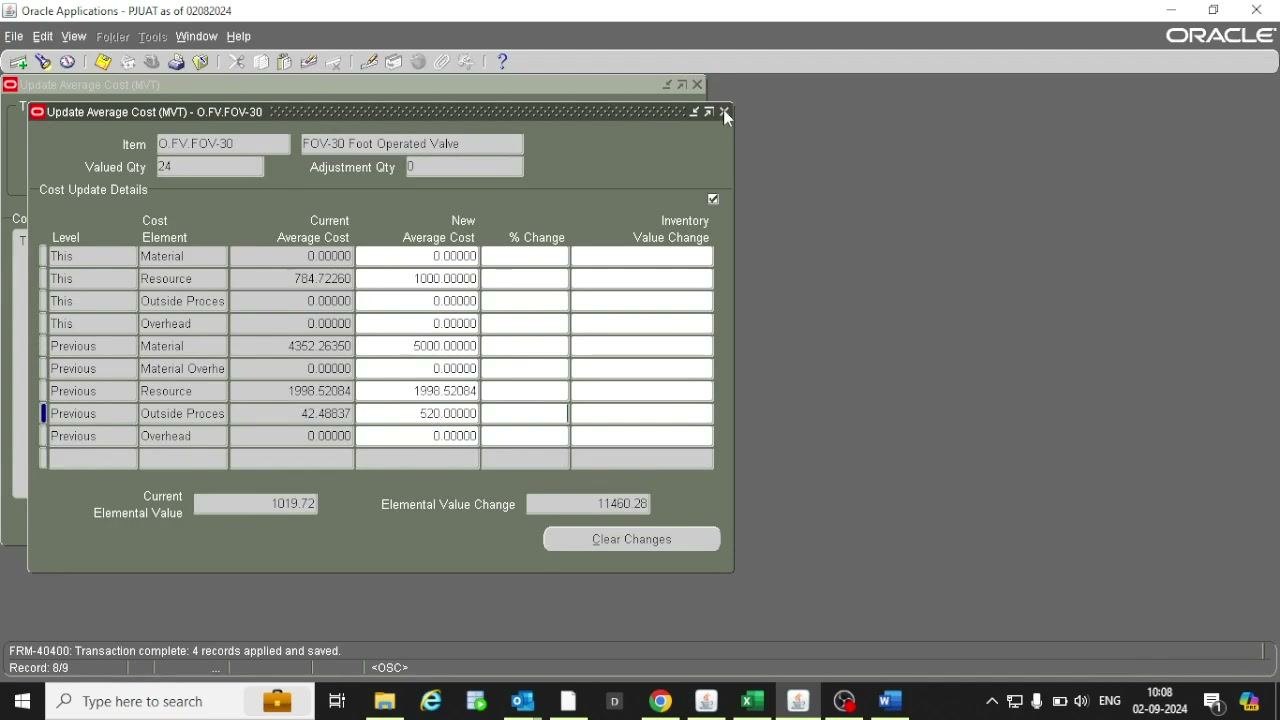
Go to the cost segment section in the Update Average Cost window. Enter the new values for each cost element you want to change. In this example:
- Increase the Resource cost to 200.
- Increase the Resource cost further to 1000.
- Increase the Material cost to 5000.
- Increase the Outside Process cost to 500.
The Elemental Value Change updates as you enter each value. The new total cost now reflects 10,908 rupees.
Step 11: Add an additional cost to round the total
Enter an additional 20 rupees in the appropriate cost element to round the total. Make sure the final value (for example, 520) is entered so the total cost is a round figure.
Step 12: Save and close the cost update window
- Click to save the changes.
- Close the Update Average Cost window.
- If prompted, copy the item details as needed before you close the window.
Monitor the cost update request
Step 13: Check the status of the cost update request
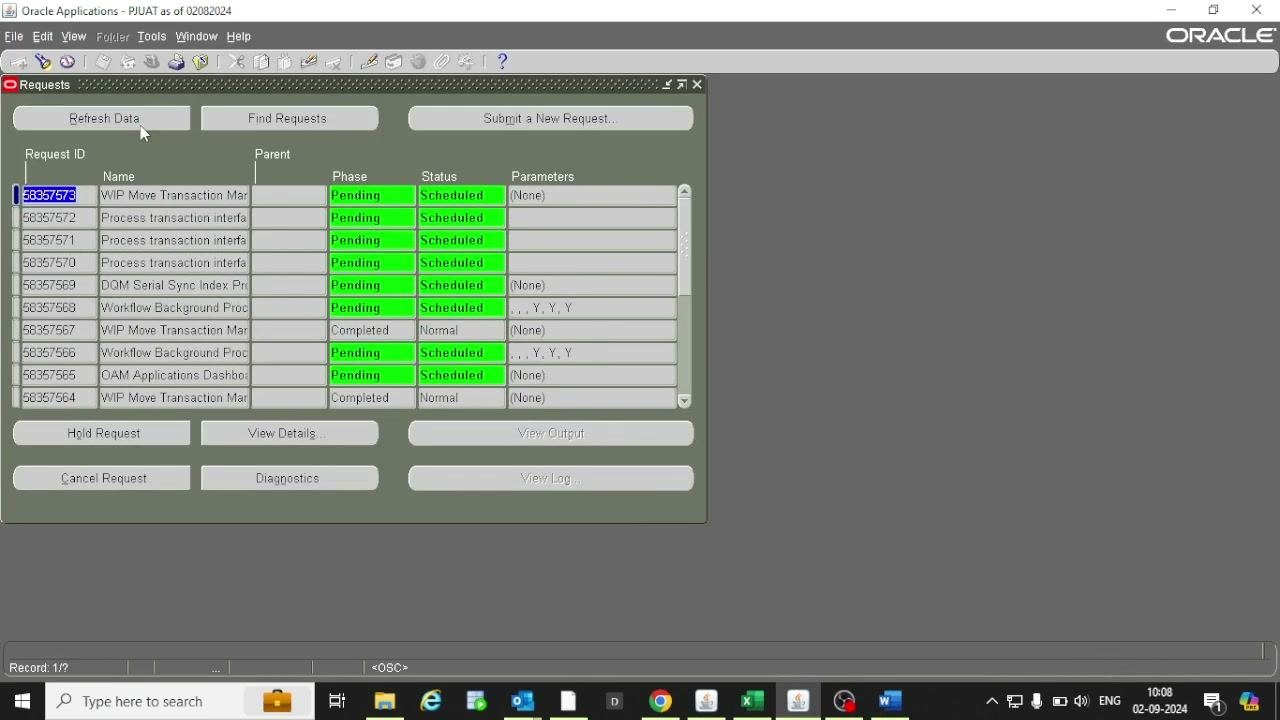
Open the Requests window to monitor your cost update request. Locate it by Request ID or name (for example, "Process transaction interface"). Check the Phase and Status columns:
- Pending and Scheduled indicate the request is in progress.
- Completed and Normal indicate the request has finished.
Click Refresh Data to update the status.
Step 14: Verify the updated item cost
When the request is completed, return to the item cost inquiry screen. Confirm that the new cost appears. In this example, the item cost changes from 7,000+ to 7,117, or to the updated value. Make sure the costing process is marked as "concurrent" and the update is successful.
Submit and monitor a Cost Manager request
Step 15: Submit a new request to the host manager
- Click Submit a New Request... at the top of the Requests window.
- In the Submit Request dialog, enter the request details.
- In the Name field, type a search string such as
cost%to filter the available programs. - From the filtered list, select Cost Collection Manager or the appropriate cost-related program (for example, Cost Manager).
- Click OK to proceed.
The application column shows Bills of Material for cost-related programs.
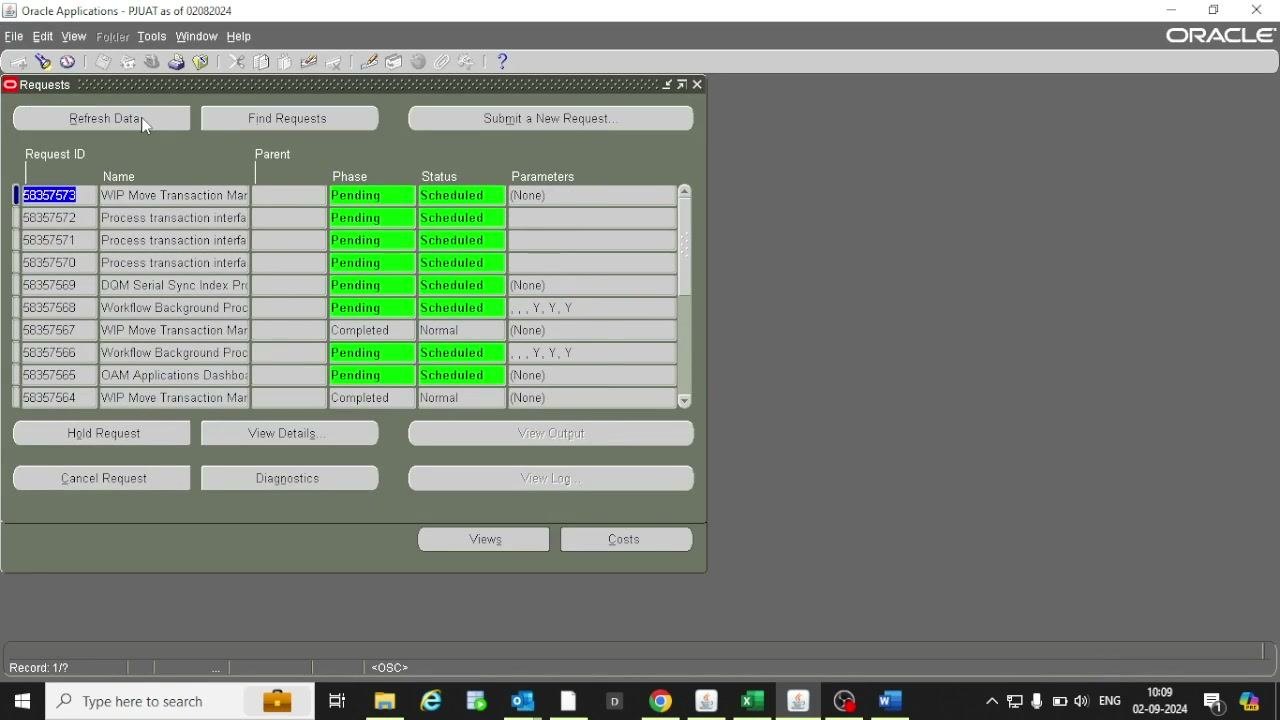
Step 16: Monitor the submitted request
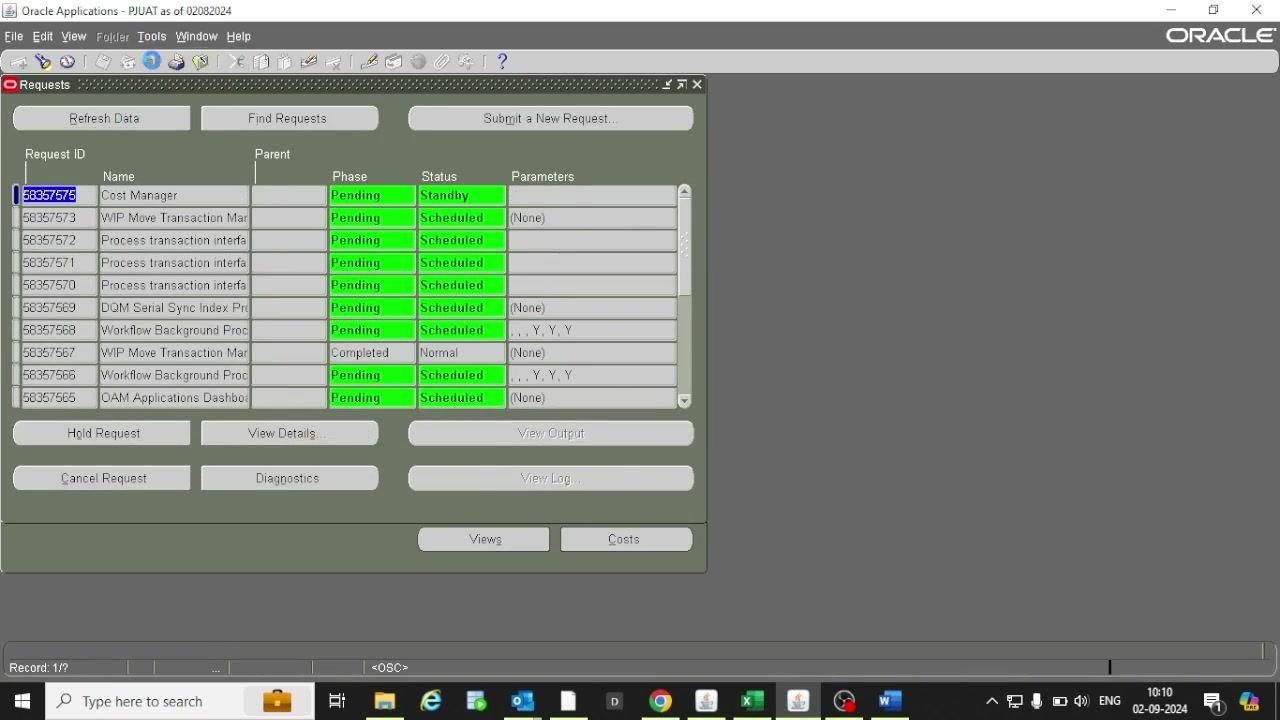
Return to the Requests window and find the new request by its Request ID (for example, 56357575). The Name column shows Cost Manager. The Phase is Pending, and the Status is Standby or Normal. The Parameters column may show "(None)" or specific values if you provided them.
Step 17: View the concurrent program details
Double-click the new request, or select it and click View Details..., to open the Concurrent Managers for the Request window. The window displays:
- The Request ID (for example, 56357575)
- The program (for example, "Cost Manager")
- A list of concurrent managers (for example, "Conflict Resolution Manager" and "Standard Manager")
- The request position and the number of requests (running, maximum, and pending) for each manager
Click Manager Queue to view the queue details if needed.
Step 18: Confirm that the Actual Cost Worker request completes
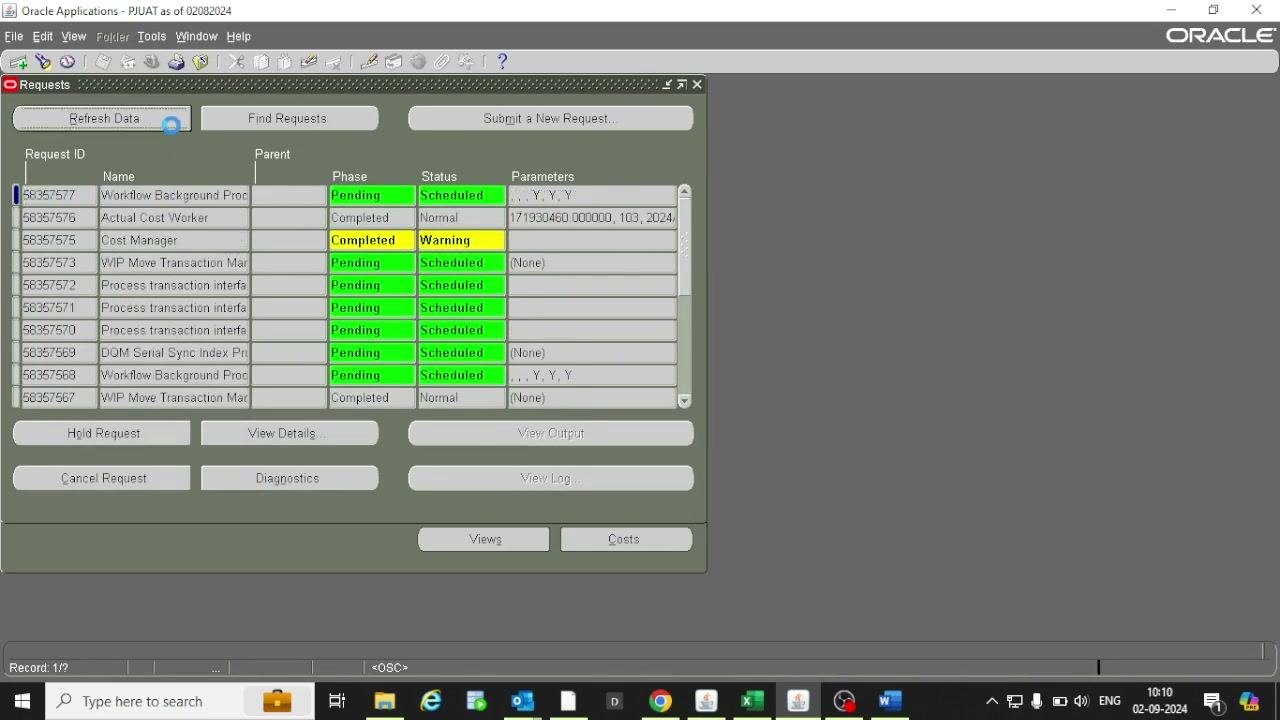
In the Requests window, watch the progress of the related requests:
- The Actual Cost Worker request (for example, Request ID 56357575) shows Phase Completed and Status Normal when it finishes.
- The Cost Manager request may show Phase Completed and Status Warning if there are issues.
- The Parameters column shows the values used for the request (for example, "17193460.000000, 103, 2024").
Review the result in Item Costs Details
Step 19: Open the Item Costs Details window
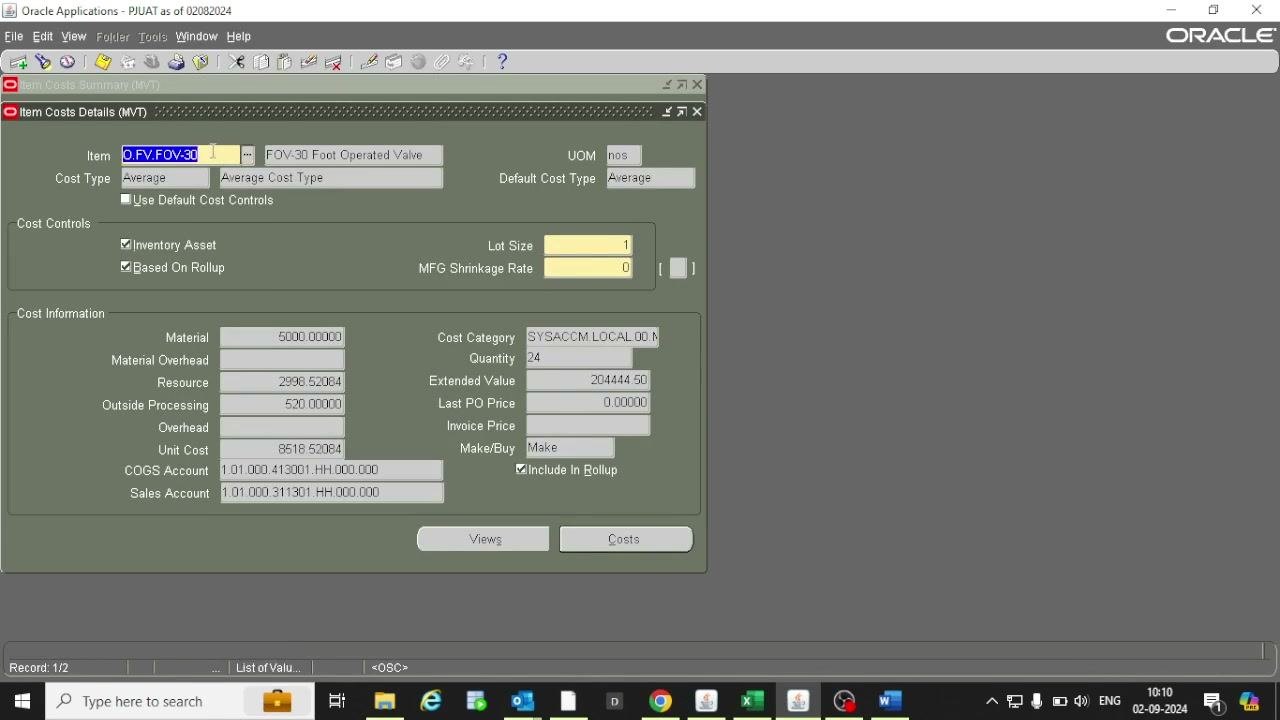
Navigate to the Item Costs Details (MVT) window in Oracle Applications. The window title shows "Item Costs Details (MVT)". It uses the standard Oracle Applications interface, with a menu bar at the top and navigation and action icons below.
Step 20: Identify the item and cost type
- In the Item field, verify the item code (for example,
O.FV.FOV.30) and description (for example, "FOV-30 Foot Operated Valve"). - Confirm that UOM (Unit of Measure) is set to "nos".
- Check that Cost Type is set to "Average". The Default Cost Type is also "Average".
Step 21: Review the cost controls
- Make sure the Use Default Cost Controls checkbox is unchecked.
- Confirm that the Inventory Asset and Based On Rollup checkboxes are checked.
- Review Lot Size (set to
1) and MFG Shrinkage Rate (set to0).
Step 22: Examine the cost information
Review the following cost breakdowns:
- Material:
5000.0000 - Material Overhead: (blank)
- Resource:
2998.52084 - Outside Processing:
520.0000 - Overhead: (blank)
- Unit Cost:
8518.52084
Check the Cost Category (for example, SYSACCM.LOCAL.00.N). Review Quantity (24), Extended Value (204444.50), Last PO Price (0.0000), and Invoice Price (blank). Confirm that Make/Buy is set to "Make" and Include In Rollup is checked.
Step 23: Verify the account information
Review the COGS Account (for example, 1.01.000.413001.HH.000.000) and the Sales Account (for example, 1.01.000.313101.HH.000.000).
Step 24: Open additional views or cost details
Use the Views and Costs buttons at the bottom of the window to access further breakdowns or historical cost data as needed.
Summary
You now know how to update item cost in Oracle EBS. You open the Average Cost Update function, select the organization and account, and enter the item code. You then review the current cost elements, enter new values, and round the total. Finally, you save the update, monitor the requests, and confirm the new cost in Item Costs Details. Always verify the updated cost in the system to make sure the changes were applied correctly.
What's next
- Review the cost details of other items in the Item Costs Details (MVT) window for analysis or reporting.
- Analyze any further item cost fluctuations caused by system or user issues, and update the cost accordingly.
Generation details: cost, quality tiers
Docsie billed 3,500 credits ($2.45) to analyze this 7-minute video at standard quality. The rewrite, template fill and Word/PDF exports were included. The same video at each quality tier:
| Quality | Frames sampled | Credits | Approx. cost |
|---|---|---|---|
| Draft | every 16-30 s | 1,750 | $1.22 |
| Standard (this guide) | every 8-15 s | 3,500 | $2.45 |
| Detailed | every 4-7 s | 7,000 | $4.90 |
| Ultra | every 1-3 s | 14,000 | $9.80 |
Credits priced at $0.70 per 1,000; plans include a monthly allowance. Enterprise customers on on-premise or bring-your-own-model deployments run this on their own inference and pay no per-video credits.
Generated by Docsie Video-to-Docs on 2026-11-15 from a 6-minute video. Screenshots are frames from the source video and belong to their creator, PressureJet Oracle Learning Videos, whose original is embedded above. If you own this video and want the guide removed or credited differently, contact us and we will act within one business day.