
How to Add a Responsibility to a User in Oracle EBS
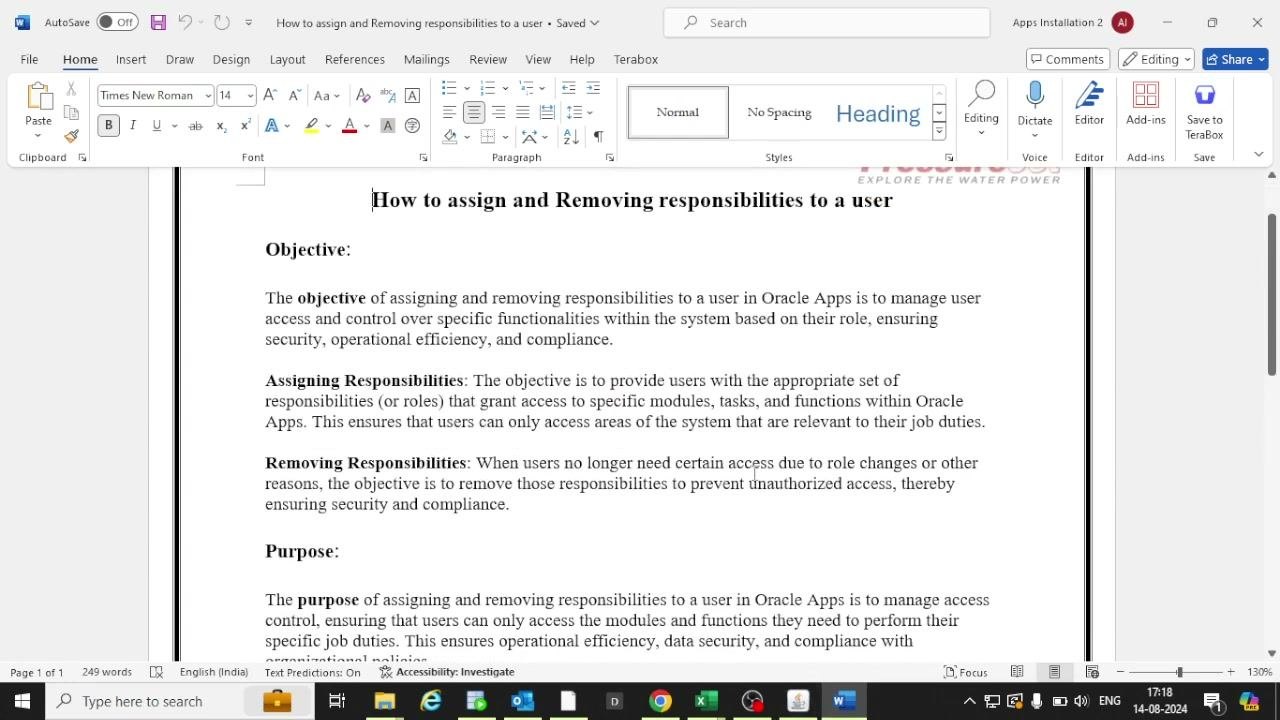
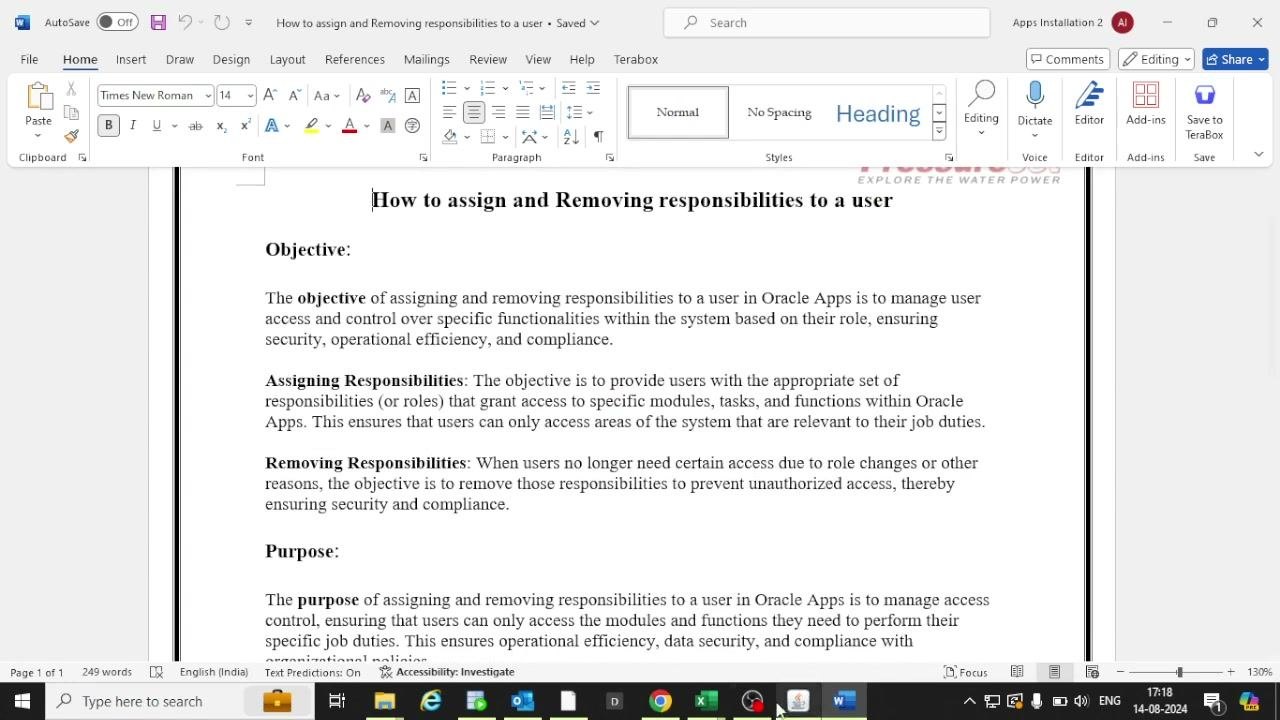
This guide shows you how to add a responsibility to a user in Oracle EBS and how to end it later by setting an end date. Managing responsibilities controls which modules, tasks, and functions each user can access based on their role. Assigning them supports security, operational efficiency, and compliance. Ending them prevents unauthorized access when a user's role changes or the access is no longer needed.
Video: How to Assign and Unassign Responsibilities to a User | Oracle EBS R12 by PressureJet Oracle Learning Videos (2024). All credit for the demonstration goes to the creator; watch the original on YouTube. The written guide below was generated from this video by Docsie. Creator? Request a change or removal.
This guide shows you how to add a responsibility to a user in Oracle EBS and how to end it later by setting an end date. Managing responsibilities controls which modules, tasks, and functions each user can access based on their role. Assigning them supports security, operational efficiency, and compliance. Ending them prevents unauthorized access when a user's role changes or the access is no longer needed.
The examples use the user PLANNER1 and the responsibility "OM Manager - PJ IN VTV".
Prerequisites
- Access to Oracle Applications with the System Administrator responsibility.
- The user ID of the account you want to change (for example, PLANNER1).
- The name of the responsibility you want to assign or end.
- The dates the responsibility should start and, if applicable, end.
Open the Users function
- Log in to Oracle Applications with the System Administrator responsibility.
- In the Oracle Applications Navigator, expand System Administration.
- Select Users from the Top Ten List or the navigation tree.
- Click Open.
Find the user account
Enter the user ID (for example, PLANNER1) in the User Name field to open the account.
The form shows the user's details, including Person, Customer, Supplier, E-Mail, Fax, and Effective Dates. The Direct Responsibilities tab lists the responsibilities currently assigned to the user, along with their effective dates.
Review the user's current responsibilities
Before you make changes, look at the Direct Responsibilities tab. Each row shows a responsibility, its application, and its effective dates.
Examples in the list include "PO User - PJ IN VTV" (Purchasing), "INV Super User - PJ VTV" (Inventory), and "OM Manager - PJ IN VTV" (Order Management). Check the From and To dates to see which responsibilities are active and which have expired.
Add a responsibility to the user
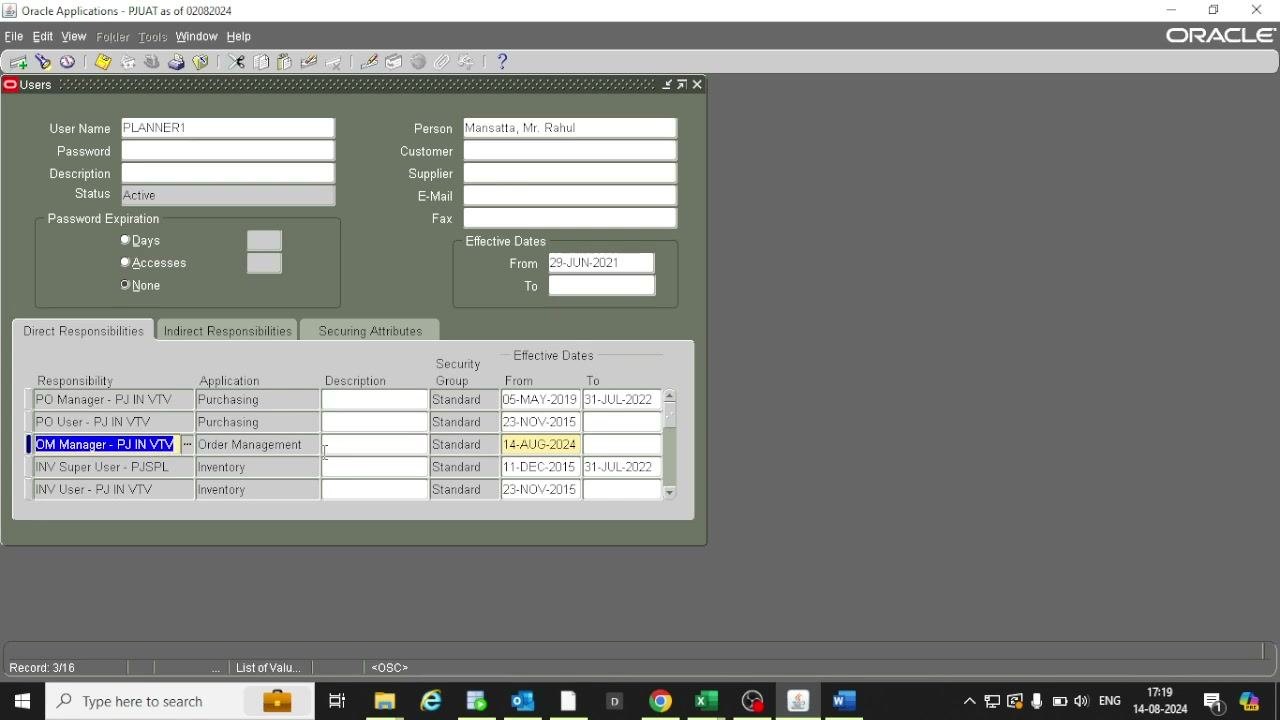
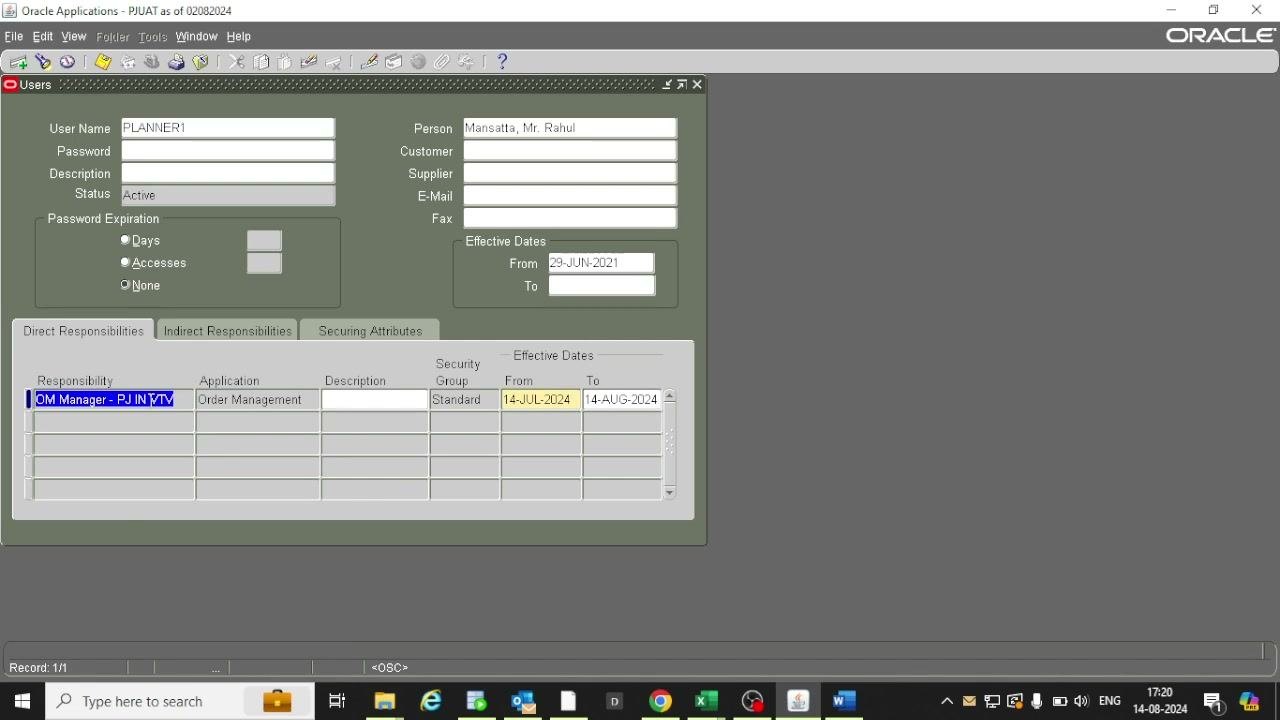
To add a responsibility to a user in Oracle EBS, add a new row in the Direct Responsibilities tab. You might do this because of a change in team structure or coverage requirements.
Enter the following details:
- Responsibility: OM Manager - PJ IN VTV
- Application: Order Management
- Security Group: Standard
- From: 14-JUL-2024
Leave the To date blank if the responsibility should stay active indefinitely.
End a responsibility for the user
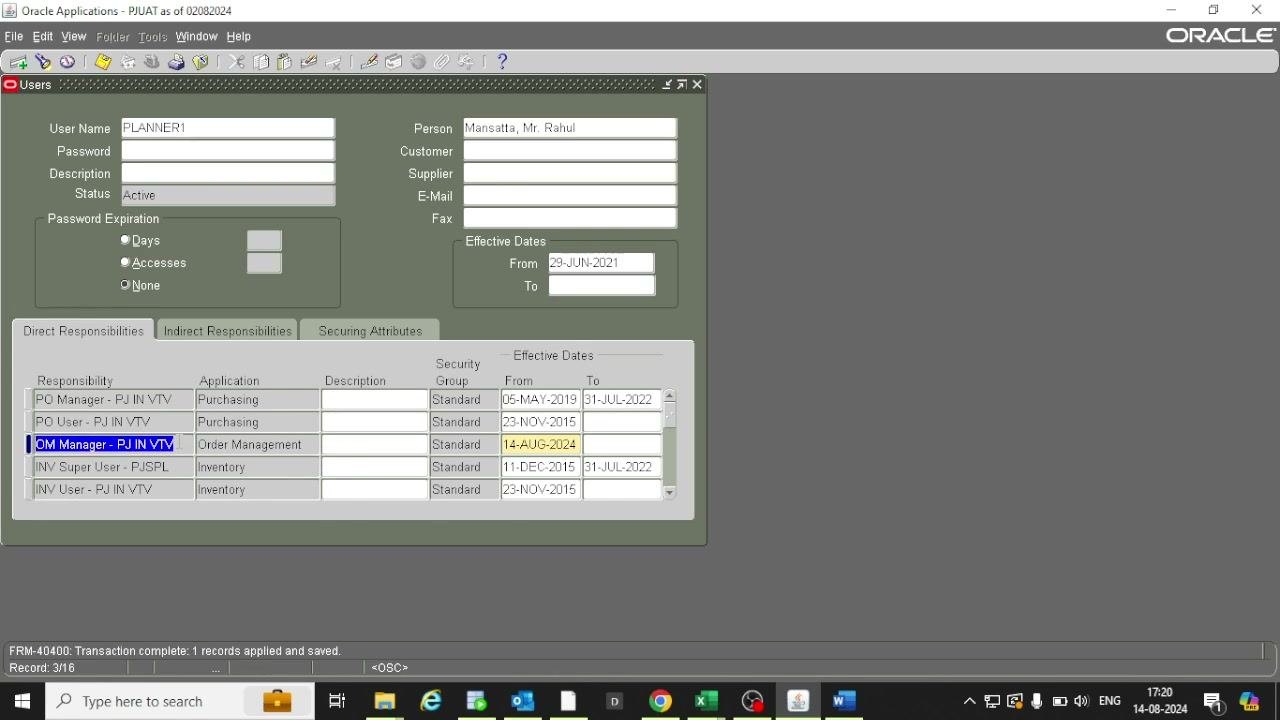
When a new team member is available to take over the responsibility, set an end date to remove access.
- In the Direct Responsibilities tab, locate the responsibility to end (for example, "OM Manager - PJ IN VTV").
- Enter 14-AUG-2024 in the To field.
The user no longer has access to the responsibility after this date.
Save your changes
After you enter the From and To dates, save the transaction. Confirm that the status bar displays a message such as "Transaction complete: 1 records applied and saved."
Verify the responsibility assignment
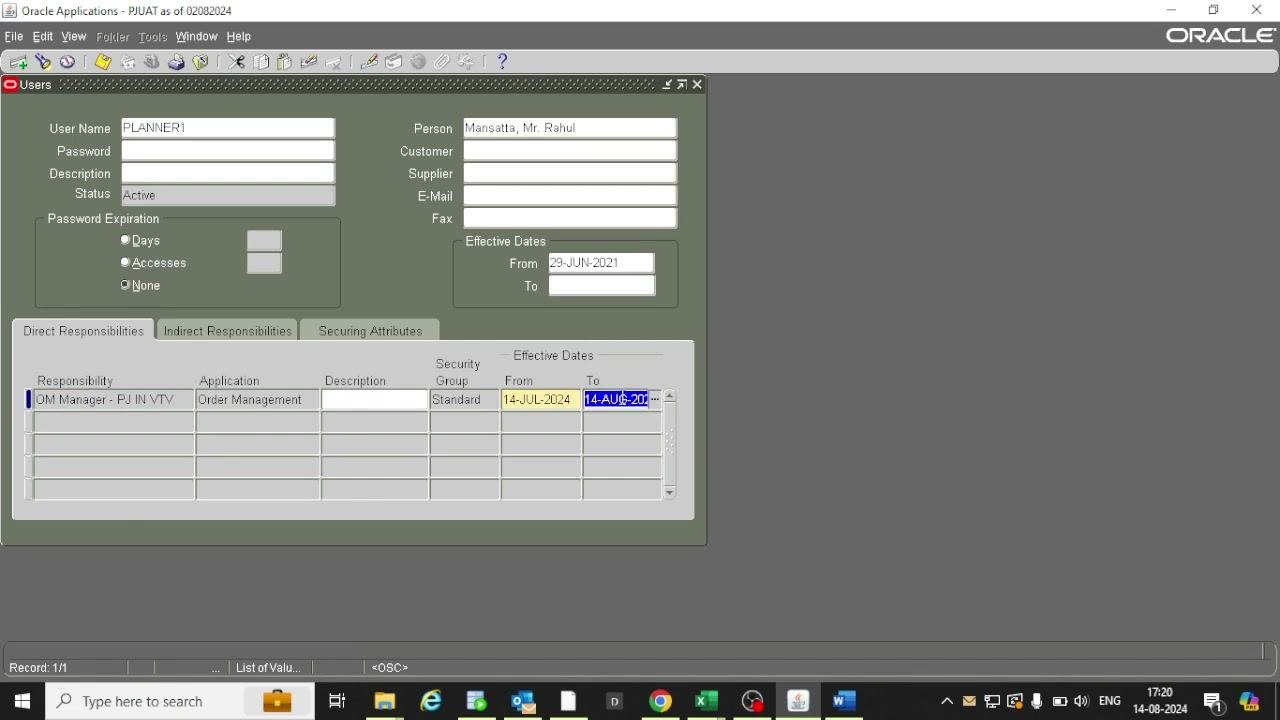
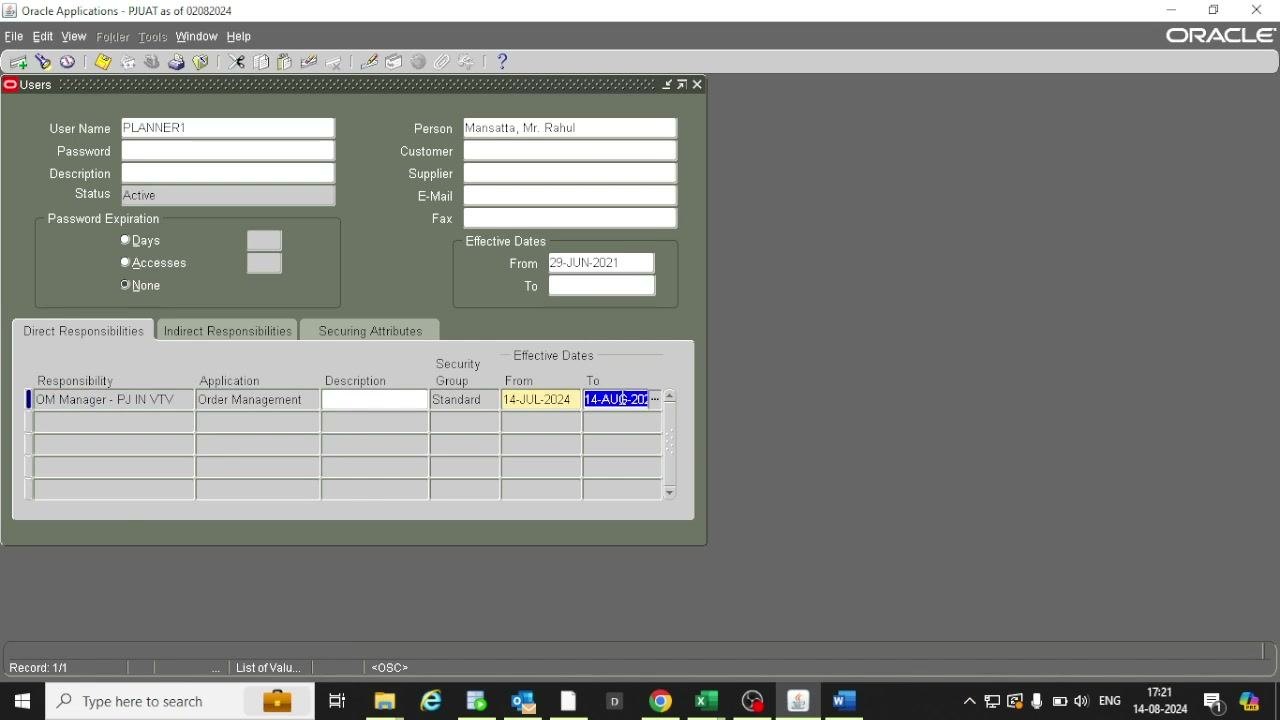
In the Users form, open the Direct Responsibilities tab and confirm that "OM Manager - PJ IN VTV" is assigned to PLANNER1 with these details:
- Application: Order Management
- Security Group: Standard
- From: 14-JUL-2024
- To: 14-AUG-2024
Make sure all fields are filled correctly and reflect the intended access period. The user has access to this responsibility only between these dates.
Close the session
Once you have reviewed and saved all changes, close the Users form. If you have finished your administrative tasks, log out of Oracle Applications.
Summary
You now know how to add a responsibility to a user in Oracle EBS, set an end date to remove it, and verify the result. By following these steps, you can assign, edit, and end user responsibilities in Oracle Applications and keep access control accurate for your organization.
Generation details: cost, quality tiers
Docsie billed 2,000 credits ($1.40) to analyze this 4-minute video at standard quality. The rewrite, template fill and Word/PDF exports were included. The same video at each quality tier:
| Quality | Frames sampled | Credits | Approx. cost |
|---|---|---|---|
| Draft | every 16-30 s | 1,000 | $0.70 |
| Standard (this guide) | every 8-15 s | 2,000 | $1.40 |
| Detailed | every 4-7 s | 4,000 | $2.80 |
| Ultra | every 1-3 s | 8,000 | $5.60 |
Credits priced at $0.70 per 1,000; plans include a monthly allowance. Enterprise customers on on-premise or bring-your-own-model deployments run this on their own inference and pay no per-video credits.
Generated by Docsie Video-to-Docs on 2026-11-15 from a 3-minute video. Screenshots are frames from the source video and belong to their creator, PressureJet Oracle Learning Videos, whose original is embedded above. If you own this video and want the guide removed or credited differently, contact us and we will act within one business day.