
How to Create a Blanket Purchase Order in Oracle EBS
A Blanket Purchase Agreement (BPA) is a long-term agreement between your organization and a supplier to provide goods or services as needed over a period of time. This guide shows you how to create a blanket purchase order in Oracle EBS (Oracle Applications). You enter the header and line details, assign an India tax category, submit the agreement for approval, and check its action history. You also review the Approved Supplier List entry for the supplier and item.
Video: How to Create Blanket Purchase Agreement | Oracle EBS R12 by PressureJet Oracle Learning Videos (2024). All credit for the demonstration goes to the creator; watch the original on YouTube. The written guide below was generated from this video by Docsie. Creator? Request a change or removal.
A Blanket Purchase Agreement (BPA) is a long-term agreement between your organization and a supplier to provide goods or services as needed over a period of time. This guide shows you how to create a blanket purchase order in Oracle EBS (Oracle Applications). You enter the header and line details, assign an India tax category, submit the agreement for approval, and check its action history. You also review the Approved Supplier List entry for the supplier and item.
Prerequisites
Before you start, make sure you have the following:
- Access to the Oracle Applications suite and the Purchase Order Summary form
- The operating unit, supplier, supplier site, ship-to and bill-to locations, buyer, and supplier contact
- The item code and the agreed price for the item
- The tax category that applies to your supplier's location
- The name of the approver you will forward the agreement to
Steps
Start a new purchase order for your blanket purchase agreement
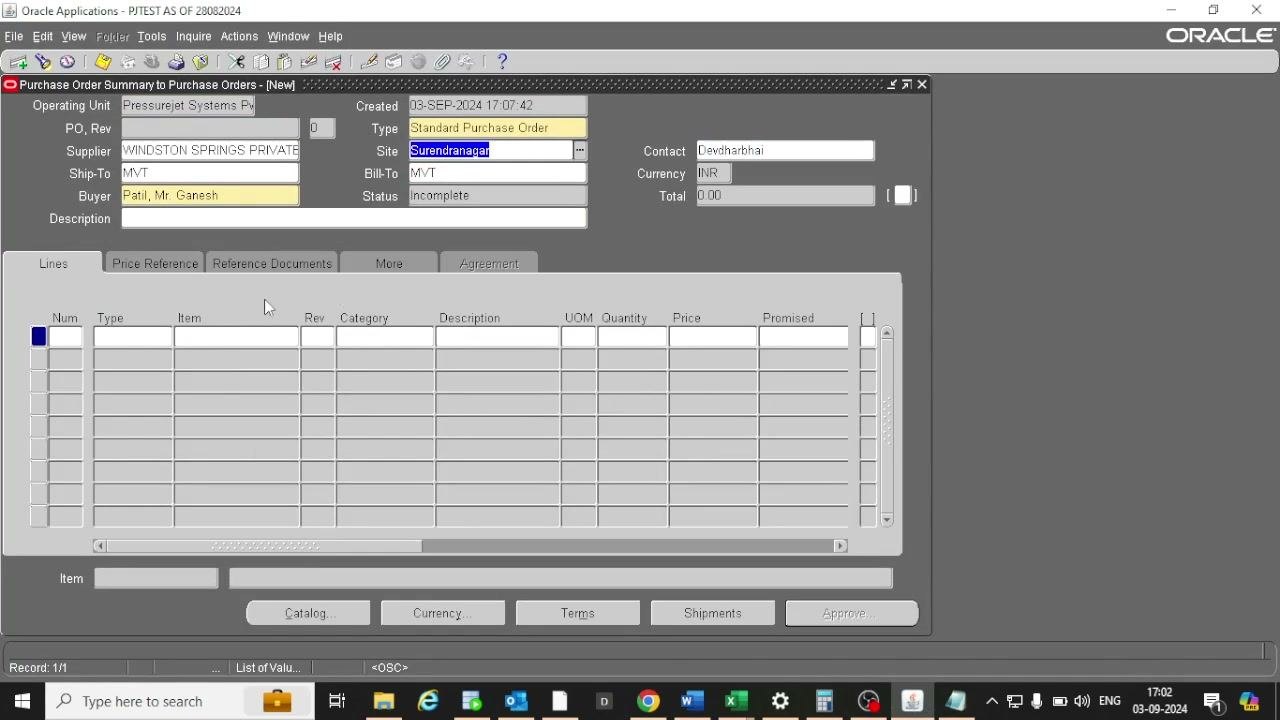
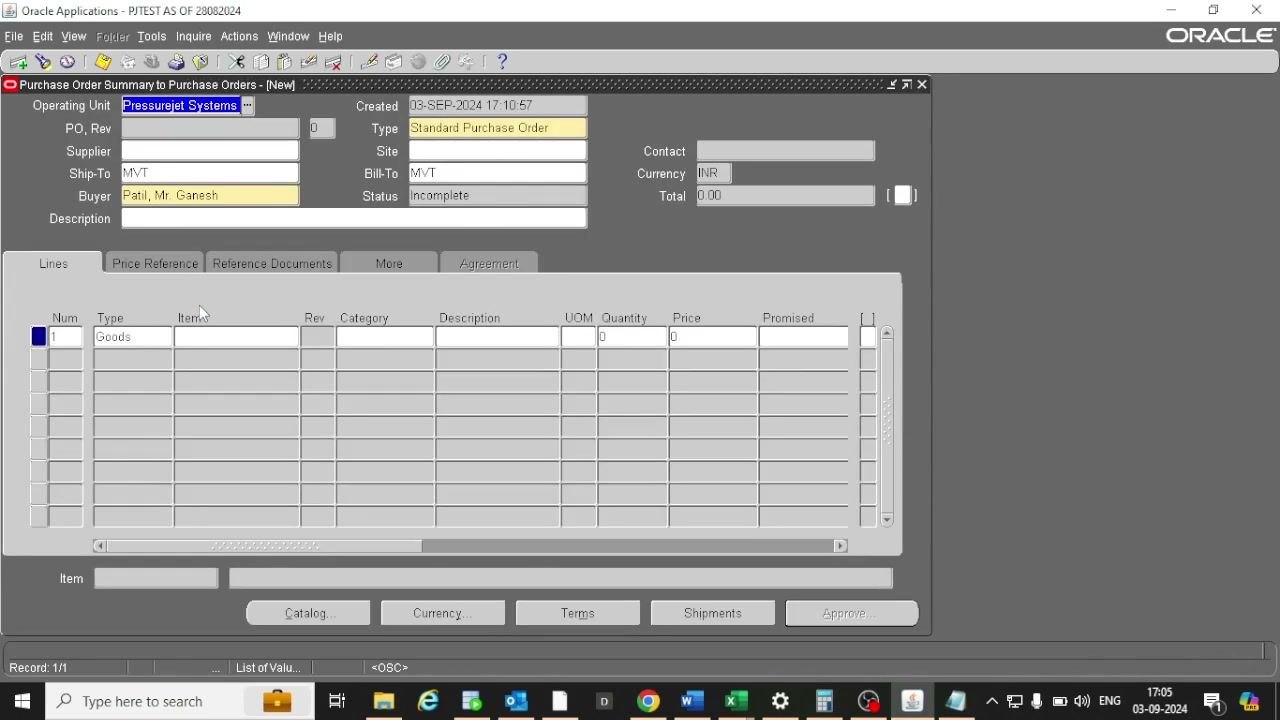
Open the Oracle Applications suite and go to the Purchase Order Summary form. Click New PO to begin creating a new purchase order.
Enter the header details
Complete the header fields. The examples below show the values used in this guide:
- Operating Unit: Enter the operating unit (for example, "Pressurejet Systems").
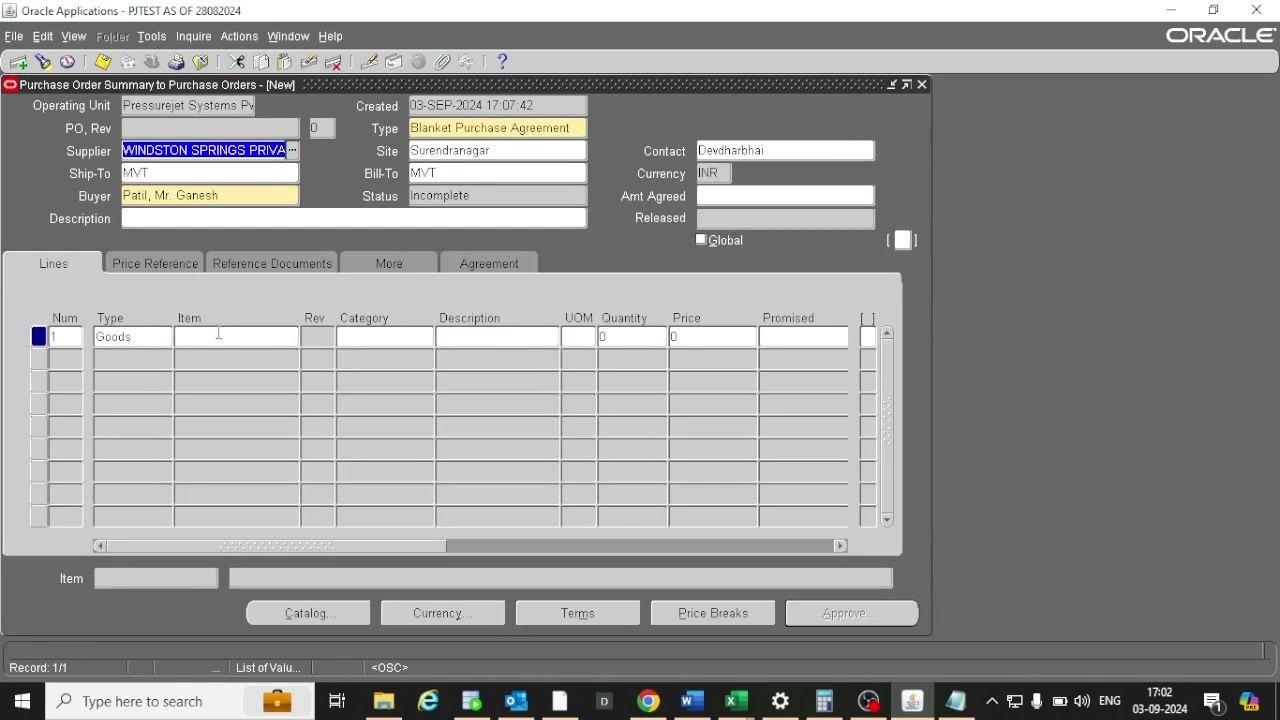
- Type: Select Blanket Purchase Agreement. This must be set before you enter line items.
- Supplier: Enter or select the supplier name (for example, "WINDSTON SPRINGS PRIVATE").
- Site: Enter the supplier site (for example, "Surendranagar").
- Ship-To: Enter the ship-to location (for example, "MVT").
- Bill-To: Enter the bill-to location (for example, "MVT").
- Buyer: Enter the buyer's name (for example, "Patil, Mr. Ganesh").
- Contact: Enter the supplier contact (for example, "Devdharbhai").
- Currency: Confirm the currency (for example, "INR").
- Description: Optionally, enter a description for the PO.
The Status field shows "Incomplete" at first, and the system fills in the creation date and time automatically.
Go to the line level
Move to the line level of the form and confirm you are on the Lines tab, where you enter item details. The header should show the correct supplier, site, and other header information. The Type in the header must be Blanket Purchase Agreement before you enter lines.
Select the line type
In the Type column, make sure "Goods" is selected for the item you are purchasing.
Enter the item code and price
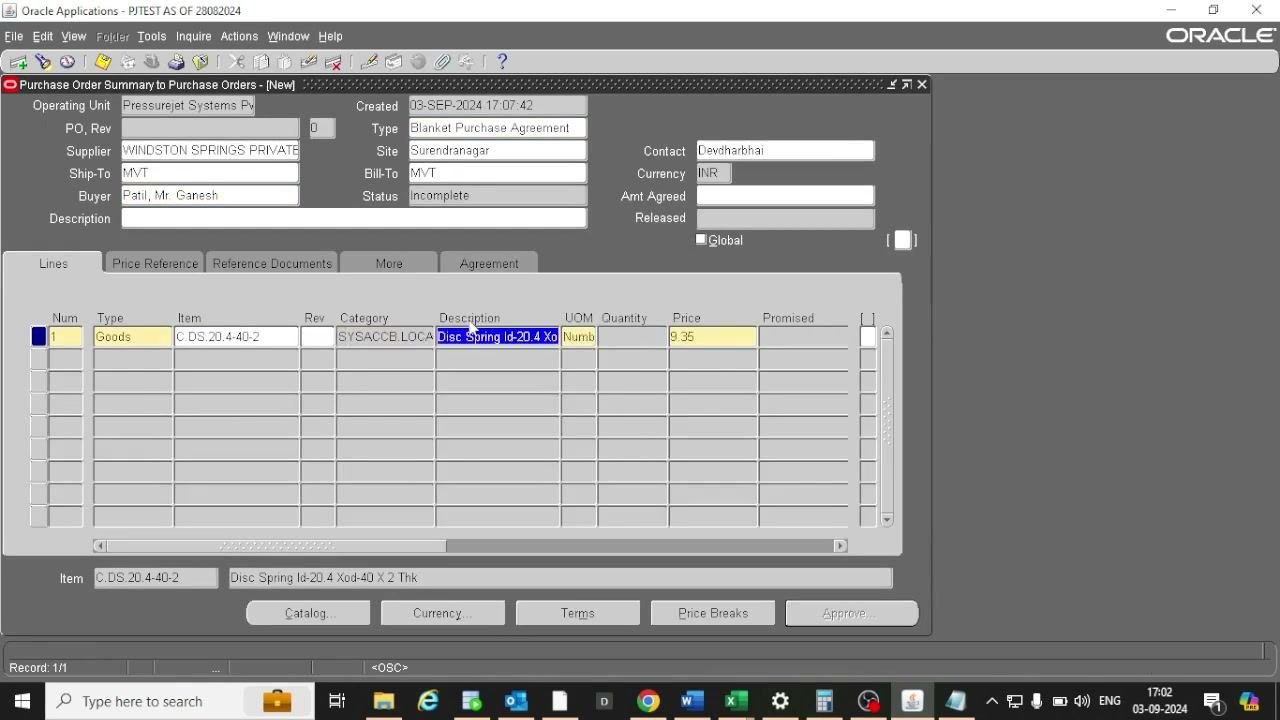
Enter the line details:
- In the Item column, enter or paste the item code (for example,
C.DS.20.4.40-2). The Category and Description fields fill in automatically. - In the Description column, verify the item description (for example, "Disc Spring Id-20.4 Xod-40 X 2 Thk").
- In the UOM column, confirm the unit of measure (for example, "Numb").
- In the Price column, enter the agreed price (for example,
9.35).
Leave Quantity blank or zero. For a BPA, you specify quantities at the release stage, not in the agreement itself.
Save the line
Click the save icon or use the save function to commit the line item to the BPA. Look for a confirmation message at the bottom of the screen to confirm the record is saved.
Open the India Taxes screen
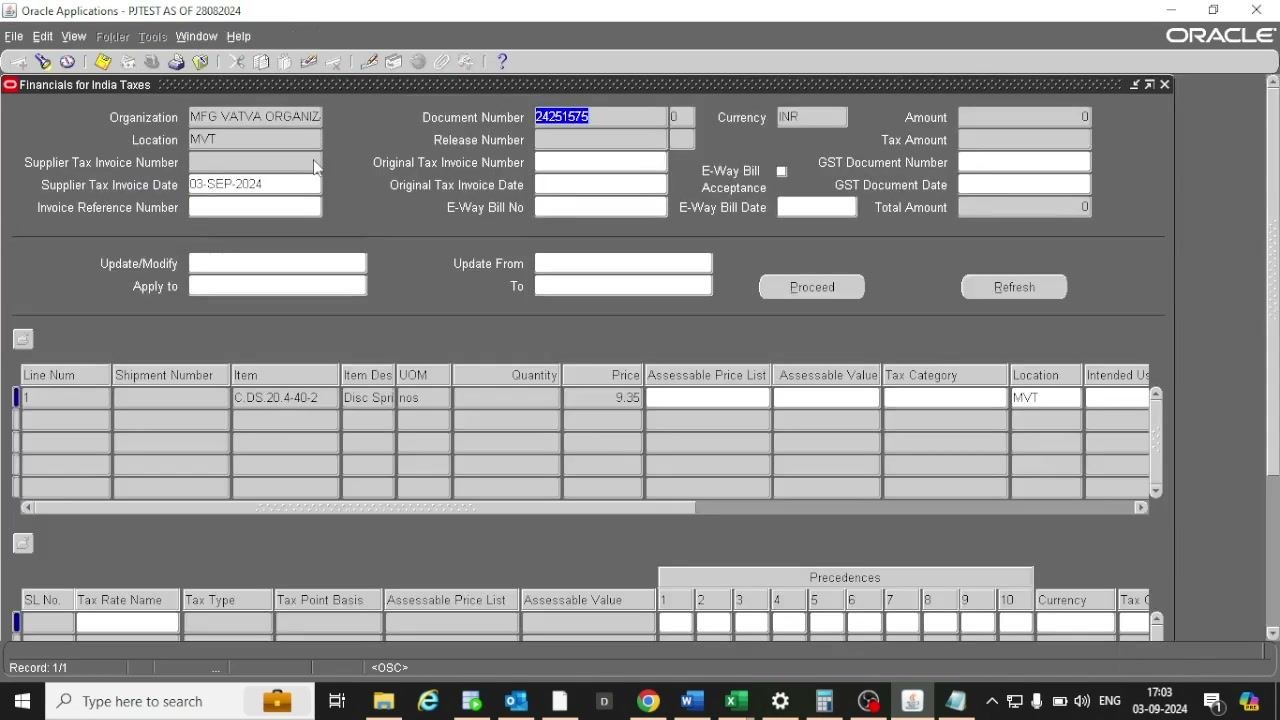
After you save the line item, go to the Financials for India Taxes screen. It shows fields such as Organization, Location, Document Number, Currency, Amount, and tax-related fields.
In the Tax Category column, choose the category that matches your supplier's location:
- If your supplier is outside Gujarat and your business is in Gujarat, select "IEST".
- If your supplier is within Gujarat, select the applicable local tax category.
Select the tax category
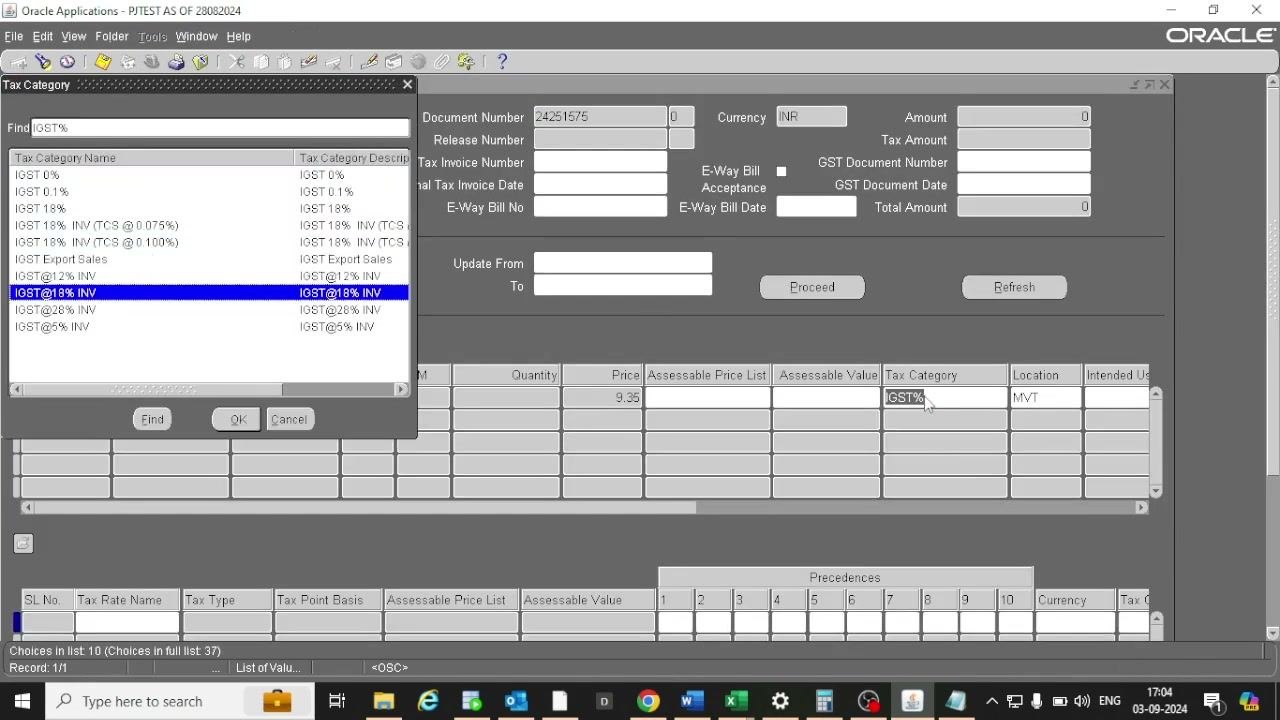
In the Tax Category field, type IGST% to filter the available categories. A Tax Category selection window opens with a list such as IGST 0%, IGST 0.1%, and IGST@18% INV.
Select the appropriate category (for example, IGST@18% INV) and click OK.
Verify the other tax fields
Check the remaining tax-related fields as your organization requires. Review fields such as Assessable Price List, Assessable Value, and Location for accuracy.
If necessary, update or enter additional details in the lower section, such as Tax Rate Name, Tax Type, and Tax Point Basis.
Save the tax category assignment
Click the save icon or use the save function to commit the tax category selection and any other changes. Wait for a confirmation message or indicator that the record saved successfully.
Review the purchase order details
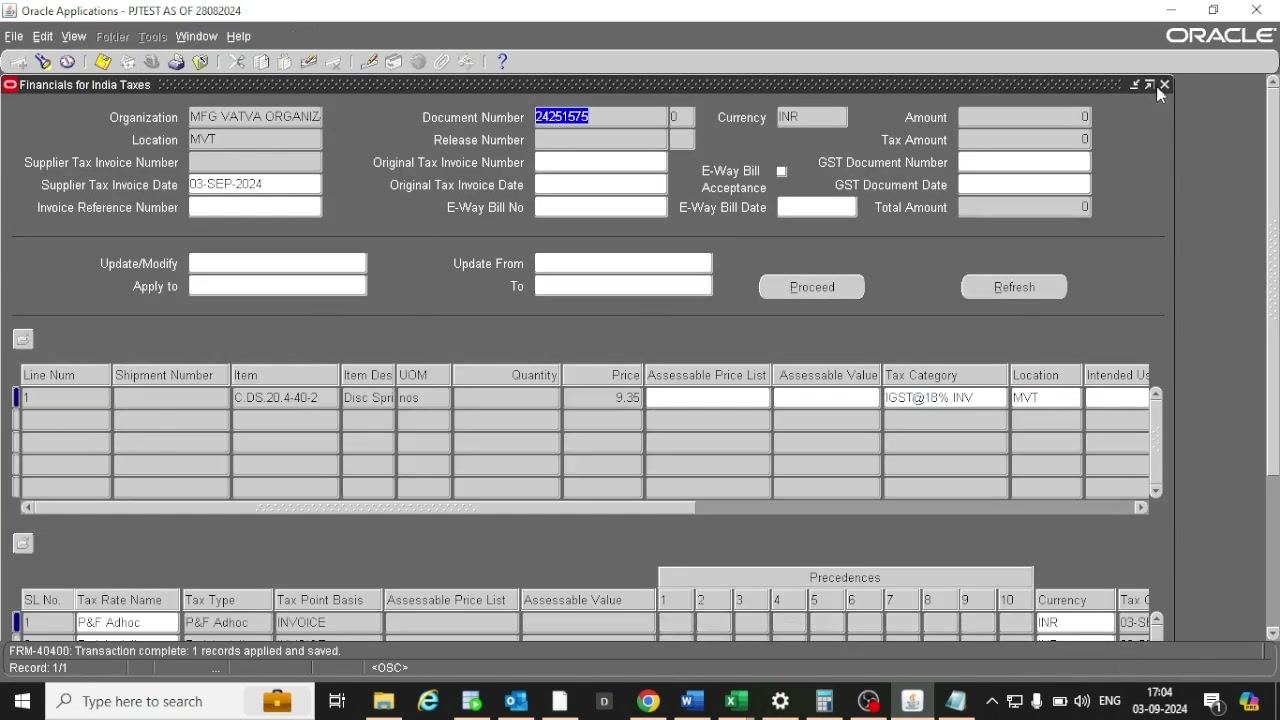
Review the main screen. It shows fields such as Organization, Location, Document Number (for example, 24251575), Currency (INR), Amount, Tax Amount, and GST Document Number.
In the line items section, check the following:
- The Tax Category column shows your selected value (for example,
IGST@18% INV). - The Item, Quantity, Price (for example, 9.35), and Location (for example, MVT) are correct.
Check the purchase order status
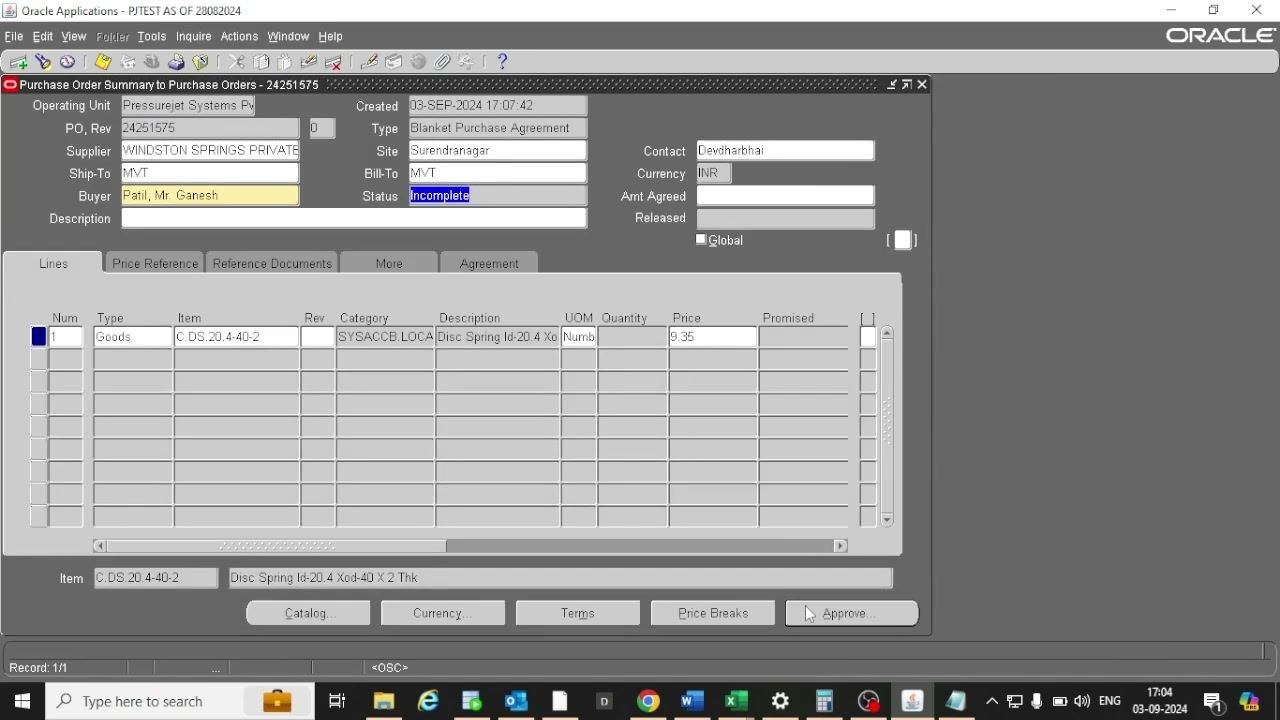
Go to the Purchase Order Summary screen and find the Status field. It shows Incomplete if the PO has not yet been approved.
Review the PO Number (for example, 24251575), Supplier (for example, WINDSTON SPRINGS PRIVATE), Buyer (for example, Patil, Mr. Ganesh), and item details.
Choose an approver
Click Approve to open the approval dialog. In the Forward To field, search for the approver by entering a partial name (for example, %Ramesh%).
The Employees window lists matching employees (for example, Patel, Mr. Ramesh Nagarbhai). Select the approver and click OK.
Submit the blanket purchase agreement for approval
In the Approve Document dialog, check the following:
- The Submit for Approval and Forward checkboxes are selected.
- Forward From shows the current user (for example, Patil, Mr. Ganesh).
- Forward To shows the selected approver (for example, Patel, Mr. Ramesh Nagarbhai).
Optionally, add a note or change summary. Click OK to submit and forward the PO for approval.
Query the purchase order
Go to the Purchase Order Summary or Find Purchase Orders screen. Enter the PO Number (for example, 24251575) in the Number field and click Find.
Open the action history
After you locate the PO, open the action history (approval history) window. Review the sequence of actions, including submission and forwarding. Confirm that the latest action belongs to the intended approver (for example, Patel, Mr. Ramesh Nagarbhai).
Confirm the next approver in the action history
In the Blanket Purchase Agreement action history window, verify the following:
- The latest action is assigned to "Patel, Mr. Ramesh Nagarbhai" in the Performed By column.
- Earlier actions such as "Forward" and "Submit" were performed by "Patil, Mr. Ganesh".
- The correct sequence and responsible users appear, which supports audit and tracking.
Open the Approved Supplier List
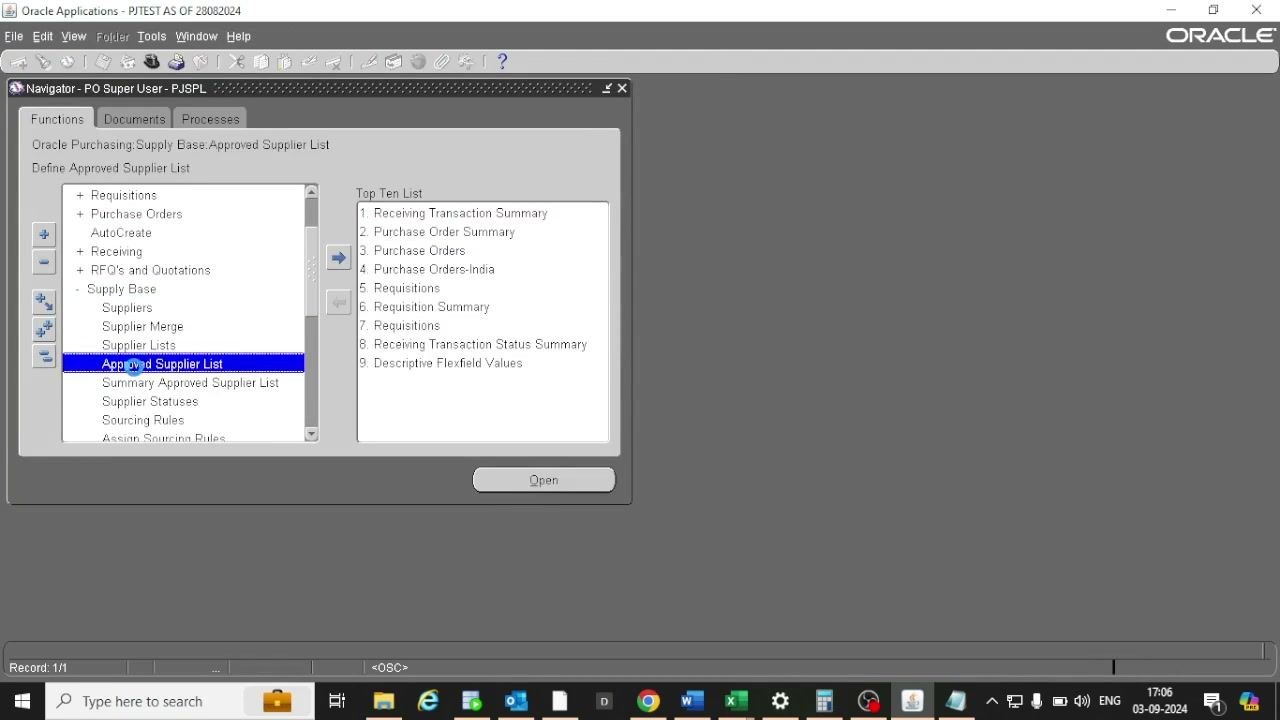
In the Oracle Applications Navigator, expand the Supply Base menu. Under Supplier Lists, select Approved Supplier List and click Open.
Select the supplier entry
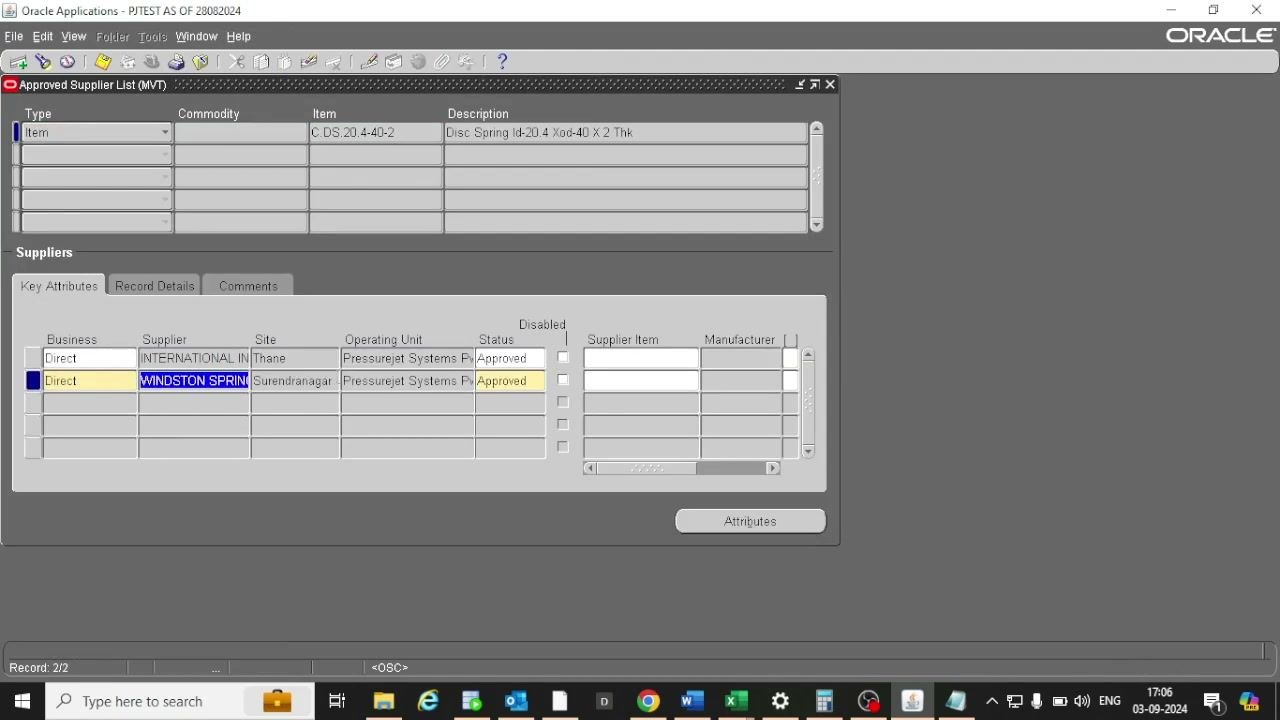
In the Approved Supplier List (MVT) window, locate the item (for example, C.DS.20.4.40-2, Disc Spring Id-20.4 Xod-40 X 2 Thk). In the Suppliers section, review the approved suppliers.
Identify the supplier "WINDSTON SPRINGS PRIVATE" with site "Surendranagar" and status "Approved". Select the supplier row to view or edit its attributes.
Review the supplier-item attributes
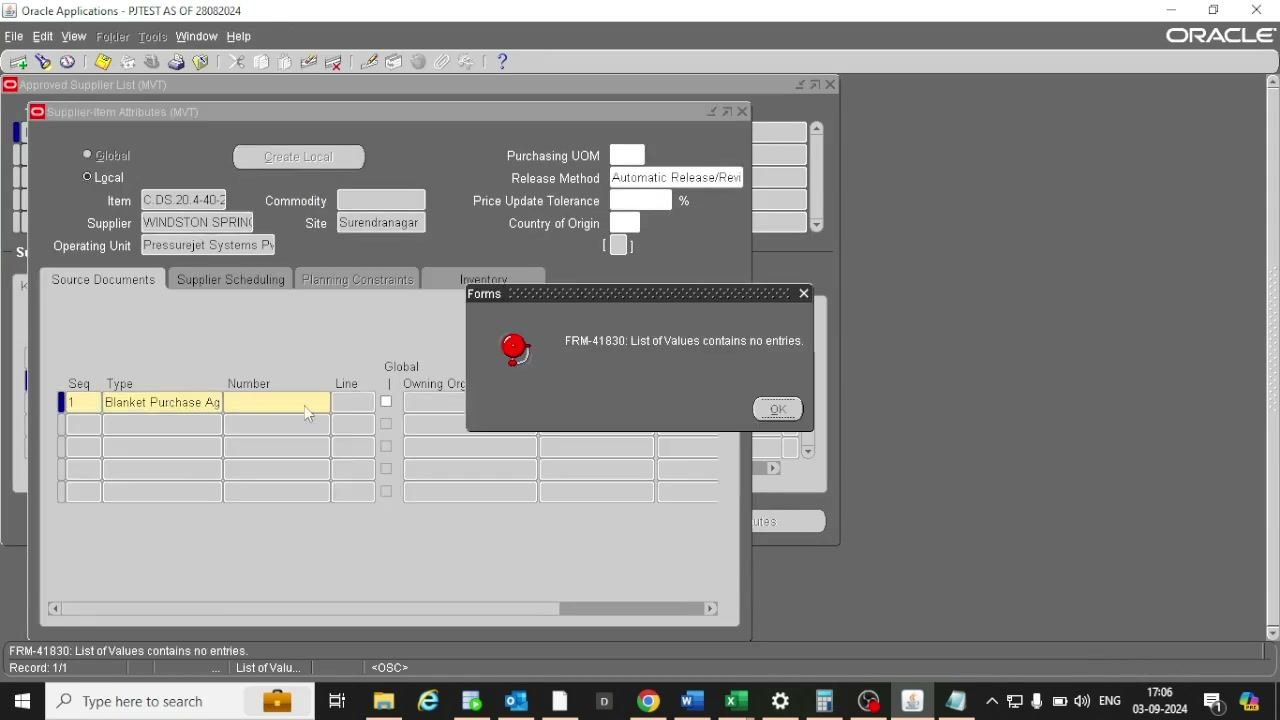
With the supplier row selected, click Attributes. In the Supplier-Item Attributes (MVT) window, review details such as:
- Item: C.DS.20.4.40-2
- Supplier: WINDSTON SPRINGS PRIVATE
- Site: Surendranagar
- Operating Unit: Pressurejet Systems Pvt.
- Purchasing UOM, Release Method (for example, Automatic Release/Review), and other fields
On the Source Documents tab, check for any linked Blanket Purchase Agreements. If a warning appears (for example, "FRM-41830: List of Values contains no entries"), click OK to acknowledge it.
Summary
You now know how to create a blanket purchase order in Oracle EBS. You entered the header and line details, assigned a tax category, submitted the agreement for approval, and checked its status and action history. You also reviewed the supplier's entry in the Approved Supplier List.
What's next
- Monitor the agreement's action history until the approver completes the approval.
- Specify quantities when you create releases against the agreement, because the BPA itself carries no quantity.
- Check the Source Documents tab in Supplier-Item Attributes to see linked Blanket Purchase Agreements.
Generation details: cost, quality tiers
Docsie billed 4,000 credits ($2.80) to analyze this 8-minute video at standard quality. The rewrite, template fill and Word/PDF exports were included. The same video at each quality tier:
| Quality | Frames sampled | Credits | Approx. cost |
|---|---|---|---|
| Draft | every 16-30 s | 2,000 | $1.40 |
| Standard (this guide) | every 8-15 s | 4,000 | $2.80 |
| Detailed | every 4-7 s | 8,000 | $5.60 |
| Ultra | every 1-3 s | 16,000 | $11.20 |
Credits priced at $0.70 per 1,000; plans include a monthly allowance. Enterprise customers on on-premise or bring-your-own-model deployments run this on their own inference and pay no per-video credits.
Generated by Docsie Video-to-Docs on 2026-11-15 from a 7-minute video. Screenshots are frames from the source video and belong to their creator, PressureJet Oracle Learning Videos, whose original is embedded above. If you own this video and want the guide removed or credited differently, contact us and we will act within one business day.