
How to Create a Concurrent Program in Oracle EBS
This guide shows you how to create a concurrent program in Oracle EBS using Oracle Applications Manager. First you review an existing program (Active Users) and its executable to see how the pieces fit together. Then you define a new executable, create a concurrent program, associate the two, add a parameter, and save your work.
Video: Oracle R12 Technical - Concurrent Program Creation by logicwala (2013). All credit for the demonstration goes to the creator; watch the original on YouTube. The written guide below was generated from this video by Docsie. Creator? Request a change or removal.
This guide shows you how to create a concurrent program in Oracle EBS using Oracle Applications Manager. First you review an existing program (Active Users) and its executable to see how the pieces fit together. Then you define a new executable, create a concurrent program, associate the two, add a parameter, and save your work.
Prerequisites
- Access to Oracle Applications Manager as a System Administrator.
- An executable (or the details to define one), such as a host script, for the new program to run.
Open the concurrent program definition screen
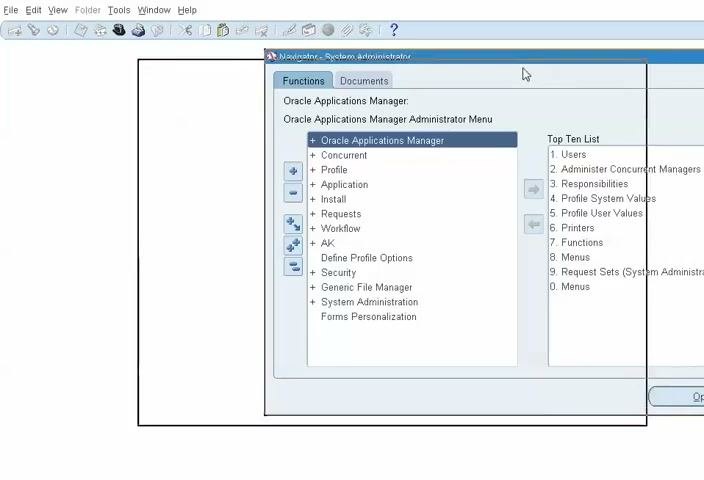
Open Oracle Applications Manager
Launch Oracle Applications Manager as a System Administrator. The main menu shows options such as Concurrent, Profile, Application, Install, and Requests. The Top Ten List on the right gives you quick access to common functions like Users, Responsibilities, and Printers.
Go to the Concurrent section
In the left navigation pane, click the + next to Oracle Applications Manager to expand the menu. Then click Concurrent to see the concurrent program management options.
Open the Concurrent Programs form
Open the Concurrent Programs definition form. You use this form to define new concurrent programs or query existing ones.
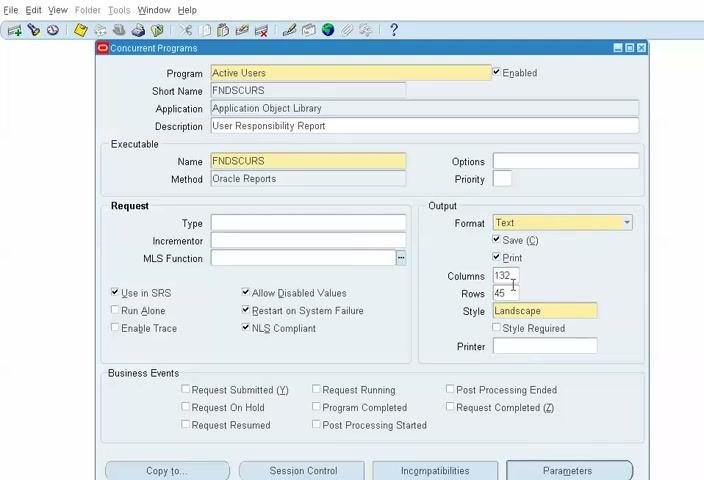
The key fields are Program, Short Name, Application, Description, Executable Name, and Method. Additional sections cover Request settings, Output format, and Business Events.
Review an existing concurrent program
Reviewing a delivered program first shows you how a finished definition looks.
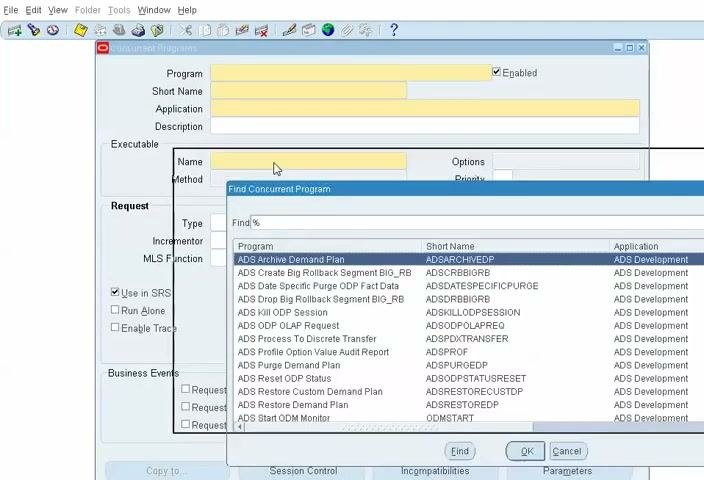
Enter query mode
Press F11 or click the Find icon in the toolbar. The form enters query mode so you can specify search criteria.
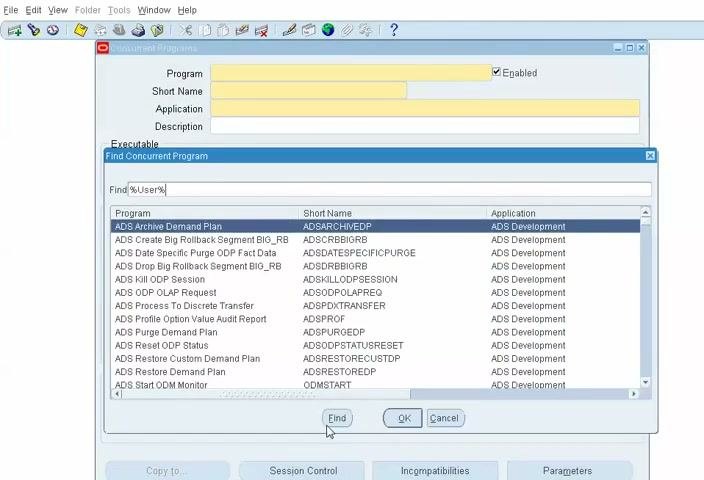
Search for a program by name
In the Find Concurrent Program dialog, enter a search string in the Find % field. For example, enter %user% to find programs related to users. Click Find to display the matching programs.
Select the program
Review the list of matching programs and select Active Users. Its Short Name is FNDSCURS and its Application is Application Object Library. Click OK to view its details.
Review the program definition
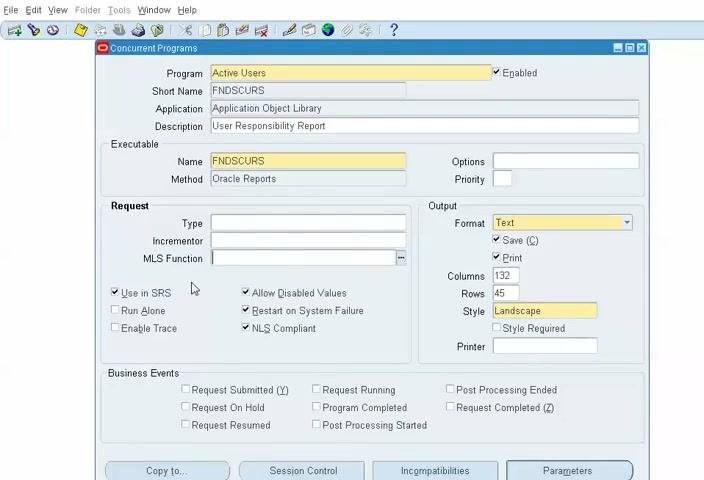
The form shows the Active Users definition. Review all settings to understand how the program is configured and associated with its executable. The key values are:
- Program: Active Users
- Short Name: FNDSCURS
- Application: Application Object Library
- Description: User Responsibility Report
- Executable Name: FNDSCURS
- Method: Oracle Reports
- Output Format: Text, with Save (C) and Print enabled, Columns 132, Rows 45, Style Landscape
- Request Options: Use in SRS, Restart on System Failure, and NLS Compliant enabled
Understand the configuration options
Examine request types and options
Review the options in the Request section:
- Use in SRS: Lets you run the program from the Standard Request Submission interface.
- Run Alone: Ensures the program runs without other concurrent programs.
- Enable Trace: Enables SQL tracing for debugging.
- Allow Disabled Values: Permits selection of disabled values if needed.
- Restart on System Failure: Restarts the request if the system fails.
- NLS Compliant: Indicates the program supports National Language Support.
Leave Type, Incrementor, and MLS Function blank unless you need specific logic.
Define the output format and layout
In the Output section, set the following values. They determine how the Oracle Report output is generated and presented.
- Format: Text
- Save (C): Enabled, so the output is saved
- Print: Enabled, so the output can be printed
- Columns: 132
- Rows: 45
- Style: Landscape
- Printer: Specify one if required
Associate business events (optional)
You can associate business events with the concurrent program. The available events are Request Submitted, Request Running, Post Processing Ended, Request On Hold, Program Completed, Request Completed, Request Resumed, and Post Processing Started. Select the checkboxes for the events you want to trigger.
Use Copy, Session Control, and Incompatibilities
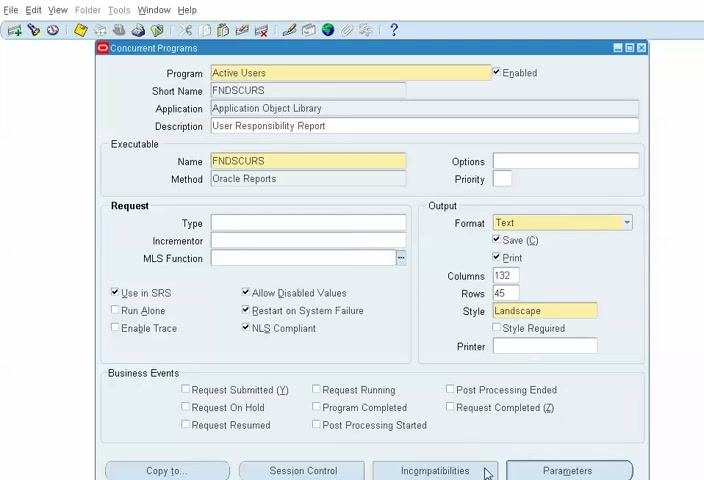
The form includes three more controls:
- Click Copy to... to duplicate the concurrent program definition.
- Click Session Control to configure how the program runs in multiple sessions.
- Click Incompatibilities to define which programs must not run at the same time as this one. This helps keep data consistent and avoids conflicts.
Review the parameter definition window
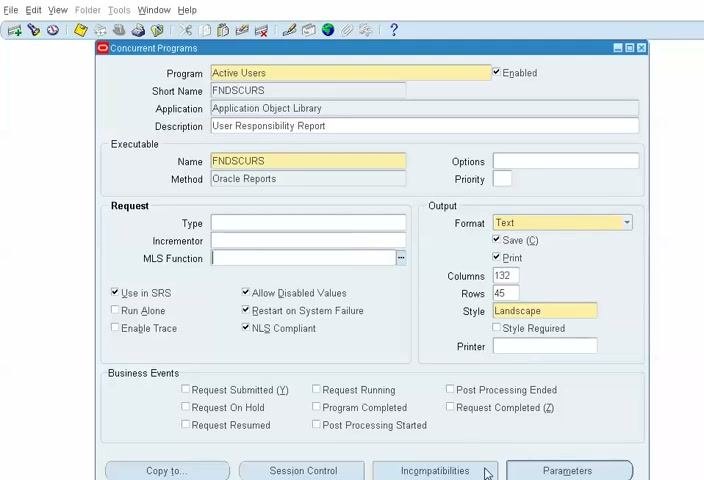
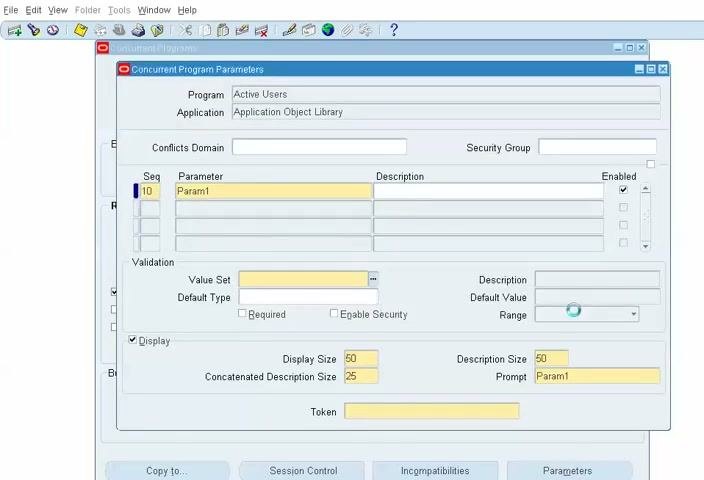
Click Parameters to open the parameters definition window. For each parameter, specify:
- Seq: The sequence number, for example 10.
- Parameter: The name, for example Param1.
- Value Set: The value set, if required. Use the lookup to select it.
- Display: Enable to show the parameter in the submission form.
- Display Size: For example, 25.
- Description Size: For example, 50.
- Prompt: The prompt text, for example Param1.
The Active Users program currently runs without parameters, but you can define them as needed.
Cancel parameter changes if you don't need them
If you don't want to add or modify parameters, click Cancel in the Value Sets window to exit without saving changes.
Close the parameters form
Press F4 to close the Concurrent Program Parameters form. You return to the main navigation window.
Review concurrent program executables
Every concurrent program needs an executable. Before you create one, look at how existing executables are defined.
Open the Executable form
In the Navigator under Oracle Applications Manager, expand Concurrent → Program → Define → Executable. Select Executable to open the concurrent program executable definition form.
View the list of existing executables
The Concurrent Program Executable window lists existing executables. Use search or scrolling to find the one you want. Each entry shows the Executable Name, Short Name, Application, Description, Execution Method, and Execution File Name.
Compare example executables
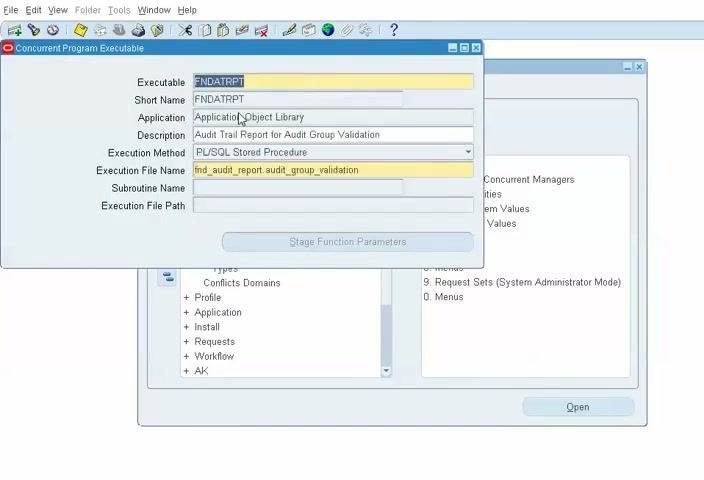
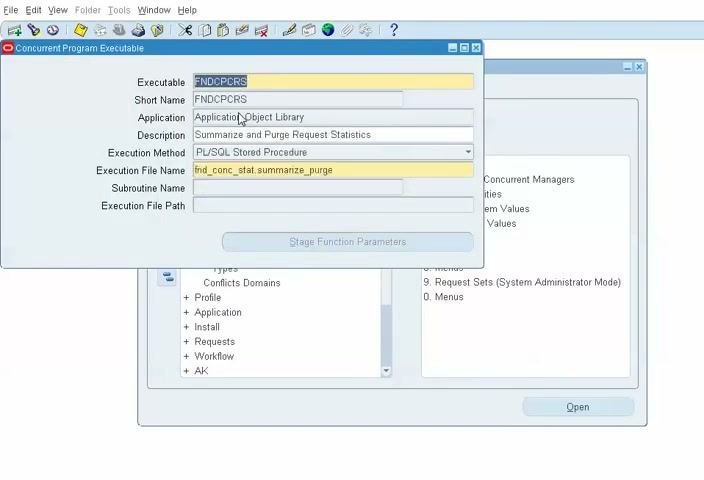
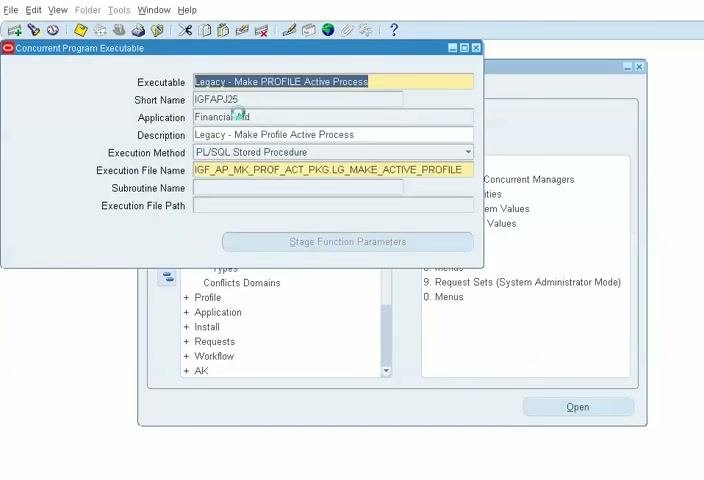
Use the name or description fields to search for a specific executable. These examples all use the PL/SQL Stored Procedure execution method.
The first example is an audit trail report:
- Executable: FNDAUDTRPT
- Short Name: FNDAUDTRPT
- Application: Application Object Library
- Description: Audit Trail Report for Audit Group Validation
- Execution File Name: fnd_audit_report_audit_group_validation
The second example summarizes and purges request statistics:
- Executable: FNDCPCPRS
- Short Name: FNDCPCPRS
- Application: Application Object Library
- Description: Summarize and Purge Request Statistics
- Execution File Name: fnd_conc_stat_summarize_purge
The third example is a legacy process:
- Executable: Legacy - Make PROFILE Active Process
- Short Name: IGFAPJ25
- Application: Financials
- Description: Legacy - Make Profile Active Process
- Execution File Name: IGF_AP_MK_PROF_ACT_PKG.LG_MAKE_ACTIVE_PROFILE
Identify the executable behind Active Users
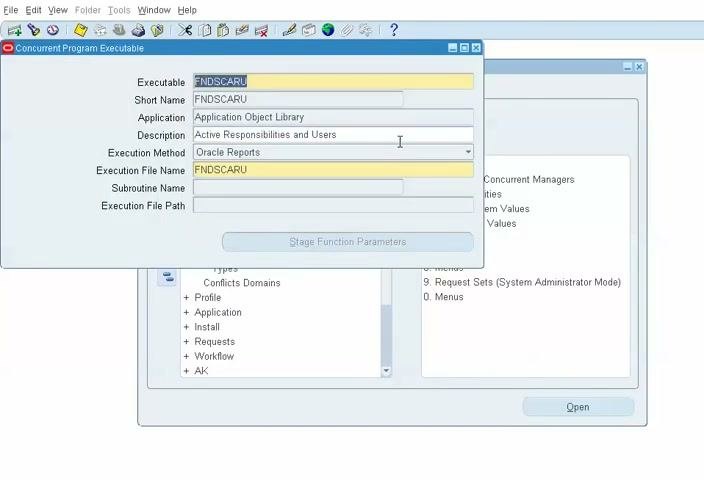
Locate the executable for the Active Users program. It matches the Executable Name you saw in the program definition:
- Executable: FNDSCARU
- Short Name: FNDSCARU
- Application: Application Object Library
- Description: Active Responsibilities and Users
- Execution Method: Oracle Reports
- Execution File Name: FNDSCARU
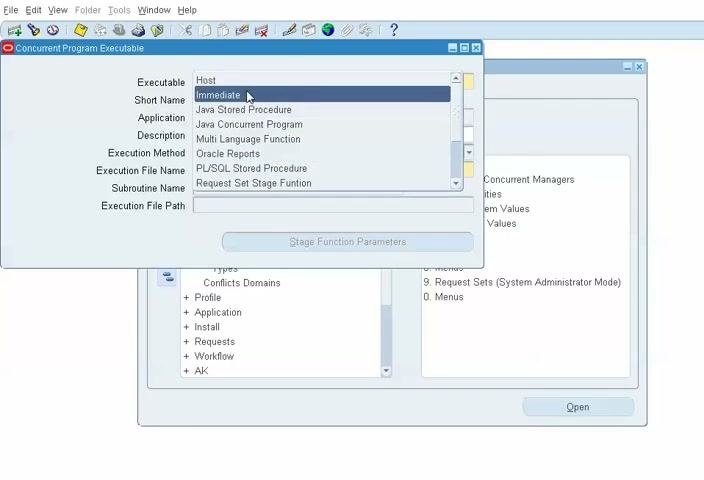
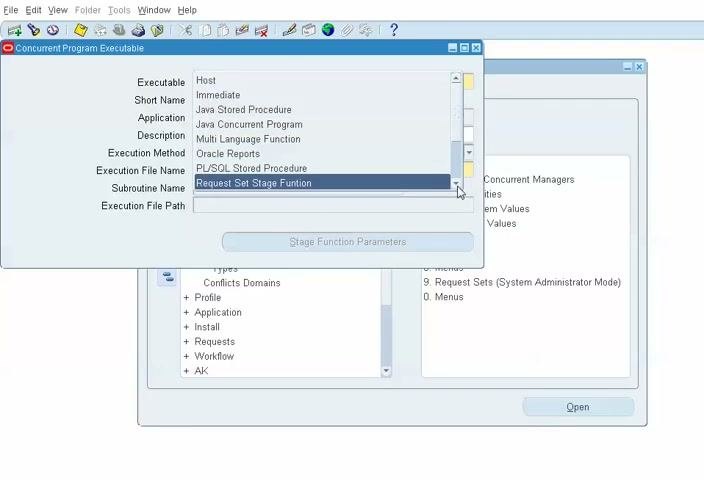
Choose the right execution method
Select the Execution Method that matches how your executable is implemented:
- Host: Shell scripts or OS-level scripts that Oracle can invoke.
- Immediate: Direct SQL or Pro*C code execution.
- Java Stored Procedure: Java code stored in the Oracle database.
- Java Concurrent Program: Standalone Java programs.
- Multi Language Function: Programs supporting multiple languages.
- Oracle Reports: Oracle Reports 6i.
- PL/SQL Stored Procedure: PL/SQL packages and procedures.
- Request Set Stage Function: Request set stage-specific logic.
Create a new concurrent program
Now you put the pieces together. First you define an executable, then the concurrent program that uses it.
Enter details for a new executable
In the Concurrent Program Executable window, enter the following values:
- Executable:
TEST Exec - Short Name:
TESTEXEC - Application:
Application Object Library - Description:
TEST EXECUTABLE - Execution Method:
Oracle Reports
Specify the host file for the executable
Change Execution Method to Host. In the Execution File Name field, enter test.sh. Leave the other fields as you entered them.
Start the new concurrent program definition
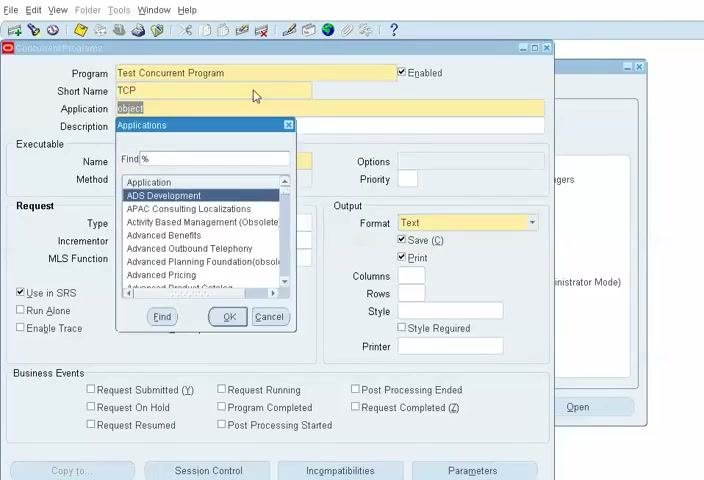
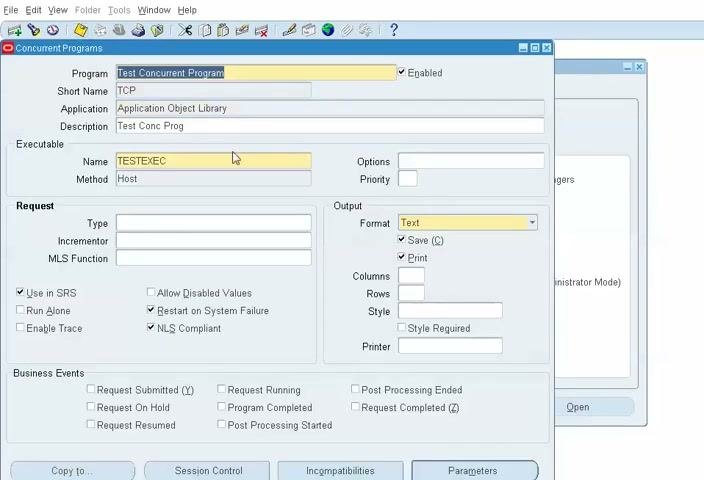
Open the Concurrent Programs form and enter the following values:
- Program:
Test Concurrent Program - Short Name:
TCP - Application: Begin typing
object - Description:
Test Conc Prog
Make sure the Enabled checkbox is selected.
Select the application
In the Application field, search for and select Application Object Library. Confirm the selection in the application search dialog.
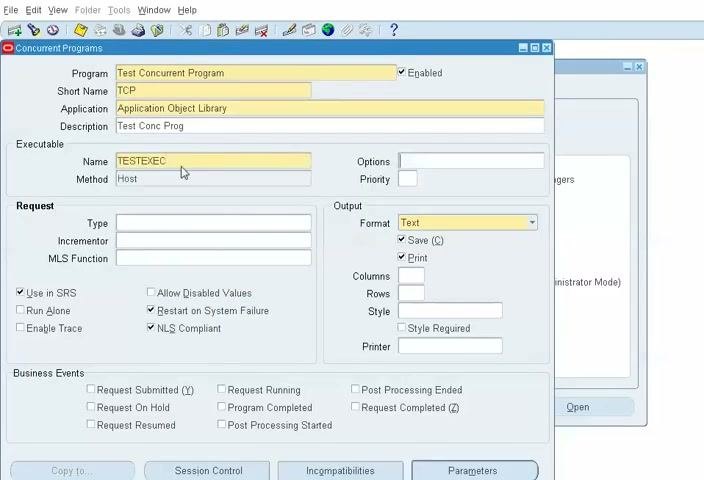
Associate the executable with the concurrent program
In the Executable Name field, enter TESTEXEC. In the Method field, make sure Host is selected. Confirm that the Application and Description fields are populated correctly.
Define the parameter and its prompt
Click Parameters to open the Concurrent Program Parameters window. Make sure these values are entered:
- Program:
Test Concurrent Program - Application:
Application Object Library - Seq:
10 - Parameter:
Date - Description:
Enter Date - Enabled: Checked
- Value Set:
Standard Date - Description (Validation):
Date - Display: Checked
- Display Size:
11 - Description Size:
50 - Concatenated Description Size:
25 - Prompt:
Date
The Prompt value is the label users see when they enter this parameter.
Review the completed definition
Switch back to the Concurrent Programs window and verify that all fields are populated correctly:
- Program:
Test Concurrent Program - Short Name:
TCP - Application:
Application Object Library - Description:
Test Conc Prog - Enabled: Checked
- Executable Name:
TESTEXEC - Method:
Host - Output Format:
Text - Save: Checked
- Print: Unchecked, unless required
- NLS Compliant: Checked
Confirm that the required options and business events are set for your use case.
Save your changes
Click the save icon or select File > Save to store all configurations.
Summary
You now know how to create a concurrent program in Oracle EBS. You reviewed an existing program and its executable, learned the request, output, business event, incompatibility, and parameter options, and compared execution methods. Then you defined a new executable, created the concurrent program, associated the two, added a parameter, and saved the definition.
Generation details: cost, quality tiers
Docsie billed 4,000 credits ($2.80) to analyze this 8-minute video at standard quality. The rewrite, template fill and Word/PDF exports were included. The same video at each quality tier:
| Quality | Frames sampled | Credits | Approx. cost |
|---|---|---|---|
| Draft | every 16-30 s | 2,000 | $1.40 |
| Standard (this guide) | every 8-15 s | 4,000 | $2.80 |
| Detailed | every 4-7 s | 8,000 | $5.60 |
| Ultra | every 1-3 s | 16,000 | $11.20 |
Credits priced at $0.70 per 1,000; plans include a monthly allowance. Enterprise customers on on-premise or bring-your-own-model deployments run this on their own inference and pay no per-video credits.
Generated by Docsie Video-to-Docs on 2026-11-15 from a 7-minute video. Screenshots are frames from the source video and belong to their creator, logicwala, whose original is embedded above. If you own this video and want the guide removed or credited differently, contact us and we will act within one business day.